Running an AI model locally means downloading the model to your own computer and letting your graphics card, or the processor alone, answer your prompts instead of a company’s servers. Ollama, LM Studio, Jan and GPT4All all do this on macOS, Windows and Linux, cost nothing for local use, and say chats with local models stay on your machine, so none of that separates them.
Two things decide which one fits you, and a third settles some cases. The first is whether you want an app to chat in, or a model server for other software to call, such as a code editor, a coding agent or a chat page in your browser. The second is your hardware: an Intel Mac, a Windows laptop with a Snapdragon chip or an Intel graphics card each narrows the field. The third is whether you need the code to be open source.
| Ollama | LM Studio | Jan | GPT4All | |
|---|---|---|---|---|
| License | Open source, MIT | Closed source | Open source, Apache 2.0 | Open source, MIT |
| What you open | Command line; chat window on macOS and Windows | Desktop app | Desktop app | Desktop app |
| Intel Macs | Processor only | Not supported | Universal download; not documented | Runs; best on Apple Silicon |
| Windows or Linux on ARM | Not stated | Supported | Not stated | Not supported |
| Paid extras | Cloud models, from $20 a month | Hosted models, from $20 a month | None listed | None listed |
We compared the four from their own documentation, pricing and release history in early November 2026. Two finish level at the top for quite different readers, and one hasn’t shipped an update in more than a year and a half.
Scores
1–5 per criterion · select a score for its reasoning and any sources| # | Product | Model formats and downloads | GPU support | Local API for other apps | Release recency | Overall |
|---|---|---|---|---|---|---|
| 1 | LM Studio | 5 | 4 | 5 | 5 | 4.8 |
| 2 | Ollama | 4 | 5 | 5 | 5 | 4.8 |
| 3 | Jan | 5 | 5 | 3 | 5 | 4.5 |
| 4 | GPT4All | 3 | 4 | 3 | 1 | 2.8 |




Equal displayed overall scores are ordered by the earlier criteria; a known score comes before an unknown score. Identical scores use alphabetical order.
How each criterion is scored
Model formats and downloads
Which model file formats the app runs (GGUF, MLX, Safetensors), and whether you can find and download models inside the app or import model files you already have.
- 5 Two or more model formats, in-app Hugging Face search and download, and import of local model files
- 4 Two or more model formats (GGUF plus MLX or Safetensors), with in-app downloads
- 3 One model format (GGUF), with in-app search and download of Hugging Face models
- 2 One model format, with in-app downloads from a fixed catalog only
- 1 No in-app model downloads; model files must be added by hand
GPU support
Which graphics processors (GPUs) the project documents for speeding up models: NVIDIA, AMD, Apple Silicon and Intel, plus running on the processor (CPU) alone.
- 5 NVIDIA, AMD, Apple Silicon and Intel GPUs (for example through Vulkan), and a documented processor-only mode
- 4 NVIDIA, AMD and Apple Silicon GPUs
- 3 Two GPU families, for example NVIDIA and Apple Silicon
- 2 One GPU family, for example Apple Silicon only
- 1 Processor (CPU) only
Local API for other apps
Whether other programs on your computer or network can use the local models through an API that copies OpenAI's, so tools built for OpenAI work by changing one address.
- 5 As 4, plus a second API (its own REST API or an Anthropic-compatible one) and official client libraries
- 4 OpenAI-compatible chat and embeddings endpoints that other devices on your network can reach
- 3 OpenAI-compatible chat endpoint that only listens on your own computer
- 2 A local API of its own that is not OpenAI-compatible
- 1 No local API
Release recency
How recently the latest version was released, from GitHub release data or the project's own changelog, counted back from 5 November 2026.
- 5 Latest release less than 1 month old
- 4 Latest release 1 to 3 months old
- 3 Latest release 3 to 6 months old
- 2 Latest release 6 to 12 months old
- 1 Latest release more than 12 months old
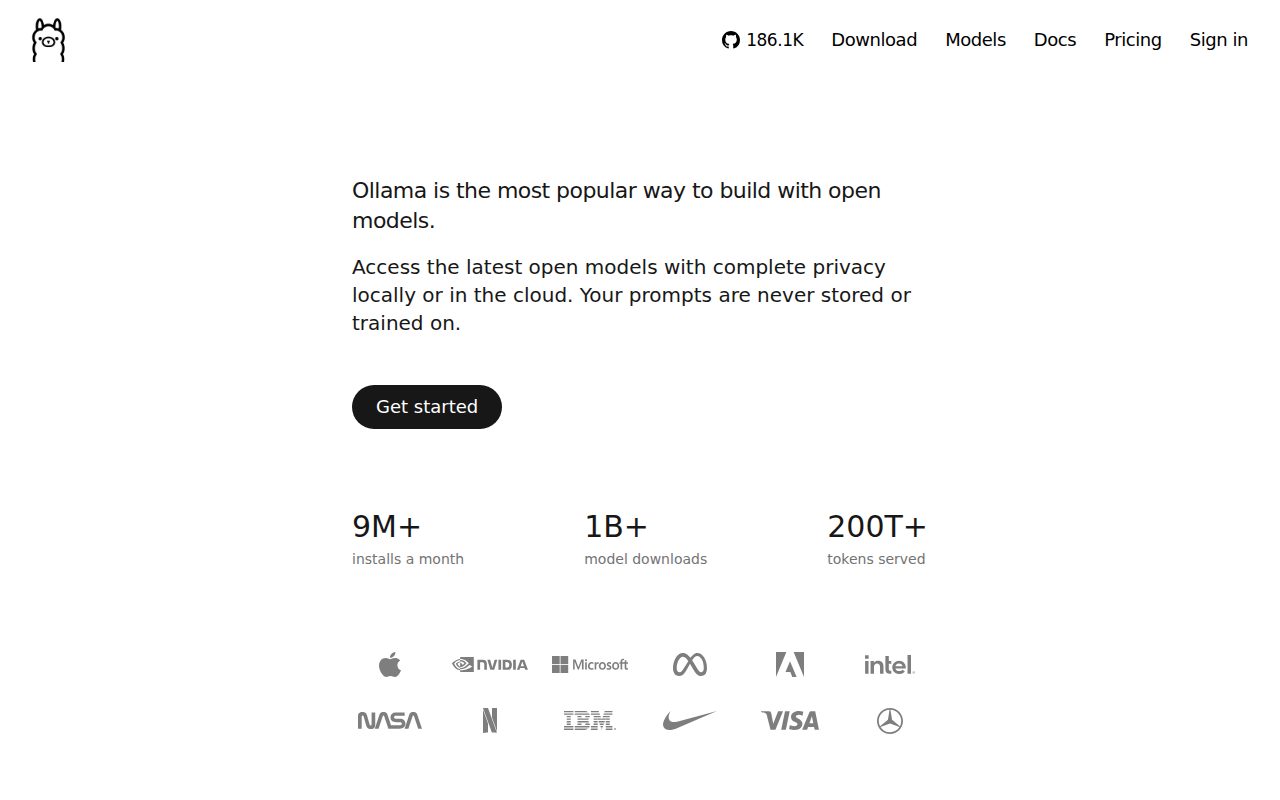
Ollama is a model runner that sits in the background and answers whatever asks it: its own command line, a chat window, a script or a coding agent. We’d recommend it to anyone whose local model will mostly be used by other software, or who is setting one up on a Linux server.
If you remember Ollama as a terminal-only tool, that’s no longer the whole story. The macOS and Windows versions now open a window where you download a model, chat with it, and drop in a text file or PDF to ask about. On Linux, the setup guide covers only the command line and a background service, so Linux users who want a chat window add a browser interface such as Open WebUI.
Its strength is how many other tools already know how to talk to it. Ollama’s README lists ready-made hookups for Claude Code, Codex, Copilot CLI and OpenCode, and its server takes OpenAI-style and Anthropic-style requests next to its own REST API. Models are easy to get too: GGUF is the usual file format for local models, and Hugging Face’s own Ollama guide says any of the tens of thousands of public GGUF models on its site runs with a single ollama run command.
Ollama makes its money from cloud models, from $20 a month. Running models on your own hardware costs nothing and has no usage limit.
What it does
- Runs GGUF models and imports Safetensors weights
- Downloads from its own model library, or any GGUF model on Hugging Face by name
- OpenAI-compatible and Anthropic-compatible APIs plus its own REST API, reachable from your network once you set
OLLAMA_HOST - Starts coding agents such as Claude Code with
ollama launch
Pros
- Open source under the MIT license
- Documents NVIDIA, AMD, Apple and Intel graphics, plus a processor-only mode
- Official Python and JavaScript libraries
- Installs on Linux with one command and runs as a system service
Cons
- No Hugging Face search inside the app, so you find a model on the web and run it by name
- No chat window on Linux; you need a second app such as Open WebUI for one
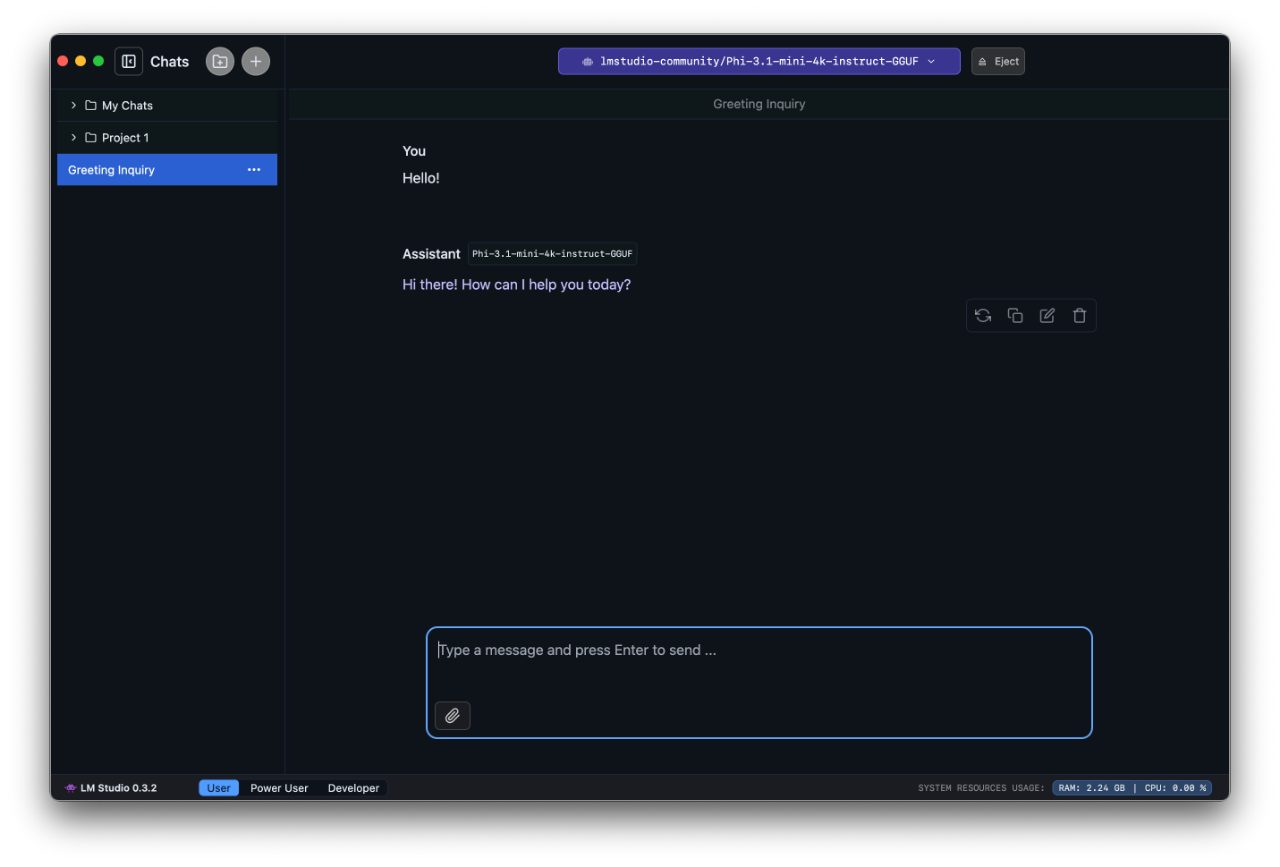
LM Studio is a desktop app you live in: one window where you search Hugging Face, download a model, chat with it, and switch on a server when another program wants it too. We’d recommend it to most people who mainly want to chat with local models on an Apple Silicon Mac or a Windows or Linux PC, because nothing in that loop needs a terminal.
The Discover tab is where it shines. You type a model name, pick a result from Hugging Face and download it without leaving the app. On Apple Silicon it runs MLX models, built for Apple’s own machine-learning framework, as well as GGUF ones, and files you got elsewhere can be sideloaded.
Ollama finishes level with it, and for serving other apps the two overlap a lot. Both offer OpenAI-style and Anthropic-style APIs that other devices on your network can reach, including embeddings, the lists of numbers document-search tools use to find related text. So a coding agent or a document-search tool works with either. LM Studio fits better when you are the one browsing and chatting, and Ollama when software does the asking.
For chatting, the closer rival is Jan, an open-source app of the same kind. LM Studio’s edge is that it documents support for Windows and Linux PCs with ARM chips, and a fuller server for later: embeddings and an official Python SDK. Jan’s case is open code, Intel Arc graphics and hosted models from OpenAI or Anthropic in the same window. If none of those matters to you, either will do.
Running models locally is free. LM Studio charges for Bionic+, a $20-a-month plan that adds openly available models hosted on US servers.
What it does
- Searches and downloads Hugging Face models inside the app
- Runs GGUF models, and MLX models on Apple Silicon
- Sideloads model files you got outside the app
- OpenAI-compatible and Anthropic-compatible endpoints, on your computer or your network
- Official Python SDK for loading models, generating text and building agents
Pros
- Finding, downloading and chatting with a model all happen in one window
- Supports Windows and Linux PCs with ARM processors, such as Snapdragon X Elite laptops
- Chat, document chat and the local server work without internet once a model is downloaded
Cons
- Doesn't run on Intel-based Macs
- Closed source, and its terms license it for personal and internal business use, so read them before building a product on it
- On x64 Windows PCs it needs a processor with AVX2 instructions, which rules out some older chips
- Its system requirements don't mention Intel graphics, so Intel Arc owners can't count on acceleration
Who should skip: Intel Mac owners, and anyone who needs the app's source code open.
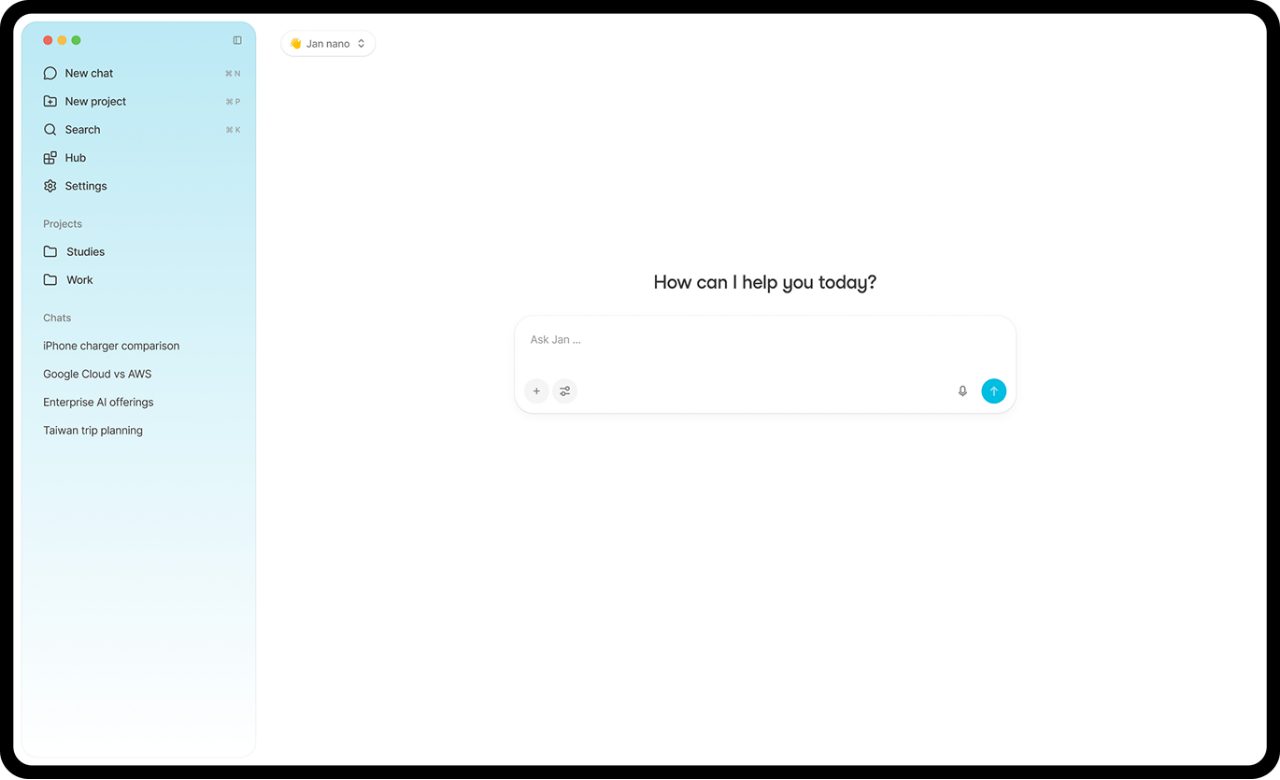
Jan is an open-source desktop app where you download models from a hub connected to Hugging Face and chat with them. We’d recommend it over LM Studio if you want the code open or your Windows PC has Intel Arc graphics, which LM Studio’s requirements don’t mention.
Jan connects to hosted models such as OpenAI’s and Anthropic’s as well, so one app covers both the models on your disk and the big cloud ones.
Its weak spot is serving other apps. Jan’s server speaks OpenAI’s chat format and can be opened to your local network, but its API docs cover only the chat endpoint. A document-search or note-taking tool that needs embeddings has nothing documented to call, while Ollama and LM Studio both document one.
What it does
- Downloads GGUF models from a hub connected to Hugging Face
- Imports GGUF files, and MLX models on Apple Silicon
- Connects to hosted models from OpenAI, Anthropic, Mistral, Groq and others
- OpenAI-compatible chat server that other devices on your network can reach
- Engines for CUDA, ROCm, Vulkan, Apple's Metal and the processor alone
Pros
- Open source under Apache 2.0, and we found no paid plan
- Lists Intel Arc graphics with NVIDIA and AMD on Windows
- Collects no usage data until you choose otherwise at first launch
Cons
- Its API docs cover only the chat endpoint, with no embeddings endpoint documented
Who should skip: Anyone whose other tools need an embeddings endpoint from the local server, which Jan's API docs don't show.
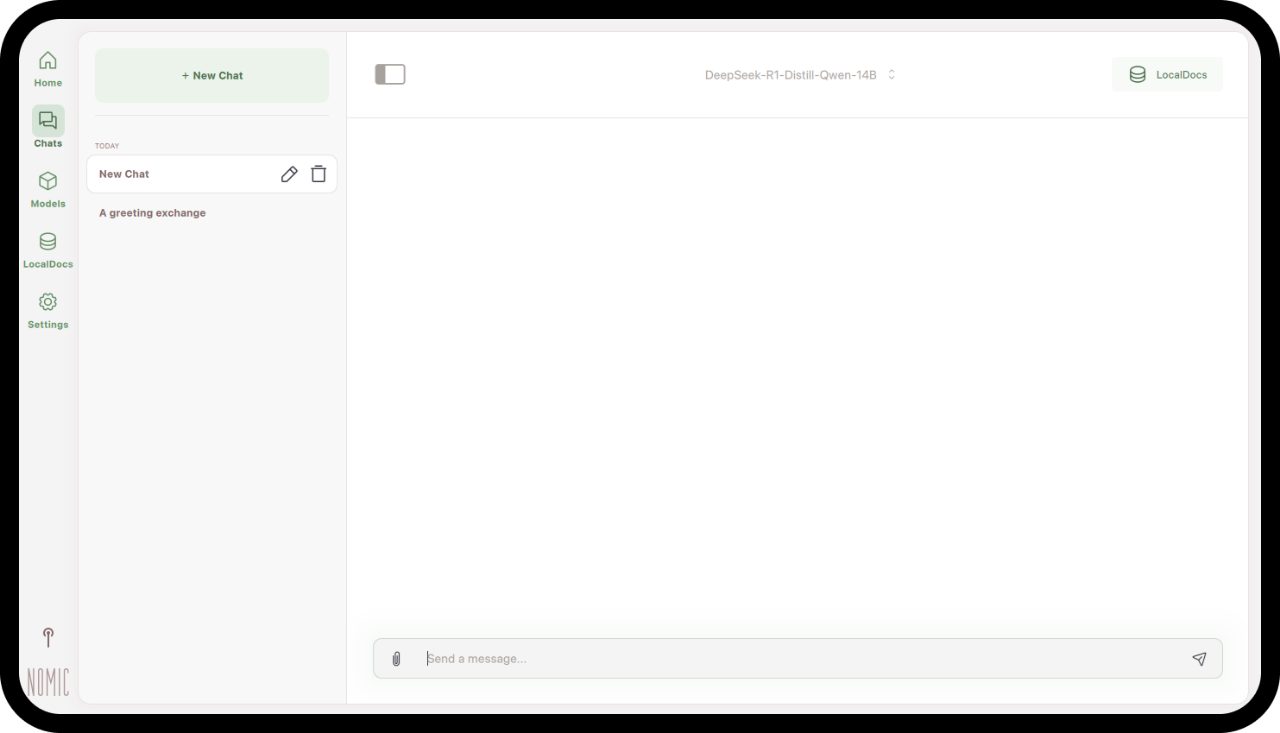
GPT4All is Nomic’s open-source desktop app for chatting with local models, with LocalDocs to turn your own files into sources the model answers from. We wouldn’t install it fresh today, because its last desktop release came out in February 2025.
That age bites harder here than in most apps. GPT4All runs only models that its bundled copy of llama.cpp supports, and that copy hasn’t changed since, so a newer model family that needed llama.cpp updates may not load.
The one reader it might still suit has an old PC. Its published minimum goes back to processors like the Intel Core i3-2100, which lacks the AVX2 instructions LM Studio needs on x64 Windows PCs, and to graphics that handle Direct3D 11 or OpenGL 2.1. The Ollama and Jan pages we read state no processor minimum, so we’d try Jan’s processor-only engine first, since Jan still gets updates.
What it does
- Searches Hugging Face for models inside the app
- LocalDocs answers questions from your own files
- Runs on the processor, on Apple Silicon through Metal, and on NVIDIA and AMD graphics through Vulkan
- OpenAI-compatible API server on your own computer
Pros
- Open source under the MIT license
- Sharing your chats with the GPT4All community is opt-in
Cons
- No release since February 2025, so model families that need newer llama.cpp support may not load
- Its API listens only on your own computer, so other devices on your network can't use it
- Doesn't support Windows or Linux PCs with ARM processors
Who should skip: Anyone starting fresh who wants newly released models, and owners of Windows or Linux PCs with ARM processors.
How to choose
- You mainly want to chat, on an Apple Silicon Mac or a Windows or Linux PC: LM Studio, because search, download and chat all happen in one window. Jan does much the same with open code.
- You want that kind of app with open source code: Jan.
- Scripts, coding agents or a browser chat page will use the model, or it runs on a Linux server: Ollama.
- Other tools need embeddings from a server on your network: Ollama or LM Studio.
- You want OpenAI’s or Anthropic’s hosted models next to local ones: Jan, the only one of the four whose docs we read describe this.
- Your PC has Intel Arc graphics: Jan or Ollama, the two whose documentation names Intel graphics alongside NVIDIA and AMD.
- Your Windows or Linux PC has an ARM chip: LM Studio, the one that documents support for it.
- You have an Intel Mac: Ollama, the one whose docs describe Intel Mac support, on the processor only. Jan’s universal download may run there too, though its docs don’t say how well. LM Studio doesn’t support Intel Macs.
- Your Windows PC predates AVX2 processors: LM Studio won’t run on it, and GPT4All’s published minimum is the lowest of the four.
Our picks
Also considered
- llama.cpp
The engine behind GGUF models in apps such as LM Studio, Jan and GPT4All. You use it through command-line tools and an OpenAI-compatible server rather than an app window, so it’s a building block more than an app to pick.
- Open WebUI
A chat interface in your browser that gets its models from Ollama or another OpenAI-compatible API, so it pairs with Ollama rather than replacing it. We rank it among self-hosted AI chat interfaces.
- AnythingLLM
It has a built-in local model engine, but it’s built around chatting with your documents, with agents and multi-user support, so we rank it among self-hosted AI chat interfaces.


Questions
How much memory do I need to run an AI model locally?
It depends on the model’s size, counted in billions of parameters, so a 7B model has about seven billion. Jan’s macOS guidance is 8GB of RAM for 3B models, 16GB for 7B and 32GB for 13B. GPT4All asks for 16GB, or 8GB if you stick to 3B models, and LM Studio recommends 16GB or more on a Mac and at least 4GB of video memory on a PC graphics card. We’d treat 16GB as the starting point if you want 7B models.
Can I run these apps on an Intel Mac?
Not LM Studio, which doesn’t support Intel-based Macs. Ollama runs on them using the processor only, and Jan’s macOS download is a universal build, though its docs don’t say whether the graphics chip helps on an Intel Mac. GPT4All’s macOS build needs Monterey 12.6 or newer and says it works best on Apple Silicon. A processor alone is slower than a graphics chip, so smaller models suit an Intel Mac better.
Key facts and sources
4 products
Licenses, requirements, starting prices and sources used for scores.
- License
- Proprietary
- Runs on
- macOS (Apple Silicon only)
- Windows (x64 and ARM)
- Linux (x64 and ARM64)
- Needs
- A processor with AVX2 on x64 Windows
- License
- MIT, open source
- Runs on
- macOS (Apple Silicon; Intel Macs run on the processor only)
- Windows
- Linux
- License
- Apache 2.0, open source
- Runs on
- macOS 13.6 or newer
- Windows 10 or newer
- Linux
- License
- MIT, open source
- Runs on
- macOS 12.6 or newer
- Windows (x86-64 only)
- Linux (x86-64 only)