
Snipping Tool
Windows 11's built-in screenshot tool, with a simple area-or-window screen recorder
Our verdict
#10 of 10 in Windows screen recorders · Already on Windows 11
Pros
- Free and already installed on Windows 11
- Records the PC's sound and your microphone
Cons
- No webcam overlay
- Trims only the start and end
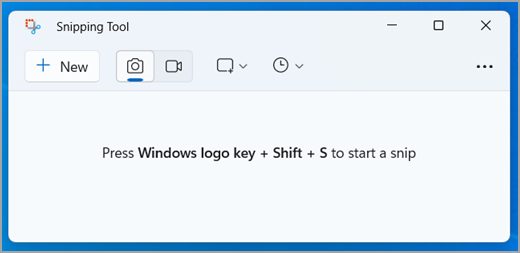
Snipping Tool is Microsoft’s free capture app that comes with Windows 11 and updates through the Microsoft Store. Its Record mode (Windows+Shift+R) records a rectangle or one window of the screen to MP4, with optional microphone and system audio, pause and resume, and a basic trim of the start and end. For more editing it hands the video to Clipchamp. It has no webcam overlay, and reviewers report 30 fps recording and no fixed length limit. Screen recording is a Windows 11 feature; Windows 10 only gets the screenshot side.
What users say
Evidence ↓Only one reviewer account was collected, and it comes from a vendor of a competing recorder. It finds Snipping Tool good for short tutorials and bug reports and says it lacks webcam capture, fine audio control and long-session reliability. A forum user also reported an early 2023 saving bug.
Rankings and alternatives
- Windows screen recorders #10 of 10 Already on Windows 11
- OBS Studio #1 Free, no limits, the most control
- Bandicam #2 Simple recorder you can buy once
- FocuSee #3 Automatic zooms for tutorials and demos



Windows screen recorders scores
Evaluated Nov 17, 2026 Evidence ↓- Recording quality and smoothness · counts double 2
2/5 means: 1080p at 30 fps or a low cap on the free or entry plan, or frequent reports of failed or choppy recordings
One vendor-blog test found 30 fps MP4, and Microsoft publishes no resolution, hardware-encoding or length figures. The same blog says it suits short recordings and some users report long captures stopping. Resting on a single competing-vendor source plus general knowledge.
- Ease of getting a finished video 4
4/5 means: Easy to record and finish, with a few rough edges or extra steps
Win+Shift+R, pick an area, Stop, then save or share, with trim built in, so a short clip is finished without a second app. Rough edges are the fixed countdown and area selection each time, and anything beyond a trim needs Clipchamp.
- Editing depth 2
2/5 means: Trim the ends or cut out sections
Trims the start and end only; no middle cuts are documented. Anything more is handed to Clipchamp.
- Cost over three years 5
5/5 means: Free
Free and included with Windows 11, with no watermark or time limit documented.
- Recording options 2
2/5 means: Missing one basic, such as the webcam overlay, the PC's sound or a free choice of area
Rectangle or window area, with microphone and system audio together, but no webcam overlay (vendor blog only) and no separate audio tracks.
- Polish without editing · counts half 1
1/5 means: The raw capture, with nothing added
No automatic zooms, cursor effects or backgrounds appear in any page read; the output is the raw capture.
- Sharing · counts half 2
2/5 means: Save plus uploading to services you set up, such as YouTube, Dropbox or Google Drive
Saves an MP4 to Videos and has a Windows Share menu for sending it on; no hosted link. Specific share targets were not checked.
- Gameplay capture · counts half 2
2/5 means: Records games through ordinary screen or window capture
Records a screen area or window like any desktop content, with no game capture mode, replay buffer or FPS overlay. Behavior with fullscreen games was not checked.
Pricing
- Snipping Tool Free Included with Windows 11 at no extra cost; also available from the Microsoft Store.
Prices checked Nov 17, 2026.
Evidence and sources
What users say
Summary 3 quotes
-
In my testing, Snipping Tool screen recordings are captured at 30 FPS and saved as MP4.
Jean, writer at EaseUS (competing recorder vendor) · recorder.easeus.com/screen-recording-resource/snipping-tool-reviews.html · published · checked -
Snipping Tool can record your screen and audio, but it doesn't provide a built-in webcam overlay.
recorder.easeus.com/screen-recording-resource/snipping-tool-reviews.html · published · checked -
Snipping Tool doesn't specify a fixed maximum recording time. In practice, it is better suited to short screen recordings than very long sessions. Some users have reported recordings stopping unexpectedly during longer captures, which can result in lost footage.
recorder.easeus.com/screen-recording-resource/snipping-tool-reviews.html · published · checked
Windows screen recorders scores
Recording quality and smoothness 2 quotes
-
In my testing, Snipping Tool screen recordings are captured at 30 FPS and saved as MP4.
Jean, writer at EaseUS (competing recorder vendor) · recorder.easeus.com/screen-recording-resource/snipping-tool-reviews.html · published · checked -
Snipping Tool doesn't specify a fixed maximum recording time. In practice, it is better suited to short screen recordings than very long sessions. Some users have reported recordings stopping unexpectedly during longer captures, which can result in lost footage.
recorder.easeus.com/screen-recording-resource/snipping-tool-reviews.html · published · checked
Ease of getting a finished video 3 quotes
-
To capture a video snip, open Snipping Tool, select the Record button, then select New, or press Windows logo key + Shift + R. Select the area of the screen you wish to record, then select Start. When you are done, select Stop. At this point you can save the recording as-is or select Edit in Clipchamp to work with it in the Clipchamp video editor.
support.microsoft.com/en-us/windows/apps/use-snipping-tool-to-capture-screenshots · checked -
Snipping Tool introduced trim. With trim, you can adjust the start and end times of your screen recordings to cut out any unnecessary video snippets from your video.
Shawn Brink, administrator of the Windows 11 Forum · elevenforum.com/t/record-screen-with-snipping-tool-app-in-windows-11.11190 · checked -
Recordings from the Snipping Tool get saved as a .mp4 file to the C:\Users\<username>\Videos\Screen Recordings folder by default for the current user.
Shawn Brink, administrator of the Windows 11 Forum · elevenforum.com/t/record-screen-with-snipping-tool-app-in-windows-11.11190 · checked
Editing depth 2 quotes
-
To capture a video snip, open Snipping Tool, select the Record button, then select New, or press Windows logo key + Shift + R. Select the area of the screen you wish to record, then select Start. When you are done, select Stop. At this point you can save the recording as-is or select Edit in Clipchamp to work with it in the Clipchamp video editor.
support.microsoft.com/en-us/windows/apps/use-snipping-tool-to-capture-screenshots · checked -
Snipping Tool introduced trim. With trim, you can adjust the start and end times of your screen recordings to cut out any unnecessary video snippets from your video.
Shawn Brink, administrator of the Windows 11 Forum · elevenforum.com/t/record-screen-with-snipping-tool-app-in-windows-11.11190 · checked
Cost over three years 1 quote
-
To capture a video snip, open Snipping Tool, select the Record button, then select New, or press Windows logo key + Shift + R. Select the area of the screen you wish to record, then select Start. When you are done, select Stop. At this point you can save the recording as-is or select Edit in Clipchamp to work with it in the Clipchamp video editor.
support.microsoft.com/en-us/windows/apps/use-snipping-tool-to-capture-screenshots · checked
Recording options 4 quotes
-
Snipping Tool app version 11.2307.44.0 introduces support for optionally recording your PC audio and voice overs using a microphone.
Shawn Brink, administrator of the Windows 11 Forum · elevenforum.com/t/record-screen-with-snipping-tool-app-in-windows-11.11190 · checked -
Snipping Tool (version 11.2507.14.0 and higher) is introducing window mode screen recording in Snipping Tool—an easy way to capture activity within a specific app window.
Shawn Brink, administrator of the Windows 11 Forum · elevenforum.com/t/record-screen-with-snipping-tool-app-in-windows-11.11190 · checked -
Snipping Tool can record your screen and audio, but it doesn't provide a built-in webcam overlay.
recorder.easeus.com/screen-recording-resource/snipping-tool-reviews.html · published · checked -
system and app audio aren't treated as separate recording sources that you can independently control inside Snipping Tool.
recorder.easeus.com/screen-recording-resource/snipping-tool-reviews.html · published · checked
Sharing 2 quotes
-
After you capture a snip, select the See More menu on top right, and then select Share.
support.microsoft.com/en-us/windows/apps/use-snipping-tool-to-capture-screenshots · checked -
Recordings from the Snipping Tool get saved as a .mp4 file to the C:\Users\<username>\Videos\Screen Recordings folder by default for the current user.
Shawn Brink, administrator of the Windows 11 Forum · elevenforum.com/t/record-screen-with-snipping-tool-app-in-windows-11.11190 · checked
Gameplay capture 2 quotes
-
Snipping Tool (version 11.2507.14.0 and higher) is introducing window mode screen recording in Snipping Tool—an easy way to capture activity within a specific app window.
Shawn Brink, administrator of the Windows 11 Forum · elevenforum.com/t/record-screen-with-snipping-tool-app-in-windows-11.11190 · checked -
Once recording begins, however, the region remains fixed—so if the app moves or gets covered by another window, the recording won’t follow it.
Shawn Brink, administrator of the Windows 11 Forum · elevenforum.com/t/record-screen-with-snipping-tool-app-in-windows-11.11190 · checked
Facts
License 1 quote
-
To capture a video snip, open Snipping Tool, select the Record button, then select New, or press Windows logo key + Shift + R. Select the area of the screen you wish to record, then select Start. When you are done, select Stop. At this point you can save the recording as-is or select Edit in Clipchamp to work with it in the Clipchamp video editor.
support.microsoft.com/en-us/windows/apps/use-snipping-tool-to-capture-screenshots · checked
Runs on 2 quotes
-
Microsoft currently lists Snipping Tool for both Windows 10 and Windows 11, while screen recording is a Windows 11 feature.
recorder.easeus.com/screen-recording-resource/snipping-tool-reviews.html · published · checked -
To capture a video snip, open Snipping Tool, select the Record button, then select New, or press Windows logo key + Shift + R. Select the area of the screen you wish to record, then select Start. When you are done, select Stop. At this point you can save the recording as-is or select Edit in Clipchamp to work with it in the Clipchamp video editor.
support.microsoft.com/en-us/windows/apps/use-snipping-tool-to-capture-screenshots · checked
More from the sources
Features 1 quote
-
Snipping Tool can also turn a short screen recording into a GIF.
recorder.easeus.com/screen-recording-resource/snipping-tool-reviews.html · published · checked