Evernote alternatives for note-taking
Evernote keeps everything in one searchable library: typed notes, web pages you clip, scanned receipts, PDFs, and voice memos, sorted into notebooks and tags. Its plans push people toward the top price. The free plan holds 50 notes in a single notebook and syncs to one device, so your phone and laptop stop sharing notes unless you pay. The cheaper paid plan, Starter, stops at 1,000 notes, which pushes anyone with a long-running archive onto Advanced at about $250 a year. Prices are as of November 2026.
If you just want your notes free again, I’d go with OneNote, or with Apple Notes if every device you own is Apple. If you’re moving thousands of notes, Joplin is the closest thing to Evernote that costs nothing, and Obsidian is the pick if you want your notes as plain files on your own drive. Evernote is still worth its price for people who clip and scan a lot and need to search inside those scans.
Where to go instead

If you just want your notes free again
Three free apps cover most people the free plan pushed out. None of them caps how many notes you keep, and each syncs your notes between devices, as long as you’re in that company’s world: a Microsoft account for OneNote, Apple devices for Apple Notes, or a Google account for Keep. The devices you already carry decide most of this choice.
1–5 per criterion · select a score for its reasoning and any sources
| # | Product | Overall | Typing class notes , counts double | Works on all your devices | Cost for a student | Organizing and finding notes | Easy to pick up | Handwriting and marking up slides , counts half | Group projects | Recording lectures , counts half | Works without Wi-Fi , counts half |
|---|---|---|---|---|---|---|---|---|---|---|---|
| 1 | Microsoft OneNote | 4.2 | 4 | 4 | 5 | 5 | 4 | 3 | 4 | 4 | 4 |
| 2 | Apple Notes | 3.9 | 4 | 2 | 5 | 5 | 5 | 3 | 3 | 3 | 4 |
| 3 | Evernote | 3.8 | 4 | 5 | 2 | 5 | 4 | 2 | 4 | 3 | 3 |
| 4 | Google Keep | 3.5 | 2 | 5 | 5 | 2 | 5 | 2 | 4 | 3 | 4 |


×2 = counts double in the overall score, ×½ = counts half.
How each criterion is scored
Typing class notes
Counts double in the overall score: Most students take most of their notes by typing on a laptop, so how good the app is at that is the main thing they choose by.
How well it handles typed lecture notes on a laptop: getting words down fast, giving them structure (headings, bullet lists and outlines, tables, checklists), writing equations, dropping in images and screenshots, and how long notes hold up across a semester. Judged from the editor's features and from what students and reviewers agree on.
- 5 Among the best for typed class notes, fast and full featured, with equations, tables, outlines and room for images
- 4 A full typed editor with headings, lists, tables and either equations or a freeform page, with small gaps
- 3 Good for typed notes with basic formatting, but missing structure such as tables, equations or outlines
- 2 Fine for short plain notes; long or structured lecture notes get awkward
- 1 Typing is an afterthought, with text boxes and little formatting
Works on all your devices
Whether the same notes are there on your laptop and phone, whatever their brands (Windows, Mac, iPhone, Android, Chromebook or a school computer's browser), on the plan a student would actually use.
- 5 Full apps or a full web version everywhere, synced on the plan a student would use
- 4 Apps or a full web version for Windows, Mac, iPhone and Android, synced on the student's plan, with a clear gap on one of them
- 3 Apps on most platforms, but syncing a laptop and a phone needs a paid plan or your own setup, or some platforms get a cut-down version
- 2 Apple devices only, with at most a limited web version elsewhere
- 1 One device family only, with no way in from others
Cost for a student
What a student pays in a year for the plan they need to keep notes for every class on a laptop and a phone, after any student discount the app offers, in US dollars.
- 5 Everything a student needs is free
- 4 Free covers typical class notes; paying adds conveniences or more storage
- 3 The free plan runs out for many students within a semester, and the plan they'd need costs under about $40 a year
- 2 The free plan runs out quickly, and the plan you'd need costs $40 to $100 a year
- 1 Over $100 a year, or no free plan worth using
Organizing and finding notes
How easily a student keeps notes in order by course and finds them again before an exam: notebooks, folders, tags, links or databases for the structure, and search that also reads text in images, scans, handwriting or PDFs.
- 5 As 3, plus both a richer structure and search that reads images, scans or handwriting
- 4 As 3, plus either a richer structure (nested pages, tags, links or databases) or search that reads images, scans or handwriting
- 3 Folders or notebooks per course, and search of typed text
- 2 A flat list sorted with labels or colors, with search
- 1 No folders and no search inside notes
Easy to pick up
How soon a student who has never used the app takes useful class notes in it, and how much setup it asks for first. Judged from what reviewers and many users agree on and from how the app works.
- 5 Usable in minutes with no setup
- 4 Easy to start, with depth to learn later
- 3 Learnable in an afternoon, with some confusing parts
- 2 A steep start; most students lean on templates, plugins or tutorials
- 1 Takes days of setup or learning before it's useful
Handwriting and marking up slides
Counts half in the overall score: Handwriting decides the choice for students who write with a stylus on a tablet, a smaller group than those who type on a laptop.
How well a student with a stylus can write notes by hand and write on lecture slides and PDF readings, on the tablets students use (iPad, Android tablets, Windows 2-in-1s).
- 5 Among the best apps for handwriting and marking up slides
- 4 Good handwriting and PDF markup on the common tablets
- 3 Handwriting and PDF markup work, but as a side feature, or only on some devices or plans
- 2 A basic drawing tool, or PDF markup only through add-ons
- 1 No handwriting and no PDF markup
Group projects
How well classmates can work in the same notes for a group project: editing at the same time, comments, and whether every classmate can join for free from whatever device they have.
- 5 Live editing with comments and version history that any classmate can join for free from any device
- 4 Live editing together, with a limit such as a paid host or an account for everyone in the same app
- 3 Shared editing, but not live, or every classmate needs the same app account, devices or a paid host
- 2 Share a copy or a read-only view, or shared editing only through add-ons
- 1 No sharing
Recording lectures
Counts half in the overall score: Most students don't record their lectures, and some lecturers don't allow it, so recording decides the choice only for a smaller group.
What the app does with a lecture recording on the plan a student would use: whether it records at all, whether playback is tied to the notes you took at that moment, and whether it makes a transcript.
- 5 Playback tied to your notes plus a transcript, on the plan a student would use
- 4 Playback tied to your notes on the plan a student would use
- 3 Records with a transcript, or with playback tied to your notes, but only on some devices or a pricier plan
- 2 Records audio as a separate clip
- 1 No recording on the plans students use
Works without Wi-Fi
Counts half in the overall score: Losing a connection is an occasional annoyance for most students rather than the reason they choose an app, so it counts for half.
Whether you can open and edit your notes with no connection, such as in a lecture hall with bad Wi-Fi, without setting it up note by note.
- 5 Notes are stored on your devices and work offline everywhere you use them
- 4 Works offline in the apps, with the web version needing a connection
- 3 Works offline in some apps, with the main version needing a connection or offline only on paid plans
- 2 Works offline only after setting it up per note, per browser or per device
- 1 Needs a connection
Microsoft OneNote
Best free replacement for most Evernote users
#1 4.2/5
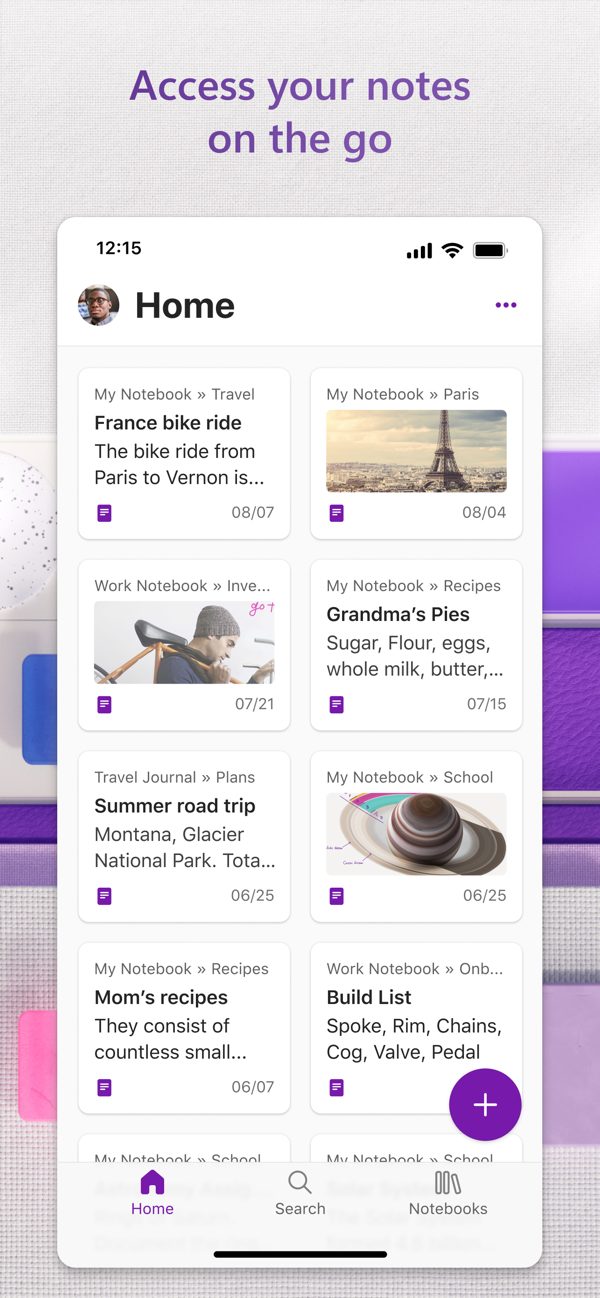

Where Evernote gives you notebooks holding a list of notes, OneNote gives you notebooks split into section tabs, each holding pages. If you sorted Evernote by project or subject, that maps over almost one to one. Each page is a free-form canvas: you can click anywhere to type, drop in a PDF printout, or write with a pen. That’s great on a tablet and a little messier than Evernote’s tidy notes when you only type.
OneNote is free with a Microsoft account on Windows, Mac, iPhone, Android, and the web. Notes sync through OneDrive, which gives you 5 GB free, shared with your other OneDrive files. The OneNote Web Clipper saves pages from your browser, and search finds text inside images, though that part needs an internet connection.
Getting your notes in is the weak spot. Microsoft no longer offers a tool to move notes from Evernote, so a big archive means a third-party converter or Evernote’s HTML export. For a free user’s 50 notes, copying them over by hand is manageable. With thousands of notes, the apps in the next section import them for you. Sync on the Android app can also be slow to bring notes up to date.
What it does
- Notebooks with section tabs and pages
- Free-form pages that mix typing, pen, and PDFs
- Apps for Windows, Mac, phones, and the web
- Web clipper for saving pages from a browser
Pros
- Free, with no limit on notes
- Closest free match to Evernote's notebooks
- Pen and typed notes work on the same page
Cons
- No official way to import Evernote notes
- Free storage is 5 GB, shared with OneDrive
- Android app can lag behind other devices when syncing
Apple Notes
For people who only use Apple devices
#2 3.9/5
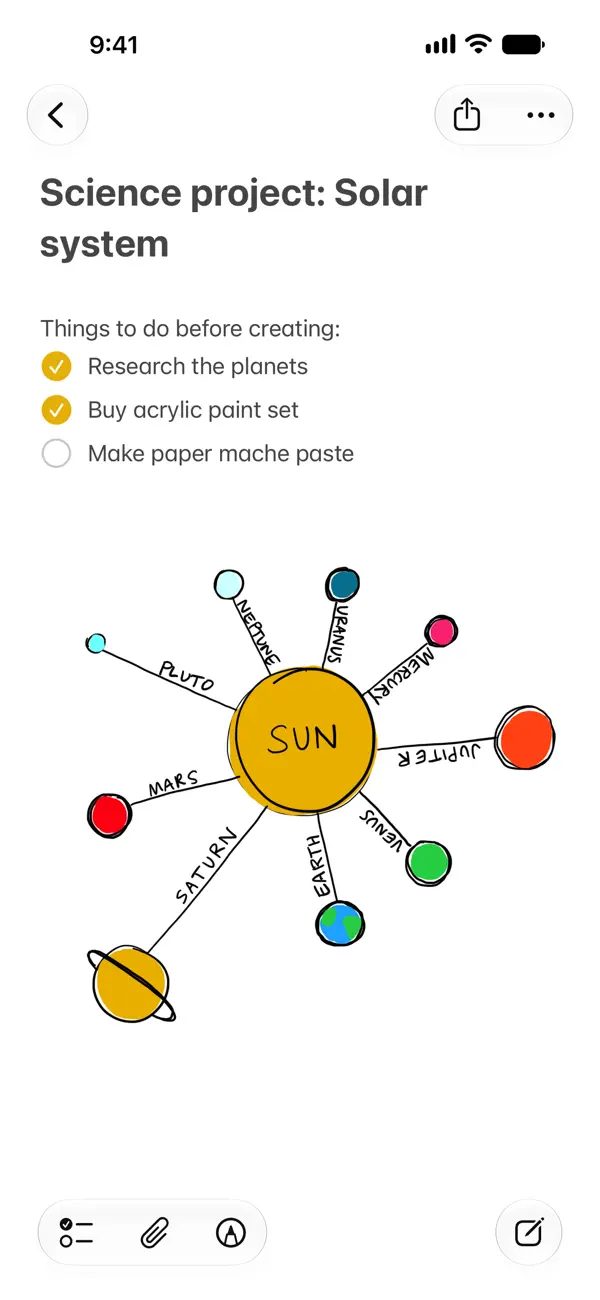

Apple Notes only makes sense if your phone and computer are both Apple. On Windows or Android you get Notes on iCloud.com in a browser, and nothing offline. If that’s fine, it’s the easiest move here: it’s already on your iPhone, iPad, and Mac, it syncs through iCloud, and on a Mac it imports Evernote’s export files directly, turning each Evernote note into a note in Notes. Attachments that Notes can’t handle are left behind, so check notes with unusual file types after the import.
It covers more of Evernote than people expect. You get folders and subfolders, tags, and smart folders that gather notes by rules. There’s a document scanner, and search finds words in your handwriting and inside scanned documents and photos. The free iCloud space is 5 GB, shared with your photos and backups, so plenty of people end up paying for iCloud+ anyway, from $0.99 a month.
Getting notes out is much harder than getting them in. Notes exports one note at a time, so a large archive in Apple Notes is hard to take with you if you switch phones or apps later.
What it does
- Folders, tags, and smart folders
- Document scanner
- Search inside handwriting, scans, and photos
- Imports Evernote export files on a Mac
Pros
- Already installed on iPhone, iPad, and Mac
- Free, with search that finds text in scans and photos
- Simplest move for an all-Apple household
Cons
- No app for Windows or Android, only a browser version
- Exports one note at a time
- Free iCloud storage is shared with photos and backups
- Skip if:
- You use a Windows PC or an Android phone every day
Google Keep
For quick notes and shared lists
#4 3.5/5
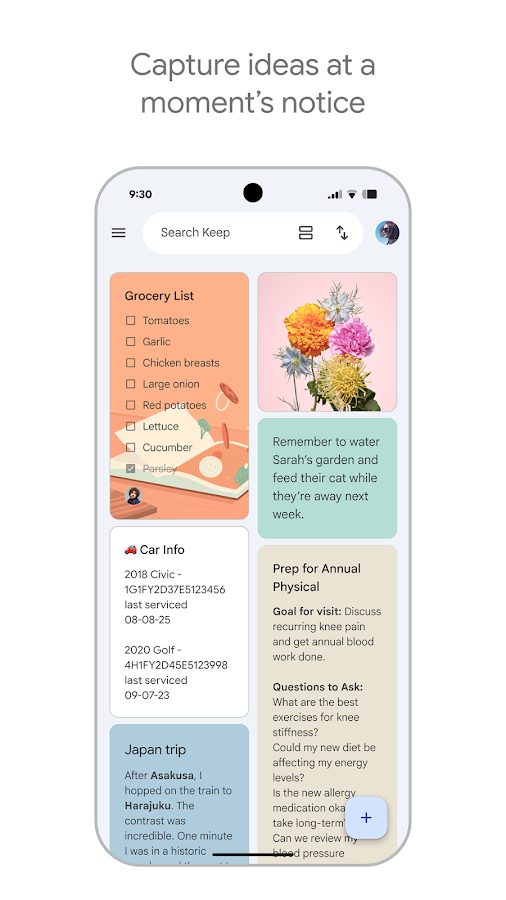
If your Evernote mostly held shopping lists, quick ideas, and photos of receipts, Google Keep does that for free, with no limit on notes, on Android, iPhone, and any browser. Notes are cards you color, pin, and tag with labels. There are no notebooks, so Keep is a pile you search rather than a set of folders. Search finds words in photos (in English), and you can share a list with family so everyone can edit it.
Keep struggles with long notes. Each note holds up to 20,000 characters, and one Play Store reviewer says the Android app “stutters” once a note runs past a paragraph. There’s no desktop app and no way to import from Evernote, so I’d use Keep for what you jot down during the day and keep an archive somewhere else.
What it does
- Unlimited free notes and checklists
- Labels, colors, and pins
- Text search inside photos
- Shared notes that others can edit
Pros
- Free on Android, iPhone, and the web
- Quickest way to jot something down on a phone
- Easy list sharing with family
Cons
- No notebooks, only labels
- 20,000-character limit per note
- No Evernote import and no desktop app
- Skip if:
- You keep long notes or a large archive
If you’re moving thousands of notes
A big archive is where Evernote’s price hurts most, and where leaving takes the most work. Evernote exports only from its Mac and Windows apps, as .enex files, its own export format. You can export one whole notebook at a time, or up to 100 selected notes, so notebook by notebook is the practical route. Nested tags come out flat, and notebook stacks (Evernote’s groups of notebooks) aren’t included in the export. One long-time user with over 12,000 notes summed up why many do it anyway: “They’re doubling my price to let me keep what I already have.”
| Feature | Evernote | Microsoft OneNote | Apple Notes | Google Keep | Joplin | Obsidian | Notion |
|---|---|---|---|---|---|---|---|
| Imports your Evernote notes | Evernote Not applicable | Microsoft OneNote No | Apple Notes Partly Mac only | Google Keep No | Joplin Yes | Obsidian Yes Importer plugin | Notion Yes from your Evernote account |
| Finds text in photos and scans | Evernote Yes | Microsoft OneNote Yes needs a connection | Apple Notes Yes | Google Keep Yes English only | Joplin Yes | Obsidian No plugins add it | Notion No |
Sources
- Evernote: “Find anything fast—Evernote's powerful search can even find text in images and handwritten notes.” play.google.com, checked Nov 17, 2026
- Microsoft OneNote: “Please note that while you can always view and edit your notes while you're offline, some features which require Internet connectivity may not work, such as Optical Character Recognition, Researcher, and creating and deleting notebooks.” support.microsoft.com, checked Nov 17, 2026
- Microsoft OneNote: “Microsoft no longer offers an official tool to move from Evernote to OneNote.” hackceleration.com, checked Nov 23, 2026
- Apple Notes: “Search for text in notes, your handwriting, and even inside scanned documents and photos like receipts or bills.” apps.apple.com, checked Nov 17, 2026
- Apple Notes: “Each Evernote file (.enex) can include multiple notes, and Notes will convert each into a new note.” support.apple.com, checked Nov 23, 2026
- Google Keep: “**Tip**: You can search for text in photos, like images of receipts, by typing the words in the photo. (Available in English only.)” support.google.com, checked Nov 17, 2026
- Joplin: “Notes exported from Evernote can be imported into Joplin, including the formatted content (which is converted to Markdown), resources (images, attachments, etc.) and complete metadata (geolocation, updated time, created time, etc.). Plain Markdown files can also be imported.” joplinapp.org, checked Nov 17, 2026
- Joplin: “Effortlessly find your notes, even within PDFs and images, thanks to the powerful search feature enhanced by Optical Character Recognition (OCR) technology.” play.google.com, checked Nov 17, 2026
- Obsidian: “Obsidian lets you easily migrate your notes from Evernote using the Importer plugin.” obsidian.md, checked Nov 23, 2026
- Notion: “In Notion, go to Import, then Evernote, connect your account and pick notebooks.” hackceleration.com, checked Nov 23, 2026
The three apps below all take a full archive, but they hold it differently. Joplin keeps Evernote’s notebooks and tags. Obsidian turns each note into a plain file. Notion turns notes into rows in a database.
Joplin
For moving a big archive without paying
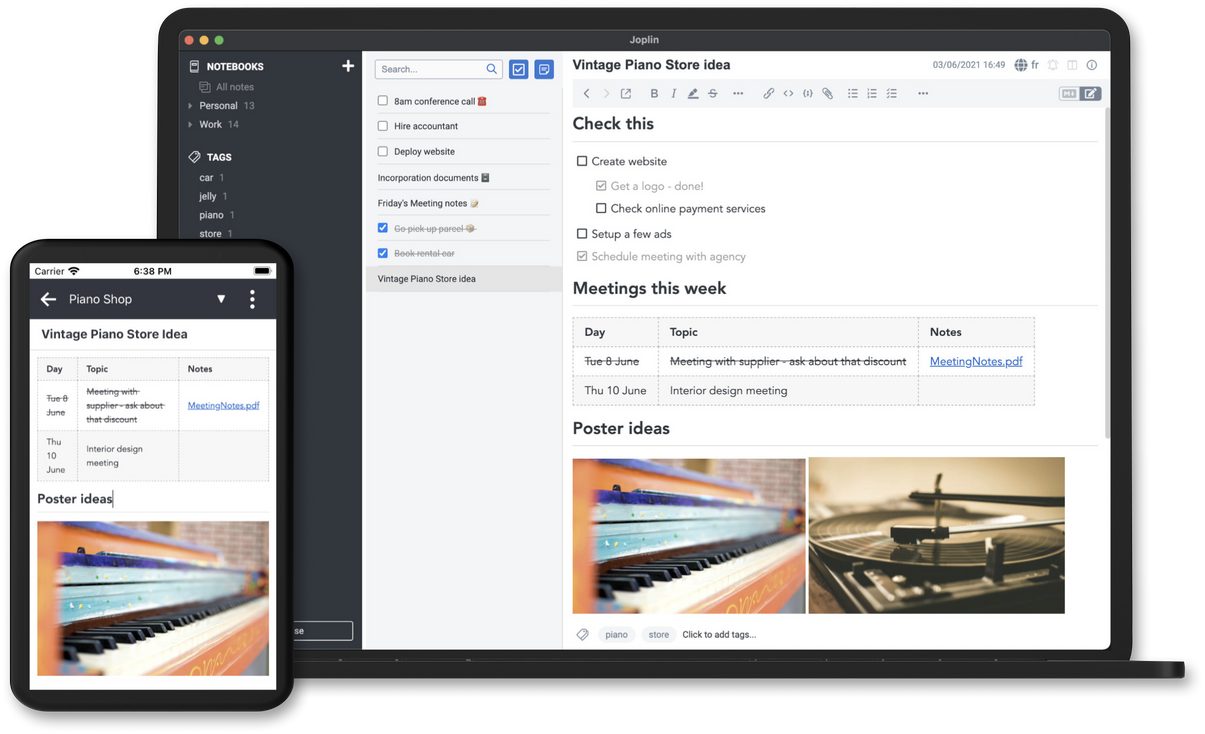
Joplin was built with people leaving Evernote in mind. It imports .enex files with their formatting, images, attachments, and metadata such as creation dates and locations, and it lays notes out in notebooks and tags the way Evernote does. It’s free and open source, runs on Windows, Mac, Linux, Android, and iPhone, has a web clipper for Chrome and Firefox, and searches text inside PDFs and images.
For sync, you choose where the notes live. Joplin can sync through a Dropbox, OneDrive, or Nextcloud account you already have, at no cost, or through Joplin Cloud, from €2.40 a month billed yearly, which adds a web app. Sync can be end-to-end encrypted, meaning only your own devices can read the notes, not the storage service. Because the app is open source and your notes can sit in your own storage, a future price change can’t lock you out of them.
You give up polish. Notes are stored in Markdown, plain text with symbols such as # for headings, so fancy formatting from Evernote, like colored text, comes out simpler. The mobile apps are the weakest part: slower and more limited than the desktop app, especially with long notes.
What it does
- Notebooks, tags, and full-text search
- Evernote import with attachments and metadata
- Web clipper for Chrome and Firefox
- End-to-end encrypted sync
Pros
- Closest layout to Evernote of any free app
- Free sync through your own Dropbox, OneDrive, or Nextcloud
- Open source, with apps for Linux too
- Searches text inside PDFs and images
Cons
- Mobile apps are slower and more limited than desktop
- Markdown editing takes getting used to
- Help comes from a forum, with no support staff to contact
Obsidian
For keeping your notes as files you own
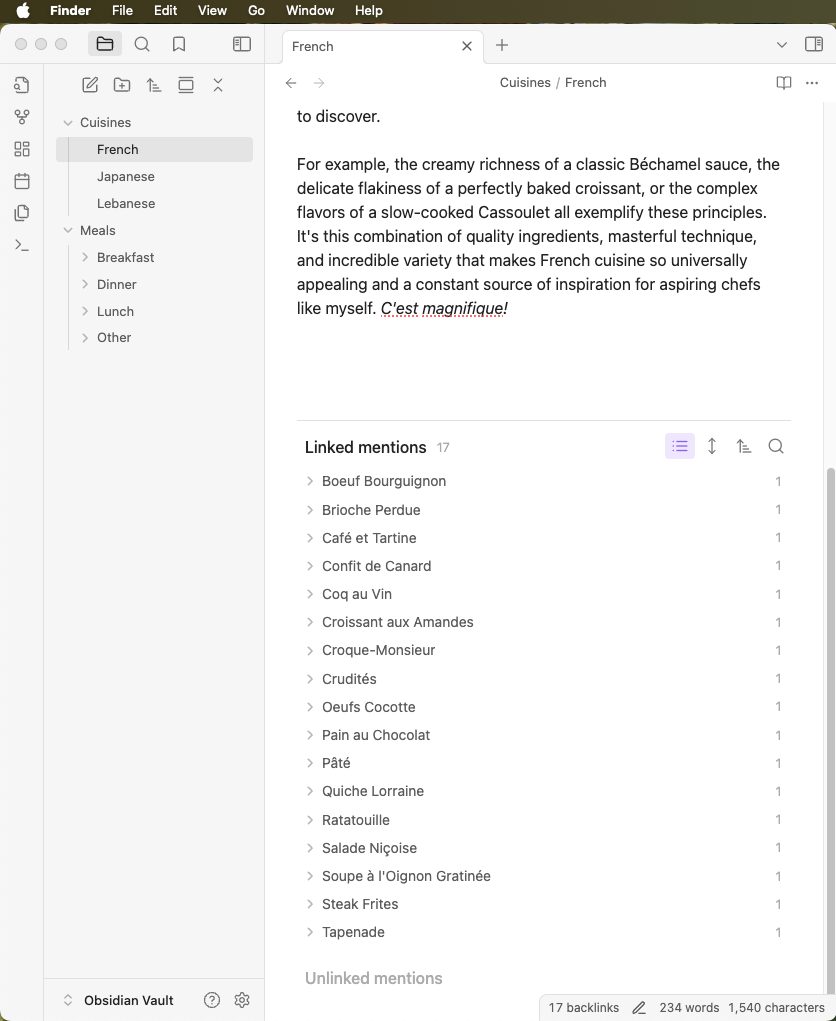
I’d pick Obsidian if you’re done trusting any company with your notes. Each note is a Markdown file in a folder on your own drive, which Obsidian calls a vault. Any text editor can open those files, so they stay readable whatever happens to the app. Obsidian is free for personal and work use, with no account needed. Its official Importer plugin reads .enex files, and an official web clipper saves pages as notes.
Getting notes onto your phone is up to you. Obsidian Sync costs $4 a month billed yearly and is end-to-end encrypted. The free routes, such as Syncthing or iCloud Drive, work but take setup. Obsidian also asks more of you than Evernote. It’s at its best when you link notes to each other and build your own structure, and that takes a while to learn. It doesn’t search text inside images, and the phone app can be slow to open with a large vault and many plugins, which hurts when you want to jot something down fast.
What it does
- Notes stored as Markdown files on your own drive
- Links between notes, with backlinks and a graph view
- Importer plugin for Evernote files
- Community plugins and themes
Pros
- Free, with no account needed
- Notes stay readable in any text editor
- Optional end-to-end encrypted sync
Cons
- Sync costs $4 a month or takes setup
- Takes longer to learn than Evernote
- No search inside images or scans
- Phone app can be slow to open with a large vault
- Skip if:
- You want to install one app and be done with it
Notion
For notes that turn into projects and shared docs
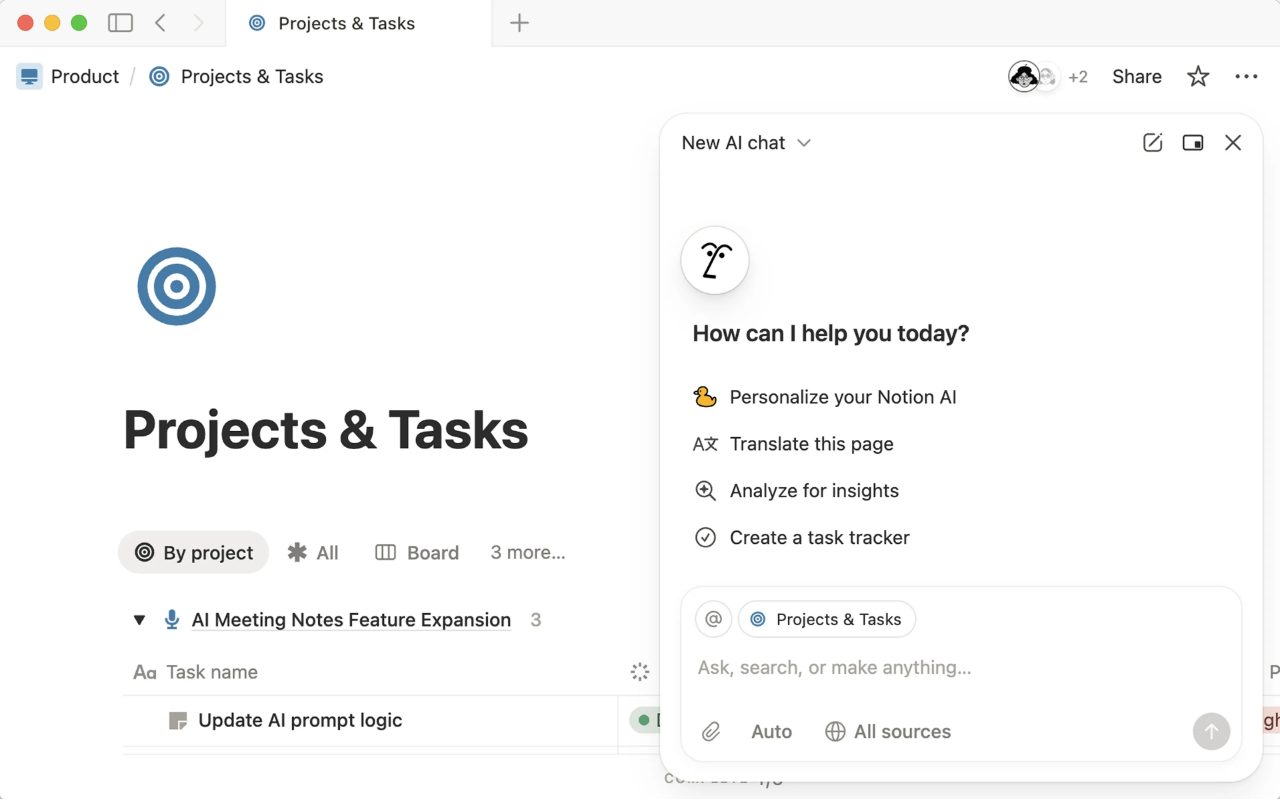
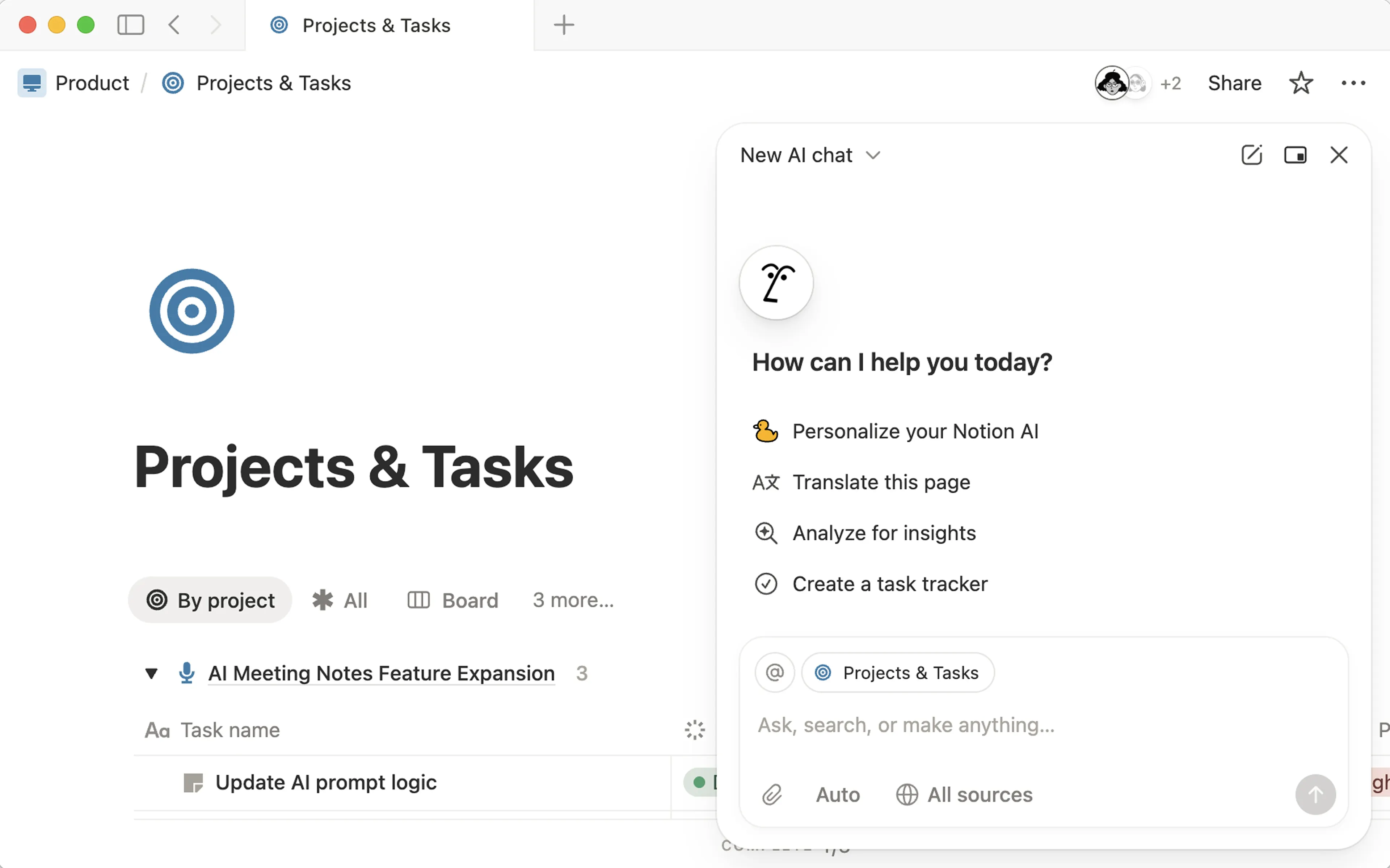
Notion is the right move only if you want your notes to become something else: project plans, shared documents, or a reading list you sort by status. It’s free for a workspace with one member, with no limit on pages. It’s also the only app here that pulls notes straight from your Evernote account, with no export files. Each notebook becomes a page, and each note becomes a row in a database, a table you can sort, filter, and share. The import is reliable up to about 5,000 notes; past that, go notebook by notebook.
Two limits hit Evernote users on the free plan. Each file you upload can be at most 5 MB, so many scanned PDFs and recordings won’t fit, and Plus, at $10 a month per member billed yearly, lifts that. Notes also aren’t on your phone offline unless you download pages on that device, so a quick look at a note on a plane needs planning. Big databases get slow, and Notion doesn’t search text inside images.
What it does
- Pages, databases, boards, and calendars
- Imports straight from your Evernote account
- Sharing with guests
- Apps for desktop, phone, and the web
Pros
- Free for one person, with no page limit
- Notes can become sortable tables and task boards
- Moves notebooks over without export files
Cons
- 5 MB limit per file on the free plan
- Offline access needs pages downloaded on each device
- Slows down with large databases
- No search inside images or scans
- Skip if:
- Your archive is mostly scanned PDFs and documents
When Evernote is still worth paying for
Evernote
For heavy clippers and scanners who can pay
#3 3.8/5
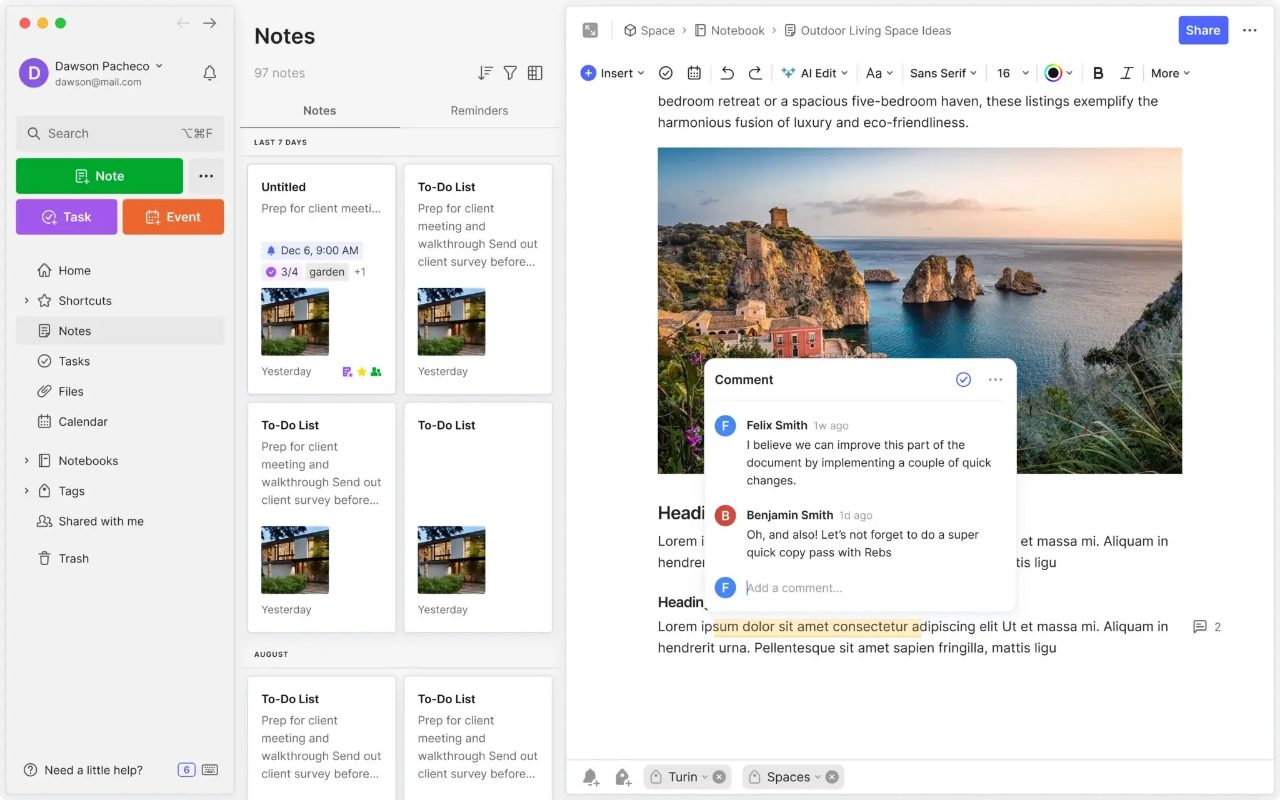
Evernote still does one job better than everything above: catching whatever crosses your desk and finding it again. The web clipper saves articles cleanly, the phone app scans receipts, business cards, and whiteboards, and search finds words inside photos and handwriting. Tasks and a calendar sit in the same app, with apps for Windows, Mac, iPhone, Android, and the web. Of the free apps above, Apple Notes comes closest, with its own scanner and search inside scans, but only on Apple devices.
If that’s how you use Evernote, keep paying, and pick the plan by your note count. Starter, at $99 a year, holds 1,000 notes in 20 notebooks on three devices. Past that you need Advanced at $249.99 a year, with no limits, and college students get 40% off a year of it. The free plan, at 50 notes on one device with ads in the app, works as a trial and not much else. The apps can also feel slow, on Android especially.
What it does
- Web clipper, document scanner, and audio notes
- Search inside photos, scans, and handwriting
- Notebooks, tags, tasks, and a calendar
- Apps on every major computer and phone, plus the web
Pros
- Best capture of any app here, from web pages to paper
- Finds text in images and handwriting
- Easy to learn
Cons
- Unlimited notes need the most expensive personal plan
- Free plan holds only 50 notes on one device
- Apps can feel slow, especially on Android
- Choose if:
- You clip and scan far more than you type
Also considered:
- Standard Notes encrypts every note end to end and syncs free on unlimited devices, but the free plan is plain text only. Folders, the web clipper, and rich editing need Productivity at $90 a year, close to Evernote Starter.
The choice comes down to how much you keep and what you do with it. With a few hundred notes, the free app from the company whose devices you already use will do, and OneNote is the one that works on everything. With thousands, the import decides more than the features: Joplin keeps your Evernote layout, Obsidian keeps your notes as files no company can price you out of, and Notion is worth its limits only if those notes are headed into projects. And if your notes are mostly scans you search, Evernote’s price buys something the free apps don’t fully match.
We scored 4 products on 9 criteria using 69 quotes, 11 of them from the products' own websites. How our rankings work