Gamma alternatives for free decks, PowerPoint files, and teams
Gamma builds a deck out of cards, not slides. A card is closer to a web page: it grows taller as you add content, and it’s meant to be presented and shared from a Gamma link. That’s a big part of why its first drafts look so good. It’s also the root of most reasons people leave.
The trouble starts when the deck has to leave Gamma. A card that grew past 16:9 doesn’t fit a PowerPoint slide, and one user on Gamma’s own feedback board put it plainly: “Some cards end up too tall/big and don’t fit properly for PowerPoint export.” In a four-tool test by PowerPoint trainer Taylor Croonquist, every slide in Gamma’s PowerPoint file landed on a blank layout with no placeholders, so nobody can restyle the deck from the slide master. And Gamma’s Google Slides export is really a PowerPoint file uploaded to Slides, which ignores the fonts Gamma embeds and swaps in its own.
The other reasons are about money and control. The free plan’s 400 AI credits are a one-time grant that never refills. Once they’re gone you can still edit by hand, but not generate. Free exports carry a “Made by Gamma” badge, and upgrading later doesn’t remove it from files you already exported. Teams with a company PowerPoint template hit the same wall: a custom Gamma theme can copy its colors and fonts, but the exported file still doesn’t use the template’s slide master.
The short answer, by what you want:
- Free: Canva for designed decks you present or share, Claude for decks drafted from your own notes and files.
- Real PowerPoint files: Copilot in PowerPoint if you already pay for Microsoft 365, Plus AI if you need both PowerPoint and Google Slides.
- Google Slides: Gemini in Google Slides if your Workspace plan includes it, otherwise Plus AI.
- A team on brand: Beautiful.ai for layouts nobody can break, Pitch for sales teams that co-edit and track views.
- Staying: if you present from Gamma’s links, Gamma Plus costs less than nearly every paid option here.
Make decks for free, or for less than Gamma
Every tool here asks you to pay sooner or later. What differs is what runs out on the free plan, and whether the cheapest paid plan is any cheaper than Gamma’s.
| Tool | Free plan | Cheapest paid route (November 2026) |
|---|---|---|
| Gamma | 400 credits once, Gamma badge | Plus, $9 a month billed yearly |
| Canva | 10 Magic Design generations | Pro, $144 a year |
| Claude | Claude Slides, within limits that reset | Pro, $17 a month billed yearly |
| Copilot in PowerPoint | None | Microsoft 365 Personal, $99.99 a year |
| Plus AI | 7-day trial, card required | Basic, $10 a month billed yearly |
| Gemini in Google Slides | None | Workspace Business Standard, $14 a user a month yearly |
| Beautiful.ai | 14-day trial, card required | Pro, $14.50 a month billed yearly |
| Pitch | Up to 5 members, 500 credits once, no PowerPoint export | Plus, €10 a seat a month billed yearly |
Two things stand out. Gamma Plus is already one of the cheapest paid plans, so switching to save money only works if you switch to a free plan or to a subscription you already pay for. And Microsoft 365 or Google’s AI plans may already include a deck generator; the next section covers those.
1–5 per criterion · select a score for its reasoning and any sources
| # | Product | Overall | How good the generated slides look , counts double | How good the outline and words are | Fixing the draft | Works with PowerPoint and Google Slides | What you get free | Price of a plan for regular use | Brand and team features | Presenting and sharing , counts half |
|---|---|---|---|---|---|---|---|---|---|---|
| 1 | Gamma | 4.2 | 5 | 4 | 5 | 3 | 3 | 5 | 4 | 4 |
| 2 | Canva | 3.9 | 4 | 2 | 5 | 3 | 4 | 4 | 5 | 4 |
| 3 | Claude | 3.5 | 4 | 4 | 4 | 4 | 4 | 3 | 2 | 2 |



×2 = counts double in the overall score, ×½ = counts half.
How each criterion is scored
How good the generated slides look
Counts double in the overall score: A better-looking first draft is the main thing readers want from an AI deck maker over their usual slide app.
Judged from reviewers' side-by-side tests and examples of decks the tool generates from a plain prompt, before anyone edits them: layout variety, typography, how well images and colors fit the topic, and whether slides are crowded. It scores the tool's own output in the form most readers use, not what a skilled designer could build in its editor.
- 5 Distinctive design that looks made for the topic, with layouts and images a designer would choose
- 4 Polished, varied layouts with fitting images; looks professionally designed
- 3 A clean, consistent theme with some layout variety and images; looks like a decent template
- 2 A basic theme with little layout variety; most slides are bullets and need design work
- 1 Plain text slides with no design applied
How good the outline and words are
Judged from reviewers' tests and users' reports: whether the generated deck tells a sensible story for its audience, whether the slide text is specific or generic filler, and how well it uses source material you give it. Invented figures are a risk with every tool and are not scored here.
- 5 Reads like a strong first draft from someone who knows the topic and the audience
- 4 A well-organized story with specific points that uses your material, needing light edits
- 3 A sensible structure and serviceable text that needs a normal editing pass
- 2 A usable structure, but shallow, generic text that needs heavy rewriting
- 1 Generic filler that needs rewriting almost entirely
Fixing the draft
How easily you can change what the AI made: manual control over text, images and layout, and AI edits aimed at one slide or element without regenerating the whole deck.
- 5 Free-form editing plus AI edits to a chosen slide or element and AI revisions across the whole deck
- 4 Full direct editing plus AI edits to a chosen slide
- 3 Full direct editing or targeted AI edits, but not both, or editing held back by a fixed layout system or a hard-to-learn format
- 2 Direct editing of text and images, but little layout control and no targeted AI edits
- 1 Changes mostly mean re-prompting or regenerating; little direct editing
Works with PowerPoint and Google Slides
How well the deck carries into PowerPoint or Google Slides as an ordinary, editable presentation: whether the tool builds natively in them or exports editable files, on which plans, and whether exported slides keep real layouts and placeholders (so you can restyle the deck from the slide master) or arrive as loose text boxes on blank slides.
- 5 Builds natively in PowerPoint or Google Slides using your own template's layouts and slide masters
- 4 Builds natively in PowerPoint or Google Slides, or exports to both with the deck's structure intact
- 3 Exports editable PowerPoint and Google Slides files, but slides land on blank layouts without placeholders
- 2 Export only on paid plans, or the format loses much of the deck in conversion
- 1 No PowerPoint or Google Slides export
What you get free
How much deck generation the free plan allows and whether you can take the deck elsewhere. A free trial that ends or needs a card is not a free plan.
- 5 Renewing free generation with no meaningful cap
- 4 An AI allowance that renews (monthly or on rolling limits), with export
- 3 A one-time AI allowance that includes PowerPoint export
- 2 A one-time AI allowance, with no PowerPoint export or with presentations that must be public
- 1 No free way to generate decks; trial only, or a paid plan is required
Price of a plan for regular use
Price per person per month, at annual billing where offered, of the cheapest plan one person can buy that makes AI decks regularly rather than under a "limited" free allowance. A euro price is compared at face value. Where the plan is a bundle (such as Microsoft 365 or Google Workspace), the bundle's price counts.
- 5 Under 10 a month
- 4 10 to 14.99 a month
- 3 15 to 19.99 a month
- 2 20 to 29.99 a month
- 1 30 or more a month
Brand and team features
Counts what lets a team keep decks on brand and work on them together: a brand theme or company template the AI uses, real-time co-editing, shared libraries of templates, slides or assets, and admin controls that lock brand elements. Features on any plan count.
- 5 All of 4, plus admin controls that lock brand elements or approve decks
- 4 All of 3, plus shared team libraries of templates, slides or assets
- 3 A brand theme or company template the AI uses, and real-time co-editing
- 2 Either a brand theme or company template, or real-time co-editing
- 1 Neither a brand theme nor real-time co-editing
Presenting and sharing
Counts half in the overall score: Matters mainly to sales and client-facing readers; most readers present in a meeting or send a file.
What the tool offers for presenting and sending the deck itself: present mode, share links with access control, and analytics on who viewed the deck and which slides they spent time on.
- 5 All of 3, plus slide-by-slide engagement tracking per link or viewer
- 4 All of 3, plus viewer analytics on some plan
- 3 Present from the app and share links with access control
- 2 Present from the app, or share a view link, but not both with access control
- 1 No way to present or share except exporting a file
#2 3.9/5

Canva is the free alternative many Gamma users already know. Magic Design for Presentations turns a prompt into a themed deck, and the free plan includes 10 uses of it. Free decks carry no Canva badge as long as you stick to free elements. You can present from Canva, present offline, or download the deck as a PowerPoint file.
The design side is strong; the writing side is thin. Geekflare’s reviewer estimated that Canva’s AI drafts need 50 to 70% rewriting for professional use. Gamma writes better first drafts and asks about your audience and tone before it starts. Canva also doesn’t fix the export problem. In the same four-tool test, its PowerPoint file used blank layouts with no placeholders, just like Gamma’s.
Where Canva pulls ahead is everything around the deck. The same account makes social posts, documents, video, and print, and Brand Kits hold your logos, colors, and fonts. Business adds team admin and up to 100 Brand Kits, which matters again in the team section below. One catch for brand-conscious teams: Canva templates are everywhere, so a deck built from one can look familiar.
What it does
- Magic Design generates a themed deck from a prompt
- Present in the browser or offline, or download a PowerPoint file
- Brand Kits with logos, colors, and fonts
- Social posts, documents, video, and print in the same account
Pros
- Generous free plan with no badge on free elements
- Easy to use for people with no design training
- One tool for decks and everything else a small team designs
Cons
- AI-written text is shallow and needs heavy rewriting
- PowerPoint exports use blank layouts, like Gamma's
- Popular templates make decks look familiar
#3 3.5/5
Claude works best from material you already have. Claude Slides takes a file, your notes, or the conversation you’ve just had, and builds the deck from that. Claude drafts a designed deck, and you edit slides directly or ask for changes. It presents from Claude and exports to PowerPoint, Google Slides, and PDF.
Claude Slides is on every plan, Free included. That’s the key difference from Gamma’s free plan. Claude’s free usage resets every five hours and every week, rather than running out for good, although Anthropic gives no fixed message count. It also writes speaker notes for each slide.
The default style needs work. Claude leans on marketing phrasing and flowcharts, so expect to tone slides down before a serious meeting. It has no brand templates of its own, and Claude is for adults only (18 or older). On paid plans, the Claude for PowerPoint add-in builds slides inside PowerPoint using your company template’s layouts, fonts, and colors, which makes Claude a bridge to the next section.
What it does
- Claude Slides drafts a deck from files, notes, or a conversation
- Edit slides directly or by asking for changes
- Exports to PowerPoint, Google Slides, and PDF
- Claude for PowerPoint add-in on paid plans, using your slide master
Pros
- Deck generation on the free plan, with limits that reset
- Strong at turning long documents into a clear story
- Speaker notes for each slide
Cons
- Default slides lean on marketing language and flowcharts
- No brand kits or team template controls in Claude Slides
- Free usage shrinks with long documents and long chats
#1 4.2/5
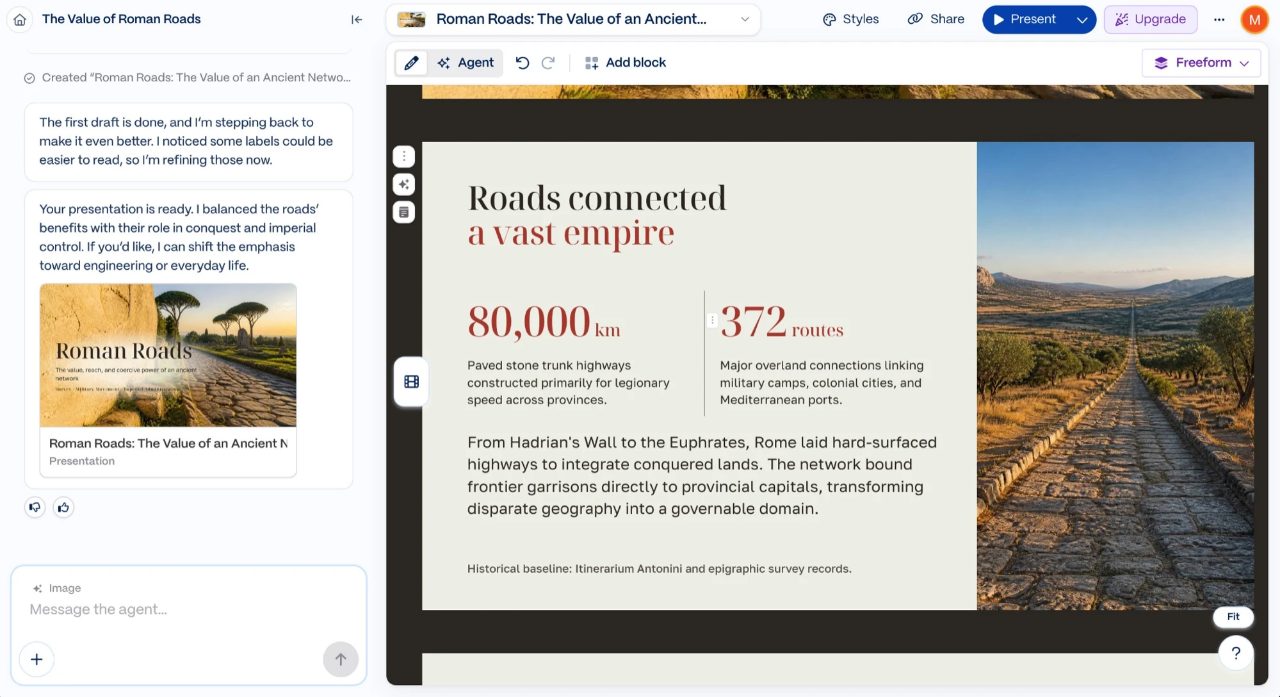
Plenty of people should stay. Gamma still makes the best-looking first draft of any tool here, and it asks about your audience, tone, and amount of text before generating. If you present from Gamma and share decks as links, the export problems above never touch you. Gamma also makes documents, simple websites, and social posts with the same editor, which none of the PowerPoint-based tools do.
If the free plan was your problem, compare before you leave. Plus removes the badge and gives 1,500 credits a month, and unused credits roll over up to 3,000. Few paid alternatives cost less. Pro adds custom branding, custom domains, and detailed analytics.
Two cautions. Content on individual plans (Free, Plus, Pro, and Ultra) can be used to train Gamma’s AI unless you opt out in settings; Business and Enterprise workspaces are excluded automatically. And if your deck has to become a PowerPoint file colleagues will edit, set the card size to 16:9 before you build and split any card that grows taller, or pick a tool from the next section.
What it does
- Generates decks, documents, websites, and social posts from a prompt or file
- Edit by chat with its agent, with smart layouts, or freeform
- Present and share from a link, with analytics on Pro
- Exports to PDF, PowerPoint, and PNG
Pros
- The most polished first drafts of any AI deck maker
- Plus is cheaper than nearly every paid alternative
- Unused monthly credits roll over
Cons
- PowerPoint exports land on blank layouts, and tall cards don't fit 16:9 slides
- Free credits never refill, and free exports carry a badge
- Individual plans can train on your content unless you opt out
- Skip if:
- Colleagues need to edit your decks in PowerPoint with the company template.
Build the deck inside PowerPoint or Google Slides
These tools don’t export a deck from somewhere else. They build it inside the app your company already uses, so every slide uses that app’s own layouts and placeholders, lives in OneDrive or Google Drive, and gets co-edited and commented on the usual way. The price is design: expect plainer first drafts than Gamma’s.
1–5 per criterion · select a score for its reasoning and any sources
| # | Product | Overall | How good the generated slides look , counts double | How good the outline and words are | Fixing the draft | Works with PowerPoint and Google Slides | What you get free | Price of a plan for regular use | Brand and team features | Presenting and sharing , counts half |
|---|---|---|---|---|---|---|---|---|---|---|
| 1 | Copilot in PowerPoint | 3.7 | 3 | 4 | 5 | 5 | 1 | 5 | 4 | 3 |
| 2 | Plus AI | 3.5 | 3 | 4 | 4 | 5 | 1 | 4 | 4 | 3 |
| 3 | Gemini in Google Slides | 3.4 | 3 | 4 | 4 | 4 | 1 | 4 | 4 | 3 |



×2 = counts double in the overall score, ×½ = counts half.
How each criterion is scored
How good the generated slides look
Counts double in the overall score: A better-looking first draft is the main thing readers want from an AI deck maker over their usual slide app.
Judged from reviewers' side-by-side tests and examples of decks the tool generates from a plain prompt, before anyone edits them: layout variety, typography, how well images and colors fit the topic, and whether slides are crowded. It scores the tool's own output in the form most readers use, not what a skilled designer could build in its editor.
- 5 Distinctive design that looks made for the topic, with layouts and images a designer would choose
- 4 Polished, varied layouts with fitting images; looks professionally designed
- 3 A clean, consistent theme with some layout variety and images; looks like a decent template
- 2 A basic theme with little layout variety; most slides are bullets and need design work
- 1 Plain text slides with no design applied
How good the outline and words are
Judged from reviewers' tests and users' reports: whether the generated deck tells a sensible story for its audience, whether the slide text is specific or generic filler, and how well it uses source material you give it. Invented figures are a risk with every tool and are not scored here.
- 5 Reads like a strong first draft from someone who knows the topic and the audience
- 4 A well-organized story with specific points that uses your material, needing light edits
- 3 A sensible structure and serviceable text that needs a normal editing pass
- 2 A usable structure, but shallow, generic text that needs heavy rewriting
- 1 Generic filler that needs rewriting almost entirely
Fixing the draft
How easily you can change what the AI made: manual control over text, images and layout, and AI edits aimed at one slide or element without regenerating the whole deck.
- 5 Free-form editing plus AI edits to a chosen slide or element and AI revisions across the whole deck
- 4 Full direct editing plus AI edits to a chosen slide
- 3 Full direct editing or targeted AI edits, but not both, or editing held back by a fixed layout system or a hard-to-learn format
- 2 Direct editing of text and images, but little layout control and no targeted AI edits
- 1 Changes mostly mean re-prompting or regenerating; little direct editing
Works with PowerPoint and Google Slides
How well the deck carries into PowerPoint or Google Slides as an ordinary, editable presentation: whether the tool builds natively in them or exports editable files, on which plans, and whether exported slides keep real layouts and placeholders (so you can restyle the deck from the slide master) or arrive as loose text boxes on blank slides.
- 5 Builds natively in PowerPoint or Google Slides using your own template's layouts and slide masters
- 4 Builds natively in PowerPoint or Google Slides, or exports to both with the deck's structure intact
- 3 Exports editable PowerPoint and Google Slides files, but slides land on blank layouts without placeholders
- 2 Export only on paid plans, or the format loses much of the deck in conversion
- 1 No PowerPoint or Google Slides export
What you get free
How much deck generation the free plan allows and whether you can take the deck elsewhere. A free trial that ends or needs a card is not a free plan.
- 5 Renewing free generation with no meaningful cap
- 4 An AI allowance that renews (monthly or on rolling limits), with export
- 3 A one-time AI allowance that includes PowerPoint export
- 2 A one-time AI allowance, with no PowerPoint export or with presentations that must be public
- 1 No free way to generate decks; trial only, or a paid plan is required
Price of a plan for regular use
Price per person per month, at annual billing where offered, of the cheapest plan one person can buy that makes AI decks regularly rather than under a "limited" free allowance. A euro price is compared at face value. Where the plan is a bundle (such as Microsoft 365 or Google Workspace), the bundle's price counts.
- 5 Under 10 a month
- 4 10 to 14.99 a month
- 3 15 to 19.99 a month
- 2 20 to 29.99 a month
- 1 30 or more a month
Brand and team features
Counts what lets a team keep decks on brand and work on them together: a brand theme or company template the AI uses, real-time co-editing, shared libraries of templates, slides or assets, and admin controls that lock brand elements. Features on any plan count.
- 5 All of 4, plus admin controls that lock brand elements or approve decks
- 4 All of 3, plus shared team libraries of templates, slides or assets
- 3 A brand theme or company template the AI uses, and real-time co-editing
- 2 Either a brand theme or company template, or real-time co-editing
- 1 Neither a brand theme nor real-time co-editing
Presenting and sharing
Counts half in the overall score: Matters mainly to sales and client-facing readers; most readers present in a meeting or send a file.
What the tool offers for presenting and sending the deck itself: present mode, share links with access control, and analytics on who viewed the deck and which slides they spent time on.
- 5 All of 3, plus slide-by-slide engagement tracking per link or viewer
- 4 All of 3, plus viewer analytics on some plan
- 3 Present from the app and share links with access control
- 2 Present from the app, or share a view link, but not both with access control
- 1 No way to present or share except exporting a file
Copilot in PowerPoint
For Microsoft 365 users who need real PowerPoint files
Ranking: AI that works inside PowerPoint and Google Slides
#1 3.7/5
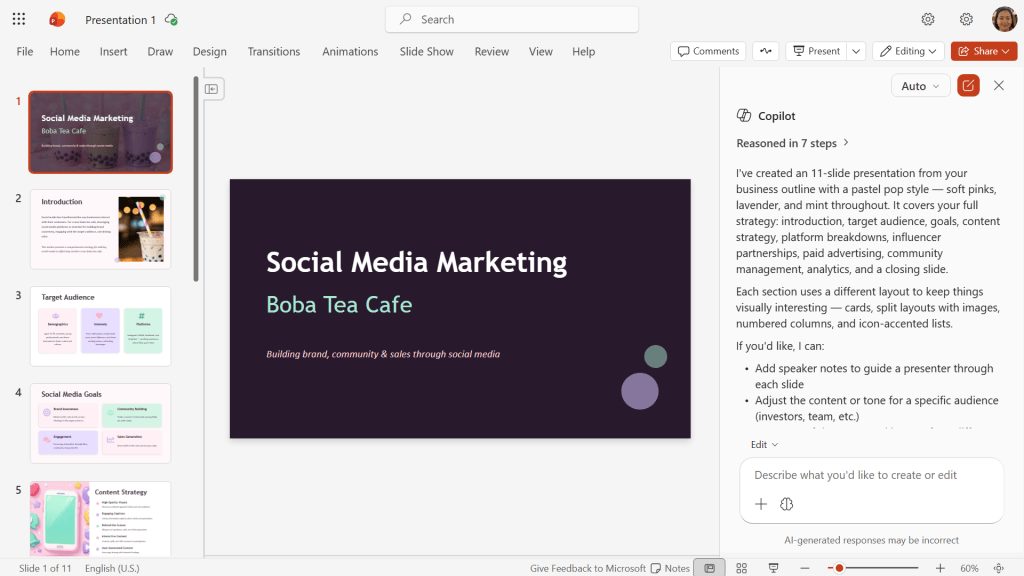
If you already pay for Microsoft 365, you may already have a Gamma alternative. Copilot sits in a PowerPoint sidebar on Windows, Mac, the web, and mobile. It builds a deck from a prompt or from an attached Word, Excel, or PDF file, and it edits existing decks by adding slides and rewriting text. Open your company’s branded template first, and Copilot builds the deck on it.
The output is the point. In Croonquist’s four-tool test, Copilot produced the most editable PowerPoint deck, with real placeholders, divider slides, and basic transitions. The same test called its look basic, and that matches the tradeoff: Gamma’s draft is prettier, Copilot’s is easier for your colleagues to work with.
Copilot in PowerPoint comes with Microsoft 365 Personal, Family, and Premium, each with monthly AI limits; on Family only the subscription owner gets it. Businesses add Microsoft 365 Copilot Business to their plan, at $21 a user a month billed yearly, discounted to $18 as of November 2026. Organizations with fewer than 2,000 users get some Copilot in the apps without it, with lower limits.
What it does
- Builds decks from a prompt or a Word, Excel, or PDF file
- Works from your company's branded template
- Edits existing decks in agent mode
- Runs in PowerPoint on Windows, Mac, the web, and mobile
Pros
- Real PowerPoint slides with placeholders and layouts
- Included with Microsoft 365 plans many people already pay for
- Decks stay in OneDrive and SharePoint for co-editing
Cons
- Plain designs next to Gamma's
- Monthly AI limits on personal plans
- On Family, only the subscription owner can use it
Plus AI
For PowerPoint and Google Slides on one subscription
Ranking: AI that works inside PowerPoint and Google Slides
#2 3.5/5
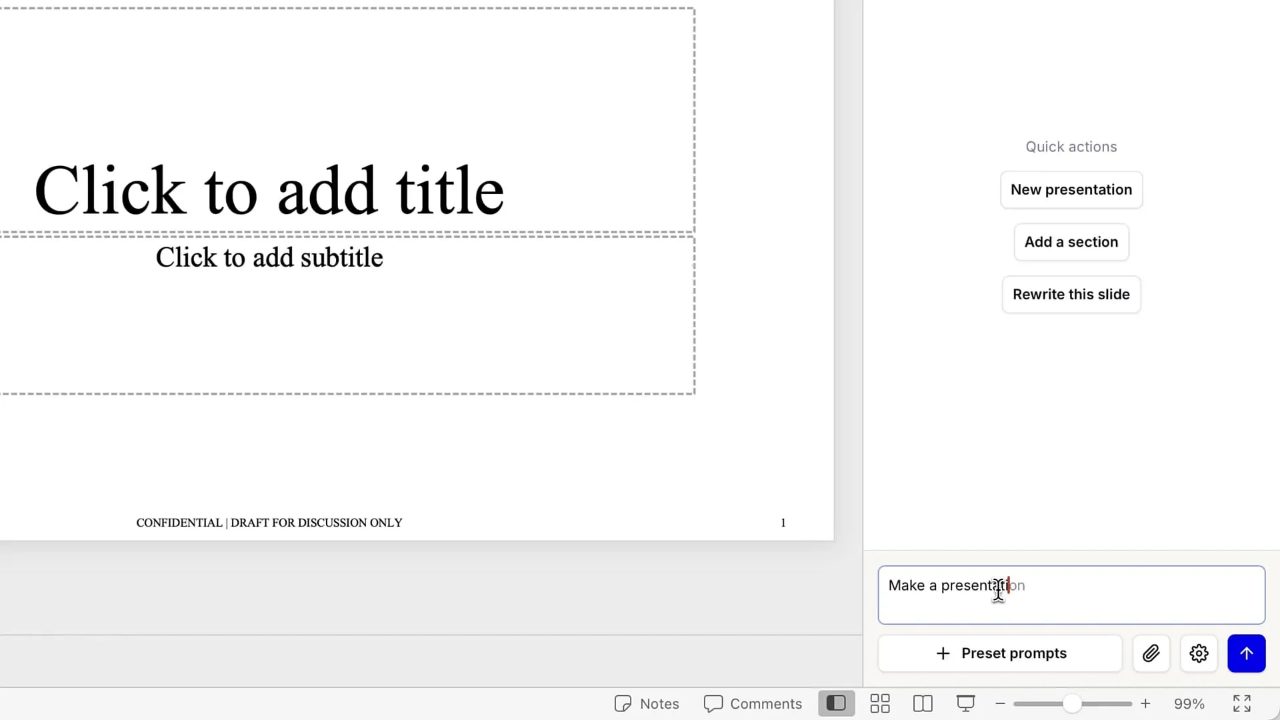
Plus AI is the pick when your work moves between PowerPoint and Google Slides, or when nobody on the team has Copilot or Gemini. It installs as an add-on in Google Slides and an add-in in PowerPoint, and one subscription covers both. It generates a deck from a prompt, rewrites and remixes slides, and inserts single slides into a deck you already have. Everything it makes is an ordinary slide in your own file.
The plans step up in ways that matter. Basic includes 1,500 credits a month, and a typical task uses 40 to 170 of them, but it can’t generate from documents. Document uploads (PDF, Word, and text) start on Pro. Your logo, colors, and fonts start on Team, and generating from your company’s own slide masters needs Enterprise. There’s no free plan, just a 7-day trial that needs a card.
What it does
- Add-on for Google Slides and add-in for PowerPoint
- Generates decks and single slides, and rewrites existing ones
- Builds from PDF, Word, or text files on Pro and above
- Slide masters of your own on Enterprise
Pros
- Native slides in whichever app you open
- One subscription for both PowerPoint and Google Slides
- SOC 2 Type II compliance for company buyers
Cons
- No free plan, and the trial needs a card
- Document uploads and branding need pricier plans
- Designs are plainer than Gamma's
Gemini in Google Slides
For Google Workspace teams already paying for Gemini
Ranking: AI that works inside PowerPoint and Google Slides
#3 3.4/5
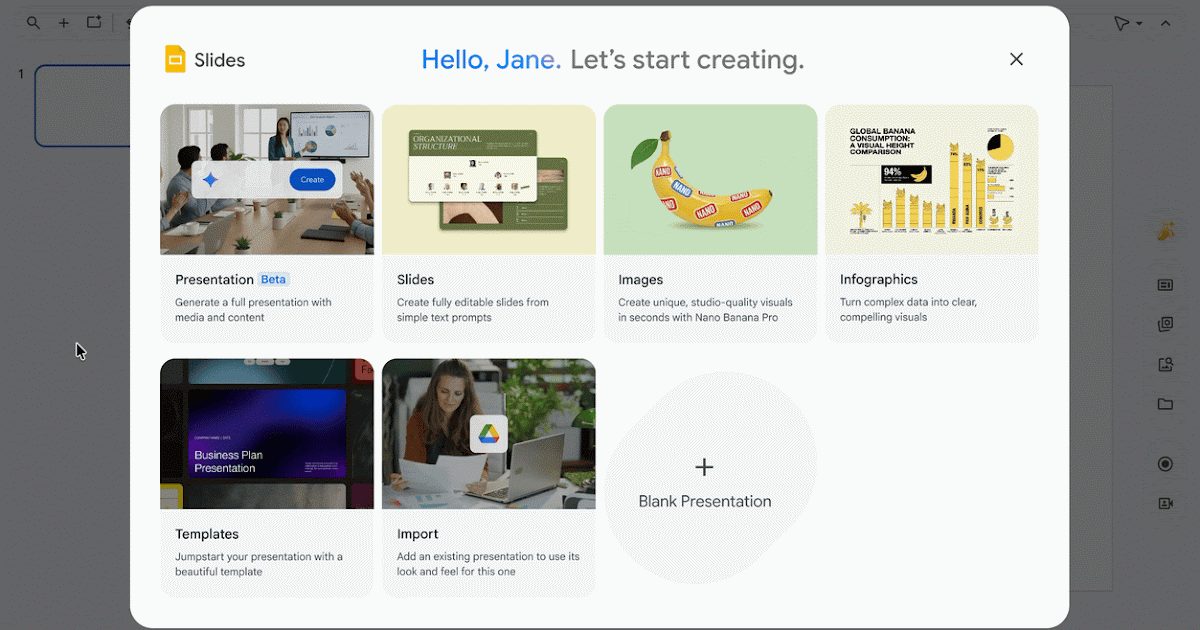
Gemini in Google Slides builds a full deck from the side panel. You write a prompt, attach files from Google Drive for it to draw on, and can attach an existing deck as a style reference so the new one matches your look. You approve or edit the outline first, then get an ordinary Slides deck where every text box and chart can be edited, shared, and presented as usual.
It’s included with Workspace Business Standard and higher plans, Enterprise plans, and the Google AI Pro and Ultra consumer plans. Business Starter and free Google accounts don’t get full deck generation, and it launched in US English only. Workspace plans don’t use your company’s data to train Google’s models.
What it does
- Generates a full Slides deck from a prompt and your Drive files
- Matches the style of an existing deck you attach
- Outline you approve before slides are built
- Rewrites text and generates images on existing slides
Pros
- Native, fully editable Google Slides decks
- Included in Workspace plans many companies already have
- Company data isn't used to train Google's models
Cons
- Not on Business Starter or free Google accounts
- Full deck generation launched in US English only
- Per-user usage limits apply
- Skip if:
- You write your decks in a language other than English.
Keep a whole team on brand
Gamma Pro adds custom branding and custom domains, which is enough for one person or a small group. Bigger teams usually want more: templates that a non-designer can’t break, shared slide libraries, and a way to see who opened a deck you sent. Canva covers some of this on its Business plan, as its write-up above explains. Beautiful.ai and Pitch are built around it.
1–5 per criterion · select a score for its reasoning and any sources
| # | Product | Overall | How good the generated slides look , counts double | How good the outline and words are | Fixing the draft | Works with PowerPoint and Google Slides | What you get free | Price of a plan for regular use | Brand and team features | Presenting and sharing , counts half |
|---|---|---|---|---|---|---|---|---|---|---|
| 1 | Canva | 3.9 | 4 | 2 | 5 | 3 | 4 | 4 | 5 | 4 |
| 2 | Beautiful.ai | 3.6 | 4 | 3 | 4 | 3 | 1 | 4 | 5 | 5 |
| 3 | Pitch | 3.6 | 4 | 3 | 4 | 2 | 2 | 4 | 5 | 5 |


Equal displayed overall scores are ordered by the earlier criteria; a known score comes before an unknown score. Identical scores use alphabetical order.
×2 = counts double in the overall score, ×½ = counts half.
How each criterion is scored
How good the generated slides look
Counts double in the overall score: A better-looking first draft is the main thing readers want from an AI deck maker over their usual slide app.
Judged from reviewers' side-by-side tests and examples of decks the tool generates from a plain prompt, before anyone edits them: layout variety, typography, how well images and colors fit the topic, and whether slides are crowded. It scores the tool's own output in the form most readers use, not what a skilled designer could build in its editor.
- 5 Distinctive design that looks made for the topic, with layouts and images a designer would choose
- 4 Polished, varied layouts with fitting images; looks professionally designed
- 3 A clean, consistent theme with some layout variety and images; looks like a decent template
- 2 A basic theme with little layout variety; most slides are bullets and need design work
- 1 Plain text slides with no design applied
How good the outline and words are
Judged from reviewers' tests and users' reports: whether the generated deck tells a sensible story for its audience, whether the slide text is specific or generic filler, and how well it uses source material you give it. Invented figures are a risk with every tool and are not scored here.
- 5 Reads like a strong first draft from someone who knows the topic and the audience
- 4 A well-organized story with specific points that uses your material, needing light edits
- 3 A sensible structure and serviceable text that needs a normal editing pass
- 2 A usable structure, but shallow, generic text that needs heavy rewriting
- 1 Generic filler that needs rewriting almost entirely
Fixing the draft
How easily you can change what the AI made: manual control over text, images and layout, and AI edits aimed at one slide or element without regenerating the whole deck.
- 5 Free-form editing plus AI edits to a chosen slide or element and AI revisions across the whole deck
- 4 Full direct editing plus AI edits to a chosen slide
- 3 Full direct editing or targeted AI edits, but not both, or editing held back by a fixed layout system or a hard-to-learn format
- 2 Direct editing of text and images, but little layout control and no targeted AI edits
- 1 Changes mostly mean re-prompting or regenerating; little direct editing
Works with PowerPoint and Google Slides
How well the deck carries into PowerPoint or Google Slides as an ordinary, editable presentation: whether the tool builds natively in them or exports editable files, on which plans, and whether exported slides keep real layouts and placeholders (so you can restyle the deck from the slide master) or arrive as loose text boxes on blank slides.
- 5 Builds natively in PowerPoint or Google Slides using your own template's layouts and slide masters
- 4 Builds natively in PowerPoint or Google Slides, or exports to both with the deck's structure intact
- 3 Exports editable PowerPoint and Google Slides files, but slides land on blank layouts without placeholders
- 2 Export only on paid plans, or the format loses much of the deck in conversion
- 1 No PowerPoint or Google Slides export
What you get free
How much deck generation the free plan allows and whether you can take the deck elsewhere. A free trial that ends or needs a card is not a free plan.
- 5 Renewing free generation with no meaningful cap
- 4 An AI allowance that renews (monthly or on rolling limits), with export
- 3 A one-time AI allowance that includes PowerPoint export
- 2 A one-time AI allowance, with no PowerPoint export or with presentations that must be public
- 1 No free way to generate decks; trial only, or a paid plan is required
Price of a plan for regular use
Price per person per month, at annual billing where offered, of the cheapest plan one person can buy that makes AI decks regularly rather than under a "limited" free allowance. A euro price is compared at face value. Where the plan is a bundle (such as Microsoft 365 or Google Workspace), the bundle's price counts.
- 5 Under 10 a month
- 4 10 to 14.99 a month
- 3 15 to 19.99 a month
- 2 20 to 29.99 a month
- 1 30 or more a month
Brand and team features
Counts what lets a team keep decks on brand and work on them together: a brand theme or company template the AI uses, real-time co-editing, shared libraries of templates, slides or assets, and admin controls that lock brand elements. Features on any plan count.
- 5 All of 4, plus admin controls that lock brand elements or approve decks
- 4 All of 3, plus shared team libraries of templates, slides or assets
- 3 A brand theme or company template the AI uses, and real-time co-editing
- 2 Either a brand theme or company template, or real-time co-editing
- 1 Neither a brand theme nor real-time co-editing
Presenting and sharing
Counts half in the overall score: Matters mainly to sales and client-facing readers; most readers present in a meeting or send a file.
What the tool offers for presenting and sending the deck itself: present mode, share links with access control, and analytics on who viewed the deck and which slides they spent time on.
- 5 All of 3, plus slide-by-slide engagement tracking per link or viewer
- 4 All of 3, plus viewer analytics on some plan
- 3 Present from the app and share links with access control
- 2 Present from the app, or share a view link, but not both with access control
- 1 No way to present or share except exporting a file
#2 3.6/5
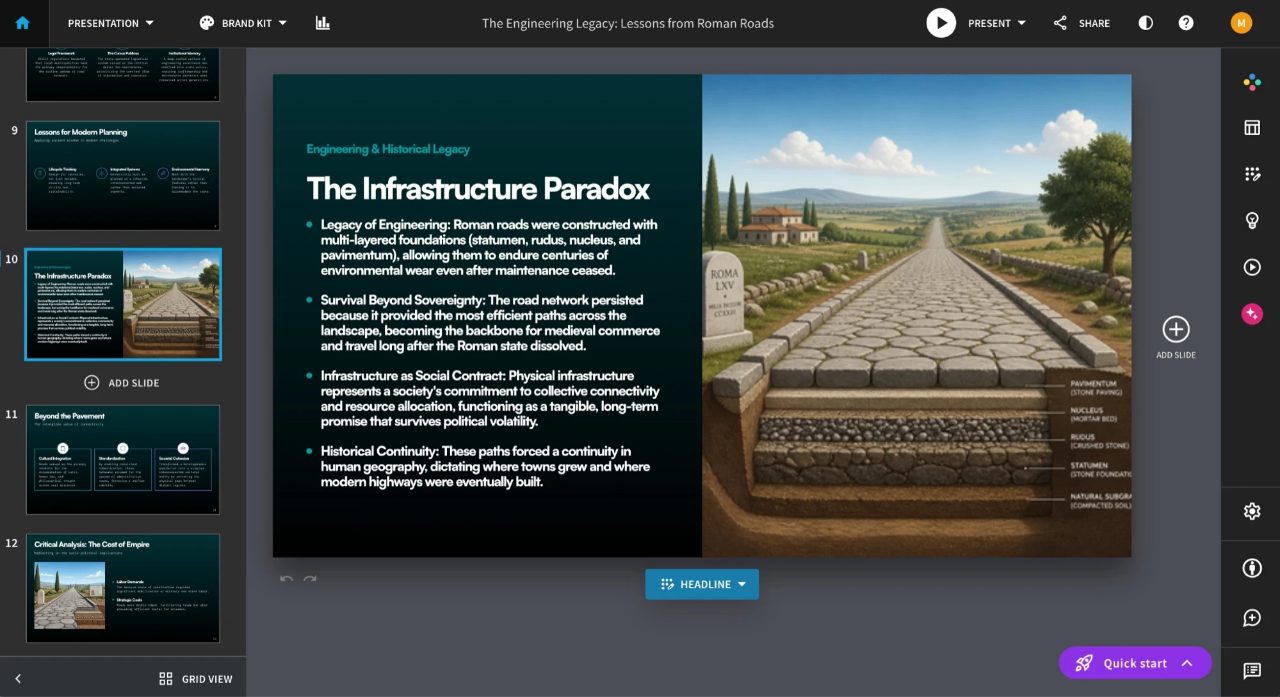
Beautiful.ai’s Smart Slides are the reason to pick it. They resize and realign themselves as you add text, images, or data, so whoever edits the deck can’t push it off the grid. That’s what a team without a designer needs. When you want freedom, Classic Slides work like a blank canvas. The AI drafts an outline of every slide first, then the deck, and it offers other layouts for a slide while keeping its content.
AI generation is unlimited on every plan, which removes the credit counting Gamma users know. The Team plan adds real-time co-editing, shared slide and template libraries, and locked slides, at $40 a user a month billed yearly as of November 2026. Enterprise adds single sign-on and brand guardrails.
The weak spots are cost and variety. There’s no free plan, the 14-day trial needs a card, and Pro billed monthly costs about three times as much as billed yearly. The AI leans on text and data slides more than Gamma’s does. PowerPoint downloads are editable, but animations and audio don’t survive them.
What it does
- Smart Slides that rearrange themselves as you add content
- AI outline, then deck, from a topic or source files
- Shared libraries and locked slides on Team
- Editable PowerPoint export and viewer analytics
Pros
- Hard for non-designers to break the layout
- Unlimited AI generation on every plan
- Strong brand controls for teams
Cons
- No free plan, and the trial needs a card
- AI favors text and data slides
- Animations and audio are lost in PowerPoint downloads
#3 3.6/5
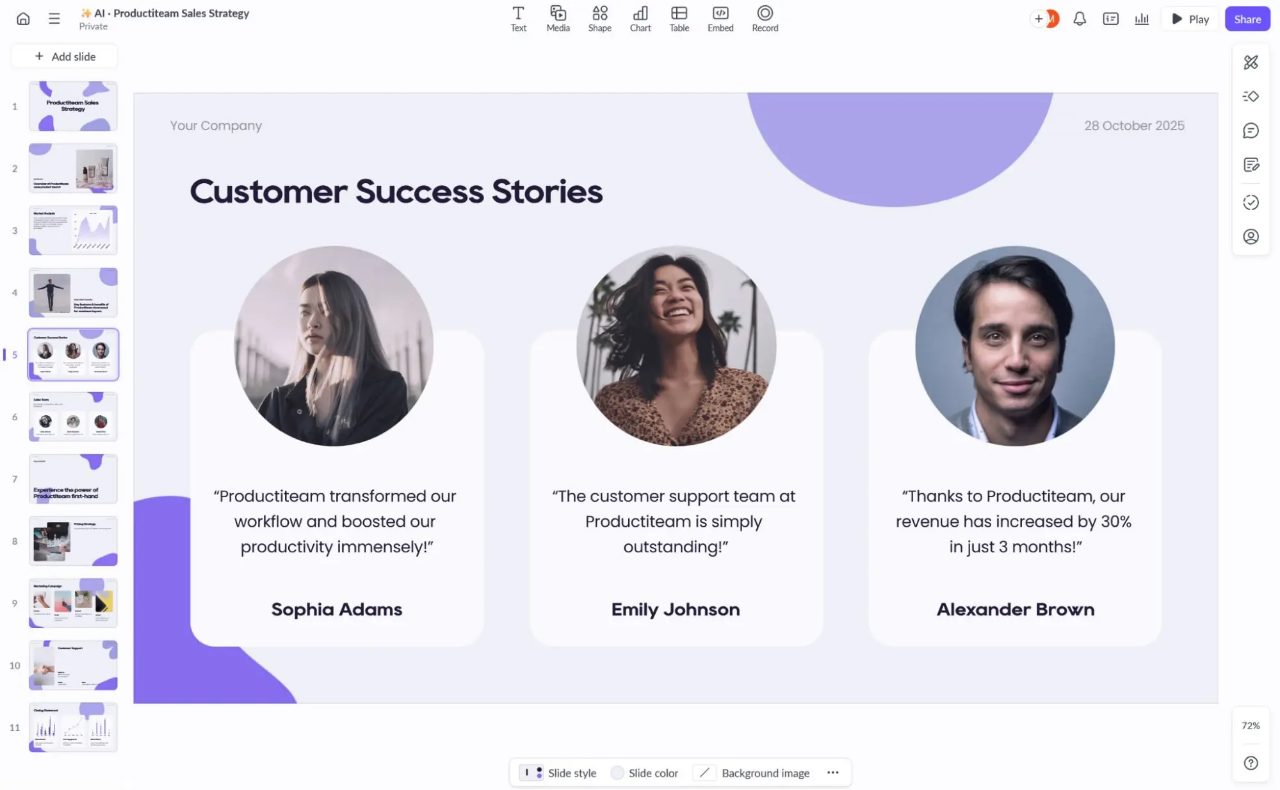
Pitch is built for teams that make decks together, and sales teams most of all. Its AI drafts a deck you then edit with full design control. Teammates co-edit in real time, custom templates and fonts keep decks on brand, and tracked links show visits, slide views, and time spent on each slide. Slides can pull live numbers from Google Sheets, Google Analytics, HubSpot, and similar tools.
The AI is tuned for sales and client decks. It’s good at pitching a prospect and a poor fit for a lesson or a talk. AI credits are tighter than Gamma’s: paid plans get 750 a month shared across the whole team, against 1,500 for one person on Gamma Plus. The free plan covers up to five members with 500 credits that don’t renew, and it can’t export to PowerPoint. Paid plans are priced in euros.
What it does
- AI deck generation with full manual design control
- Real-time co-editing, custom templates, and custom fonts
- Tracked links with slide views and time on each slide
- Live data from Google Sheets, Google Analytics, and HubSpot
Pros
- Built for teams that co-edit decks
- View tracking that sales teams use
- Free for up to five members
Cons
- AI credits are shared across the whole team
- Content leans toward sales decks
- No PowerPoint export on the free plan
Which way to go depends on where your deck ends up. If it ends up in front of an audience from a link, Gamma is still the best at that, and Plus is cheap; Canva and Claude are the free fallbacks. If it ends up in a colleague’s PowerPoint or Google Slides, build it there with Copilot, Gemini, or Plus AI, and accept a plainer first draft for a file that works. If it has to look like your company every time, Beautiful.ai keeps non-designers on the grid and Pitch keeps a sales team in sync. Whatever you pick, check every number the AI puts on a slide; all of these tools can invent a statistic.
Also considered
- ChatGPT: ChatGPT Slides, its own deck editor, is limited to Pro, Business, and Enterprise accounts. The ChatGPT for PowerPoint add-in works on every plan, Free with limited use, but OpenAI says generated slides may not always match your template, and a deck made in an ordinary chat has come out as a plain, text-heavy file in tests.
- Prezi: Free presentations are public, and unlimited AI generation starts on the Plus plan. Its zooming canvas makes talks memorable, but it takes time to learn if you think in slides, and the motion can distract some viewers.



Frequently asked questions
Can I fix Gamma’s PowerPoint export?
Partly. Set the card size to 16:9 before you build, and split any card that grows taller, so slides don’t get cut off or rescaled. You can’t fix the blank layouts: exported slides have no placeholders, so restyling means editing each slide. For Google Slides, expect Slides to replace Gamma’s fonts with its own.
Is there a free Gamma alternative without a watermark?
Yes. Canva’s free plan adds no badge as long as you use free elements, and it includes 10 Magic Design generations. Claude’s free plan also generates decks and exports them to PowerPoint and PDF, with usage that resets every five hours and every week.
Which alternative uses my company’s PowerPoint template?
Copilot in PowerPoint builds on a branded template you open first, and Claude for PowerPoint, on Claude’s paid plans, uses your slide master’s layouts, fonts, and colors. Plus AI uses your own slide masters only on its Enterprise plan. Gemini in Google Slides copies the style of a deck you attach rather than using a master.