Notion alternatives for notes, wikis, and projects
Notion lets you build almost anything out of pages and databases: a class notebook, a company wiki, a project tracker with a board and a timeline. That flexibility is why people stay. These are the reasons they leave:
- Big workspaces slow down. A Notion database loads slower as it gains pages, visible properties, and sorts or filters on formulas and rollups, and a dashboard page full of databases adds to it. The slowdown is worst on phones.
- Offline is partial. Notion works offline only in its desktop and mobile apps, not in a browser. On the Free plan you mark each page for offline use by hand, on each device; paid plans also keep your recent and favorited pages. A database downloads just the first 50 rows of its first view, so the tracker you open on a plane may be mostly missing.
- AI costs a Business seat. Notion AI comes with the Business plan, at $20 per person a month billed yearly, and with Enterprise. Free and Plus get only a short trial.
- The free plan stops teams. Once a second member joins a free workspace, it’s capped at 1,000 blocks in total, and every paragraph, list item, and database row is a block. Deleting content doesn’t give blocks back.
- Reminders don’t repeat. Notion reminds you about a date you set, but it has no recurring reminders. Repeating templates make a fresh copy of a task on a schedule instead.
No single app replaces Notion’s mix of linked docs and databases. Most alternatives take over one job Notion was doing for you: the notebook, the team’s project tracker, or the to-do list. Prices below are as of November 2026, billed yearly unless noted.
| Switch to it for | Free plan | Paid plan | |
|---|---|---|---|
| Obsidian | Offline notes in files you own | Every feature, for personal and work use | Sync, $4 a month |
| OneNote | Free notebooks with handwriting | Every feature, with 5 GB of OneDrive storage | Microsoft 365, $9.99 a month billed monthly |
| Apple Notes | Quick notes on Mac, iPhone, and iPad | Every feature, with 5 GB of iCloud storage | iCloud+, from $0.99 a month billed monthly |
| ClickUp | Project views built in, with docs alongside | Unlimited members, 60 MB of storage | $9 per person a month |
| Asana | Projects set up in minutes | Two people | $10.99 per person a month |
| Linear | Issue tracking for software teams | Unlimited members, 250 issues | $10 per person a month |
| Todoist | Reminders and recurring tasks | Five active projects | $5 a month |
| Notion | Docs, wiki, and databases together | Unlimited blocks for one person | Plus, $10 per person a month |
If you mostly take notes
If Notion is your notebook, for lecture notes, a journal, or a pile of ideas, you’re paying for its flexibility in load times and setup. A notes app that keeps your notes on the device opens them without waiting on a server and works on a plane. What you give up is Notion’s databases: OneNote and Apple Notes have none, and Obsidian has a simpler kind.
The scores below rate these apps for class notes, which weighs typed notes, devices, cost, finding things again, and how easy each is to start with. OneNote comes out on top because it’s free, easy, and takes handwriting. Obsidian rates lowest for students, since it takes learning and syncing costs extra, but it’s the one to pick if you’re leaving over speed or offline use.
1–5 per criterion · select a score for its reasoning and any sources
| # | Product | Overall | Typing class notes , counts double | Works on all your devices | Cost for a student | Organizing and finding notes | Easy to pick up | Handwriting and marking up slides , counts half | Group projects | Recording lectures , counts half | Works without Wi-Fi , counts half |
|---|---|---|---|---|---|---|---|---|---|---|---|
| 1 | Microsoft OneNote | 4.2 | 4 | 4 | 5 | 5 | 4 | 3 | 4 | 4 | 4 |
| 2 | Notion | 3.9 | 5 | 5 | 5 | 4 | 3 | 1 | 4 | 1 | 2 |
| 3 | Apple Notes | 3.9 | 4 | 2 | 5 | 5 | 5 | 3 | 3 | 3 | 4 |
| 4 | Obsidian | 3.2 | 4 | 3 | 3 | 4 | 2 | 2 | 3 | 2 | 5 |

Equal displayed overall scores are ordered by the earlier criteria; a known score comes before an unknown score. Identical scores use alphabetical order.
×2 = counts double in the overall score, ×½ = counts half.
How each criterion is scored
Typing class notes
Counts double in the overall score: Most students take most of their notes by typing on a laptop, so how good the app is at that is the main thing they choose by.
How well it handles typed lecture notes on a laptop: getting words down fast, giving them structure (headings, bullet lists and outlines, tables, checklists), writing equations, dropping in images and screenshots, and how long notes hold up across a semester. Judged from the editor's features and from what students and reviewers agree on.
- 5 Among the best for typed class notes, fast and full featured, with equations, tables, outlines and room for images
- 4 A full typed editor with headings, lists, tables and either equations or a freeform page, with small gaps
- 3 Good for typed notes with basic formatting, but missing structure such as tables, equations or outlines
- 2 Fine for short plain notes; long or structured lecture notes get awkward
- 1 Typing is an afterthought, with text boxes and little formatting
Works on all your devices
Whether the same notes are there on your laptop and phone, whatever their brands (Windows, Mac, iPhone, Android, Chromebook or a school computer's browser), on the plan a student would actually use.
- 5 Full apps or a full web version everywhere, synced on the plan a student would use
- 4 Apps or a full web version for Windows, Mac, iPhone and Android, synced on the student's plan, with a clear gap on one of them
- 3 Apps on most platforms, but syncing a laptop and a phone needs a paid plan or your own setup, or some platforms get a cut-down version
- 2 Apple devices only, with at most a limited web version elsewhere
- 1 One device family only, with no way in from others
Cost for a student
What a student pays in a year for the plan they need to keep notes for every class on a laptop and a phone, after any student discount the app offers, in US dollars.
- 5 Everything a student needs is free
- 4 Free covers typical class notes; paying adds conveniences or more storage
- 3 The free plan runs out for many students within a semester, and the plan they'd need costs under about $40 a year
- 2 The free plan runs out quickly, and the plan you'd need costs $40 to $100 a year
- 1 Over $100 a year, or no free plan worth using
Organizing and finding notes
How easily a student keeps notes in order by course and finds them again before an exam: notebooks, folders, tags, links or databases for the structure, and search that also reads text in images, scans, handwriting or PDFs.
- 5 As 3, plus both a richer structure and search that reads images, scans or handwriting
- 4 As 3, plus either a richer structure (nested pages, tags, links or databases) or search that reads images, scans or handwriting
- 3 Folders or notebooks per course, and search of typed text
- 2 A flat list sorted with labels or colors, with search
- 1 No folders and no search inside notes
Easy to pick up
How soon a student who has never used the app takes useful class notes in it, and how much setup it asks for first. Judged from what reviewers and many users agree on and from how the app works.
- 5 Usable in minutes with no setup
- 4 Easy to start, with depth to learn later
- 3 Learnable in an afternoon, with some confusing parts
- 2 A steep start; most students lean on templates, plugins or tutorials
- 1 Takes days of setup or learning before it's useful
Handwriting and marking up slides
Counts half in the overall score: Handwriting decides the choice for students who write with a stylus on a tablet, a smaller group than those who type on a laptop.
How well a student with a stylus can write notes by hand and write on lecture slides and PDF readings, on the tablets students use (iPad, Android tablets, Windows 2-in-1s).
- 5 Among the best apps for handwriting and marking up slides
- 4 Good handwriting and PDF markup on the common tablets
- 3 Handwriting and PDF markup work, but as a side feature, or only on some devices or plans
- 2 A basic drawing tool, or PDF markup only through add-ons
- 1 No handwriting and no PDF markup
Group projects
How well classmates can work in the same notes for a group project: editing at the same time, comments, and whether every classmate can join for free from whatever device they have.
- 5 Live editing with comments and version history that any classmate can join for free from any device
- 4 Live editing together, with a limit such as a paid host or an account for everyone in the same app
- 3 Shared editing, but not live, or every classmate needs the same app account, devices or a paid host
- 2 Share a copy or a read-only view, or shared editing only through add-ons
- 1 No sharing
Recording lectures
Counts half in the overall score: Most students don't record their lectures, and some lecturers don't allow it, so recording decides the choice only for a smaller group.
What the app does with a lecture recording on the plan a student would use: whether it records at all, whether playback is tied to the notes you took at that moment, and whether it makes a transcript.
- 5 Playback tied to your notes plus a transcript, on the plan a student would use
- 4 Playback tied to your notes on the plan a student would use
- 3 Records with a transcript, or with playback tied to your notes, but only on some devices or a pricier plan
- 2 Records audio as a separate clip
- 1 No recording on the plans students use
Works without Wi-Fi
Counts half in the overall score: Losing a connection is an occasional annoyance for most students rather than the reason they choose an app, so it counts for half.
Whether you can open and edit your notes with no connection, such as in a lecture hall with bad Wi-Fi, without setting it up note by note.
- 5 Notes are stored on your devices and work offline everywhere you use them
- 4 Works offline in the apps, with the web version needing a connection
- 3 Works offline in some apps, with the main version needing a connection or offline only on paid plans
- 2 Works offline only after setting it up per note, per browser or per device
- 1 Needs a connection
Obsidian
For notes that work offline and stay on your device
Ranking: Note apps, scored for class notes
#4 3.2/5
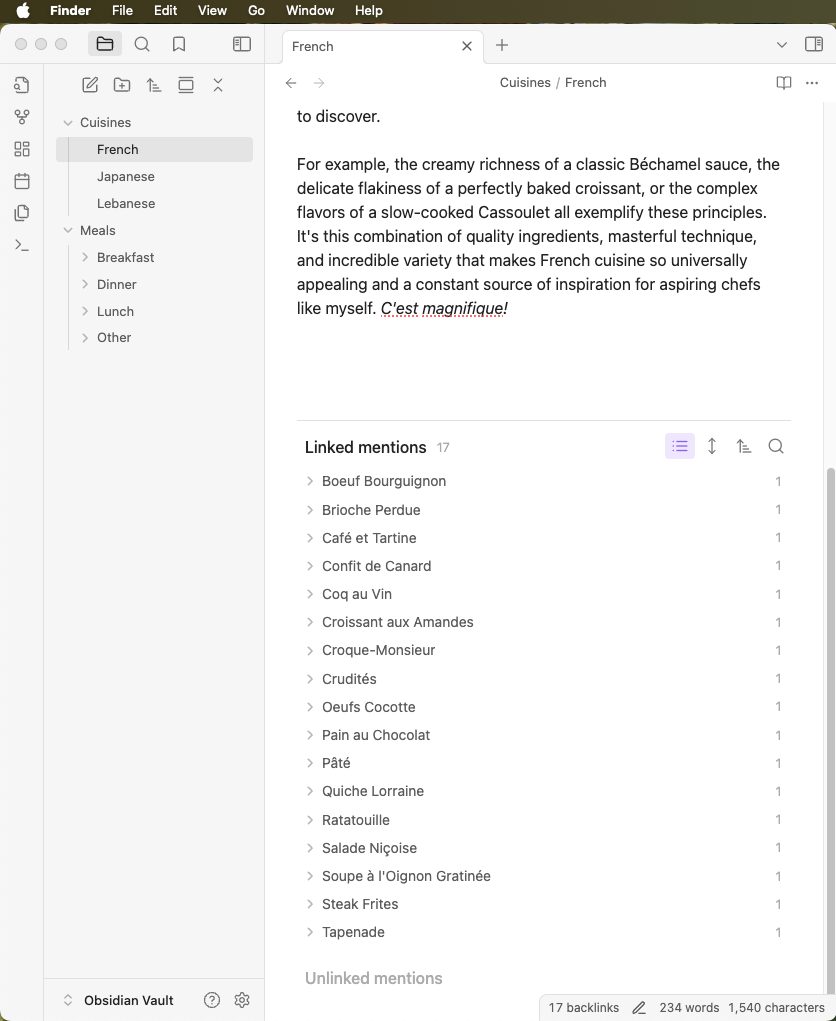
Obsidian is the usual answer when someone leaves Notion over speed or offline use, and the reason is how it stores notes. Each note is a plain Markdown file (text with simple marks, like # for a heading) in a folder on your computer that Obsidian calls a vault. Nothing waits on a server, so it works the same with or without wifi, and if Obsidian vanished your notes would still open in any text editor. It’s free for personal and work use on Windows, Mac, Linux, iPhone, iPad, and Android.
Notion users mostly worry about their databases. Obsidian’s built-in Bases plugin shows your notes as a table, list, cards, a kanban board, or a map, sorted and filtered by each note’s properties. Obsidian’s official Importer can pull a workspace through Notion’s API and turn each database into a base, formulas included. Only board views come across, though, so you’ll rebuild the others. Bases is also simpler than a Notion database, and extras such as a calendar view come from community plugins.
The costs show up elsewhere. Syncing between devices means paying for Obsidian Sync or setting up iCloud, Syncthing, or Git yourself. There’s no web app and little in the way of real-time co-editing, so it suits a personal notebook better than a team wiki. And on an Android phone, a large vault full of plugins can be slow to open.
What it does
- Notes stored as Markdown files on your device
- Bases: table, list, cards, kanban, and map views of your notes
- Links between notes, backlinks, and a graph view
- Community plugins and themes
Pros
- Works fully offline, and your notes open in any text editor
- Free for personal and work use
- Imports Notion databases as Bases
- Community plugins add views and features the core app lacks
Cons
- Syncing between devices costs extra or takes setup
- No web app or real-time co-editing
- Only Notion's board views survive the import
- Takes longer to learn than Notion
- Skip if:
- Your team edits the same notes together every day.
Microsoft OneNote
Free notebooks with handwriting, on every platform
Ranking: Note apps, scored for class notes
#1 4.2/5
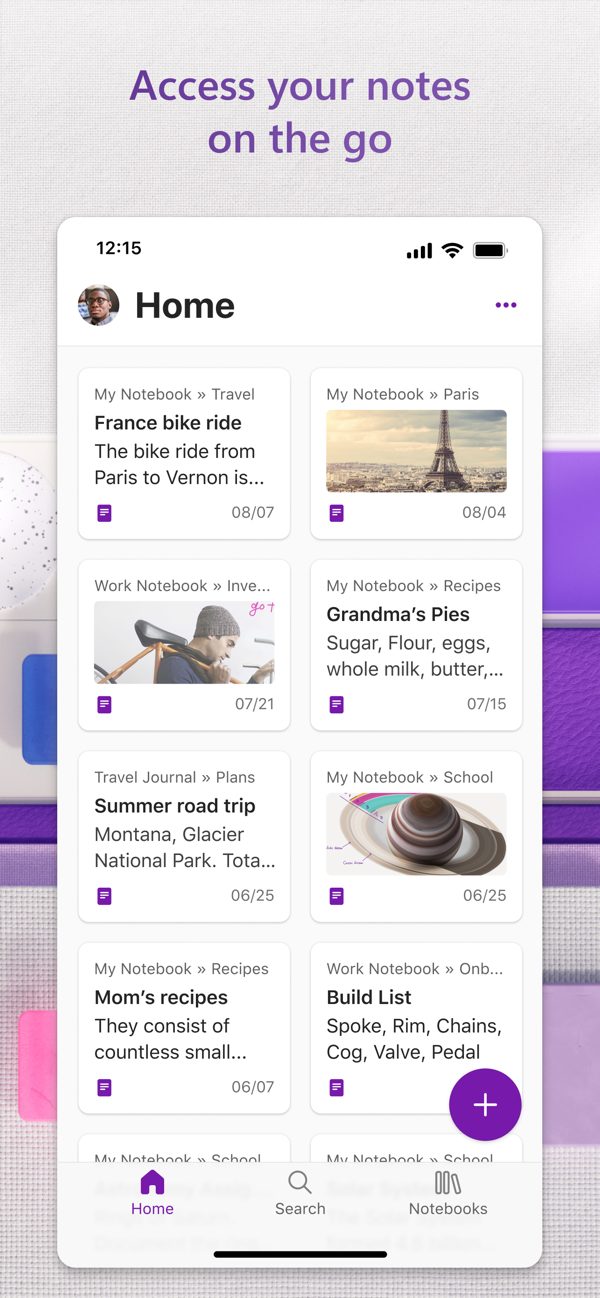
OneNote suits the reader who used Notion as a binder: notebooks, sections, and pages, with typed text, handwriting, images, and PDF printouts placed anywhere on a page. It’s free with a Microsoft account, runs on Windows, Mac, iPhone, iPad, Android, and the web, and syncs through OneDrive. If you write with a stylus, OneNote does what Notion can’t, putting your handwriting on the page next to your typed notes.
Offline works the way you’d expect. The OneNote apps keep a copy of your notebooks on the device, you can view and edit them without a connection, and your changes sync when you’re back online. The web version needs a connection, and a few features, such as finding text in images or creating a notebook, wait until you’re online.
What you give up is structure. OneNote has no databases, so a reading list with a status and a rating, or a task tracker with several views, becomes a table you update by hand. And on Windows, keeping a notebook only on your computer instead of in OneDrive takes a Microsoft 365 subscription.
What it does
- Notebooks, sections, and pages with a free-form canvas
- Typed text, handwriting, images, and PDF printouts on one page
- Apps for Windows, Mac, iPhone, iPad, Android, and the web
- Audio recordings linked to your notes
Pros
- Free on every major platform
- Works offline in the apps, with changes synced later
- Handwriting and typed notes sit on the same page
Cons
- No databases or database views
- Notebooks kept only on a Windows PC need Microsoft 365
- The web version needs a connection
- Skip if:
- Most of your notes are tables you sort and filter.
#3 3.9/5
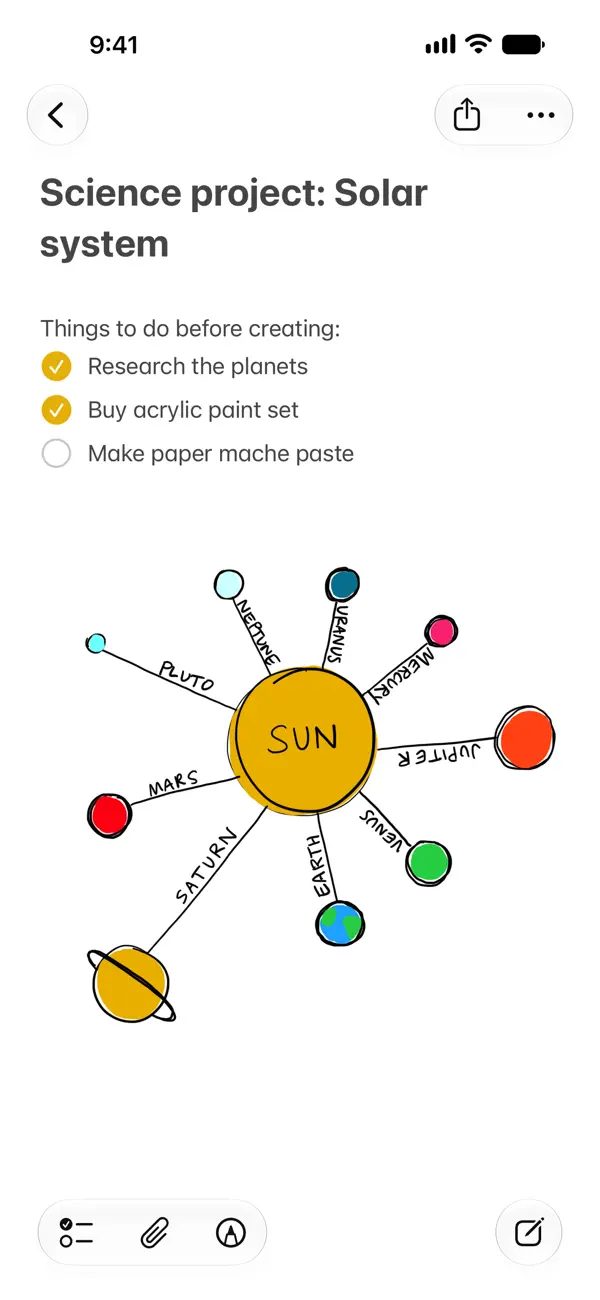
If every device you own is an Apple one, Apple Notes is already installed and, in my view, the fastest way to get a thought down. It organizes notes in folders, subfolders, tags, and smart folders, scans paper documents, and takes Apple Pencil handwriting on an iPad, with your handwriting searchable alongside typed text. Everything syncs through iCloud at no cost, though iCloud’s free 5 GB is shared with your photos and backups.
The limit is the platform. There’s no Windows or Android app; on a Windows PC you get Notes in a browser at iCloud.com, which needs a connection. And like OneNote, Apple Notes has no databases. For a journal, a shopping list, and lecture notes on an iPad, that’s fine. For a content calendar with statuses and due dates, it isn’t.
What it does
- Folders, subfolders, tags, and smart folders
- Document scanning and audio recording
- Apple Pencil handwriting on iPad
- iCloud sync across iPhone, iPad, and Mac
Pros
- Free and already installed on Apple devices
- Nothing to set up before your first note
- Handwriting and scanned text are searchable
Cons
- No Windows or Android app
- No databases
- iCloud's free 5 GB is shared with photos and backups
- Skip if:
- You use a Windows PC or an Android phone.
If your team runs projects in Notion
Plenty of teams build their project tracker in Notion: a tasks database, a projects database, a relation between them, and a board view. It works, but your team maintains it. Charts and custom automations need a paid plan, and you still build each one yourself. The tools below come with that structure built in. They’re scored here for small teams, with ease of use counting most.
1–5 per criterion · select a score for its reasoning and any sources
| # | Product | Overall | Easy for the whole team , counts double | Planning views | Price per person | Team communication and docs | Free plan for a team | Automation on the paid plan | Reporting and workload | Clients and contractors | Software team workflow , counts half |
|---|---|---|---|---|---|---|---|---|---|---|---|
| 1 | ClickUp | 4.0 | 3 | 5 | 5 | 5 | 3 | 3 | 5 | 4 | 4 |
| 2 | Asana | 3.9 | 4 | 5 | 4 | 4 | 1 | 5 | 5 | 4 | 2 |
| 3 | Linear | 3.4 | 4 | 5 | 4 | 3 | 4 | 2 | 2 | 2 | 5 |
| 4 | Notion | 3.1 | 3 | 5 | 4 | 3 | 2 | 2 | 2 | 4 | 3 |



×2 = counts double in the overall score, ×½ = counts half.
How each criterion is scored
Easy for the whole team
Counts double in the overall score: A tool the team doesn't keep updating tracks nothing, so whether everyone will use it counts double.
How quickly a team of mixed skills, not only the person who chose the tool, gets set up and keeps using it day to day: a clear layout, sensible defaults, how much setup it needs before it's useful, and how fast and stable it feels. Judged from how the product is built and what reviewers and many users agree on.
- 5 New members get going within minutes and keep using it, with almost no setup and a clean, fast interface
- 4 Most people get going within a day, with few complaints beyond occasional clutter or a learning curve for advanced features
- 3 Fine once someone builds the structure, with known snags such as a crowded interface, slow screens or a blank-page start
- 2 Usable after real setup work and training, with frequent complaints about complexity or clutter
- 1 Most teams need an admin or consultant to set it up, and non-technical members struggle with it
Planning views
How the team can lay out and schedule its work on any plan it can buy without talking to sales: lists, boards, a timeline or Gantt chart, task dependencies, and a timeline that shows several projects together.
- 5 All of that plus a timeline or roadmap that shows several projects together
- 4 Lists, boards and a timeline or Gantt chart with task dependencies
- 3 Lists, boards and a timeline of some kind, but no task dependencies on it
- 2 Lists and boards, with a calendar but no timeline or Gantt chart
- 1 A list or a board only
Price per person
The average monthly price per person, billed annually, for a 6-person and a 25-person team on the cheapest paid plan that holds the team and has a timeline or Gantt chart (for a product without one, the cheapest paid plan that holds the team). Seat minimums, seat blocks and user caps that force a bigger purchase count, because they change what each person costs.
- 5 $9 or less per person a month
- 4 $9.01 to $11 per person a month
- 3 $11.01 to $14 per person a month
- 2 $14.01 to $18 per person a month
- 1 Over $18 per person a month
Team communication and docs
What the team can do besides tracking tasks without a second app: comments on tasks, project-level messages or status updates, docs or wiki pages, and real-time chat.
- 5 Comments, docs, real-time chat and a message board or announcements, all built in
- 4 Comments, updates and docs plus either real-time chat or a message board
- 3 Comments and updates plus built-in docs or wiki pages
- 2 Task comments plus project-level status updates or conversations
- 1 Comments on tasks only
Free plan for a team
How far a small team gets before paying: how many people the free plan allows, whether it includes a timeline or Gantt chart, and how soon its caps on projects, items, storage or feature uses bite.
- 5 Free for 10 or more people with a timeline and limits most small teams won't hit for months
- 4 Free for 10 or more people with a timeline, but with a tight cap on items, storage or feature uses
- 3 Free for 10 or more people with lists and boards, but no lasting timeline or Gantt chart
- 2 Free for a few people, or with a cap a working team outgrows within weeks, such as one project or a block limit
- 1 No free plan, or a free plan for one or two people only
Automation on the paid plan
How much routine work the team can automate inside the product, on the same plan the price criterion uses, counted as rule runs a month for a 10-person team.
- 5 A rule builder with unlimited runs or more than 10,000 a month
- 4 A rule builder with 2,000 to 10,000 runs a month
- 3 A rule builder with 500 to 2,000 runs a month
- 2 Only simple built-in automation, such as buttons or fixed workflow rules, or a rule builder with fewer than 500 runs a month
- 1 No built-in automation rules; automating needs Zapier or a similar service
Reporting and workload
Whether a team lead can see progress and who is overloaded without exporting to a spreadsheet: dashboards or charts, a workload view, and built-in time tracking, and whether all of them come on plans bought without talking to sales.
- 5 All three on plans bought without talking to sales
- 4 All three, but one only on a sales-quoted plan or as a paid add-on
- 3 Two of the three
- 2 One of dashboards or charts, a workload view, and built-in time tracking
- 1 Only lists of overdue or assigned work
Clients and contractors
Whether the team can bring in clients, freelancers and contractors to see and work on tasks, on the plan the price criterion uses, without paying for each of them as a full member.
- 5 Unlimited free guests who can work on tasks, plus controls that hide internal work from clients
- 4 Free outside collaborators who can comment and work on tasks, with generous limits
- 3 Free outside collaborators, but with a tight limit, such as one board, a small count, or counting against a user cap
- 2 Free outside access is view-only, or free guests come only on a pricier plan
- 1 Every outside person needs a full paid seat
Software team workflow
Counts half in the overall score: Only teams that ship software choose by it, so it counts half for everyone else.
How well the tool fits a team that ships software: sprints or cycles, a backlog, and a GitHub or GitLab integration that links code to tasks and updates them.
- 5 Built for software teams, with cycles or sprints, a backlog, triage, and code integrations that keep issues in step with pull requests
- 4 Sprints and a backlog plus a code integration that moves tasks when pull requests open or merge
- 3 Sprints and a backlog plus a GitHub or GitLab integration that links tasks
- 2 A code-hosting integration or sprint templates, but not both
- 1 No sprints and no code-hosting integration
#1 4.0/5
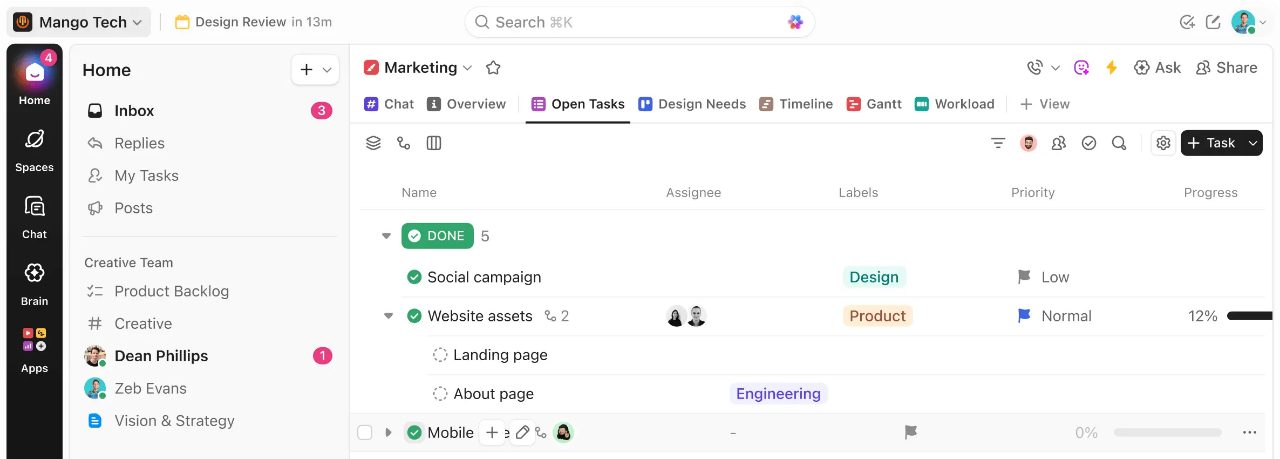
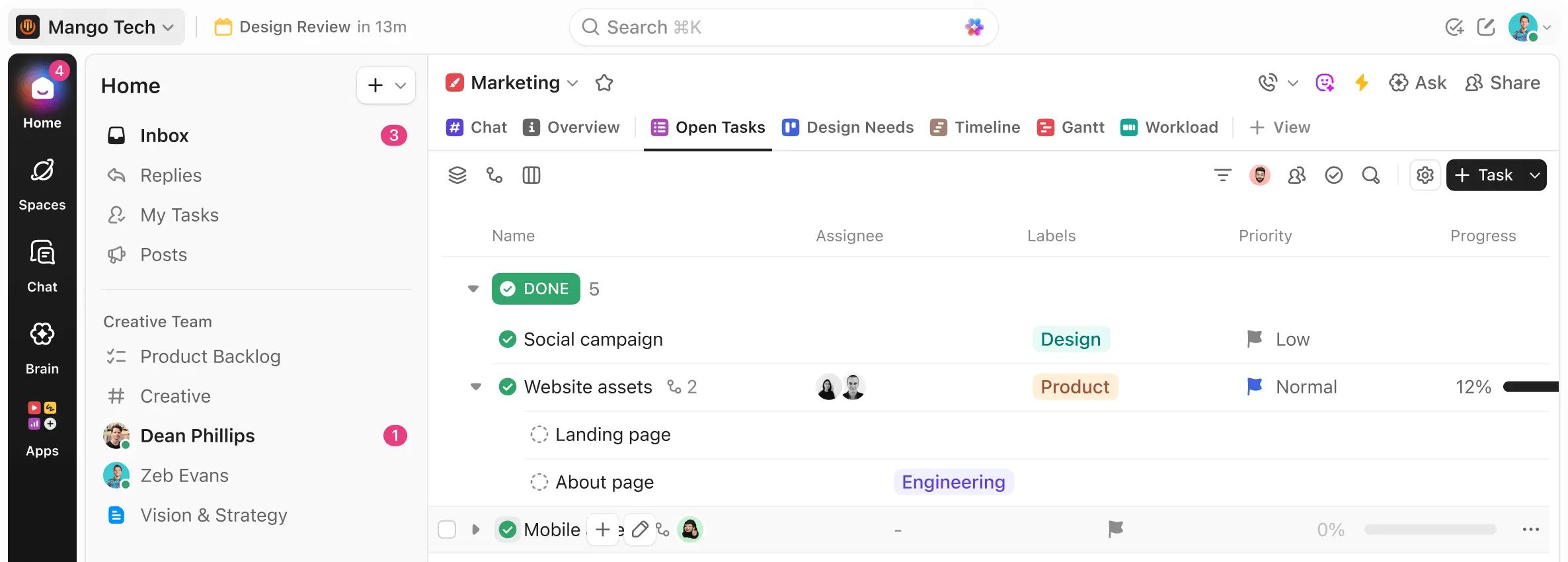
ClickUp tries hardest to be Notion and a project manager at once. It has docs, chat, and whiteboards, but its tasks come with assignees, statuses, dependencies, and time estimates already defined, and with list, board, calendar, table, Gantt (tasks drawn as bars on a timeline), timeline, and workload views. You pick views instead of designing a database.
Its free plan is the most generous here for a team that outgrew Notion’s free plan: unlimited members and unlimited tasks. The limits sit elsewhere. Storage is 60 MB for the whole workspace, Gantt charts and dashboards come as limited trial uses that never reset, and the timeline and workload views need the Business plan. Every ClickUp plan, the free one included, comes with a monthly allowance of AI credits, so a team gets some AI without paying for a top plan.
The trade is the thing many people leave Notion over. ClickUp has so many features that it takes planning to set up, and it can lag on large projects too, so it won’t cure slowness. A team that left Notion because it felt like too much will probably be happier in Asana.
What it does
- Tasks with list, board, calendar, table, Gantt, timeline, and workload views
- Docs, chat, and whiteboards in the same workspace
- AI credits on every plan
- Apps for the web, Windows, Mac, Linux, iPhone, and Android
Pros
- Project views and task fields come built in
- Keeps docs and tasks together, as Notion does
- Free plan with no limit on members
Cons
- Steep learning curve
- Can lag on large projects
- Free storage is 60 MB for the whole workspace
- Timeline, workload, and dashboards need the Business plan
- Skip if:
- Your team wants fewer features than Notion has, not more.
#2 3.9/5
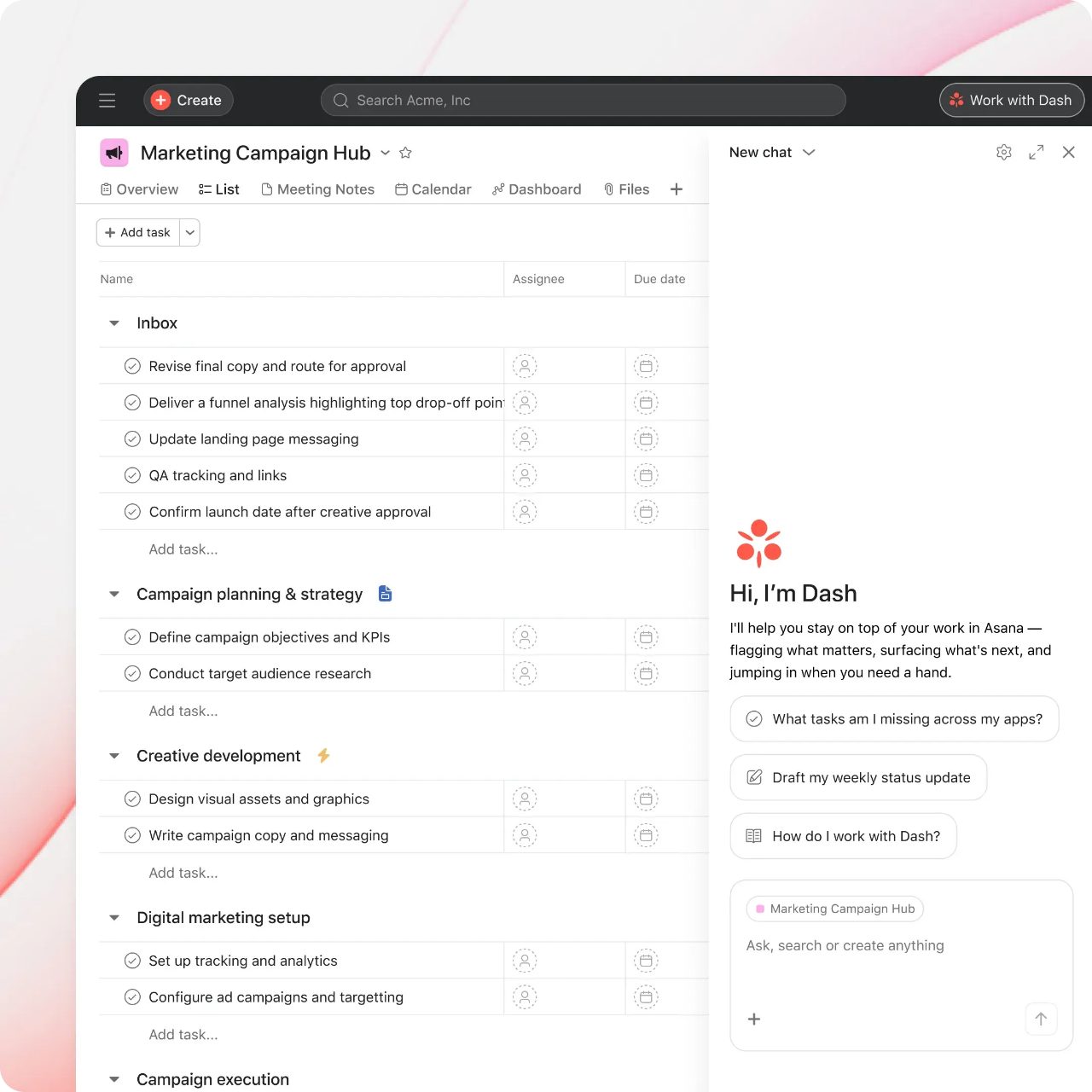
Asana is the one to pick when your team’s complaint about Notion is setup. You make a project, add tasks with assignees and due dates, and switch between list, board, and calendar views, with no database to design first. Marc Andrews, who reviews software for small teams, called it the tool he’d hand someone who wants a project “set up correctly within ten minutes of signing up.”
The Starter plan adds timeline and Gantt views, dashboards, forms, custom fields, and rules (Asana’s automations), with no cap on how many rules you run. That covers much of what Notion teams build by hand.
The free plan is the problem. It stops at two people, so it’s no use to most teams leaving Notion’s free plan. Asana also does little with documents: you can attach files and post status updates, but your wiki has to live somewhere else. And its AI is metered tightly, at five requests per person a month on paid plans.
What it does
- List, board, and calendar views on every plan
- Timeline, Gantt, dashboards, and rules on Starter
- Forms and custom fields on Starter
- More than 100 integrations, including Slack and Google Drive
Pros
- Quick to learn and set up
- Unlimited rules on paid plans
- Free guests on paid plans
Cons
- The free plan is capped at two people
- No wiki or long-form docs
- Five AI requests per person a month on paid plans
Linear
For software teams tired of a homemade tracker
Ranking: Project tools, scored for small teams
#3 3.4/5
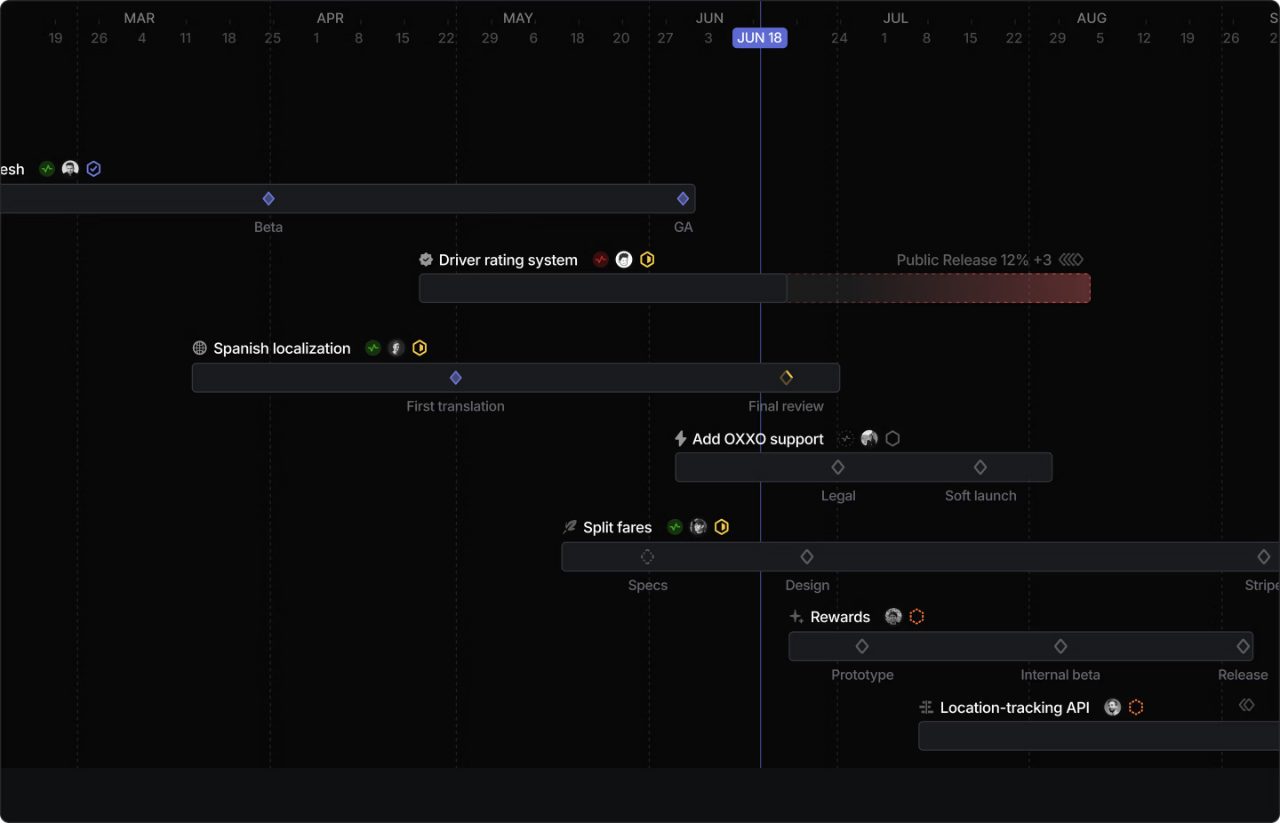
Linear is for one kind of Notion team: people building software. It’s an issue tracker with cycles (fixed stretches of work, like sprints), projects with milestones, recurring issues, and GitHub, GitLab, and Slack integrations. It’s also quick, with a fast interface built for people who work from the keyboard, which makes it a good home for an engineering team whose Notion board grew slow.
The free plan allows unlimited members, two teams, and 250 issues, which a busy team fills fast. Linear imports issues from Jira, Asana, GitHub Issues, Shortcut, and Trello, and from CSV files, which is how a Notion database comes across.
Outside engineering it’s a weaker fit. Design or marketing can get their own team inside Linear, but the tool is built around software work, and it has no wiki for the rest of the company.
What it does
- Issues, sub-issues, cycles, and projects with milestones
- GitHub, GitLab, and Slack integrations
- Recurring issues
- Importers for Jira, Asana, GitHub Issues, Shortcut, and Trello
Pros
- Fast, keyboard-driven interface
- Free plan with unlimited members
- Little setup for a software team
Cons
- The free plan stops at 250 issues
- Built around software work
- No docs or wiki for the wider team
#2 3.9/5
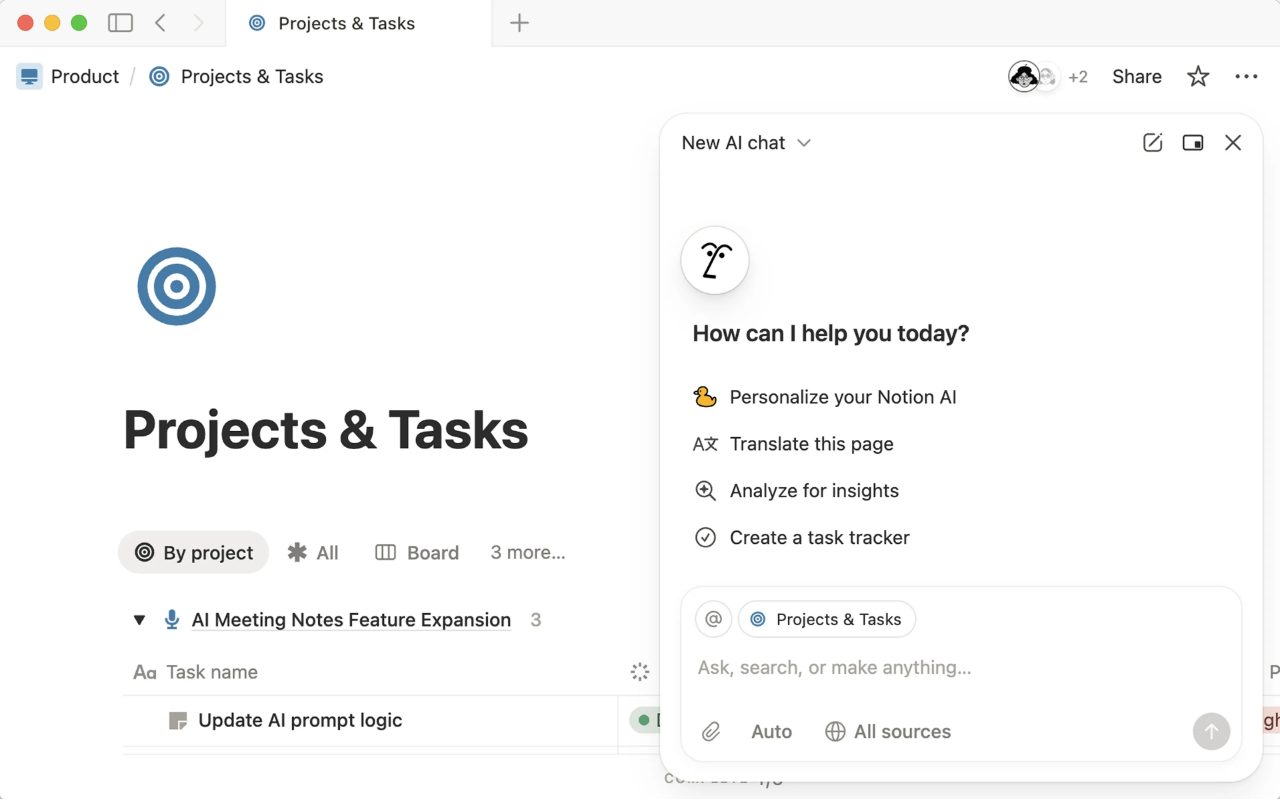
Notion still does one thing none of these do. A page in your wiki and a row in your project database are the same kind of thing, so a spec can sit inside the task it belongs to, and a meeting note can link to both. ClickUp comes closest, and it’s harder to learn. If your team uses Notion mostly as its wiki, with a modest task database beside it, the slowness is something you can trim: give each big database its own page, filter on simple properties like status or date, and hide properties you don’t need.
For some readers it’s also hard to beat on price. A workspace with one member gets unlimited blocks on the Free plan, and college students and teachers with a school email get the free Education Plan, with unlimited pages and blocks and 30 days of page history. Teams pay per member for Plus or a higher plan.
What it does
- Pages, docs, and wikis with databases inside them
- Table, board, timeline, calendar, list, gallery, and chart views
- Forms and buttons that add pages to a database
- Offline pages in the desktop and mobile apps
Pros
- Docs and project databases link to each other
- Unlimited blocks for one person on the Free plan
- Free Education Plan for college students and teachers
Cons
- Large databases load slowly
- Offline copies of a database hold only its first 50 rows
- Free workspaces with two or more members stop at 1,000 blocks
- Notion AI needs the Business plan
If you only need a to-do list
Notion makes a fine to-do list until you need it to nag you. It can’t repeat a reminder, such as “water the plants every Monday,” and its repeating templates make a new copy of a task on a schedule rather than moving a task’s due date when you check it off. Adding a task on your phone also means opening the right database first. A dedicated to-do app fixes both.


Todoist
For reminders, recurring tasks, and quick capture
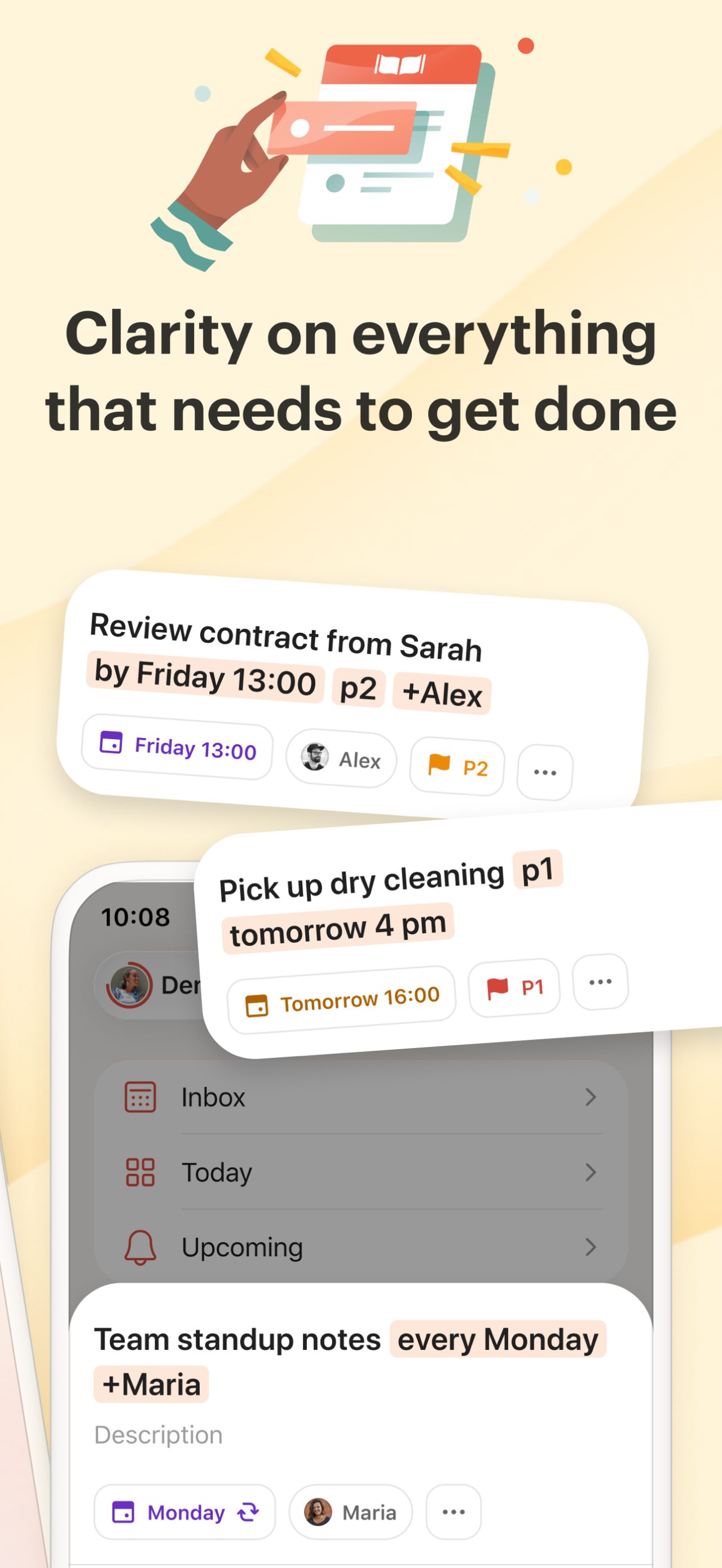

Todoist is the to-do app I’d pick for someone leaving Notion. You type “Submit report every Friday at 4pm #Work” and it becomes a task in your Work project, due every Friday at 4pm. It runs on iPhone, iPad, Apple Watch, Mac, Windows, Android, and the web, and syncs between them. The free Beginner plan allows five active projects, reminders, and list and board layouts. Pro adds a calendar layout, custom reminders, and room for many more projects.
Todoist is a task list, not a notebook. Long notes, documents, and databases don’t fit in it, so you can keep Notion for reference pages and use Todoist for what’s due.
What it does
- Quick Add reads dates, repeats, and projects from one typed line
- Recurring tasks and reminders
- Apps for iPhone, iPad, Apple Watch, Mac, Windows, Android, and the web
- List and board layouts, with calendar and table layouts on Pro
Pros
- Repeating reminders, which Notion doesn't have
- Works on every major platform
- Pro costs less than a Notion Plus seat
Cons
- The free plan allows five active projects
- Custom reminders need Pro
- No room for long notes or documents
Also considered
- Anytype has a block editor that feels like Notion’s but stores your data on your device and works offline, with apps for Windows, Mac, Linux, iPhone, and Android. It has no web app, and its collaboration is weaker than Notion’s.
- Trello is easier than Asana for a team that only needs a board of cards, but it does little with documents or reports, and its free plan stops at 10 collaborators per workspace.
- Google Keep is free and quick for short notes and checklists on Android, but it holds short cards rather than structured pages.
If you use Notion as a notebook and you’re leaving over speed or offline use, Obsidian is the strongest replacement, as long as you’ll put in the time to learn it. If you’d rather not learn anything new, OneNote is free everywhere and takes handwriting, and Apple Notes is the quickest choice on a Mac and iPhone.
For a team, the choice follows why you’re leaving. ClickUp keeps docs and tasks together with project views built in, but it’s as complex as Notion and can lag on big projects too. Asana trades the wiki for a tracker anyone can run in minutes, and Linear is the pick for a software team. If your wiki and your projects link to each other and that’s what you value, stay with Notion and trim the slow databases. And if all you wanted was a reminder that repeats, Todoist is the fix.
Frequently asked questions
Which Notion alternative includes AI on a cheaper plan?
ClickUp includes a monthly allowance of AI credits on every plan: 500 credits for the whole workspace on Free, and 1,000 per person on Core. Asana’s paid plans include five AI requests per person a month. If you already pay for a chatbot such as ChatGPT or Claude, staying on Notion Plus and using it alongside can cost less than a Business seat for everyone.
How do I move my notes out of Notion?
A workspace admin can export everything from Notion’s settings as HTML, Markdown, or CSV files. To keep your databases, Obsidian’s Importer works best when it connects to your Notion account through Notion’s API, which brings databases and formulas across as Bases. Importing an exported file keeps your pages but not your databases.
We scored 7 products on 18 criteria using 125 quotes, 70 of them from the products' own websites. How our rankings work