Best clipboard managers for Mac, Windows and Linux

Every clipboard manager makes the same trade. You can paste back anything you copied last week, and in return a program keeps what passes through your clipboard, which may include passwords and private messages. So before comparing features, look at what each of these four keeps out and where your clips can end up.
| CopyQ | ClipClip | Ditto | Maccy | |
|---|---|---|---|---|
| Runs on | Windows, macOS 13+, Linux | Windows | Windows | macOS 14+ |
| Source code | Open, GPL-3.0 | Closed | Open, GPL-3.0 | Open, MIT |
| Cost for work use | Free | $49 per user, once | Free | Free |
| Keeps password-manager copies out | Yes, by default | Assume they’re kept | If you exclude the app by name | Yes, by default |
| Where clips can go | A folder you choose to sync | Your cloud storage, if you turn on CloudConnect | PCs you add on your local network | Stays on your Mac |
Start with your operating system. CopyQ is the only one of these four on Linux, and on a Mac the choice is CopyQ or Maccy. Windows users have three options, and for them the question is how much the app should do beyond keeping a longer history: rework text as you paste, run scripts, or send clips to another PC. The ranking puts the most capable app first, though on a Mac we’d point most people to the simplest one.
Key facts
4 productsLicenses, requirements, and starting prices.
- License
- GPL-3.0, open source
- Runs on
- Windows
- macOS 13 or newer
- Linux
- Needs
- Unknown
- Price
- Unknown
- License
- Proprietary (free for personal use, paid license for work)
- Runs on
- Windows
- Needs
- Unknown
- Price
- Unknown
- License
- GPL-3.0, open source
- Runs on
- Windows
- Needs
- Unknown
- Price
- Unknown
- License
- MIT, open source
- Runs on
- macOS 14 Sonoma or newer
- Needs
- Unknown
- Price
- Unknown




1–5 per criterion · select a score for its reasoning and any sources
| # | Product | Overall | Platforms | Organizing saved items | Finding old items | Paste options | Privacy controls | Sync between devices | Automation | History size | Price for work use | Active maintenance |
|---|---|---|---|---|---|---|---|---|---|---|---|---|
| 1 | CopyQ | 3.9 | 3 | 5 | 2 | 4 | 4 | 3 | 5 | 4 | 5 | 4 |
| 2 | ClipClip | 3.2 | 1 | 4 | 3 | 5 | 2 | 4 | 3 | 3 | 3 | 4 |
| 3 | Ditto | 3.0* | 1 | 4 | 1 | 4 | 3 | 4 | 4 | unknown | 5 | 1 |
| 4 | Maccy | 2.9 | 1 | 3 | 3 | 2 | 4 | 1 | 2 | 3 | 5 | 5 |
? = unknown. * = the overall score averages only the known criteria.
How each criterion is scored
Platforms
How many of five operating systems the app runs on, counting the vendor's own builds: Windows, macOS, Linux, Android and iOS.
- 5 All five
- 4 Four of the five
- 3 Three of the five
- 2 Two of the five
- 1 One of the five
Organizing saved items
How many of five ways to keep and arrange items the app documents: pinning or locking an item so it is never removed, named groups, folders, lists or tabs, editing an item's text, adding notes or tags to an item, and reordering items by hand. A feature counts when it works on at least some items, for example only on pinned ones.
- 5 All five
- 4 Four of the five
- 3 Three of the five
- 2 Two of the five
- 1 None or one of the five
Finding old items
How many of five ways to find an item the app documents: searching the history by typing, fuzzy matching that tolerates typos or skipped letters, regular expressions, filtering by content type (text, image, file), and filtering by the app it was copied from or by date.
- 5 All five
- 4 Four of the five
- 3 Three of the five
- 2 Two of the five
- 1 None or one of the five
Paste options
How many of five paste features the app documents: pasting without formatting, pasting several items at once (joined or merged), pasting items one after another without picking each one again, changing text before pasting (such as case or trimming), and a keyboard shortcut that pastes a chosen item directly.
- 5 All five
- 4 Four of the five
- 3 Three of the five
- 2 Two of the five
- 1 None or one of the five
Privacy controls
How many of five privacy controls the app documents: pausing recording, ignoring copies from chosen apps or windows, skipping items that password managers mark as secret, deleting history automatically (after a set time or when the app quits), and encrypting the stored history. Features found only in test or nightly builds don't count.
- 5 All five
- 4 Four of the five
- 3 Three of the five
- 2 Two of the five
- 1 None or one of the five
Sync between devices
How far your clips can reach beyond the computer you copied them on.
- 5 The app itself shares clips with your other computers and with phones
- 4 The app itself shares clips with your other computers, directly or through a cloud storage account it connects to
- 3 Chosen items can be kept in a folder you sync yourself, such as a cloud drive folder
- 2 History can be exported to a file and imported on another computer
- 1 Clips stay on one computer
Automation
How much of the app's work you can automate, from nothing to a full scripting language.
- 5 A scripting language with access to the whole history, tabs or folders, and the app's settings
- 4 Scripts or actions that run automatically on newly copied or pasted items
- 3 Built-in or user-defined actions that run on an item when you choose them
- 2 A command line or system automation actions that read, add or remove items
- 1 No known automation
History size
The largest number of items the clipboard history can be set to keep, as the vendor's documentation or release notes state it. Folders of saved files outside the history don't count.
- 5 No fixed limit
- 4 10,000 items or more
- 3 1,000 to 9,999 items
- 2 100 to 999 items
- 1 Fewer than 100 items
Price for work use
What one person pays to use the app at work, at the regular price rather than a temporary discount. Open source apps whose license allows use at work at no cost count as free.
- 5 Free
- 4 One-time price under $25
- 3 One-time price from $25 to $50
- 2 Subscription, or a one-time price over $50
- 1 Subscription only
Active maintenance
How recent the latest stable release is, on the vendor's site or GitHub, counted from the date of the evaluation. Beta and nightly builds don't count.
- 5 Within the last month
- 4 Within the last 3 months
- 3 Within the last 6 months
- 2 Within the last 12 months
- 1 More than 12 months ago, or no releases
CopyQ
If you use Linux or more than one system
#1 3.9/5
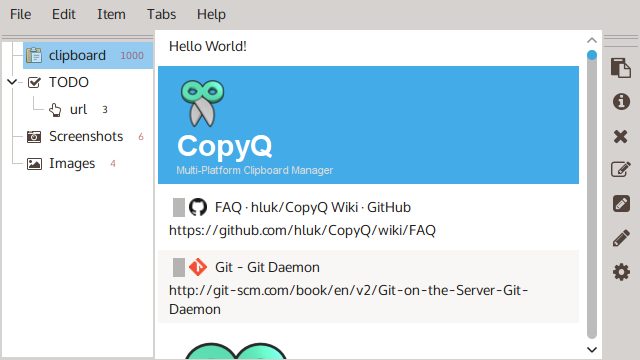
CopyQ is a clipboard manager built around tabs and scripts, and the only one of the four that runs on Windows, macOS and Linux. We’d recommend it to anyone on Linux, anyone who moves between systems, and anyone who wants the clipboard to do work for them, such as filing every copied link into its own tab. On Windows it’s also where we’d start if you just want a longer, searchable history, because it’s free for any use, stores every copy as soon as it runs, and filters the list as you type.
It organizes more than the others. You can sort items into tabs, edit them, move them by hand, add notes and tags, and pin the ones that must never be dropped. Its scripting API can add items and change settings, and commands can run automatically each time the clipboard changes, with a pattern deciding which copies they act on.
It’s plain about what it keeps. CopyQ sends nothing over the network, and it silently ignores clipboard content that password managers and private browser windows mark as secret. It can also encrypt every stored tab with a password, which Ditto and Maccy can’t.
The extras take some setup. Pinning works only after you assign it a keyboard shortcut, and plain-text paste is a command you add in the Command dialog. Search is a text filter. A regular-expression mode, for patterns such as every email address, is switched on with a command-line option, and there’s no fuzzy matching to find items despite typos.
What it does
- Tabs, pinned items, notes and tags
- A scripting API, plus commands that run on every copy
- Optional password encryption of every stored tab
Pros
- Free for any use, including work
- Sends nothing over the network
- Up to 100,000 items per tab, though the default is 200
Cons
- Pinning and plain-text paste need setting up before you can use them
- No fuzzy search
- Clips reach another computer only through a folder you sync yourself
- Skip if:
- Mac users on macOS 12 or older.
ClipClip
For reworking text as you paste, on Windows
#2 3.2/5
ClipClip is a closed-source Windows clipboard manager with a paste menu, folders of saved clips and a long menu of ready-made actions. We’d recommend it over CopyQ to Windows users who change what they paste all day, such as fixing case, stripping extra spaces or turning Markdown into HTML. ClipClip’s actions are built in and picked from a menu, while CopyQ’s text changes are commands you define yourself.
Pasting is where it does the most. After each paste, the paste menu moves to the next clip, so you can paste a list in order without hunting for each item. Shift pastes plain text, pinned clips have number keys, and several clips can be merged into one. Finding an old clip is easier too: only ClipClip can filter the history by type or by date.
There’s no way to exclude particular apps or skip copies from password managers, so we’d assume passwords you copy end up in the history. That history is encrypted on disk. CloudConnect is optional; if you turn it on, the same files are also stored in a hidden folder at your cloud storage provider, with no stated protection there. Some actions send the clip out by design, such as Translate to Google Translate or DeepL, and the app uses Google Analytics 4.
It’s free for personal use. For client work or use inside a company, the vendor asks for a one-time commercial license at a regular price of $49 per user.
What it does
- A paste menu that steps to the next clip after each paste
- Text and image actions, from case changes to translation
- Folders of saved clips, including folders in Google Drive or Dropbox
- Screenshots and screen recording
Pros
- Pastes a run of clips in order without picking each one
- A long list of ready-made actions for text and images
- Filters the history by type or date
Cons
- Work use is meant to be paid for, at $49 per user
- History stops at 1,000 clips
- Actions such as Translate and sharing send the clip to outside services
- Skip if:
- Mac and Linux users.
Ditto
For sending clips between Windows PCs
#3 3.0/5
Ditto is a free, open-source clipboard manager for Windows that saves text, images, HTML and other formats apps put on the clipboard, on your own machine. We’d recommend it to Windows users who want clips to reach their other PCs without a cloud account, because it can send clips to computers you add as friends on your local network.
It does more than a basic history list. Clips can go into groups, be set never to expire, be edited, and be moved up and down the list. Special paste options change text, such as pasting as CamelCase, which joins words and capitalizes each one. Three copy buffers act as extra clipboards with their own shortcuts. You can also write scripts that run on every copy or paste and change the clip or reject it outright. Next to ClipClip’s menu of actions, that’s fewer ready-made text changes and more to build yourself.
On privacy, you can disconnect it from the clipboard and let clips expire after a set number of days. To keep a password manager’s copies out, you exclude that program by name; there’s no automatic skipping. It has no tracking of any kind.
Upkeep is the worry. Development continues in nightly builds, which we didn’t count, but no stable release came out in the year before November 2026, and the documentation is a short wiki plus release notes. Search is just a search box, and the table has no score for history size: a setting for the maximum number of saved copies exists, but its largest value isn’t documented.
What it does
- Saves text, images, HTML and other clipboard formats
- Groups, clips that never expire and a clip editor
- Scripts that run on every copy or paste
- Three extra copy buffers with their own shortcuts
Pros
- Shares clips between PCs on your network without a cloud service
- Scripts can change or block clips as they're copied
- Clips can expire after a set number of days
Cons
- No stable release between September 2025 and our November 2026 check
- Thin documentation, mostly a short wiki and release notes
- Skip if:
- Mac and Linux users.
Maccy
For a fast, simple history on a Mac
#4 2.9/5
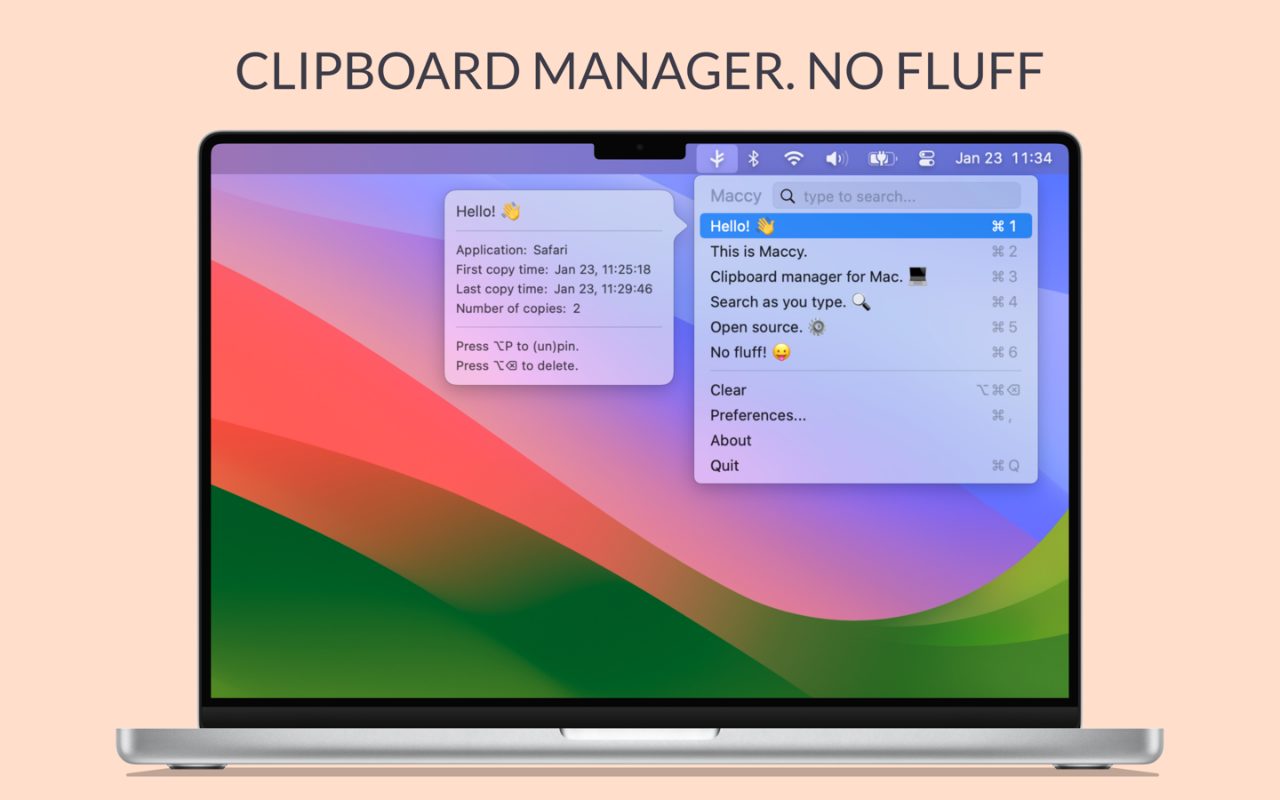
Maccy is a free, open-source clipboard manager for macOS 14 Sonoma or newer that does one job: keep your copy history at hand. We’d recommend it to most Mac users over CopyQ, even though it ranks last here, because it does that job from the keyboard, with its password handling on by default.
It’s built for the keyboard. You open it with a shortcut, type a few letters and press Return. An experimental mixed search mode tries an exact match, then fuzzy matching, then a regular expression, and a modifier key pastes without formatting. Pinned items get a permanent shortcut and can be edited and reordered.
Password handling also works out of the box. If your password manager removes a copied password from the clipboard, Maccy will too, and it ignores confidential copy types by default. You can also ignore whole apps and clear unpinned items when Maccy quits. Everything is stored on your computer, but not encrypted.
What you give up is everything past history. There are no groups, notes or tags, editing and reordering work only on pinned items, and the only automation is a few actions for Apple’s Shortcuts app. There’s no sync or export either, so expect your clips to stay on that one Mac.
What it does
- A keyboard-first window with type-to-search
- Exact, fuzzy and regular-expression search
- Pinned items with permanent shortcuts
- Actions for Apple's Shortcuts app
Pros
- Type to search and press Return, no mouse needed
- Keeps up to 9,999 items
- Had a new release in late October 2026
Cons
- No groups, tabs, notes or tags
- Editing and reordering work only on pinned items
- Skip if:
- Mac users on macOS 13 or older, and anyone who wants clips sorted into groups.
How to choose
- You use Linux, or switch between systems: CopyQ.
- You’re on a Mac and want a quick, searchable history: Maccy.
- You’re on a Mac and want tabs, notes or scripts: CopyQ, on macOS 13 or newer.
- You’re on a Mac or Linux and want clips on another computer: CopyQ, by syncing a tab with a folder such as Dropbox. Maccy has no sync.
- You’re on Windows and just want a longer, searchable history: CopyQ, free for any use and filtering as you type. ClipClip adds filters by type and date if you use it personally. Ditto works too, but its search is just a search box.
- You’re on Windows and want tabs or scripts: CopyQ, whose scripting reaches the whole app. Ditto’s groups and per-clip scripts are the alternative if you can live with its slow release pace.
- You’re on Windows and want clips on your other PCs: Ditto sends them over your local network; ClipClip’s CloudConnect goes through your cloud storage.
- You’re on Windows and rework text as you paste: ClipClip, free for personal use. If you won’t pay for work use, CopyQ can make similar changes with commands you set up.
- You copy passwords and want them kept out of the history with no setup: CopyQ or Maccy.