Best cloud storage for photos and videos
Your phone is full again, and the fix it suggests depends on who made it. An iPhone nudges you toward iCloud, an Android phone toward Google Photos, and the moment one family has both, the easy answer breaks: iCloud has no app for Android at all. That’s the choice you’re actually making. You’re not just picking somewhere to put photos; you’re picking the app everyone in the house opens to find them, and the company that keeps a copy of your kids’ childhoods.
For most families, the best cloud storage for photos is Google Photos on a Google One plan. It backs up iPhones and Android phones the same way, its search is the one the others are measured against, and one plan covers six people. Two other picks cover the readers it doesn’t suit. If everyone in the house has an iPhone, iCloud does the same job with less fuss. If the thought of Google’s servers reading your photos puts you off, Ente is the closest thing to Google Photos with end-to-end encryption.
What to settle before you pay
- 2 TB costs about $120 a year almost everywhere. Google, Apple, Amazon and Dropbox all charge close to $10 a month for 2 TB. The real price differences come from bundles you might already pay for (Prime, Microsoft 365), from lifetime plans, and from Ente’s privacy premium.
- Video is what fills the plan. A minute of 4K video takes more space than dozens of photos. That’s why “unlimited photos” deals are less generous than they sound.
- Every ranked service stores full-resolution originals and 4K video, as long as you pick the full-quality option where there is one. The differences are at the edges, such as RAW files and Live Photos.
- Who can see your photos varies a lot. Most services hold the keys to your library and analyze faces on their own servers. Ente and Proton Drive encrypt everything on your phone first, and Apple does too once you turn on Advanced Data Protection.
- Plan your exit now. Getting 20,000 photos out, with their dates and albums, is easy with some services and a weekend project with others.
Key facts
9 productsLicenses, requirements, and starting prices. Prices as of November 2026.
- License
- Unknown
- Runs on
- Android
- iPhone and iPad
- Web
- Needs
- Unknown
- Price
- From a free plan or $1.99/month
- License
- AGPL-3.0, open source
- Runs on
- Apps for iOS, Android, web, Windows, macOS and Linux
- Price
- From a free plan or $29.88/year
- License
- Unknown
- Runs on
- Web
- Windows
- macOS
- iOS
- Android
- Needs
- Unknown
- Price
- From a free plan or $1.99/month
- License
- Unknown
- Runs on
- Windows
- macOS
- Linux
- Android
- iOS
- Web
- Needs
- Unknown
- Price
- From a free plan or $49.99/year or $159.00 one-time or €9.99/month
- License
- Proprietary
- Runs on
- iOS
- Android
- Web
- Windows
- macOS
- Fire TV
- Echo Show
- Needs
- Unknown
- Price
- From a free plan or $14.99/month
- License
- Proprietary
- Runs on
- Web
- Windows
- macOS
- Linux
- iOS
- Android
- Needs
- Unknown
- Price
- From a free plan or $9.99/month
- License
- Unknown
- Runs on
- iOS
- iPadOS
- macOS
- Windows (iCloud for Windows)
- Web (iCloud.com)
- Price
- From a free plan or $0.99/month
- License
- Open source (license not named on the pages read), open source
- Runs on
- Web
- Windows
- macOS
- iOS
- Android
- Needs
- Unknown
- Price
- From a free plan or $3.99/month
- License
- Unknown
- Runs on
- iOS 13 or later (IDrive Photos)
- Android 10 or later (IDrive Photos)
- Windows 10 or later
- macOS 10.10 or later
- Linux
- Web
- Needs
- Unknown
- Price
- From a free plan or $2.95/year or $6.99/month









Google Photos
Best for most families
#1 4.0/5

Google Photos is the one to beat because finding a photo feels like asking a friend who was there. Type “beach 2019,” a dog’s name, or the text on a sign, and the right shot pops up, and in the US you can ask in full sentences. It groups faces, builds memories without being asked, and does all of this the same way on an iPhone, an Android phone and the web. In a house with both kinds of phone, nothing else here is this smooth for everyone.
Sharing is where it pulls ahead of the other cross-platform options. Every paid Google One plan can be shared with up to five other people, each keeping their own private library. Partner Sharing sends new photos of chosen people (say, the kids) to your partner’s account automatically, so nobody has to remember to send them. Shared albums take contributions from anyone you invite, and people without the app can still view them.
Two settings matter. Back up in Original quality: the cheaper-sounding Storage saver shrinks photos over 16 MP and turns 4K video into 1080p, and both options count against your storage anyway. And remember that your plan is shared with Gmail and Google Drive, so the free 15 GB fills up faster than your photo count suggests.
Google sells the 2 TB tier as Google AI Plus at $9.99 a month and the 5 TB tier as Google AI Pro at $19.99, so you pay for Gemini features along with the space.
The price of all that cleverness is privacy. Google holds the keys to your library and analyzes it on its servers. Your photos aren’t used for ads, and Google doesn’t train generative AI models outside Google Photos on them. That still leaves room for models inside Photos, and for training on summaries of your library if you connect Photos to other Google services. Leaving is clumsy too: Google Takeout hands you your originals, but dates and descriptions arrive as separate JSON files that need another tool to stitch back in.
What it does
- Automatic backup on Android, iPhone and iPad, plus computer folders through Google Drive for desktop
- Search by face, object, place and text, and conversational search in US English
- One plan shared with up to five others, each with a private library
- Partner Sharing that adds new photos to another account automatically
Pros
- The best search here
- Works the same on iPhone and Android
- Shared albums open to people without the app
Cons
- Google analyzes your photos on its servers
- Takeout exports put dates and descriptions in separate files
- Storage is shared with Gmail and Drive
- Skip if:
- You want no company able to see your photos
Ente Photos
For privacy without losing search
#2 3.6/5

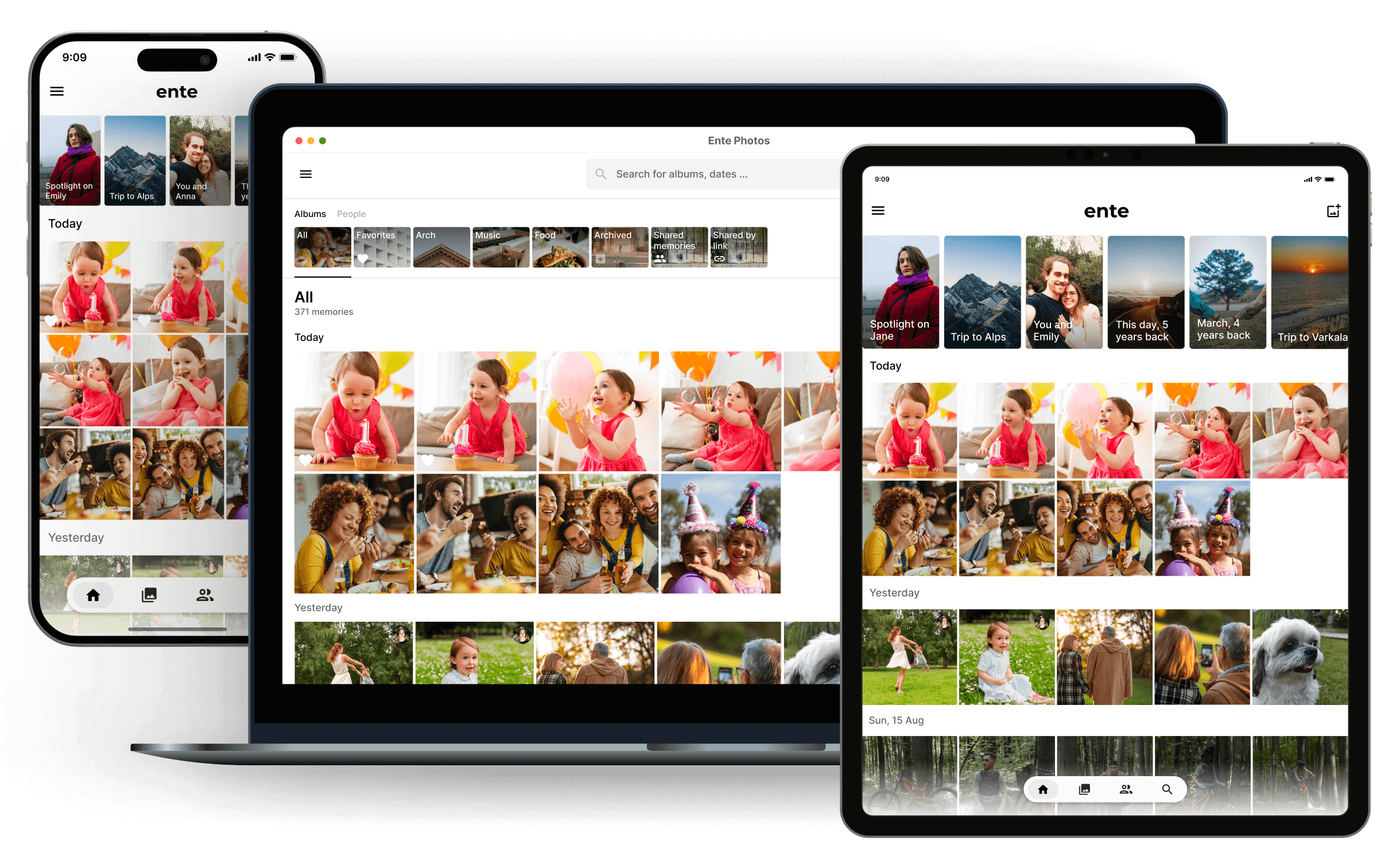
Ente is what Google Photos would look like if the company couldn’t see your photos. Everything is end-to-end encrypted on your phone before it uploads, file names and locations included, and face grouping and “magic” search (type “red car” or “birthday cake”) run on your own devices. It’s open source, it’s been independently audited by Cure53, and paid plans keep three copies with three providers, one of them in an underground shelter in Paris.
It’s a real Google Photos replacement rather than an encrypted folder. You get a timeline, a map, memories, shared and collaborative albums, and public links that people without an account can view and even upload to. One paid plan covers you and five family members at no extra cost, each with a private library. Moving in is easy, too: the desktop app imports a Google Takeout or Apple export with its dates intact.
Search is good, not magic. Faces get thrown off by sunglasses and hats, and natural-language search misses more often than Google’s. Backup on iPhone is the other weak spot: Background uploads on iPhone are inconsistent, and a big first upload needs Ente’s Backup mode, with the screen on and the phone plugged in.
Then there’s the price. At $239.88 a year for 2 TB, Ente costs twice what Google or Apple charge, though 1 TB at $119.88 covers many families. And true encryption cuts both ways: lose your password and your recovery key, and nobody can get your photos back. Leaving is easy too, with a desktop export that keeps a folder per album up to date as you add photos.
What it does
- End-to-end encrypted backup on iPhone, Android, web and desktop
- Face grouping and search that run on your device
- Family plan for you and five others at no extra cost
- Continuous export of originals into album folders
Pros
- Your photos stay private by default
- Feels like Google Photos, unlike most encrypted storage
- Open source and independently audited
Cons
- About twice the price of Google or Apple for 2 TB
- Background backup on iPhone is unreliable
- Lose your password and recovery key and your photos are gone
- Choose if:
- You want Google Photos' features without Google reading your library
Microsoft OneDrive
If you already pay for Microsoft 365
#3 3.3/5
If you have Microsoft 365 for Word and Excel, you already have photo storage, and plenty of it. Microsoft 365 Family costs $129.99 a year and gives up to six people 1 TB each, along with the Office apps. For a family that splits its photos across several phones, that’s the most storage per dollar from the big names.
Each person gets their own separate 1 TB, so one person with a huge library can’t use a sibling’s unused space. Shared albums are also weaker than Google’s or Apple’s: you share folders or links rather than building one family album everyone adds to.
OneDrive’s camera upload keeps iPhone photos as the original HEIC files, and the Photos view groups faces into a People section that you can search by name. That grouping runs on Microsoft’s servers, the face data isn’t used to train its AI, and switching it off deletes the data within 30 days. Background uploads on iPhone often stall until you open the app.
Where OneDrive shines is the exit. Its Windows and Mac app can keep every original file on your computer, in ordinary folders, updated as new photos arrive. That gives you a second copy without any export project.
What it does
- Camera upload on iPhone and Android, keeping original HEIC files
- People grouping with search by name
- 1 TB per person for up to six people on Microsoft 365 Family
- Desktop app that keeps the original files on your computer
Pros
- Lots of storage if you already pay for Office
- Easiest way to keep a local copy of everything
- Separate private space for each family member
Cons
- No single person can go past 1 TB
- Shared family albums are basic
- iPhone uploads often wait until you open the app
pCloud
Pay once instead of every month
#4 3.3/5
pCloud is for people who’d rather pay once than rent storage forever. Besides yearly plans (2 TB is $99.99 a year), it sells lifetime plans, and they go on sale often: 2 TB lists at $709 and has sold for $379 in Black Friday sales. Even at list price, that’s about six years of a $120-a-year plan, and every year after that costs nothing. The bet is that pCloud stays in business as long as your photos need to.
The phone apps back up your whole camera roll automatically on iPhone and Android, and deleting a photo from your phone never deletes the cloud copy. That one-way design makes it a true backup, unlike iCloud’s sync. You choose whether your data lives in Europe or the US when you sign up.
Organizing is where it shows its roots as file storage. A Photos view on the web adds a timeline, a map, and search by objects, scenes and people, but it’s younger and less polished than Google’s or Apple’s. Family sharing comes only as a lifetime Family plan for five people, each with a private space. pCloud holds the keys to your files; end-to-end encryption is a paid add-on folder that leaves its photos out of search.
What it does
- Automatic camera-roll upload on iPhone and Android
- Lifetime plans as well as yearly ones
- Web Photos view with a timeline, map and search
- Choice of European or US data storage
Pros
- Lowest long-term cost if you pay once
- Backup is one-way, so deleting on the phone is safe
- Works on every desktop, Linux included
Cons
- Lifetime value depends on pCloud lasting
- Photo browsing is behind Google's and Apple's
- Family plans are lifetime only
Amazon Photos
Free photo storage for Prime members
#5 3.1/5
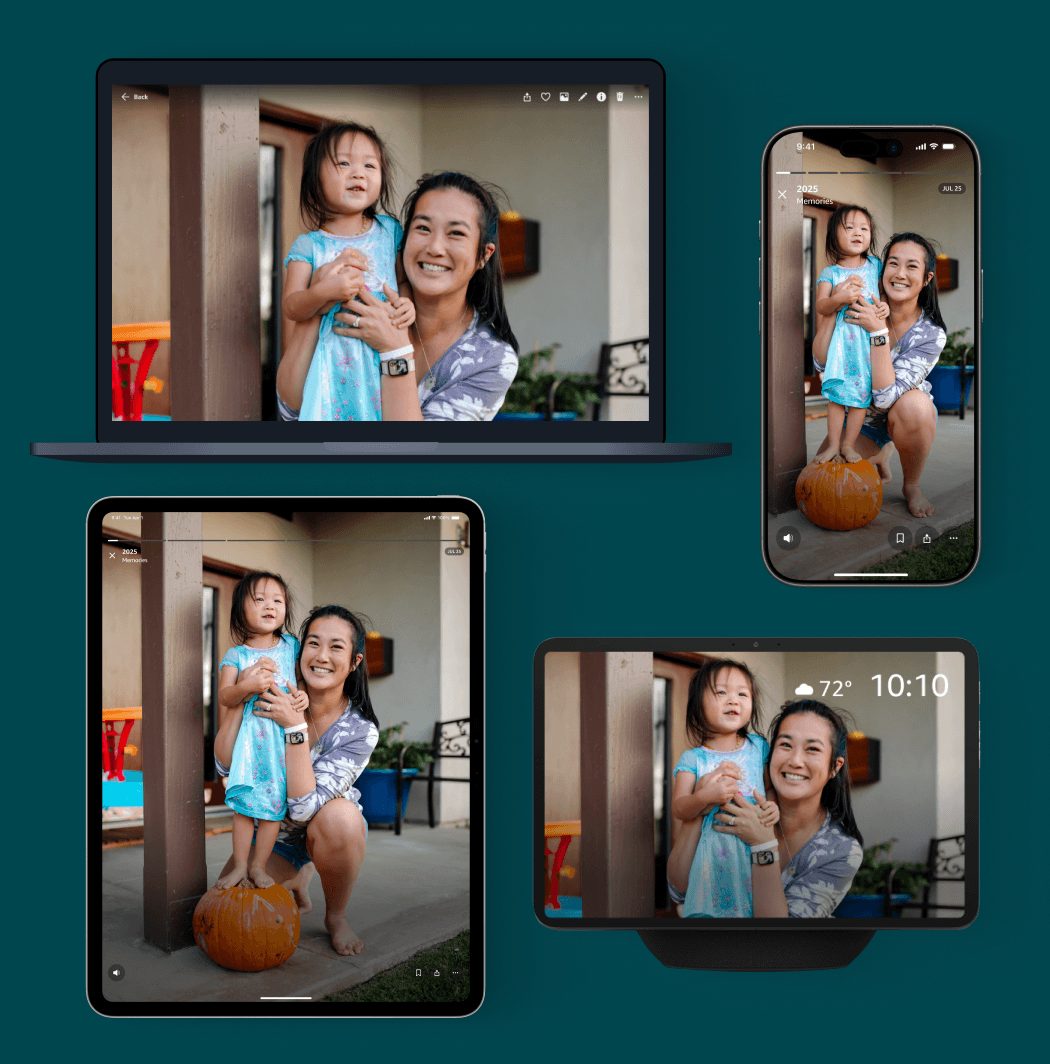
Amazon Photos is the perk hiding inside Prime. Every Prime member gets unlimited full-resolution photo storage at no extra cost, plus 5 GB for video, and the app is good. The apps for iPhone and Android back up automatically once you turn on Auto-Save, search finds faces, pets, places and things like “train,” and your photos can play on an Echo Show or as a Fire TV screensaver.
Here’s the fine print. “Unlimited” covers photos only, and 5 GB of video is a couple of birthday parties in 4K. Families who record a lot of video end up buying a storage plan anyway: 2 TB is $11.99 a month or $119.98 a year, which puts Amazon right back in line with everyone else. And if Prime lapses, you drop to 5 GB in total. Nobody should buy Prime just for this.
You can share your storage with up to five people in your Amazon household, but their uploads stay private to them; sharing photos happens in invite-only groups. The first big upload is slow and wants the app open the whole time. Amazon holds the keys and tags faces, objects and scenes on its servers, and it’s vaguer than Google or Apple about how it uses that data. You can switch the tagging off.
What it does
- Unlimited full-resolution photos with Prime, plus 5 GB of video
- Search by face, object, place and date
- Storage shared with up to five household members
- Slideshows on Echo Show and Fire TV
Pros
- Free photo storage if you already have Prime
- Good search for the price
- Easy to enjoy photos on the TV
Cons
- Video needs a paid plan beyond 5 GB
- Drops to 5 GB if Prime lapses
- Vague about how it uses what it learns from your photos
Dropbox
Photos as plain files in folders
#6 3.1/5
Dropbox treats photos as files, and some people want exactly that. Camera uploads drop everything into one Camera Uploads folder, original HEIC and Live Photos included, and the desktop app mirrors it onto your computer where Lightroom or any other editor can reach it. It previews RAW formats such as CR2 and DNG, and camera uploads work even on the free plan, though 2 GB won’t last long.
What it won’t do is help you find a photo. You get a Photos tab sorted by date and folders, not face grouping or a memories feed. On iPhone, Dropbox even offers an overnight upload mode that needs the app open on Wi-Fi and a charger, so don’t count on quiet background backup.
Plus gives one person 2 TB for $9.99 a month on a yearly plan. Family shares 2 TB among six people, each with a private account plus a shared Family Room folder, and costs more. For storing photos alone, that’s poor value next to Google or Apple. It’s for people who already live in Dropbox.
What it does
- Camera uploads on iPhone and Android, even on the free plan
- Keeps HEIC originals and Live Photos
- Desktop app keeps every file on your computer
- RAW previews such as CR2 and DNG
Pros
- Photos stay ordinary files in folders
- Easy to edit in desktop apps
- Nothing to export if you leave
Cons
- No face grouping or memories
- Family plan costs more than rivals for less photo sharing
iCloud+
Easiest for all-iPhone families
#7 3.1/5
If everyone in your house has an iPhone, iCloud is the easiest choice here, and the scores table undersells it for you. iCloud Photos is built into the phone: there’s no app to open, no setting to babysit, and new photos simply appear on your iPad and Mac. Face and object recognition happen on your devices, and an iCloud Shared Photo Library lets up to six people pool photos automatically (Apple can even suggest adding the shots you took together). A 2 TB plan is $9.99 a month and can be shared with five family members, and there are 6 TB and 12 TB tiers for the video-heavy.
It ranks low for one hard reason: Android. There’s no iCloud app for Android phones, only the iCloud website in a browser, so an Android user in the family can’t back up to it automatically.
Two things catch people out. iCloud Photos is sync, not a backup. Delete a photo on your phone and it disappears everywhere, and you have 30 days to rescue it from Recently Deleted. And Shared Albums, the older way to share with friends, shrink photos to 2048 pixels and video to 720p, so they’re for viewing, not keeping.
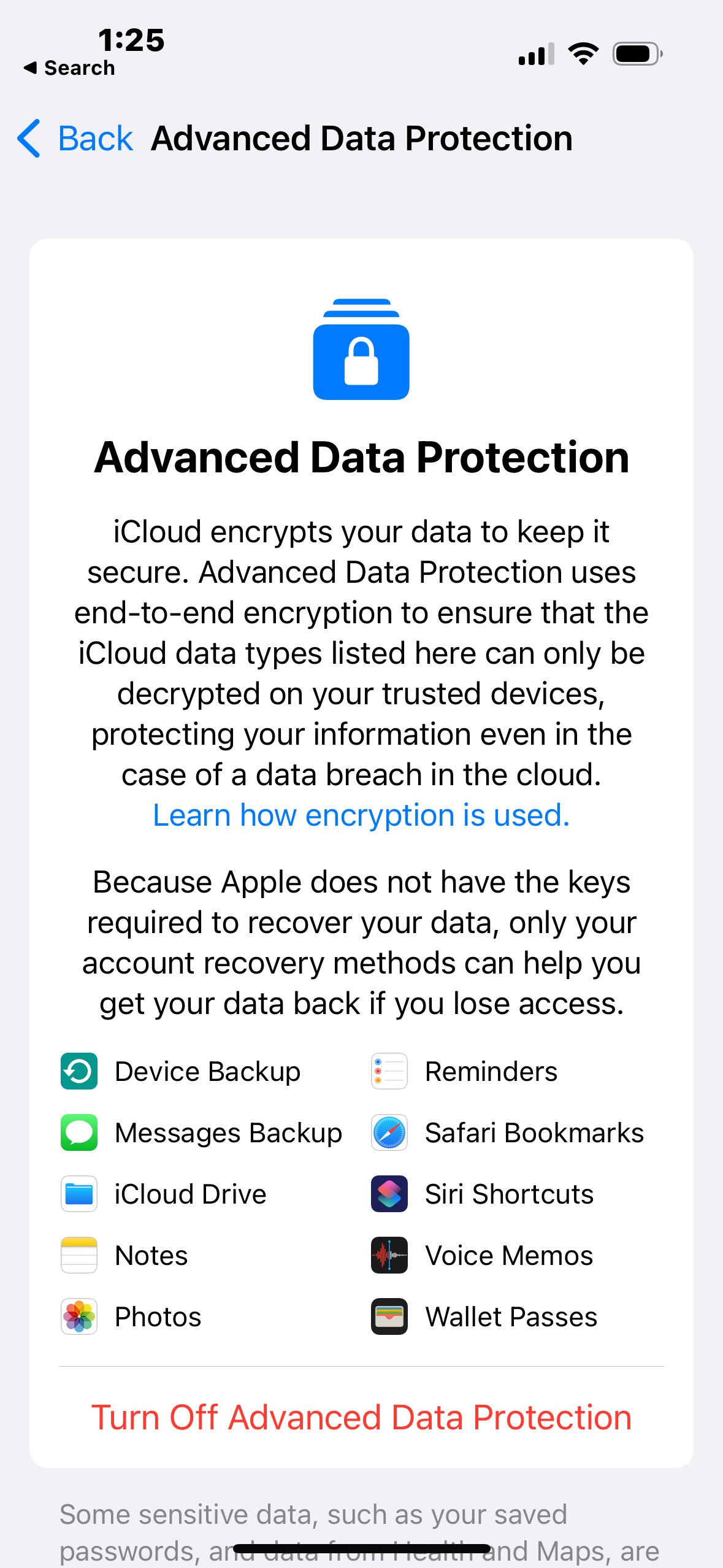
Privacy is better than Google’s by default and the best of the big names once you turn on Advanced Data Protection, which end-to-end encrypts your library (Shared Albums excepted). Getting out is decent: a Mac can keep every original locally, and Apple has a tool that copies your library to Google Photos.
What it does
- Backup built into iPhone, iPad and Mac
- Shared Photo Library for up to six people
- Optional end-to-end encryption with Advanced Data Protection
- Plans up to 12 TB
Pros
- No app to manage on iPhone
- Recognition runs on your devices
- Best family library for Apple users
Cons
- No Android app
- Sync, not backup: deletions spread everywhere
- Shared Albums shrink photos and video
- Choose if:
- Every phone in your family is an iPhone
Proton Drive
For people who already pay for Proton
#8 3.0/5
Proton Drive’s photo backup is for people who already trust Proton with their email and want their photos under the same lock. Photos are encrypted on your phone before they upload, nothing is analyzed on Proton’s servers, and the company is in Switzerland.
As a photo app, it’s thin. You get a timeline, favorites, albums and filters for videos, RAW files and Live Photos, but there’s no way to search by face, place or what’s in the picture, so finding one photo from 2019 means scrolling. Shared albums work only with other Proton users. On Android, only the Camera folder backs up until you add others, and on iPhone a force-closed app stops the backup.
It’s also pricey for photos: there’s no 2 TB plan for one person, so 2 TB means Proton Duo at $179.88 a year, shared between two people with Proton’s mail, VPN and password manager. If you pay for those anyway, the photo storage comes along. If not, Ente is the better encrypted photo app.
What it does
- End-to-end encrypted photo backup on iPhone and Android
- Albums, favorites and type filters
- Bundled with Proton Mail, VPN and Pass on bigger plans
Pros
- Strong privacy from a well-known company
- Good value if you use Proton's other apps
Cons
- No search by face, place or contents
- Shared albums only with Proton users
- No single-person 2 TB plan
IDrive
Cheapest per terabyte for one big library
#9 2.6/5
IDrive is a computer backup service that also backs up phones, and that’s how it feels. It wins on price: the Personal plan gives 5 TB for about $84 a year, and the separate IDrive Photos app runs on even smaller, cheaper plans. You can back up every phone and computer in the house to one account, and once a year IDrive will mail you a drive at no charge to move a big backup without waiting on your internet connection.
For a family’s phone photos, though, it’s the wrong shape. Everyone shares one login rather than having their own library, sharing is limited to links that expire, and IDrive Photos is a plain gallery: a timeline, filters by type and place, favorites and simple edits. On iPhone, IDrive asks you to keep its backup screen open for the first big upload, and after that it uploads mainly when you use the app.
What it does
- Backs up phones and computers into one account
- 5 TB Personal plan, plus small IDrive Photos plans
- One free shipped drive a year for moving a big backup
Pros
- Cheapest per terabyte for one big library
- Covers computers as well as phones
Cons
- One shared login rather than family accounts
- iPhone backup mostly runs while the app is open
- Basic photo browsing
Also considered
- Flickr can’t be a faithful backup of a phone. Flickr Pro converts HEIC photos to JPEG, stores video at no more than 1080p, and doesn’t accept RAW files, and the free plan stops at 1,000 items. It’s a lovely place to show off your best shots, not to keep all of them.
- A home server with Immich, or Ente’s own server software, keeps every photo off other people’s computers if you’re willing to run the hardware. The self-hosted photo libraries guide compares them.
Scores
1–5 per criterion · select a score for its reasoning and any sources
| # | Product | Overall | Phone backup on iPhone and Android , counts double | Finding photos | Sharing with family | Price for 2 TB | Privacy of your photos | Getting photos back out |
|---|---|---|---|---|---|---|---|---|
| 1 | Google Photos | 4.0 | 5 | 5 | 5 | 3 | 2 | 3 |
| 2 | Ente Photos | 3.6 | 3 | 4 | 4 | 1 | 5 | 5 |
| 3 | Microsoft OneDrive | 3.3 | 3 | 4 | 3 | 3 | 2 | 5 |
| 4 | pCloud | 3.3 | 3 | 3 | 3 | 4 | 3 | 4 |
| 5 | Amazon Photos | 3.1 | 3 | 4 | 4 | 3 | 1 | 4 |
| 6 | Dropbox | 3.1 | 3 | 2 | 3 | 3 | 3 | 5 |
| 7 | iCloud+ | 3.1 | 1 | 4 | 5 | 3 | 4 | 4 |
| 8 | Proton Drive | 3.0 | 3 | 2 | 4 | 2 | 5 | 2 |
| 9 | IDrive | 2.6 | 2 | 2 | 2 | 4 | 3 | 3 |
Equal displayed overall scores are ordered by the earlier criteria; a known score comes before an unknown score. Identical scores use alphabetical order.
×2 = counts double in the overall score, ×½ = counts half.
How each criterion is scored
Phone backup on iPhone and Android
Counts double in the overall score: Automatic backup that keeps running is the job every reader of this choice needs done first.
Whether the service's own apps back up a phone's whole camera roll, videos and Live or motion photos included, on both iPhone and Android without the owner remembering to do it, and whether it can also pull in photos from a computer or camera. Judged from how and when the apps upload, as their makers document it and as users and reviewers report it.
- 5 Background backup of the whole camera roll on both, plus a desktop app that adds photos from a computer or camera to the same library
- 4 Background backup of the whole camera roll on both, videos and Live or motion photos included
- 3 Background backup on both, with known gaps, such as uploads that stall unless the app stays open, or Live Photos or extra Android folders left out
- 2 Automatic backup on both, but on one of them uploads mostly run only while the app is open on screen
- 1 Automatic backup on only one of iPhone and Android
Finding photos
How easily you find one photo in a library of tens of thousands: face grouping, search by what is in a photo, by place and by text in the picture, and search in your own words. Judged from the features each service offers on its phone apps and from how well users say they work.
- 5 Face grouping, search by objects, places and text, and search in your own words that works well
- 4 Face grouping and search by objects, places and text in the photo
- 3 Either face grouping or search by what is in the photo, or both but limited to some devices or regions
- 2 A timeline with filters such as date, type or place, but no search by what is in the photo
- 1 Browsing by folder or date only
Sharing with family
How a household shares one plan and its photos: whether each person gets their own private library under one subscription, whether others can add to shared albums, and whether photos can be shared with another person automatically.
- 5 One plan for the family, shared albums others add to, and a shared library or partner sharing that adds new photos automatically
- 4 One plan gives each family member a private library, plus shared albums others can add photos to
- 3 One plan gives each family member a private library, but photos are shared only through folders or links
- 2 Several phones can use one login, or each person needs their own paid plan; sharing by link
- 1 One person's storage; sharing only by link
Price for 2 TB
The yearly price of the cheapest plan that holds 2 TB of photos and videos, at US list prices, using the annual price when the service offers one. A one-time lifetime plan counts as its price spread over five years. When a single person can't buy 2 TB, the cheapest plan that gives 2 TB across several family accounts counts. Discounts for the first year only don't count.
- 5 Under $80 a year
- 4 $80 to $109 a year
- 3 $110 to $149 a year
- 2 $150 to $199 a year
- 1 $200 or more a year
Privacy of your photos
Who can see your photos and what the company does with them: whether the library is end-to-end encrypted so only your devices hold the keys, whether faces and contents are analyzed on the company's servers or on your phone, and what the company says about using photos for ads, shopping or AI training.
- 5 Every photo and its details are end-to-end encrypted by default, with recognition on your devices
- 4 End-to-end encryption of the library is an option you turn on, and recognition runs on your devices
- 3 The company holds the keys but analyzes little or nothing of your photos' contents, or end-to-end encryption is only a paid add-on that automatic backup can't use
- 2 The company holds the keys and analyzes faces and contents on its servers; it rules out ads but not every use for AI
- 1 The company holds the keys and says it may use what it finds in your photos for advertising or shopping
Getting photos back out
How easily you get the whole library back as original files, with dates and albums, to keep a second copy or to move to another service.
- 5 A desktop app keeps a full copy of the original files on a computer, in folders that follow your albums or your own folders, and updates it as you add photos
- 4 A desktop app or one-step tool copies the whole library as original files
- 3 A bulk export of original files, but dates or albums come out in separate files that need another tool to put back
- 2 A bulk export you request and wait for, which loses albums or dates
- 1 Download a few photos at a time only
What 2 TB costs
Most families end up around 2 TB once a few years of 4K video pile up. Here’s what that costs per year at US prices:
| Service | 2 TB per year (Nov 2026) | Who it covers |
|---|---|---|
| Google Photos | $119.88 | You and up to 5 others |
| iCloud | $119.88 | You and up to 5 others |
| Amazon Photos | $119.98 | Up to 6 in a household, plus Prime for unlimited photos |
| Dropbox Plus | $119.88 | One person |
| Microsoft 365 Family | $129.99 | Six people, 1 TB each |
| pCloud | $99.99, or a one-time lifetime price | One person |
| IDrive Personal | about $84 for 5 TB | One shared login |
| Proton Duo | $179.88 | Two people |
| Ente | $239.88 | You and up to 5 others |
How to choose
- iPhones and Android phones in one family: Google Photos. Choose Ente instead if privacy matters more than the best search and the higher price doesn’t.
- Every phone is an iPhone: iCloud. Upgrade the plan rather than adding a second service, and keep a separate copy, since deletions sync.
- You don’t want any company seeing your photos: Ente. Proton Drive only makes sense if you already pay for Proton.
- You already have Prime: Amazon Photos for photos, but budget for a storage plan if you shoot a lot of video.
- You already have Microsoft 365: OneDrive, as long as no one person needs more than 1 TB.
- You want to stop paying every month: pCloud’s lifetime plan, ideally bought on sale.
- You edit in desktop apps and think in folders: Dropbox or OneDrive.
The verdict
Google Photos wins because it does the hardest part of the job, finding one photo among tens of thousands, better than anyone, and it does it identically on every phone in a mixed family. You pay for that with privacy: Google analyzes your library on its servers, and its promises about AI training have conditions attached. If that bothers you, Ente gives you most of the experience, encrypted, for about twice the price. And if your house is all iPhones, iCloud is the one to pick, since nothing else is built into the phone itself.
Whichever you choose, don’t let it be your only copy. iCloud and Google Photos sync deletions, accounts get locked, and plans lapse. OneDrive, Dropbox and Ente can keep a full copy on a computer without any effort, and that second copy is worth more than any feature these services sell.
Frequently asked questions
Is iCloud Photos a backup?
Not on its own. iCloud Photos keeps your devices in sync, so deleting a photo on your iPhone deletes it from iCloud and your other devices too, with 30 days to recover it from Recently Deleted. A backup that never deletes, such as pCloud’s one-way upload or a copy on a computer, protects you from mistakes and from a locked account.
What happens to my photos if I stop paying?
They aren’t deleted the day you stop. Your account drops to the free allowance, and new photos stop backing up once you’re over it. Google may delete content from accounts that have been inactive or over quota for two years, and Amazon falls back to 5 GB when Prime ends. Download everything before you cancel.