Best email clients for Mac
Plenty of “best email app” roundups still say Apple Mail can’t snooze a message. It can. Mail on a current Mac can hide a message until later (Apple calls it Remind Me), schedule a send, bring back a sent message nobody answered, and sort newsletters and receipts away from mail from people. It’s free, it stops tracking pixels from seeing when and where you open a message, and your mail doesn’t pass through anyone else’s servers.
So for most Mac users, the best email client is the one already on the Mac. Switch when you need something Mail does badly:
- A smarter inbox and a calendar in the same app, free, on every device: Spark.
- Your mail is all Gmail: Mimestream.
- Your job runs on Microsoft 365 or Exchange: Outlook.
- Email is most of your job, and you’ll pay $300 a year to get through it faster: Superhuman.
An email app is only a window onto the accounts you already have. Switching doesn’t change your address, and with Gmail, iCloud, Outlook.com or a work account your mail stays on your provider’s servers, so you can try an app and walk away. What does change is who else handles your mail. Several popular apps send your login or your messages through their own servers to make push notifications, scheduled sending or AI work, and that’s often the real price of a free app. The section after the reviews sorts out which apps do it.
Apple Mail
Best for most Mac users
#1 4.1/5
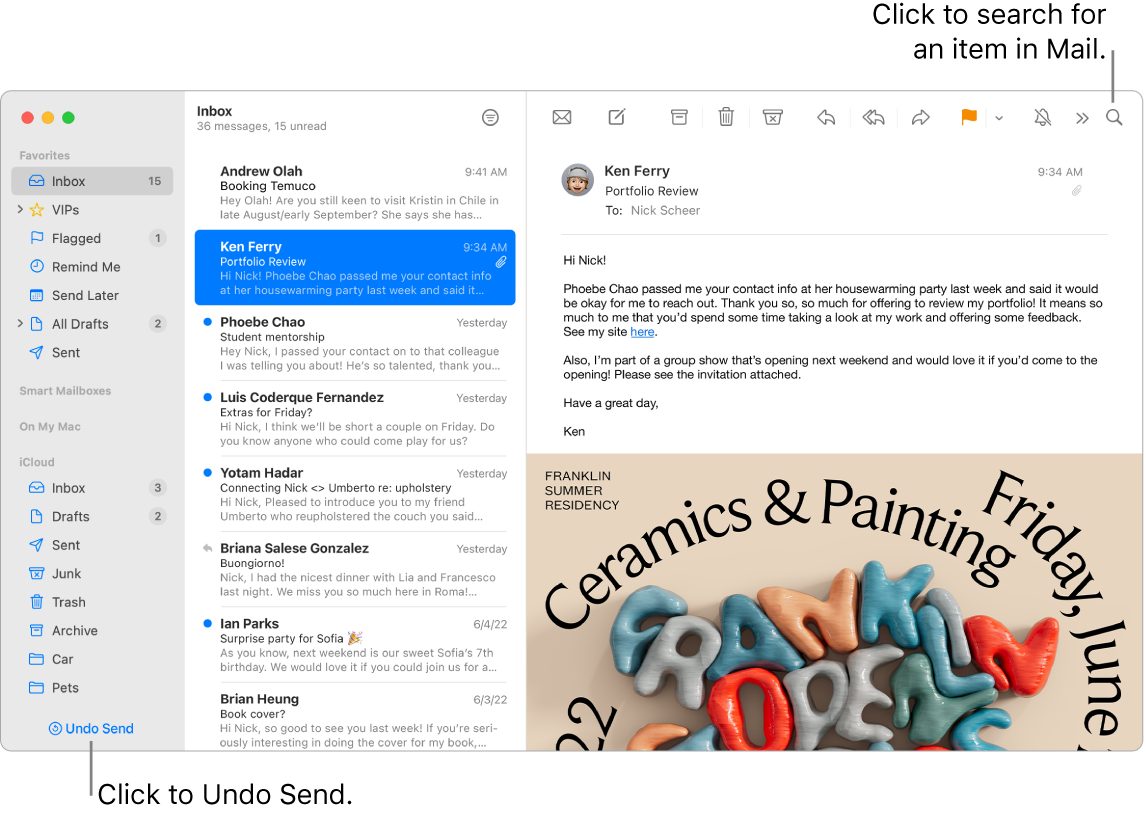
Apple Mail suits anyone with an iCloud address plus a Gmail or work account or two who mostly wants mail to arrive, be easy to find and stay out of the way. It picks up the accounts already on your Mac, works the same way on iPhone and iPad, and costs nothing.
Most of the features people leave it for are there now. Remind Me, Send Later and Follow Up (which moves a sent message back to the top of your inbox when nobody has replied) work with any account. Mail also sorts incoming mail into Primary, Transactions, Updates and Promotions. On an Apple silicon Mac set to a supported language, Apple Intelligence summarizes long threads, suggests replies, finds mail when you describe it in plain words and can write in your own style. That AI runs on the Mac or on Apple’s Private Cloud Compute servers, which don’t keep your data.
Gmail is where it’s weakest. Mail reaches Gmail through IMAP, the standard way email apps connect, so Gmail’s labels show up as folders and archiving doesn’t behave quite like Gmail on the web. Search has improved but is still the most common complaint. There’s no calendar inside Mail (invitations go to the separate Calendar app), and people who want to run everything from the keyboard or bolt on plug-ins will find it limited.
What it does
- Snooze (Remind Me), scheduled sending and reply reminders for every account
- Automatic categories for receipts, updates and promotions
- Mail Privacy Protection, which hides your IP address and when you open a message
- Apple Intelligence summaries, replies and plain-language search on supported Macs
Pros
- Free and already installed
- No third party between you and your mail
- The same app on iPhone and iPad
Cons
- Gmail labels behave like folders
- No calendar inside the app
- Little for keyboard-driven or automated workflows
- Skip if:
- All your mail is Gmail and you want it to behave exactly like Gmail
Spark Mail by Readdle
Smarter inbox, free on every device
#2 3.7/5
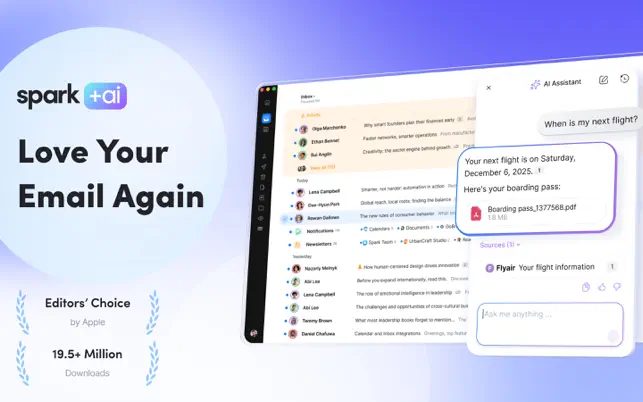
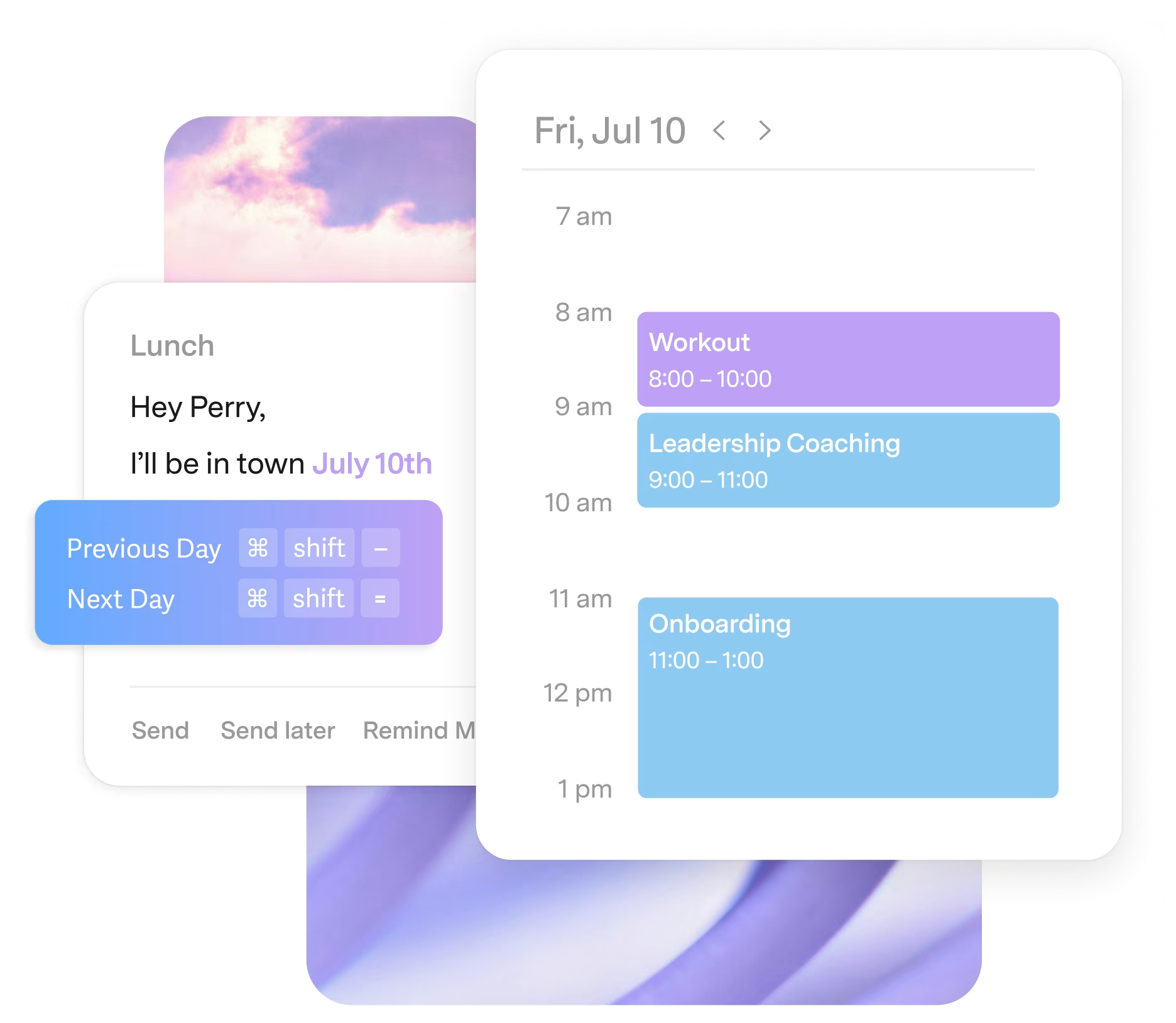
Spark, from Readdle, is the usual step up when Apple Mail feels too plain, and its free plan is why. It covers unlimited accounts, a Smart Inbox that puts mail from people above newsletters and notifications, snooze, scheduled sending, reminders and a full calendar. Sign in to your Spark account on another device and your email accounts and settings come along, on iPhone, iPad, Android or Windows.
Next to Apple Mail, Spark gives you mail and calendar in one app and one app across all your devices, including non-Apple ones. If you’re all Apple and happy with the Calendar app, the gap is smaller than it looks.
Privacy is what you give up. To deliver push notifications and scheduled sending, Readdle stores a login token for each of your accounts on its servers and keeps recent emails on its systems for up to four hours. It encrypts that data, but if you want no company but your email provider handling your mail, Spark isn’t that app. Its optional AI (Spark +AI) is off until you turn it on and uses outside models such as Azure OpenAI.
The paid plans have moved upmarket. Gatekeeper, which holds mail from new senders until you approve them, templates and most of the AI come with Plus at $99 a year, and Pro with heavier AI is $199 a year. Microsoft 365 accounts have had a run of sync bugs in Spark, so Outlook-heavy users may hit one.
What it does
- Smart Inbox that separates people from newsletters and notifications
- Snooze, Send Later and reminders on the free plan
- Built-in calendar
- Gatekeeper screening of new senders on paid plans
Pros
- Generous free plan with unlimited accounts
- Mail and calendar in one app
- Accounts and settings follow you to iPhone, Android and Windows
Cons
- Readdle's servers hold a login token for every account
- Gatekeeper and most AI need the $99-a-year plan
- Occasional sync bugs with Microsoft 365 accounts
- Choose if:
- You also use an Android phone or a Windows PC

Superhuman Mail
For people who live in email
#3 3.5/5
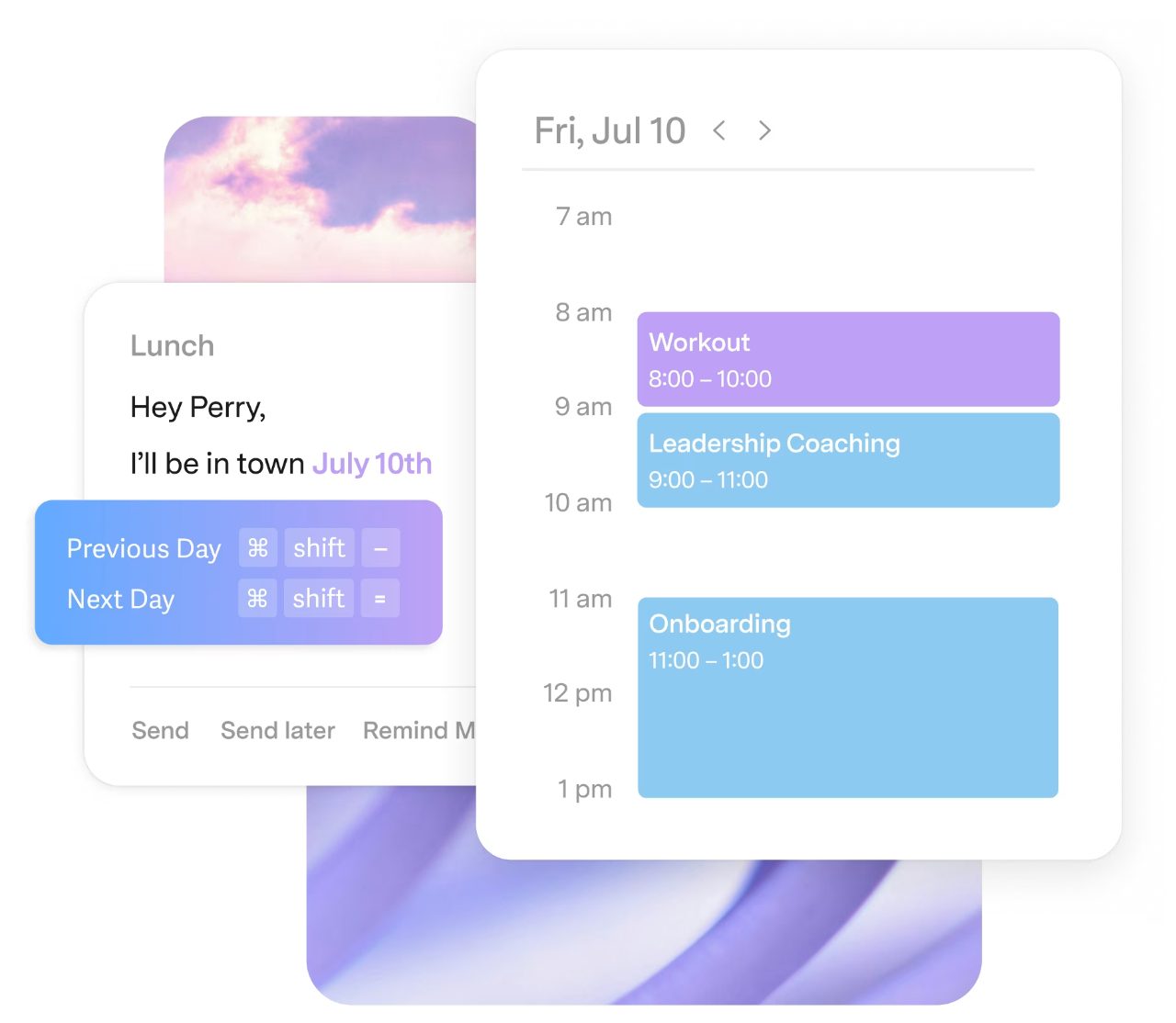
Superhuman is for people who spend hours a day in email, such as founders, salespeople and executives, and who’d pay a premium to spend fewer of them. Everything happens from the keyboard: E marks a message done, a command palette finds any action, and the app is built so nothing makes you wait. Nick Lafferty, a paying user since 2020, estimates it halved the time he spends processing his inbox. Getting there means learning the shortcuts, and the app is built around them.
The plan includes triage tools other apps sell separately or don’t have: Split Inbox (separate streams for your team, VIPs, calendar invites and so on), Auto Labels and Auto Archive for marketing and cold email, snooze, Remind Me, Send Later, and AI that summarizes threads and drafts replies.
Three limits decide it for most people. It works only with Gmail, Google Workspace and Microsoft 365 or Outlook accounts, so iCloud and other mail are out. Your accounts sit side by side, one at a time, rather than in one combined inbox. And its AI reads incoming mail in the cloud to label and summarize it, which its fans want and others won’t accept. If you check email a few times a day, Gmail or Apple Mail already does what you need.
What it does
- Every action on the keyboard, with a command palette
- Split Inbox, Auto Labels and Auto Archive
- Snooze, Remind Me and Send Later
- AI summaries, replies and search
Pros
- Built for speed in a heavy inbox
- The most complete set of triage tools
- Calendar with availability sharing and booking links
Cons
- The most expensive app here, with no free version
- Gmail and Microsoft accounts only, with no combined inbox
- AI processes your incoming mail in the cloud by default
- Choose if:
- Your company pays for it and email is most of your day

eM Client
Pay once, strong with Exchange
#4 3.4/5
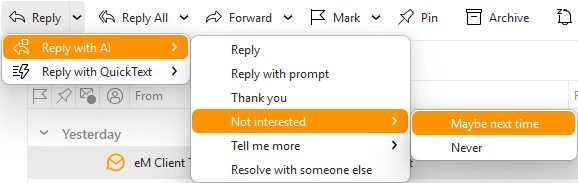
eM Client is the pick if you want a full mail and calendar app without a subscription. The Personal license costs $74.95 once and covers the current major version; a $49.95 yearly plan instead includes the AI add-on and new versions as they come. A free version handles two accounts for home use.
It’s good with work accounts: Microsoft 365 and Exchange mail, calendars and contacts work alongside Gmail and iCloud, and snooze, Send Later and Watch for Reply (which flags a message when nobody has answered) are built in. Postbox, a Mac favorite for many years, is no longer sold or developed, and its users are pointed here.
The trade is the Mac feel. eM Client started on Windows, and to Mac users it looks and behaves like a Windows app brought over, with little AppleScript support. Its iPhone app is free, though one Mac user reported in 2024 that it didn’t fetch mail in the background.
What it does
- Mail, calendar, contacts and tasks in one window
- Snooze, Send Later and Watch for Reply
- Microsoft 365 and Exchange alongside Gmail and iCloud
- Free iPhone app
Pros
- One-time license instead of a subscription
- Strong support for work accounts, calendars included
- No third-party servers involved unless you use the AI add-on
Cons
- Doesn't feel like a Mac app
- The free version allows only two accounts
- Little AppleScript support
- Choose if:
- You're a former Postbox user
Mimestream
For Gmail and Google Workspace only
#5 3.1/5
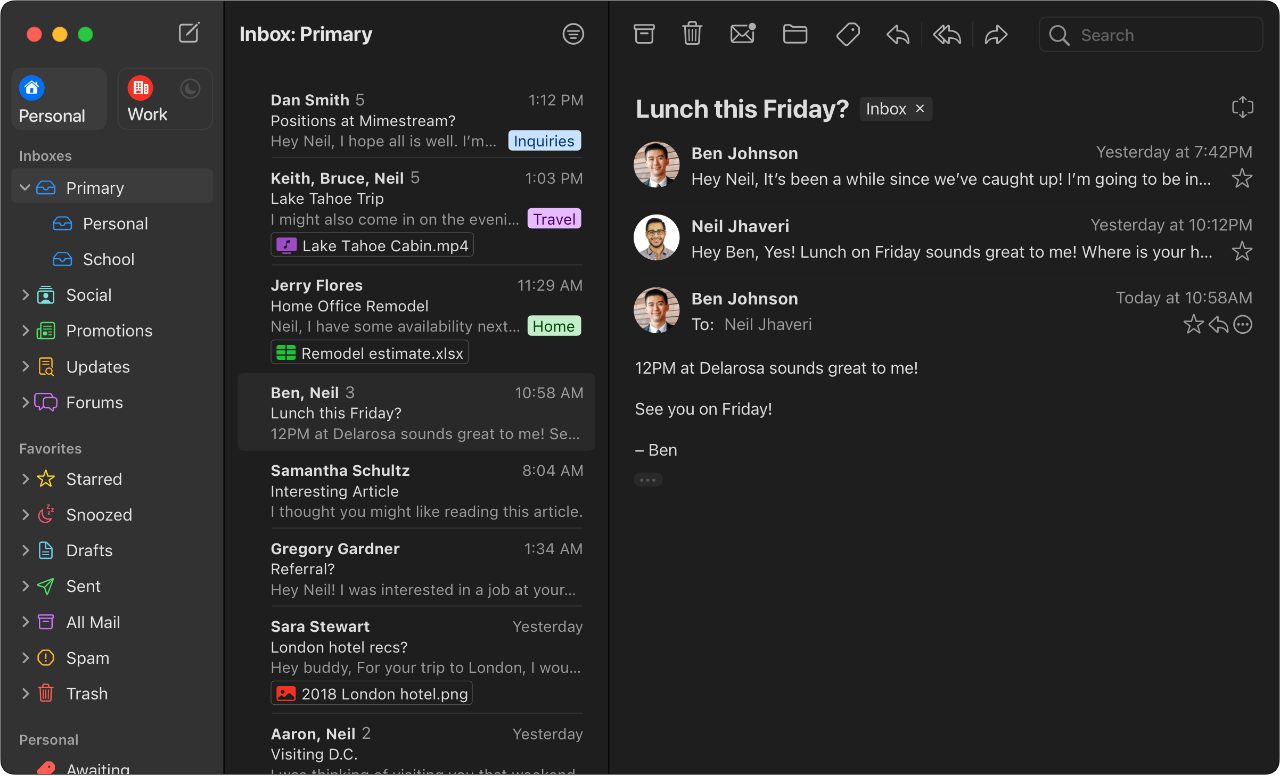
If every account you care about is Gmail or Google Workspace, Mimestream is the nicest way to read it on a Mac. A former Apple Mail engineer built it, and it talks to Gmail through Google’s own connection for apps (the Gmail API) rather than IMAP. So labels, categories, filters and Gmail’s search operators work the way they do on the web, threads open instantly, and you can use Gmail’s keyboard shortcuts. Your mail and login stay on your Mac, nothing goes through Mimestream’s servers, and it blocks trackers from more than 75 services.
It costs $49.99 a year or $4.99 a month, with a 14-day trial and family sharing.
Two things hold it back. It can’t add iCloud, Outlook or any other account, so it’s out the moment you have a non-Gmail address you care about. And Google doesn’t let outside apps use Gmail’s own snooze, so Mimestream’s snooze is an optional local feature that won’t show up on your phone. The iPhone and iPad app is still a beta open to some subscribers.
What it does
- Gmail labels, categories, filters and search operators
- Gmail or Apple Mail keyboard shortcut sets
- Unified inbox for several Gmail accounts
- Calendar invitations answered next to your schedule
Pros
- Fast, native and faithful to Gmail
- Mail and login stay on your Mac
- Tracker blocking
Cons
- Gmail and Google Workspace only
- Snooze stays on the Mac
- iPhone app still in beta
- Skip if:
- You have an iCloud or Outlook address you check every day
Microsoft Outlook
For Microsoft 365 and Exchange at work
#6 3.1/5
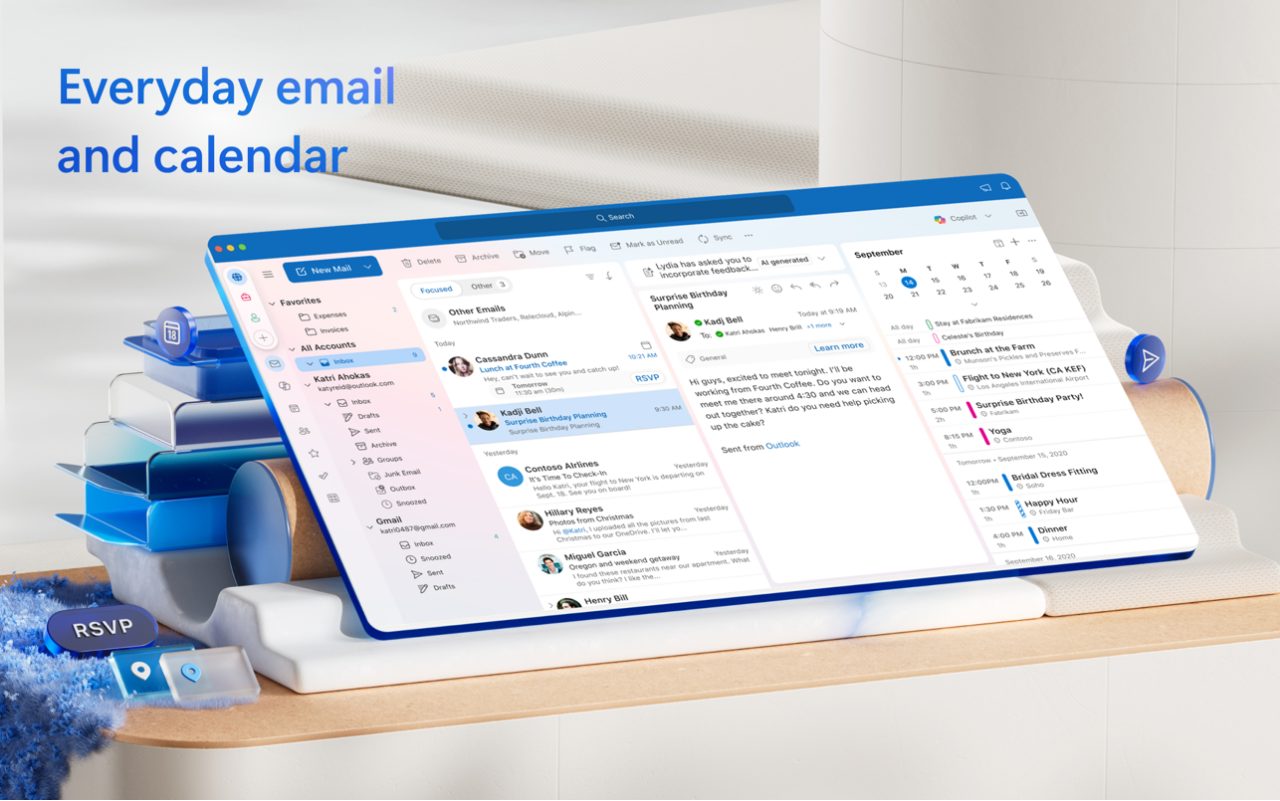
If your employer runs on Microsoft 365, Outlook is the app that gets all of it right: shared and delegated calendars, Teams meeting buttons, the Scheduling Assistant for finding a time that suits everyone, and Focused Inbox, which sorts your important mail to the top. It’s free for home, work and school use; the free version shows ads, and a Microsoft 365 subscription removes them and adds Send Later and Copilot. The current version needs macOS 15 or later.
It also takes Gmail, iCloud, Yahoo and IMAP accounts in a unified inbox, but look at how before you add them. Outlook syncs a copy of those accounts’ mail, calendar and contacts to Microsoft’s data centers, which is how features like Focused Inbox and snooze work on them. For a work account Microsoft already hosts, that changes nothing. For your personal Gmail, it means a second company keeps your mail.
Outlook for Mac is a native app, but it’s big and busy, built for office work, with bugs, weak search results and frequent updates that move things around. As a personal mail app it’s more than most people want.
What it does
- Full Microsoft 365 and Exchange mail and calendar
- Teams meetings and the Scheduling Assistant
- Focused Inbox, snooze and pinning
- Gmail, iCloud and IMAP accounts in a unified inbox
Pros
- The best Mac app for Microsoft 365 work accounts
- Free, even for work
- Strongest calendar of any app here
Cons
- Copies non-Microsoft accounts to Microsoft's cloud
- Ads unless you subscribe to Microsoft 365
- Heavy and busy for personal mail
- Skip if:
- You only want it for personal Gmail or iCloud mail

Canary Mail
Cheap AI, with a pay-once option
#7 3.1/5
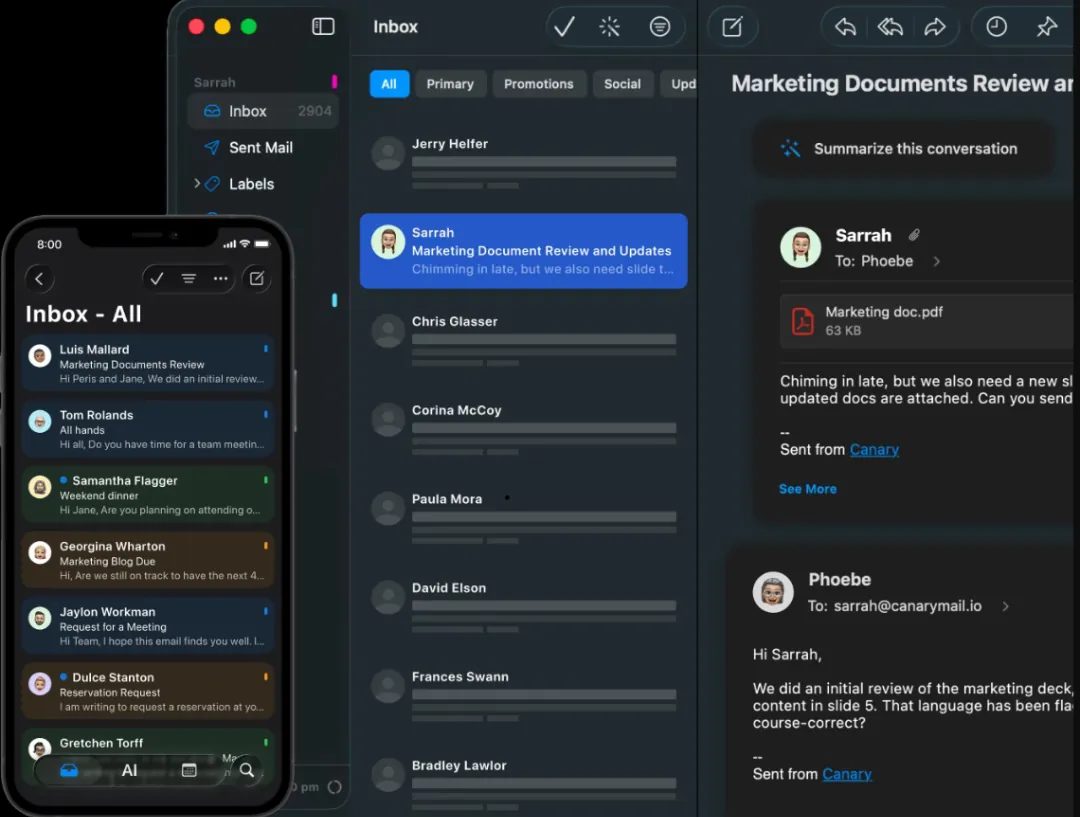
Canary Mail looks a lot like Apple Mail and adds AI on top. Even the free plan sorts incoming mail with AI that runs on your device. The Growth plan adds drafting, rewriting and thread summaries, plus Send Later, a calendar and read receipts, for $36 a year or $100 once, one of the few one-time prices left in Mac email. The free plan takes unlimited accounts but works on only two devices.
It blocks tracking pixels by default and leaves your mail with your provider, and it doesn’t train AI on your email. Your accounts and settings sync between devices through a Canary account.
Reliability is the weak spot. One user who has paid for Canary Pro since it appeared says Gmail label sync is still inconsistent, with years of mail missing from folders. The first sync of a big mailbox is slow, and update notes are full of crash and sync fixes. Try it on your own mailbox before paying.
What it does
- On-device AI sorting on every plan
- AI drafting and summaries on Growth
- Snooze, templates and unified inbox free; Send Later and calendar on Growth
- Tracker blocking on by default
Pros
- AI writing for $36 a year, or $100 once
- Familiar, Apple Mail-like design
- Same app on iPhone, Android and Windows
Cons
- Reports of Gmail label sync problems
- Free plan limited to two devices
- Calendar and Send Later need a paid plan

Thunderbird
Free and open source
#8 3.1/5
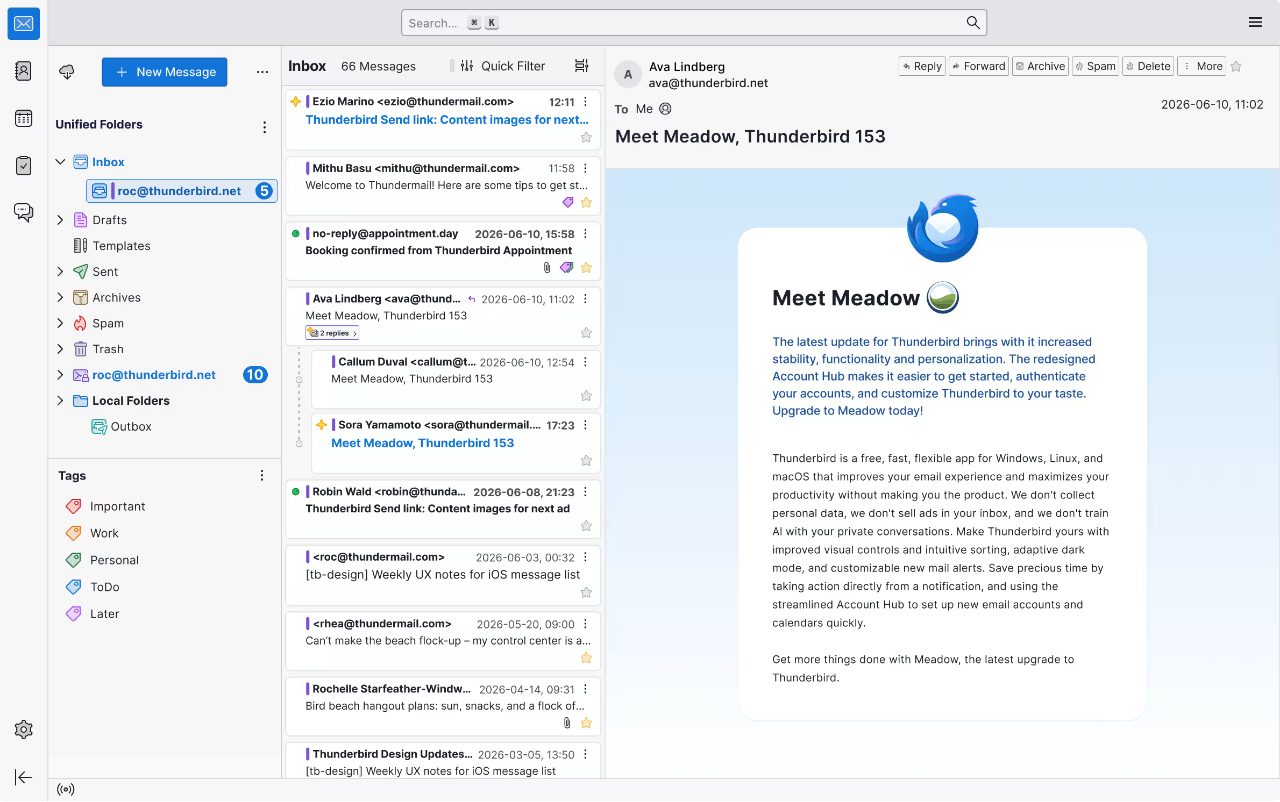
Thunderbird is the free, open-source option, made by a Mozilla subsidiary and funded by donations. It takes any IMAP account, Gmail and iCloud, and now Exchange and Microsoft 365 mail natively, with unified folders, a built-in calendar for Google and CalDAV calendars, strong search and full offline access. It blocks remote content by default, collects no personal data and has no AI.
On a Mac it shows its cross-platform roots. It doesn’t look or behave like a Mac app, and the inbox tools are basic: snooze and scheduled sending need add-ons. Exchange calendars don’t work, and there’s no iPhone app, so on your phone you’d use something else.
Choose it for a free desktop mail program you fully control, especially if you also use Windows or Linux.
What it does
- Mail, calendar and contacts in one app
- Native Exchange and Microsoft 365 mail
- Filters, tags and a large add-on library
- Built-in OpenPGP encryption
Pros
- Free, open source and ad-free
- Mail stays between your Mac and your provider
- Same app on Windows and Linux
Cons
- Doesn't feel like a Mac app
- Snooze and scheduled sending need add-ons
- No iPhone app
Airmail
Very customizable, often buggy
#9 3.0/5
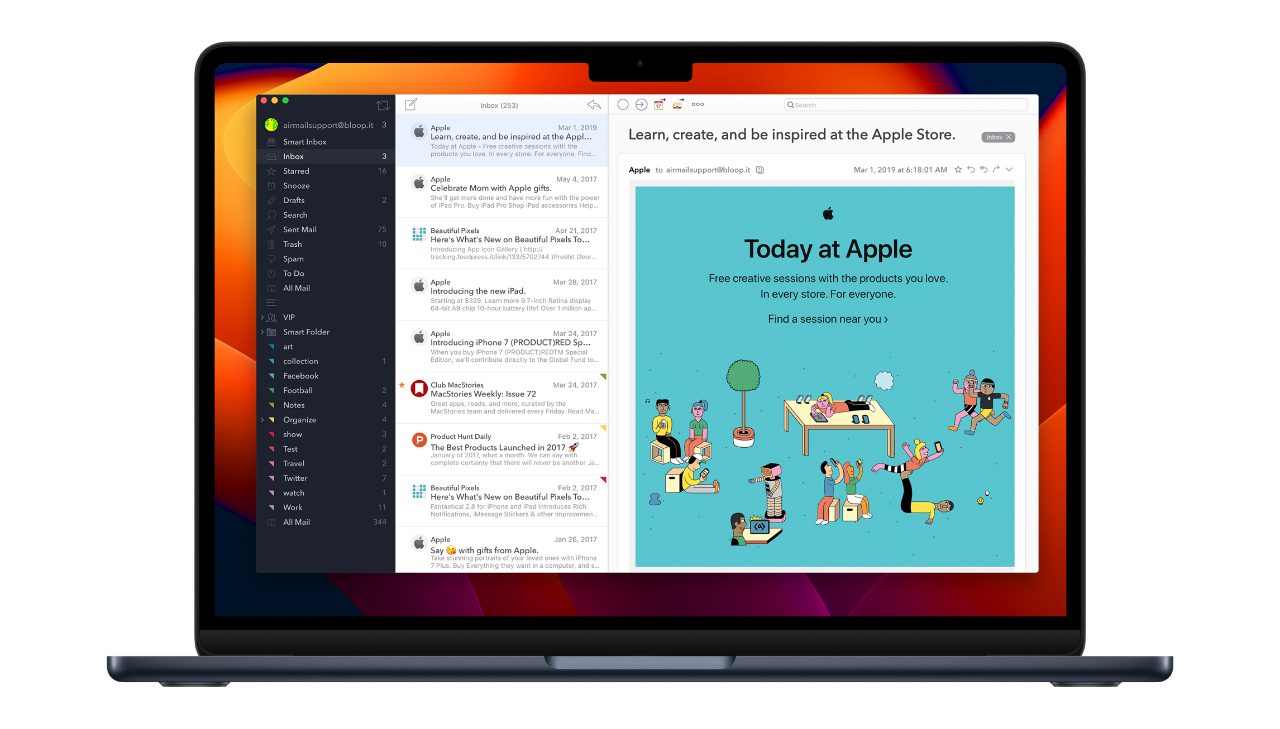
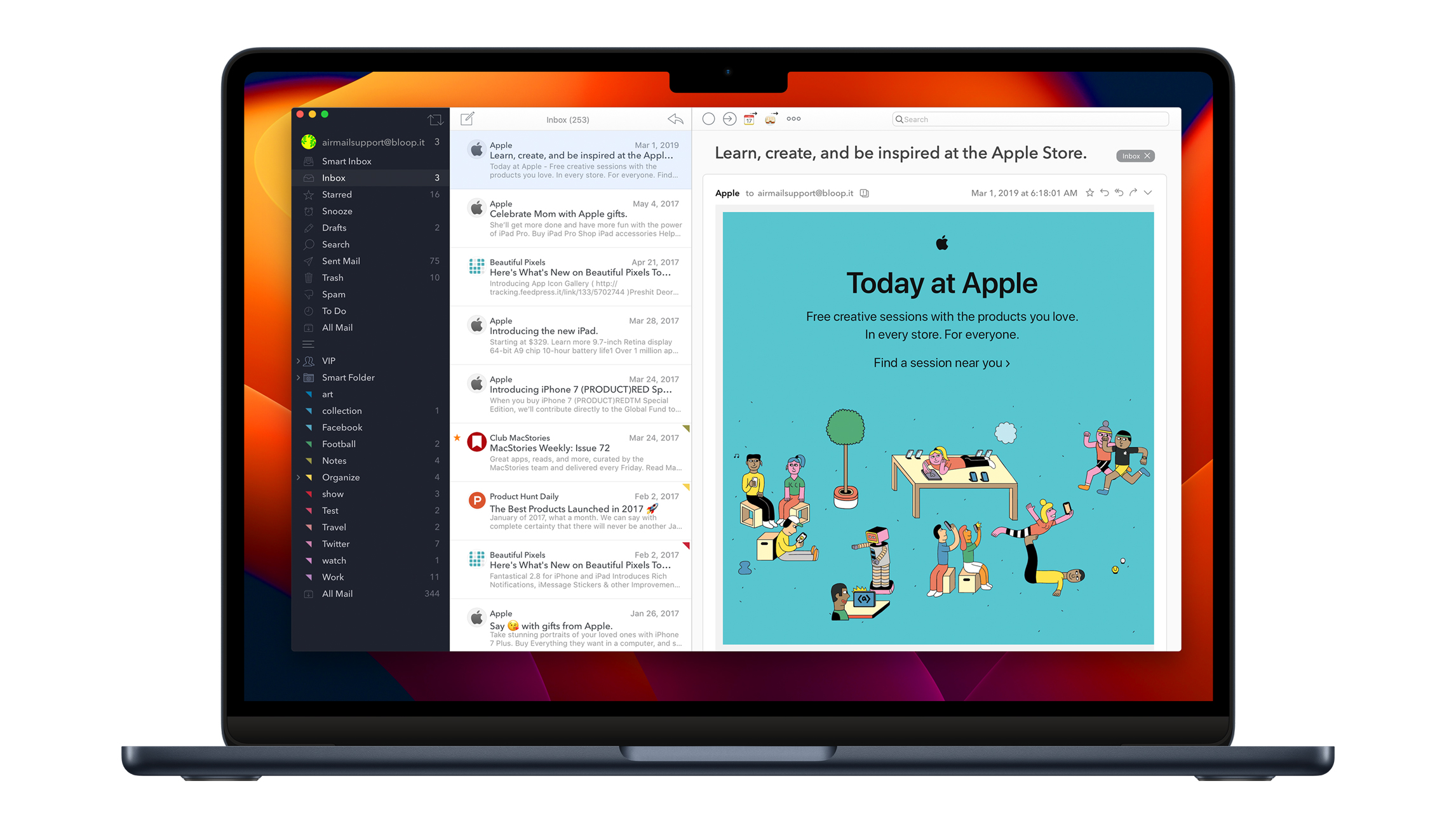
Airmail is the tinkerer’s Apple Mail: custom actions, AppleScript and Shortcuts support, global shortcuts, a Smart Inbox, snooze, Send Later, and one-click sending of a message to OmniFocus, Things, Todoist or Fantastical. Settings, signatures and templates sync to the iPhone app over iCloud, and an optional privacy mode keeps all processing on your device and blocks tracking pixels.
It’s hard to recommend anyway. It has a long record of folders vanishing after the Mac sleeps, messages going missing or coming back, scheduled sends getting stuck, and constant upgrade prompts, and its updates are mostly bug fixes. The free version won’t take a second account, so you’d need Pro at $49.99 a year, and the AI Composer costs extra on top.
Pros
- Custom actions and AppleScript
- Sends mail to task and calendar apps
- Settings sync to the iPhone app
Cons
- Long-running reliability complaints
- Pro subscription needed for more than one account
- AI writing costs extra
- Choose if:
- You depend on sending mail to OmniFocus, Things or other task apps

MailMate
Keyboard and search power for IMAP
#10 2.8/5
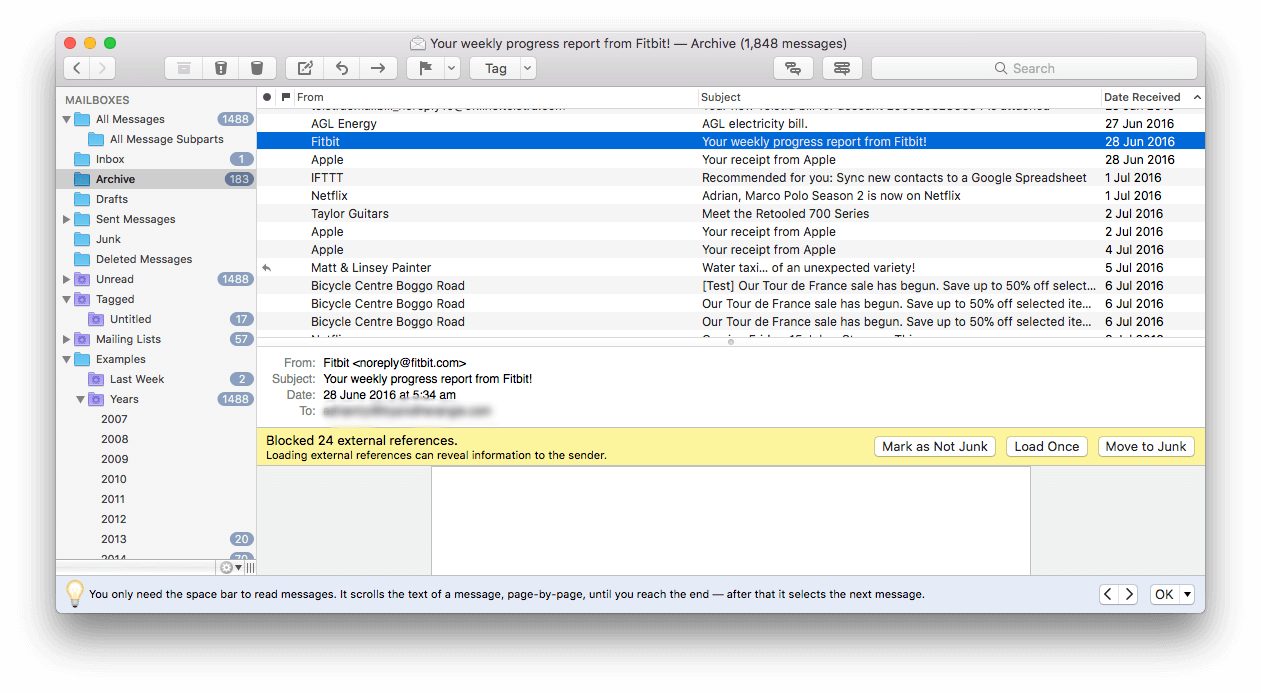
MailMate is for people who want the most control over mail on a Mac and don’t mind how it looks. It has some of the most flexible search and smart mailboxes on the Mac, custom key bindings, scripting through bundles, and OpenPGP and S/MIME encryption. You write in Markdown and it sends plain text.
It’s IMAP-only and Mac-only: Gmail and iCloud work, Exchange doesn’t, and there’s no calendar or iPhone app. The interface is plain and dated.
It costs $10 every three months. If you stop paying, it keeps every feature in Free Mode but writes “MailMate Free Mode” into a header of your outgoing mail that most people never see, and Free Mode isn’t meant for business use.
Pros
- Powerful search and smart mailboxes
- Custom key bindings and scripting
- Free Mode keeps every feature
Cons
- No Exchange support
- No calendar or iPhone app
- Dated interface and plain-text mail
- Choose if:
- You run several IMAP accounts and want to drive everything from the keyboard
Where your mail goes
Every app here downloads mail to your Mac. The difference is what else the app maker’s servers see, and it matters most for personal accounts:
| App | What the maker’s servers handle |
|---|---|
| Mimestream, MailMate, Thunderbird | Nothing; the app talks straight to your provider |
| Apple Mail | Only some Apple Intelligence requests, on Apple’s Private Cloud Compute |
| eM Client | Nothing, unless you use the AI add-on, which sends messages you open to OpenAI |
| Canary Mail | Your account settings, synced between devices |
| Spark | A login token for every account and your recent mail for up to four hours |
| Superhuman | Incoming mail, for AI labels and summaries |
| Outlook | A full copy of any Gmail, iCloud, Yahoo or IMAP account you add |
Tracking pixels are the other half. Apple Mail, Mimestream, Thunderbird, MailMate and Canary block or hide them by default, so a sender can’t see when or where you opened a message.
What they cost
| App | Free version | Paid (as of November 2026) |
|---|---|---|
| Apple Mail | Included with macOS | None |
| Spark | Unlimited accounts | Plus $99 a year, Pro $199 a year |
| Superhuman | None | $300 a year, or $30 a month |
| eM Client | Two accounts, home use | $74.95 once, or $49.95 a year |
| Mimestream | 14-day trial | $49.99 a year, or $4.99 a month |
| Outlook | Full app with ads | Microsoft 365 Personal $99.99 a year |
| Canary Mail | Unlimited accounts, two devices | Growth $36 a year, or $100 once |
| Thunderbird | Everything | None |
| Airmail | One account, limited features | Pro $49.99 a year, or $7.99 a month |
| MailMate | Every feature, with a Free Mode header | $10 every three months |
1–5 per criterion · select a score for its reasoning and any sources
| # | Product | Overall | Fast and pleasant every day , counts double | Works with all your accounts | Tools for getting through the inbox | Same app on your iPhone | Mail stays between you and your provider | Cost over three years | Calendar built in , counts half | Keyboard and automation , counts half | AI help , counts half |
|---|---|---|---|---|---|---|---|---|---|---|---|
| 1 | Apple Mail | 4.1 | 4 | 4 | 4 | 4 | 5 | 5 | 2 | 3 | 5 |
| 2 | Spark Mail by Readdle | 3.7 | 4 | 4 | 4 | 5 | 2 | 4 | 4 | 3 | 2 |
| 3 | Superhuman Mail | 3.5 | 5 | 2 | 5 | 4 | 2 | 1 | 3 | 4 | 5 |
| 4 | eM Client | 3.4 | 3 | 5 | 3 | 3 | 4 | 4 | 4 | 2 | 1 |
| 5 | Mimestream | 3.1 | 5 | 1 | 2 | 2 | 5 | 3 | 2 | 4 | 1 |
| 6 | Microsoft Outlook | 3.1 | 3 | 5 | 2 | 4 | 1 | 4 | 5 | 3 | 1 |
| 7 | Canary Mail | 3.1 | 3 | 4 | 2 | 5 | 3 | 4 | 1 | 2 | 2 |
| 8 | Thunderbird | 3.1 | 3 | 4 | 1 | 1 | 5 | 5 | 3 | 4 | 1 |
| 9 | Airmail | 3.0 | 2 | 4 | 3 | 5 | 3 | 3 | 1 | 4 | 2 |
| 10 | MailMate | 2.8 | 3 | 3 | 1 | 1 | 5 | 4 | 1 | 5 | 1 |
Equal displayed overall scores are ordered by the earlier criteria; a known score comes before an unknown score. Identical scores use alphabetical order.
×2 = counts double in the overall score, ×½ = counts half.
How each criterion is scored
Fast and pleasant every day
Counts double in the overall score: You open an email app dozens of times a day, and speed, polish and trust in its sync are what people name first when they switch apps or stay.
How good the Mac app is to live in: how quickly it opens, loads threads and finds old mail, how polished and Mac-like it looks, and whether it syncs reliably without missing or duplicated messages. Judged from what reviewers and long-time users agree on, recurring complaints in store reviews and forums, and how the app is built. Scores describe the version named under cost.
- 5 Among the fastest and most polished on the Mac, widely praised for speed and design
- 4 Fast, clean and dependable, with only minor complaints
- 3 Solid but plain, dated, heavy or un-Mac-like, with known rough edges
- 2 Works, but frequent complaints about bugs, slowness or stuck messages
- 1 Unreliable, with widespread reports of missing mail, broken sync or crashes
Works with all your accounts
Whether one app can hold all your mail: Gmail and Google Workspace, iCloud, Microsoft 365 and Exchange, and other IMAP accounts, side by side in one combined inbox, and how well each kind works.
- 5 Gmail, iCloud, Microsoft 365 and IMAP in a combined inbox, each working well
- 4 Gmail, iCloud, Microsoft 365 and IMAP in a combined inbox, with a known weak spot for one of them
- 3 Most providers, but Microsoft 365 or Exchange works poorly or not at all
- 2 Two providers only, or several without a combined inbox
- 1 One email provider only
Tools for getting through the inbox
Counts five tools in the version named under cost - snooze (or "remind me"), scheduled sending, reminders when nobody replies, automatic sorting of important mail from newsletters and notifications, and screening mail from new senders - each only when it works on its own, without a separate service.
- 5 All five
- 4 Four of the five
- 3 Three of the five
- 2 One or two of the five
- 1 None of the five
Same app on your iPhone
Whether the same app is on iPhone and iPad, as good as on the Mac, and whether accounts, settings and rules carry over without setting them up twice.
- 5 A full iPhone app, with accounts and settings carried over between Mac and iPhone
- 4 A full iPhone app, but accounts or settings are set up separately on each device
- 3 An iPhone app with noticeable gaps or problems next to the Mac app
- 2 Only a beta or a clearly limited iPhone app
- 1 No iPhone app
Mail stays between you and your provider
Where your mail and your login go: straight between your Mac and your email provider, or through the app maker's or an AI provider's servers; and whether senders' tracking pixels are blocked. Scores describe the version named under cost with its default settings.
- 5 Direct between your devices and your provider, tracking pixels blocked, and any AI runs on the device or in a private cloud with published guarantees
- 4 Direct between your Mac and your provider with tracking pixels blocked, but an optional feature uses a cloud service
- 3 Mostly direct, but some features or cross-device sync pass mail or logins through the app maker's or an AI provider's servers
- 2 The app maker's servers hold your login or process your mail for everyday features by default
- 1 The app maker keeps a copy of your mailbox on its own servers
Cost over three years
What one person pays over three years, in US dollars, for the version scored here: the free version when it has no limit on accounts and no time limit, otherwise the cheapest paid option (a one-time license or the yearly plan). Paid upgrades of free versions are covered in the text.
- 5 Free, with no ads and nothing most personal users need held back
- 4 Free with ads or limits, or under $80
- 3 $80 to $200
- 2 $200 to $500
- 1 More than $500
Calendar built in
Counts half in the overall score: Work users who schedule meetings from their inbox care a lot; most personal users are happy with a separate calendar app.
Whether you can see your calendar, answer invitations and schedule meetings without leaving the app, and for which account types.
- 5 All of 4 plus scheduling help, such as finding a time that suits everyone or sharing booking links
- 4 A built-in calendar for Google, Microsoft and iCloud accounts
- 3 A built-in calendar that covers only some account types
- 2 Answers invitations or adds events, but the calendar lives in another app
- 1 No calendar, and invitations open elsewhere
Keyboard and automation
Counts half in the overall score: It decides the choice for heavy email users and tinkerers, a smaller group than the readers choosing on speed, accounts and price.
How far the app goes for people who want to work without the mouse or automate their mail: keyboard coverage, custom shortcuts, scripting, custom actions and extensions.
- 5 Built for the keyboard with custom key bindings, plus scripting or extensions
- 4 Built for the keyboard, or deeply automatable with scripting, custom actions or add-ons
- 3 Shortcuts for most actions, plus some automation or a command palette
- 2 Standard shortcuts for common actions
- 1 Few shortcuts, mostly mouse-driven
AI help
Counts half in the overall score: Useful to some, distrusted by others; few readers choose an email app for its AI alone.
AI features built into the version named under cost: help writing, thread summaries, AI sorting, searching in plain language, and replies drafted in your own style. System-wide writing tools that work in any Mac app don't count.
- 5 All of 4 plus replies drafted for you in your own style
- 4 Writing help and summaries plus AI sorting or plain-language search
- 3 Writing help and thread summaries
- 2 One small AI feature, such as AI sorting or writing help, or a small trial allowance
- 1 No built-in AI
How to choose
- iCloud plus Gmail or a work account, and you want it simple: Apple Mail. Try its snooze and scheduled sending before deciding it’s too basic.
- You want a smarter inbox and a calendar in one free app, or you also use Android or Windows: Spark, if you’re fine with Readdle holding your login tokens.
- Only Gmail and Google Workspace accounts: Mimestream.
- Your job runs on Microsoft 365 or Exchange: Outlook for the work account. Think twice before adding personal accounts to it, or use eM Client if you want work and personal accounts in one app that keeps them off Microsoft’s cloud.
- Email is most of your day and someone else pays: Superhuman.
- No subscriptions: Apple Mail or Thunderbird for free, or eM Client and Canary’s Growth plan to pay once.
- You want no one but your provider to touch your mail: Apple Mail, Mimestream, Thunderbird or MailMate.
The verdict
Start with Apple Mail and give Remind Me, Send Later, Follow Up and categories a fair try. It’s free, it’s private, and it’s what most people need.
If it still feels limited, the next step depends on your accounts more than on features. Gmail-only readers get the best experience from Mimestream, at the cost of a subscription and no proper iPhone app yet. Mixed accounts point to Spark, the most complete free upgrade, as long as you accept that Readdle’s servers sit between you and your mail. Microsoft 365 users should run Outlook for work and think hard before handing it personal accounts. And if email is your job, Superhuman is the fastest way through a big inbox, provided your mail is Gmail or Microsoft and the bill isn’t coming out of your own pocket.
Frequently asked questions
Will switching email apps change my address or lose my mail?
No. The app only connects to the accounts you already have. With Gmail, iCloud, Outlook.com, Microsoft 365 and most other accounts, your mail stays on the provider’s servers and every app shows the same messages, so you can uninstall an app and keep everything. The exception is an old POP account set to download and delete, which moves mail into one app.
Can I use Apple Mail and another app at the same time?
Yes. Both read the same mailbox, so read status, folders and deleted messages stay in sync. Features that live inside one app, such as most apps’ snoozes and scheduled sends, won’t show up in the other.