Which desktop Markdown editor to use

A Markdown editor earns its keep after the typing stops: when a draft becomes a Word file for a client, a paper with a reference list, or one note among hundreds that point at each other. Obsidian, Typora, Zettlr and MarkText all show headings, bold text and lists formatted as you write, so the screen you type on won’t decide much here.
Where your documents end up decides most of it. Linked notes, reports you send as files, and a thesis with citations call for different strengths. After that, it matters whether you also write on a phone.
| Zettlr | Obsidian | Typora | MarkText | |
|---|---|---|---|---|
| License | Open source, GPL v3 | Closed source | Closed source | Open source, MIT |
| Price | Free | Free | $14.99 once | Free |
| Phones and tablets | No | iOS, iPadOS and Android | No | No |
| Export | PDF, Word, LibreOffice, PowerPoint, web slides; typeset PDF needs LaTeX | PDF, HTML, images; Word, EPUB, LaTeX and more after a separate install | PDF and HTML | |
| Links between notes | By note name, with backlinks and a graph | By note name, with backlinks and a graph | File links only | None |
Zettlr, the editor built for academic writing, finishes first because it handles citations and a wide range of export formats. For notes kept on several devices, though, Obsidian is the best pick.
Key facts
4 productsLicenses, requirements, and starting prices. Prices as of November 2026.
- License
- GPL-3.0, open source
- Runs on
- Windows
- macOS
- Linux
- Needs
- A LaTeX installation for fully featured PDF export
- Price
- Unknown
- License
- Proprietary, free for personal and commercial use
- Runs on
- Windows
- macOS
- Linux
- iOS and iPadOS
- Android
- Needs
- Unknown
- Price
- Free plan
- License
- Proprietary
- Runs on
- Windows (x86, x64 and ARM)
- macOS 11 or later
- Linux (x64 and arm64)
- Needs
- Pandoc for export formats other than PDF, HTML and images
- Price
- From $14.99 one-time
- License
- MIT, open source
- Runs on
- Windows (x64 and arm64)
- macOS 13 or later
- Linux (x64 and arm64)
- Needs
- Unknown
- Price
- Unknown




1–5 per criterion · select a score for its reasoning and any sources
| # | Product | Overall | Writing views | Export formats | Images | Links between notes | Citations | Working with many files | Themes and plugins | Platforms | Price |
|---|---|---|---|---|---|---|---|---|---|---|---|
| 1 | Zettlr | 4.1 | 5 | 4 | 2 | 5 | 5 | 5 | 3 | 3 | 5 |
| 2 | Obsidian | 3.8 | 3 | 1 | 4 | 5 | 1 | 5 | 5 | 5 | 5 |
| 3 | Typora | 3.2 | 4 | 5 | 5 | 1 | 1 | 3 | 4 | 3 | 3 |
| 4 | MarkText | 3.1 | 5 | 2 | 4 | 1 | 1 | 4 | 3 | 3 | 5 |
How each criterion is scored
Writing views
How many of five ways to see a document the editor documents, built in or as an official plugin: formatting shown as you type (headings, bold and images rendered in place), a raw Markdown source view, a read-only reading view, a focus mode that dims everything but the current sentence or paragraph, and typewriter scrolling that keeps the current line in the middle of the window.
- 5 All five
- 4 Four of the five
- 3 Three of the five
- 2 Two of the five
- 1 None or one of the five
Export formats
How many file formats the editor documents exporting a document to, built in or through Pandoc or LaTeX when the editor's own documentation describes that route. Each file format counts once however many routes lead to it: HTML, PDF, Word (DOCX), OpenDocument, PowerPoint, EPUB, LaTeX, RTF and images are examples.
- 5 Eight or more formats
- 4 Five to seven formats
- 3 Three or four formats
- 2 Two formats, for example HTML and PDF
- 1 One format
Images
How many of five image tasks the editor documents: pasting an image from the clipboard into a document, dragging an image file in, saving inserted images into a folder you choose, uploading images to an image-hosting service, and resizing an image from the document.
- 5 All five
- 4 Four of the five
- 3 Three of the five
- 2 Two of the five
- 1 None or one of the five
Links between notes
How many of five note-linking features the editor documents, built in or as an official plugin: linking to another file by its name (wiki links), suggestions of file names while typing a link, a list of the files that link to the current one (backlinks), a graph of the links between files, and tags, with a list of every tag in use.
- 5 All five
- 4 Four of the five
- 3 Three of the five
- 2 Two of the five
- 1 None or one of the five
Citations
How far the editor supports academic citations, built in or as an official plugin, from nothing to citing from a reference manager such as Zotero with a citation style of your choice.
- 5 As 4, plus a choice of citation style (CSL) and a documented link to Zotero
- 4 As 3, plus suggestions of citation keys from your library while typing
- 3 Citations are turned into a formatted reference list on export, from a library file you point it to
- 2 Citation keys can be typed, but turning them into references needs a separate tool
- 1 No documented citation support
Working with many files
How many of five features for a folder of documents the editor documents: a sidebar listing the folder's files, search across every file in the folder, opening a file by typing part of its name, several documents open in tabs, and two documents side by side in split panes. A feature counts only when it is documented on every desktop operating system the editor supports.
- 5 All five
- 4 Four of the five
- 3 Three of the five
- 2 Two of the five
- 1 None or one of the five
Themes and plugins
How far you can change how the editor looks and what it does, from its documentation: built-in themes, your own CSS, a catalog of themes made by other users, and plugins that add features. A light and a dark version of the default look count as built-in themes.
- 5 As 4, plus plugins that add features, with a catalog of plugins made by other users
- 4 As 3, plus a catalog of downloadable themes made by other users
- 3 Built-in themes and your own CSS
- 2 A few built-in themes, or your own CSS, but not both
- 1 One fixed look
Platforms
Which operating systems the editor has official apps for: Windows, macOS and Linux, plus iOS and Android.
- 5 Windows, macOS, Linux, iOS and Android
- 4 Windows, macOS and Linux, plus iOS or Android
- 3 Windows, macOS and Linux
- 2 Two of Windows, macOS and Linux
- 1 One operating system
Price
What it costs one person to use the editor itself, for personal and work use. Paid add-ons that the editor doesn't need, such as a sync service, don't count.
- 5 Free for any use
- 4 Free for personal use, with a paid license required for work use
- 3 One-time purchase of 30 US dollars or less
- 2 One-time purchase above 30 US dollars
- 1 Needs a paid subscription
Zettlr
For papers, reports and anything with citations
#1 4.1/5
Zettlr is an open-source editor built for long-form and academic writing. It ranks first because it covers the most ground: links between notes, tabs and split panes, a wide set of export formats, and citations. It suits anyone whose documents leave as files, and it’s the clear choice when they end in a reference list.
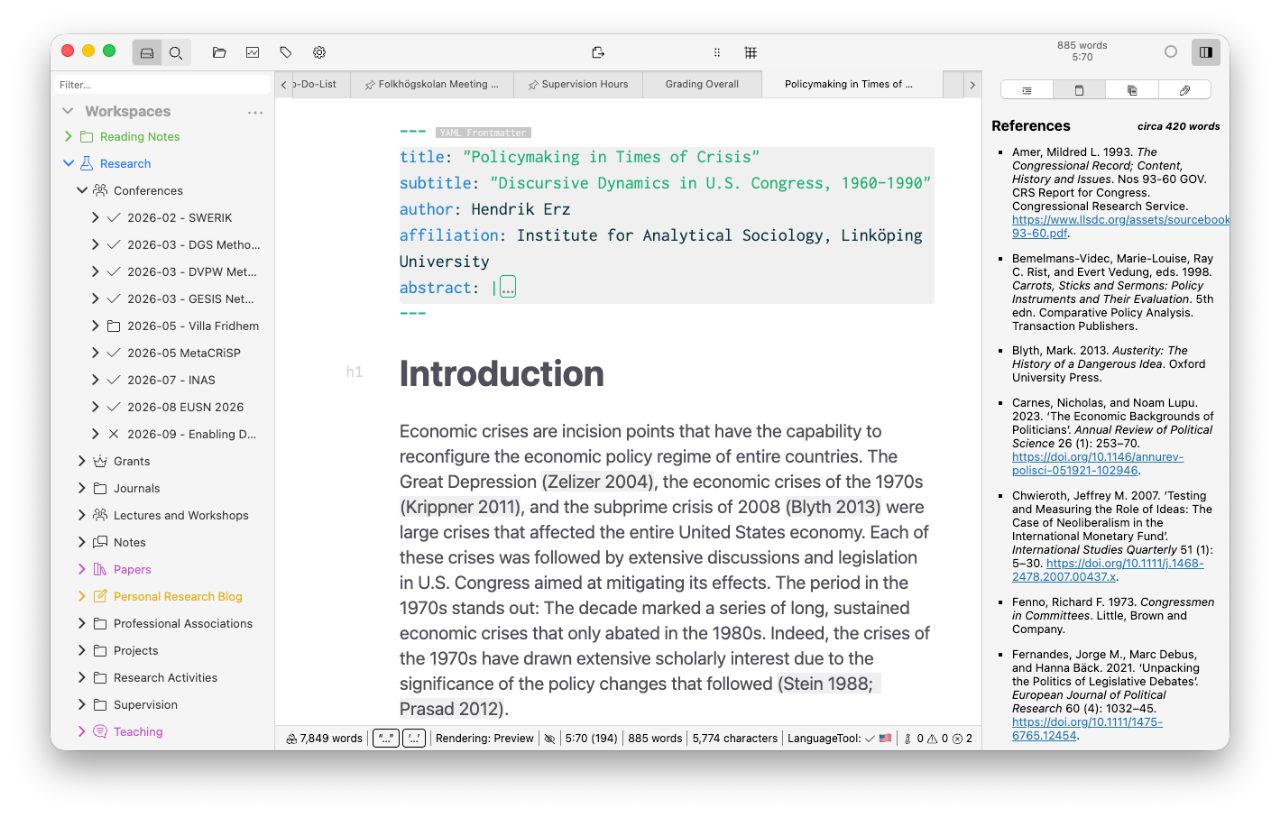
Citations are what set it apart. You point Zettlr at a Zotero or JabRef library or a BibTeX file, start typing a citation, pick the source from its suggestions, and on export the bibliography comes out in your journal’s citation style, using a CSL file to define it. The other three have nothing like this built in.
Pandoc, a document converter, comes built into Zettlr, so Word, LibreOffice, PowerPoint and reveal.js web slides export with nothing else to install. PDF has two routes: Simple PDF prints the HTML version with no extra software, while a fully typeset PDF needs LaTeX on your computer.
Its weaker spots are images and looks. Pasted images go to an assets folder, with few other image tools. You can choose from five built-in themes or write your own CSS, but there’s no theme catalog or plugin system.
What it does
- Citation suggestions as you type, and a bibliography on export
- Links by note name with suggestions, a Related Files tab and a graph view
- Built-in Pandoc export to Word, LibreOffice, PowerPoint and reveal.js slides
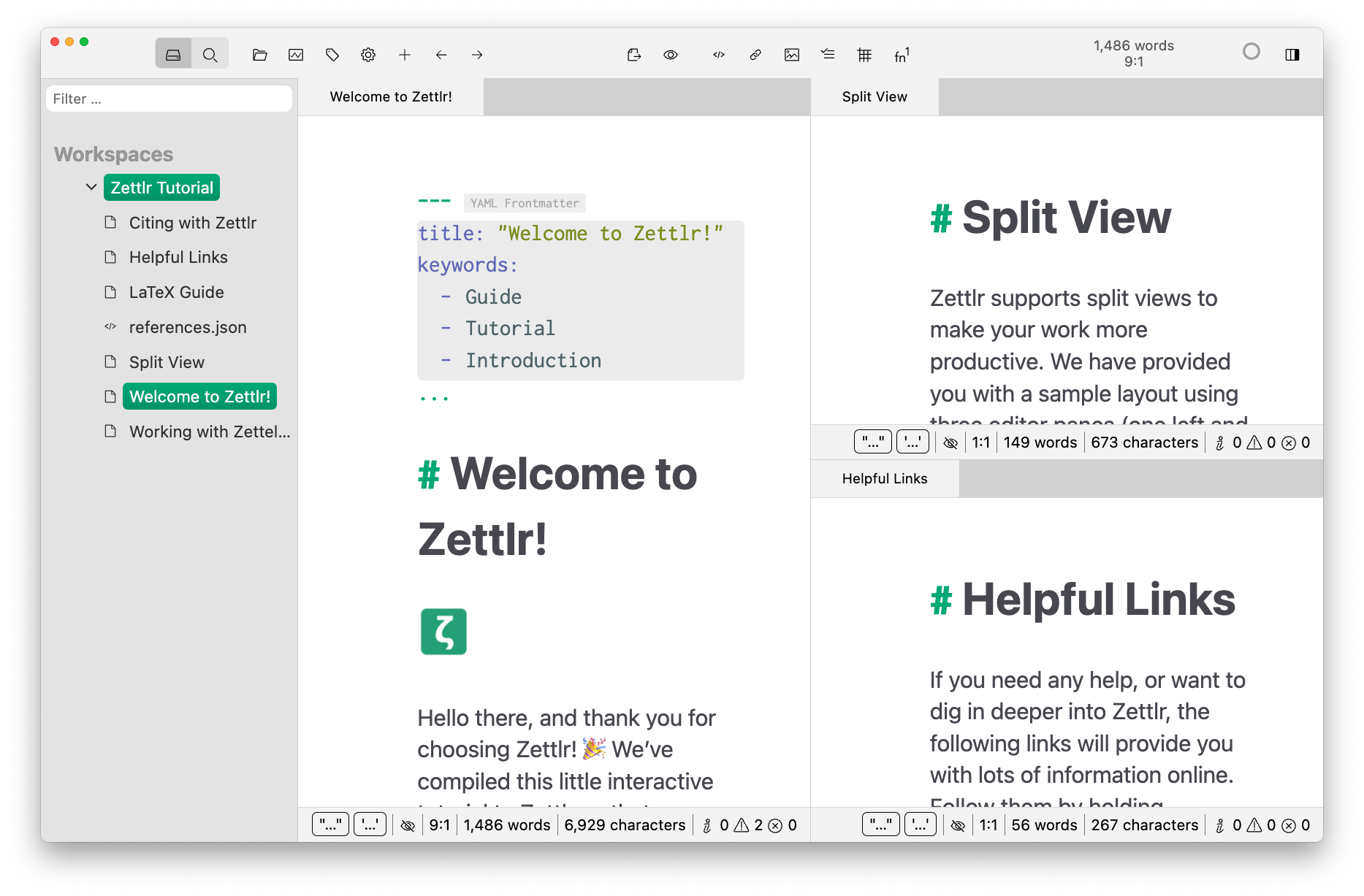
- Split view with document tabs, and full-text search across your workspaces
- A distraction-free mode that dims other lines, and typewriter scrolling that keeps your current line in place
Pros
- Citations and bibliographies built in
- Open source under the GPL v3, and free
- Tabs and split panes on every desktop system
Cons
- A fully typeset PDF needs a LaTeX installation
- Few image tools beyond saving pasted images to a folder
- Skip if:
- You need to write on a phone or tablet.
Obsidian
For linked notes on every device
#2 3.8/5
Obsidian is a note-taking app that is also a capable Markdown editor. We’d recommend it to most people whose Markdown is notes they keep rather than documents they send, because it costs nothing, work use included, and it has apps for iPhone, iPad and Android as well as Windows, macOS and Linux. Obsidian sells add-ons such as Sync, which moves notes between devices; the app itself is free.
Its strength is everything around a single note. Type two square brackets and Obsidian suggests the note to link. Backlinks, the list of notes that point at the one you’re reading, sit beside a graph view and a tag list, so you can see how your notes connect. Tabs split into side-by-side panes, and a quick switcher opens any note from the keyboard.
On a desktop alone, Zettlr links notes in much the same way, so the choice between them comes down to what else you need. Obsidian handles images better, saving dropped files to a folder you choose and letting you size them in the note. Zettlr has the export formats, the citations and the open code.
The weak spot is getting documents out: as it ships, Obsidian exports a note to PDF and nothing else. If you send Word files, look at Zettlr or Typora instead. Writers who like a focus mode, which dims everything but the line or paragraph you’re on, won’t find one built in, nor typewriter scrolling.
Hundreds of community themes and a catalog of plugins leave lots of room to customize, but plugins run third-party code, so install only ones you trust.
What it does
- Live Preview, Source mode and Reading view
- Links by note name with suggestions, backlinks, a graph view and a tag list
- Tabs that split into side-by-side panes, plus a quick switcher
- Pasted and dropped images saved to a folder you choose, sized by adding a width to the link
- Community themes and plugins, plus CSS snippets
Pros
- Free for personal and work use
- Apps for iPhone, iPad and Android as well as the desktop
- A catalog of community plugins
Cons
- Exports only to PDF as it ships
- No built-in focus or typewriter mode
- Closed source
- Skip if:
- You need built-in export to anything other than PDF.
Typora
For the widest export list and image tools
#3 3.2/5
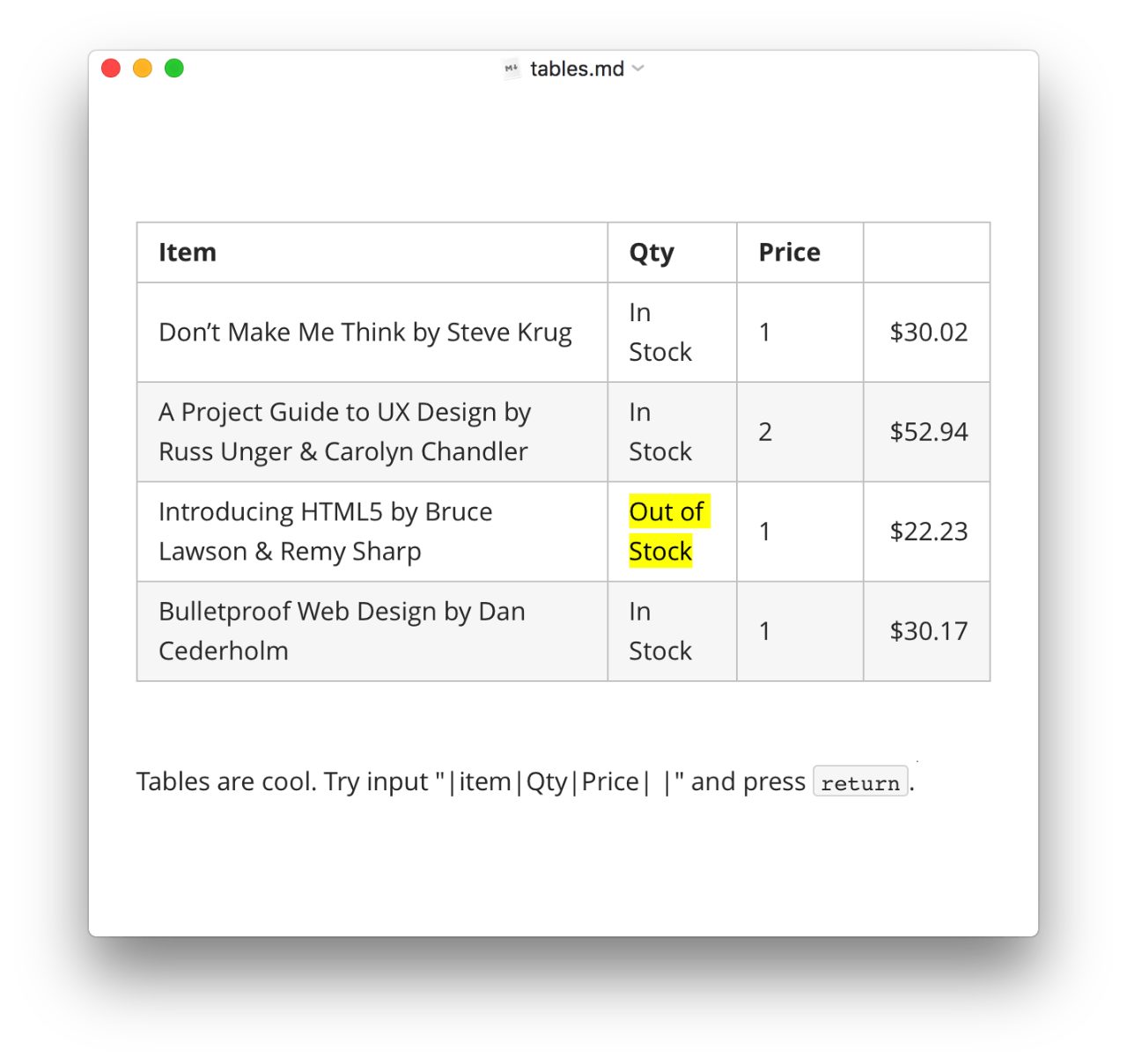
Typora is a paid editor that formats each element as you finish typing it. It suits people who send documents to others and want the widest choice of export formats here.
PDF, HTML and images are built in. Install Pandoc separately and Word, OpenDocument, RTF, EPUB, LaTeX and reveal.js slides join the Export menu. Images get the same care: drag one in or paste it, and Typora copies it to a folder you pick or uploads it to an image host through apps such as PicGo or uPic.
For someone who sends Word files and never cites a source, Zettlr is the main alternative. It exports Word for free, with Pandoc built in. We’d pay for Typora if you need EPUB, RTF or LaTeX output, which Zettlr doesn’t offer, or if your documents carry many images you want uploaded or resized. Otherwise Zettlr does the job.
Typora treats each file on its own. Links between documents are ordinary file links, with no backlinks, graph or tags, so it’s a poor home for a large set of connected notes. Working in many files at once is clumsier on Windows and Linux too, where tabs aren’t supported. If you like how it writes but not the price, MarkText is the closest match.
What it does
- Formatting rendered as you type, plus a source code mode
- Focus Mode and Typewriter Mode
- Export to PDF, HTML and images, and to Word, EPUB, LaTeX and more through Pandoc
- Images pasted or dropped into a chosen folder, or uploaded to an image host
- Six built-in themes, custom CSS and the Typora Theme Gallery
Pros
- The widest choice of export formats
- Image handling covers folders, upload services and sizing
- A one-time price with no subscription
Cons
- Costs money, while the other three are free
- Formats beyond PDF, HTML and images need Pandoc installed separately
- No backlinks, graph or tags, only ordinary file links
- No tabs on Windows or Linux
- Skip if:
- You're building a collection of linked notes.
MarkText
For free, open-source writing like Typora's
#4 3.1/5
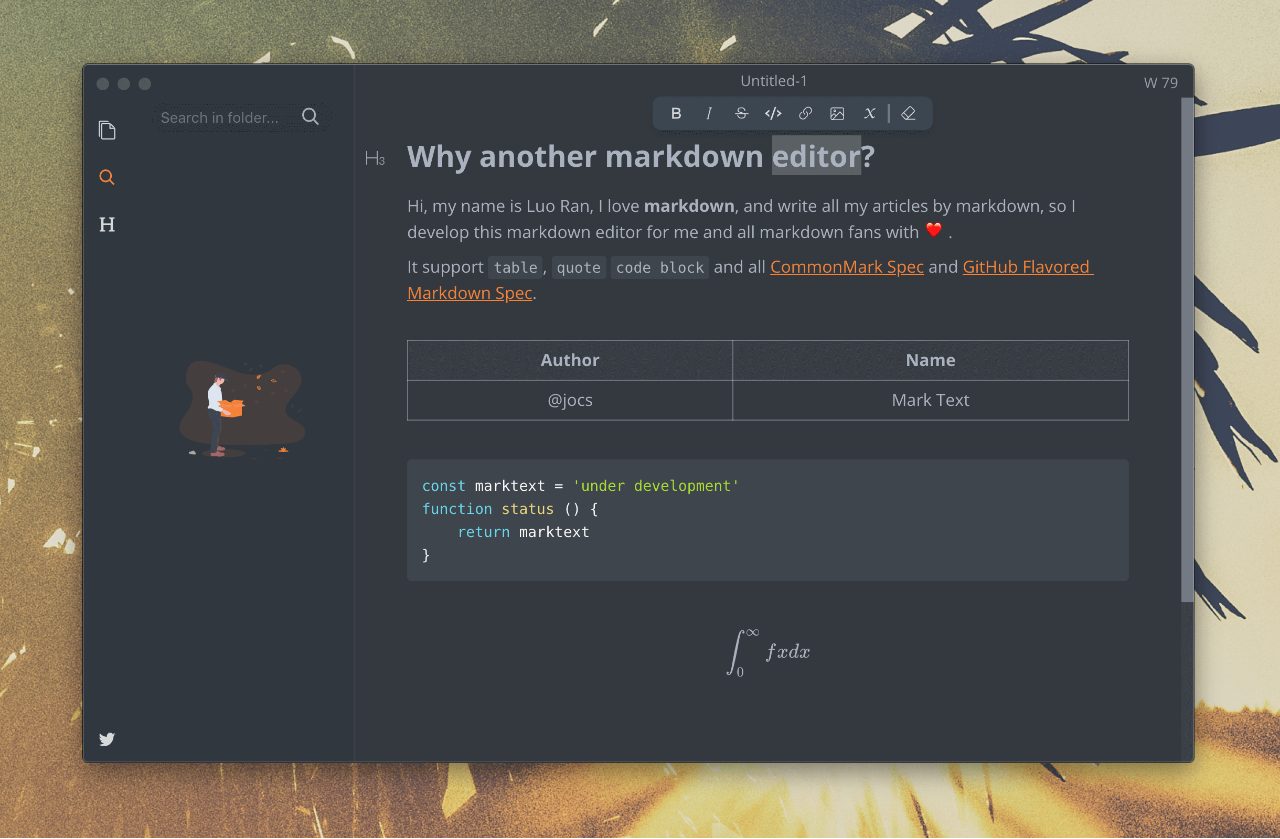
MarkText is a free, MIT-licensed editor in the same mold as Typora: one window where Markdown turns into formatted text as you type. We’d recommend it to anyone who wants that experience without paying, or with open code, as long as PDF and HTML are the only exports they need.
As a place to write it gives up little. There’s a source-code view, a Reading Mode that blocks accidental edits, focus and typewriter modes, and 33 built-in light and dark themes to choose from. Pasted images land in a folder you configure, PicGo can upload them, and you resize an image by dragging its handles.
It doesn’t try to manage a collection of notes: there are no tags, wiki-style links or backlinks. Export stops at PDF and HTML, a short list next to Typora’s. It also needs macOS 13 or later, while Typora runs on macOS 11.
What it does
- Realtime preview, a source-code editor and Reading Mode
- Focus and typewriter modes
- Export to PDF and HTML, or print
- Pasted images saved to a configured folder, with upload through PicGo
- 33 built-in themes and custom CSS
Pros
- Free and open source under the MIT license
- Reading Mode helps prevent accidental edits
- Quick open, find in files and tabs on Windows, macOS and Linux
Cons
- Exports only to PDF and HTML
- No links between notes, backlinks or tags
- Skip if:
- You send Word files or link notes together.
How to choose
- You write papers or theses with a reference list: Zettlr, the only one with citations built in.
- You send Word files and don’t cite sources: Zettlr. Pick Typora instead if you need EPUB, RTF or LaTeX output, or image uploads to a host.
- You keep a growing set of linked notes: Obsidian if you also write on a phone or tablet or want community plugins, Zettlr if you also export papers.
- Your documents go out as PDF or HTML and you want a plain writing window: MarkText for free, Typora if you’ll pay for its extra formats and image tools.
- You work on Windows or Linux with many files open at once: Obsidian or Zettlr, the two with split panes as well as tabs.
Frequently asked questions
Do I need to pay for Obsidian if I use it for work?
No. Obsidian is free for work, including at for-profit organizations. A commercial license isn’t required, though the company encourages organizations to buy one.
How many computers can I use a Typora license on?
Up to three devices for one person, with no expiry date. You get a 15-day free trial first, and the listed price is before tax.