Best note-taking apps for students in 2026
It’s the first week of classes. You have a laptop for lectures, a phone in your pocket, and maybe an iPad you write on. Whatever note-taking app you pick now ends up holding a whole year of classes, so it has to work on all of those devices, cost nothing or close to it, and dig up last month’s lecture notes the night before the exam.
For most students, that app is Microsoft OneNote. It’s free, it runs on Windows, Mac, iPhone, Android, and the web, and it takes typing, a stylus, and lecture recordings in the same notebook. If you mostly type and like things tidy, Notion has the better editor and is free for college students. If your school runs on Google and half your work is group projects, Google Docs is already open in your browser. And if you write by hand on an iPad, Goodnotes or Notability will feel far better than any of them.
What decides it
- Your devices. A Windows laptop or an Android phone rules out Apple Notes and makes the iPad-first apps (Goodnotes and Notability) awkward. Make sure an app has a real app or a full web version for everything you use, including library and school computers.
- Typing or writing. Typed notes favor Notion, OneNote, and Google Docs. Handwriting favors Goodnotes and Notability. OneNote and Apple Notes do both reasonably well.
- What’s free. Half of these apps cost nothing for a full year of notes. Evernote’s free plan stops at 50 notes on one device, which won’t last a semester.
What a student pays
| App | What a student pays for unlimited notes (November 2026) |
|---|---|
| OneNote | Free, with 5 GB of free OneDrive storage |
| Google Docs | Free, with 15 GB shared across your Google account |
| Notion | Free; college students get the Education Plan free |
| Apple Notes | Free, with 5 GB of iCloud shared with photos and backups |
| Google Keep | Free |
| Obsidian | Free; about $29 a year for Sync after the student discount |
| Goodnotes | $11.99 a year, or $35.99 to sync with Windows or Android |
| Notability | About $12 to $15 a year, or $39.99 once |
| RemNote | Free for typed notes; $96 a year to lift the PDF limits |
| Evernote | $99 a year for Starter |
Microsoft OneNote
Best free all-rounder
#1 4.2/5
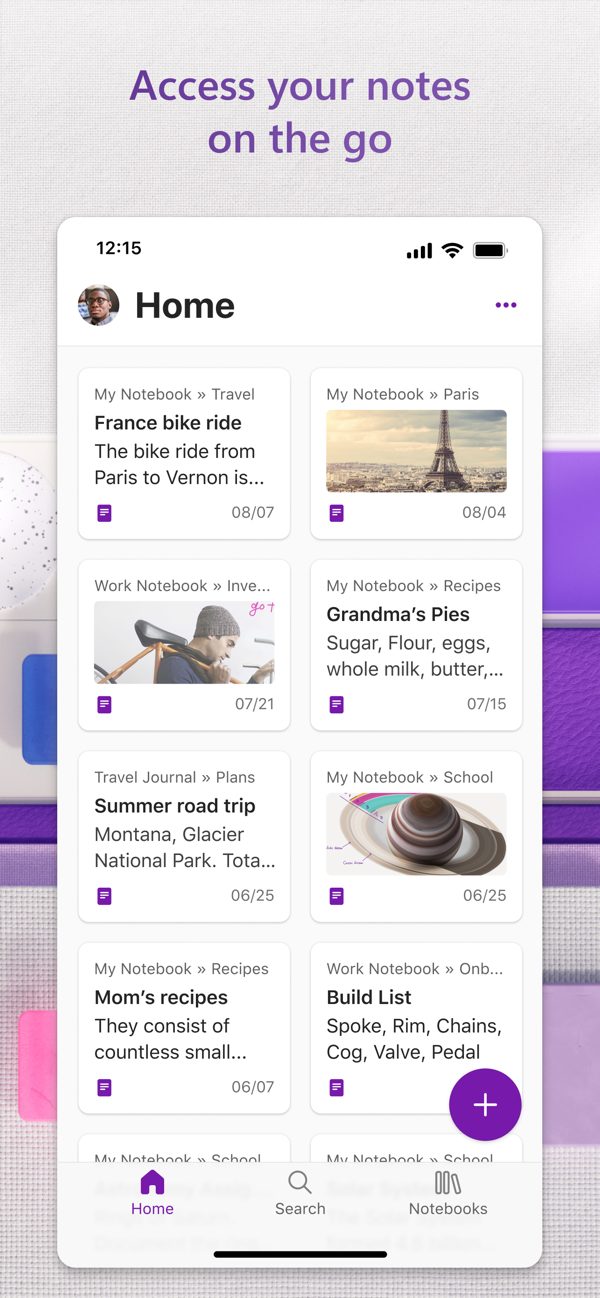
OneNote works like a digital binder: a notebook for each course, sections inside it, and pages you can click anywhere on and start typing. It’s free with a Microsoft account, and it also works with the Microsoft 365 account many schools give their students.
What sets it apart is that it doesn’t make you choose one way of taking notes. You can type in one lecture, write with a stylus on a folding Windows laptop or an iPad in the next, paste in the slides, and record audio that plays back tied to what you were writing at that moment (on Windows and Mac; the iPad app can’t record while you take notes). Search reads text in pictures and printed slides, so a photo of the whiteboard turns up when you search for a word on it.
Turning handwriting into text and solving math you’ve written work best on Windows, so OneNote isn’t quite the same app everywhere. The web version needs a connection, though the apps keep a copy you can edit offline. And the freeform page that makes it flexible also makes it messy: text sits in boxes you can drag anywhere, which some students love and others find untidy next to a plain document.
What it does
- Notebooks, sections, and pages for each course
- Typing, stylus ink, and pasted slides on the same page
- Audio recordings tied to your notes on Windows and Mac
- Search that reads text in images and printouts
Pros
- Free on Windows, Mac, iPhone, iPad, Android, and the web
- Takes typed, handwritten, and recorded notes in one place
- Shared notebooks for group work with free Microsoft accounts
Cons
- Features differ between Windows, Mac, and iPad
- Freeform pages get messy for long typed notes
- The web version doesn't work offline
- Choose if:
- You use a mix of Windows, Apple and Android devices
Google Docs
For group projects and Google schools
#2 4.1/5
Google Docs isn’t a notes app, but plenty of students already write their essays in it, and a school Google account means it’s set up before the first lecture. The editor has headings, tables, an equation tool, and document tabs, so one document per course with a tab per week works well. Drive folders keep everything by class, and Drive’s search finds words inside the PDFs and images you upload.
Nothing else here beats it for group work. Everyone edits the same document at once, leaves comments, and can go back to an earlier version, and all a classmate needs is a free Google account on any device.
What it lacks are the things notes apps add. There’s no recording, only voice typing that turns what you say into text. There’s no real handwriting. And offline use on a laptop has to be switched on in Chrome or Edge with Google’s offline extension, which a school can turn off for its accounts.
What it does
- Real-time co-editing with comments and version history
- Document tabs for splitting a course into weeks or topics
- Equation tool, tables, and headings
Pros
- Free, and already set up on most school Google accounts
- The easiest way for a whole group to work in the same notes
- Works in any browser, including Chromebooks and school computers
Cons
- No lecture recording and no handwriting
- Offline on a laptop needs a browser setting and extension
- Notes are separate documents, not one notebook
- Skip if:
- You write most of your notes with a stylus
Notion
For organized typists at college
#3 3.9/5
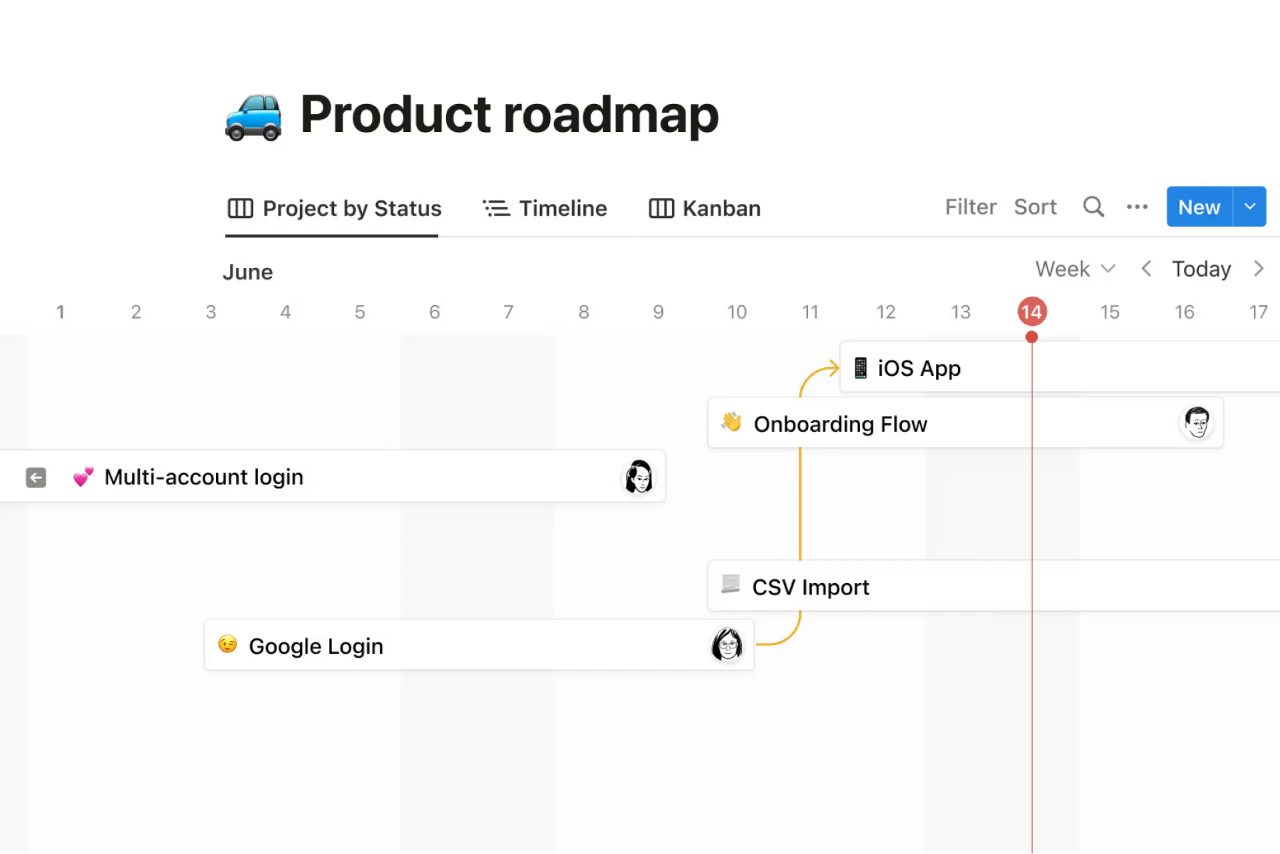
Notion is the app behind all those color-coded semester dashboards. It’s a block editor: a page can hold headings, toggles that fold away detail, tables, equations, and other pages, and databases list every class, assignment, and reading with due dates. For typed notes, it’s the best editor of the ten.
College and university students get Notion’s Education Plan free by signing up with their school email, and they re-verify once a year. High school students can’t get it, but the Free plan has no page limit for one person, so it’s enough for class notes; files you upload, such as slide PDFs, are capped at 5 MB each.
It’s built for typing, and it shows. There’s no stylus input, PDFs can be viewed but not written on, and the student plans can’t record lectures. Offline works only in the desktop and phone apps, and on the Free plan you mark each page for offline use one by one. The bigger risk is your time: a reviewer at Save My Exams admitted to “spending more time improving my study system than actually studying.” If you want a notebook, start with one blank page per class and skip the template gallery.
What it does
- Block editor with headings, toggles, tables, and equations
- Databases for classes, assignments, and readings
- Free Education Plan for college students with a school email
Pros
- The best editor for typed class notes
- Free for college students, and the Free plan is enough in high school
- Classmates can join your pages as free guests
Cons
- No handwriting, PDF markup, or lecture recording
- Offline needs pages marked one by one on the Free plan
- Easy to spend hours building a system instead of studying
- Choose if:
- You type everything and want your classes and deadlines in one place
Apple Notes
If everything you own is Apple
#4 3.9/5
If every device you own has an Apple logo, the app already on them covers most of what class notes need. Apple Notes syncs through iCloud, handles typed notes with headings, tables, and checklists, and solves math you type in a note. With an Apple Pencil on an iPad you can write, mark up a PDF inside a note, and search your handwriting later. It can also record audio with a transcript, though playback isn’t tied to what you wrote.
The limit is everything outside Apple. On a Windows laptop or a Chromebook you only get Notes in a web browser at iCloud.com, and classmates need an Apple Account to work in a shared note. Free iCloud storage is 5 GB, shared with your photos and phone backups, so lots of PDFs and recordings can push you toward paying for more. For serious handwriting, Goodnotes and Notability have better pen tools and handle long slide decks better.
Pros
- Already installed and synced on every Apple device
- Search finds handwriting and text in scanned pages
- Nothing to set up
Cons
- Only a web version on Windows, Android, and Chromebooks
- Free iCloud storage is shared with photos and backups
- Weaker pen tools and slide markup than Goodnotes or Notability

Evernote
Strong search at a steep price
#5 3.8/5
Evernote was the default notes app for a decade, and its capture and search are still excellent: notebooks and tags, saved web pages, and search that reads text in photos and scanned pages. The problem for students is price. The free plan allows 50 notes, one notebook, and one device, so it doesn’t survive a semester on a laptop and a phone. Starter costs $99 a year for 1,000 notes, 20 notebooks, and three devices. College students get 40% off the $249.99-a-year Advanced plan, which brings a one-year subscription to about $150 (as of November 2026). OneNote covers most of the same ground for free, so Evernote makes sense mainly if you already have years of notes in it.
Pros
- Search reads text in photos and scanned documents
- Easy to learn, with apps on every major platform
Cons
- The free plan is too small for a semester of classes
- Starter costs $99 a year, and the student discount covers only Advanced
- Choose if:
- You already keep years of notes in Evernote

RemNote
Notes that turn into flashcards
#6 3.6/5
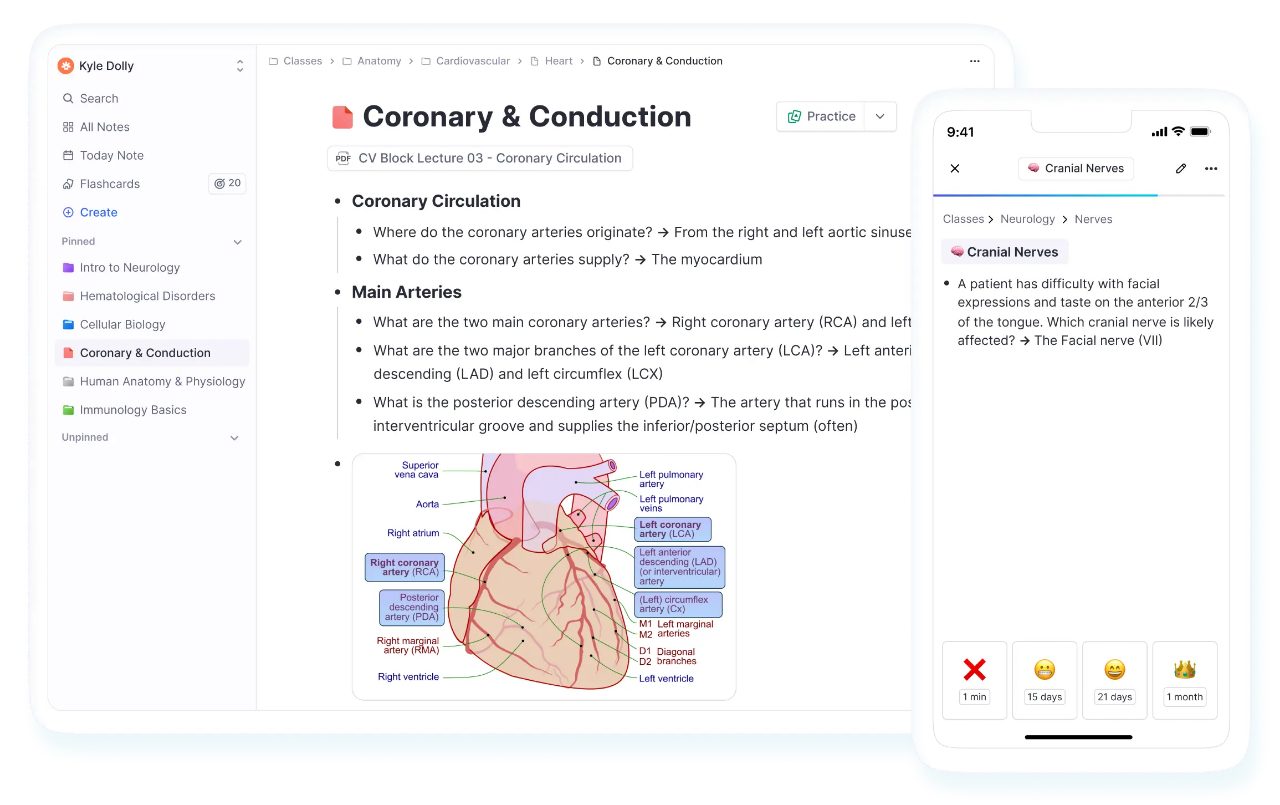
RemNote is built around a question most notes apps skip: will you remember this on exam day? You write in an outline, and any line can become a flashcard with a quick shortcut, such as typing >> between a question and its answer. RemNote then quizzes you with spaced repetition, which brings each card back just before you’d forget it. For subjects heavy on memorizing, like anatomy, languages, or law, that saves building a separate flashcard deck.
The free plan includes unlimited notes, flashcards, and synced devices, which covers typed notes well. Its limits bite elsewhere: three annotated PDFs, one handwritten document, and one scheduled exam. Lifting them takes Pro at $96 a year, and the lecture recorder comes only with Pro with AI at $216 a year (as of November 2026). Everything is a bullet list, which suits outlines and frustrates anyone who writes in paragraphs, and there’s a lot to learn before it clicks.
What it does
- Flashcards made from lines in your notes
- Spaced repetition and an exam scheduler
- PDF annotation and handwriting, limited on the free plan
Pros
- Turns class notes into review without a separate app
- Free plan has unlimited notes, flashcards, and devices
Cons
- Free plan allows only three annotated PDFs
- Every note is a bullet outline
- Lecture recording needs the $216-a-year plan

Notability
For recording lectures on an iPad
#7 3.6/5
Notability is the iPad app for students who record lectures. You write or type while it records, and later tapping a word plays back what the lecturer was saying at that moment. Its handwriting and PDF markup are among the best on the iPad, alongside Goodnotes.
It runs on iPad, iPhone, Mac, and Android, and a web app you sign in to from a Windows laptop. The web app is the weak link: synced audio playback and handwriting recognition are listed for the iOS and Android apps only. The free plan stops at five notes. Lite unlocks unlimited notes for about $12 to $15 a year, and Classic costs $39.99 once on Notability’s own site ($49.99 in the App Store). Transcripts of your recordings need Plus or Pro.
What it does
- Audio recording that plays back tied to your writing
- Handwriting and PDF markup on iPad
- Apps for iPad, iPhone, Mac, and Android, and a web app
Pros
- The best way to pair a recording with handwritten notes
- Cheap yearly plan, or a one-time Classic purchase
Cons
- Only a web app on Windows, without synced audio playback
- Typed notes are basic
- Transcripts need a pricier plan
- Choose if:
- You handwrite on an iPad and record your lectures

Google Keep
Quick notes and lists
#8 3.5/5
Google Keep is a wall of sticky notes: short notes, checklists, photos, and voice memos as colored cards. It’s free with a Google account on Android, iPhone, and the web, and it’s the fastest way to jot down an assignment or a reading list. Voice memos come with a transcript.
It isn’t a place for a semester of lectures. There are no notebooks or folders, only labels and colors, and no tables or equations. Each note is reportedly capped at 20,000 characters. Use it next to a real notes app, not instead of one.
Pros
- Free and fast for reminders, lists, and quick ideas
- Voice memos with a transcript
Cons
- No notebooks or folders to sort notes by class
- No tables or equations for lecture notes
- Skip if:
- You want one app to hold all your lecture notes

Goodnotes
For handwriting on an iPad
#9 3.5/5
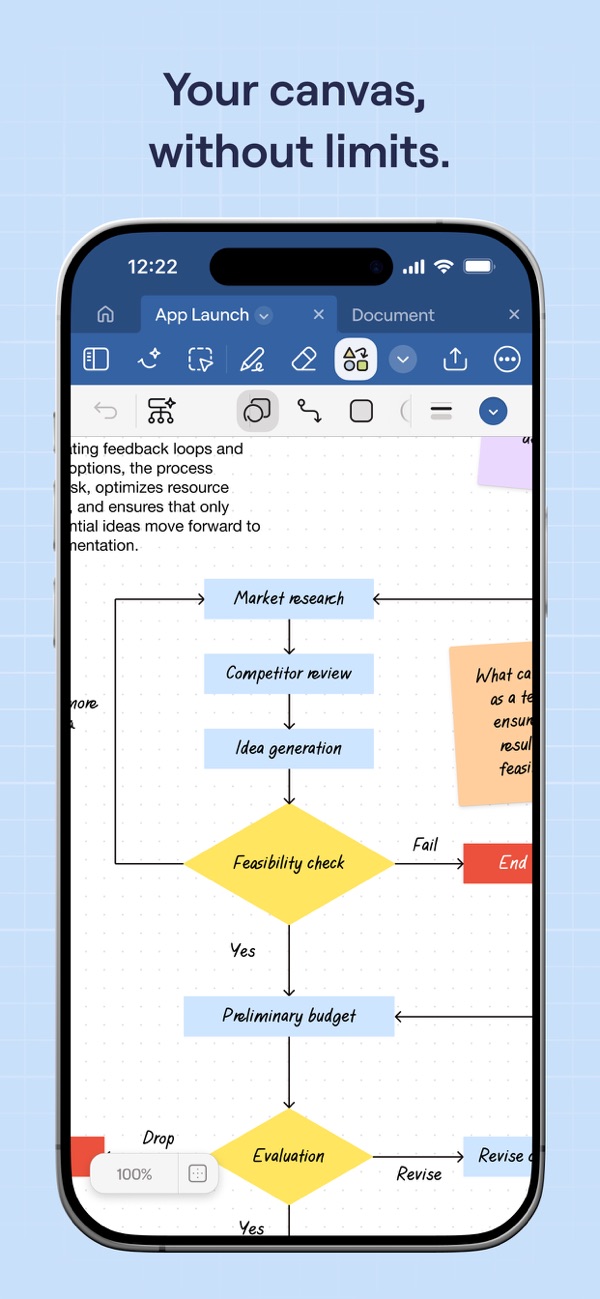
Goodnotes and Notability are the two best apps here for writing by hand, and Goodnotes is the one to pick if you don’t record lectures. On an iPad with an Apple Pencil the ink feels natural, lecture slides import as PDFs you write straight onto, and search finds your handwriting, typed text, and the words inside PDFs. Essential costs $11.99 a year for unlimited notebooks and records audio tied to what you write.
It’s weaker the moment you leave the iPad. Typed notes are an afterthought next to Notion or OneNote. There are Windows, Android, and web apps, but they lack some of the iPad app’s features, and keeping one library in sync between an iPad and a Windows laptop takes Pro at $35.99 a year. If you handwrite most of your notes, our guide to the best note-taking apps for iPad compares Goodnotes, Notability, and their rivals for exactly that.
What it does
- Handwriting and PDF slide markup on iPad
- Search across handwriting, typed text, and PDFs
- Audio recording tied to your writing
Pros
- Among the best apps for writing by hand
- Essential is cheap at $11.99 a year
Cons
- Weak for typed notes
- Windows and Android apps are cut down
- Syncing with a Windows laptop needs the $35.99-a-year Pro plan
- Choose if:
- You take nearly all your notes with an Apple Pencil

Obsidian
Linked notes stored as plain files
#10 3.2/5
Obsidian keeps your notes as plain Markdown files in a folder on your own devices and lets you link notes to each other, so ideas from different classes connect. It appeals to students who want notes that outlast the course, and the app is free.
For most students it’s the most work of anything here. You format text in Markdown, a plain-text way of marking headings and bold with symbols like **. Much of what other apps include, such as PDF annotation and handwriting, comes from community plugins: add-ons other users write, which you have to find and switch on yourself. And there’s no web version for a library or school computer.
Syncing a laptop and a phone takes either Obsidian Sync or a folder sync you set up yourself, which Obsidian warns can cause conflicts. Sync costs $4 a month billed yearly, and students get 40% off, about $29 a year. In return the app works fully offline, and your notes are ordinary files you can open with any text editor.
Pros
- Notes are plain files you own and can keep after you graduate
- Links between notes connect ideas across classes
- Works fully offline
Cons
- A steep start for students who just want to take notes
- No web version for school computers
- Syncing a laptop and phone costs money or takes setup
Scores
1–5 per criterion · select a score for its reasoning and any sources
| # | Product | Overall | Typing class notes , counts double | Works on all your devices | Cost for a student | Organizing and finding notes | Easy to pick up | Handwriting and marking up slides , counts half | Group projects | Recording lectures , counts half | Works without Wi-Fi , counts half |
|---|---|---|---|---|---|---|---|---|---|---|---|
| 1 | Microsoft OneNote | 4.2 | 4 | 4 | 5 | 5 | 4 | 3 | 4 | 4 | 4 |
| 2 | Google Docs | 4.1 | 4 | 5 | 5 | 4 | 5 | 2 | 5 | 1 | 2 |
| 3 | Notion | 3.9 | 5 | 5 | 5 | 4 | 3 | 1 | 4 | 1 | 2 |
| 4 | Apple Notes | 3.9 | 4 | 2 | 5 | 5 | 5 | 3 | 3 | 3 | 4 |
| 5 | Evernote | 3.8 | 4 | 5 | 2 | 5 | 4 | 2 | 4 | 3 | 3 |
| 6 | RemNote | 3.6 | 4 | 5 | 3 | 4 | 3 | 3 | 3 | 3 | 4 |
| 7 | Notability | 3.6 | 3 | 3 | 3 | 4 | 4 | 5 | 4 | 4 | 4 |
| 8 | Google Keep | 3.5 | 2 | 5 | 5 | 2 | 5 | 2 | 4 | 3 | 4 |
| 9 | Goodnotes | 3.5 | 2 | 3 | 3 | 5 | 4 | 5 | 4 | 4 | 4 |
| 10 | Obsidian | 3.2 | 4 | 3 | 3 | 4 | 2 | 2 | 3 | 2 | 5 |
Equal displayed overall scores are ordered by the earlier criteria; a known score comes before an unknown score. Identical scores use alphabetical order.
×2 = counts double in the overall score, ×½ = counts half.
How each criterion is scored
Typing class notes
Counts double in the overall score: Most students take most of their notes by typing on a laptop, so how good the app is at that is the main thing they choose by.
How well it handles typed lecture notes on a laptop: getting words down fast, giving them structure (headings, bullet lists and outlines, tables, checklists), writing equations, dropping in images and screenshots, and how long notes hold up across a semester. Judged from the editor's features and from what students and reviewers agree on.
- 5 Among the best for typed class notes, fast and full featured, with equations, tables, outlines and room for images
- 4 A full typed editor with headings, lists, tables and either equations or a freeform page, with small gaps
- 3 Good for typed notes with basic formatting, but missing structure such as tables, equations or outlines
- 2 Fine for short plain notes; long or structured lecture notes get awkward
- 1 Typing is an afterthought, with text boxes and little formatting
Works on all your devices
Whether the same notes are there on your laptop and phone, whatever their brands (Windows, Mac, iPhone, Android, Chromebook or a school computer's browser), on the plan a student would actually use.
- 5 Full apps or a full web version everywhere, synced on the plan a student would use
- 4 Apps or a full web version for Windows, Mac, iPhone and Android, synced on the student's plan, with a clear gap on one of them
- 3 Apps on most platforms, but syncing a laptop and a phone needs a paid plan or your own setup, or some platforms get a cut-down version
- 2 Apple devices only, with at most a limited web version elsewhere
- 1 One device family only, with no way in from others
Cost for a student
What a student pays in a year for the plan they need to keep notes for every class on a laptop and a phone, after any student discount the app offers, in US dollars.
- 5 Everything a student needs is free
- 4 Free covers typical class notes; paying adds conveniences or more storage
- 3 The free plan runs out for many students within a semester, and the plan they'd need costs under about $40 a year
- 2 The free plan runs out quickly, and the plan you'd need costs $40 to $100 a year
- 1 Over $100 a year, or no free plan worth using
Organizing and finding notes
How easily a student keeps notes in order by course and finds them again before an exam: notebooks, folders, tags, links or databases for the structure, and search that also reads text in images, scans, handwriting or PDFs.
- 5 As 3, plus both a richer structure and search that reads images, scans or handwriting
- 4 As 3, plus either a richer structure (nested pages, tags, links or databases) or search that reads images, scans or handwriting
- 3 Folders or notebooks per course, and search of typed text
- 2 A flat list sorted with labels or colors, with search
- 1 No folders and no search inside notes
Easy to pick up
How soon a student who has never used the app takes useful class notes in it, and how much setup it asks for first. Judged from what reviewers and many users agree on and from how the app works.
- 5 Usable in minutes with no setup
- 4 Easy to start, with depth to learn later
- 3 Learnable in an afternoon, with some confusing parts
- 2 A steep start; most students lean on templates, plugins or tutorials
- 1 Takes days of setup or learning before it's useful
Handwriting and marking up slides
Counts half in the overall score: Handwriting decides the choice for students who write with a stylus on a tablet, a smaller group than those who type on a laptop.
How well a student with a stylus can write notes by hand and write on lecture slides and PDF readings, on the tablets students use (iPad, Android tablets, Windows 2-in-1s).
- 5 Among the best apps for handwriting and marking up slides
- 4 Good handwriting and PDF markup on the common tablets
- 3 Handwriting and PDF markup work, but as a side feature, or only on some devices or plans
- 2 A basic drawing tool, or PDF markup only through add-ons
- 1 No handwriting and no PDF markup
Group projects
How well classmates can work in the same notes for a group project: editing at the same time, comments, and whether every classmate can join for free from whatever device they have.
- 5 Live editing with comments and version history that any classmate can join for free from any device
- 4 Live editing together, with a limit such as a paid host or an account for everyone in the same app
- 3 Shared editing, but not live, or every classmate needs the same app account, devices or a paid host
- 2 Share a copy or a read-only view, or shared editing only through add-ons
- 1 No sharing
Recording lectures
Counts half in the overall score: Most students don't record their lectures, and some lecturers don't allow it, so recording decides the choice only for a smaller group.
What the app does with a lecture recording on the plan a student would use: whether it records at all, whether playback is tied to the notes you took at that moment, and whether it makes a transcript.
- 5 Playback tied to your notes plus a transcript, on the plan a student would use
- 4 Playback tied to your notes on the plan a student would use
- 3 Records with a transcript, or with playback tied to your notes, but only on some devices or a pricier plan
- 2 Records audio as a separate clip
- 1 No recording on the plans students use
Works without Wi-Fi
Counts half in the overall score: Losing a connection is an occasional annoyance for most students rather than the reason they choose an app, so it counts for half.
Whether you can open and edit your notes with no connection, such as in a lecture hall with bad Wi-Fi, without setting it up note by note.
- 5 Notes are stored on your devices and work offline everywhere you use them
- 4 Works offline in the apps, with the web version needing a connection
- 3 Works offline in some apps, with the main version needing a connection or offline only on paid plans
- 2 Works offline only after setting it up per note, per browser or per device
- 1 Needs a connection
How to choose
- You have a mix of Windows, Apple, and Android devices: OneNote. It’s free everywhere and takes typing, ink, and audio.
- You type everything and you’re at college: Notion, on the free Education Plan.
- Your school runs on Google, or you do a lot of group projects: Google Docs, with a Drive folder per class.
- Everything you own is Apple, and you want nothing to set up: Apple Notes.
- You handwrite on an iPad: Goodnotes, or Notability if you record lectures.
- Your exams are mostly memorizing: RemNote.
- You want notes you’ll keep for years and don’t mind setup: Obsidian.
The verdict
For most students, OneNote is the place to start. It’s free on every device students carry, and it handles typing, a stylus, and recordings in the same notebook. Its weak spots are a messy page layout and features that vary between Windows, Mac, and iPad.
The choice between OneNote, Notion, and Google Docs comes down to how you work. If you type every note and care about structure, Notion is the better editor, as long as you can keep yourself from tinkering. If you mostly share notes with classmates, Docs does that better than anything, at the cost of recording, handwriting, and easy offline use. For a student who types, either one works.
Handwriters should decide by device first. On an iPad, Goodnotes and Notability are better tools than any app above them, and about $12 a year is a small price for that. If your laptop runs Windows, plan to keep your handwritten and typed notes in separate apps, or use OneNote for both.
Evernote is worth paying for only if your notes already live there. And whichever app you choose, keep everything for a class in one place, because search only helps if your notes are where you’re searching.
Frequently asked questions
Is it better to take notes by hand or on a laptop?
The research is less settled than the advice. A widely cited 2014 study by Pam Mueller and Daniel Oppenheimer found that students who typed did worse on conceptual questions, apparently because they copied lectures word for word. A 2019 replication by Kayla Morehead, John Dunlosky, and Katherine Rawson found no reliable difference. So choose by your classes rather than a headline: typing keeps up with fast, wordy lectures, and a stylus is better for math, diagrams, and writing on slides.
Can I use my school’s Microsoft or Google account?
Yes. OneNote works with school Microsoft 365 accounts and Google Docs with school Google accounts, but there are two catches. The school controls the account and can turn features off, such as offline Docs. Many schools also close student accounts after you leave, so export what you want to keep before you graduate, or keep your notes in a personal account from the start.