Best free to-do list apps of 2026
“Free” means two different things among to-do apps. Microsoft, Google, and Apple give their apps away whole, because the app keeps you signed in to their email, calendar, and cloud storage. Todoist and TickTick run free plans built to show you what the paid plan adds, so the free version is very good up to a limit you’ll eventually notice. Which kind you pick tells you most of what you’ll run into a year from now.
For most people whose phone and computer come from different makers, Todoist’s free plan is the one to start with. It gets a task in faster than anything else here, its reminders actually reach you, and it runs on Android, iPhone, Windows, Mac, and the web. The limit to know about is five active projects. If you’d rather never meet a limit or an upgrade screen, Microsoft To Do runs on the same devices and is free all the way through; it’s just plainer.
One thing almost all of these share: you need an account, and your tasks live on the company’s servers, not just your phone. Tasks.org, an Android app that works offline with no account, is the exception. None of these puts ads in your task list; Todoist and TickTick show upgrade prompts instead, and TickTick shows them often.
What each free plan gives you
| App | Free on | Biggest free limit | Paid plan (as of November 2026) |
|---|---|---|---|
| Todoist | Android, iPhone, Windows, Mac, web | 5 active projects, 3 saved filters, no calendar view | $5/month billed yearly |
| TickTick | Android, iPhone, Windows, Mac, web | 9 lists, 99 tasks per list, 2 reminders per task | $49.99/year |
| Microsoft To Do | Android, iPhone, Windows, Mac, web | One reminder per task, no calendar view | None |
| Apple Reminders | iPhone, iPad, Mac, Watch; browser via iCloud.com | No Android app | None |
| Google Tasks | Android, iPhone, browser | No list sharing, no tags | None |
| Tasks.org | Android | No iPhone app; desktop and private sync are paid | From $0.99/year |
| Notion | Android, iPhone, Windows, Mac, web | No real repeating tasks; you build the list | $10/month (Plus) |
| Habitica | Android, iPhone, web | A game layer on top; no desktop app | $5/month, extras only |
Todoist
Fastest capture and best free sharing
#1 4.6/5
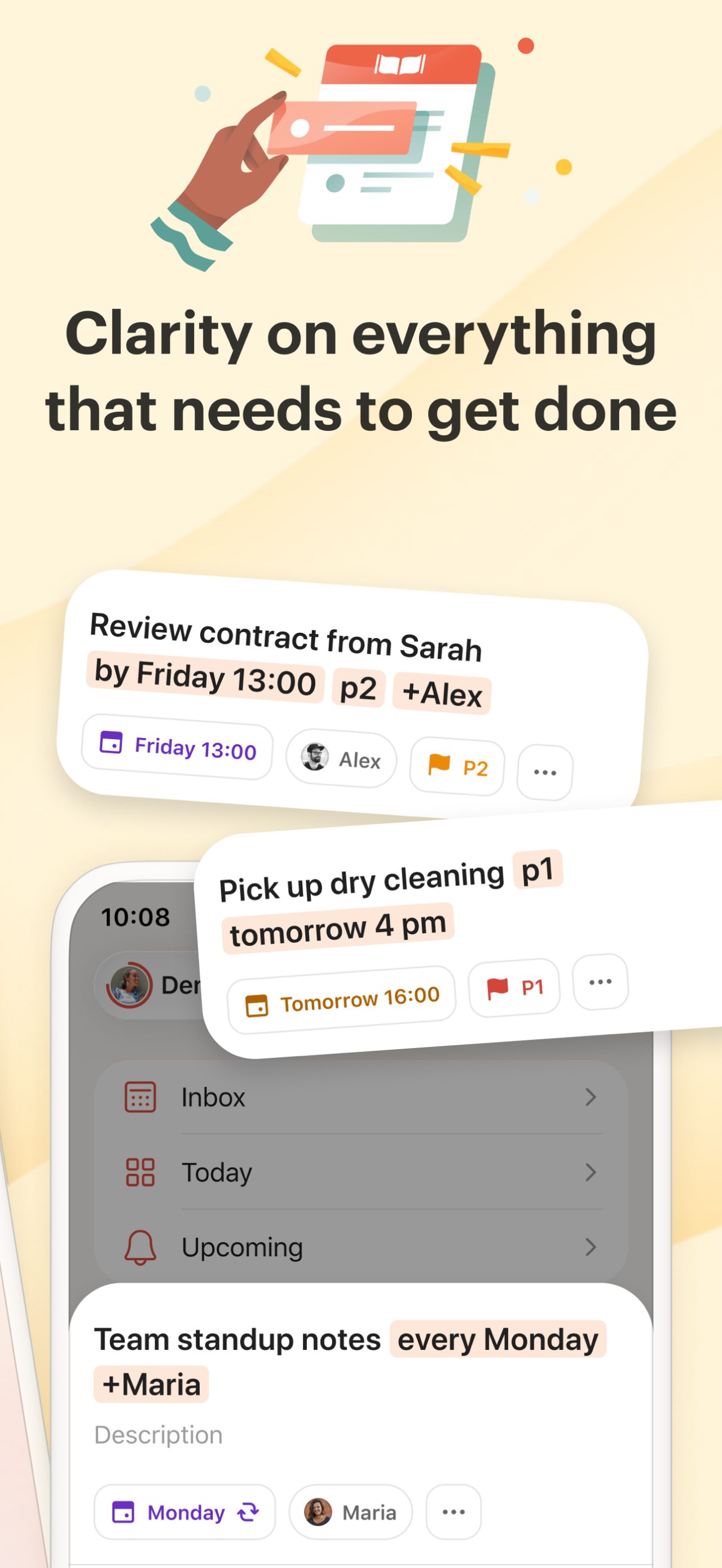
Todoist suits someone who throws tasks at their phone all day and needs them to come back at the right moment. Quick Add is the standout: type “pay rent every 1st #Home” and the date, the repeat and the project are all set from that one line. Write every! instead of every and the next date counts from when you finished, which is what you want for “water the plants every 3 days” when you watered them late.
Reminders are good even on the free plan. A task with a time reminds you at that time, and on Android and iOS 26 or later you can make that one reminder urgent, so it rings like an alarm instead of sitting in your notifications. Extra reminders per task and location reminders are Pro features.
The limit is structure, not tasks. You get five active personal projects (archiving a finished one frees its slot), three saved filters, a week of activity history, 5 MB file uploads, and list and board layouts but no calendar layout. Five projects is enough if you use them as broad areas (Home, Work, Errands) and sort inside them with sections and labels, which are free. If you want a project per client, per trip or per class, you’ll hit the wall in a week, and that’s when Pro at $5 a month billed yearly ($7 monthly) makes sense.
It’s also the best free choice for sharing: up to five people per project, with tasks assigned to one person and comments on each task. Shared projects count toward your five, though.
What it does
- Quick Add sets date, repeat, project, and labels from one typed line
- Repeats counted from when you finish, with
every! - One urgent, alarm-style reminder per task on Android and iOS 26 or later
- Shared projects for up to 5 people, with assigned tasks and comments
Pros
- The fastest way to get a task in, on every platform
- Free sharing that works for a household
- Full apps for both phone platforms, Windows, and Mac
Cons
- Only 5 active projects and 3 saved filters on the free plan
- No calendar view without Pro
- Location reminders and extra reminders per task are Pro only
- Choose if:
- You can organize your life into five broad areas and want capture that takes seconds
- Skip if:
- You want a separate project for every client, trip or class
TickTick
Most features on a free plan
#2 4.4/5
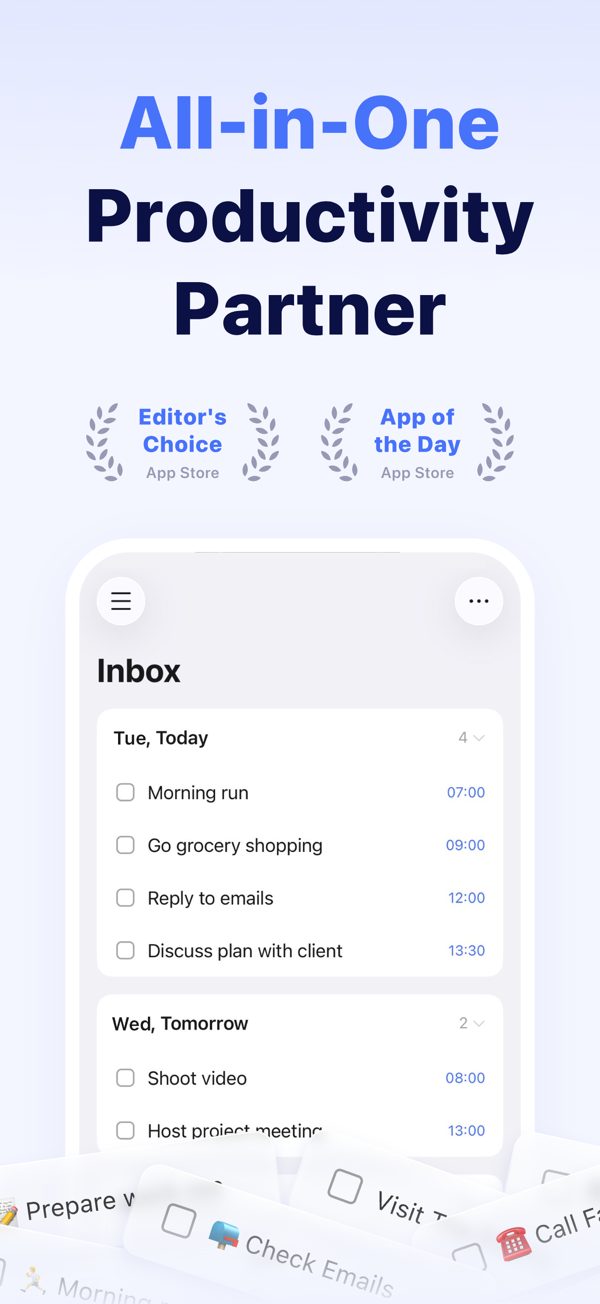
TickTick gives a free user more kinds of tools than any other app here: typed dates, a Kanban board, a basic calendar view, the Eisenhower matrix (a four-box grid that sorts tasks by urgency and importance), a Pomodoro timer, and a habit tracker for up to five habits. If you want to see your tasks on a calendar without paying, this is the app, and it runs on all the same devices as Todoist.
The free plan’s caps are on volume rather than features. You get 9 lists, 99 tasks per list, 2 reminders per task, 19 checklist items per task, and one file upload a day. Most people with one life to organize stay under those numbers; someone who keeps a running list of every book, recipe, and gift idea won’t. Saved filters (TickTick calls them smart lists), the timeline view, task durations, and the “constant reminder” that keeps ringing until you act are Premium, at $49.99 a year. TickTick also asks you to upgrade often enough that it gets old.
Sharing is the weak spot for families. A free shared list holds two people, you and one other, which covers a couple and nobody else.
Between TickTick and Todoist, the free plans split cleanly. TickTick gives you the calendar and the habit tracker; Todoist gives you better typed capture, alarm-style reminders, and room to share with more than one person. If you stop paying for TickTick Premium later, it keeps all your data and drops you back to the free plan.
What it does
- Basic calendar view, Kanban board and Eisenhower matrix on the free plan
- Habit tracker for 5 habits and a Pomodoro timer
- Typed dates and times when you add a task
- Apps for Android, iPhone, Windows, Mac, and the web
Pros
- A calendar view of your tasks without paying
- Polished, quick apps on every platform
- Habits and tasks in one place
Cons
- 9 lists and 99 tasks per list on the free plan
- Shared lists hold only two people for free
- Frequent prompts to upgrade
- Choose if:
- You want to plan your week on a calendar and track a few habits for free
- Skip if:
- You share chores with more than one other person
Microsoft To Do
Free with no limits or upgrade prompts
#3 4.0/5
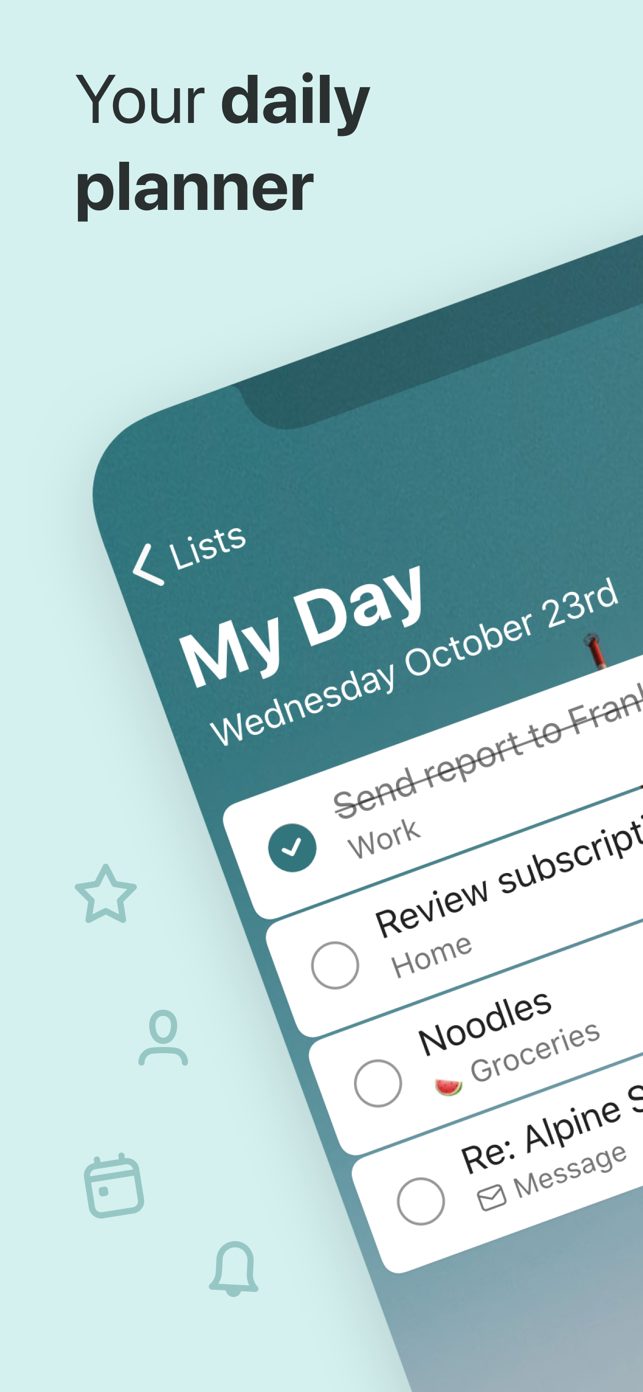
Microsoft To Do is the answer for anyone who wants a to-do app that never asks for money. There’s no paid tier, no ads and no cap you’ll meet, and the apps run on Android, iPhone, Windows, Mac, the web and Apple Watch. It’s the successor to Wunderlist, and it still has that app’s friendly, uncluttered feel.
The daily habit it’s built around is My Day: each morning you pick a handful of tasks into a daily focus list, so you choose today’s work instead of staring at everything. Tasks you don’t finish can stay in My Day until you complete them or remove them. If your email is Outlook, flagged emails show up as tasks on their own. Lists can sit in groups, tasks have one level of steps, and on Windows and iPhone it recognizes dates and repeats as you type a task.
The cost of “free with no limits” is depth. Each task gets one reminder, there are no location reminders or alarms that keep ringing, and there’s no calendar view: the Planned list groups tasks by date and that’s it. Shared lists work with anyone who has a Microsoft account, and you can assign a task to a person, but you can’t comment on it.
Microsoft puts its new task features into Planner, Outlook, and Copilot rather than To Do. The app works and Microsoft hasn’t announced plans to end it, but don’t expect long-requested features to arrive.
What it does
- My Day as a daily focus list you fill each morning
- Flagged Outlook emails become tasks
- Shared lists with assigned tasks
- Apps for Android, iPhone, Windows, Mac, the web and Apple Watch
Pros
- Everything is free, with no ads, caps or upgrade prompts
- Clean and easy to learn
- No list limits to work around
Cons
- One reminder per task, and no location or alarm-style reminders
- No calendar view
- Slow to gain features, with Microsoft's effort going to Planner
- Choose if:
- You use Outlook, or you never want to think about a free plan's limits
- Skip if:
- You want your tasks on a calendar
Apple Reminders
Free pick if everything you own is Apple
#4 3.7/5
If your phone, laptop, and tablet are all Apple’s, Reminders is already installed and is better than its reputation. It reads dates and repeats from what you type, has sections, tags, and smart lists that gather tasks across lists, and includes location reminders (“remind me when I get home”), which Todoist keeps for Pro. Its alerts can also sound like an alarm even when your phone is muted. Siri, the Action button, widgets, and the Apple Watch all add tasks quickly, and shared lists let you assign a reminder to a person.
There’s no Android app, though. On a Windows PC you get Reminders on iCloud.com in a browser, where you can add, complete, and lightly edit tasks; treat it as a page you check, not an app that alerts you on that PC. A partner on Android can only join a shared list through iCloud.com with an Apple Account. So Reminders is the pick for an all-Apple household and the wrong one the moment a work PC or an Android phone enters the picture. If you’re on iPhone and open to paying for something nicer, our guide to to-do list apps for iPhone covers the paid options.
What it does
- Location reminders and alarm-style alerts, free
- Smart lists, tags, and sections
- Siri, widgets, Action button and Apple Watch capture
- Shared lists with assigned reminders
Pros
- Already on every Apple device, with nothing to set up
- Location reminders, which Todoist keeps for Pro
- Syncs through iCloud with no extra account
Cons
- No Android app
- On Windows, only a browser page on iCloud.com
- Choose if:
- Everyone in your house uses an iPhone
- Skip if:
- You use Android or a Windows PC every day
Google Tasks
Simplest choice for Gmail and Google Calendar users
#5 3.6/5
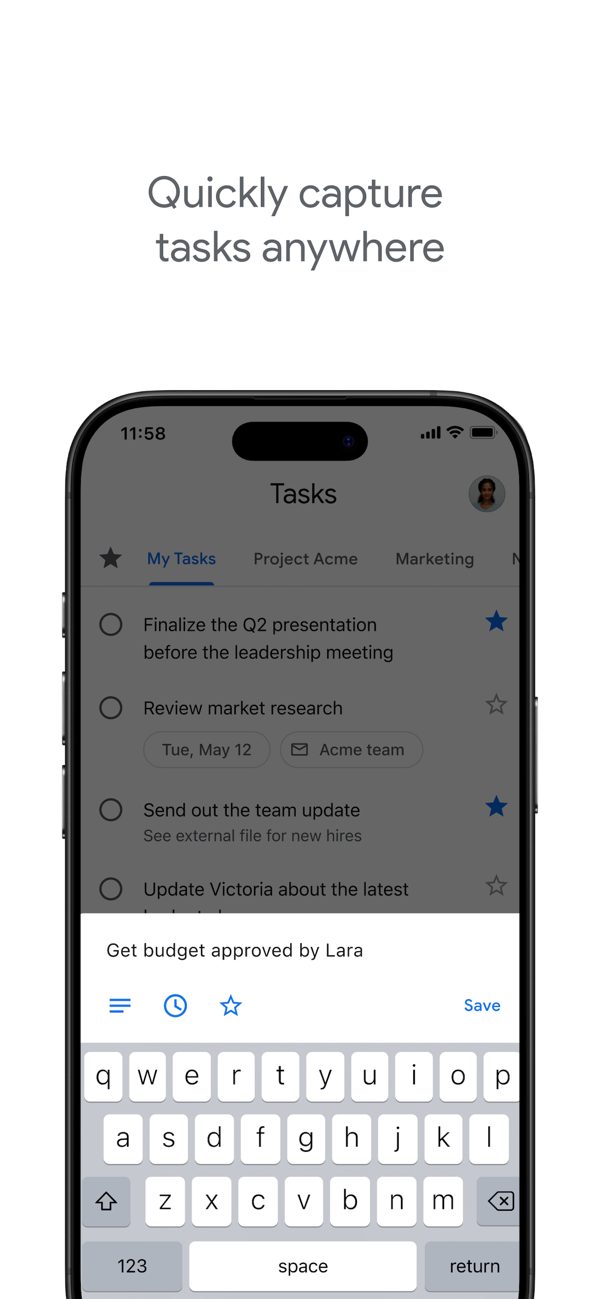
Google Tasks lives where Google users already work: in the side panel of Gmail and Google Calendar, at tasks.google.com in any browser, and in its own Android and iPhone apps. You can turn an email into a task and jump back to the email later. Tasks with a date sit on your Google Calendar beside your meetings, and on a computer you can give a task a start time and a length, which is about as close to time blocking as any free plan here gets.
Everything else is bare. You get lists, one level of subtasks, stars, and a deadline, but no tags, no saved filters, and no Today view of its own. Tasks repeat daily, weekly, monthly or yearly, except that a task with subtasks can’t repeat at all. And there’s no way to share a list with another personal Google account, so a couple can’t keep a shared grocery list in it. There’s no Windows or Mac app either, though the browser version covers that.
Reminders you set in Google Keep also show up in Google Tasks.
What it does
- Tasks inside Gmail and Google Calendar
- Turn an email into a task that links back to it
- Dated tasks on your Google Calendar, with a start time and length on a computer
Pros
- Nothing to learn and no limits a person reaches
- Tasks beside your meetings on Google Calendar
Cons
- No list sharing with other personal accounts
- No tags or saved filters
- Tasks with subtasks can't repeat
- Choose if:
- Your day already runs through Gmail and Google Calendar
- Skip if:
- You need to share lists with a partner
Tasks.org
Open source and offline, for Android
#6 3.5/5
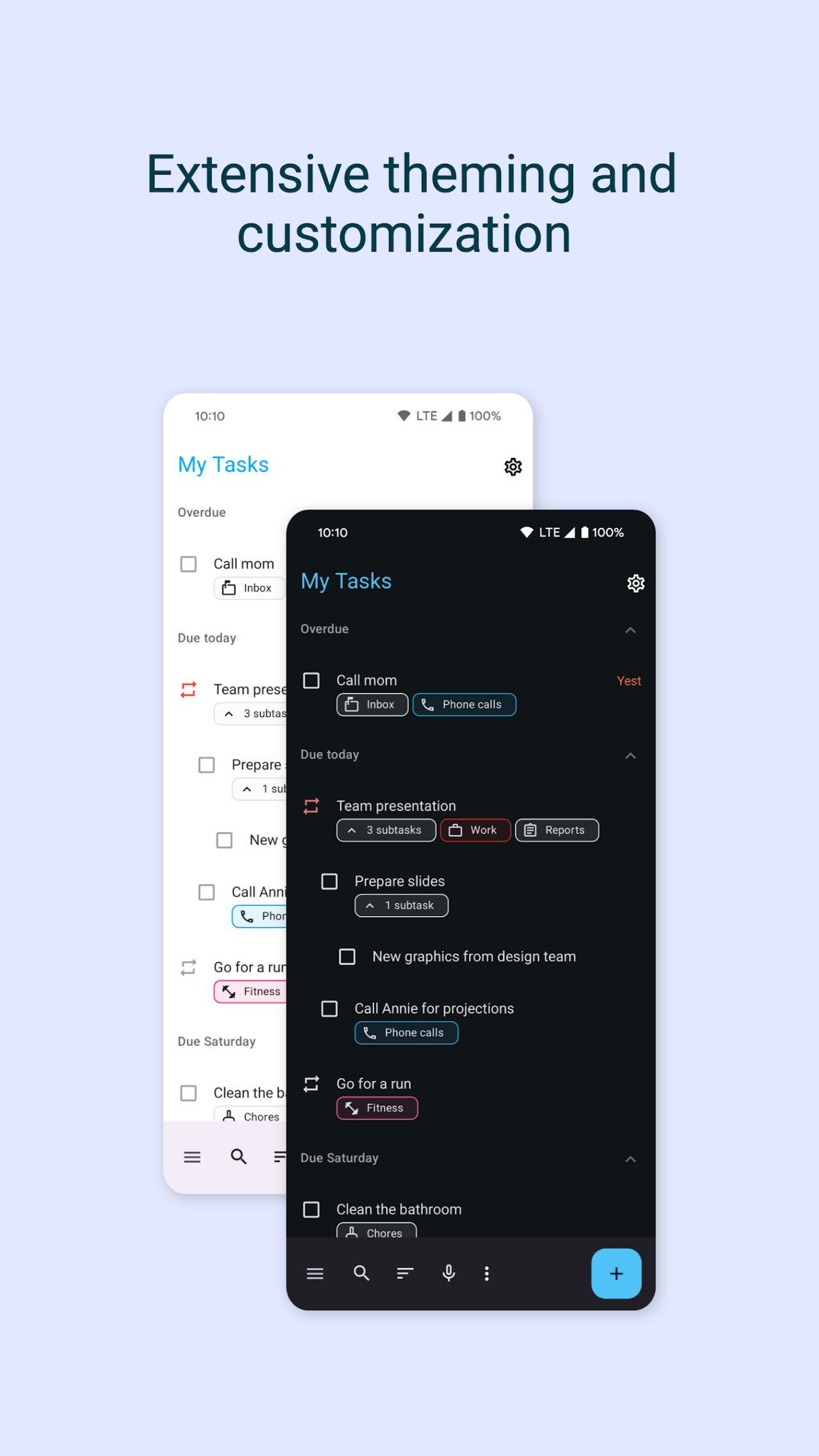
Tasks.org is for Android owners who’d rather their task list didn’t sit on another company’s server. It’s open source, works offline, and needs no account at all. It’s also no toy: subtasks nest as deep as you like, tags and custom filters gather tasks across lists, repeats are flexible, and location reminders are free.
By default it keeps everything on your phone, which also means no computer and no iPhone. The free version can sync with Google Tasks or Microsoft To Do to reach a browser, but that puts your tasks on Google’s or Microsoft’s servers, which defeats the point for most people who choose it. Private sync with your own server (CalDAV, such as Nextcloud, or EteSync) and the desktop app, which is still an early version, need the paid tier, where you choose the price from $0.99 a year. List sharing and adding tasks by email are in the Tasks.org Cloud plan at $29.99 a year.
One default to change: the app sends usage data unless you turn telemetry off on its About page.
What it does
- Works offline with no account
- Nested subtasks, tags, and custom filters
- Location reminders and flexible repeats, free
- Optional sync with Google Tasks, Microsoft To Do, or your own CalDAV server
Pros
- Your tasks stay on your phone unless you choose a sync
- Open source, with no ads
- Organizing tools that rival paid apps
Cons
- Android only, with no iPhone app
- Private sync and the desktop app need the paid tier
- Telemetry is on until you turn it off
- Choose if:
- You use Android and want your to-do list to stay off the cloud
- Skip if:
- You need your tasks on an iPhone or a computer for free without Google or Microsoft
Notion
For people who already plan in Notion
#7 3.4/5
If Notion already holds your notes and projects, keeping tasks in a Notion database puts everything in one place, and the free plan is roomy for one person. A database can show your tasks as a board, a list or a calendar, filtered however you like, and a reminder on a task’s date sends a notification to your phone (it can arrive a few minutes late).
As a to-do app, though, it’s work. You build the list yourself or start from a template, and getting a quick task in on a phone means opening the app and finding the right database. Nor does a task come back when you check it off. A repeating template creates a fresh copy on a schedule, and making a finished task reset itself takes an automation, which only paid plans can create. Most people are better served by a real to-do app next to Notion than by Notion alone.
What it does
- Task databases with board, list, and calendar views
- Reminders on dates, pushed to your phone
- Repeating templates that create new task copies on a schedule
Pros
- Tasks live next to your notes and projects
- Filter and lay out tasks however you like
Cons
- You have to build your own to-do system
- Slow to add a task from your phone
- No task that repeats when you complete it, without paid automations
- Choose if:
- Your projects already live in Notion and you want tasks beside them
- Skip if:
- You want to open an app and start adding tasks
Habitica
Turns your to-do list into a game
#8 3.1/5
Habitica is for people whose problem isn’t organizing tasks but doing them. Your tasks become Habits, Dailies, and To-Dos; checking them off earns gold and experience for a pixel-art character, and missed Dailies cost it health. Join a party with friends and you share the consequences, which is a stronger nudge than any notification. Everything you’d use is free, on the web, iPhone, and Android, and the subscription adds mostly cosmetic and in-game extras.
It’s a thin to-do list underneath the game. Dailies repeat on flexible schedules, but there are no projects, no typed dates and no calendar, and there’s no desktop app. It’s run by a small team, so don’t expect it to grow much. Use it alongside a plain to-do app or as your only one if motivation, not features, is what you’re missing.
What it does
- Tasks earn experience and gold for a game character
- Dailies with flexible repeat schedules
- Parties that share quests with friends
Pros
- Turns checking things off into a reason to come back
- Free, with paid extras that don't help you advance
Cons
- Few to-do features: no projects, typed dates or calendar
- The game takes time to learn
- No desktop app
- Skip if:
- A game in your task list would annoy you more than motivate you
Also considered
- Any.do has a free plan, but recurring tasks and location reminders are Premium features, and sharing a list with a partner needs the paid Family plan. A free to-do app that won’t reliably repeat “take out the bins every Tuesday” fails most people.
- Google Keep is good for a quick shared checklist that two Google accounts can both edit, such as groceries. A reminder covers a whole note rather than each item, location reminders are gone, and Keep now hands its reminders to Google Tasks, which does the dated to-do job better.
How the free plans score
1–5 per criterion · select a score for its reasoning and any sources
| # | Product | Overall | Pleasant and quick to use , counts double | Same tasks on every device, free , counts double | Reminders and repeating tasks, free | What the free plan holds back | Fast capture | Organizing lots of tasks | Planning your day and week | Sharing lists for free , counts half |
|---|---|---|---|---|---|---|---|---|---|---|
| 1 | Todoist | 4.6 | 5 | 5 | 5 | 3 | 5 | 4 | 4 | 5 |
| 2 | TickTick | 4.4 | 5 | 5 | 4 | 3 | 5 | 4 | 4 | 3 |
| 3 | Microsoft To Do | 4.0 | 4 | 5 | 3 | 5 | 4 | 3 | 3 | 4 |
| 4 | Apple Reminders | 3.7 | 4 | 2 | 4 | 5 | 4 | 4 | 4 | 4 |
| 5 | Google Tasks | 3.6 | 4 | 4 | 3 | 5 | 3 | 3 | 4 | 1 |
| 6 | Tasks.org | 3.5 | 4 | 2 | 5 | 4 | 3 | 5 | 3 | 2 |
| 7 | Notion | 3.4 | 2 | 5 | 2 | 4 | 2 | 5 | 4 | 3 |
| 8 | Habitica | 3.1 | 3 | 4 | 3 | 4 | 2 | 3 | 2 | 2 |
×2 = counts double in the overall score, ×½ = counts half.
How each criterion is scored
Pleasant and quick to use
Counts double in the overall score: A to-do app only helps if you keep opening it, and how it feels to use every day is what people name first when they stick with an app or drop it.
How good the free app is to open many times a day as a to-do list: how quickly you can add a task, see what's due, check things off and push things to tomorrow, how clean and consistent it feels, and how long a newcomer takes to get comfortable. Judged from what reviewers and long-time users agree on, store ratings, and how the app works; an app that needs building before it works as a to-do list scores lower.
- 5 Among the best-regarded to-do apps for design and ease, praised widely by reviewers and long-time users
- 4 Clean and easy to pick up, with minor complaints such as busy screens or upgrade prompts
- 3 Easy enough, but bare, dated, busy or pushy, with rough edges reviewers and users mention
- 2 Works as a to-do list only after you build it yourself, or capable but slow and fiddly on a phone
- 1 Awkward or unreliable enough that users widely complain and give up on it
Same tasks on every device, free
Counts double in the overall score: Readers of a free to-do app usually mix phones and computers from different makers, and an app that can't reach one of their devices fails them however good it is.
Where the free plan lets you see and change the same tasks, synced: apps for Android, iPhone, Windows and Mac, and a web version for any other computer. A web version counts only when you can add, edit and complete tasks in it. Watch apps are a bonus that doesn't change the level.
- 5 Apps for Android, iPhone, Windows and Mac, plus a web version
- 4 Apps for both iPhone and Android plus a full web version, but no Windows or Mac apps
- 3 Phone apps for both iPhone and Android with no way to use it on a computer, or one phone platform plus computers
- 2 One maker's devices only (Apple devices, or Android), with at most a limited web version for the rest
- 1 One platform only, with no way to reach your tasks elsewhere
Reminders and repeating tasks, free
Whether the free plan makes sure you see a task when it matters: alerts at a set time, how flexible repeating tasks are (such as "every other Tuesday" or "a week after I finish it"), alerts that ring until you act, and location alerts.
- 5 Time alerts, flexible repeats including repeats counted from when you finish, and location alerts or alerts that ring until you act
- 4 Time alerts and flexible repeats, plus either location alerts or alerts that ring until you act
- 3 Time alerts and flexible repeats, but no location alerts and nothing that rings until you act
- 2 Time alerts with simple daily, weekly or monthly repeats at best, or repeats only on a paid plan
- 1 No dependable alerts on the free plan
What the free plan holds back
How much of the app a free user gets for keeping their own tasks: caps on lists, projects or tasks that a busy person reaches, core features held for a paid plan (repeats, reminders, calendar views, sharing), ads, and how often the app asks you to upgrade. Extras few people need, such as AI features or themes, count little.
- 5 Everything is free, with no caps a person hits, no ads and no upgrade prompts
- 4 Everything most people use is free; a few extras or sync options are paid, with little nagging
- 3 The core works, but caps on lists, projects or tasks that busy people hit, or a wanted view held back, with upgrade prompts
- 2 A core feature most people want, such as repeating tasks or sharing, is paid, with frequent upgrade prompts
- 1 The free plan is a trial or shows ads, and most core features are paid
Fast capture
How quickly a task gets in on the free plan from wherever you are: typing a line that sets the date (and ideally the repeat or list) in one go, home screen widgets, voice assistants, sharing from other apps, forwarding an email, and a browser extension.
- 5 One typed line sets date, repeat and list or tags, plus widgets, voice, sharing and email or a browser extension
- 4 Typed dates and times plus most shortcuts
- 3 Several shortcuts (widgets, voice, sharing), but dates are picked by hand
- 2 Manual entry plus one or two shortcuts, with no typed dates
- 1 Only by opening the app and filling in fields
Organizing lots of tasks
How well the free plan holds a full life's worth of tasks: lists or projects grouped into folders, sections, tags, subtasks, start dates, and saved filters or smart lists that pull tasks together across lists. Caps on how many lists you get are scored under what the free plan holds back, not here.
- 5 Lists in folders, sections or tags, nested subtasks, start dates, and saved filters or custom views
- 4 Most of the toolkit, missing one big piece such as saved custom filters
- 3 Lists with subtasks, plus a few of tags, sections, groups or built-in smart lists
- 2 Lists with simple checklists or one level of subtasks, and little else
- 1 A single list or loose notes, with no dates per task
Planning your day and week
How well the free plan helps you decide what to do when: a Today view and an upcoming view, tasks shown on a calendar, your calendar events beside your tasks, and time blocking (giving tasks a start time and length on a timeline).
- 5 All of 4 plus time blocking on a calendar
- 4 Today and upcoming views plus tasks on a calendar or your events beside them, but no time blocking
- 3 Today and upcoming views, without tasks on a calendar or your events beside them
- 2 A list sorted or grouped by due date, with nothing else
- 1 No view of tasks by date
Sharing lists for free
Counts half in the overall score: Most people keep a to-do app for their own tasks; sharing decides the choice for the smaller group who run a household or small group from it.
Whether two free users can share a list, such as a partner sharing groceries and chores, assign tasks to each other, and talk about a task inside the app.
- 5 Shared lists with assigned tasks and comments on tasks
- 4 Shared lists with tasks assigned to people
- 3 Shared lists that everyone can edit, without assigning tasks, or fuller sharing capped at one other person per list
- 2 Sharing only through a paid plan
- 1 No shared lists on the free plan
Which one fits you
- Android phone and a Windows PC, or any other mix: Todoist if five broad projects is enough; TickTick if you want a calendar view and a habit tracker free; Microsoft To Do if you never want to meet a limit.
- Only Apple devices: Apple Reminders. It’s already installed and has location reminders free.
- Gmail and Google Calendar all day: Google Tasks, as long as you don’t need to share lists.
- Sharing chores with a partner or family: Todoist for up to five people with comments, or Microsoft To Do with no limits on lists. Apple Reminders works if everyone has an iPhone; TickTick’s free sharing stops at two people.
- Android, and you want your tasks off the cloud: Tasks.org.
- You already run your life in Notion, or you need a push more than a list: Notion or Habitica, ideally next to a plain to-do app.
The verdict
Todoist’s free plan is the best place to start for most people. Its typed capture and alarm-style reminder solve the two things that make people abandon to-do apps, forgetting to add a task and missing it when it’s due, and it does both on every device you’re likely to own. You pay for that with structure: five active projects and no calendar view, which is fine for a personal list and frustrating if you like a project for everything.
TickTick is the better free plan for planners. You get a calendar view and habits without paying, and the caps of 9 lists and 99 tasks per list rarely bite one person. Its free sharing is the weakest of the three, and its upgrade prompts never stop.
Microsoft To Do is the safe default if you hate the idea of a free plan designed to make you pay. Nothing is held back, it runs everywhere, and its lack of depth (one reminder, no calendar) is the whole tradeoff. Apple Reminders and Google Tasks are good if all your devices, or all your days, belong to one company, and fall short as soon as they don’t. Tasks.org is the one free choice that keeps your tasks to yourself, as long as your phone runs Android.