Canva alternatives for decks, video, print, and free design
Canva charges per person. Pro covers one account, and Business, the plan with team admin and shared brand controls, charges for every person on it, so a five-person team on Business pays $1,250 a year as of November 2026. For a small team, that bill is usually the first reason to look around.
The other reasons depend on what you make, because Canva does a bit of everything:
- Decks. Magic Design drafts a good-looking presentation, but the writing is thin, and a deck downloaded as a PowerPoint file loses the template structure your colleagues need to edit it.
- Video. Canva builds a video out of designed pages, like a slideshow with a timeline. That’s quick for a social reel and limiting once you need precise cuts, real audio work, or long footage.
- Print, vector, and logos. CMYK color for printers, SVG export, and transparent PNGs all need a paid plan, and a logo built from a Canva template can’t be registered as a trademark.
- Your content. On Free and Pro, a privacy setting decides whether Canva may use your designs and uploads to improve its AI. Business and Enterprise content isn’t used at all.
- Leaving later. Your designs leave as PDFs, images, PowerPoint files, or videos, never as a Canva file another design app can open and edit. And once you drop to Free, a design that uses Pro elements won’t download cleanly.
Here’s what each option costs before the details:
| Tool | What it replaces | Free plan | Cheapest paid route (November 2026) |
|---|---|---|---|
| Canva | Everything | Templates and video, free elements only | Pro, $144 a year for one person |
| Gamma | Decks | 400 AI credits once, Gamma badge | Plus, $108 a year |
| Copilot in PowerPoint | Decks | None | Microsoft 365 Personal, $99.99 a year |
| Gemini in Google Slides | Decks | None | Workspace Business Standard, $14 a user a month billed yearly |
| CapCut | Video | Yes, but Pro items block a clean export | Pro, $179.99 a year |
| DaVinci Resolve | Video | Yes, up to Ultra HD | Studio, $295 once |
| Shotcut | Video | Everything, open source | None |
The short version: Gamma if you want better AI decks, Copilot in PowerPoint or Gemini in Google Slides if colleagues need to edit them, CapCut for social video, DaVinci Resolve for serious editing at no cost, and Shotcut if you want open source. For social posts and flyers, Canva’s free plan covers more than its reputation suggests. If you’re leaving anyway, or need print and vector work, the tools under “Also considered” at the end are the closest replacements.
Presentations: better drafts, or files colleagues can edit
Canva’s deck tool is quick, and Free users can try it within a small monthly AI allowance. Two things send deck makers elsewhere. The AI writes thin slides, so you rewrite most of what it drafts. And the PowerPoint download looks right but doesn’t work like a PowerPoint file. In a four-tool test, PowerPoint trainer Taylor Croonquist found that Canva’s export “drops all template functionality,” and Gamma’s slides landed on blank layouts too, while Copilot’s deck came with real placeholders.
1–5 per criterion · select a score for its reasoning and any sources
| # | Product | Overall | How good the generated slides look , counts double | How good the outline and words are | Fixing the draft | Works with PowerPoint and Google Slides | What you get free | Price of a plan for regular use | Brand and team features | Presenting and sharing , counts half |
|---|---|---|---|---|---|---|---|---|---|---|
| 1 | Gamma | 4.2 | 5 | 4 | 5 | 3 | 3 | 5 | 4 | 4 |
| 2 | Canva | 3.9 | 4 | 2 | 5 | 3 | 4 | 4 | 5 | 4 |
| 3 | Copilot in PowerPoint | 3.7 | 3 | 4 | 5 | 5 | 1 | 5 | 4 | 3 |
| 4 | Gemini in Google Slides | 3.4 | 3 | 4 | 4 | 4 | 1 | 4 | 4 | 3 |



×2 = counts double in the overall score, ×½ = counts half.
How each criterion is scored
How good the generated slides look
Counts double in the overall score: A better-looking first draft is the main thing readers want from an AI deck maker over their usual slide app.
Judged from reviewers' side-by-side tests and examples of decks the tool generates from a plain prompt, before anyone edits them: layout variety, typography, how well images and colors fit the topic, and whether slides are crowded. It scores the tool's own output in the form most readers use, not what a skilled designer could build in its editor.
- 5 Distinctive design that looks made for the topic, with layouts and images a designer would choose
- 4 Polished, varied layouts with fitting images; looks professionally designed
- 3 A clean, consistent theme with some layout variety and images; looks like a decent template
- 2 A basic theme with little layout variety; most slides are bullets and need design work
- 1 Plain text slides with no design applied
How good the outline and words are
Judged from reviewers' tests and users' reports: whether the generated deck tells a sensible story for its audience, whether the slide text is specific or generic filler, and how well it uses source material you give it. Invented figures are a risk with every tool and are not scored here.
- 5 Reads like a strong first draft from someone who knows the topic and the audience
- 4 A well-organized story with specific points that uses your material, needing light edits
- 3 A sensible structure and serviceable text that needs a normal editing pass
- 2 A usable structure, but shallow, generic text that needs heavy rewriting
- 1 Generic filler that needs rewriting almost entirely
Fixing the draft
How easily you can change what the AI made: manual control over text, images and layout, and AI edits aimed at one slide or element without regenerating the whole deck.
- 5 Free-form editing plus AI edits to a chosen slide or element and AI revisions across the whole deck
- 4 Full direct editing plus AI edits to a chosen slide
- 3 Full direct editing or targeted AI edits, but not both, or editing held back by a fixed layout system or a hard-to-learn format
- 2 Direct editing of text and images, but little layout control and no targeted AI edits
- 1 Changes mostly mean re-prompting or regenerating; little direct editing
Works with PowerPoint and Google Slides
How well the deck carries into PowerPoint or Google Slides as an ordinary, editable presentation: whether the tool builds natively in them or exports editable files, on which plans, and whether exported slides keep real layouts and placeholders (so you can restyle the deck from the slide master) or arrive as loose text boxes on blank slides.
- 5 Builds natively in PowerPoint or Google Slides using your own template's layouts and slide masters
- 4 Builds natively in PowerPoint or Google Slides, or exports to both with the deck's structure intact
- 3 Exports editable PowerPoint and Google Slides files, but slides land on blank layouts without placeholders
- 2 Export only on paid plans, or the format loses much of the deck in conversion
- 1 No PowerPoint or Google Slides export
What you get free
How much deck generation the free plan allows and whether you can take the deck elsewhere. A free trial that ends or needs a card is not a free plan.
- 5 Renewing free generation with no meaningful cap
- 4 An AI allowance that renews (monthly or on rolling limits), with export
- 3 A one-time AI allowance that includes PowerPoint export
- 2 A one-time AI allowance, with no PowerPoint export or with presentations that must be public
- 1 No free way to generate decks; trial only, or a paid plan is required
Price of a plan for regular use
Price per person per month, at annual billing where offered, of the cheapest plan one person can buy that makes AI decks regularly rather than under a "limited" free allowance. A euro price is compared at face value. Where the plan is a bundle (such as Microsoft 365 or Google Workspace), the bundle's price counts.
- 5 Under 10 a month
- 4 10 to 14.99 a month
- 3 15 to 19.99 a month
- 2 20 to 29.99 a month
- 1 30 or more a month
Brand and team features
Counts what lets a team keep decks on brand and work on them together: a brand theme or company template the AI uses, real-time co-editing, shared libraries of templates, slides or assets, and admin controls that lock brand elements. Features on any plan count.
- 5 All of 4, plus admin controls that lock brand elements or approve decks
- 4 All of 3, plus shared team libraries of templates, slides or assets
- 3 A brand theme or company template the AI uses, and real-time co-editing
- 2 Either a brand theme or company template, or real-time co-editing
- 1 Neither a brand theme nor real-time co-editing
Presenting and sharing
Counts half in the overall score: Matters mainly to sales and client-facing readers; most readers present in a meeting or send a file.
What the tool offers for presenting and sending the deck itself: present mode, share links with access control, and analytics on who viewed the deck and which slides they spent time on.
- 5 All of 3, plus slide-by-slide engagement tracking per link or viewer
- 4 All of 3, plus viewer analytics on some plan
- 3 Present from the app and share links with access control
- 2 Present from the app, or share a view link, but not both with access control
- 1 No way to present or share except exporting a file
#1 4.2/5
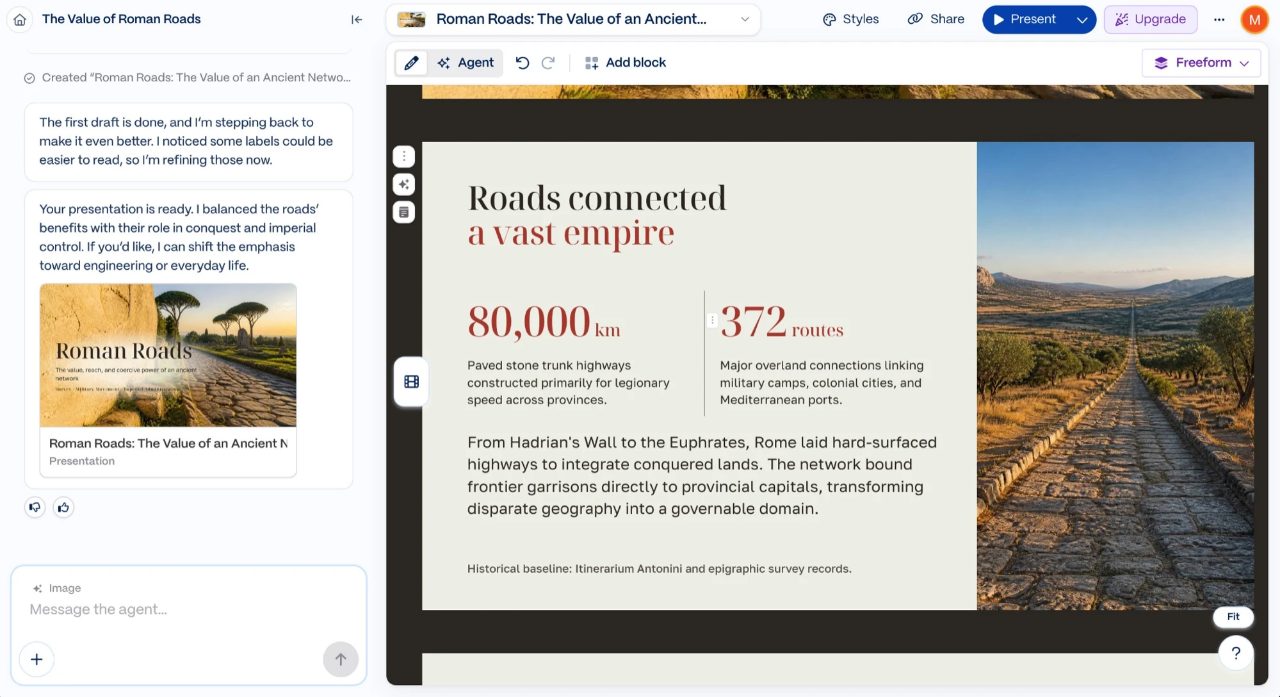
Gamma cares about the words as much as the layout, which is where Canva’s Magic Design falls short. It asks about your audience, tone, and how much text you want before it starts, and its first draft needs editing rather than rewriting. Decks are built from cards, which behave more like web pages than slides: they grow to fit what you put in, and you present and share them from a Gamma link. Gamma also makes documents, simple websites, and social posts with the same editor.
On price, Gamma Plus costs less than Canva Pro, and it lifts the free plan’s two limits: 400 AI credits that never refill, and a “Made by Gamma” badge on what you share. Plus gives 1,500 credits a month, and unused credits roll over.
Two catches for people leaving Canva. Gamma is no better at producing a PowerPoint file colleagues can edit, and a card that grew taller than a slide gets squeezed or cut when you download it. And if you’re leaving over AI training, Gamma is a step sideways: on Free, Plus, Pro, and Ultra, your content may be used to train Gamma’s AI until you opt out in settings.
What it does
- Generates decks, documents, websites, and social posts from a prompt or file
- Asks about audience, tone, and text amount before drafting
- Present and share from a link
- Exports to PDF, PowerPoint, and PNG
Pros
- Better-written first drafts than Canva's Magic Design
- Plus costs less than Canva Pro
- Unused monthly credits roll over
Cons
- PowerPoint downloads land on blank layouts, like Canva's
- Free credits never refill, and free decks carry a badge
- Individual plans can train on your content unless you opt out
- Skip if:
- Your decks have to become PowerPoint files your colleagues edit.
Copilot in PowerPoint
For decks that have to work as real PowerPoint files
Ranking: Canva against AI deck makers
#3 3.7/5
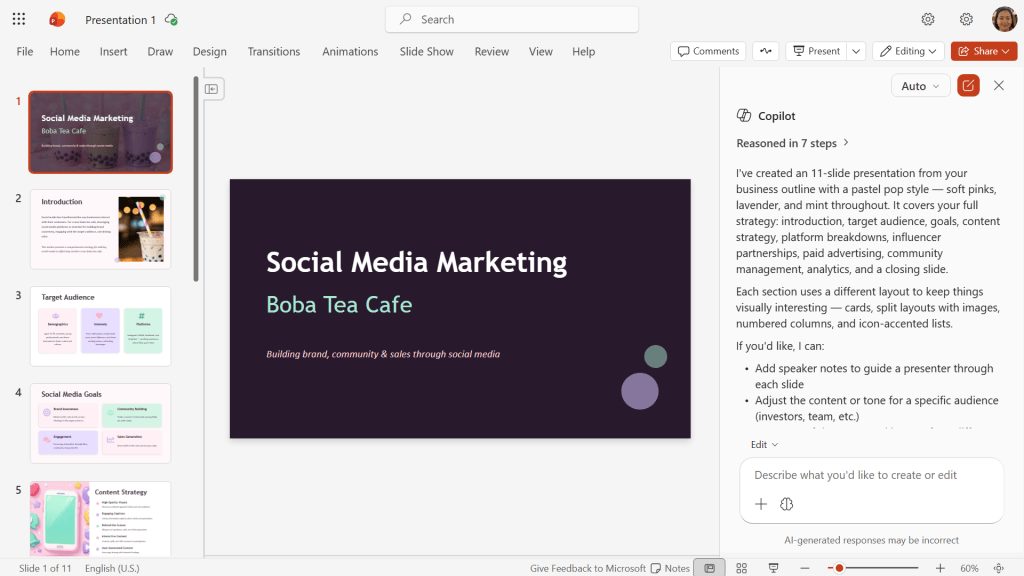
If your decks end up in a colleague’s PowerPoint, build them in PowerPoint. Copilot sits in a sidebar in PowerPoint on Windows, Mac, the web, and mobile. It drafts a deck from a prompt or from a Word, Excel, or PDF file, and when you open your company’s branded template first, it builds the deck on that template. What you get is an ordinary PowerPoint file with real layouts and placeholders, so nobody has to rebuild your slides before reusing them.
Many people already pay for it. Copilot in PowerPoint comes with Microsoft 365 Personal, Family, and Premium, each with monthly AI limits; on Family, only the subscription owner gets Copilot. Businesses add Microsoft 365 Copilot Business to their plan, at $21 a user a month billed yearly as of November 2026. The price of a working file is design: Copilot’s slides look plainer than Canva’s, and you won’t find Canva’s stock library and template range inside PowerPoint.
What it does
- Builds decks from a prompt or a Word, Excel, or PDF file
- Works from your company's branded template
- Edits and extends existing decks
- Runs in PowerPoint on Windows, Mac, the web, and mobile
Pros
- Real PowerPoint slides with layouts and placeholders
- Included with Microsoft 365 plans many people already have
- Decks stay in OneDrive and SharePoint for co-editing
Cons
- Plainer designs than Canva's
- Monthly AI limits on personal plans
- On Family, only the subscription owner can use it
Gemini in Google Slides
For Google Workspace teams that edit in Slides
Ranking: Canva against AI deck makers
#4 3.4/5
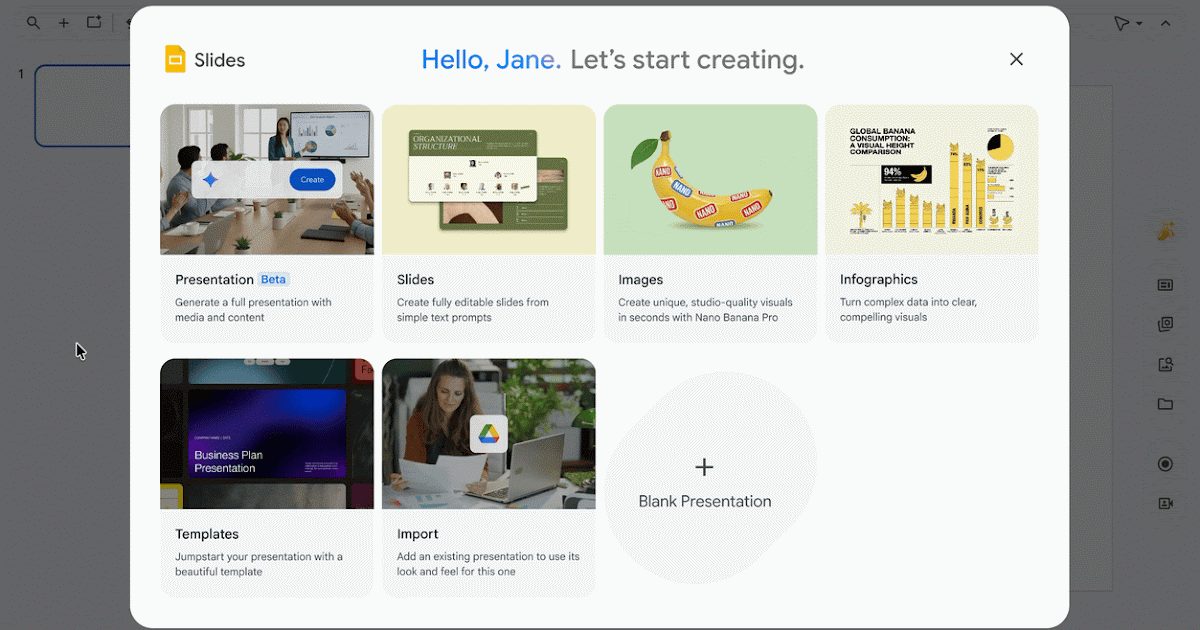
Gemini in Google Slides does the same job for Google Workspace. You write a prompt, attach Drive files for it to draw on, approve the outline, and get an ordinary Slides deck that colleagues co-edit and comment on as usual. Attach an existing deck and Gemini copies its style, which is the nearest thing here to a Canva Brand Kit.
It comes with Workspace Business Standard and higher plans, Enterprise plans, and the Google AI Pro consumer plan ($19.99 a month as of November 2026). Business Starter and free Google accounts don’t get full deck generation. Workspace plans don’t use your company’s data to train Google’s models, which matters if Canva’s AI setting is part of why you’re leaving.
What it does
- Generates a full Slides deck from a prompt and your Drive files
- Copies the style of an existing deck you attach
- Shows an outline to approve before building slides
- Rewrites text and generates images on existing slides
Pros
- Native, fully editable Google Slides decks
- Included in Workspace plans many companies already have
- Company data isn't used to train Google's models
Cons
- Not on Business Starter or free Google accounts
- Full deck generation launched for US English only
- Plainer designs than Canva's
Video: when Canva’s slideshow-style editor runs out
Canva’s video editor has a multi-layer timeline, auto captions, and a big stock library, and Free exports without a watermark as long as you stick to free elements. But it’s a design tool with video added. Each scene is a designed page, the audio tools are basic next to a dedicated editor’s, and long footage strains it: Canva’s own download troubleshooting flags videos of 10 minutes or more and suggests trimming to 30 minutes or less. Each editor below gives you a full timeline with frame-level control, and all three are free to start.
1–5 per criterion · select a score for its reasoning and any sources
| # | Product | Overall | Ease of learning , counts double | Editing depth and room to grow , counts double | What the free version gives you | Built-in shortcuts in the free version | Runs well on an ordinary laptop | Tutorials and help | Computers it runs on , counts half |
|---|---|---|---|---|---|---|---|---|---|
| 1 | CapCut | 3.9 | 5 | 3 | 2 | 4 | 4 | 5 | 4 |
| 2 | DaVinci Resolve 21 | 3.6 | 3 | 5 | 4 | 2 | 2 | 5 | 4 |
| 3 | Shotcut | 3.6 | 3 | 4 | 5 | 3 | 4 | 3 | 4 |
| 4 | Canva | 3.1 | 4 | 2 | 2 | 3 | 3 | 4 | 5 |



Equal displayed overall scores are ordered by the earlier criteria; a known score comes before an unknown score. Identical scores use alphabetical order.
×2 = counts double in the overall score, ×½ = counts half.
How each criterion is scored
Ease of learning
Counts double in the overall score: Readers have never edited before, and an editor they can't learn produces no video at all, so learning it counts as much as what it can do.
How quickly someone who has never edited video gets from installing the editor to a finished, exported video: how clear the first screen is, whether trimming, adding music and titles work the way a newcomer expects, and how much editing vocabulary it assumes. Judged from reviewers' and many users' accounts of learning it and knowledge of its workflow, not from vendor claims alone.
- 5 As easy as the simplest consumer editors; drag clips in, trim, add music and export without instructions
- 4 Approachable; most newcomers finish a simple video in their first session with a little looking around
- 3 A real learning curve of a few sessions, with a conventional editing layout that tutorials explain well
- 2 A dense or unusual interface; most newcomers need tutorials before they can finish anything
- 1 Confusing even with tutorials; most newcomers give up before finishing a video
Editing depth and room to grow
Counts double in the overall score: Readers want an editor they won't outgrow after a few videos, and learning a second editor later costs them as much as learning the first.
What the free version can do once the basics are learned, and how long a reader can keep using it as their videos get more ambitious: tracks, keyframes, color correction, audio mixing and cleanup, effects and compositing, and how well it handles long projects. Judged from the documented feature set of the free version and editors' accounts of where each one runs out.
- 5 Professional depth in editing, color, audio and effects, the same tools paid work uses
- 4 A full editor with unlimited tracks, keyframes, color correction and audio tools, short of professional finishing
- 3 Multiple tracks and keyframes, with clear limits in color, audio or long projects
- 2 A simple timeline with titles and transitions, but few tracks, no keyframes and little color or audio control
- 1 Trim, join and add music only
What the free version gives you
How much a reader gets without paying and without being pushed to pay: whether exports are watermark-free, the highest export resolution, whether paid items are mixed into the free library so an export can come out watermarked or blocked, usage caps on features, whether an account is required, and how often the app asks for an upgrade. Judged from the vendor's plan pages and users' accounts of the free version.
- 5 Everything free with no watermark, no account, no caps and no upsell
- 4 Watermark-free 4K exports with no account needed; some advanced or AI features are paid
- 3 Watermark-free exports, but capped at 1080p or limited by an account, a paid stock library or regular upgrade prompts
- 2 Watermark-free only if you avoid paid items mixed through the library; key features capped and an account required
- 1 A watermark on every export, or a time-limited trial
Built-in shortcuts in the free version
The time-savers a new YouTuber or student uses on most videos, counted only where the free version includes them: automatic captions from speech, templates and title presets, a library of free music, sound effects and stock clips, background removal, and text-to-speech voiceover. Judged from the vendor's documentation of what the free version includes.
- 5 All of these free and without caps
- 4 Most of these free, with usage caps or paid items mixed in
- 3 Either free automatic captions or a substantial free library of templates, music and stock, but not both
- 2 Title presets and some effects, but no automatic captions and no media library
- 1 Basic titles and transitions only
Runs well on an ordinary laptop
Whether the editor plays back and exports smoothly, and stays stable, on the kind of computer a student or new creator already owns: a laptop with integrated graphics and 8 GB of memory. Judged from official requirements, the hardware features the free version uses, and users' accounts of lag and crashes.
- 5 Smooth and stable on almost any computer from the last several years
- 4 Smooth on an ordinary laptop for typical projects, with slowdowns only on heavy ones
- 3 Works on an ordinary laptop with lag on long or high-resolution projects, or occasional crashes
- 2 Needs more memory or graphics than a typical laptop has, or users widely report crashes
- 1 Unusable without a powerful computer, or crashes often enough to lose work
Tutorials and help
How easy it is to find an answer when stuck: the number of video tutorials, courses, forum answers and guides for the editor, and the quality of its own help. Popularity counts here only because more users means more tutorials.
- 5 A huge community; almost any question already has a video answer
- 4 A large community with good official help and plenty of tutorials
- 3 A moderate community; most common questions have an answer
- 2 A small community and official help with gaps
- 1 Very little help beyond a short manual
Computers it runs on
Counts half in the overall score: Most readers already own one computer and only need the editor to run on it, which the text says for each product.
Which computers the reader can use it on: Windows, Mac, Linux and Chromebook, as an app or in a browser. Judged from the vendor's supported platforms for the free version.
- 5 Windows, Mac, Linux and Chromebook
- 4 Windows, Mac and Linux, or Windows, Mac and Chromebook
- 3 Windows and Mac
- 2 One operating system plus a limited version elsewhere
- 1 One operating system only
#1 3.9/5
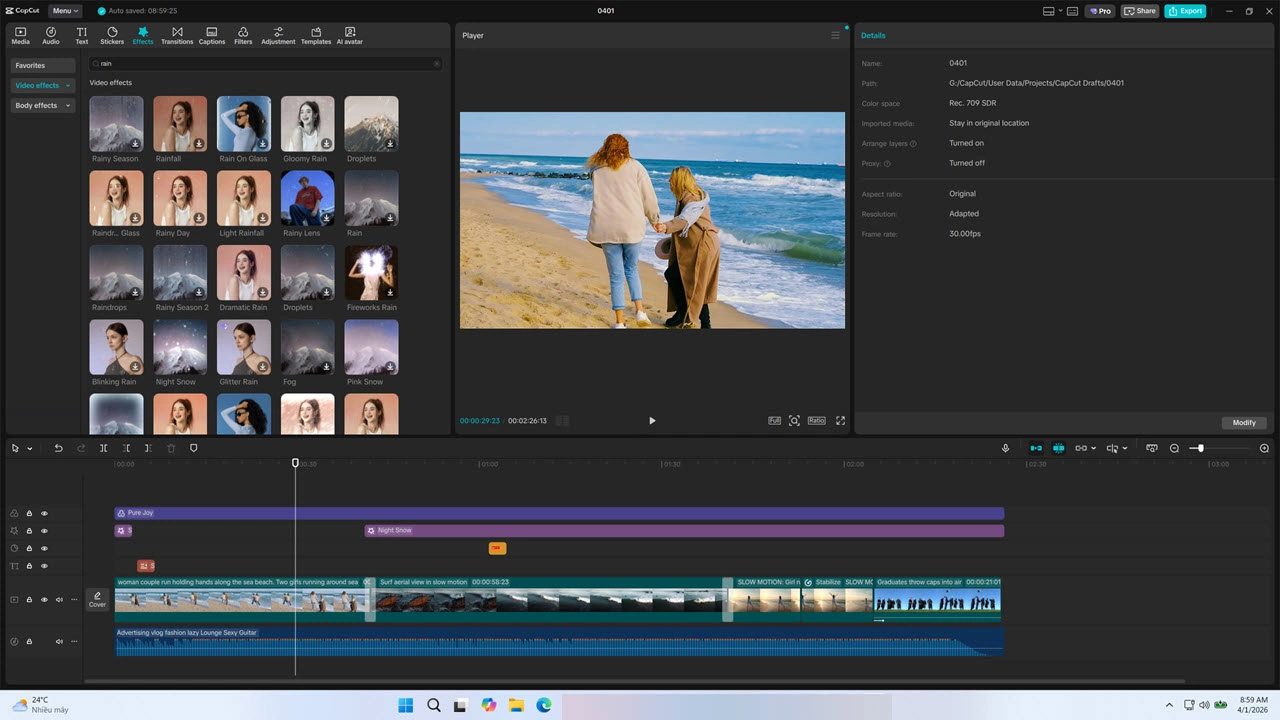
CapCut is the natural next step for anyone making TikToks, Reels, or Shorts in Canva. It keeps what made Canva quick (templates, auto captions, stickers, and effects) and adds a proper multi-track timeline with keyframes, speed ramps, and green screen. It runs on Windows, macOS, the web, iOS, and Android, with projects syncing through your CapCut account.
The free plan has the same trap as Canva’s, only more of it: use a Pro template, effect, or stock clip and you need Pro to export without a watermark, and the app pushes upgrades constantly. Pro costs $19.99 a month as of November 2026, more than Canva Pro.
CapCut is also the wrong move if your reason for leaving Canva is how your content gets used. Its US terms give TikTok USDS Joint Venture and its affiliates a perpetual, worldwide, sublicensable license to use what you upload to run and develop the service. Canva at least lets you switch AI use off.
What it does
- Multi-track timeline with keyframes, speed ramps, and green screen
- Auto captions and a large template and effects library
- Desktop, web, and phone apps with project sync
- Direct sharing to TikTok and YouTube from the desktop app
Pros
- The easiest step up from Canva for social video
- More editing control than Canva on the free plan
- Templates follow social video trends closely
Cons
- Pro templates and effects block a clean free export
- Pro costs more than Canva Pro
- Broad license over the content you upload
DaVinci Resolve 21
For serious editing without a subscription
Ranking: Canva against free video editors
#2 3.6/5
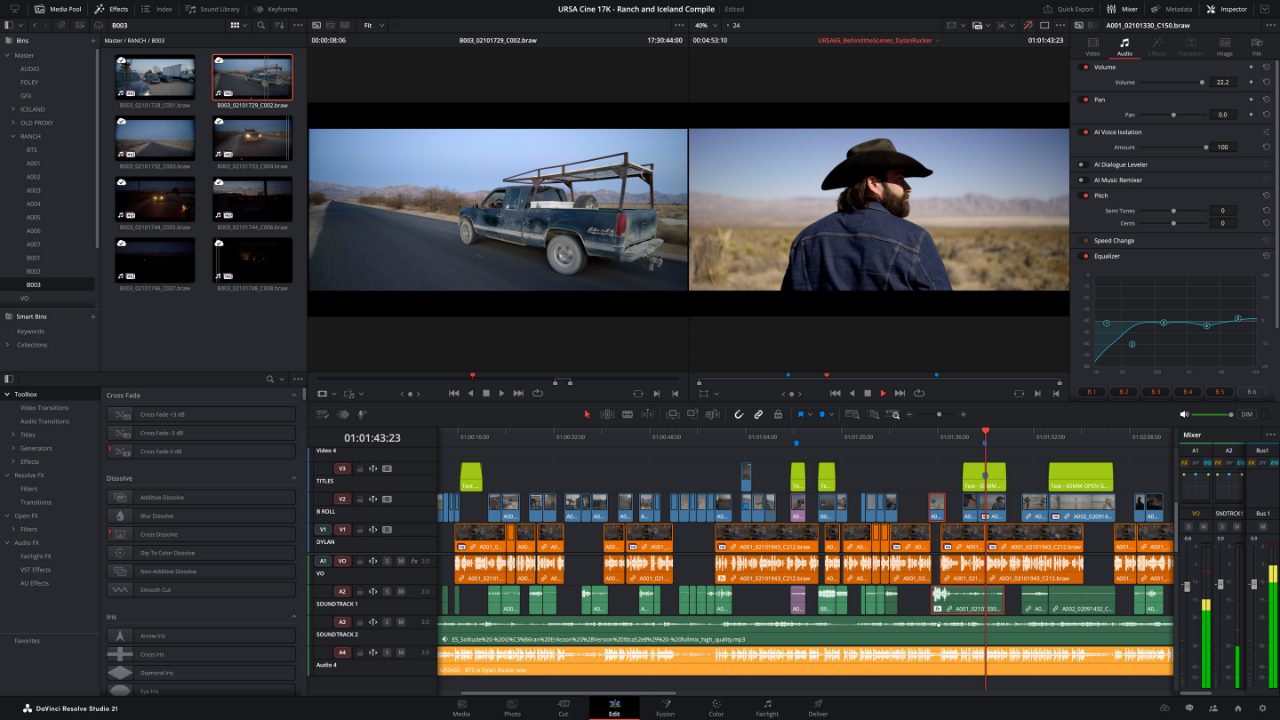
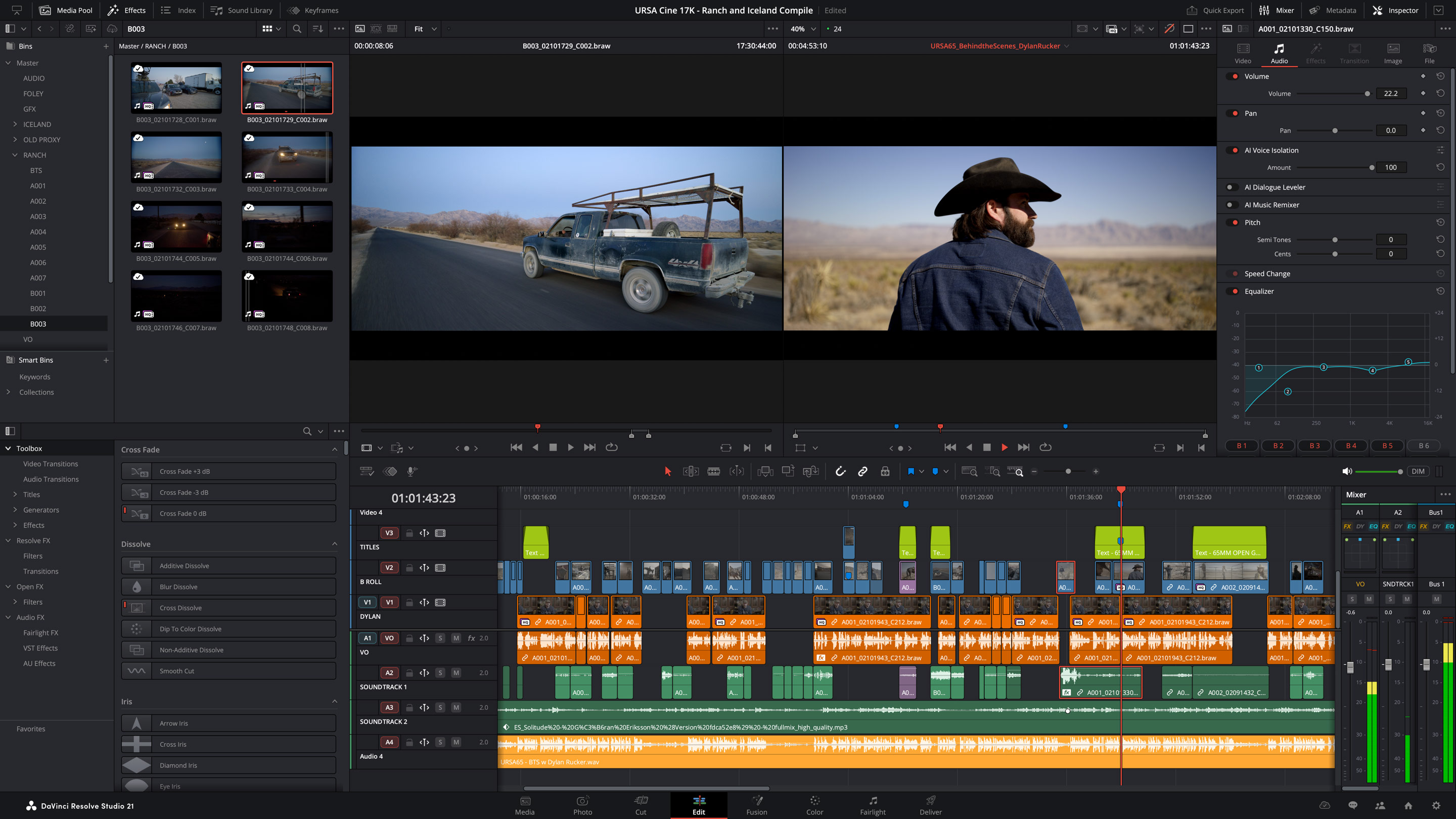
DaVinci Resolve is the free editor professionals use, and the free edition isn’t a trial. It exports up to Ultra HD (3840 x 2160) at 60 frames per second, with no watermark unless you apply a Studio-only effect, and it puts color grading, an audio mixer, and motion graphics in one app. For long videos, interviews, or anything you want to grade properly, nothing free comes close.
The jump from Canva is the steepest of the three, though. Resolve has no social templates in the Canva sense, and automatic subtitles from speech are in the Studio edition, a one-time $295 purchase. It also wants hardware: 16 GB of RAM on Windows, and on a Mac it runs only on Apple silicon. On an older laptop, expect to make proxy files before playback runs smoothly.
What it does
- Editing, color grading, audio mixing, and effects in one app
- Free edition exports up to Ultra HD at 60 fps
- Windows, macOS, and Linux
- Studio edition is a one-time purchase, not a subscription
Pros
- Professional depth at no cost
- No watermark on the free edition's own tools
- Large tutorial community
Cons
- Steep learning curve for anyone coming from Canva
- Automatic subtitles need the paid Studio edition
- Demanding on RAM and graphics
- Skip if:
- You edit on an older or low-memory laptop.
#3 3.6/5
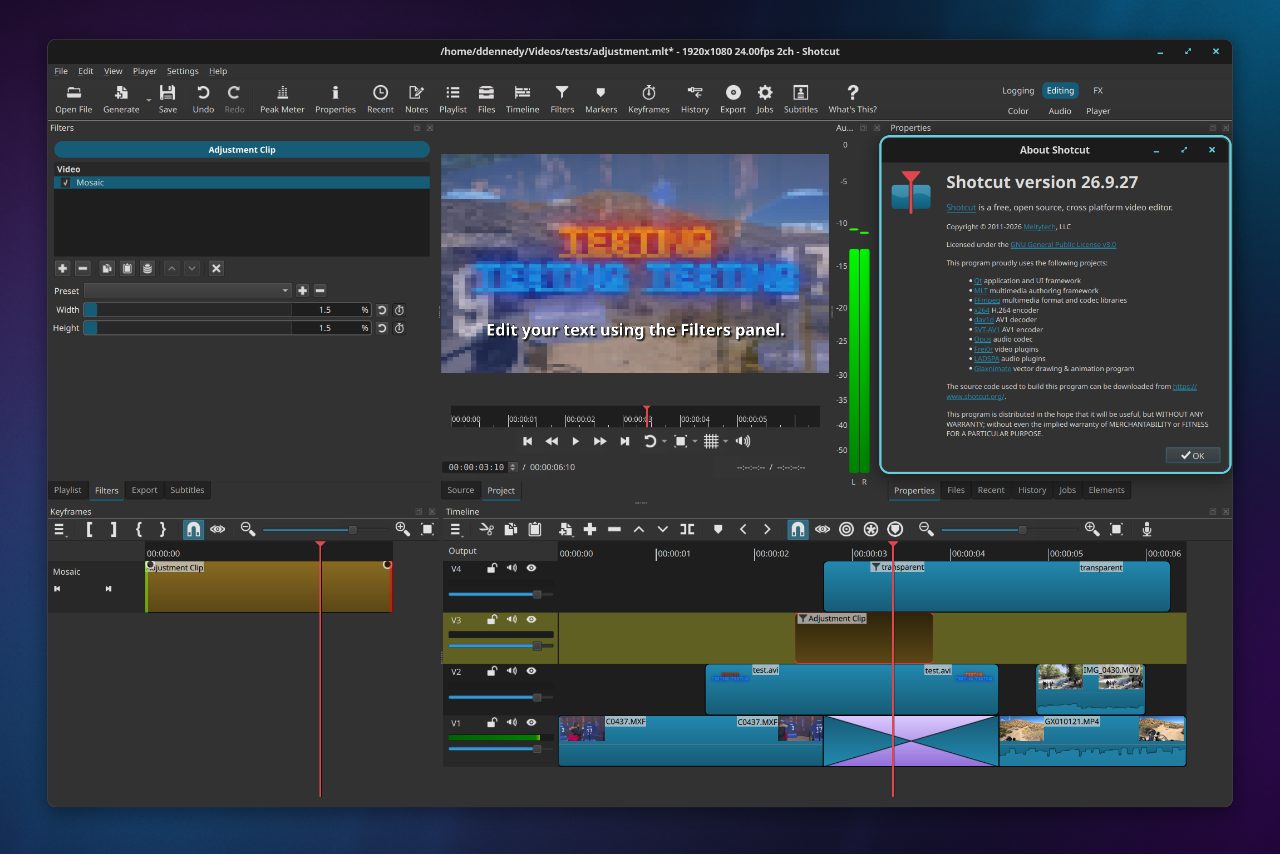
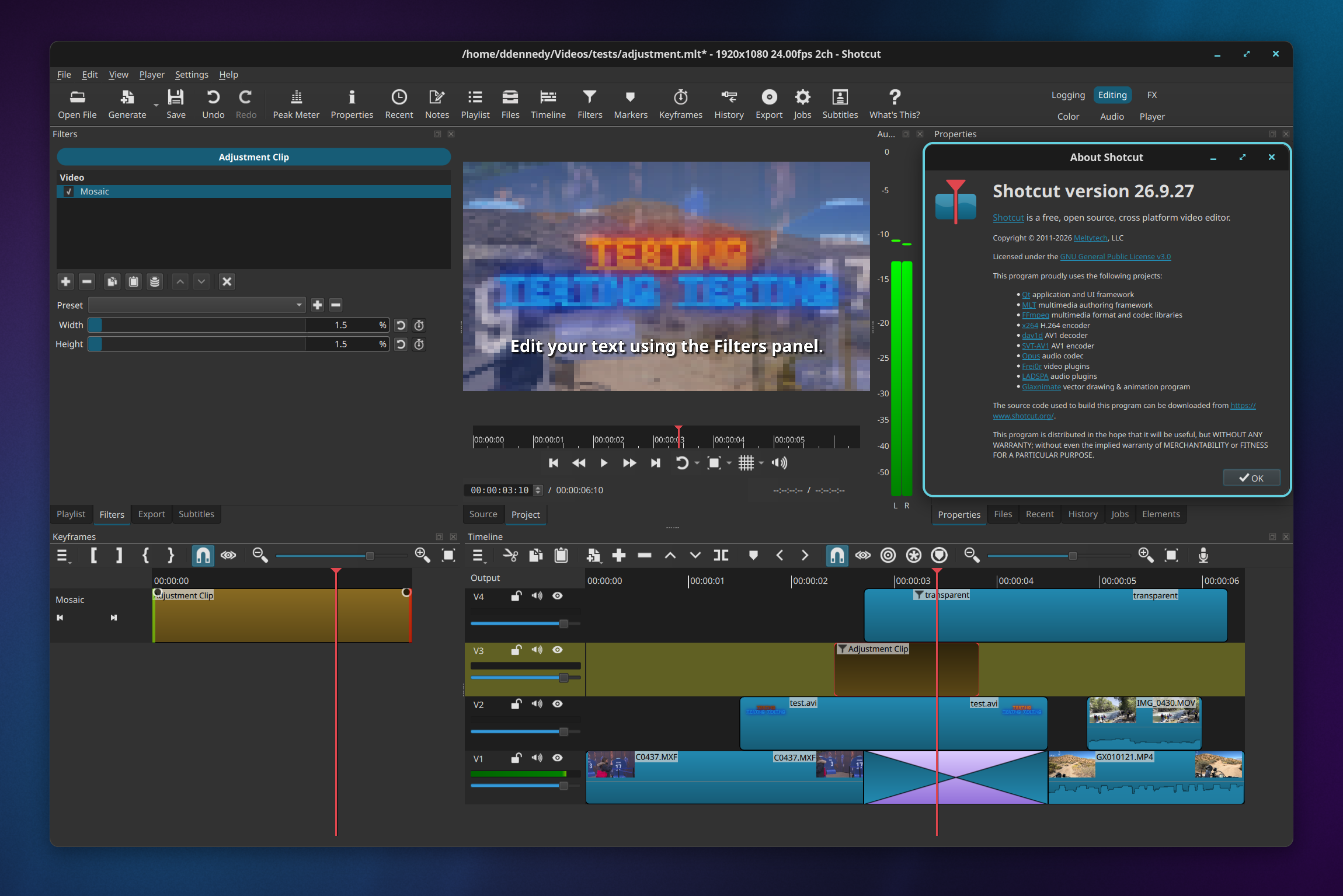
Shotcut is free and open source (GPLv3), with no account, no paid tier, and nothing to unlock. It runs on Windows, macOS, and Linux, including as a portable app from a USB drive. You get a multi-track timeline, keyframed filters, color correction, and built-in speech-to-text subtitles, which DaVinci Resolve reserves for its paid edition. It’s also much lighter on hardware than Resolve.
The interface is what you pay with. Everything in Shotcut is a filter, so titles and effects take more digging than in Canva or CapCut, and there are no trendy templates. For someone who wants to own their editor and never see an upgrade prompt, that’s a fair trade.
What it does
- Multi-track timeline with keyframed filters
- Built-in speech-to-text subtitles
- Windows, macOS, Linux, and a portable version
- No account needed
Pros
- Completely free and open source
- Runs well on ordinary laptops
- Updated every couple of months
Cons
- Filter-based interface takes time to learn
- No social templates or stock footage
- Plainer titles and effects than CapCut
Social posts, flyers, and print: when to stay with Canva
For the social posts, flyers, and one-page handouts most people make, nothing above replaces Canva, and the reasons people give for leaving often have answers inside Canva itself.
#2 3.9/5
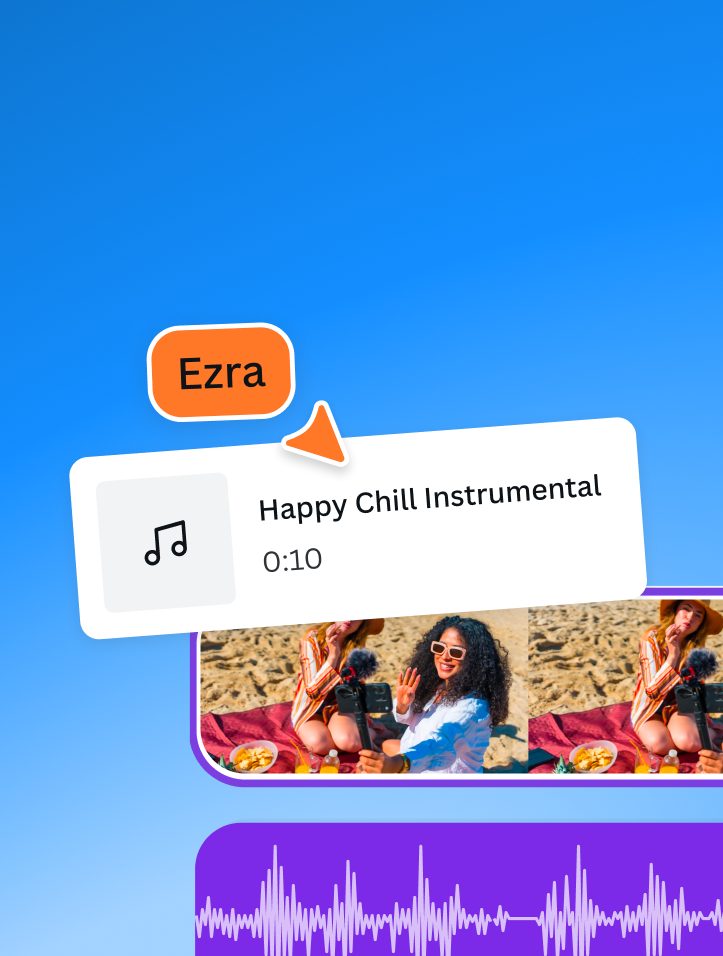
The free plan goes further than its reputation. Free includes more than 1.6 million templates, 5 GB of storage, the video editor, and a limited monthly AI allowance, and nothing you export carries a watermark as long as you use free elements. If you never print, remove backgrounds, or resize designs for other formats, Pro may be buying you very little.
What Pro adds matters for specific jobs: CMYK color and transparent PNG and SVG export, background removal, Magic Resize, 100 GB of storage, and a library of more than 3.6 million templates and 141 million stock items. If you print, Pro is the cheap fix. Canva’s Print PDF has 300 dpi, bleed, and crop marks on any plan, but only paid plans can switch it to CMYK. Business adds team admin and up to 100 Brand Kits, and Canva doesn’t use Business content to improve its AI.
Where Canva falls short is ownership. Templates and stock elements are licensed to everyone, so a logo built from a template, or one that includes Canva graphics, illustrations, or photos, can’t be registered as a trademark. Popular templates also show up everywhere, so a design that starts from one can look familiar. And your work stays tied to Canva: there’s no file another design app opens and edits in full. If AI training is what bothers you, check your privacy settings before you leave; on Free and Pro, that’s where you control whether Canva may use your content to improve its AI.
What it does
- Templates for social posts, flyers, posters, decks, documents, and video
- Video editor with a multi-layer timeline and auto captions
- Brand Kits for logos, colors, and fonts
- Web, Windows, macOS, iOS, and Android
Pros
- Easiest way for a non-designer to make something that looks finished
- Free plan exports without a watermark using free elements
- One account for graphics, decks, video, and print
Cons
- Business is priced per person, so team bills grow fast
- CMYK, SVG, and transparent PNG export need a paid plan
- Template-based logos can't be registered as trademarks
- No editable file to take to another design app
- Skip if:
- You're designing a logo you plan to register as a trademark.
Most people who search for a way out of Canva should first check what they actually make. If it’s social posts and flyers, Canva’s free plan probably covers you, and Pro is worth it mainly for print, transparent images, background removal, and resizing. If it’s decks, the deciding question is where they end up: Gamma writes better drafts you present from a link, while Copilot in PowerPoint and Gemini in Google Slides produce files your colleagues can edit. If it’s video, CapCut is the easy step up for social clips, DaVinci Resolve is the deep one, and Shotcut is the open-source one. Canva stays the best single tool for doing a bit of everything; it just isn’t the best at decks or video.
Also considered
- Adobe Express: The closest match for Canva’s graphics side, with templates, Adobe Stock, Adobe Fonts, and a drag-and-drop editor. Free exports transparent PNGs, which Canva charges for, and the Teams plan costs about $7.99 a person a month (two-person minimum) against Canva Business’s $250 a person a year, as of November 2026. Its template and stock libraries are smaller than Canva’s.
- Affinity: Free professional software for vector drawing, photo editing, and page layout on Windows, Mac, and iPad, with CMYK PDF export and offline use. It’s the step up for print work and logos drawn from scratch. It starts from a blank page rather than templates, and it belongs to Canva: you sign in with a Canva account, and its AI tools need Canva Pro, so it doesn’t get you away from the company.
- Inkscape: A free, open-source vector editor for Windows, macOS, and Linux, made for logos, illustrations, and icons you own outright. Expect a real learning curve and no template or stock library.
- Kittl: A browser design app built around typography, with strong text effects, mockups, and templates for logos, posters, and t-shirts. Pro costs $12 a month billed yearly as of November 2026 and adds vector export and a commercial license, but the free plan only exports small, watermarked images.
- Figma: Worth it when your company’s designers already work in Figma. Figma Buzz, still in beta, lets marketers make social posts and flyers from the design team’s templates on any seat. For a solo user who wants ready-made templates, it’s more tool than you need.


Frequently asked questions
Does Canva use my designs to train its AI?
It depends on your plan. On Free and Pro, a setting under your privacy settings decides whether Canva may use your designs and uploads to improve its AI features, and you can change it at any time. Canva doesn’t use content from Business, Enterprise, or Canva for Education student accounts to improve its AI.
What happens to my designs if I cancel Canva Pro?
They stay in your account, but on Free, a design with Pro elements in it won’t download cleanly, and your Brand Kit locks. Transparent PNG, SVG, and CMYK export also stop working, so download anything you need in those formats before your paid period ends. Plan for the move too: decks leave as PowerPoint files and everything else as PDFs or images, and no other design app opens a Canva design for full editing.