Loom alternatives for cheaper links, polish and local recording
Loom records your screen and a bubble of your face, uploads while you talk, and gives you a link the moment you stop. That instant link is why people use it, and it’s also why leaving is harder than it looks: most screen recorders save a file, and you still have to upload it somewhere. People go looking anyway, usually for one of these reasons:
- The bill. Loom Business costs $18 per person a month (up to 17% less billed annually), and everyone who records needs a seat. On workspaces moved onto Atlassian’s systems, the free Creator Lite seats for occasional recorders are gone; Loom turned those people into paid Creators.
- The free plan. Starter stops each recording at five minutes, records in 720p, and holds 25 videos and screenshots in total. Archived videos count toward that 25, so the only way to make room is deleting videos, which breaks every link to them.
- Getting videos out. Starter can’t download videos at all, and paid plans download them as MP4 files one at a time.
- Where videos live. Every recording sits on Loom’s servers, in the US or Germany, a choice made once when the workspace is created. Loom’s AI features send transcript text to OpenAI, though Loom’s AI providers don’t use it to improve their models.
- Editing. Business trims and stitches clips. Cutting by transcript and removing filler words need Business + AI, at $24 per person a month.
The alternatives split by what they keep from Loom. Some keep the instant link and cost less, some polish a video before anyone sees it, and some just save a file to your computer, which is exactly what some readers want. Two of them, CleanShot X and Screen Studio, run only on Macs.
| Share link | Windows | Price for one person, per year (November 2026) | |
|---|---|---|---|
| Loom | The moment you stop | Yes | Free plan; Business $216, or up to 17% less billed annually |
| Cap | The moment you stop | Yes | Free for personal use; $29 work license, or $58 once; Pro $98 billed annually |
| CleanShot X | As the upload starts | No | $35 once, with a year of updates; Pro $120 |
| Tella | The moment you stop, in quick mode | Yes, in beta | $156 billed annually; no free plan |
| Screen Studio | After editing | No | $108 billed annually |
| FocuSee | After editing | Yes | $49.99 per computer, or $199.99 once |
| OBS Studio | None; it saves files | Yes | Free |
| Camtasia | After editing | Yes | $179.88 for the full editor |
Where to go instead
- #2 Cap Cheapest Loom-style link, on Mac, Windows or Linux Ranking: Instant-link recorders, scored on a Mac3.6/5
- #1 CleanShot X For Mac users who'd rather pay once Ranking: Instant-link recorders, scored on a Mac4.0/5
- #2 Tella For customer-facing videos with viewer stats Ranking: Demo recorders, scored on a Mac3.6/5
- #1 Screen Studio For the most polished Mac demos Ranking: Demo recorders, scored on a Mac3.8/5
- OBS Studio Free, unlimited and local





If you want Loom’s instant link for less
For short updates, bug reports and code walkthroughs, the link is the product. You talk, you stop, you paste the link into Slack, and the other person watches in a browser. Cap and CleanShot X both keep that habit, at a fraction of Loom’s per-person price. The scores below rate them as Mac screen recorders; Cap and Loom also run on Windows.
1–5 per criterion · select a score for its reasoning and any sources
| # | Product | Overall | Polish without editing | Editing depth | Ease of getting a finished video | Sharing | Cost over three years | Recording options , counts half |
|---|---|---|---|---|---|---|---|---|
| 1 | CleanShot X | 4.0 | 4 | 3 | 5 | 4 | 4 | 4 |
| 2 | Cap | 3.6 | 3 | 3 | 4 | 4 | 4 | 4 |
| 3 | Loom | 3.0 | 2 | 2 | 5 | 5 | 1 | 3 |

×2 = counts double in the overall score, ×½ = counts half.
How each criterion is scored
Polish without editing
Judged: how finished a recording looks before you edit it by hand. Judged from what the recorder applies automatically or in one step after recording (zooms that follow your clicks, cursor smoothing and resizing, click effects, backgrounds and padding, motion blur) and from reviewers' and users' views of how natural the result looks and how many zooms need fixing.
- 5 The same, with the most refined camera motion and the fewest zooms to fix
- 4 Automatic zooms that follow your clicks, cursor smoothing and backgrounds, with some manual fixing
- 3 Cursor smoothing and click effects after recording; zooms are placed by hand
- 2 Click or cursor highlighting, a camera bubble or a virtual background, but no zooms or cursor cleanup
- 1 The raw capture, with nothing added
Editing depth
What you can change after recording inside the same app, from trimming the ends to a full multitrack timeline. Captions, speed changes, editing by transcript, combining clips, annotations and extra media tracks each move a tool up.
- 5 A full multitrack editor with annotations, callouts, transitions, captions and your own media on separate tracks
- 4 A timeline with cuts, speed changes, captions or editing by transcript, and several clips in one video
- 3 Cuts plus editing the zooms, cursor, camera and background of one recording
- 2 Trim the ends and cut out sections
- 1 No editor; recordings go to another app
Ease of getting a finished video
Judged: how quickly someone new to the app gets from pressing record to a video they can send or publish. Judged from how many settings stand in the way, how long the editor takes to learn, and what reviewers and users say about the learning curve.
- 5 Record, polish and send in minutes, with almost nothing to learn
- 4 Easy to record and finish, with a few rough edges or extra steps
- 3 Recording is easy, but finishing a video means learning a full editor
- 2 Works after some setup, but most users need tutorials to get good results
- 1 Needs a guide and an afternoon of setup before the first usable recording
Sharing
How a finished recording reaches other people: from exporting a file, to a hosted link that viewers can comment on, to a link that is ready the moment you stop recording, with viewer insights.
- 5 A link ready the moment you stop recording, with comments, reactions, transcripts and viewer insights
- 4 Hosted links with comments, transcripts or analytics
- 3 A hosted share link with limited storage or features
- 2 Export plus direct publishing to services such as YouTube or Dropbox
- 1 Export a file only
Cost over three years
What one Mac user pays over three years for the version that covers making tutorials and demos: longer than five minutes, downloadable, and without the vendor's branding. One-time prices count once, plus any update renewals needed to keep the app working on new macOS versions; subscriptions count three years at the annual rate.
- 5 Free
- 4 Under $100
- 3 $100 to $250
- 2 $250 to $500
- 1 More than $500
Recording options
Counts half in the overall score: Nearly every tool here now records the screen, camera, microphone and system audio, so the extras decide only a few readers' choice.
What the recorder can capture at once: screen, area or window, webcam, microphone and system audio are the basics; an iPhone or iPad over a cable, several cameras or screens, scene composition, keystroke display and high resolutions at 60 fps go beyond them.
- 5 Several screens, cameras or devices at once, or full scene composition
- 4 All the basics at up to 4K, plus one or two extras such as an iPhone, keystrokes or GIF export
- 3 All the basics, with resolution or length limits on the plan readers would use
- 2 Screen, microphone and webcam, without system audio or with low resolution limits
- 1 The screen and microphone only
Cap
Cheapest Loom-style link, on Mac, Windows or Linux
Ranking: Instant-link recorders, scored on a Mac
#2 3.6/5
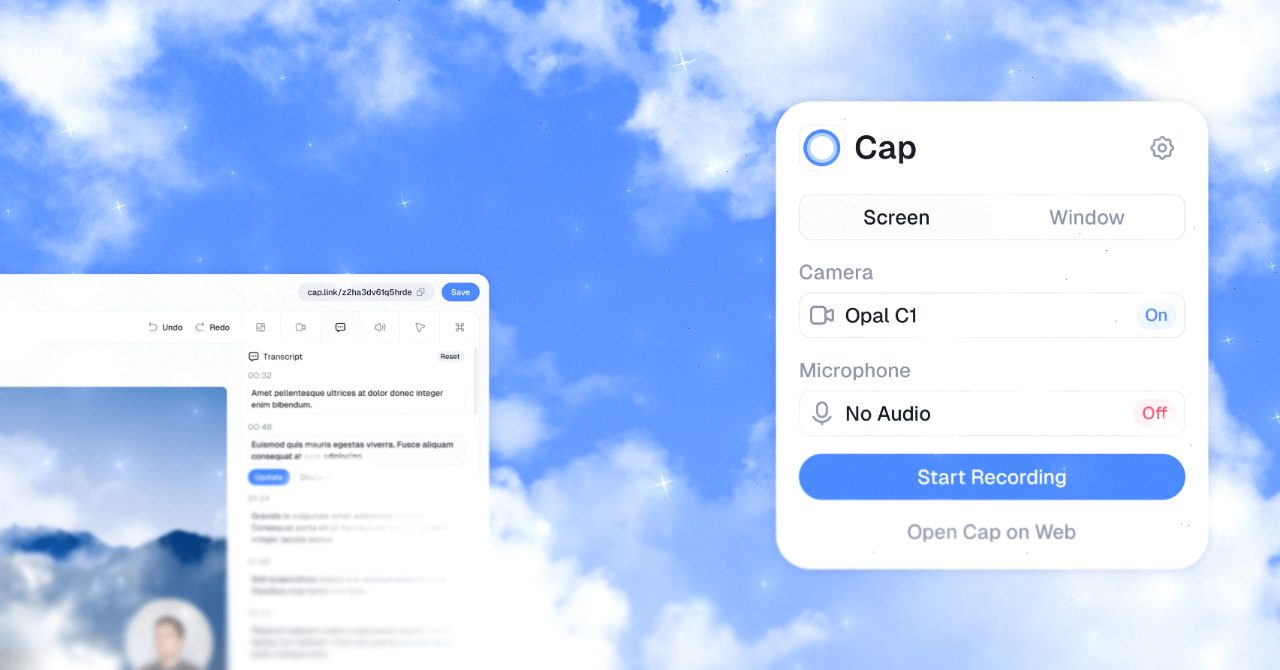
Cap copies Loom’s workflow on purpose. Its Instant Mode uploads while you record and copies a share link when you stop; viewers watch in the browser and can leave timestamped comments and emoji reactions. Its Studio Mode does the opposite: it records to your computer and opens an editor with backgrounds, zooms, trimming and captions, then exports up to 4K at 60 fps. It runs on Mac, Windows and Linux, with a Chrome extension too, and it’s open source.
The free plan has a catch that’s easy to miss. It’s for personal use only, and Cap’s license counts videos for your teammates or demos of your employer’s product as commercial use. Most people leaving Loom are recording for work, so they need at least the Desktop License: $29 a year, or $58 once. Both the free plan and the Desktop License allow 25 share links a month, each up to five minutes. That’s a monthly allowance rather than Loom’s lifetime 25, but the five-minute ceiling is the same.
Cap Pro removes the link limits and adds transcripts, viewer analytics and a Loom importer for $8.16 per person a month billed annually ($12 monthly), roughly half of Loom Business. Pro can also store videos in your own S3 bucket or Google Drive in the region you choose. Or you can self-host Cap’s sharing site with Docker Compose and pay nothing for the software, though you then pay for a server and someone has to keep it running.
Cap is a young product from a small team, and next to Loom it shows: Loom’s viewer page, team admin tools and integrations are more mature.
What it does
- Instant Mode: a share link as soon as you stop recording
- Studio Mode: local recording with backgrounds, zooms, captions and 4K export
- Apps for Mac, Windows and Linux, plus a Chrome extension
- Imports Loom videos on Cap Pro
- Store videos in your own S3 bucket, or self-host the sharing site
Pros
- Cap Pro costs about half as much per person as Loom Business
- No time limit on local recordings, even on the free plan
- Open source, so you can run the whole thing on your own server
Cons
- The free plan is for personal use only; work videos need a paid license
- Free and Desktop License links stop at five minutes and 25 a month
- Transcripts and viewer analytics need Cap Pro
- Self-hosting means running and paying for your own server
#1 4.0/5
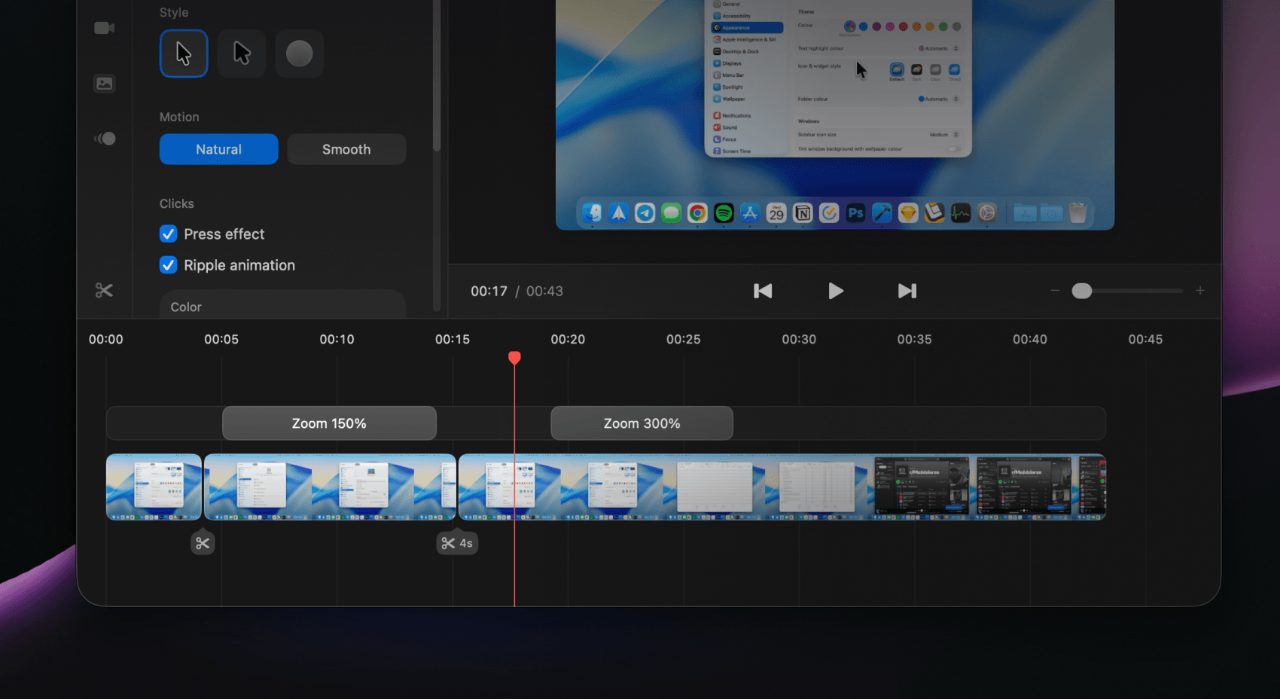
If you’re on a Mac and hate subscriptions, CleanShot X is the better buy. It’s a screenshot tool and a screen recorder in one, so it can replace Loom and your screenshot app at the same time. It records the screen with a camera bubble, your microphone and system audio, and can show your clicks and keystrokes. Its Studio Mode adds zooms that follow your cursor.
Sharing works through CleanShot Cloud. Upload a recording and the link is on your clipboard as soon as the upload starts; turn on auto-upload in the After Capture settings and it happens without a click. The viewer page has a transcript, captions and timestamped comments.
The one-time license costs $35 and includes a year of updates and 1 GB of cloud storage; more years of updates cost $19 each, and you can skip them and keep the app. 1 GB doesn’t hold many screen recordings, though. Pro, at $120 per person a year, gives unlimited storage plus password-protected and expiring links, which the one-time license doesn’t have. There’s no Windows version and no plan for one.
What it does
- Screen recording with camera bubble, microphone and system audio
- Cloud links with transcripts, captions and timestamped comments
- Studio Mode zooms that follow the cursor
- Screenshots, annotation and scrolling capture in the same app
Pros
- $35 once, with no subscription required
- Replaces both a screenshot app and Loom
- The link is ready as soon as the upload starts
Cons
- Mac only
- The one-time license includes just 1 GB of cloud storage
- Password and expiring links need the Pro subscription
- Studio Mode can't change speed, crop or add captions
Loom
Stay if your team works in Jira and Confluence
Ranking: Instant-link recorders, scored on a Mac
#3 3.0/5
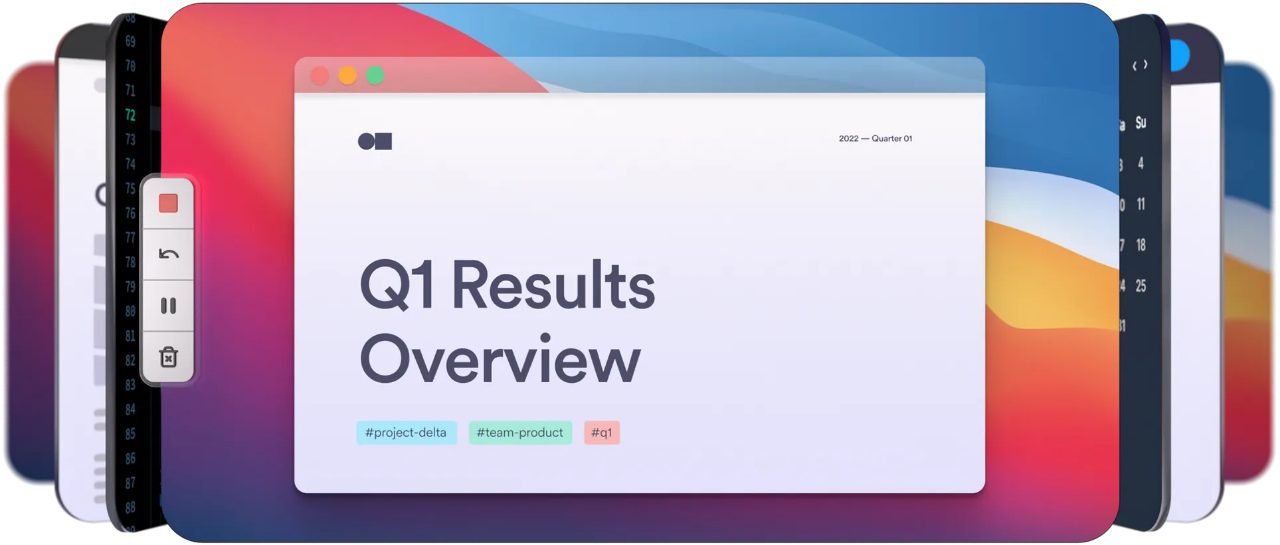
Loom is still the smoothest version of record and send. It records from a Mac or Windows app, a Chrome extension, an iPhone or an Android phone, and the person you send it to just clicks the link. Viewers get comments, reactions and a transcript, and you see who watched. For a company already on Atlassian, the strongest reason to stay is that you can record a Loom straight into a Jira work item or a Confluence page, and it lands in the Attachments section with everything else.
The costs are the ones that send people away. Every recorder needs a paid seat, the free plan’s 25 videos include archived ones, and leaving takes work: Starter can’t download, and paid plans export one MP4 at a time. Where your videos are stored is fixed when the workspace is created, US or Germany, and can’t be moved later.
What it does
- Mac and Windows apps, a Chrome extension, and iPhone and Android apps
- Uploads while you record, with a link ready the moment you stop
- Comments, reactions, transcripts and viewer insights
- Records directly into Jira work items and Confluence pages
Pros
- Viewers just click a link and watch
- Anyone can start recording within minutes
- Works inside Jira Cloud and Confluence Cloud
Cons
- $18 per person a month for everyone who records
- The free plan stops at five minutes and 25 videos, archived ones included
- Starter can't download videos, and paid plans download one at a time
- Little editing without the $24 Business + AI plan
If the video goes to customers
A Loom is fine for a teammate who forgives a stumble. A product demo, a sales video or an onboarding tour is different: it gets watched by people deciding whether to buy, and a raw recording with a wandering cursor looks it. These three tools zoom in where you click, smooth the cursor and put the recording on a styled background without any manual keyframing, so a demo looks edited without you editing much.
1–5 per criterion · select a score for its reasoning and any sources
| # | Product | Overall | Polish without editing | Editing depth | Ease of getting a finished video | Sharing | Cost over three years | Recording options , counts half |
|---|---|---|---|---|---|---|---|---|
| 1 | Screen Studio | 3.8 | 5 | 4 | 5 | 3 | 2 | 4 |
| 2 | Tella | 3.6 | 4 | 4 | 4 | 4 | 2 | 4 |
| 3 | FocuSee | 3.5 | 4 | 3 | 4 | 3 | 3 | 4 |

×2 = counts double in the overall score, ×½ = counts half.
How each criterion is scored
Polish without editing
Judged: how finished a recording looks before you edit it by hand. Judged from what the recorder applies automatically or in one step after recording (zooms that follow your clicks, cursor smoothing and resizing, click effects, backgrounds and padding, motion blur) and from reviewers' and users' views of how natural the result looks and how many zooms need fixing.
- 5 The same, with the most refined camera motion and the fewest zooms to fix
- 4 Automatic zooms that follow your clicks, cursor smoothing and backgrounds, with some manual fixing
- 3 Cursor smoothing and click effects after recording; zooms are placed by hand
- 2 Click or cursor highlighting, a camera bubble or a virtual background, but no zooms or cursor cleanup
- 1 The raw capture, with nothing added
Editing depth
What you can change after recording inside the same app, from trimming the ends to a full multitrack timeline. Captions, speed changes, editing by transcript, combining clips, annotations and extra media tracks each move a tool up.
- 5 A full multitrack editor with annotations, callouts, transitions, captions and your own media on separate tracks
- 4 A timeline with cuts, speed changes, captions or editing by transcript, and several clips in one video
- 3 Cuts plus editing the zooms, cursor, camera and background of one recording
- 2 Trim the ends and cut out sections
- 1 No editor; recordings go to another app
Ease of getting a finished video
Judged: how quickly someone new to the app gets from pressing record to a video they can send or publish. Judged from how many settings stand in the way, how long the editor takes to learn, and what reviewers and users say about the learning curve.
- 5 Record, polish and send in minutes, with almost nothing to learn
- 4 Easy to record and finish, with a few rough edges or extra steps
- 3 Recording is easy, but finishing a video means learning a full editor
- 2 Works after some setup, but most users need tutorials to get good results
- 1 Needs a guide and an afternoon of setup before the first usable recording
Sharing
How a finished recording reaches other people: from exporting a file, to a hosted link that viewers can comment on, to a link that is ready the moment you stop recording, with viewer insights.
- 5 A link ready the moment you stop recording, with comments, reactions, transcripts and viewer insights
- 4 Hosted links with comments, transcripts or analytics
- 3 A hosted share link with limited storage or features
- 2 Export plus direct publishing to services such as YouTube or Dropbox
- 1 Export a file only
Cost over three years
What one Mac user pays over three years for the version that covers making tutorials and demos: longer than five minutes, downloadable, and without the vendor's branding. One-time prices count once, plus any update renewals needed to keep the app working on new macOS versions; subscriptions count three years at the annual rate.
- 5 Free
- 4 Under $100
- 3 $100 to $250
- 2 $250 to $500
- 1 More than $500
Recording options
Counts half in the overall score: Nearly every tool here now records the screen, camera, microphone and system audio, so the extras decide only a few readers' choice.
What the recorder can capture at once: screen, area or window, webcam, microphone and system audio are the basics; an iPhone or iPad over a cable, several cameras or screens, scene composition, keystroke display and high resolutions at 60 fps go beyond them.
- 5 Several screens, cameras or devices at once, or full scene composition
- 4 All the basics at up to 4K, plus one or two extras such as an iPhone, keystrokes or GIF export
- 3 All the basics, with resolution or length limits on the plan readers would use
- 2 Screen, microphone and webcam, without system audio or with low resolution limits
- 1 The screen and microphone only
#2 3.6/5
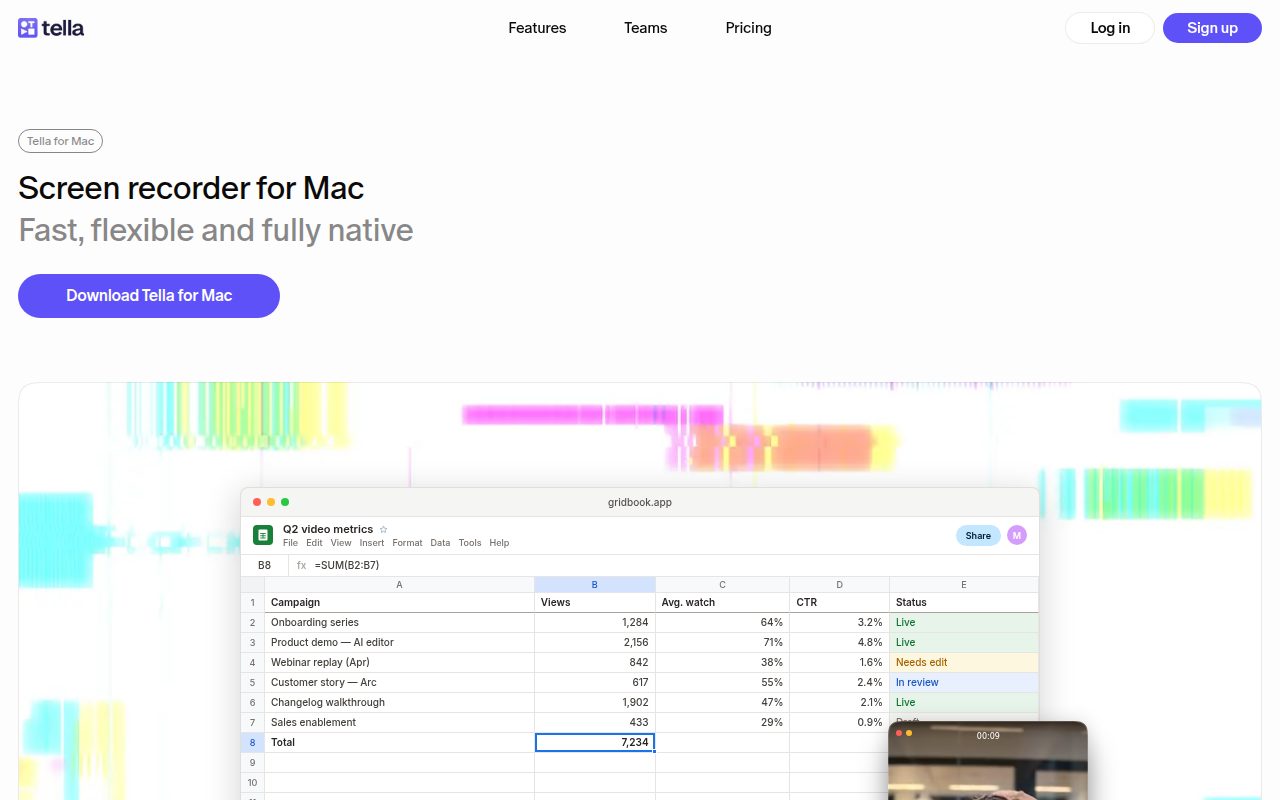
Tella is the closest of the three to Loom, because it’s built around hosted videos. Videos live on Tella with an embeddable player, and you edit them in the browser: by timeline or by transcript, with silence and filler-word removal, automatic zooms and layouts. When you don’t need any of that, quick mode skips the editor and copies the share link when you stop, just like Loom.
The viewer side is built for selling. Anyone with the link can watch and comment without an account, you can add up to two buttons that send viewers to a page you choose, such as a sign-up form, and the analytics show each viewer’s location, device and how much they watched. Tella also makes leaving Loom easy: its free Tella Transfer app signs into your Loom account and downloads your whole library, private videos included, as MP4 files, with no Tella account needed.
Tella has no free plan, just a seven-day trial. Pro costs $13 per person a month billed annually, and monthly billing is about twice that, so it saves little over Loom; you pay for the editing and the sales features. The Windows app is still in beta, and the Chrome extension or web recorder covers what it can’t, such as recording a single browser tab.
What it does
- Hosted videos with an embeddable player
- Browser editing by timeline or transcript, with filler-word and silence removal
- Quick mode copies a share link as soon as you stop
- Link buttons on the video and per-viewer analytics
- Free Tella Transfer app moves a whole Loom library
Pros
- Edits and hosts in one place, so a polished video still ends as a link
- Viewers comment without signing up
- The easiest way out of Loom, private videos included
Cons
- No free plan, only a seven-day trial
- Monthly billing costs about twice the annual price
- The Windows app is in beta
#1 3.8/5
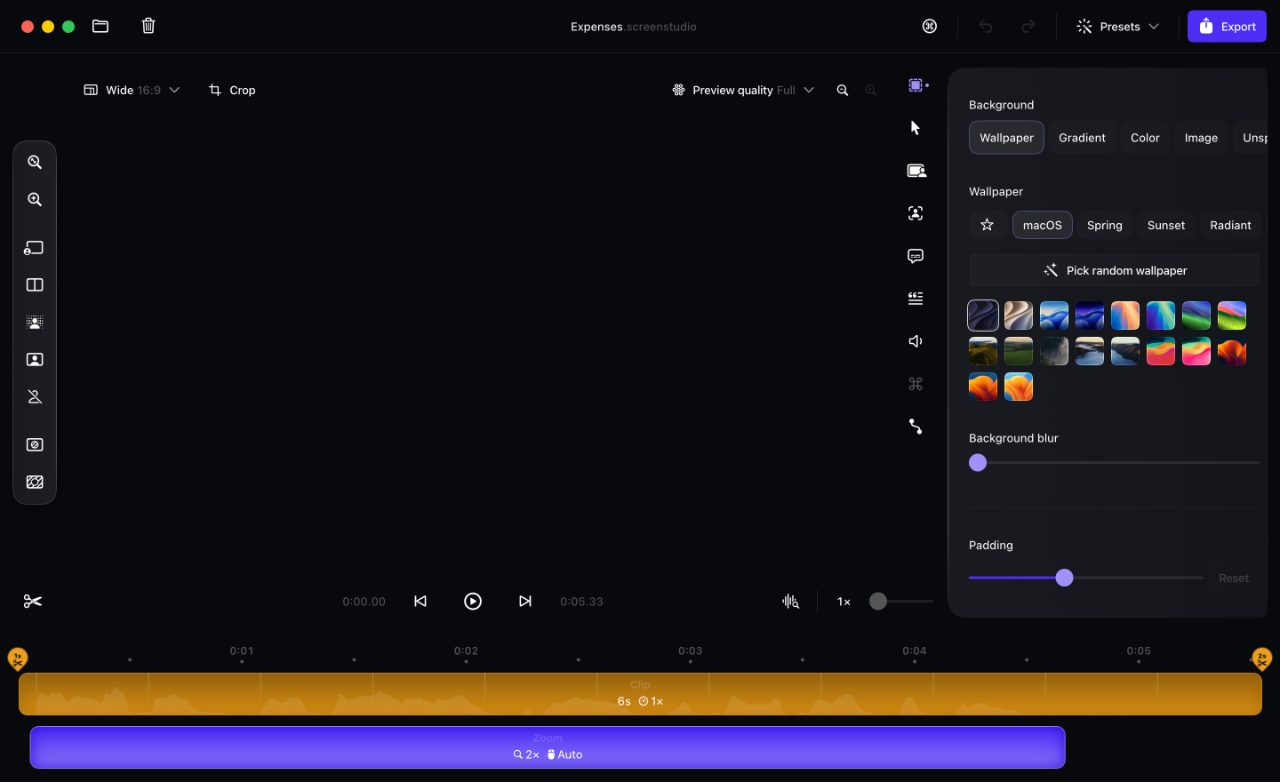
Screen Studio is built for the kind of product demo you see on a startup’s landing page. It records your cursor separately from the screen, so after recording you can enlarge it, smooth its path or change its style, and its automatic zooms follow what you clicked. It records the webcam, microphone, system sound and a cabled iPhone or iPad, writes captions on your Mac, and its timeline handles cuts, speed changes and vertical exports for social clips.
It’s not a Loom replacement for quick messages. Every recording becomes a project you edit and then export or share, and the share link is created only when you ask for one; Screen Studio asks before it uploads anything the first time. That makes it a good fit for a reader who wants files kept on the Mac. It costs $108 a year ($29 billed monthly), with every feature on both plans, and only runs on macOS.
What it does
- Automatic zooms where you clicked
- Cursor that can be resized and smoothed after recording
- On-device captions, speed changes and vertical exports
- Records a connected iPhone or iPad
Pros
- Smooth, polished automatic zooms and cursor motion
- Recordings stay on your Mac until you choose to share
- Every feature in both plans
Cons
- Mac only, with no Windows version planned
- Subscription only
- Too much editing for quick everyday messages
#3 3.5/5
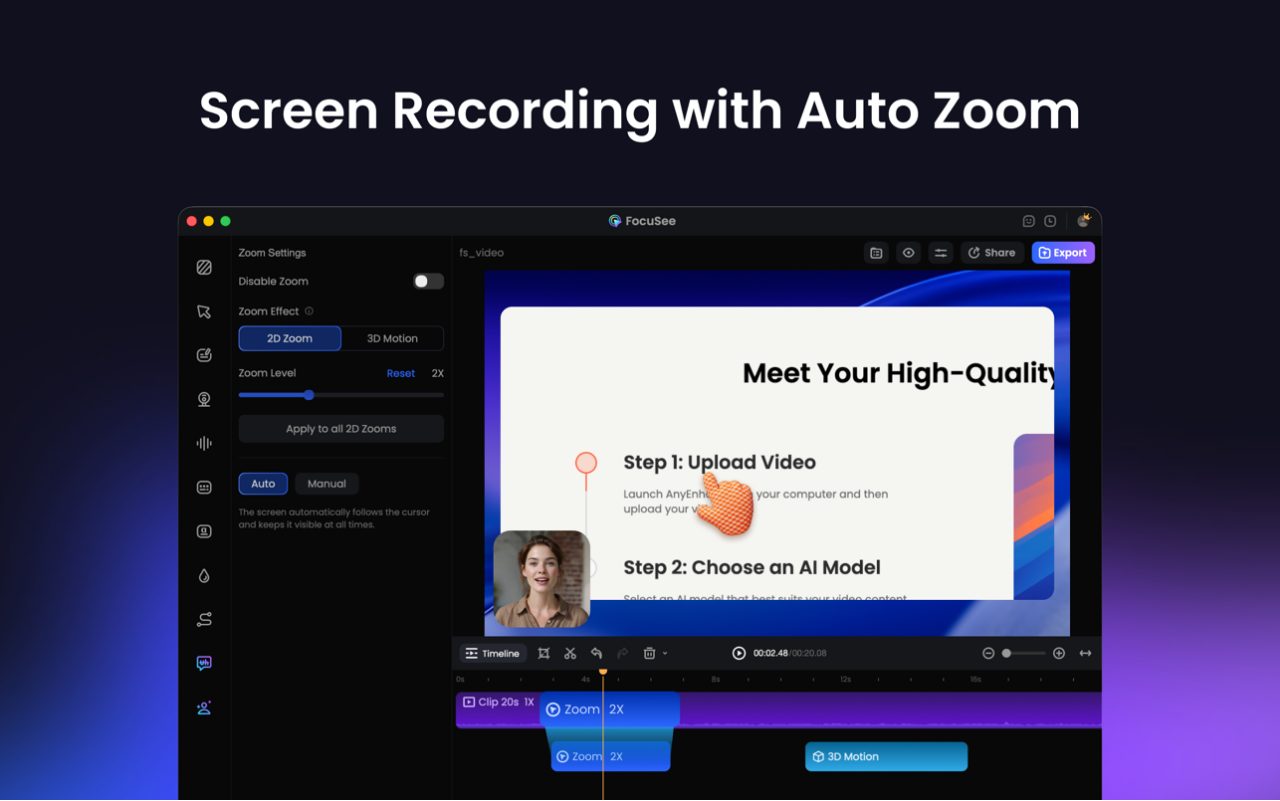
FocuSee does much of what Screen Studio does, on Mac and Windows, which makes it the pick for Windows users who want a demo with automatic zooms. It zooms in on clicks and typing, styles the cursor, adds backgrounds and exports up to 4K at 60 fps, or shares a link with a password and permissions. The Standard plan costs $49.99 a year for one computer and includes 5 GB of cloud storage; a one-time license costs $199.99 and covers up to five computers on the 2.x versions.
The cheap plan has gaps. AI subtitles, filler-word removal and voice cleanup need credits that Standard doesn’t include. One reviewer, Dave Swift, found that exports took about as long as the video itself and that the camera can’t switch between full screen and a small overlay within one project.
What it does
- Automatic zooms on clicks and typing
- Cursor styling, backgrounds and motion blur
- Share links with password and permission controls
- Mac and Windows apps
Pros
- Brings Screen Studio-style polish to Windows
- A one-time license option
- Standard costs less than half of a year of Loom Business
Cons
- AI subtitles and filler-word removal cost extra credits on Standard
- The Standard license covers one computer
- The camera layout can't change partway through a project
If you’d rather keep recordings on your own computer
Some people leaving Loom don’t want a link at all. They want an MP4 they own, no lifetime cap, and nothing uploaded unless they upload it. Cap’s free plan already does this for personal use, with no time limit on local recordings. For work, or for more control, these two are the usual answers.
OBS Studio
Free, unlimited and local
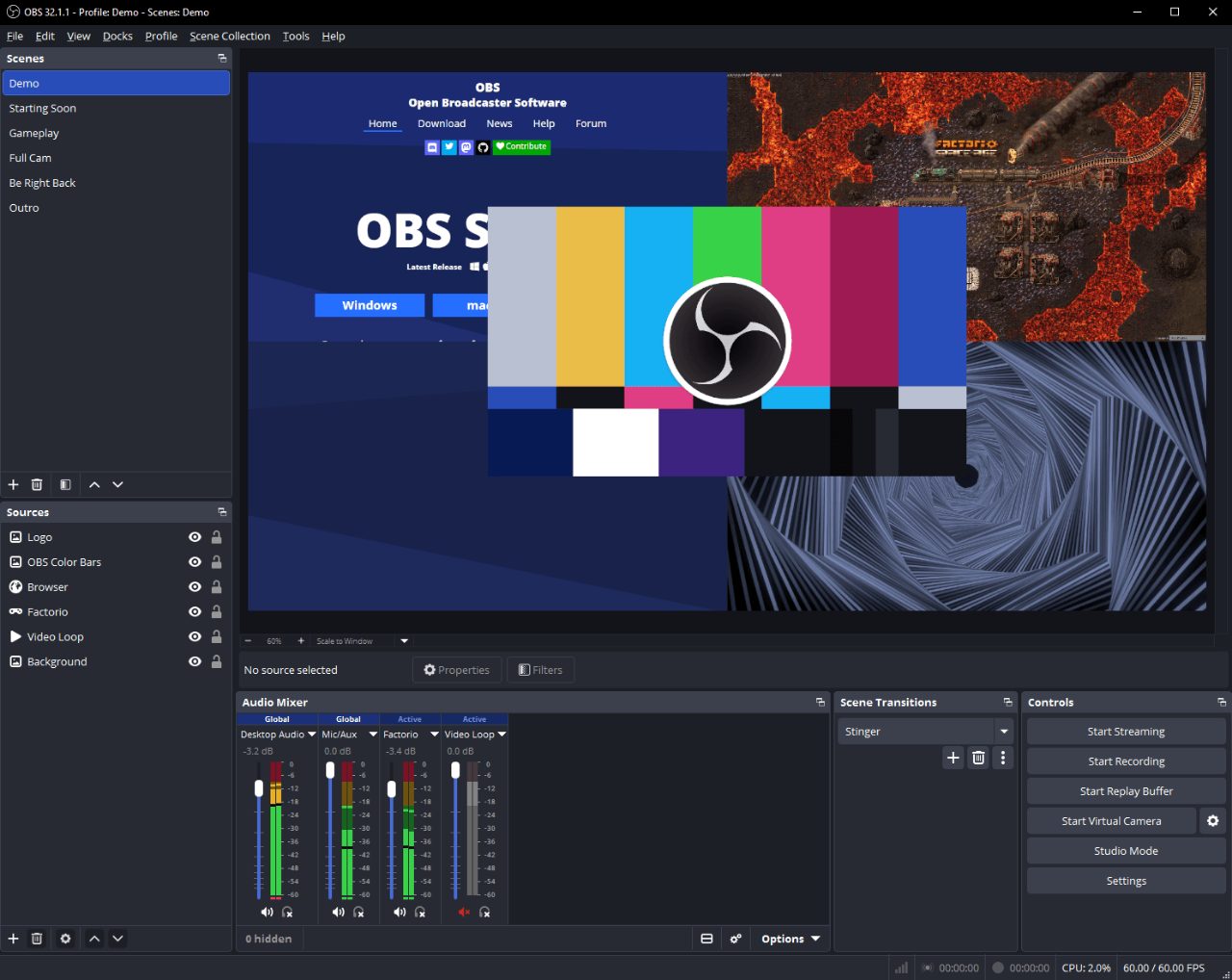
OBS Studio costs nothing, has no time limit or watermark, and needs no account. It’s open source and runs on Windows, Mac and Linux. You build a scene from sources, such as your screen, your webcam in a corner and a title, and OBS records it to a file on your disk. On a Mac running macOS 13 or later, it records system audio with its own capture source, so the old advice about installing a separate audio driver no longer applies.
The price is setup and everything after the recording. A first scene takes some fiddling, OBS has no editor, and sharing means uploading the file to Google Drive, YouTube or similar yourself. For a weekly bug report that’s a lot of steps compared with Loom’s link. For long recordings you want to keep, free and unlimited is hard to beat.
What it does
- Records the screen, windows, webcam and audio into scenes
- Records to a local file with no time limit
- Also streams live
- Windows, Mac and Linux
Pros
- Free and open source, with no watermark or account
- Nothing leaves your computer unless you upload it
- Records system audio on modern Macs without extra software
Cons
- No share link; you upload and share files yourself
- No editor, zooms or trimming
- Takes some setup before the first recording

Camtasia
For training videos you edit heavily
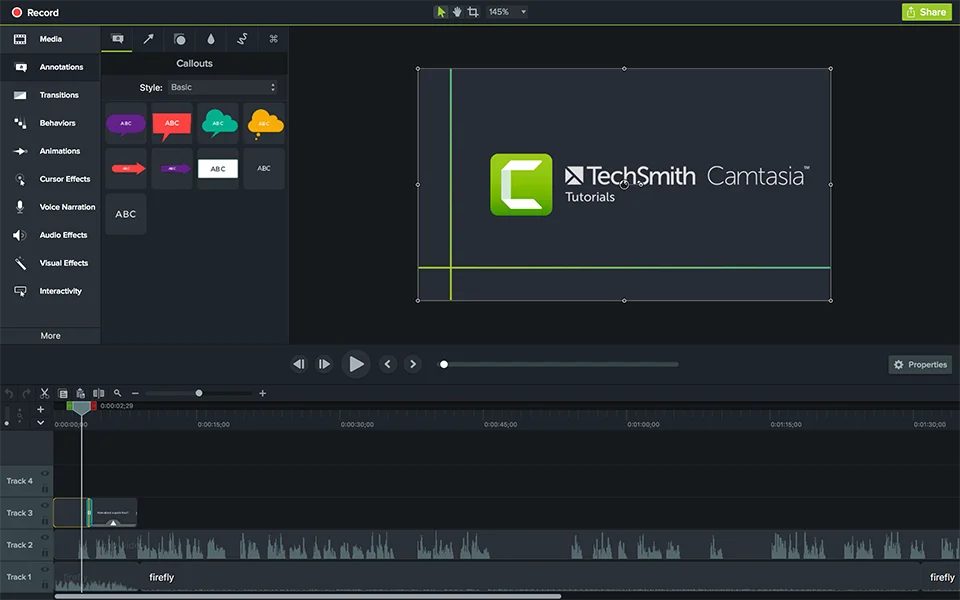
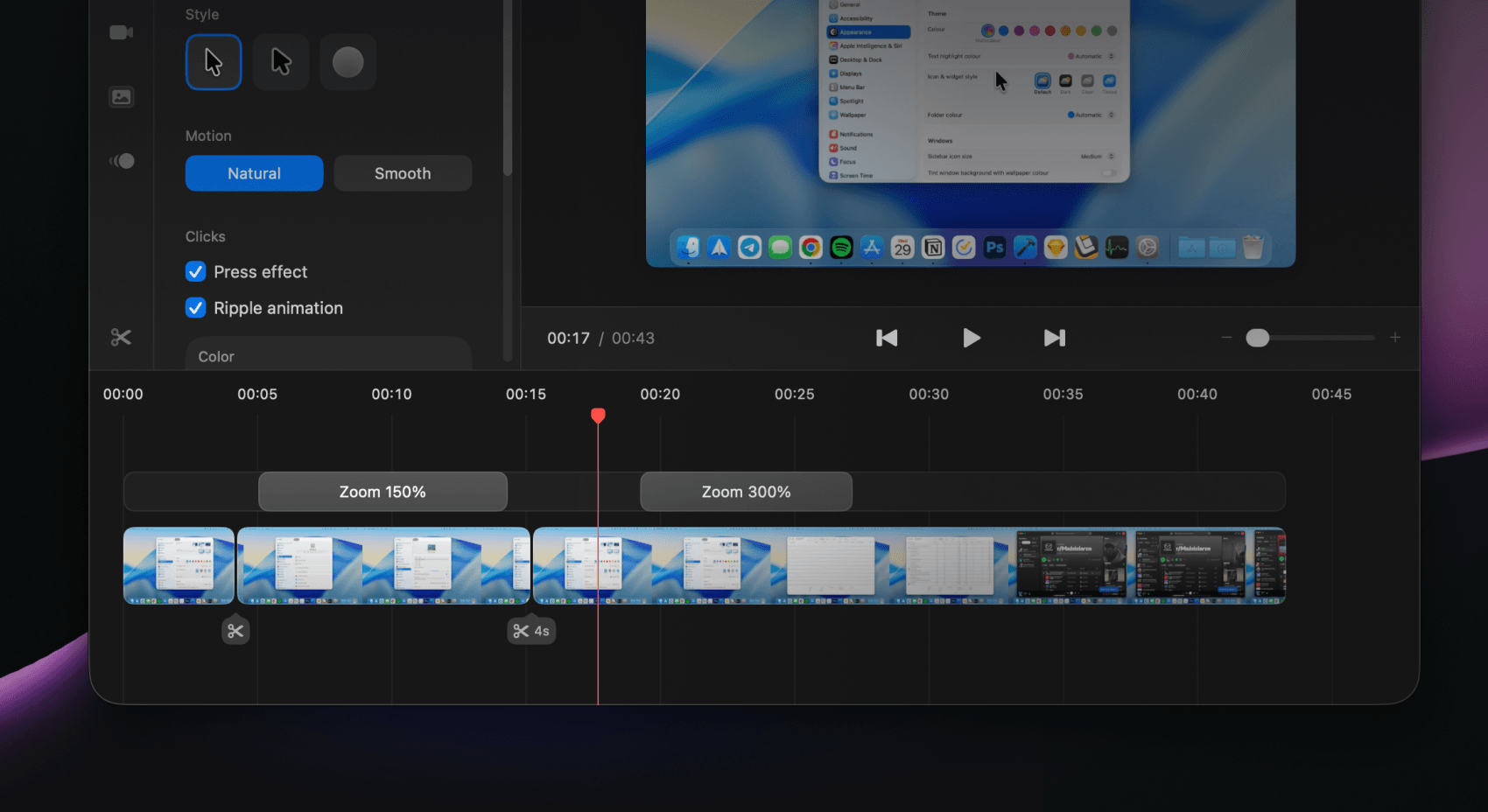
Camtasia is for the reader whose complaint about Loom is that it barely edits. It records the screen up to 4K with the webcam, microphone and system audio, on Windows or Mac, then opens a full multitrack editor built for training and how-to videos: callouts, annotations, zoom and pan, cursor smoothing, click effects, captions, quizzes and editing by transcript. Even people with no video experience pick it up quickly.
It costs about as much as a Loom seat. The Essentials plan, the cheapest with the full editor, is $179.88 a year, and TechSmith no longer sells permanent licenses for new versions. The $39 Starter plan lacks the editor features most people buy Camtasia for. It’s also heavy: TechSmith asks for 8 GB of RAM and recommends 16, and long, high-resolution projects can lag on older laptops.
What it does
- Multitrack editor with callouts, annotations and zoom and pan
- Cursor smoothing, click effects and keystroke editing
- Captions, quizzes and editing by transcript
- Windows and Mac
Pros
- A full multitrack editor built for training videos
- Easy to learn for people new to video
- Works the same on Windows and Mac
Cons
- Subscription only, at about the price of a Loom seat
- Needs a capable computer for long, high-resolution projects
- Slower than Loom for a quick message
Most people leaving Loom over the bill should start with Cap: it keeps the instant link on Mac, Windows and Linux for about half the price, as long as you pay for a work license rather than relying on the personal-use free plan. Mac users who hate subscriptions get nearly the same habit from CleanShot X for a one-time price, if 1 GB of cloud storage is enough or they’ll pay for Pro. When the video is for customers, Tella keeps the link and adds editing and viewer stats, while Screen Studio on a Mac and FocuSee on Windows make the best-looking demos but send you through an editor first.
OBS Studio and Camtasia give up the link for local files, free and bare in OBS’s case, expensive and thorough in Camtasia’s. And if your company records inside Jira and Confluence and everyone just needs to click a link, Loom’s price buys a convenience none of these fully match.
Frequently asked questions
How do I move my videos out of Loom?
On the free Starter plan you can’t download videos, and paid plans download them as MP4 files one at a time. Tella Transfer, a free app for Mac, Windows and Linux, signs into your Loom account and downloads the whole library, private videos and folders included, without a Tella account. Cap Pro can import Loom videos directly. Before you cancel, consider dropping to Starter instead of deleting your account: Loom keeps videos over the 25-video limit and only stops you recording more, so links you’ve already sent don’t break.
Is there a free Loom alternative without the five-minute limit?
For recordings saved to your computer, yes. OBS Studio has no time limit at all, and Cap’s free plan records locally with no time limit, for personal use. For free share links, not really: Cap’s free plan also stops links at five minutes, and Tella has no free plan.