Best PCB design software for hobbyists
Free PCB design software splits into two camps, and the split matters more than any feature list. Some tools are free because they’re open source or because a fab wants your orders, and they let you design anything. Others are free tiers of commercial products, and somewhere there’s a cap on layers, pins, board size, or whether you may sell what you make.
KiCad is the one to learn. It’s free with no limits, it runs on Windows, macOS, and Linux, its router is good enough for the boards professionals make, and so many people use it that almost every error message already has a forum thread. The price is a few evenings of learning. If you want your first board this weekend and you’ll order it from JLCPCB, start with EasyEDA instead: it runs in the browser, pulls parts straight from JLCPCB’s stock, and orders assembled boards in one click.
What each one costs you
Every tool here exports Gerber files, which describe the copper and other board layers, plus drill files for the holes. A board manufacturer (or fab) uses these to make your board. The differences are what the free version lets you do and what it asks in return.
| Tool | What a hobbyist pays | Main limit |
|---|---|---|
| KiCad | Nothing | A real learning curve |
| EasyEDA | Nothing, with an account | Proprietary files, ads, built around JLCPCB |
| DipTrace | Free up to 300 pins and 2 signal layers; $75 Starter to sell boards | Pin and layer caps |
| Horizon EDA | Nothing | No macOS, one main developer |
| LibrePCB | Nothing | Thin libraries, simpler routing |
| Fritzing | About $12, or free to compile | Two copper layers |
| CircuitMaker | Nothing, with an Altium account | Windows only, cloud, public projects by default |
| Autodesk Fusion | Nothing for personal use | No selling boards, cloud files |
| DesignSpark PCB | Nothing, with an account | Windows only; routing extras are paid |

KiCad
Free, unlimited, and worth the learning curve
#1 4.5/5
KiCad is what most hobbyists end up using, and the reason is simple: nothing about it is held back. There’s no layer cap, no pin cap, no board-size cap, and no clause about selling boards, because it’s GPL software that anyone can download and nobody can take away. It’s funded by donations, with a recent year’s total topping $100,000 from more than 2,500 people.
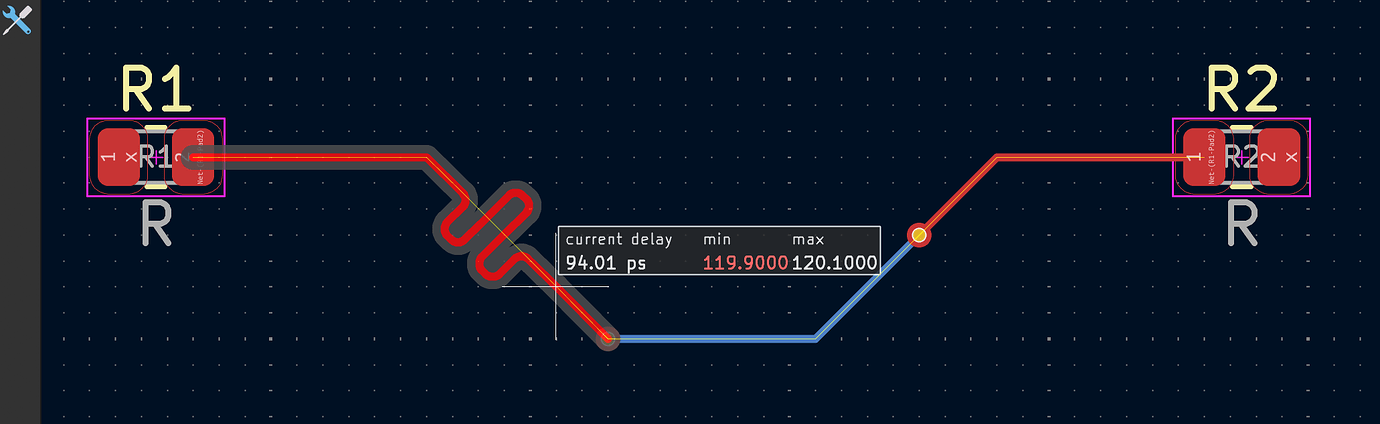
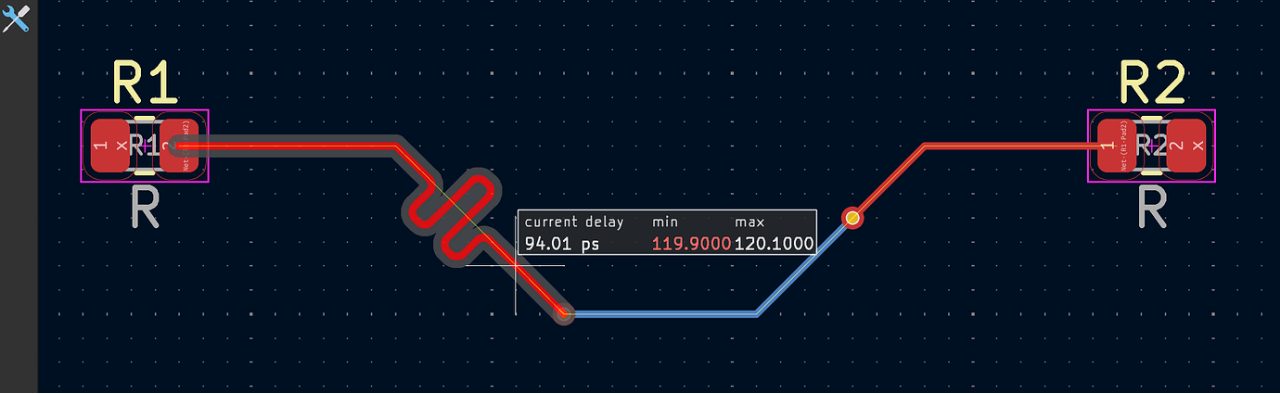
The layout editor is where it earns its place. The interactive router shoves existing traces aside as you route, routes paired traces for signals such as USB, and adjusts trace lengths to keep signals in step, and it now handles timing-based tuning for high-speed signals. Its 3D models and STEP export let you check the board against a case in mechanical CAD software. You won’t need any of it on your first LED board, but it’s why you won’t have to switch tools when you get to a four-layer ESP32 board.
The cost is the start. KiCad asks you to link each schematic symbol to a footprint, the pattern of pads where the physical part will sit, and its library tables confuse nearly everyone once. Plan a few evenings with the official getting-started guide or one of the many video series. Missing parts are rarely a problem: the official libraries are big and generated from data, and plugins from the built-in Plugin and Content Manager pull parts from LCSC or prepare JLCPCB assembly files. There’s no built-in autorouter; the Freerouting plugin fills that gap, though most people route by hand anyway.
What it does
- Push-and-shove routing, differential pairs, and length tuning
- Large official symbol, footprint, and 3D model libraries
- Plugin manager with fab, parts, and autorouter plugins
- Built-in SPICE simulation and 3D viewer with STEP export
Pros
- No limits on layers, size, pins, or selling boards
- Local, open files you can keep without renewing a license
- The biggest community and the most tutorials of any free tool
Cons
- Takes a few evenings before a first board feels natural
- Library setup and linking symbols to footprints trip up newcomers
- No built-in autorouter
- Skip if:
- You want boards ordered this weekend and never plan a second design

EasyEDA
Quickest route from idea to assembled board
#2 4.4/5
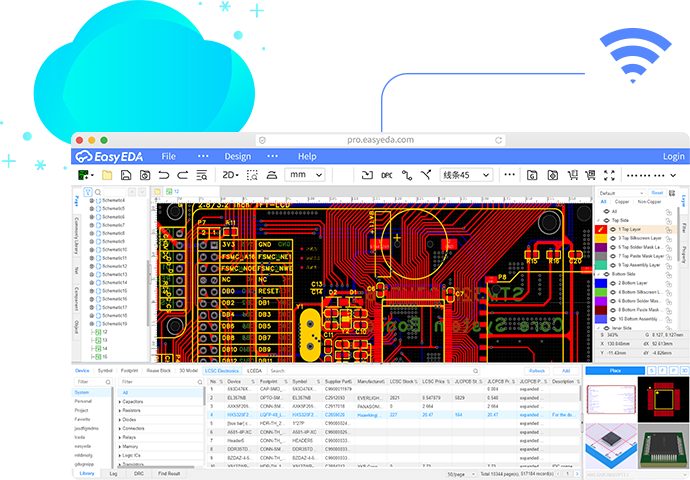
EasyEDA is made by the same group as JLCPCB and the parts distributor LCSC, so choosing stocked parts and ordering assembly happen in the same workflow. When you place a part, you’re picking from LCSC’s catalog with stock and price right in the editor, so the footprint is usually already drawn and JLCPCB can solder it. When you’re done, one click sends the board, or the assembled board, to JLCPCB. For a beginner who wants a USB-C board with tiny parts soldered by someone else, nothing here is faster.
Use EasyEDA Pro, the edition the company now develops. The older Standard edition is simpler, but it lacks Pro’s differential-pair manager, length tuning, and fully offline desktop client, and a Standard project can move to Pro but never back. Both editions are free, including for boards you sell, with unlimited projects. The free plan shows ads, keeps your custom libraries public, and gives you 0.5GB of cloud storage; the paid plan changes those things, not the editor.
There are trade-offs. You need an account even for the desktop app. Files are in EasyEDA’s own format, and the export list covers Altium but not KiCad (KiCad can import EasyEDA projects, which is your escape hatch). Library quality varies, since many parts are user-contributed, and parts LCSC doesn’t sell are thinner on the ground. The router works fine for normal two- and four-layer boards but asks for more hand work than KiCad’s when a board gets crowded, and its autorouter isn’t one to trust.
What it does
- Runs in a browser, with desktop apps for Windows, macOS, and Linux
- LCSC parts with stock and price shown while you design
- One-click ordering of boards and assembly from JLCPCB
- Gerber, BOM, and pick-and-place export for other fabs
Pros
- The fastest start of any tool here
- Footprints for parts JLCPCB stocks are rarely a chore
- Free for commercial use, with no project limits
Cons
- Account required, ads on the free plan
- Proprietary files with no direct KiCad export
- User-contributed parts vary in quality

DipTrace
Polished desktop app with one-time pricing
#3 3.5/5
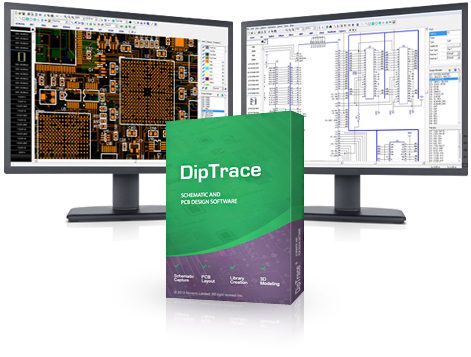
DipTrace is the traditional desktop app for people who’d rather pay once than learn KiCad or live in a browser. It runs on Windows, has a native Mac build, and sells perpetual licenses with no subscription. The interface is tidier than most, and its shape-based autorouter, push-and-shove routing, differential pairs, and 3D preview with STEP export are all in the free edition.
The free edition has two limits that decide everything: 300 pins and two signal layers, for non-profit use only. Plane layers don’t count, so a four-layer board with two inner ground and power planes still fits. Three hundred pins sounds like a lot until you add an ESP32 module, a USB-C connector, and a row of headers. If you want to sell boards, the $75 Starter license keeps the same caps; Lite is $145 for 500 pins, and four signal layers need Standard at $395. That ladder is fair for a one-time price, but KiCad gives you all of it for free.
Pros
- A clean desktop interface that's quick to learn
- Push-and-shove routing and a shape-based autorouter in the free edition
- About 140,000 library components and importers for Eagle, KiCad, and Altium
Cons
- Free edition caps you at 300 pins and two signal layers
- Free edition is for non-profit use only
- A smaller community than KiCad or EasyEDA
- Choose if:
- You want a classic desktop app and hate subscriptions

Horizon EDA
KiCad's router with stricter libraries
#4 3.4/5
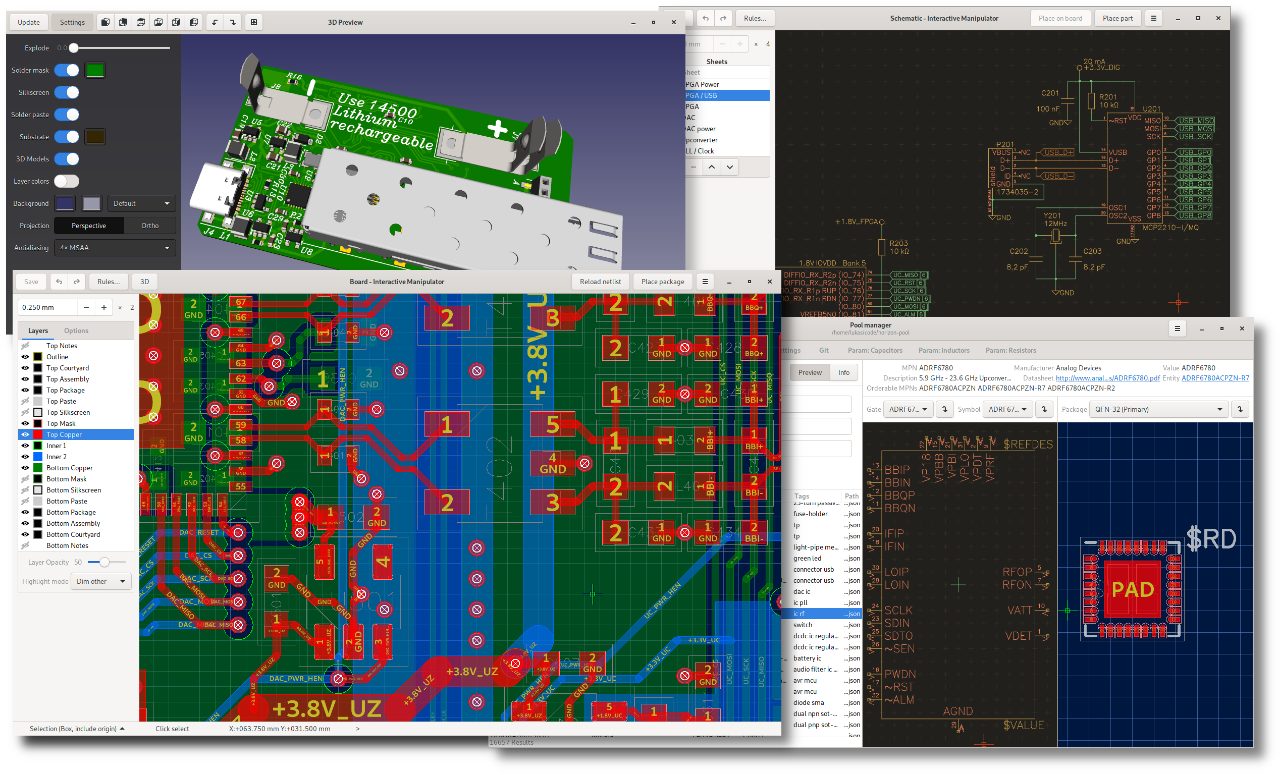
Horizon EDA borrows KiCad’s interactive router and wraps it in a stricter idea of how parts should work. Its library, called the pool, holds real parts with manufacturer part numbers, kept as plain files you can manage with git. Differential pairs, length tuning, a 3D viewer, and STEP export are all there, and it’s GPL software with no editions.
It suits a narrow reader: someone on Linux or Windows who likes rules and wants KiCad-class routing in a cleaner package. The pool and its system for defining pads and footprints work differently from the other tools here, tutorials are few, and it’s mostly one developer’s spare-time project, with roughly one feature release a year. There’s no macOS build. For most hobbyists, KiCad gives the same router with far more help around it.
Pros
- KiCad's interactive router, with differential pairs and length tuning
- Parts carry real manufacturer part numbers
- Free, open source, plain local files
Cons
- An unusual workflow and few tutorials
- Depends mostly on one developer
- No macOS version
LibrePCB
Gentlest open-source start
#5 3.2/5
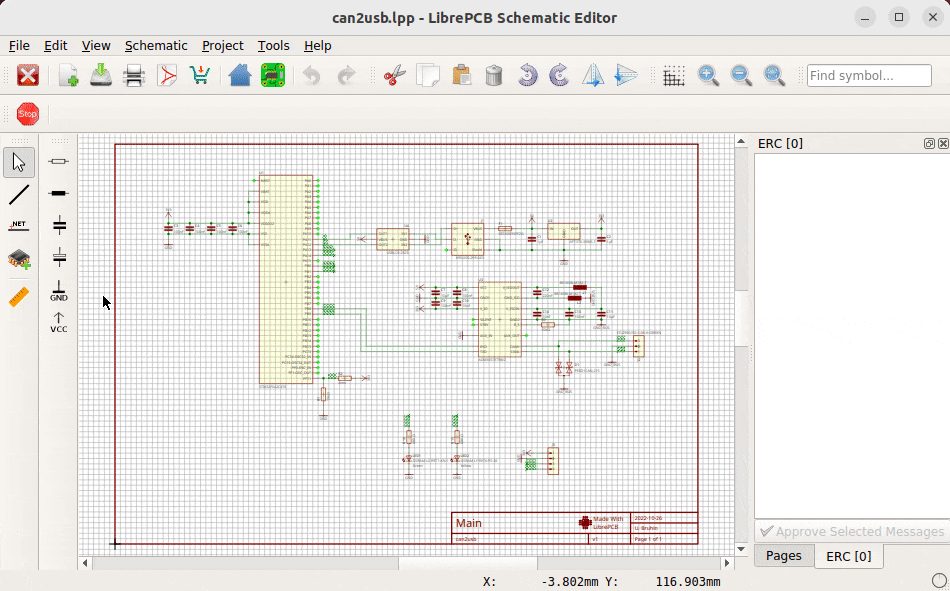
LibrePCB is open-source PCB design built for people who found KiCad fussy. It needs no account, runs on Windows, macOS, and Linux, stores everything in readable local files, and has a button that sends your board to a fab from inside the app. One first-time designer called finishing a board “surprisingly easy.”
The same designer had to draw common transistors by hand, and that’s LibrePCB’s weak spot. The libraries aren’t yet as extensive as KiCad’s, and differential pairs and other advanced layout features aren’t LibrePCB’s strength yet. There’s no layer stack manager either. For a first board, or for simple two-layer boards forever, it’s a pleasant place to be; for a USB 2.0 or Ethernet layout, you’ll want KiCad.
Pros
- Easy to learn, with no account or license strings
- Readable local files and a built-in fab ordering button
- Free for any use
Cons
- Smaller libraries, so you'll draw more parts yourself
- Routing tools fall short for differential pairs and dense boards
- A small community
- Skip if:
- Your next board has USB, Ethernet, or another impedance-controlled signal

Fritzing
Turns a breadboard into a board
#6 3.2/5
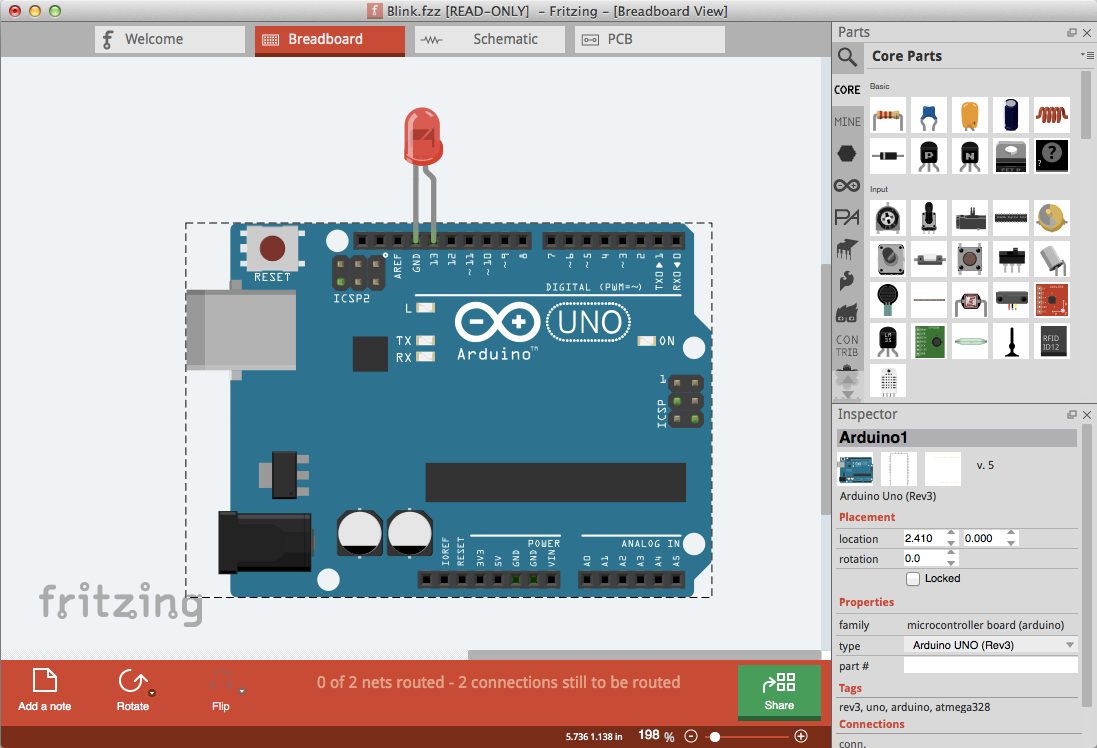
Fritzing starts where most beginners already are: a breadboard. You drag a realistic Arduino and some LEDs onto a virtual breadboard, wire them up, and the schematic and PCB views follow along. Its parts bin is full of the Arduino, Adafruit, and SparkFun boards hobbyists actually use, and it exports Gerbers or orders boards through AISLER.
That makes it a lovely way to turn a working breadboard into an Arduino shield, and a frustrating way to do anything bigger. The board view handles one or two copper layers, the router is basic, and making a custom part is a chore. The code is open source and free to compile, but the ready-made installers cost about $12, which funds the project; that’s a fair price for a small project, as long as you know the ceiling before you pay.
Pros
- Breadboard, schematic, and PCB views stay in sync
- Maker-friendly parts from Arduino, Adafruit, and SparkFun
- Gerber export and built-in ordering
Cons
- Limited to two copper layers and basic routing
- Custom parts are hard to make
- Official installers cost money
- Choose if:
- You're turning a breadboard project into a shield or a simple carrier board

CircuitMaker
Altium's engine, free but public
#7 3.1/5
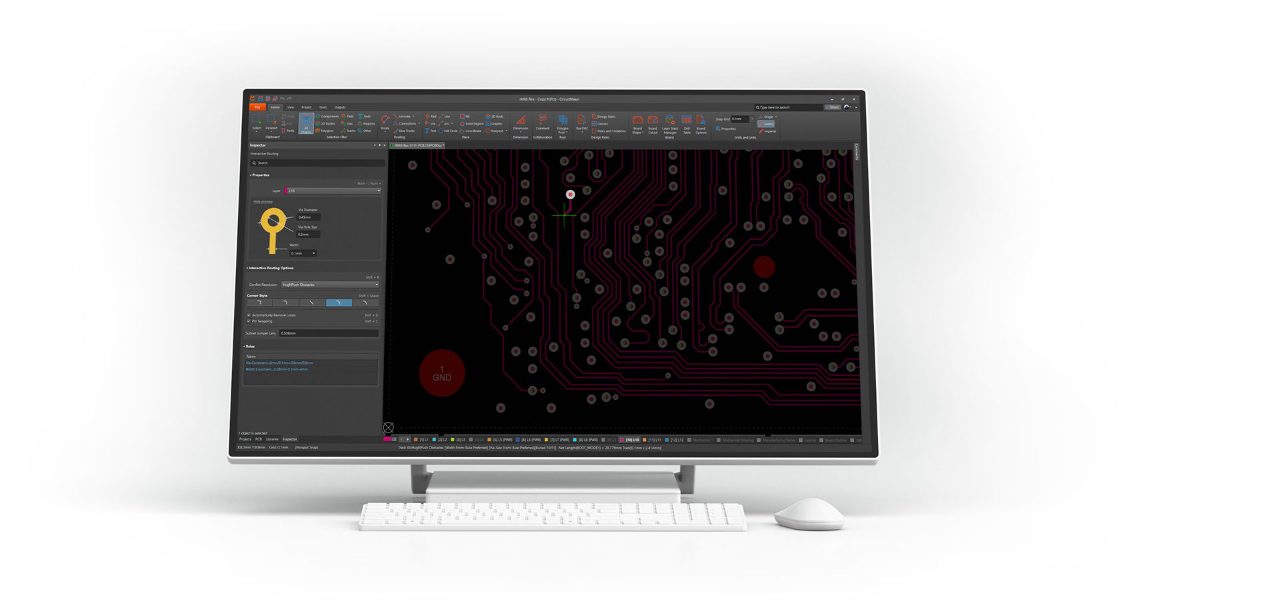
CircuitMaker is a free cut of Altium Designer, the professional suite, and its router is the real thing: push-and-shove routing, differential pairs, length tuning, up to 16 signal layers, and no board-size limit. Altium allows selling what you design.
The deal comes with strings. It runs only on Windows, needs an internet connection and an Altium account, and stores projects in Altium’s cloud, public to the community by default, with up to five private projects. There’s no general export to another tool, and the software is still on its 2.0 release. The community library is big but uneven; a 2019 review found a capacitor footprint with an outline-layer rectangle that would have had the fab cut a hole in the board. If you specifically want to learn Altium’s way of working for free, it’s worth a look. Otherwise KiCad routes nearly as well and lets you keep your files.
Pros
- Altium-grade interactive routing for free
- Up to 16 signal layers, no size cap, and selling boards is allowed
Cons
- Windows only, with an always-online cloud workflow
- Projects are public unless you use one of five private slots
- Community parts need checking before you order
Autodesk Fusion
For boards that must fit a 3D case
#8 3.1/5
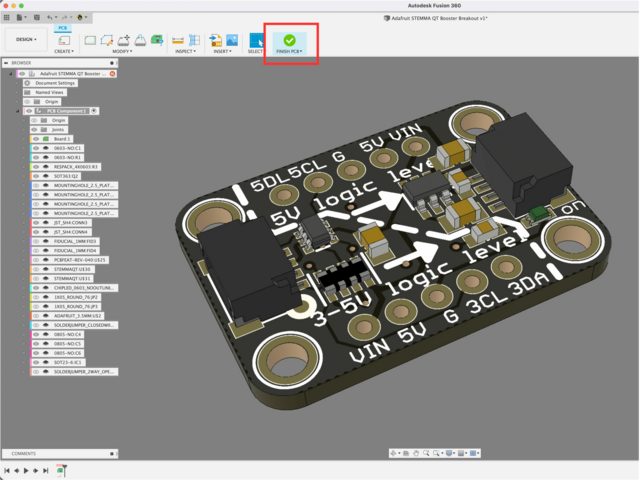
Autodesk Fusion is a mechanical CAD program with an electronics workspace inside, and that workspace is where EAGLE went: Autodesk no longer sells or supports standalone EAGLE and points its users here. The appeal is real for one kind of project. If you’re modeling a 3D-printed case in Fusion anyway, you can lay out the board in the same program and see it sit in the case.
The free personal-use license is the problem. It’s for non-commercial projects by people making under $1,000 a year from them, it renews every three years, and it caps you at ten active editable documents. Since late 2025 it allows boards of up to four signal layers with no size cap, up from two layers and 80 square centimeters, which is plenty for most hobby boards. Your designs live in Autodesk’s cloud, there’s no Linux version, and the EAGLE-style interface is no friendlier inside a heavy CAD app. The large CAD app also makes for a slower workflow than standalone EAGLE. Pick it for the enclosure workflow, not as your general PCB tool.
Pros
- Board and enclosure design in one program
- Mature EAGLE-derived routing and libraries
Cons
- Personal license bans selling boards and must be renewed
- Cloud storage and an Autodesk account are required
- Slower than EAGLE was, and harder to learn than KiCad or EasyEDA
- Choose if:
- You already design your enclosures in Fusion

DesignSpark PCB
Free and unlimited, on Windows only
#9 2.9/5
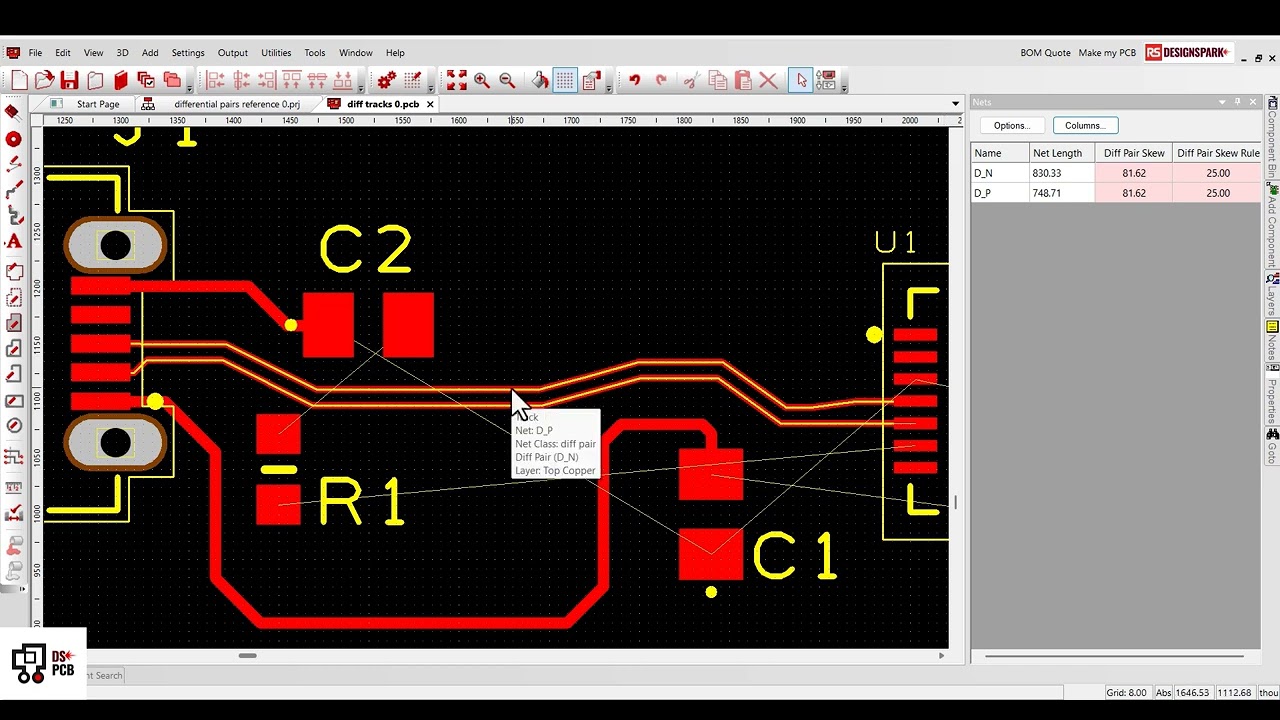
DesignSpark PCB comes from the distributor RS, and its free Explorer plan is more generous than it looks: unlimited layers and schematic sheets, and commercial use allowed. The files stay on your computer.
It’s still hard to recommend. It runs only on Windows, needs a DesignSpark account, and checks its license online if it’s been closed for more than two hours. Differential pairs, serpentine length tuning, and blind vias are reserved for the paid Engineer plan, so the free version stops right where hobby boards start getting interesting. The autorouter and the need to draw missing parts also make it a harder starting point. If you’re on Windows and starting fresh, KiCad does more for the same price of nothing.
Pros
- No layer or sheet limits, and commercial use is allowed
- Local files
Cons
- Windows only, with an online license check
- Differential pairs and length tuning need a paid plan
- Proprietary files that few other tools read
Also considered
- Flux has turned into an AI design agent in the browser, and its individual plans cost from $40 a month billed yearly after a 7-day trial. That’s a lot to pay for a hobby, and the free tools above already cover the board itself.
- Autodesk EAGLE was the default hobby tool for years, and older tutorials still use it. Autodesk no longer sells or supports it; its successor is the Fusion electronics workspace reviewed above.

Scores
1–5 per criterion · select a score for its reasoning and any sources
| # | Product | Overall | Layout and routing power , counts double | Free-use headroom | Ease of a first board | Parts libraries | Path to manufactured boards | Ownership of your designs | Help and community | Platforms , counts half |
|---|---|---|---|---|---|---|---|---|---|---|
| 1 | KiCad | 4.5 | 5 | 5 | 3 | 4 | 4 | 5 | 5 | 5 |
| 2 | EasyEDA | 4.4 | 4 | 5 | 5 | 5 | 5 | 3 | 4 | 5 |
| 3 | DipTrace | 3.5 | 4 | 3 | 4 | 4 | 3 | 3 | 3 | 4 |
| 4 | Horizon EDA | 3.4 | 4 | 5 | 2 | 3 | 3 | 4 | 2 | 3 |
| 5 | LibrePCB | 3.2 | 2 | 5 | 4 | 2 | 4 | 4 | 2 | 5 |
| 6 | Fritzing | 3.2 | 1 | 4 | 4 | 3 | 4 | 4 | 4 | 5 |
| 7 | CircuitMaker | 3.1 | 4 | 3 | 3 | 3 | 3 | 2 | 3 | 2 |
| 8 | Autodesk Fusion | 3.1 | 4 | 3 | 2 | 3 | 3 | 2 | 4 | 3 |
| 9 | DesignSpark PCB | 2.9 | 2 | 4 | 3 | 3 | 4 | 3 | 3 | 1 |
Equal displayed overall scores are ordered by the earlier criteria; a known score comes before an unknown score. Identical scores use alphabetical order.
×2 = counts double in the overall score, ×½ = counts half.
How each criterion is scored
Layout and routing power
Counts double in the overall score: Whether one tool carries a hobbyist from a first board to a dense four-layer board is what most separates these products.
How far the edition a hobbyist actually uses can take a board: interactive routing (walkaround and push-and-shove), differential pairs and length tuning for USB or Ethernet traces, rule setup and design rule checks, multi-layer stackups, and a 3D view with STEP export for checking the board against an enclosure. Judged from the documented feature set of that edition, reviewers' and users' accounts of routing dense boards, and knowledge of how the router behaves. Features locked behind a paid edition the reader would not buy don't count.
- 5 Professional-grade routing and rule handling that comfortably covers dense four-layer and controlled-impedance hobby boards
- 4 Strong interactive routing with differential pairs and length tuning, and one notable weakness in speed, polish or rule setup
- 3 Solid layout tools for ordinary four-layer boards, with an important gap in the free edition or a router that needs a lot of manual work
- 2 Workable two-layer and simple four-layer layout, but missing differential pairs, length tuning or a capable interactive router
- 1 Basic two-layer layout with minimal routing help; fine-pitch or high-speed boards are impractical
Free-use headroom
What a hobbyist can design for free or for a small one-time payment: limits on copper layers, board area, pin count, schematic sheets, private projects and active documents, whether selling a few boards is allowed, and whether the license must be renewed. Judged from the vendor's current terms for the edition a hobbyist would use.
- 5 Free with no layer, size or pin limits, and selling boards is allowed
- 4 No design limits for a small one-time price, or free with no design limits but a meaningful string attached such as paid-only routing features
- 3 Free for personal projects with limits a growing hobbyist will meet, such as a non-commercial clause, public-by-default projects or a cap on layers or documents
- 2 A free edition with limits an ordinary hobby board can hit (pin, layer or size caps) or a ban on selling boards, with paid upgrades in the hundreds of dollars
- 1 No usable free or cheap edition; ongoing hobby use needs a costly subscription
Ease of a first board
How quickly a newcomer gets from an idea to Gerber files they trust: how clear the interface and workflow are, how much setup and library work stands in the way, and how good the official getting-started material is. Judged from reviewers' and users' accounts of learning the tool and knowledge of its workflow, not from vendor claims alone.
- 5 The easiest path from a blank page to an ordered board, with little setup and clear guidance
- 4 Approachable; most newcomers finish a simple board in a day or two
- 3 A real learning curve of a few evenings before a first board, with good help available
- 2 Learnable, but its workflow or interface fights newcomers and help is thin
- 1 Confusing enough that most newcomers give up or need a course
Parts libraries
How often a hobbyist finds the symbol, footprint and 3D model they need already made and correct, and how painful it is to make or import the rest. Covers the built-in library's breadth and quality, links to real purchasable parts, importers for SnapEDA, Ultra Librarian or distributor catalogs, and the part editor.
- 5 A vast library tied to real purchasable parts, so drawing footprints is rarely needed
- 4 A broad, reliable library plus easy import of missing parts
- 3 A decent library with some gaps, or a large one of uneven quality, and workable part creation
- 2 Common parts present, but frequent gaps or quality problems and limited import
- 1 Thin library; most parts have to be drawn by hand with a clumsy editor
Path to manufactured boards
How smoothly a design becomes boards from a cheap fab: complete Gerber, drill, BOM and pick-and-place output, and built-in or plugin ordering of bare boards and assembly from fabs such as JLCPCB, PCBWay or AISLER.
- 5 One-click ordering of boards and assembly, with parts sourcing linked to the fab's stock
- 4 Complete output plus built-in or plugin ordering of boards from at least one fab
- 3 Complete fabrication and assembly output, sent to a fab by hand
- 2 Gerber and drill output, but assembly files need extra work
- 1 Incomplete or unreliable fabrication output
Ownership of your designs
Whether a hobbyist keeps working designs if the vendor changes terms or disappears: local files, offline use, an open or documented file format, export to other tools, open-source code, and account or online-check requirements.
- 5 Open-source, local, documented files that other tools can import, with a healthy project behind them
- 4 Local files in an open format, with a project-continuity risk such as a single maintainer
- 3 Local files or an offline mode, but a proprietary format, an account requirement or one-way migration
- 2 Cloud-first or account-tied, with limited export or a renewable license that could be withdrawn
- 1 Designs live only in the vendor's cloud with no useful export
Help and community
How easy it is to get unstuck: the number of tutorials, videos, forum answers and shared projects for the tool. Popularity counts here only because more users means more help.
- 5 A very large community; almost any question already has an answer and a video
- 4 A large community with plenty of tutorials and shared projects
- 3 A moderate community; most common questions have answers
- 2 A small community with some tutorials
- 1 Very small community; little help beyond the official docs
Platforms
Counts half in the overall score: Platform support only matters to readers whose computer is left out; for them it is an eligibility check rather than a quality.
Which computers the tool runs on: Windows, macOS and Linux, natively or as a full-featured browser editor.
- 5 Windows, macOS and Linux natively, or a full browser editor plus native clients
- 4 All three, with one through a compatibility layer
- 3 Two of Windows, macOS and Linux
- 2 One desktop system, with unofficial workarounds for others
- 1 One desktop system only
How to choose
- Your first board, ordered from JLCPCB with parts soldered on: EasyEDA Pro.
- Your first board, and you expect a second: KiCad. The extra evenings pay back on every board after.
- Four layers, USB, or a dense module board: KiCad, or EasyEDA if you’re already comfortable there.
- Open-source and simple, for small boards: LibrePCB.
- A breadboard prototype you want as a shield: Fritzing.
- A desktop app you buy once: DipTrace, if its pin and layer caps fit your boards.
- The board has to fit a case you model in Fusion: Autodesk Fusion, as long as you won’t sell the boards.
- Linux: KiCad first, then LibrePCB or Horizon EDA.
The verdict
For most hobbyists the choice is KiCad or EasyEDA, and it turns on what you want to own. KiCad asks for a few evenings up front and then never charges you anything, never caps a board, and never holds your files. EasyEDA gets you to an assembled board faster than anything else, and in exchange you work in its format, under its account, and inside JLCPCB’s catalog. If you’re not sure, the deciding question is whether you’ll make more than a couple of boards: if yes, the time you spend learning KiCad is the best investment in this hobby.
The rest suit narrower cases. DipTrace is the pick if you want a classic paid-once app and your boards stay small; LibrePCB and Fritzing are friendly starts with low ceilings; Horizon EDA is for Linux tinkerers who like rules. CircuitMaker, Fusion, and DesignSpark PCB offer a reason to consider them: Altium’s router, enclosure design, or unlimited layers. Their account, license, and platform restrictions make them harder to recommend as a general hobby tool.
Frequently asked questions
Do I need an autorouter?
Probably not. Most hobby boards are small enough to route by hand, and hand routing is how you learn what makes a board work. KiCad has no built-in autorouter but takes the Freerouting plugin, and DipTrace’s shape-based autorouter is one of its main selling points.
Can I move from EasyEDA to KiCad later?
Yes. KiCad imports EasyEDA Standard and Pro projects, though you should expect to check footprints and fix a few symbols afterward. Going the other way is less smooth.
How many layers does a hobby board need?
Two layers are enough for most Arduino shields, sensor boards, and LED projects. Four layers help once you have USB, fast digital signals, or a crowded ESP32 board, because the inner layers give you solid ground and power planes. Every unlimited tool here handles four layers; check the caps on DipTrace’s free edition and Fusion’s personal license before you start.