Best Git GUI clients for Mac, Windows and Linux

Most of Git is easy to get through on the command line until something goes sideways: a rebase stops halfway with three conflicted files, or you need to find which of forty commits on a branch broke the build. That’s when a visual Git client earns its place: it lets you see history and make changes without typing every command. Most clients here are desktop apps; lazygit runs in a terminal, and VS Code includes Git in its editor. Every client here can commit, branch, push and pull. What separates them is how well they handle the three jobs that send people looking: reading history, rewriting commits before you share them, and untangling merge conflicts.
For most developers on macOS or Windows, Fork is the one to get. It’s fast, it does all three jobs well, and it costs a one-time $59.99 instead of a yearly fee. On Linux, Fork isn’t available, and Sublime Merge is the pick. If you’re brand new to Git and want something free and gentle, start with GitHub Desktop and move up when you outgrow it.
Quick picks



What separates a good Git client from a basic one
- The branch graph. A picture of how your branches split off and merge back, one row per commit. A good one stays readable on a busy repository and lets you search commits by message, author or file. GitHub Desktop has no graph at all, which limits its usefulness when you’re working across branches.
- Interactive rebase. Git’s tool for tidying commits before you push them: reordering them, squashing several into one, rewording messages, or dropping one. On the command line it means editing a text file of instructions. The best clients let you drag commits around instead, and pair that with an undo for when it goes wrong.
- The merge-conflict editor. When Git can’t combine two changes, you need to see both versions and build the result. A three-way merge editor shows your version, the incoming version and the result side by side, so you can take a change from each. Some clients have a good one built in; others make you take one whole file or open a separate merge tool.
Speed matters more than it sounds. Several clients here are built on Electron (a way of shipping a web page as a desktop app), and on large repositories they feel it. Fork, Sublime Merge and Tower are native apps, and lazygit is a compiled terminal program.
| App | Runs on | What paid work use costs |
|---|---|---|
| Fork | Mac, Windows | $59.99 once |
| Sublime Merge | Mac, Windows, Linux | $99 once for individuals; $75 per user per year for companies |
| GitKraken Desktop | Mac, Windows, Linux | $10 a month, billed yearly |
| Tower | Mac, Windows | From $69 a year |
| SmartGit | Mac, Windows, Linux | From $5 a month |
| lazygit | Mac, Windows, Linux (in a terminal) | Free |
| VS Code | Mac, Windows, Linux | Free |
| GitButler | Mac, Windows, Linux | Free |
| GitHub Desktop | Mac, Windows | Free |
| Sourcetree | Mac, Windows | Free |
Fork
Best for most Mac and Windows developers
#1 4.6/5
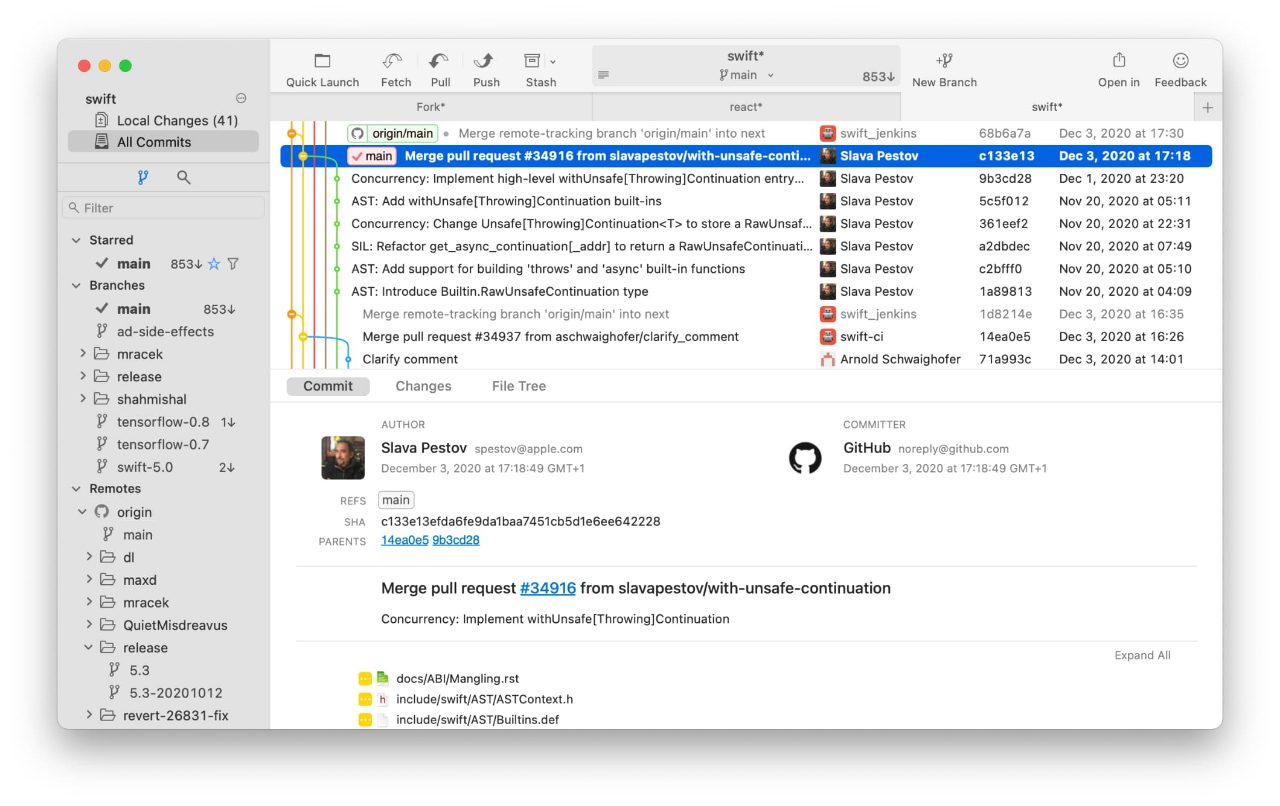
Fork gets the balance right for someone who uses Git all day. It’s a small, native app from two independent developers, and it opens big repositories and draws their history quickly. The commit graph is clean, with file history and blame (who last changed each line) a right-click away.
Its standout feature is interactive rebase. You get a list of your commits, drag them into a new order, mark some to squash or drop, and Fork does the rest. When a merge or rebase hits a conflict, its built-in merge editor shows both sides and the result, so you rarely need a separate tool. It also covers the less common jobs: staging single lines, stashes, cherry-picking a commit onto another branch, worktrees (several branches checked out at once in different folders), submodules, Git LFS (Large File Storage, for big binary files) and the reflog, Git’s record of where your branches pointed, which is how you recover a commit you thought you’d lost.
Fork isn’t the gentlest start for a complete beginner. Its screen is tidy, but it assumes you know what a rebase or a stash is, and there’s no general undo button like Tower’s. The bigger catch is Linux: there’s no build at all. The license is per platform, so if you switch between a Mac and a Windows PC, expect to buy it twice.
What it does
- Drag-and-drop interactive rebase
- Built-in merge-conflict editor
- Commit graph with file history and blame
- Reflog view for recovering lost commits
- AI commit messages through an AI coding tool you already use, such as Codex or Cursor
Pros
- Fast native app on both Mac and Windows
- Covers history, rebases and conflicts without needing another tool
- One-time license instead of a subscription
Cons
- No Linux version
- Assumes you already know Git's vocabulary
- Choose if:
- You want one paid license and never want to think about a subscription
Sublime Merge
Fast on huge repositories, and the pick for Linux
#2 4.4/5
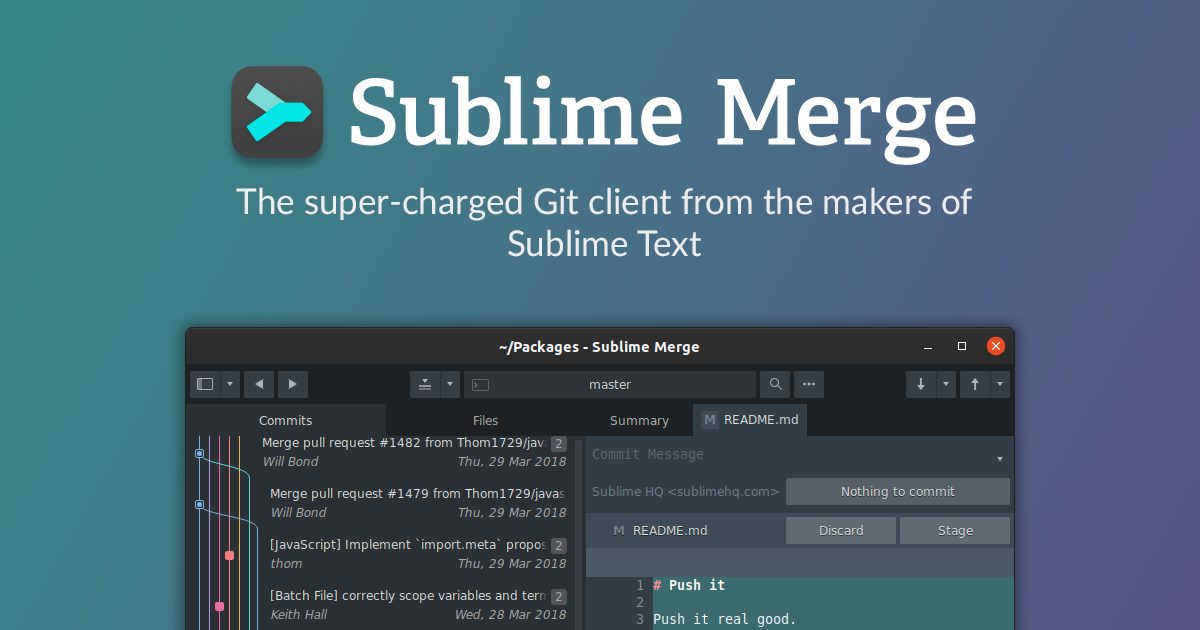
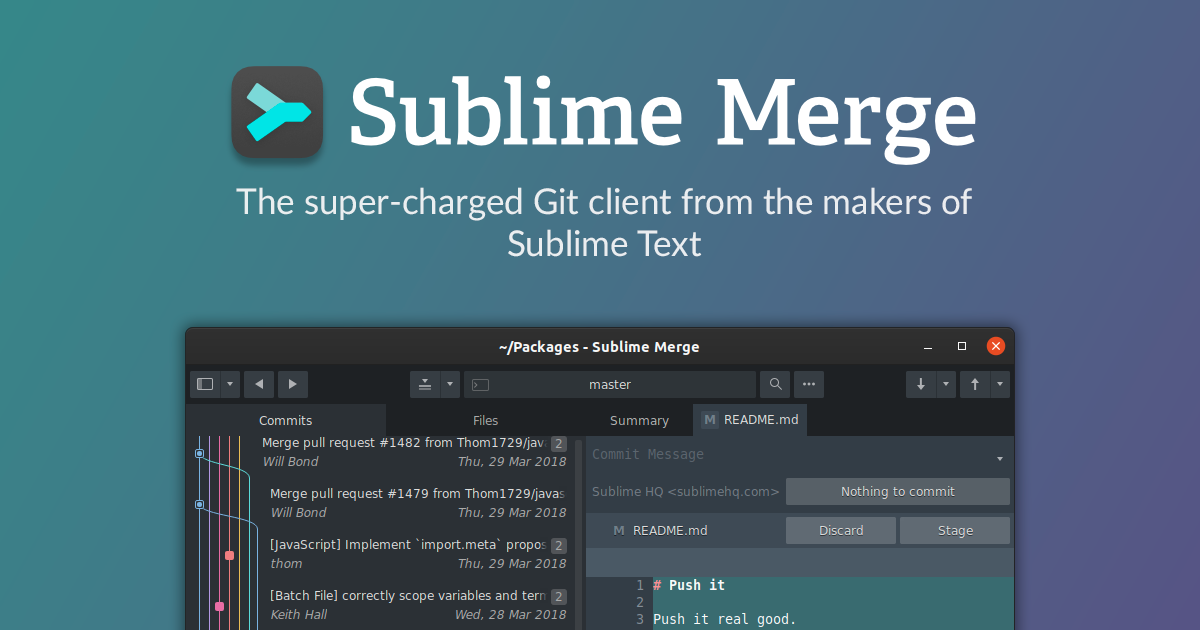
Sublime Merge comes from the makers of Sublime Text, and it shares that editor’s obsession with speed. It’s built on the company’s own interface toolkit and its own code for reading Git repositories, and it’s among the quickest clients here when a huge repository makes others crawl. Search is excellent: type and it filters commits by message, author, path or contents as you go.
It’s also the best teacher of these clients. Sublime Merge shows the exact Git command behind each action, so you learn the command line by using the GUI, and you can switch between the two whenever you like. The built-in merge tool is a proper three-pane editor, and you can stage single lines or hunks (a block of changed lines) with a click.
Two things hold it back from first place. Rewriting commits works through a right-click menu on each commit (reword, edit, squash, drop, move up or down) rather than one rebase screen, which is fine for a quick fix and slower for a big clean-up. And it’s built for keyboard users who already know Git; many actions live in a command palette, and newcomers can feel lost.
For Linux users it’s an easy recommendation: a personal license is $99 once, covers all your computers and operating systems, and includes three years of updates. You can evaluate it free with no enforced time limit, though the terms ask you to buy a license if you keep using it. Companies buying for their staff pay $75 per user per year instead.
What it does
- Search commits by message, author, path or contents
- Three-pane merge editor
- Shows the Git command for each action
- Line and hunk staging
Pros
- Stays fast on very large repositories
- One personal license covers Mac, Windows and Linux
- Teaches Git commands as you go
Cons
- Rewriting several commits means editing them one at a time
- Less welcoming to Git newcomers than Fork or GitHub Desktop
- Choose if:
- You work on Linux, or on several operating systems, and want to pay once

GitKraken Desktop
Most visual graph, on every platform
#3 4.1/5
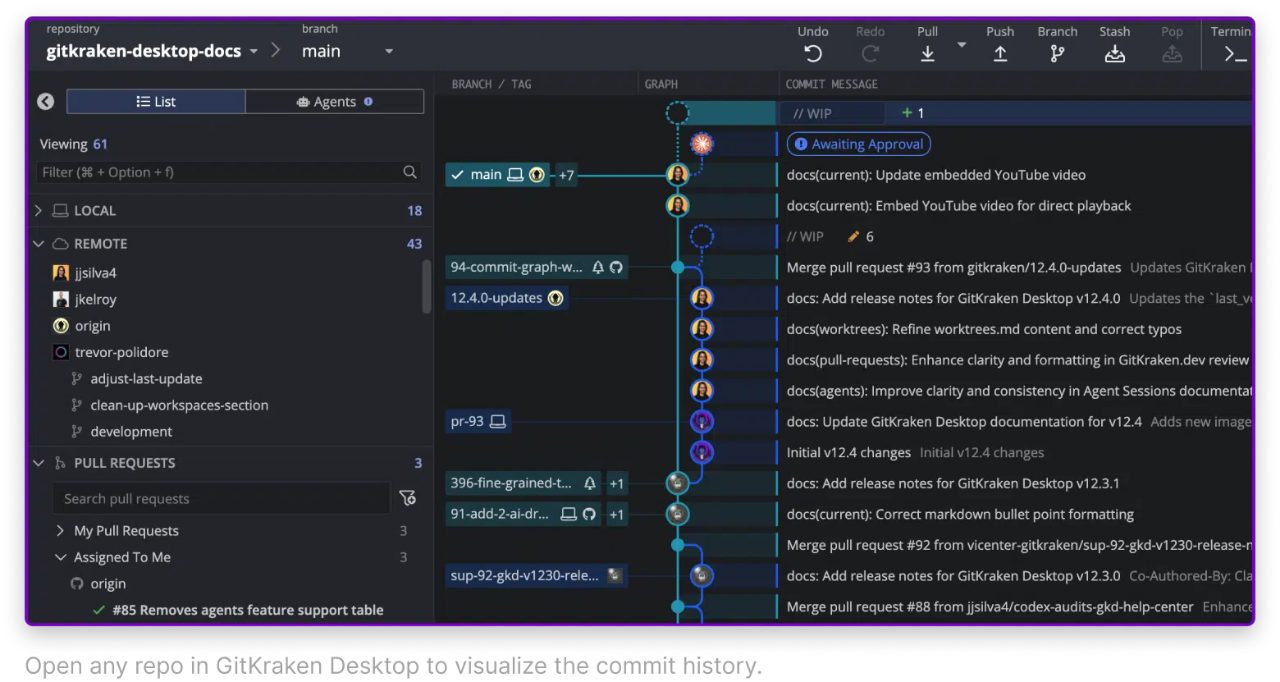
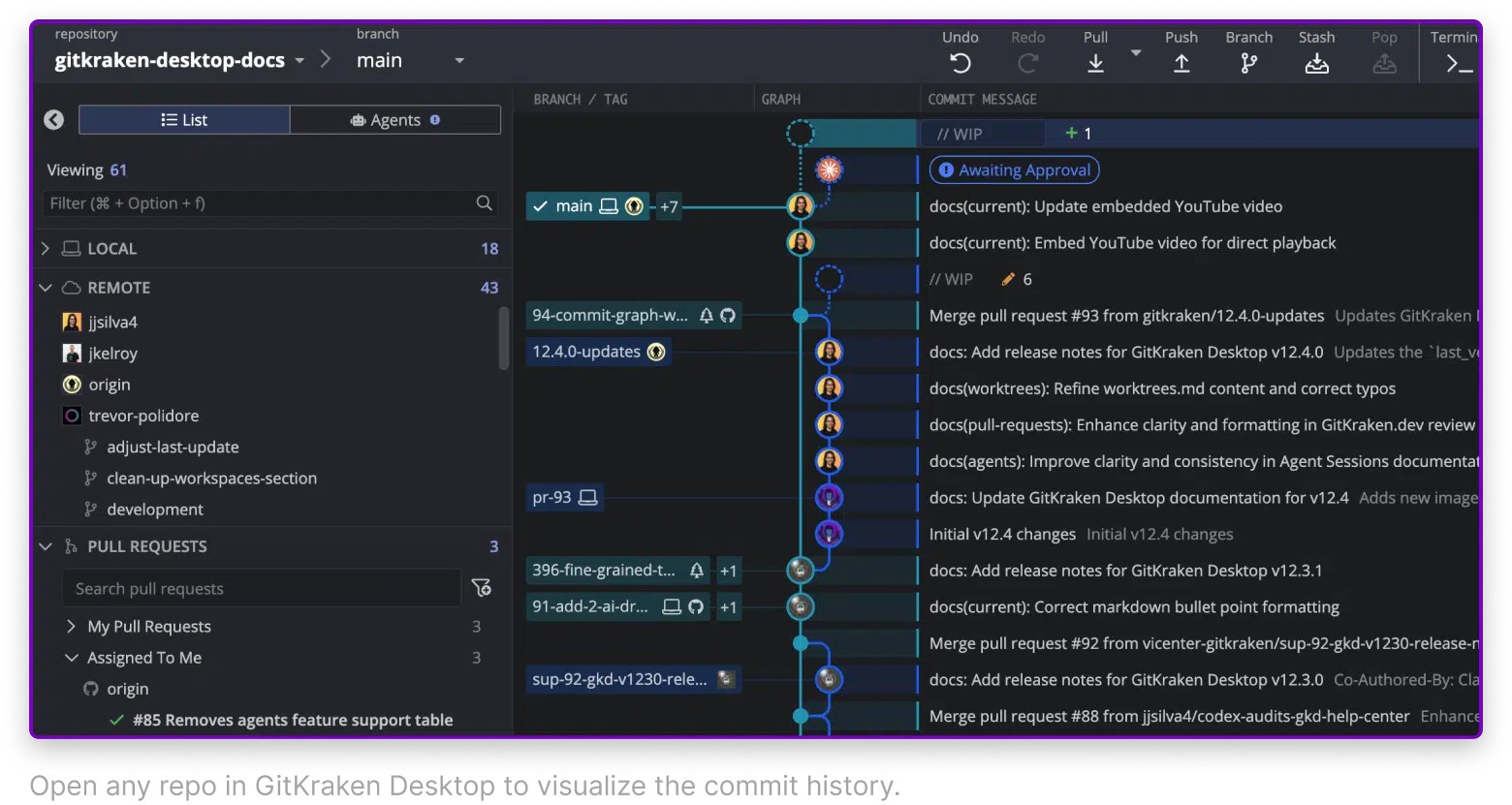
GitKraken Desktop is the client most people picture when they hear “Git GUI”: a colorful graph with branch lanes and avatars, where you can drag one branch onto another to merge or rebase it. That visual style is good for people who think in pictures, and the Undo button in the toolbar takes a lot of fear out of learning. Its interactive rebase and merge editor are both strong, and it runs on Mac, Windows and Linux.
The free plan is narrower than it looks. Community works with local repositories and public ones on GitHub, GitLab or Bitbucket, but opening a private repository on those services (which is most work code) needs the Pro plan at $10 a month, billed yearly. Over three years that’s the most expensive way to get a full desktop client here. Pro also bundles GitLens for VS Code and GitKraken’s AI features, such as commit messages and suggested conflict fixes.
GitKraken is an Electron app, and it uses a lot of memory and can lag on large repositories. Newer versions also add panels for running AI coding agents, which clutter a screen that used to be simple.
What it does
- Colorful commit graph where you drag branches to merge or rebase them
- Built-in merge editor with AI-suggested resolutions on paid plans
- Undo button for recent actions
- Pull requests for GitHub, GitLab, Bitbucket and Azure DevOps
Pros
- The easiest graph to read at a glance
- Runs on Linux as well as Mac and Windows
- Undo makes experimenting less scary
Cons
- Private repositories need a paid subscription
- Heavy on memory and slower on big repositories
- Skip if:
- Your repositories are private and you don't want another subscription

Tower Git Client
Undo for nearly everything, by subscription
#4 4.0/5
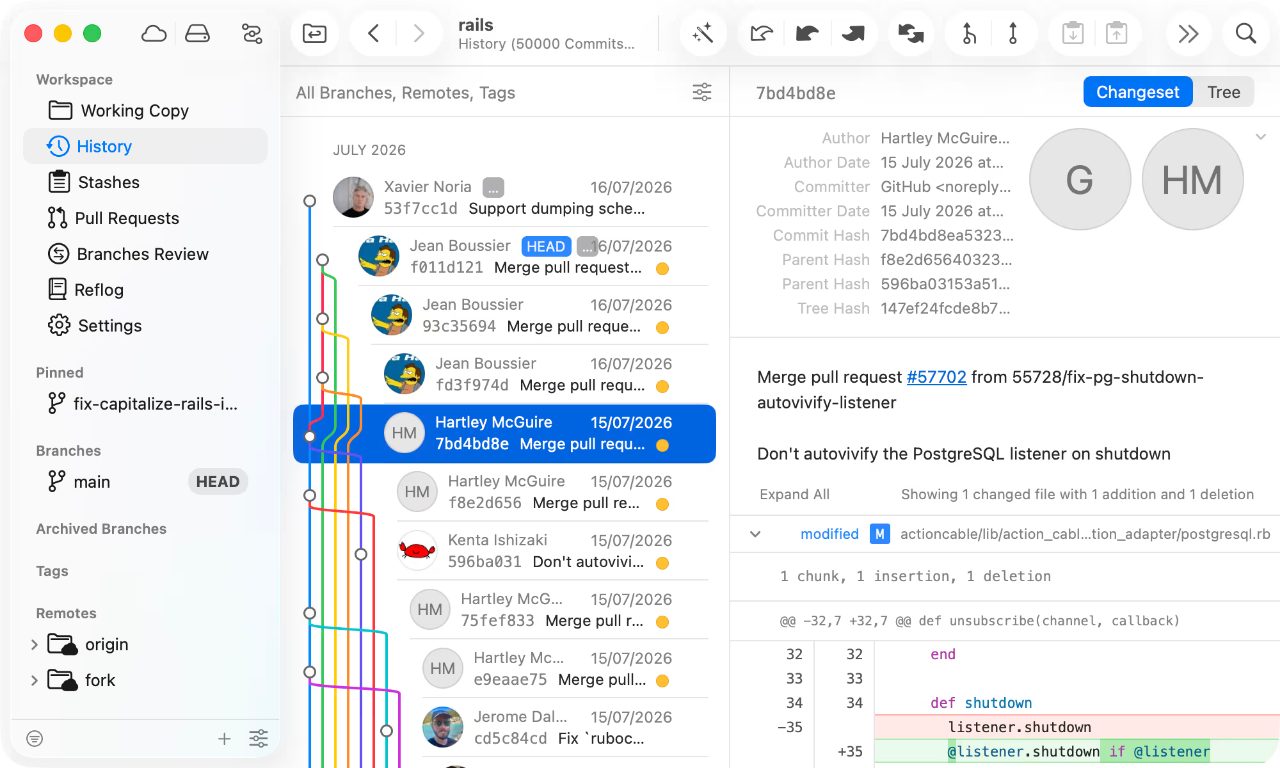
Tower’s best reason to pay a subscription is undo. Press Cmd+Z (or Ctrl+Z) after a bad commit, merge, deleted branch or dropped stash, and Tower puts it back. That safety net, plus a free step-by-step Git guide from the same company, makes it a good home for someone growing from beginner to confident user. Its drag-and-drop interactive rebase and cherry-pick are excellent, and it handles pull requests on GitHub, GitLab, Bitbucket and Azure DevOps.
Merge conflicts are where Tower surprises people. Its Conflict Wizard lets you take one whole version of a conflicted file, but to combine changes from both sides it opens an external merge tool you have to install and configure yourself. Fork, Sublime Merge, GitKraken and SmartGit all have a merge editor built in.
Tower is a subscription: Basic is $69 a year and Pro is $129 a year, both with a 30-day free trial, and students and teachers get it free. One license covers both Mac and Windows; there’s no Linux version. The subscription makes sense if you value Tower’s undo. If you’d rather pay once, Fork covers most of the same work and includes a merge editor.
What it does
- Cmd+Z or Ctrl+Z undo for commits, merges, branches and stashes
- Drag-and-drop interactive rebase and cherry-pick
- Pull requests inside the app
- Free step-by-step Git guide for learners
Pros
- The most complete undo of any client here
- One license covers Mac and Windows
Cons
- Combining conflicting changes needs a separate merge tool
- Yearly subscription only
- No Linux version
- Choose if:
- You want a safety net for every Git mistake and don't mind paying yearly

SmartGit by syntevo
Free for hobby projects, deep for professionals
#5 3.9/5
SmartGit has been around a long time, and it shows in both directions. It’s deep: a full branch graph with filters and blame, a three-pane Conflict Solver, interactive rebase, splitting and squashing commits, and strong submodule support, all on Mac, Windows and Linux. It’s also dense, with many windows and Git terms everywhere, so newcomers usually find it hard going.
Its licensing is the reason to look. SmartGit is free for personal, non-commercial use (you register for a Hobby license), for students and staff at public schools and universities, and for open-source work. Paid work starts at $5 a month per user, and a license covers one person on up to five machines. The subscription version stops working if you cancel; a perpetual license with one to three years of updates is also sold. For a Linux user who wants a full desktop client for side projects without paying, it’s the best fit here.
What it does
- Branch graph with filters, file logs and blame
- Three-pane Conflict Solver
- Commit splitting, reordering and squashing
Pros
- Free for hobby, student and open-source use
- A Linux build alongside Mac and Windows
Cons
- Crowded interface with a steep start
- Not known for speed on big repositories
- Choose if:
- You want a full desktop client on Linux for non-commercial projects
lazygit
For people who live in the terminal
#6 3.9/5
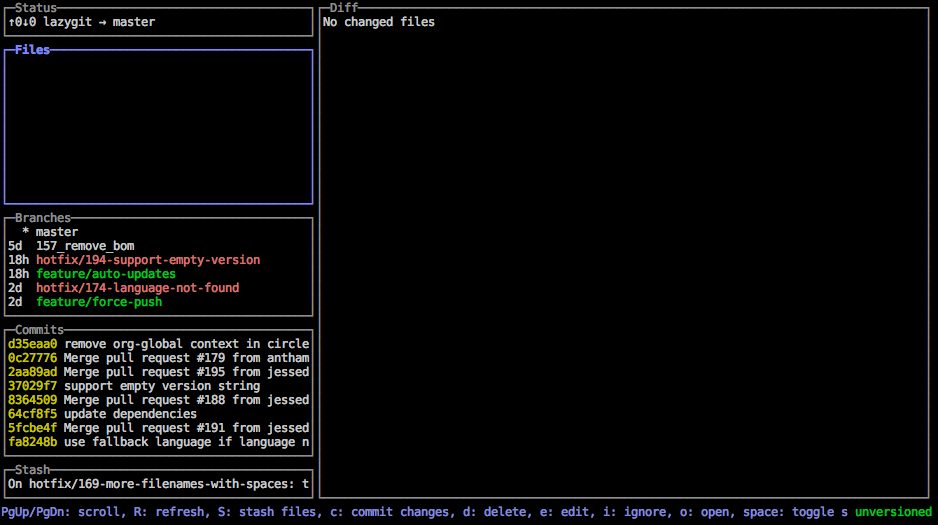
lazygit isn’t a desktop app at all. It’s a terminal UI: panes for files, branches, commits and stashes drawn inside your terminal, driven by single keys. That makes it useful over SSH, a remote login to another machine, or inside a container where a desktop app won’t run. It’s free, open source and one of the most popular Git tools on GitHub.
For rewriting commits it’s as quick as any of these clients. Press i and you’re in an interactive rebase where s squashes, f fixes up, d drops and e edits, and z undoes your last action. Line staging, cherry-picking, bisect (a guided search through history for the commit that broke something), worktrees and a reflog view are all there. For conflicts, it lets you pick your side, theirs or both for each conflicting change, and anything fancier opens your text editor.
The trade-off is learning the keys. The branch graph only appears when you enlarge the commits pane, and someone new to Git has to learn the tool and Git at the same time. If you already like the terminal, it’s a joy.
What it does
- Keyboard-driven interactive rebase
- Undo and redo with
zandshift+z - Line and hunk staging, bisect and worktrees
- Runs in any terminal, including over SSH
Pros
- Free and open source
- Fast to start and light on resources
- Works on servers and in containers
Cons
- Keys to learn before you're productive
- No merge editor; bigger conflicts go to your text editor
- Choose if:
- You work in the terminal or over SSH and want speed without a mouse
Visual Studio Code
Already on your machine
#7 3.4/5
If you write code in VS Code, you already have a capable Git client. The Source Control view stages files or single lines, makes commits, stashes and handles worktrees, the Source Control Graph shows how your branches relate, and the Timeline view shows a file’s history. Its three-way merge editor holds its own against the paid clients’ editors, with your version, the incoming version and the result side by side.
Two gaps send people to a separate app. There’s no visual interactive rebase built in (it opens the rebase instructions as a text file), and finishing a rebase or cherry-pick after a conflict still means typing a command in the terminal. The free GitLens extension, made by GitKraken, adds a visual rebase editor; its fuller commit graph is free only for public repositories, and GitLens Pro costs $10 a month. VS Code also scales back its Git features when a repository has more than 10,000 changed files.
What it does
- Line staging, stashes and worktrees
- Three-way merge editor
- Source Control Graph and file Timeline
Pros
- Free, and already installed for many developers
- A strong merge editor
Cons
- No visual interactive rebase without an extension
- Rebases and cherry-picks with conflicts finish in the terminal
- Choose if:
- You only need everyday commits, branches and conflict fixes and live in VS Code

GitButler
For juggling several branches at once
#8 3.2/5
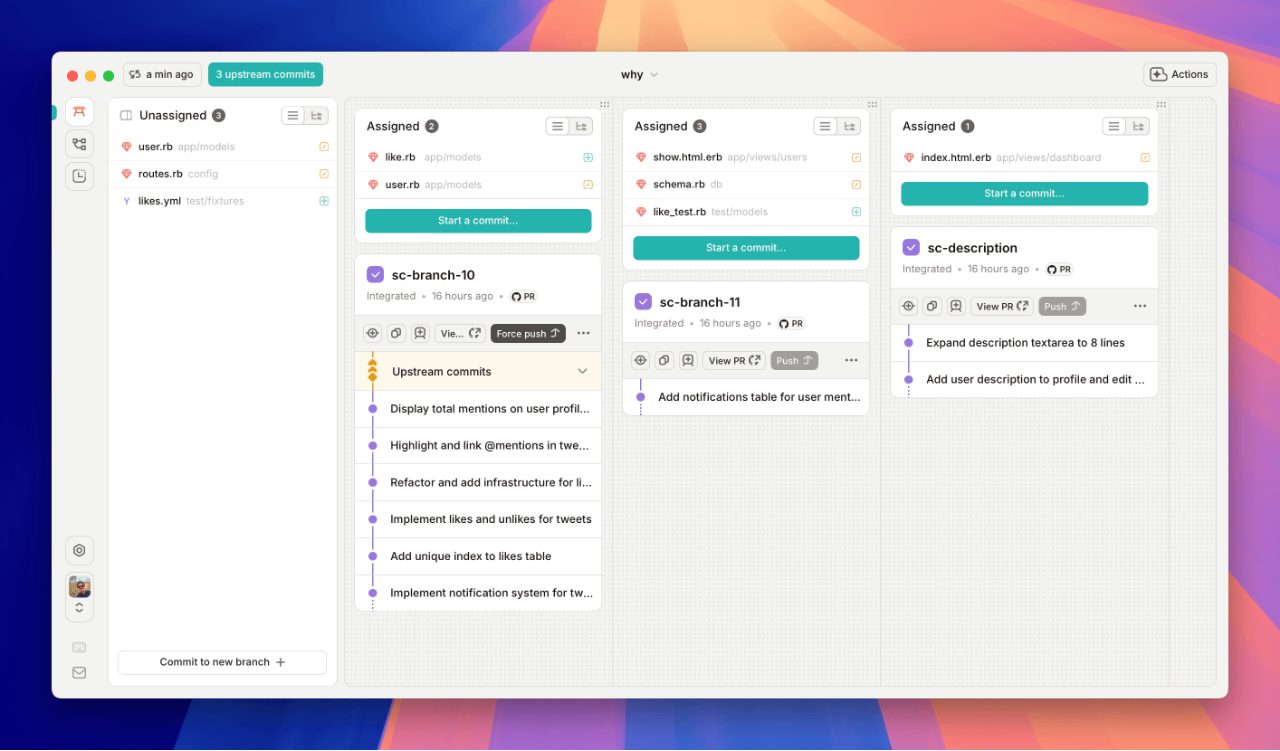
GitButler rethinks branches rather than drawing them. You can have several branches applied to one working folder at the same time, each in its own lane with its own staging area, and drag changes between them. Commits are just as easy to reshape: drag to squash, split, move, reword or amend any commit, and an operations log lets you undo anything. It also handles stacked branches (a chain of branches that build on each other, each with its own pull request) on GitHub, GitLab and Bitbucket.
The cost is that GitButler works its own way. It manages a special workspace branch, and plain Git branch commands like git switch make it pause until you return to its method, which can confuse anyone who switches between it and the command line. It doesn’t draw a full history graph, and conflicts are marked on commits for you to fix in your editor rather than in a merge tool. It’s free to use, and the source turns into MIT-licensed open source after two years. Choose it if parallel or stacked branches are your daily headache, not as your first Git client.
What it does
- Several branches applied at once, each in its own lane
- Drag-and-drop commit editing
- Undo through an operations log
- Stacked pull requests
Pros
- Free to use
- Makes parallel and stacked branches easy to see
Cons
- Its own branch model clashes with plain Git commands
- No full history graph or merge editor
GitHub Desktop
Gentlest start for Git newcomers
#9 3.2/5
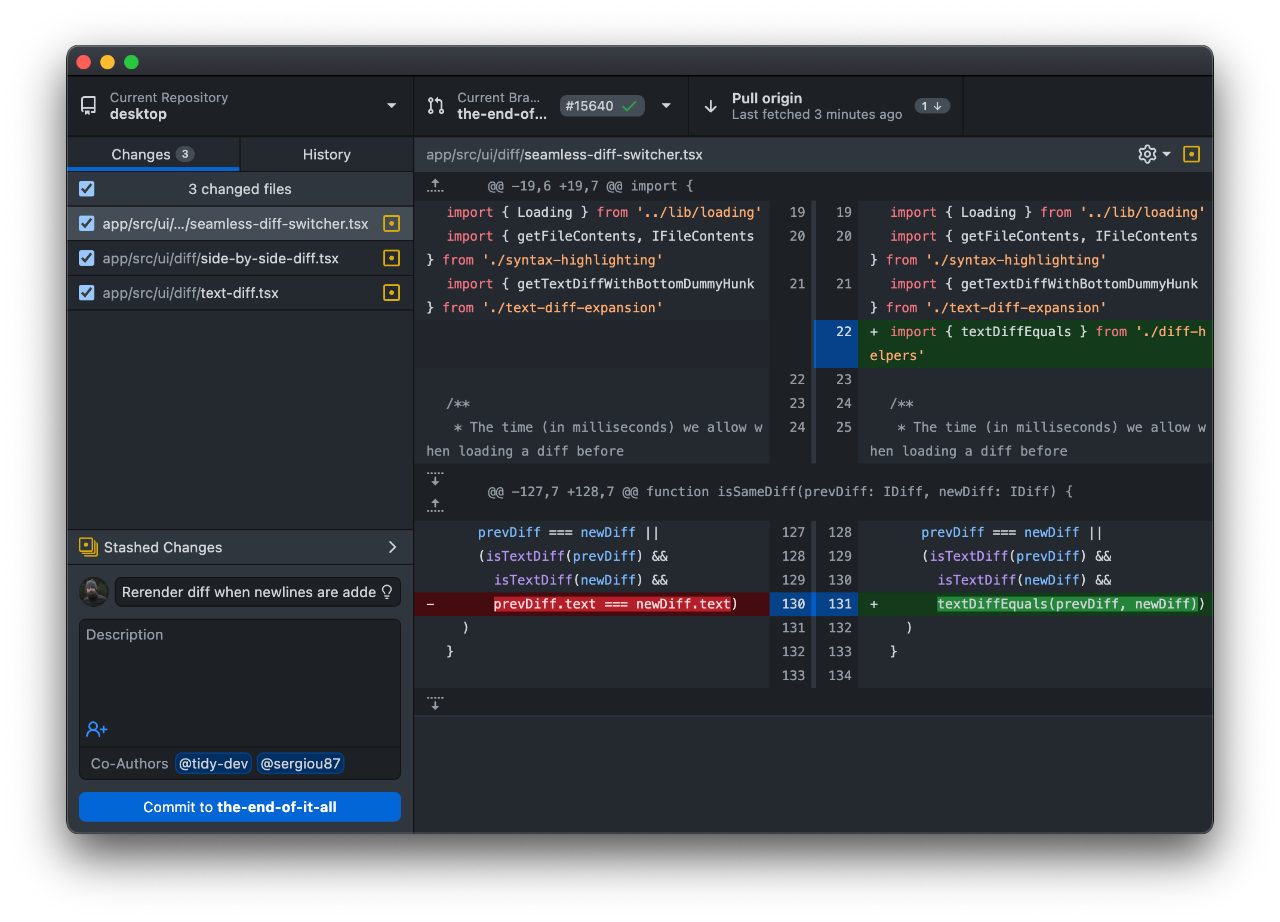
GitHub Desktop is where to start if Git makes you nervous. It keeps the first steps simple: one simple screen, a list of changed files with checkboxes, a box for your commit message, and an Undo button for the last commit. It’s free, open source, and works with any Git repository, though it’s built around GitHub; on other hosts you get the basics.
It runs out of road quickly. There’s no branch graph, just a list of commits on the current branch, so you can’t see how branches relate. You can drag commits to reorder or squash them, but not edit or drop them. And for merge conflicts it lists the files and leaves you to fix them in your text editor. Linux users need a community-maintained build. Plenty of people learn on GitHub Desktop, then move to Fork or Tower once rebases and conflicts become routine.
What it does
- One-screen commits where you can pick single lines to include
- Drag to reorder or squash commits
- Pull requests and branch syncing with GitHub
Pros
- The simplest client to learn
- Free and open source
Cons
- No branch graph
- Conflicts are resolved in your text editor
- Choose if:
- You're learning Git and your code lives on GitHub

Atlassian Sourcetree
Free and full-featured, but showing its age
#10 3.0/5
Sourcetree, from Atlassian (the company behind Jira and Bitbucket), was the default free Git GUI for years, and many people still use it out of habit. It has a real branch graph, interactive rebase, line staging, Git LFS, Git Flow (a popular convention for feature and release branches) and support for Mercurial (an older rival to Git), all for free on Mac and Windows.
It hasn’t kept pace. The crowded, dated interface overwhelms newcomers, slowness on large repositories is its most common complaint, and merge conflicts get only whole-file “mine” or “theirs” choices before you’re sent to an external merge tool. The Mac and Windows versions are separate apps with different version numbers. If you want free, GitHub Desktop is simpler, VS Code has a better merge editor, and lazygit is faster; Fork is the step up if you want a faster desktop app and a built-in merge editor.
What it does
- Branch graph with commit search
- Interactive rebase, Git Flow and Git LFS
- Mercurial repositories as well as Git
Pros
- Free with no feature limits
Cons
- Slow on large repositories
- Dated, cluttered interface
- Needs an external tool to combine conflicting changes
- Choose if:
- You still have Mercurial repositories to manage
Scores
1–5 per criterion · select a score for its reasoning and any sources
| # | Product | Overall | Seeing history and branches | Rewriting commits and undoing mistakes | Resolving merge conflicts | Easy for someone new to Git | Speed on large repositories | Everyday Git tools beyond committing | Cost for work use , counts half | Runs on Mac, Windows and Linux , counts half |
|---|---|---|---|---|---|---|---|---|---|---|
| 1 | Fork | 4.6 | 5 | 5 | 5 | 4 | 5 | 5 | 4 | 3 |
| 2 | Sublime Merge | 4.4 | 5 | 4 | 5 | 3 | 5 | 4 | 4 | 5 |
| 3 | GitKraken Desktop | 4.1 | 5 | 5 | 5 | 4 | 2 | 4 | 2 | 5 |
| 4 | Tower Git Client | 4.0 | 5 | 5 | 2 | 4 | 4 | 5 | 3 | 3 |
| 5 | SmartGit by syntevo | 3.9 | 5 | 4 | 5 | 2 | 3 | 4 | 3 | 5 |
| 6 | lazygit | 3.9 | 3 | 5 | 3 | 2 | 4 | 5 | 5 | 5 |
| 7 | Visual Studio Code | 3.4 | 3 | 2 | 4 | 3 | 3 | 4 | 5 | 5 |
| 8 | GitButler | 3.2* | 2 | 5 | 2 | 3 | unknown | 2 | 5 | 5 |
| 9 | GitHub Desktop | 3.2 | 2 | 3 | 2 | 5 | 3 | 3 | 5 | 4 |
| 10 | Atlassian Sourcetree | 3.0 | 4 | 4 | 2 | 2 | 2 | 3 | 5 | 3 |
Equal displayed overall scores are ordered by the earlier criteria; a known score comes before an unknown score. Identical scores use alphabetical order.
×2 = counts double in the overall score, ×½ = counts half.
? = unknown. * = the overall score averages only the known criteria.
How each criterion is scored
Seeing history and branches
How well the app lets you see and explore a repository's history: a graph of how branches split and merge, searching or filtering commits, the history of one file, blame (who last changed each line), and comparing any two commits. Judged from the app's documented views and how readable the graph is in practice.
- 5 A clear, fast graph of all branches with history search or filters, file history, blame and comparison of any two commits, all in the app.
- 4 A clear graph of all branches plus most of history search, file history, blame and commit comparison.
- 3 A branch graph, but two of history search, file history and blame are missing or awkward, or the graph shows little about each commit.
- 2 A commit list without a branch graph, or a graph you only reach in a limited mode, with few ways to explore it.
- 1 Little more than a list of recent commits on the current branch.
Rewriting commits and undoing mistakes
How well the app lets you clean up commits before sharing them, the job Git calls interactive rebase (reordering, squashing, rewording, editing and dropping commits), and how easily it lets you undo a mistake such as a bad reset or a deleted branch.
- 5 A full visual interactive rebase that is quick to use, plus an undo or a view of lost commits that recovers most mistakes.
- 4 A full visual interactive rebase (reorder, squash, reword, edit and drop), but undo is limited or the editing is clumsy.
- 3 Some visual editing, such as reordering and squashing recent commits, but not the full set of rebase steps.
- 2 Only amending or undoing the last commit and plain rebases; anything more needs the command line or a text file of rebase steps.
- 1 No way to change existing commits beyond the command line.
Resolving merge conflicts
How much help the app gives when a merge, rebase or cherry-pick stops on a conflict: whether you can see both sides and build the result in the app, choose changes piece by piece, and finish the operation without leaving it. A paid edition's tool counts when that edition is the one a developer needs for private repositories.
- 5 A built-in merge editor that shows both sides and an editable result, lets you take changes piece by piece, and finishes the merge or rebase from the app.
- 4 A built-in merge editor that shows both sides and an editable result, with some part of the flow, such as continuing a rebase, left to the command line or a separate step.
- 3 You can pick one side or the other for each conflicting change in the app, but there is no editable merged view.
- 2 The app lists conflicted files and lets you finish the operation, but you resolve the contents in an editor or external tool, at most taking one whole side of a file in the app.
- 1 No conflict help; the app leaves you to the command line.
Easy for someone new to Git
How quickly someone who finds Git intimidating can do everyday work (commit, branch, pull, push, merge) without getting lost or making mistakes they can't fix: a clear layout, plain labels, safe defaults, undo and help. Judged from the interface, its documentation and what reviewers and users widely agree on.
- 5 Built for newcomers: a guided start, plain language, a simple screen and obvious undo, so a beginner rarely needs the command line.
- 4 A clear layout where common tasks are obvious and most mistakes can be undone, with only a few rough edges for newcomers.
- 3 Basics are clear, but advanced actions are hidden or the layout assumes some Git knowledge.
- 2 Usable for basics, but crowded screens, keyboard-only controls or an unusual model make a newcomer's first weeks hard.
- 1 Assumes you already know Git well; dense screens and Git jargon everywhere.
Speed on large repositories
How fast the app opens, draws history and shows diffs, especially on repositories with long histories or many changed files. Judged from how the app is built (native code, a custom engine, or a web-based shell such as Electron), documented limits, and how widely users report slowness.
- 5 Known for staying fast on very large repositories, with history and diffs that appear almost instantly.
- 4 Quick on large repositories, with only occasional reports of lag.
- 3 Acceptable on most repositories, with some lag or documented limits on very large ones.
- 2 Fine on small repositories, but slowness or heavy memory use on large ones is a common complaint.
- 1 Often slow or unstable even on ordinary repositories.
Everyday Git tools beyond committing
How many of these eight Git tools the app handles itself: staging single lines or hunks, stashes, cherry-picking, a reflog or other view of lost commits, worktrees, submodules, Git LFS files, and bisect (searching history for the commit that broke something).
- 5 Seven or all eight.
- 4 Six of the eight.
- 3 Four or five of the eight.
- 2 Two or three of the eight.
- 1 One or none of the eight.
Cost for work use
Counts half in the overall score: Every price here is small next to a developer's time, so cost separates products for budget readers but rarely outweighs how well the app does the job.
What one developer pays over three years to use the app for paid work on private repositories, at the published price of the cheapest edition that allows it, before student, open-source or promotional discounts.
- 5 Free for commercial use.
- 4 $1 to $100 over three years, such as a one-time license.
- 3 $101 to $250 over three years.
- 2 $251 to $400 over three years.
- 1 More than $400 over three years.
Runs on Mac, Windows and Linux
Counts half in the overall score: Linux users treat this as a yes-or-no test, while most readers work on macOS or Windows, where every app here runs.
Which desktop operating systems the app officially runs on, with one license or download covering them.
- 5 macOS, Windows and Linux officially.
- 4 macOS and Windows officially, with a maintained community build for Linux.
- 3 macOS and Windows, with no Linux build.
- 2 Two operating systems, with limits on one of them.
- 1 One operating system.
How to choose
- You use Git every day on a Mac or Windows PC: Fork. Pick Tower instead if universal undo matters more to you than a built-in merge editor, and you’re happy paying yearly.
- You’re new to Git: GitHub Desktop to learn the basics for free. When you want a graph and a safety net, GitKraken for public or local repositories, or Fork.
- You’re on Linux: Sublime Merge for paid work. SmartGit is free for non-commercial projects, and GitKraken suits people who want its visual graph and don’t mind the subscription.
- You won’t pay anything, even for work: VS Code if it’s already your editor, lazygit if you like the terminal, GitHub Desktop if you want a simple desktop app.
- You live in the terminal or work over SSH: lazygit.
- You juggle several branches or stacked pull requests: GitButler.
The verdict
The jump from a basic Git client to a good one happens at two moments: when you want to clean up commits before pushing, and when a merge goes wrong. Free tools mostly stumble at one or both. GitHub Desktop can’t fully rewrite commits, VS Code finishes conflicted rebases in the terminal, and Sourcetree sends you elsewhere to combine changes. A paid client earns its price if those jobs keep interrupting your day.
On Mac and Windows, Fork offers the best value: native speed, visual rebasing and a built-in merge editor for $59.99. Tower matches it on rebasing and beats it on undo, but charges every year and needs another app to combine conflicting changes. GitKraken has the friendliest graph and runs everywhere, yet its price for private repositories and its weight on big projects make it hard to recommend over Fork. On Linux, Sublime Merge’s one-time license and speed make it the default, with SmartGit as the free choice for hobby work.
If you’re just starting out, don’t overthink it. Use GitHub Desktop until you hit a rebase or a conflict it can’t handle, then move to Fork or, on Linux, Sublime Merge.
Frequently asked questions
Will using a Git GUI stop me from learning Git?
Not if you pick the right one. Every client here works on the same repository the command line does, so you can switch between a GUI and the terminal whenever you like. Sublime Merge goes further and shows the exact Git command behind each action, and lazygit’s keys map closely to Git’s own operations. GitButler is the exception: it manages branches its own way, so it teaches GitButler more than Git.
Do these clients work with GitLab, Bitbucket or a self-hosted server?
Yes for everyday work: they all push and pull to any Git remote. The difference is in extras like pull requests inside the app. GitKraken, Tower, SmartGit and GitButler connect to GitHub, GitLab and Bitbucket; GitHub Desktop and lazygit are built around GitHub. GitKraken’s integration with a self-hosted Git server needs its Advanced plan, and SmartGit’s free Hobby license leaves out its integrations for self-hosted servers.