Best Linux distros for beginners and Windows switchers
Your PC is fine, but Windows 10 no longer gets free security updates, and Windows 11 says your processor isn’t supported. Somebody tells you to “just install Linux,” you search for it, and you find hundreds of distros. A distro (short for distribution) is Linux bundled with a desktop, an app store and an updater, and for a beginner those parts decide almost everything about how Linux feels.
For most people leaving Windows, the best Linux distro is Linux Mint. It has a taskbar, a start menu and a system tray where you expect them, its welcome screen walks you through drivers, codecs and backups, and it runs comfortably on the kind of PC Windows 11 left behind. If you mostly play Steam games, Bazzite fits you better. If the PC is old enough that Windows 10 crawled on it, try MX Linux.
Whichever you pick, try it first. Every distro below is free and can run straight from a USB stick (a “live USB”) without touching your hard drive, so you can check that Wi-Fi, sound, the touchpad and the screen all work on your hardware before you install anything.
What changes when you leave Windows
Some things are the same on all of these. You get Firefox, an office suite such as LibreOffice, and an app store that installs software with a click. Most of them can also install apps from Flathub, a large catalog of Linux apps that works across distros.
Some things don’t come with you, whichever distro you choose. Microsoft Office’s desktop apps and Adobe’s Creative Cloud apps don’t run on Linux, so you’d use Office on the web or LibreOffice, and something like GIMP or Krita in place of Photoshop. Most Steam games run through Proton, Valve’s compatibility layer for Windows games, but some popular multiplayer games, such as Fortnite and Valorant, refuse to run because of their anti-cheat. Before you switch, look your games up on ProtonDB, where players report how well each one runs.
What really separates the distros is four things:
- The desktop. Some put a taskbar and start menu at the bottom like Windows. Others use a dock and a top bar, more like a Mac.
- Drivers. If your PC has an NVIDIA graphics card, it needs NVIDIA’s own driver for games and video. Some distros include it, some install it from a settings app, and some need terminal commands.
- How long one install lasts. Each version gets security updates for a set time. Some can then upgrade in place, while others need a fresh install.
- How much hardware it needs. The figures below are the RAM each one asks for, which is a good guide to whether your PC will feel quick.
| Distro | RAM it asks for | Updates until |
|---|---|---|
| Linux Mint | 2 GB (4 GB recommended) | April 2029 |
| Zorin OS | 2 GB | June 2029 |
| Kubuntu | 2 GB (8 GB recommended) | April 2029 |
| Ubuntu | 6 GB | April 2031 (2036 with free Ubuntu Pro) |
| Bazzite | 8 GB | No end date; updates continuously |
| Pop!_OS | 4 GB (8 GB recommended) | Follows its Ubuntu base |
| MX Linux | 1 GB (2 GB recommended) | About mid-2030 |
| elementary OS | 4 GB recommended | Follows its Ubuntu base |
| Fedora Workstation | 4 GB recommended | About 13 months per version |

Linux Mint
Best for most people leaving Windows
#1 4.6/5
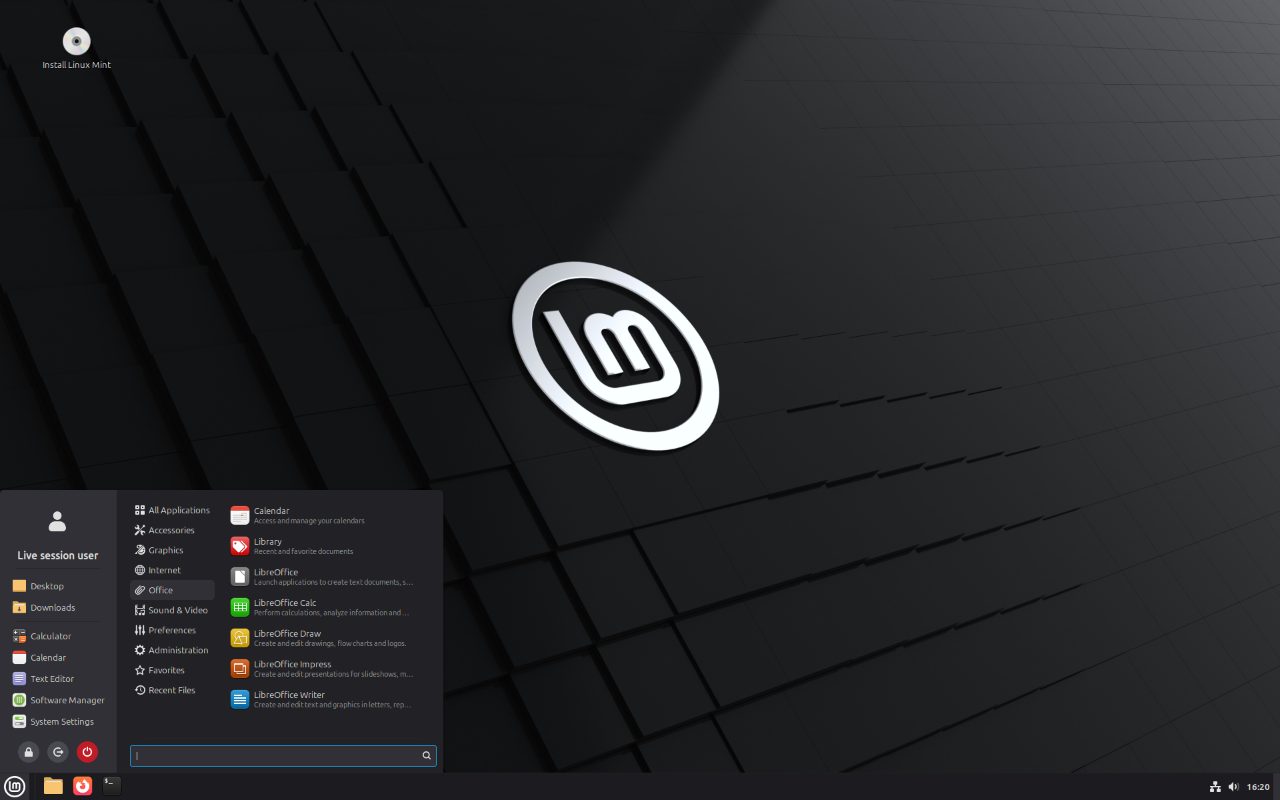
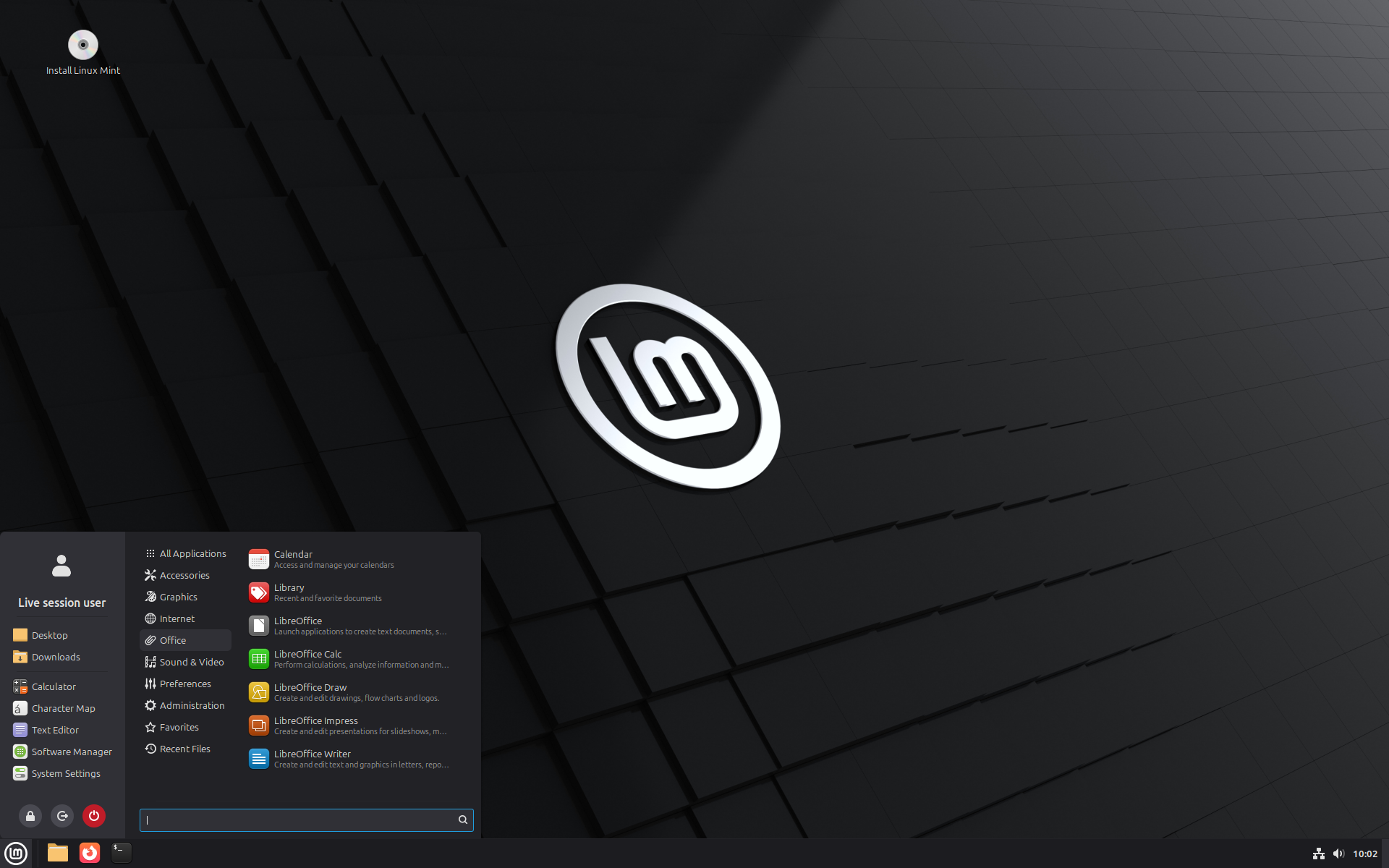
Linux Mint is the one to install if you want your computer back and don’t want a new hobby. Its main edition uses a desktop called Cinnamon, and the first time you see it, you’ll know where everything is: a taskbar along the bottom, a menu button in the corner, open windows as buttons, and the clock and Wi-Fi in the tray.
The welcome screen is what sets it apart for a beginner. It points you to the Driver Manager, which installs NVIDIA’s driver with a click, to the multimedia codecs that play common video formats, and to Timeshift, which takes snapshots of the system so you can undo an update that goes wrong. Apart from Bazzite, which keeps its previous version automatically, none of the others set up a way back for you.
Mint is built on Ubuntu’s long-term support release but leaves out Snap, the app format Ubuntu pushes, and its Software Manager installs apps from its own repositories and from Flathub instead, hiding unverified Flathub apps unless you choose to see them. The current version gets updates until April 2029, and Mint can upgrade in place to the next one. If your PC is older or has 4 GB of RAM or less, download the Xfce edition, which is lighter and looks much the same.
The downside is that Mint changes slowly on purpose. It sits on an older Ubuntu base than Ubuntu itself, and Cinnamon is behind other desktops on Wayland, the newer display system that HDR monitors need. On a laptop released in the last few months, check the live USB carefully before you commit.
What it does
- A Windows-style Cinnamon desktop with taskbar, menu and tray
- A welcome screen for drivers, codecs and system snapshots
- Driver Manager for NVIDIA graphics
- Lighter Xfce and MATE editions for older PCs
Pros
- Feels familiar from the first minute
- Snapshots make a bad update easy to undo
- Runs well on modest hardware
- One of the biggest beginner communities, and most Ubuntu help applies
Cons
- Older base than Ubuntu, so the newest hardware can lag
- Behind on Wayland and HDR support
- Looks plain next to Zorin OS or KDE Plasma
- Skip if:
- You have an HDR monitor and want HDR in games and video

Zorin OS
Closest to the look of Windows
#2 4.1/5
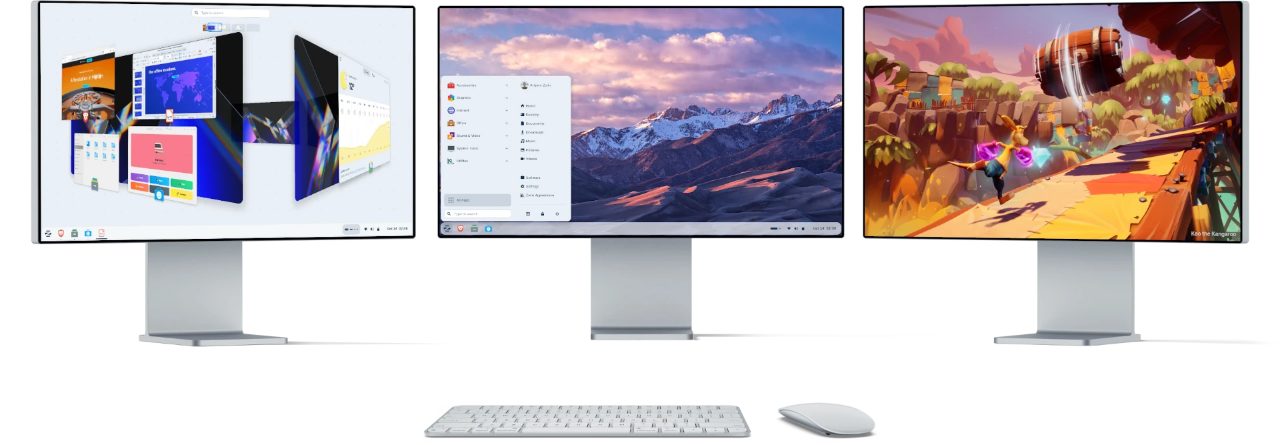
If Mint looks a little plain to you, Zorin OS is the polished alternative. It’s also built on Ubuntu’s long-term support release, and its Zorin Appearance app switches the whole desktop between layouts. The free Core edition includes a Windows-like layout (closer to Windows 10 than 11) and a few others. The Windows 11-style layout and a macOS-style one come only with Zorin OS Pro, a one-time purchase that also adds extra apps and installation help.
Zorin goes further than the others in helping with Windows software. Its Windows App Support uses Wine (a tool that runs many Windows programs on Linux) so that you can double-click an .exe or .msi installer and often have it just work. Treat that as a bonus for small utilities, not as a way to keep running Adobe apps or games that need anti-cheat.
It ships with graphics drivers, including NVIDIA’s, and the current version gets updates until June 2029. A Lite edition with a lighter desktop is there for older computers. Zorin doesn’t prompt you to set up snapshots the way Mint does, and the main edition is a bit heavier than Mint’s, so on a slower PC, Mint or Zorin Lite will feel quicker.
Between Mint and Zorin, either will do for a typical Windows refugee. Choose Zorin if the look matters to you or you have a couple of small Windows programs you’d like to keep; choose Mint if you’d rather have the lighter system with built-in undo.
What it does
- Zorin Appearance switches between Windows-like and other layouts
- Windows App Support runs many .exe and .msi installers
- Graphics drivers, including NVIDIA's, included
- A Lite edition for older computers
Pros
- The most polished desktop for someone coming from Windows
- Installs next to Windows from a live USB
- Updates until June 2029
Cons
- The Windows 11-style layout costs extra (Pro)
- No snapshot tool set up for you
- Smaller community than Mint or Ubuntu
- Choose if:
- You want to keep running one or two small Windows programs

Kubuntu
Windows-style desktop on a newer base
#3 4.0/5
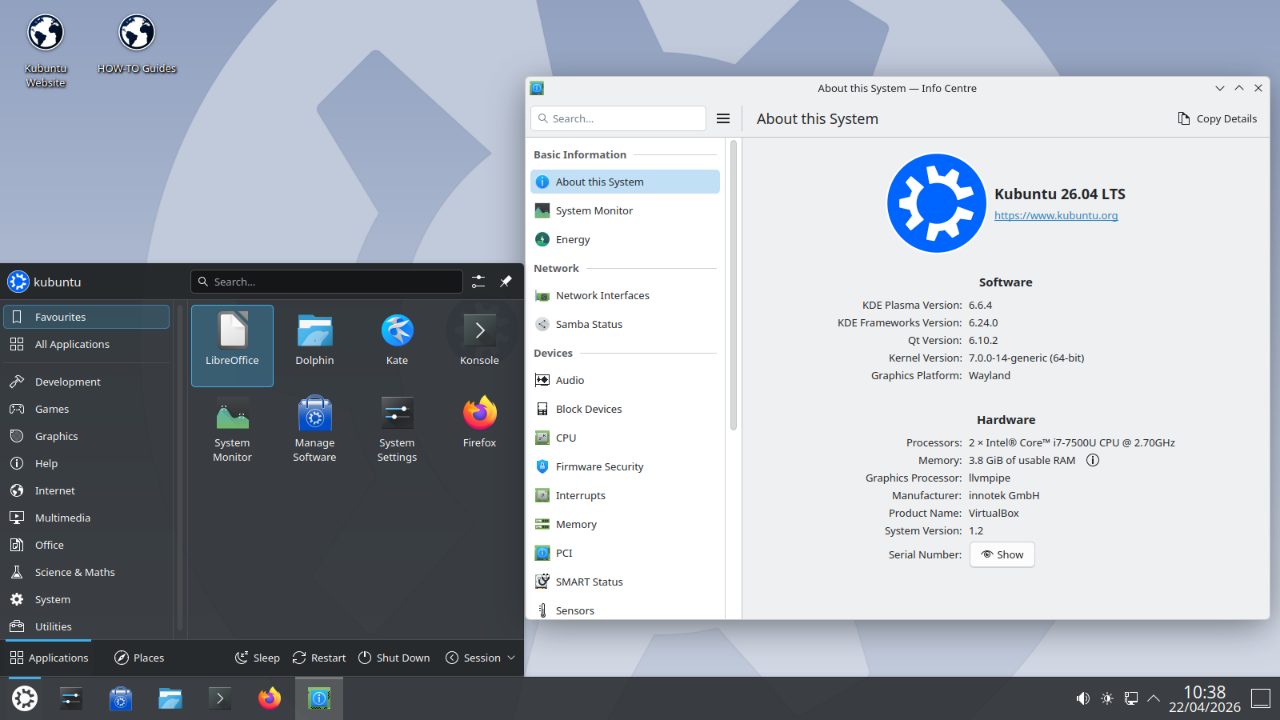
Kubuntu is Ubuntu with a different desktop: KDE Plasma instead of Ubuntu’s own. Plasma’s default layout is close to Windows, with a bottom panel, a start-style menu and a tray, and you can change nearly anything about it. That flexibility is a mixed blessing for a beginner, since the settings app is large.
Its advantage over Mint and Zorin is age. Kubuntu’s current long-term support version is built on Ubuntu’s newest long-term release, with a newer Linux kernel (the core of the system that talks to your hardware), so a laptop from the last year or two is more likely to work fully. It installs alongside Windows from the live USB and uses Ubuntu’s driver tools and help.
The trade-offs are shorter support and a few rough spots. Kubuntu’s long-term version gets three years of updates, until April 2029, where Ubuntu itself gets five. It’s built by a smaller community team, and its switch to Wayland has rough edges: one long-time reviewer at Dedoimedo found that after logging back in, his programs were “bunched in the center” instead of where he’d left them.
What it does
- KDE Plasma with a Windows-style panel and menu
- Built on Ubuntu's newest long-term release
- Discover app store and updater
Pros
- Familiar layout that you can reshape as much as you like
- Better odds on brand-new laptops than Mint or Zorin
- Ubuntu's large pool of help applies
Cons
- Three years of updates, not Ubuntu's five
- Plasma's many settings can overwhelm a beginner
- Rough edges in its newer Wayland session
- Choose if:
- Your laptop is new and you still want a Windows-style desktop

Ubuntu
Longest support and the most help online
#4 3.9/5
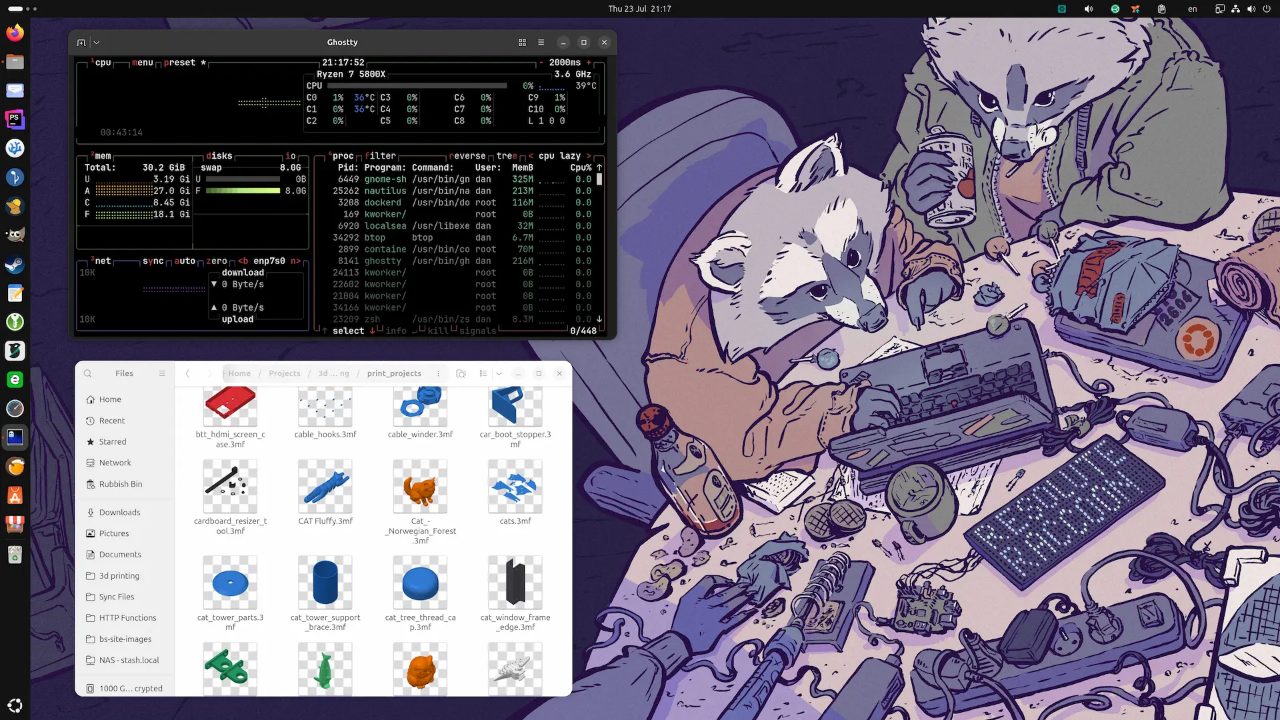
Ubuntu is the distro most people have heard of, and it’s the one most tutorials, forum answers and hardware makers assume you’re using. Dell, Lenovo and HP sell laptops certified for it, and its installer offers to add NVIDIA’s driver during setup.
Where it beats everything else here is support. The current long-term release gets updates until April 2031, and Ubuntu Pro, free for personal use on up to five machines, extends that by another five years. Install it once and you may not think about it again for a long time.
The reason it isn’t the first recommendation is the desktop. Ubuntu’s version of GNOME puts a dock down the left side and a bar across the top, with no start menu, and Windows users take a while to get used to it. It also asks for 6 GB of RAM, more than any other distro here except Bazzite, so it’s a poor fit for an older PC. Its App Center leans on Snap packages, which tend to open more slowly the first time you launch them.
If you like Ubuntu’s support but not its desktop, Kubuntu gives you the same base with a Windows-style layout, though for three years rather than five.
What it does
- Updates until 2031, or 2036 with free Ubuntu Pro
- Installer offers NVIDIA and other third-party drivers
- App Center with Snap packages
- Certified laptops from Dell, Lenovo and HP
Pros
- The longest support of any distro here
- The most tutorials and forum answers online
- Strong hardware support
Cons
- Desktop layout is unlike Windows
- Needs 6 GB of RAM
- Snap apps can be slow to open
- Choose if:
- You want to install once and leave it for years

Bazzite
For gaming PCs
#5 3.9/5
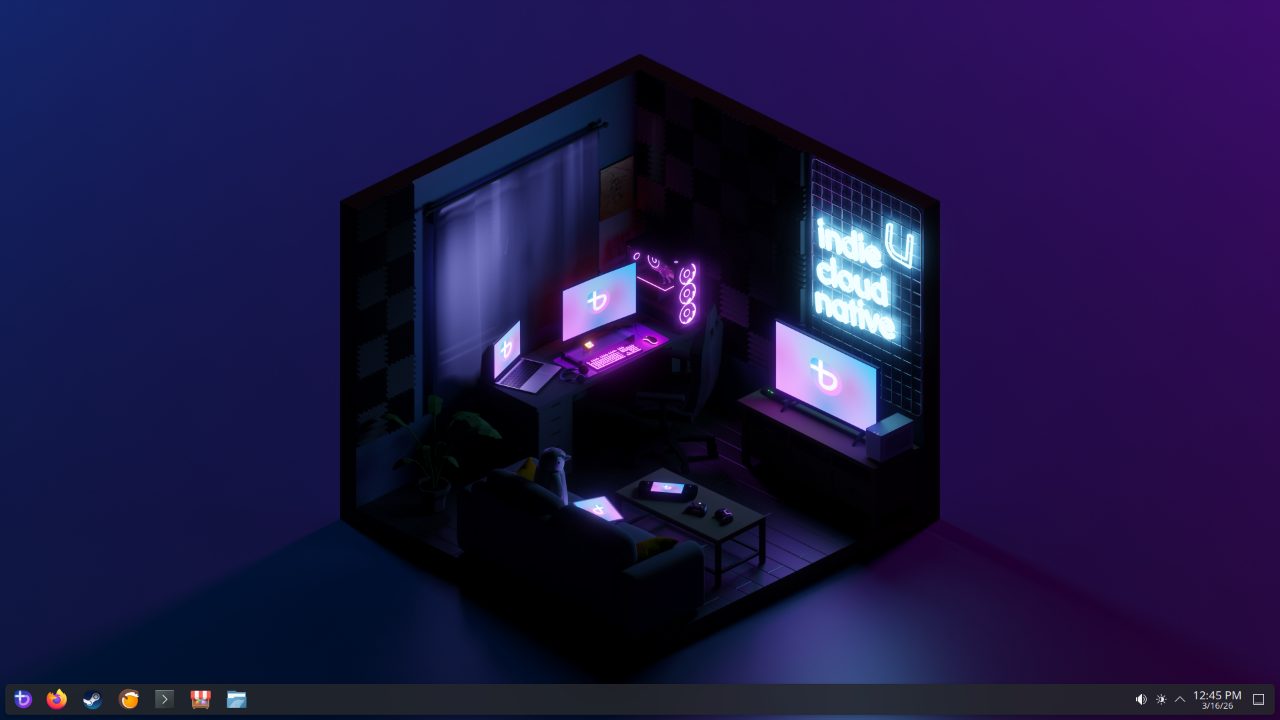
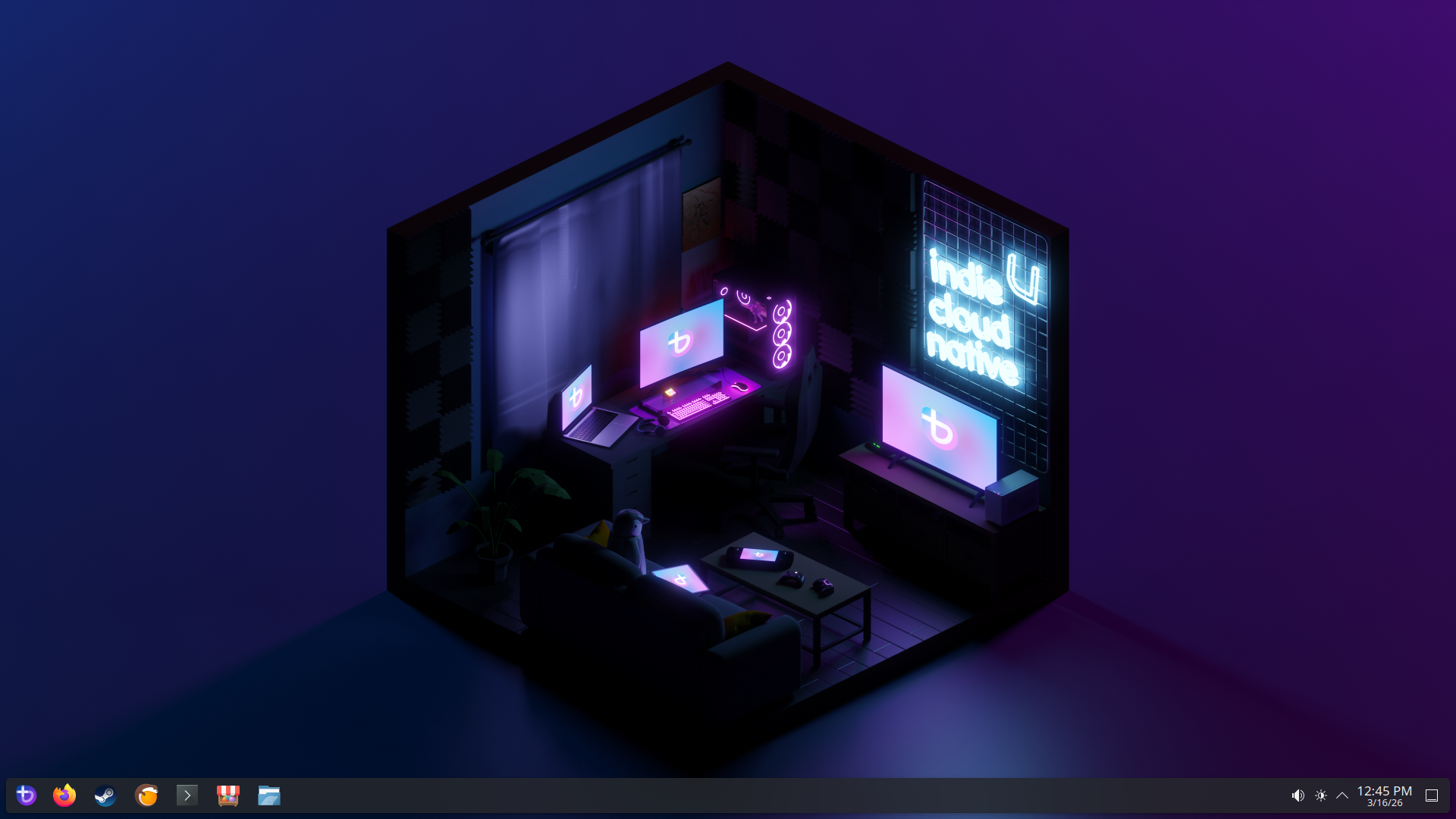
Bazzite is built for one kind of switcher: someone whose PC is mainly for Steam. Steam and Lutris come preinstalled, and the download page asks which graphics card you have and hands you a version with the matching driver, NVIDIA’s included. Its default KDE Plasma desktop has the familiar taskbar and start menu.
It works differently underneath. Bazzite updates as a whole system image in the background, and the previous image stays on the disk, so if an update breaks something you pick the old one at startup and you’re back. The trade-off is that the system files are read-only. You install apps from its Flathub-based store, and anything that isn’t there needs Distrobox or Homebrew, which means the terminal. Many generic Linux instructions you’ll find online won’t work as written.
Read the install notes before you start. With Secure Boot on, you have to enroll Bazzite’s key during setup or it won’t start. Installing next to Windows works best on a separate drive. And a drive formatted for Windows (NTFS or exFAT) isn’t supported for games, so your existing Windows game drive can’t double as your Linux library. It also wants 8 GB of RAM and a graphics card with Vulkan 1.3 support, so it’s not one for an old PC.
If you’d rather run your games through Heroic or Lutris than Steam, the Linux game launchers comparison covers which one to use.
What it does
- Steam and Lutris preinstalled
- Versions with NVIDIA's driver built in
- Whole-system updates with the previous version kept for rollback
- A separate edition that boots straight into Steam's console-style mode
Pros
- The least setup for Steam gaming
- A bad update is undone by picking the old version at startup
- Updates continuously, so there's never a version to reinstall
Cons
- Installing non-store apps needs the terminal
- Windows-formatted game drives aren't supported
- Needs 8 GB of RAM and a fairly modern graphics card
- Skip if:
- You want to follow general Linux tutorials as written

Pop!_OS
For laptops with NVIDIA graphics
#6 3.7/5
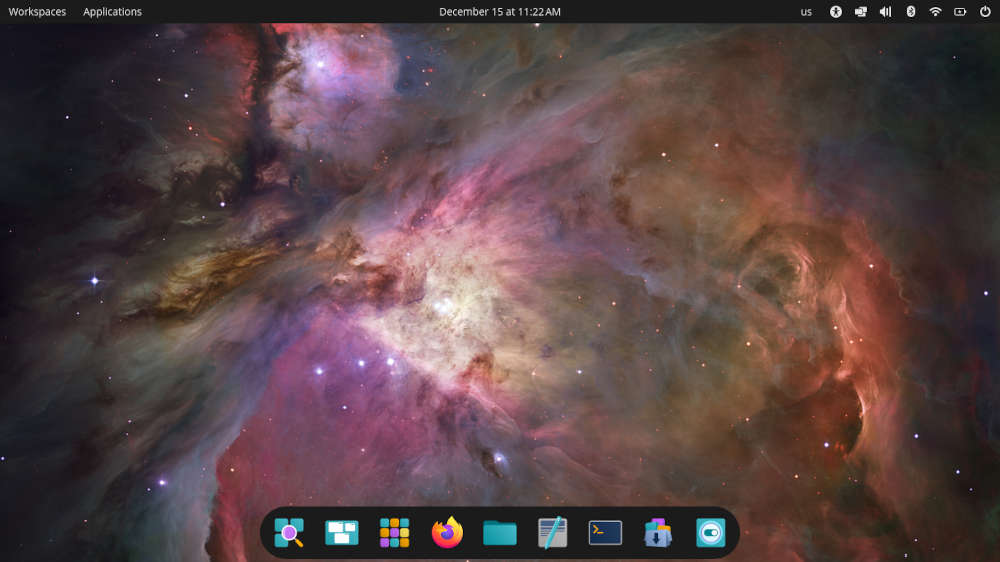
Pop!_OS comes from System76, a company that sells Linux laptops, and its strength is hardware. There’s a separate download with NVIDIA’s driver already installed, and on a laptop with both Intel or AMD graphics and an NVIDIA chip, it switches between them for you. It’s built on the same Ubuntu base as Mint and Zorin, with a newer kernel.
Its desktop, COSMIC, is System76’s own, and you can choose a Windows-like bottom panel when you first set it up. It also tiles windows side by side automatically if you turn that on. COSMIC is young, and reviewers have reported bugs in things like switching audio output and screen recording.
For a beginner, though, the installer is the problem. Secure Boot must be turned off before you install, and the simple Clean Install option erases the drive. Keeping Windows means choosing Custom (Advanced) and partitioning the disk yourself in a tool called GParted. If you’re happy to wipe the laptop and you have NVIDIA graphics, it’s a good pick; if you want to keep Windows around, Mint or Kubuntu make that much easier.
What it does
- A download with NVIDIA's driver preinstalled
- Automatic switching between integrated and NVIDIA graphics
- COSMIC desktop with optional automatic window tiling
Pros
- Excellent support for NVIDIA laptops
- Optional Windows-like bottom panel
Cons
- Secure Boot must be off to install
- Installing next to Windows means partitioning by hand
- COSMIC is young and still has bugs
- Skip if:
- You want to keep Windows on the same drive

MX Linux
For old, slow PCs
#7 3.7/5
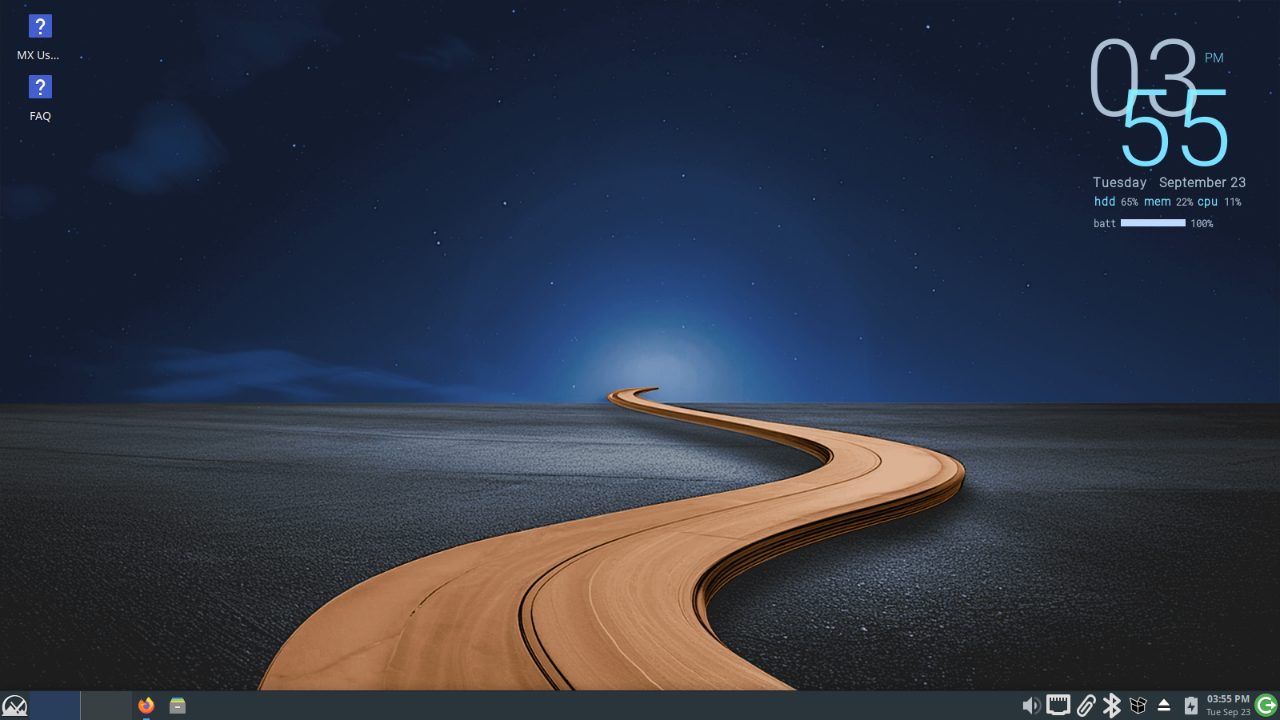
MX Linux is the pick for the laptop that Windows 10 already made painful. It runs in 1 GB of RAM and is comfortable in 2 GB, it’s built on Debian’s stable release, which changes very little between versions, and it has a busy forum and a loyal following.
The main edition uses the Xfce desktop with a vertical panel down the left side, and the menu button sits in the bottom-left corner where a Windows user looks for it. MX Tools, a set of graphical tools, handles jobs like installing NVIDIA’s driver and making a bootable copy of your whole system on a USB stick.
It asks more of you than Mint, though. A reviewer at Dedoimedo found that you need “5-10 different tools and utilities” to tweak the desktop the way you want, and the default text scaling looked blurry until he changed it. The partitioning step of the installer is clunky. You can’t upgrade to the next major version in place either, so you’ll reinstall around 2030. For a newer PC there’s a separate Advanced Hardware Support version, but it doesn’t work with Secure Boot.
If your old PC has 4 GB of RAM, Mint’s Xfce edition is a friendlier choice. Below that, MX is the better fit.
What it does
- Runs in 1 to 2 GB of RAM
- Debian stable base
- MX Tools for drivers, updates and full-system backups
- Advanced Hardware Support version for newer PCs
Pros
- The lightest distro here
- Changes little from one update to the next
- A helpful, active forum
Cons
- Takes several separate tools to set up the desktop to your liking
- Clunky partitioning when installing next to Windows
- No in-place upgrade to the next major version
- Choose if:
- Your PC has 2 GB of RAM or less

elementary OS
For people who like the Mac look
#8 3.0/5
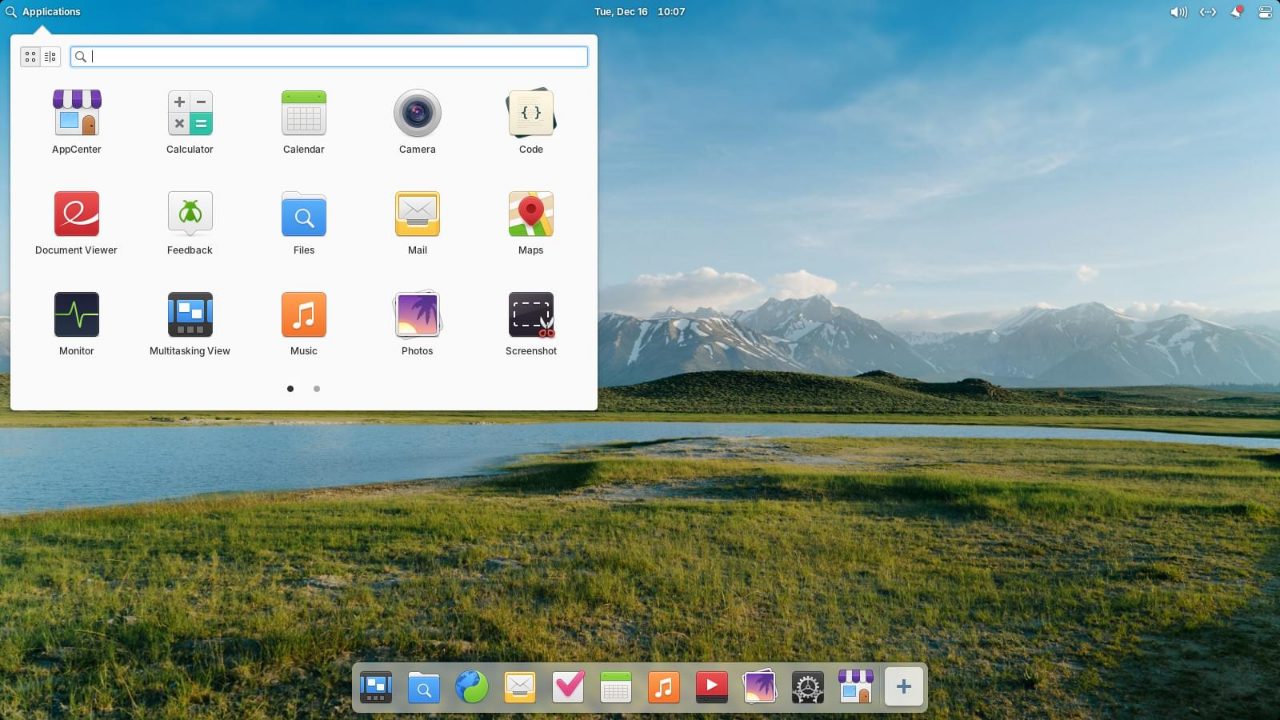
elementary OS is for someone who’d rather their PC felt like a Mac than like Windows. Its desktop, Pantheon, has a dock at the bottom and a slim bar across the top, and its own apps share one clean, consistent design. You can pay what you want for the download, and $0 is accepted.
That tidiness is also its limit. The design is fixed by its makers, with few options to change it, and there are no tray icons for background apps, so programs like Discord or Dropbox don’t sit by the clock the way they do in Windows. Its AppCenter starts with a small curated set of apps but also installs from Flathub.
It’s built on the same Ubuntu base as Mint and Zorin, so its support follows that base, but moving to the next major version of elementary OS has always meant a fresh install. Its installer offers to erase the disk or let you partition it yourself, so keeping Windows takes more care than on Mint or Ubuntu. Its community is also much smaller than theirs.
What it does
- Pantheon desktop with a dock and top bar
- AppCenter with curated apps plus Flathub
- Pay what you want, including nothing
Pros
- Clean, consistent design
- Simple, uncluttered apps and settings
Cons
- Few options to change the desktop
- No tray icons for background apps
- Each major upgrade needs a fresh install
- Skip if:
- You want your desktop to look and work like Windows

Fedora Workstation
For learners who want the newest software
#9 2.7/5
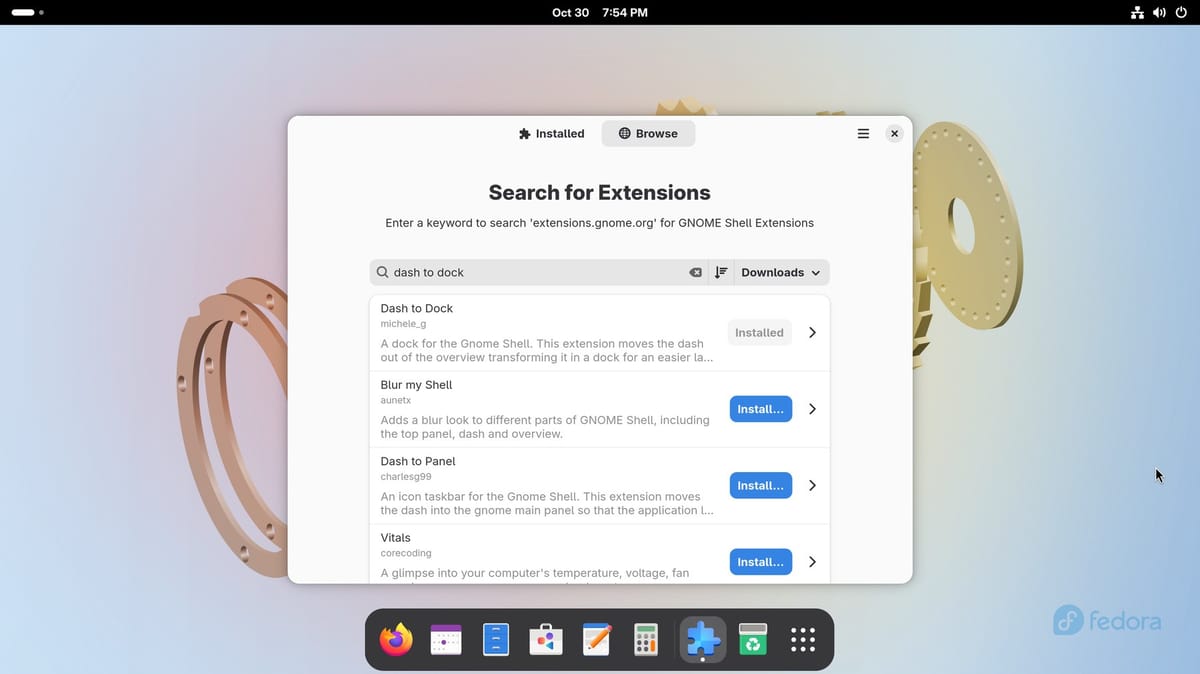
Fedora Workstation is the distro to choose if you want to learn Linux and like having the newest everything. It’s backed by Red Hat, it gets the latest kernel and desktop months before Ubuntu-based distros, and that makes it a strong choice for very new hardware.
As a first Linux for someone leaving Windows, though, it’s the hardest here. Its plain GNOME desktop has no taskbar, dock or tray at all until you add extensions, and apps open from a full-screen overview. Fedora also leaves out anything with patent or licensing strings attached, so a common H.264 video shows a “Missing Plugin” message until you add codecs from RPM Fusion with terminal commands. NVIDIA’s driver comes from the same place, and with Secure Boot on you have to set up a signing key first.
Each Fedora version gets about 13 months of updates, and the Software app offers the next one as an in-place upgrade, so you upgrade roughly once a year. If you like Fedora but want a Windows-style desktop, Fedora’s KDE Plasma edition gives you one, with the same codec and driver steps.
What it does
- The newest kernel and GNOME desktop
- In-place upgrades from the Software app
- A KDE Plasma edition with a Windows-style layout
Pros
- Excellent support for brand-new hardware
- Polished, up-to-date software
Cons
- Video codecs and NVIDIA drivers need terminal commands
- No taskbar or dock by default
- A version upgrade about once a year
- Choose if:
- You want to learn Linux and don't mind the terminal
Also considered
ChromeOS Flex: Google’s free system for turning an old PC into something like a Chromebook. It replaces Windows rather than sitting beside it, it has no Android apps, unlike a real Chromebook, and Steam games and desktop software such as LibreOffice are mostly out of reach, since Linux apps only work on some models. Google only guarantees it on certified models, and each model stops getting updates at the end of a set year, which comes sooner for older machines. It’s worth a look for a relative who only uses a browser, Gmail and Docs on a certified laptop; for anyone who wants to install desktop apps or games, a Linux distro does more.

How they score
1–5 per criterion · select a score for its reasoning and any sources
| # | Product | Overall | Easy for a newcomer , counts double | Familiar to Windows users | Hardware support out of the box | Updates that don't break | Years before a reinstall | Ready for PC gaming | Runs on older PCs | Help when you're stuck |
|---|---|---|---|---|---|---|---|---|---|---|
| 1 | Linux Mint | 4.6 | 5 | 5 | 4 | 5 | 4 | 4 | 4 | 5 |
| 2 | Zorin OS | 4.1 | 4 | 5 | 4 | 4 | 4 | 4 | 4 | 4 |
| 3 | Kubuntu | 4.0 | 4 | 5 | 4 | 4 | 4 | 4 | 3 | 4 |
| 4 | Ubuntu | 3.9 | 4 | 2 | 5 | 4 | 5 | 4 | 2 | 5 |
| 5 | Bazzite | 3.9 | 3 | 5 | 5 | 5 | 5 | 5 | 1 | 3 |
| 6 | Pop!_OS | 3.7 | 3 | 4 | 5 | 3 | 4 | 4 | 3 | 4 |
| 7 | MX Linux | 3.7 | 3 | 4 | 4 | 4 | 3 | 3 | 5 | 4 |
| 8 | elementary OS | 3.0 | 3 | 2 | 3 | 4 | 3 | 3 | 3 | 3 |
| 9 | Fedora Workstation | 2.7 | 2 | 1 | 3 | 3 | 3 | 3 | 3 | 4 |
Equal displayed overall scores are ordered by the earlier criteria; a known score comes before an unknown score. Identical scores use alphabetical order.
×2 = counts double in the overall score, ×½ = counts half.
How each criterion is scored
Easy for a newcomer
Counts double in the overall score: Getting installed and doing everyday things without the terminal is the whole job for a first-time Linux user; the other criteria matter once that works.
Judged from the installer, the first-run setup and everyday upkeep: how easily someone new to Linux gets it onto a PC (including next to Windows, with Secure Boot left on), then installs apps, media codecs, graphics drivers and updates from graphical tools without opening a terminal. Based on the documented install and setup steps, reviewers' and users' accounts, and knowledge of how each system works.
- 5 A guided install alongside Windows, a first-run setup that handles drivers, codecs and backups, and no terminal for everyday tasks
- 4 Graphical installer with dual boot, and almost everything is done from graphical tools, with a few rough edges
- 3 Easy to use once running, but installing it or one common task (dual boot, Secure Boot, drivers, codecs or non-store apps) needs extra steps
- 2 Installs with help, but routine tasks such as drivers, codecs or apps regularly need the terminal
- 1 Needs terminal work or manual partitioning to install or run normally
Familiar to Windows users
How close the default desktop layout is to Windows: a taskbar with open windows, a start-style app menu and a system tray, out of the box or in the built-in first-run choices.
- 5 A Windows-style taskbar, start menu and system tray by default
- 4 A taskbar and start-style menu by default or one click away in first-run setup, with noticeable differences from Windows
- 3 A different layout by default, with a Windows-like one available in built-in settings
- 2 A dock and top bar in the style of macOS or GNOME, with no built-in Windows-like layout
- 1 No taskbar, dock or app menu by default; apps open from a full-screen overview
Hardware support out of the box
Whether the PC's hardware works without hunting for drivers: NVIDIA's proprietary driver, a kernel recent enough for new laptops and graphics cards, and graphics switching on laptops with two GPUs.
- 5 NVIDIA's driver is included or offered during install, and the kernel is recent enough for new hardware
- 4 NVIDIA's driver installs from a graphical tool after setup, and the kernel handles most current hardware
- 3 Current hardware works, but NVIDIA's driver needs a third-party repository or terminal steps, or the kernel lags new hardware
- 2 NVIDIA's driver needs manual work and the kernel lags new hardware
- 1 Works only on a list of certified machines, with common parts unsupported
Updates that don't break
How safely the system takes updates: how conservative its base is, its record of updates breaking things, and whether a built-in way to roll back a bad update is set up for the user.
- 5 Conservative base or tested image updates, plus a rollback the system sets up or prompts for
- 4 Conservative, well-tested base with a record of quiet updates, without a rollback set up by default
- 3 Fast-moving base or a young desktop with more bugs, without a set-up way to roll back
- 2 Updates break things now and then, with no easy way back
- 1 Updates often break things and there is no easy way back
Years before a reinstall
How long one install keeps getting security updates without work from the user, and whether moving to the next major version can be done in place rather than by reinstalling.
- 5 Supported for 4 or more years from now, or updates continuously with no version upgrades to manage
- 4 Supported into 2029 or later, with an in-place upgrade to the next version
- 3 Supported into 2029 or later but the next major version needs a reinstall, or an in-place version upgrade about once a year
- 2 Support ends within about a year and the next version needs a reinstall
- 1 Support dates aren't published, or support ends within months
Ready for PC gaming
How ready the system is for Steam and Windows games through Proton: whether Steam is preinstalled or one click away, whether NVIDIA's driver comes easily, and how current its graphics drivers (Mesa) are.
- 5 Steam and gaming tools preinstalled, NVIDIA's driver included, and a current graphics stack
- 4 Steam installs from the store in a click, NVIDIA's driver is easy, and the graphics stack is current enough
- 3 Steam installs from the store, but NVIDIA's driver needs extra steps or the graphics stack lags
- 2 Steam needs third-party repositories or terminal work
- 1 Steam can't be installed
Runs on older PCs
How little hardware the main edition needs, from the published requirements, and whether an official lighter edition exists for older machines.
- 5 Runs in 1 to 2 GB of RAM in its main edition
- 4 Runs in about 2 to 4 GB of RAM, with an official lighter edition
- 3 Needs about 4 GB of RAM, with no lighter edition of its own
- 2 Needs about 6 GB of RAM, with no lighter edition of its own
- 1 Needs 8 GB of RAM or more and a modern graphics card
Help when you're stuck
How easily a beginner finds an answer: the size of the community and its forums, the documentation, and how much of the general Linux help online applies to this system as written.
- 5 The largest pool of beginner tutorials, forum answers and documentation
- 4 A large forum and good documentation, and most help for its base applies
- 3 An active but smaller community, or general Linux help often needs adapting
- 2 A small community, and much general Linux help doesn't apply
- 1 Little documentation and a small community
Which one to install
- Your everyday PC, coming from Windows: Linux Mint (Cinnamon edition).
- You want it to look as much like Windows as possible, or need a few small Windows programs: Zorin OS.
- A laptop from the last year or two: Kubuntu, or Ubuntu if you don’t mind a different desktop. Their newer base gives brand-new hardware a better chance.
- Gaming on Steam: Bazzite, as long as you can give it its own drive. On an NVIDIA laptop you’re happy to wipe, Pop!_OS.
- An old PC with 4 GB of RAM: Linux Mint’s Xfce edition. With 2 GB or less, MX Linux.
- Install once and leave it for years: Ubuntu.
- You prefer the Mac look: elementary OS.
- You want to learn Linux properly and like new software: Fedora Workstation, or its KDE edition.
The bottom line
Start with Linux Mint unless something specific pushes you elsewhere. It isn’t the newest or the prettiest, but it’s the one where a Windows user is least likely to get stuck: familiar layout, drivers and codecs from the welcome screen, a snapshot to undo bad updates, and enough beginner help online that someone has already asked your question. Zorin OS is a close second if you care more about polish and the Windows look than about built-in undo.
Your hardware is what should change that choice. A brand-new laptop does better with Kubuntu’s or Ubuntu’s newer base, a gaming PC with Bazzite’s built-in Steam and drivers, and a machine ten years old with MX Linux or Mint’s Xfce edition. Ubuntu is the safest long-term bet if you can live with its desktop, while Pop!_OS and Fedora suit people who don’t mind a few technical steps. Whatever you choose, boot it from the USB stick first and make sure your Wi-Fi works before you let it touch your drive.
Frequently asked questions
Can I keep Windows and install Linux next to it?
Yes, on most of these. Linux Mint, Zorin OS, Kubuntu, Ubuntu, Fedora and MX Linux all offer to set up the disk so you choose Windows or Linux each time the PC starts. Back up your files first. If Windows uses BitLocker drive encryption, have your recovery key handy, and shrink the Windows partition from inside Windows before you install. Pop!_OS and elementary OS need you to partition the disk yourself, and Bazzite works best on its own drive.
Which download do I pick?
Most distros offer several versions. For Linux Mint, take Cinnamon unless the PC is old, then Xfce. For Bazzite, answer the questions on its download page about your graphics card. For Pop!_OS, take the NVIDIA version if your PC has an NVIDIA GeForce 16 series card or newer. Every distro here needs a 64-bit PC, which almost every computer from the last 15 years is.