CapCut alternatives for editing videos
CapCut, the video editor from TikTok’s owner ByteDance, has a habit that has sent a lot of people looking elsewhere. On a computer, it lets you drop almost anything into a project: a Pro template, a fancy caption style, a stock clip. You find out at export. One Pro item, and the video won’t export without a watermark until you subscribe. On the phone, Pro items stay locked from the start; you can preview them but not apply them. Pro costs $19.99 a month or $179.99 a year in the US. Prices are as of November 2026. And auto captions, the feature many people picked CapCut for, now include parts that need Pro.
Longtime users noticed. One Reddit user put it this way: CapCut “removed the watermark and had the best effects, and that’s how they blew up,” and now it “has gotten really greedy with what features they gate behind paywall.”
The paywall isn’t the only reason people leave:
- The music rules. CapCut’s built-in sounds are licensed for personal, non-commercial videos. Tracks marked for commercial use are cleared only for CapCut, TikTok and TikTok for Business, so a sponsored YouTube video or a client’s Instagram Reel needs music licensed some other way. Put a single personal-use item, such as an unmarked template or effect, into a project, and the whole export becomes personal-use only.
- The terms. CapCut’s US terms give its operator a perpetual, worldwide, sublicensable license to the content you put through the service, to run and develop it. The terms also say CapCut doesn’t own your content. If you edit client footage, you may not be allowed to grant that license.
- Long projects. The desktop timeline gets cramped once a video runs past 15 or 20 minutes with several tracks, and there’s no XML or EDL export to take an unfinished cut into another editor.
- The owner. CapCut is available in the US, run there by the TikTok USDS Joint Venture, but ByteDance still owns part of that business. If the company itself is your concern, the only fix is an editor from someone else.
Plenty of people should stay. If you edit short videos on your phone, nothing below matches CapCut there, and the free plan works fine as long as you skip Pro items. Everyone else has a clear next step. On a Windows PC or a Chromebook, Clipchamp is the closest free replacement, and on a Mac, iMovie is. Long YouTube videos call for DaVinci Resolve, and videos that are mostly you talking go faster in Descript.
Where to go instead
- Microsoft Clipchamp Free 1080p exports with captions, on Windows or in Chrome Ranking: Free video editors for beginners #5 3.5/5
- iMovie For Apple users who want free and simple Ranking: Free video editors for beginners #2 3.6/5
- Shotcut Open source, with no account or paid version Ranking: Free video editors for beginners #4 3.6/5
- DaVinci Resolve 21 Best free editor for long, layered videos Ranking: Free video editors for beginners #3 3.6/5
- Final Cut Pro for Mac For Mac users who'd rather pay once Ranking: Video editors for YouTube #3 3.7/5
- Adobe Premiere For speech-heavy and professional work Ranking: Video editors for YouTube #2 4.0/5
- Wondershare Filmora CapCut's effects-first style for less than CapCut Pro
- Descript For talking-head videos you'd rather edit as text








Free editors that won’t stop you at export
The four free alternatives in the table below export without a watermark, as long as you stick to their free tools. They split on what happens when you reach for something fancier. Clipchamp and DaVinci Resolve work like CapCut, with paid extras mixed into the free app, while iMovie and Shotcut have no paid version at all. Auto captions split them too: Clipchamp and Shotcut make them for free, DaVinci Resolve keeps them for its paid Studio edition, and iMovie doesn’t make them.
1–5 per criterion · select a score for its reasoning and any sources
| # | Product | Overall | Ease of learning , counts double | Editing depth and room to grow , counts double | What the free version gives you | Built-in shortcuts in the free version | Runs well on an ordinary laptop | Tutorials and help | Computers it runs on , counts half |
|---|---|---|---|---|---|---|---|---|---|
| 1 | CapCut | 3.9 | 5 | 3 | 2 | 4 | 4 | 5 | 4 |
| 2 | iMovie | 3.6 | 5 | 2 | 5 | 3 | 4 | 4 | 1 |
| 3 | DaVinci Resolve 21 | 3.6 | 3 | 5 | 4 | 2 | 2 | 5 | 4 |
| 4 | Shotcut | 3.6 | 3 | 4 | 5 | 3 | 4 | 3 | 4 |
| 5 | Microsoft Clipchamp | 3.5 | 5 | 2 | 3 | 4 | 3 | 3 | 5 |

Equal displayed overall scores are ordered by the earlier criteria; a known score comes before an unknown score. Identical scores use alphabetical order.
×2 = counts double in the overall score, ×½ = counts half.
How each criterion is scored
Ease of learning
Counts double in the overall score: Readers have never edited before, and an editor they can't learn produces no video at all, so learning it counts as much as what it can do.
How quickly someone who has never edited video gets from installing the editor to a finished, exported video: how clear the first screen is, whether trimming, adding music and titles work the way a newcomer expects, and how much editing vocabulary it assumes. Judged from reviewers' and many users' accounts of learning it and knowledge of its workflow, not from vendor claims alone.
- 5 As easy as the simplest consumer editors; drag clips in, trim, add music and export without instructions
- 4 Approachable; most newcomers finish a simple video in their first session with a little looking around
- 3 A real learning curve of a few sessions, with a conventional editing layout that tutorials explain well
- 2 A dense or unusual interface; most newcomers need tutorials before they can finish anything
- 1 Confusing even with tutorials; most newcomers give up before finishing a video
Editing depth and room to grow
Counts double in the overall score: Readers want an editor they won't outgrow after a few videos, and learning a second editor later costs them as much as learning the first.
What the free version can do once the basics are learned, and how long a reader can keep using it as their videos get more ambitious: tracks, keyframes, color correction, audio mixing and cleanup, effects and compositing, and how well it handles long projects. Judged from the documented feature set of the free version and editors' accounts of where each one runs out.
- 5 Professional depth in editing, color, audio and effects, the same tools paid work uses
- 4 A full editor with unlimited tracks, keyframes, color correction and audio tools, short of professional finishing
- 3 Multiple tracks and keyframes, with clear limits in color, audio or long projects
- 2 A simple timeline with titles and transitions, but few tracks, no keyframes and little color or audio control
- 1 Trim, join and add music only
What the free version gives you
How much a reader gets without paying and without being pushed to pay: whether exports are watermark-free, the highest export resolution, whether paid items are mixed into the free library so an export can come out watermarked or blocked, usage caps on features, whether an account is required, and how often the app asks for an upgrade. Judged from the vendor's plan pages and users' accounts of the free version.
- 5 Everything free with no watermark, no account, no caps and no upsell
- 4 Watermark-free 4K exports with no account needed; some advanced or AI features are paid
- 3 Watermark-free exports, but capped at 1080p or limited by an account, a paid stock library or regular upgrade prompts
- 2 Watermark-free only if you avoid paid items mixed through the library; key features capped and an account required
- 1 A watermark on every export, or a time-limited trial
Built-in shortcuts in the free version
The time-savers a new YouTuber or student uses on most videos, counted only where the free version includes them: automatic captions from speech, templates and title presets, a library of free music, sound effects and stock clips, background removal, and text-to-speech voiceover. Judged from the vendor's documentation of what the free version includes.
- 5 All of these free and without caps
- 4 Most of these free, with usage caps or paid items mixed in
- 3 Either free automatic captions or a substantial free library of templates, music and stock, but not both
- 2 Title presets and some effects, but no automatic captions and no media library
- 1 Basic titles and transitions only
Runs well on an ordinary laptop
Whether the editor plays back and exports smoothly, and stays stable, on the kind of computer a student or new creator already owns: a laptop with integrated graphics and 8 GB of memory. Judged from official requirements, the hardware features the free version uses, and users' accounts of lag and crashes.
- 5 Smooth and stable on almost any computer from the last several years
- 4 Smooth on an ordinary laptop for typical projects, with slowdowns only on heavy ones
- 3 Works on an ordinary laptop with lag on long or high-resolution projects, or occasional crashes
- 2 Needs more memory or graphics than a typical laptop has, or users widely report crashes
- 1 Unusable without a powerful computer, or crashes often enough to lose work
Tutorials and help
How easy it is to find an answer when stuck: the number of video tutorials, courses, forum answers and guides for the editor, and the quality of its own help. Popularity counts here only because more users means more tutorials.
- 5 A huge community; almost any question already has a video answer
- 4 A large community with good official help and plenty of tutorials
- 3 A moderate community; most common questions have an answer
- 2 A small community and official help with gaps
- 1 Very little help beyond a short manual
Computers it runs on
Counts half in the overall score: Most readers already own one computer and only need the editor to run on it, which the text says for each product.
Which computers the reader can use it on: Windows, Mac, Linux and Chromebook, as an app or in a browser. Judged from the vendor's supported platforms for the free version.
- 5 Windows, Mac, Linux and Chromebook
- 4 Windows, Mac and Linux, or Windows, Mac and Chromebook
- 3 Windows and Mac
- 2 One operating system plus a limited version elsewhere
- 1 One operating system only
| Feature | CapCut | iMovie | DaVinci Resolve 21 | Shotcut | Microsoft Clipchamp |
|---|---|---|---|---|---|
| Every tool in the app can go into a free export | CapCut No Pro items block a watermark-free export | iMovie Yes | DaVinci Resolve 21 No Studio tools add a watermark | Shotcut Yes | Microsoft Clipchamp No premium items block export |
| Auto captions | CapCut Partly some caption features need Pro | iMovie No | DaVinci Resolve 21 On a paid plan Studio, $295.00 one-time | Shotcut Yes | Microsoft Clipchamp Yes |
Sources
- CapCut: “If you are a Standard user but still see a prompt to join Pro in CapCut, it usually means that the feature you used—such as auto captions—includes Pro-only functionality.” capcut.com, checked Nov 17, 2026
- CapCut: “The app allows you to explore a wider range of tools, but exporting content that includes Pro features requires a Pro subscription.” capcut.com, checked Nov 17, 2026
- iMovie: “No monthly subscription. No horrible watermark across your videos. No premium features hiding behind a paywall.” (Guest author, contributor at AppleWorld.Today) appleworld.today, checked Nov 17, 2026
- DaVinci Resolve 21: “The watermark will show up if you want to use a Studio functionality in the free version” (Alex Hohenthaner, reviewer at CineD) cined.com, checked Nov 17, 2026
- DaVinci Resolve 21: “IntelliTrack (added in Resolve 19) and subtitles from audio (added in 18.5) are Studio features too.” (Kunal Ganglani, software engineering blogger) kunalganglani.com, checked Nov 17, 2026
- Shotcut: “Shotcut is a free, open source, cross-platform video editor for Windows, Mac and Linux.” shotcut.org, checked Nov 17, 2026
- Shotcut: “Convert spoken word to subtitle text and text-to-speech” shotcut.org, checked Nov 17, 2026
- Microsoft Clipchamp: “The free plan also includes all basic editing tools like trim, crop, rotate, resize, and more, as well as [AI video editing features](https://clipchamp.com/en/ai-video-editing-clipchamp/) like AI subtitles, voiceovers, and silence removal.” clipchamp.com, checked Nov 17, 2026
- Microsoft Clipchamp: “If you incorporate any premium stock video, audio tracks, or effects into your project, Clipchamp will not allow you to export the video until you upgrade.” fluxnote.io, checked Nov 17, 2026
DaVinci Resolve gets its write-up in the next section, because its strengths show on longer projects.
Microsoft Clipchamp
Free 1080p exports with captions, on Windows or in Chrome
Ranking: Free video editors for beginners
#5 3.5/5
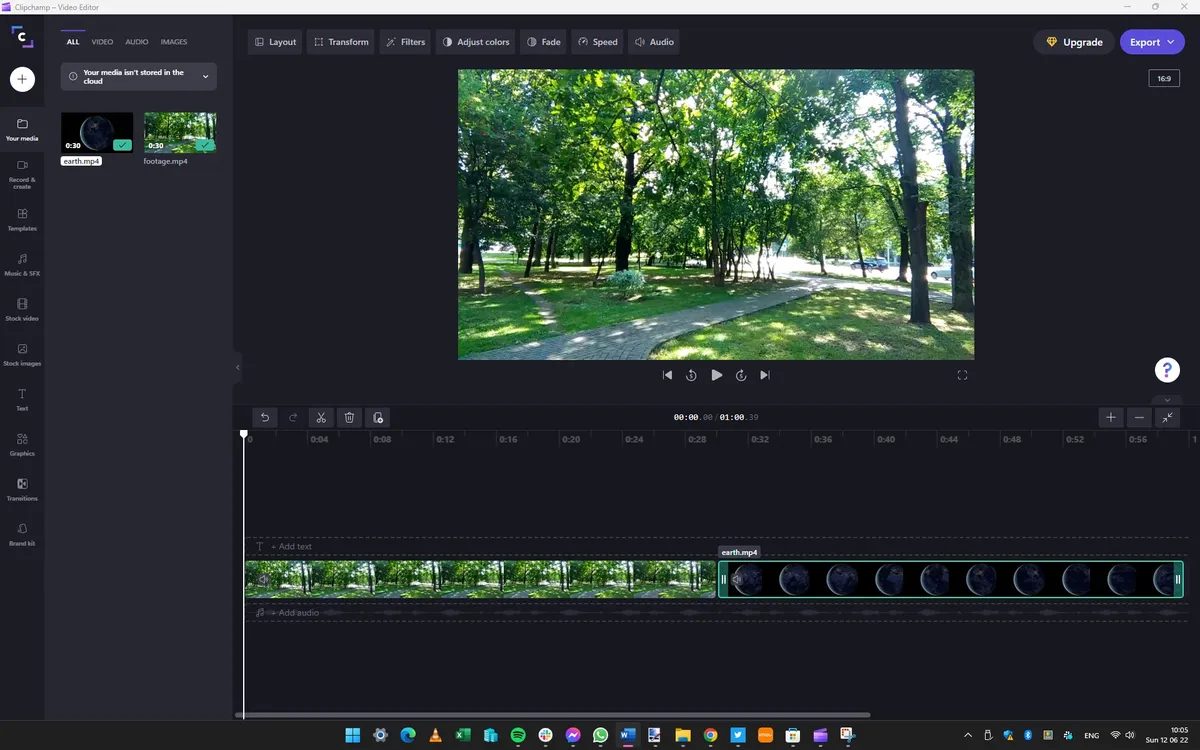
If you edit on a Windows 11 PC, you already have Clipchamp. It’s built into Windows, it’s in the Microsoft Store for Windows 10, and it runs in Chrome or Edge on a Mac, a Linux computer or a Chromebook. A free personal Microsoft account gets you unlimited exports up to 1080p with no watermark, plus AI captions, silence removal and text-to-speech voiceovers. For a CapCut user it’s the softest landing on this list: a simple timeline, templates, a stock library, and a screen and webcam recorder. Your footage stays on your computer, too, since Clipchamp processes media locally unless you turn on its content backup.
Clipchamp has its own version of CapCut’s paywall. Premium stock clips, filters and effects sit next to the free ones, and Clipchamp won’t export a project that contains them until you remove them or upgrade. Premium, which adds 4K export, comes with a Microsoft 365 Personal or Family subscription instead of being sold on its own. On an older computer with less than 8 GB of RAM, you could see slow previews, freezes and crashes.
What it does
- Unlimited free exports up to 1080p with no watermark
- AI captions, silence removal and text-to-speech on the free plan
- Built into Windows 11, and runs in Chrome or Edge on other computers
- Templates, a stock library, and a screen and webcam recorder
Pros
- Free auto captions, which CapCut partly charges for
- Footage is processed on your computer, not uploaded
- Nearly as easy to pick up as CapCut
Cons
- 4K export needs a Microsoft 365 Personal or Family subscription
- Won't export a project with premium stock or effects until you remove them or upgrade
- Can slow down or freeze on computers with less than 8 GB of RAM
- Needs a Microsoft account
#2 3.6/5
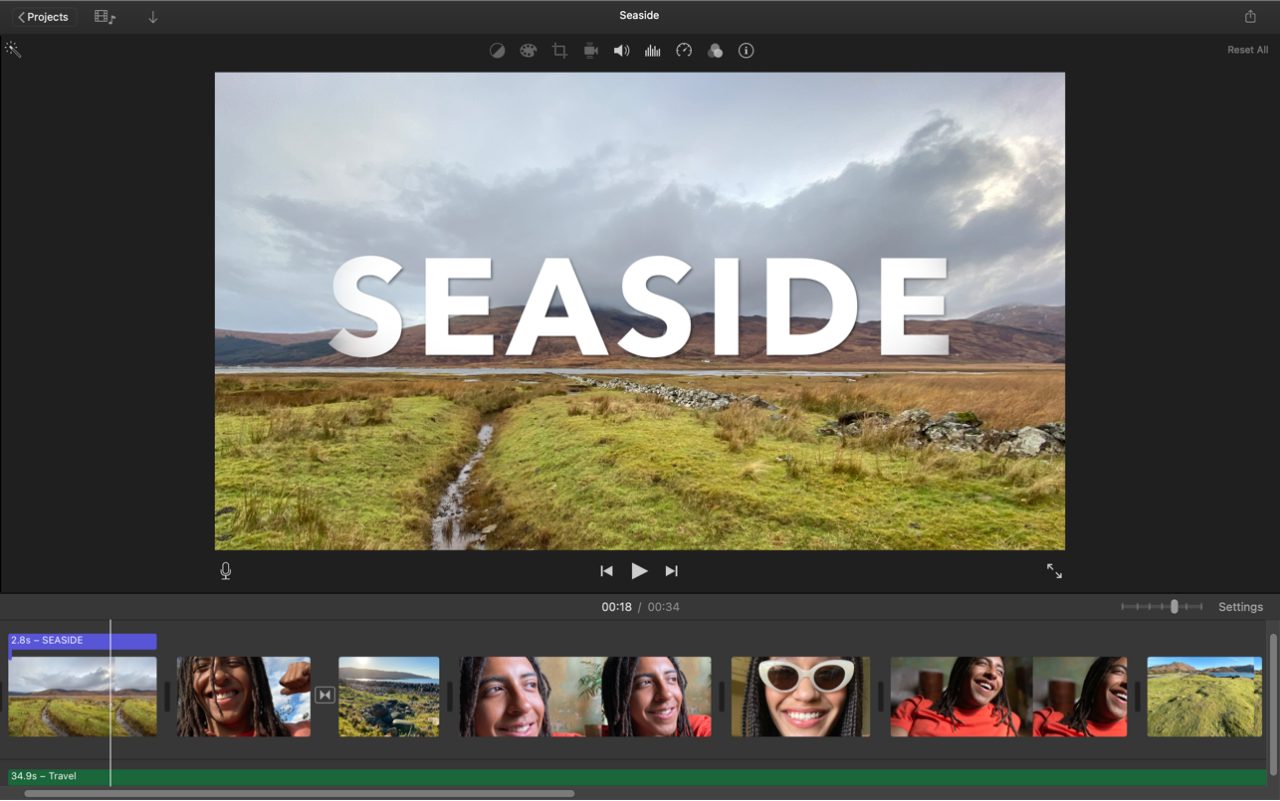
iMovie is CapCut’s opposite on price: nothing in it costs money. Every title, transition, soundtrack and trailer template is free, it exports up to 4K without a watermark, and it often comes preinstalled on Macs, iPhones and iPads (otherwise it’s a free App Store download). You can start a project on your iPhone and finish it on a Mac.
The gaps are the things CapCut users lean on. iMovie doesn’t make automatic captions, it has no keyframes or motion tracking, and its normal projects are widescreen only. On a Mac you can keep a vertical clip vertical through File > New App Preview, which drops some titles and transitions. So iMovie is a poor fit for TikTok-style videos. For family videos, school projects and simple widescreen YouTube uploads, it’s all most people need, and when you outgrow it, your projects open in Final Cut Pro.
What it does
- Simple timeline with titles, transitions, green screen and picture-in-picture
- Trailer templates and built-in music
- 4K export
- Projects move from iPhone or iPad to a Mac, and on to Final Cut Pro
Pros
- Free in full, with no watermark, subscription or paid add-ons
- Easy enough to pick up in a few minutes
- Hands projects to Final Cut Pro if you outgrow it
Cons
- No automatic captions
- Normal projects are widescreen only, so vertical video needs a workaround
- No keyframes or motion tracking
- Runs only on Apple devices
- Skip if:
- You mostly make vertical videos for TikTok, Reels or Shorts.
#4 3.6/5
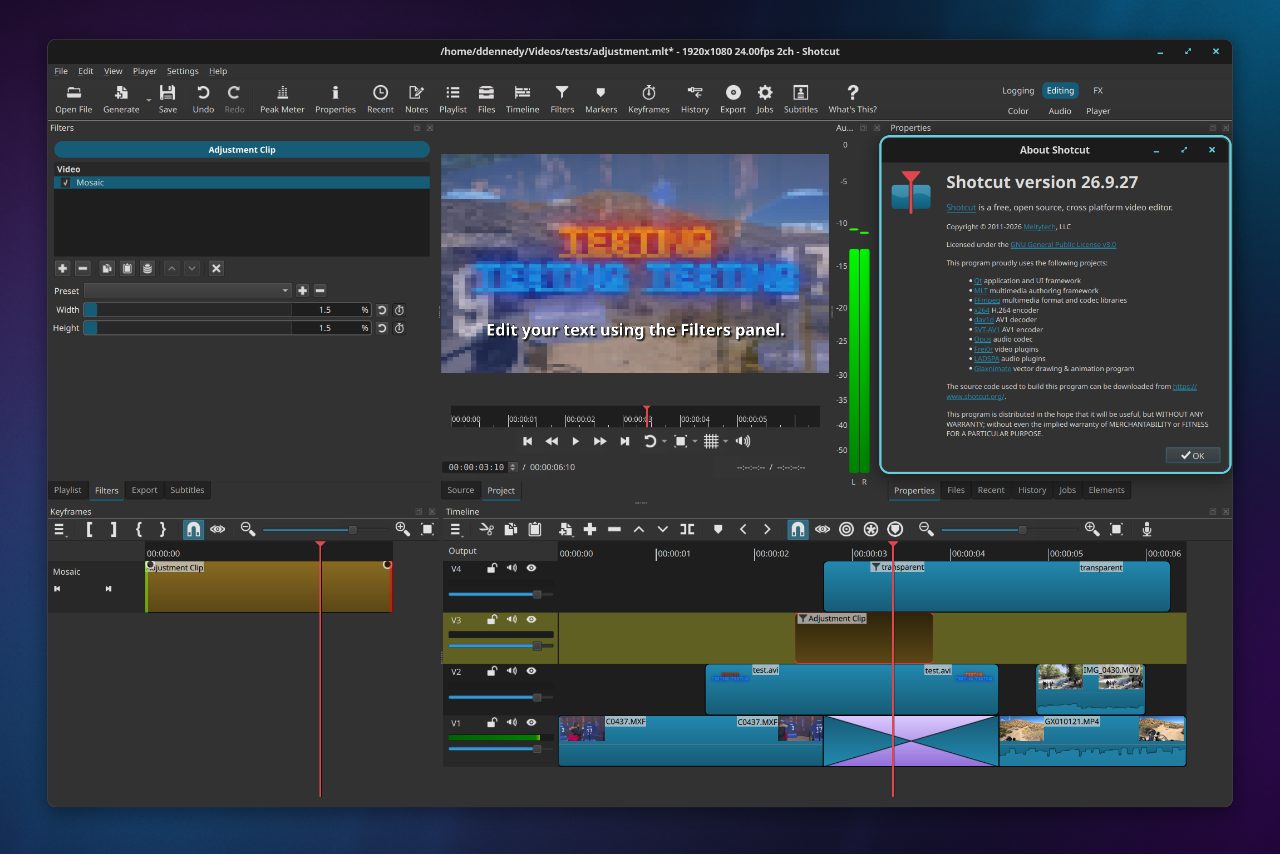
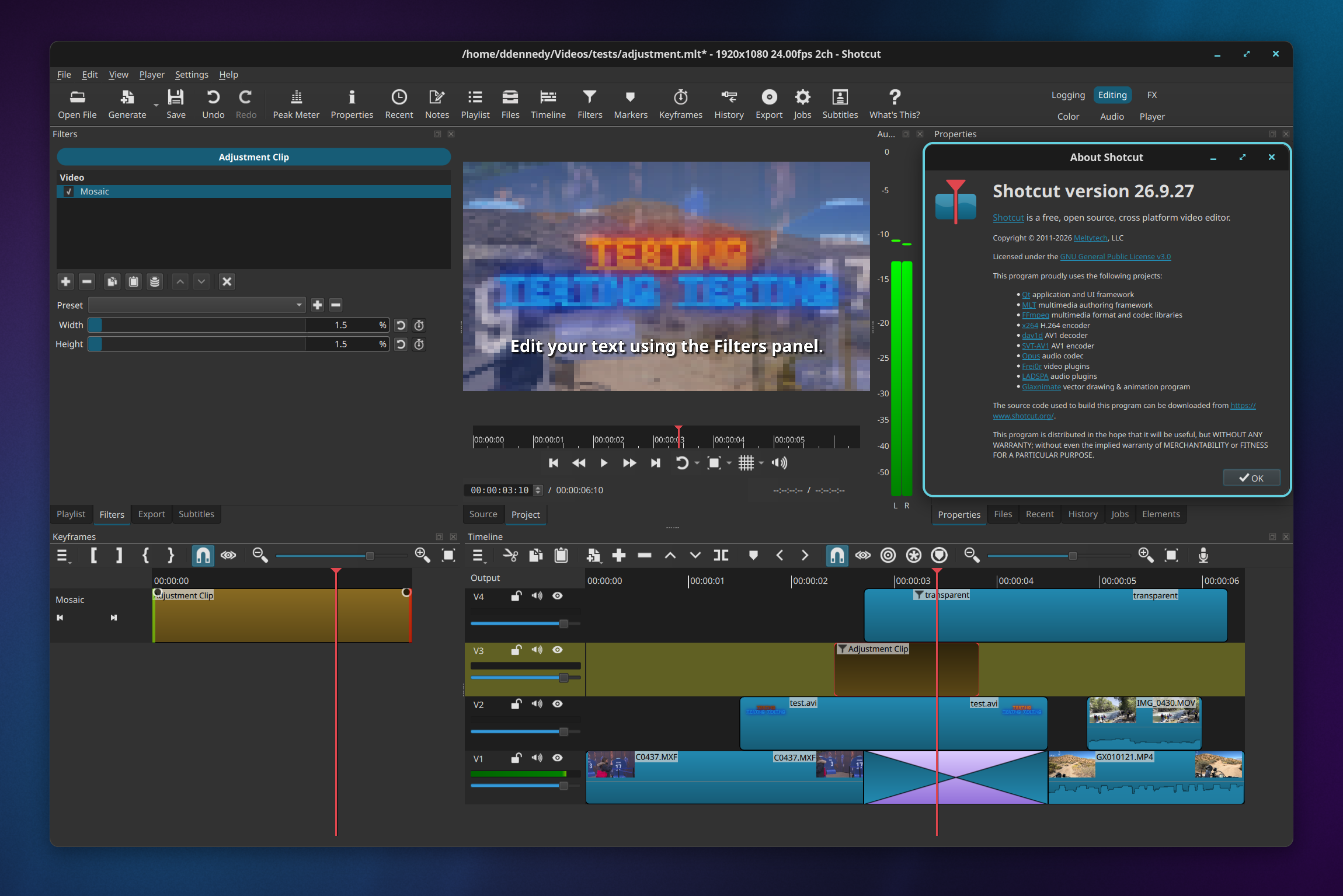
Shotcut asks for some patience up front. Its interface starts out nearly empty, and almost every effect, from color correction to text, is a filter you add from a panel. After CapCut, where you tap a thumbnail to add an effect, that feels slow. Once it clicks, you have a free multitrack editor for Windows, Mac and Linux with keyframes, chroma key, low-resolution editing copies for slower computers, and speech-to-text subtitles that run on your own machine.
Shotcut is open source, needs no account, and doesn’t go online to activate or send usage data. That makes it the cleanest answer here if you left CapCut over privacy or its terms. What you give up is polish: there are no templates, and the built-in library of stickers, sounds and animated text is small, so the look CapCut adds with a tap becomes your own work.
What it does
- Multitrack timeline with keyframes and chroma key
- Speech-to-text subtitles
- Edits low-resolution copies of clips to keep older computers responsive
- Runs on Windows, Mac and Linux, or from an external drive
Pros
- Free and open source, with no paid version
- No account, activation or usage data sent online
- Free automatic subtitles
Cons
- Bare interface that takes time to learn
- Effects and text all work as filters, which is slower to learn than CapCut
- No templates and only a small library of stickers and sounds
- Skip if:
- You want templates that make a video look finished in a few taps.
Editors for long videos and client work
Once a video runs past 15 minutes, with B-roll, music and a couple of audio tracks, CapCut starts to struggle. One Reddit user says every long video they export from the desktop app fails halfway through with an error. The three editors below are built for long, layered projects, they keep projects on your own computer, and none of them is a ByteDance product.
For business and client videos, the music matters as much as the editor. Whichever one you choose, take music for a client video or a monetized channel from a library that licenses it for that use, which CapCut’s built-in sounds don’t.
1–5 per criterion · select a score for its reasoning and any sources
| # | Product | Overall | Speed of cutting a typical YouTube video , counts double | Editing depth and production ceiling | Automatic captions | Voice and audio cleanup | What a growing channel pays | Shorts and vertical video | Learning curve | Smooth on a typical creator's computer | Computers and devices it runs on , counts half |
|---|---|---|---|---|---|---|---|---|---|---|---|
| 1 | DaVinci Resolve 21 | 4.1 | 5 | 5 | 3 | 5 | 4 | 4 | 2 | 3 | 5 |
| 2 | Adobe Premiere | 4.0 | 5 | 5 | 5 | 5 | 2 | 4 | 2 | 3 | 4 |
| 3 | Final Cut Pro for Mac | 3.7 | 4 | 4 | 3 | 4 | 4 | 4 | 3 | 5 | 1 |
| 4 | CapCut | 3.7 | 4 | 3 | 4 | 3 | 3 | 4 | 5 | 3 | 5 |
Equal displayed overall scores are ordered by the earlier criteria; a known score comes before an unknown score. Identical scores use alphabetical order.
×2 = counts double in the overall score, ×½ = counts half.
How each criterion is scored
Speed of cutting a typical YouTube video
Counts double in the overall score: Regular creators edit every week, and the hours a fast editor saves on each video are the main reason they pay for one.
How quickly a creator who posts regularly gets from raw recordings to a finished cut of a typical YouTube video (a talking-head, tutorial, vlog or gaming video of 8 to 30 minutes): trimming and rearranging on the timeline, keyboard-driven editing, removing silences, retakes and filler words, editing by transcript, and smooth playback while cutting. Judged from how each editor's cutting tools work, editors' and reviewers' accounts of everyday speed, and where it slows down for some kinds of video.
- 5 Among the fastest for nearly every YouTube format, combining an efficient timeline with automatic cleanup or transcript editing
- 4 Fast for most YouTube formats, with strong trimming tools and some automatic cleanup such as silence removal or editing by transcript, but slower for some common format
- 3 A conventional timeline with good trimming tools, but little automation for removing pauses, retakes or filler words
- 2 Basic trimming works, but long recordings, b-roll or many cuts take much longer than in the leading editors
- 1 Cutting a normal-length video is slow and fiddly, with few trimming tools and laggy playback
Editing depth and production ceiling
What the editor can do when a channel wants higher production value: unlimited tracks, keyframes, masks and motion tracking, multicam, color correction and grading, motion graphics and titles, audio mixing, and third-party plugins. Judged from the documented feature set of the configuration scored for cost and from professional editors' accounts of where each one runs out.
- 5 Professional depth in editing, color, audio and effects, the tools full-time editors and studios use
- 4 A full editor with multicam, keyframes, masks and good color tools, short of the deepest professional finishing
- 3 Multiple tracks and keyframes, with clear limits in color, multicam, motion graphics or long projects
- 2 A simple timeline or scene-based editor with few tracks or little control over color and motion
- 1 Trim, join, titles and music only
Automatic captions
How well the editor turns speech into captions and subtitles: whether it generates them automatically, how accurate they are, how easily they're corrected, styling and animated caption looks for Shorts, languages, and exporting a caption file such as SRT for YouTube. Scored for the configuration scored for cost; usage limits on that plan count against it. Judged from vendor documentation and third-party tests and reviews.
- 5 Accurate automatic captions in many languages, quick to correct, with animated styles and caption-file export
- 4 Accurate automatic captions with good styling and caption-file export, with one minor gap
- 3 Automatic captions that work, with a clear weakness in accuracy, languages, styling, workflow or caption-file export
- 2 Automatic captions only through a workaround, a credit system that runs out quickly, or with poor accuracy and little styling
- 1 No automatic captions; captions are typed by hand
Voice and audio cleanup
How well the editor makes voice recorded at home sound clean without a separate audio app: one-click speech enhancement or voice isolation, noise and wind removal, leveling dialogue, and lowering music under speech automatically. Scored for the configuration scored for cost. Judged from vendor documentation and reviewers' accounts of results.
- 5 Best-in-class voice cleanup together with full audio mixing tools
- 4 Good one-click voice cleanup plus noise removal and ducking or leveling
- 3 Useful noise reduction or speech enhancement, but little else, or results reviewers call uneven
- 2 A basic noise filter or equalizer presets, with weak results
- 1 Volume and fades only
What a growing channel pays
The total a creator pays over three years for the cheapest plan or edition that exports without a watermark and includes the editor's automatic captions and voice cleanup, at US prices. A one-time price counts once; a subscription counts for three years at its annual-billing price. Free add-ons count; credit packs and stock libraries a typical channel doesn't need are left out.
- 5 Free, or under $150 over three years
- 4 $150 to $350 over three years
- 3 $350 to $600 over three years
- 2 $600 to $900 over three years
- 1 More than $900 over three years
Shorts and vertical video
How easily a creator turns a horizontal video into vertical Shorts, or makes vertical videos from scratch: vertical project formats, automatic reframing that follows the subject, making a vertical version from the same project, finding short clips in a long video, and export presets or direct upload to YouTube. Judged from documented features of the configuration scored for cost and reviewers' accounts.
- 5 Built around vertical video, with automatic reframing, clip-finding and Shorts-ready caption styles
- 4 Automatic reframing to vertical from the same project, with presets or direct upload
- 3 Vertical projects with a manual reframing tool or one automatic reframe that often needs fixing
- 2 Vertical projects or exports possible, but no reframing help; each Short is rebuilt by hand
- 1 No vertical projects; vertical video needs a workaround
Learning curve
How quickly a creator who has made a few videos becomes productive: how clear the layout is, how much editing vocabulary it assumes, and whether common YouTube tasks are easy to find. Judged from reviewers' and many users' accounts of learning it.
- 5 About as easy as video editing gets; common tasks work without instructions
- 4 Approachable; most creators edit a full video in their first session with some looking around
- 3 A real learning curve of a few sessions, or an unusual editing model that takes adjusting to
- 2 A professional tool with a steep start; most creators need weeks of tutorials to edit quickly
- 1 Confusing even with tutorials; most creators give up or need a course
Smooth on a typical creator's computer
Whether the editor plays back and exports smoothly and stays stable on the computer a growing creator usually has, such as a recent laptop or desktop with 16 GB of memory and camera or phone footage in H.264 or HEVC, without making proxies first. Judged from official requirements, the hardware decoding the configuration uses, and users' accounts of lag and crashes.
- 5 Smooth and stable on almost any recent computer, even with long 4K projects
- 4 Smooth for typical projects, with slowdowns only on heavy ones
- 3 Works on a typical computer with lag on long or high-resolution projects, or occasional crashes
- 2 Needs proxies or more hardware than a typical creator has, or users widely report crashes or lag
- 1 Unusable without a powerful computer, or crashes often enough to lose work
Computers and devices it runs on
Counts half in the overall score: Most creators already own the computer they edit on and only need the editor to run there, which the text says for each product.
Which computers a creator can edit on with the same projects: Windows, Mac and Linux, plus browser or phone apps that open the same projects. Judged from the vendor's supported platforms for the configuration scored for cost.
- 5 Windows and Mac, plus Linux, a browser or phone apps that open the same projects
- 4 Windows and Mac with the same features
- 3 Windows and Mac, with features missing or delayed on one of them
- 2 One operating system, plus a separate app on another device that can only send projects one way
- 1 One operating system only
DaVinci Resolve 21
Best free editor for long, layered videos
Ranking: Free video editors for beginners
#3 3.6/5
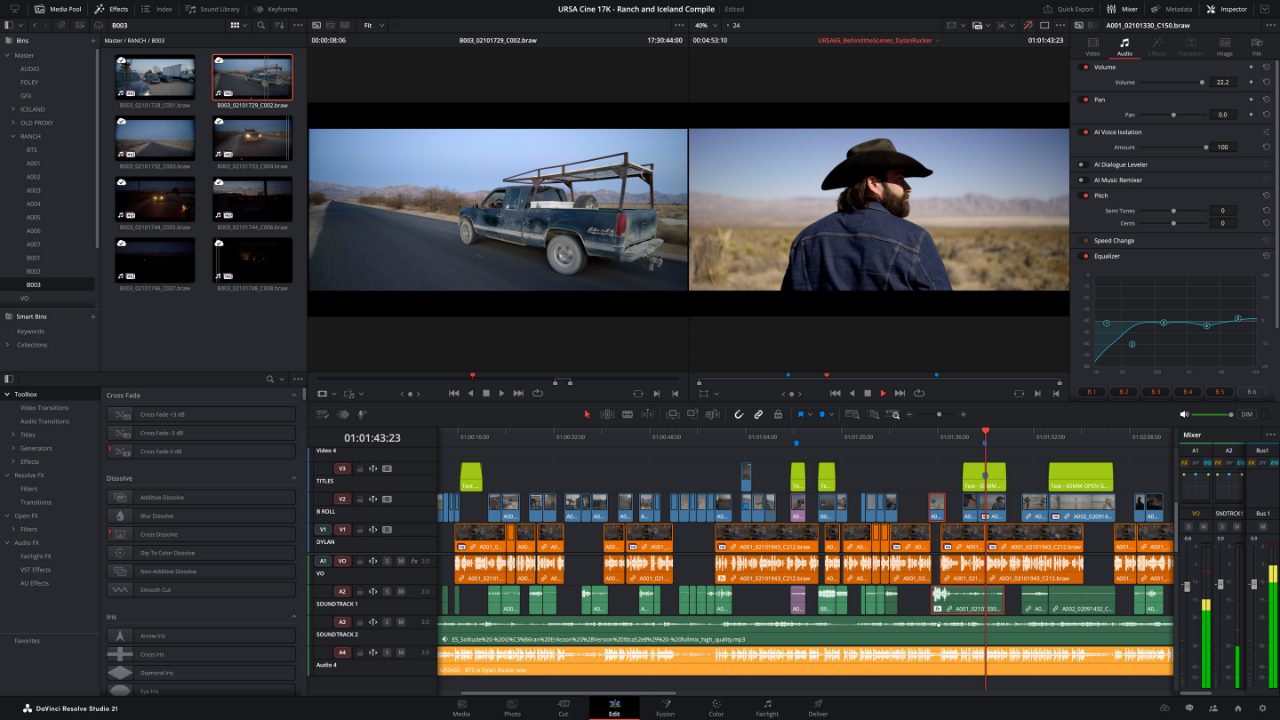
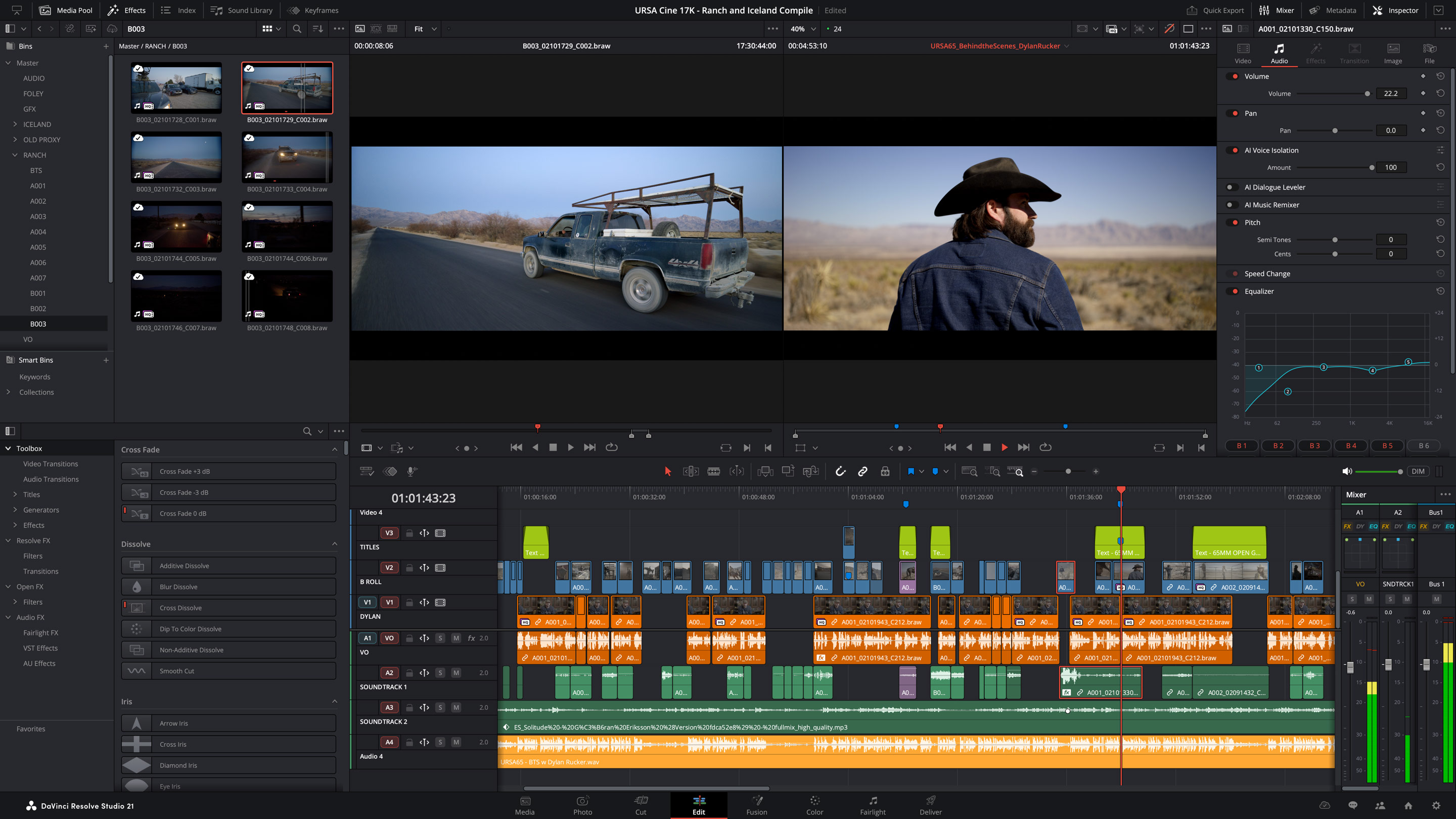
DaVinci Resolve comes in a free edition and a paid Studio edition, and the line between them works much like CapCut’s: you can try a Studio-only effect in the free version, but it puts a watermark on the export. The difference is where the line falls and what crossing it costs. The free edition already covers a full editing timeline, color grading, motion graphics and audio mixing, with exports up to 4K Ultra HD at 60 fps. Studio costs $295 once, with free updates. The Studio-only tools a CapCut user will miss most are subtitles from audio, noise reduction and voice isolation.
Resolve’s Cut page is built for quick edits, but the rest of the app is a professional tool, and you’ll lean on tutorials at first. It also wants a capable computer: 16 GB of RAM on Windows, and on a Mac, Apple silicon only. Phone footage recorded in H.264 or H.265 often plays back choppily until you make proxies, lighter copies of your clips that Resolve edits in their place. If you’re willing to learn it, it’s the strongest free editor here for long videos.
What it does
- Editing, color grading, motion graphics and audio mixing in one app
- Cut page for fast edits, and Edit page for a full track timeline
- Free exports up to 4K at 60 fps
- Shared projects for teams through Blackmagic Cloud
Pros
- Free edition with no watermark on its own tools
- Studio is a one-time purchase with free updates
- Color and audio tools far beyond CapCut's
- Runs on Windows, Mac and Linux
Cons
- Steep learning curve once you leave the Cut page
- Auto subtitles, noise reduction and voice isolation need Studio
- Needs a strong computer, and phone footage may need proxies to play smoothly
- Skip if:
- You edit on an older laptop or an Intel Mac.
#3 3.7/5
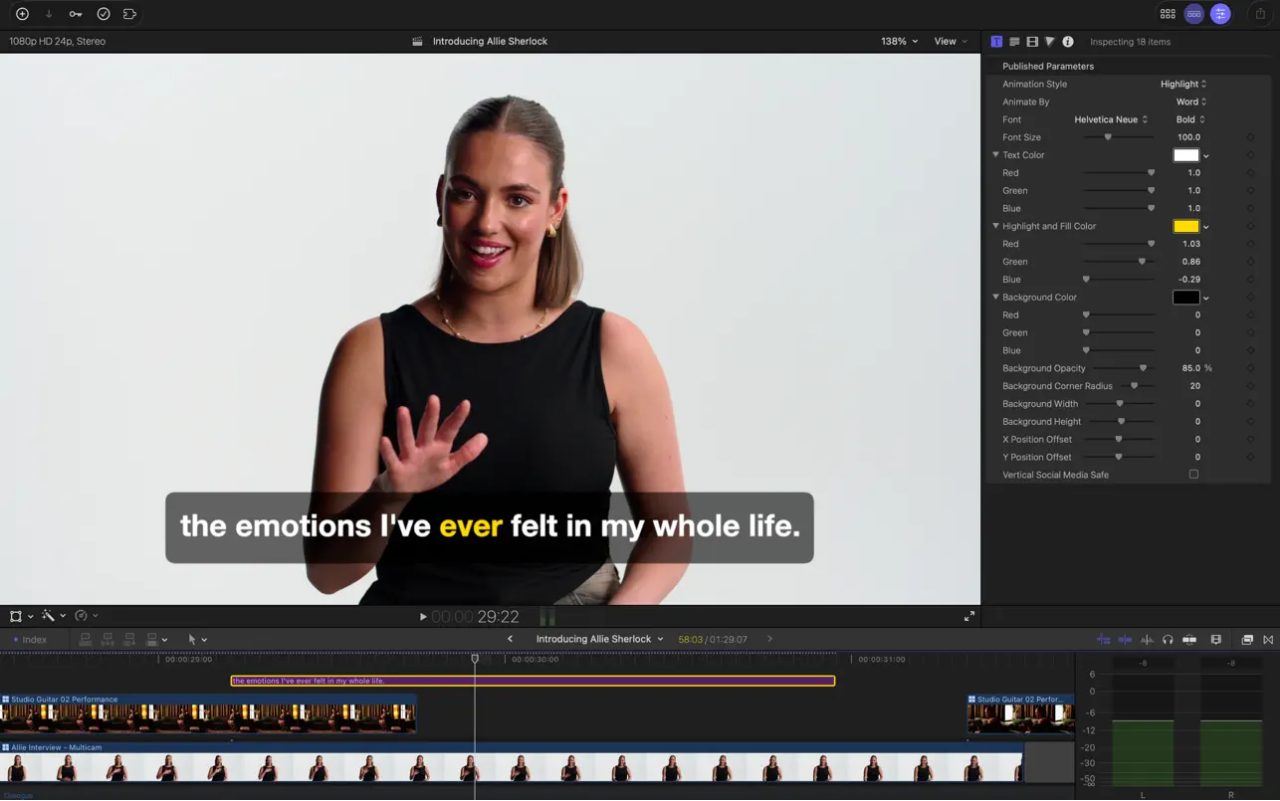
On a Mac, I think Final Cut Pro is the most pleasant step up from CapCut. It’s fast: in published export tests on Apple silicon, it finishes at or near the top. Its AI features, automatic captions and Voice Isolation included, run on the Mac rather than in the cloud, and Smart Conform reframes a widescreen edit into vertical or square versions. Its magnetic timeline snaps clips together and keeps them in sync as you trim, a lot like CapCut’s main track. Editors used to track-based timelines, such as Premiere’s, often find that jarring at first.
Final Cut Pro costs $299.99 once, with free updates. It also comes with Apple Creator Studio, a subscription that adds Final Cut Pro for iPad, Logic Pro and Pixelmator Pro, but subscribers can open their projects only while they keep paying. If you’ll edit for years, the one-time purchase is the safer buy.
What it does
- Magnetic timeline that keeps clips in sync as you trim
- Automatic captions and Voice Isolation that run on the Mac
- Smart Conform for vertical and square versions
- Opens iMovie projects
Pros
- One-time purchase with free updates
- Among the fastest exporters on Apple silicon Macs
- AI features work without uploading footage
Cons
- Mac only, and the iPad version is subscription only
- The magnetic timeline feels strange if you've used track-based editors
- Creator Studio subscribers can open projects only while subscribed
- Skip if:
- You edit on Windows or share projects with people who do.
#2 4.0/5
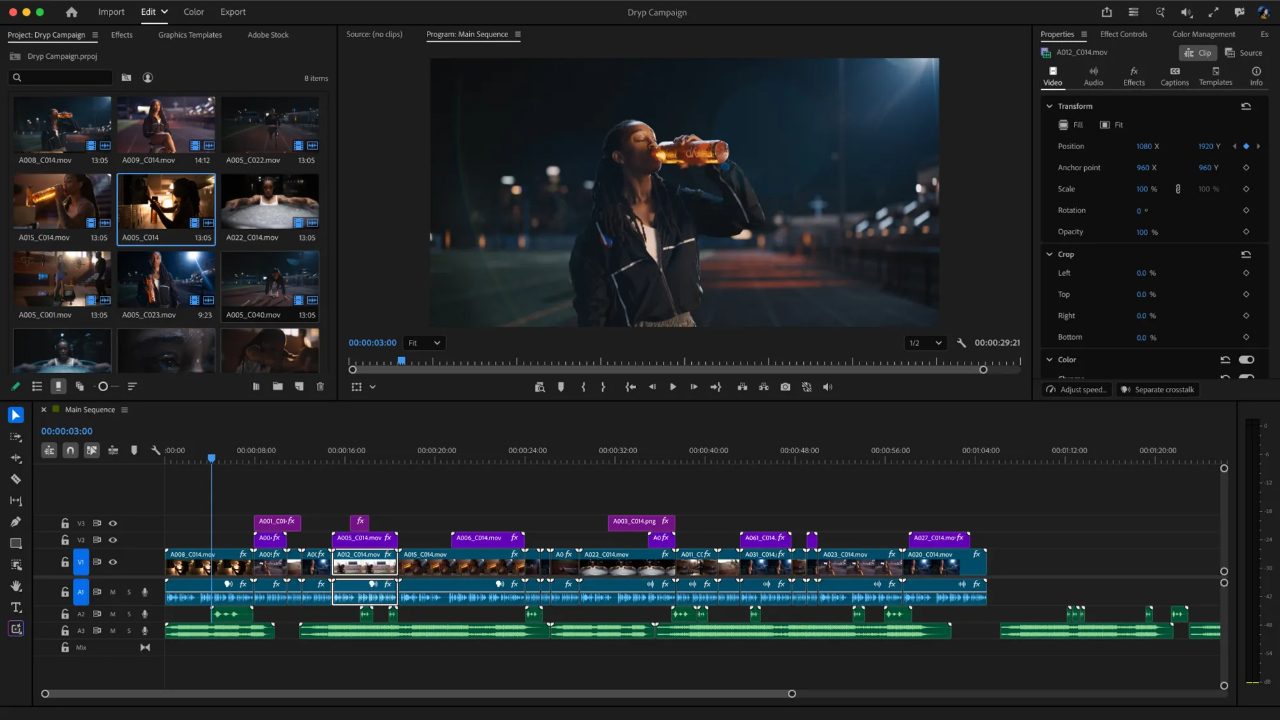
Premiere Pro costs money every month, and that’s the main reason to pick DaVinci Resolve over it. What the subscription buys is the smoothest set of tools for speech-heavy and professional work. Text-based editing lets you cut a video by deleting lines from its automatic transcript. Enhance Speech rescues poorly recorded dialogue, and you also get automatic captions, multicam editing, and Auto Reframe for vertical versions. It works directly with After Effects and Photoshop, and Team Projects lets several editors share one project.
It’s sold only as a subscription, at $22.99 a month on an annual plan, after a 7-day free trial. It takes longer to learn than CapCut, and on a Mac it exports more slowly than Final Cut Pro or Resolve. If you mostly edit social videos on a phone, Adobe also makes a free Premiere app for iPhone and Android, a separate and much simpler editor.
What it does
- Text-based editing from an automatic transcript
- Automatic captions and Enhance Speech
- Multicam editing and Auto Reframe
- Team Projects, plus links to After Effects and Photoshop
Pros
- Text-based editing and Enhance Speech speed up interviews and talking-head videos
- Handles projects with dozens of video, graphics and audio layers
- Runs on both Windows and Mac
Cons
- Subscription only, with no way to buy it once
- Exports more slowly than Final Cut Pro or DaVinci Resolve on a Mac
- Takes longer to learn than CapCut
- Skip if:
- You won't pay for software every month.
For short social videos and talking-head clips
Not everyone leaving CapCut wants a bigger editor. If you make Reels, TikToks and Shorts, or videos that are mostly you talking to the camera, the choice is narrower, and for a lot of phone editors, CapCut is still the right one.
#1 3.9/5
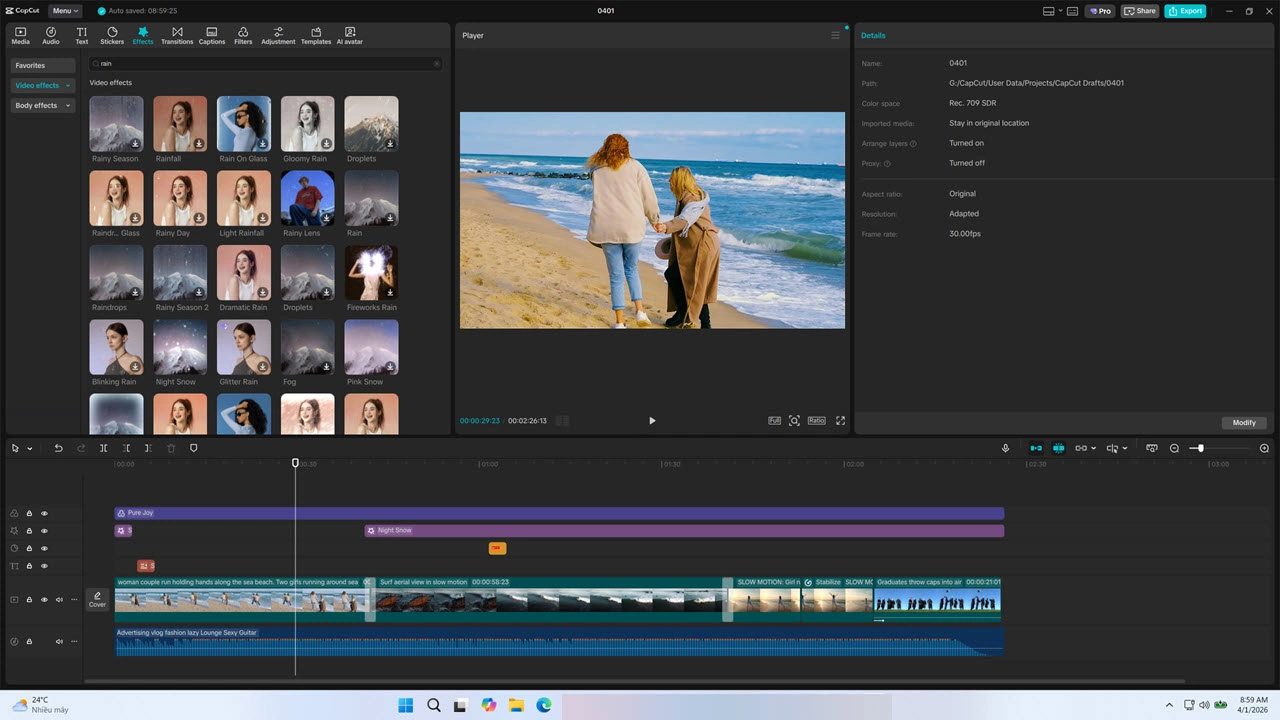
Picture the typical CapCut video: shot on a phone, cut on the phone with a trending template and animated captions, and posted to TikTok within the hour. For that, nothing on this list beats it. It’s the easiest editor here to learn, projects sync between the phone, desktop and web apps, and TikTok’s “Use template” links open straight into the phone app. The free plan stays useful if you avoid anything marked Pro and delete the CapCut logo clip that many templates add at the end.
If auto captions and premium templates are most of your workflow, Pro may simply be the cost of staying.
What it does
- Templates, effects and animated auto captions
- Phone, desktop and web apps with project sync
- Multitrack desktop timeline with keyframes
- One-click sharing to TikTok and YouTube
Pros
- Easiest editor here to learn
- Free exports carry no watermark when a project uses no Pro items
- Edits on a phone as well as on a computer
Cons
- One Pro item in a project blocks a watermark-free export
- Some auto caption features need Pro
- Built-in sounds are cleared for business use only on CapCut and TikTok
- The timeline gets cramped on long projects with many tracks
Wondershare Filmora
CapCut's effects-first style for less than CapCut Pro
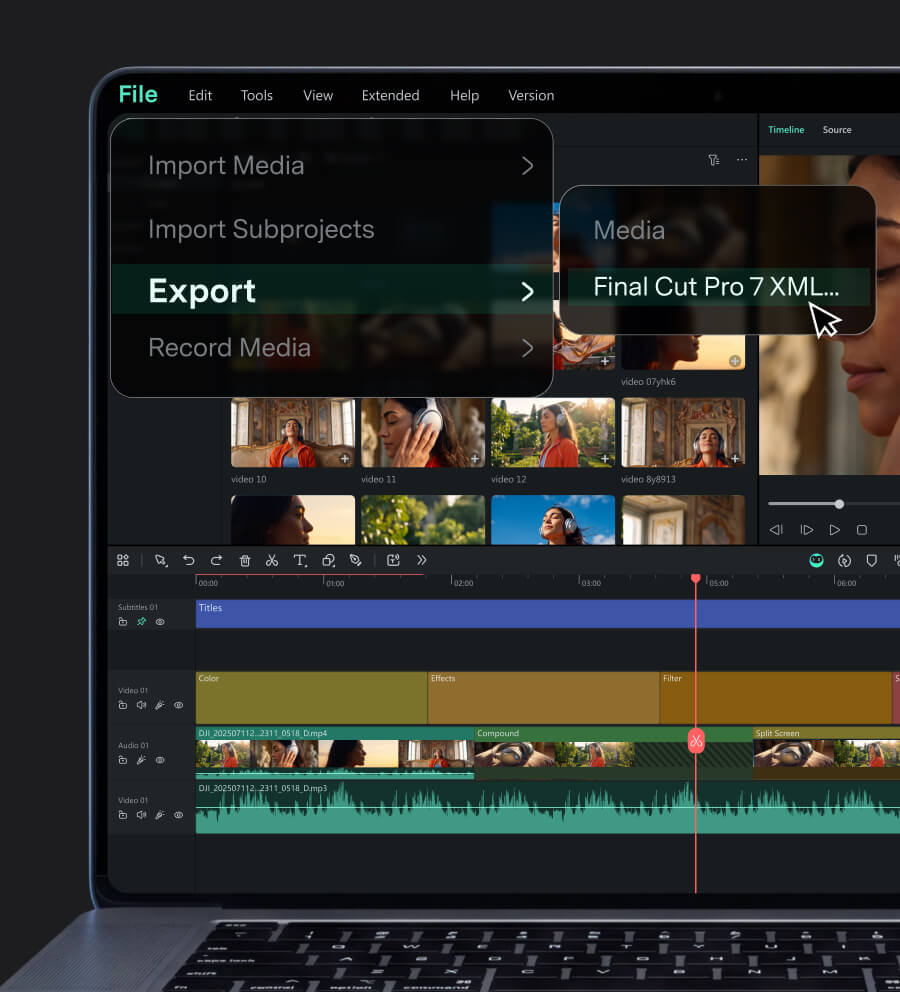
On a computer, Filmora is the editor most like CapCut: a big library of effects, transitions and stickers, AI tools for silence removal, captions and short clips, plus phone apps. It comes from Wondershare, not ByteDance. Its free version watermarks every export, though, so Filmora only makes sense if you’ll pay. Then it’s cheap. The Basic plan costs $49.99 a year for watermark-free 4K export on both Windows and Mac, less than a third of CapCut Pro’s yearly price. A perpetual license costs $79.99 and covers updates within the current major version only.
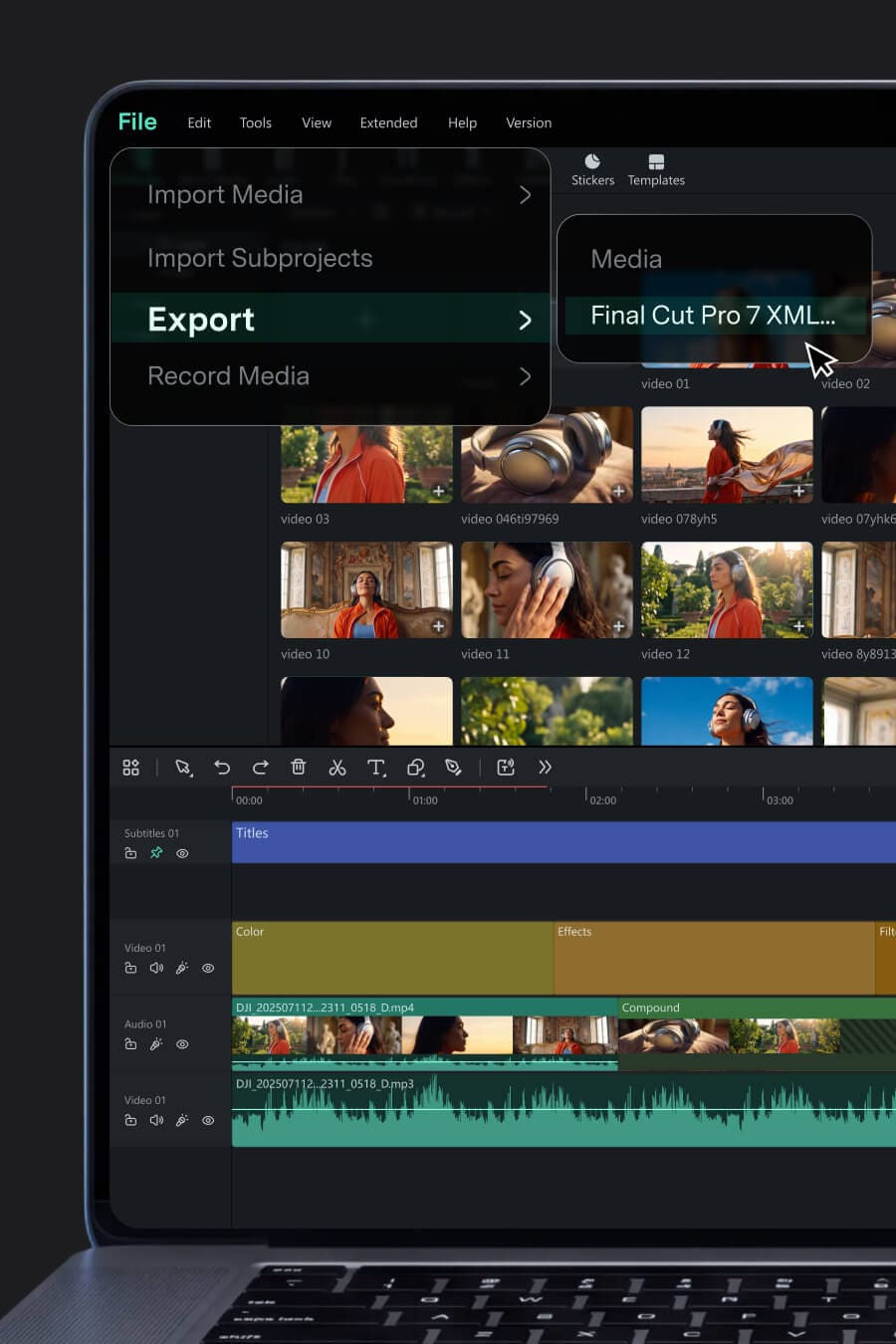
Credits are the part I like least. Many AI tools, speech-to-text captions and Smart Short Clips included, spend AI credits, and Basic includes none each month, so you buy them or move up to the Advanced plan. Filmora can also export a timeline as XML for Premiere, Resolve or Final Cut Pro, which CapCut can’t, so it’s easier to leave later.
What it does
- Effects, transitions and stock library much like CapCut's
- AI silence removal, speech-to-text captions and Smart Short Clips
- Keyframes and motion tracking
- Timeline XML export for Premiere, Resolve and Final Cut Pro
Pros
- Watermark-free 4K export for much less than CapCut Pro
- One subscription covers both Windows and Mac
- Exports timelines to other editors
Cons
- The free version watermarks every export
- Many AI tools cost credits, and the Basic plan includes none each month
- Busy interface for a first-time editor
Descript
For talking-head videos you'd rather edit as text
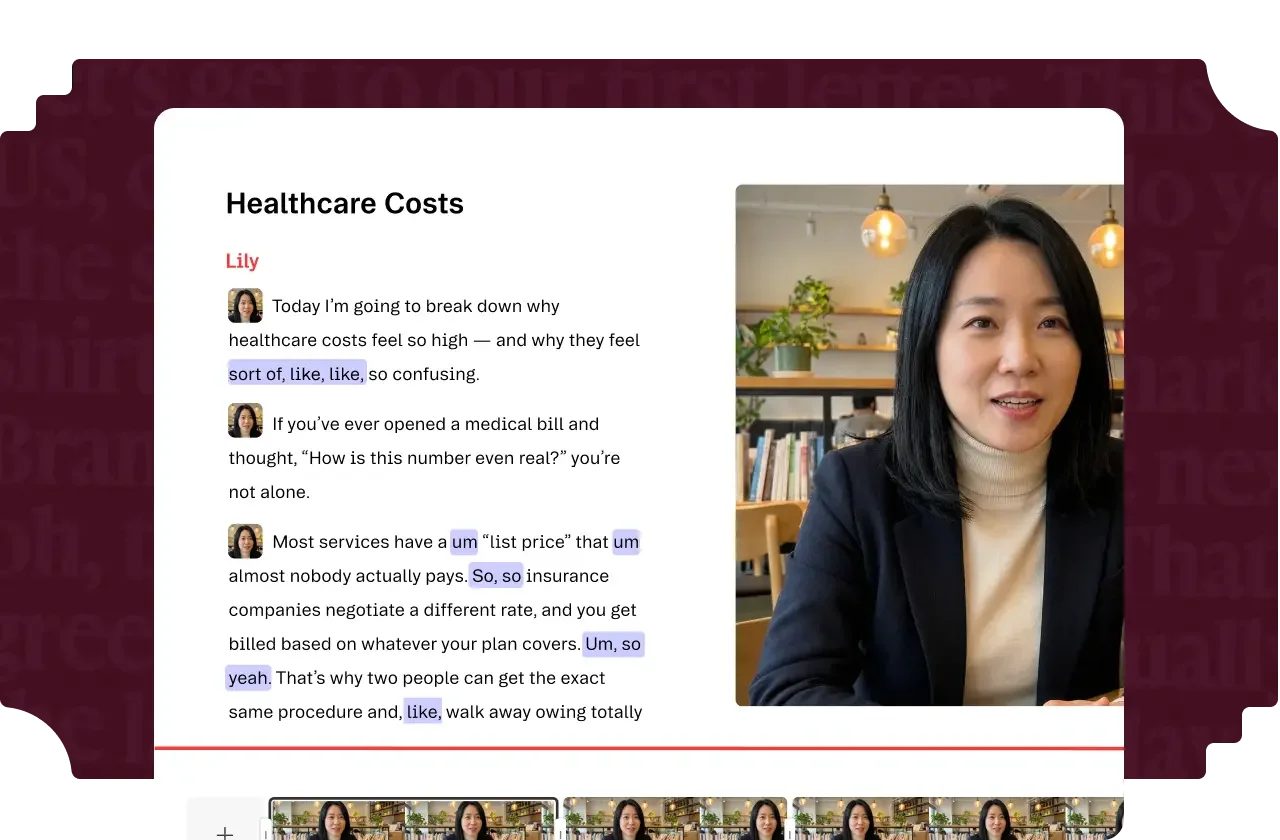
Descript is built around the transcript. It transcribes your recording, and you edit the video by editing the text: delete a sentence and the clip goes with it, and one click removes ums, uhs and long pauses. Studio Sound removes background noise and evens out speech, and animated captions come from the same transcript. Premiere has text-based editing too, but in Descript the transcript is the main way you work, and there’s far less else to learn. For a talking-head YouTube video, a podcast or a tutorial, I think that’s the fastest way to a finished cut.
The Hobbyist plan costs $16 a month billed annually, or $24 a month on monthly billing, for 10 media hours a month (the length of everything you upload or record) and 1080p export. The free plan is a demo, with watermarked 720p exports. Descript is weak at what CapCut does well: effects, color and heavily layered edits. It also needs an internet connection.
What it does
- Edit video by editing its transcript
- One-click removal of filler words and pauses
- Studio Sound audio cleanup
- Animated captions and SRT caption export
- Desktop apps for Windows and Mac, plus a browser version
Pros
- Fastest way here to cut a talking-head video
- Captions and audio cleanup come from the same transcript
- Easy to learn if you can edit a document
Cons
- Free plan exports watermarked 720p video
- The Hobbyist plan allows 10 hours of uploaded or recorded media a month
- Weak on effects, color and layered edits
- Needs an internet connection
- Skip if:
- Your videos are mostly B-roll and music rather than speech.
Where to go depends on what pushed you. If it’s the paywall and you edit on a computer, Clipchamp on Windows covers most of what CapCut does for free. iMovie on a Mac costs nothing at all but gives up captions and vertical video, and Shotcut suits you if you’d also rather not have an account. If your videos are getting longer, DaVinci Resolve is free and leaves room to grow, and Final Cut Pro is the easier Mac choice if you’ll pay once. Premiere earns its subscription when its speech tools and the other Adobe apps save you hours.
If the terms or the music rules are the problem, an editor that works on files on your own computer, such as DaVinci Resolve, Final Cut Pro or Shotcut, fixes the first, and music you license yourself fixes the second. And if you edit short videos on your phone, skip the Pro items and keep using CapCut.
Also considered
- Kdenlive: Free and open source like Shotcut, with automatic subtitles from speech and no accounts or watermarks. Its more traditional editor layout suits you if Shotcut’s filter panels don’t click.
- Canva: It has plenty of templates for social videos, but its free plan works like CapCut’s, since paid elements block a watermark-free export. Its timeline is also simpler than CapCut’s.
- PowerDirector: A Windows-first editor with multicam, motion tracking and AI captions, sold as a subscription or a one-time purchase. Its Mac version is a separate subscription and lags the Windows one in features.






Frequently asked questions
Can I move my CapCut projects to another editor?
Not as an editable project. CapCut has no XML, AAF or EDL export, the formats other editors read to rebuild a timeline, so you bring your original clips across and recreate the cut. Finish projects you’re in the middle of before you switch, and keep a high-quality export of finished videos you may want to reuse.
Can I use CapCut music in YouTube videos?
Only in personal, non-commercial videos. A sponsored video or one that promotes a business doesn’t qualify, and a monetized channel probably doesn’t either. Tracks CapCut marks for commercial use are cleared only for CapCut, TikTok and TikTok for Business, not YouTube or Instagram. YouTube’s own Audio Library or a stock music service is the safer source.
Is there a free CapCut alternative for iPhone or Android?
The choice is thin on a phone. VN Video Editor is the closest match: it’s free with no watermark, and it has multiple layers, keyframes and automatic subtitles on iPhone and Android, with apps for Mac and Windows too. Adobe’s free Premiere app for iPhone and Android is another option for social videos. iMovie is free on iPhone, but it isn’t built for vertical video.
We scored 7 products on 16 criteria using 147 quotes, 71 of them from the products' own websites. How our rankings work