Best video editing software for YouTube
Adobe Premiere is the best-known editor for YouTube, and it costs $22.99 a month on a yearly commitment. DaVinci Resolve is free, and its paid Studio edition is a single $295 payment with free updates. Over three years, that’s about $828 against $295, for two editors that cut a talking-head video equally fast.
Price isn’t the only thing that separates them, though. A creator who posts every week cares about four jobs more than anything else: cutting out the pauses and retakes, adding captions, making a voice recorded in a spare room sound clean, and turning the long video into Shorts. Every editor below can export 4K video on some plan. They differ in how much of that weekly work they do for you, and what they charge for it.
The short answer: for most creators, DaVinci Resolve is the best video editing software for YouTube. Start on the free version, and buy Studio once you want automatic captions and voice isolation. On a Mac, Final Cut Pro is the smoother, simpler pick. If you mostly make Shorts, CapCut is quicker. And if you plan to hire editors, Premiere is the one they’ll know.
If you haven’t edited before and want to stay free for now, our guide to the best free video editors for beginners is the better starting point.
What each one costs a working channel
Most of these editors put automatic captions or voice cleanup in a paid tier, so the useful comparison is the cheapest plan that includes both and exports without a watermark. Here’s that plan for each one, with what it adds up to over three years.
| Editor | Plan to buy | Price (as of November 2026) | Over 3 years |
|---|---|---|---|
| DaVinci Resolve | Studio | $295 once | $295 |
| Premiere | Single app | $22.99/month, yearly commitment | $828 |
| PowerDirector | 365 (Windows) | $79.99/year | $240 |
| Final Cut Pro | Mac App Store | $299.99 once | $300 |
| CapCut | Pro | $179.99/year | $540 |
| Filmora | Advanced | $59.99 to $69.99/year | $180 to $210 |
| Descript | Hobbyist | $192/year | $576 |
| Camtasia | Essentials | $179.88/year | $540 |
PowerDirector and Filmora have the lowest three-year prices among the paid options here, but both charge for automatic captions in AI credits, a monthly allowance that runs out. Resolve and Final Cut Pro don’t meter anything once you’ve paid.

DaVinci Resolve 21
Best overall, and free to start
#1 4.1/5
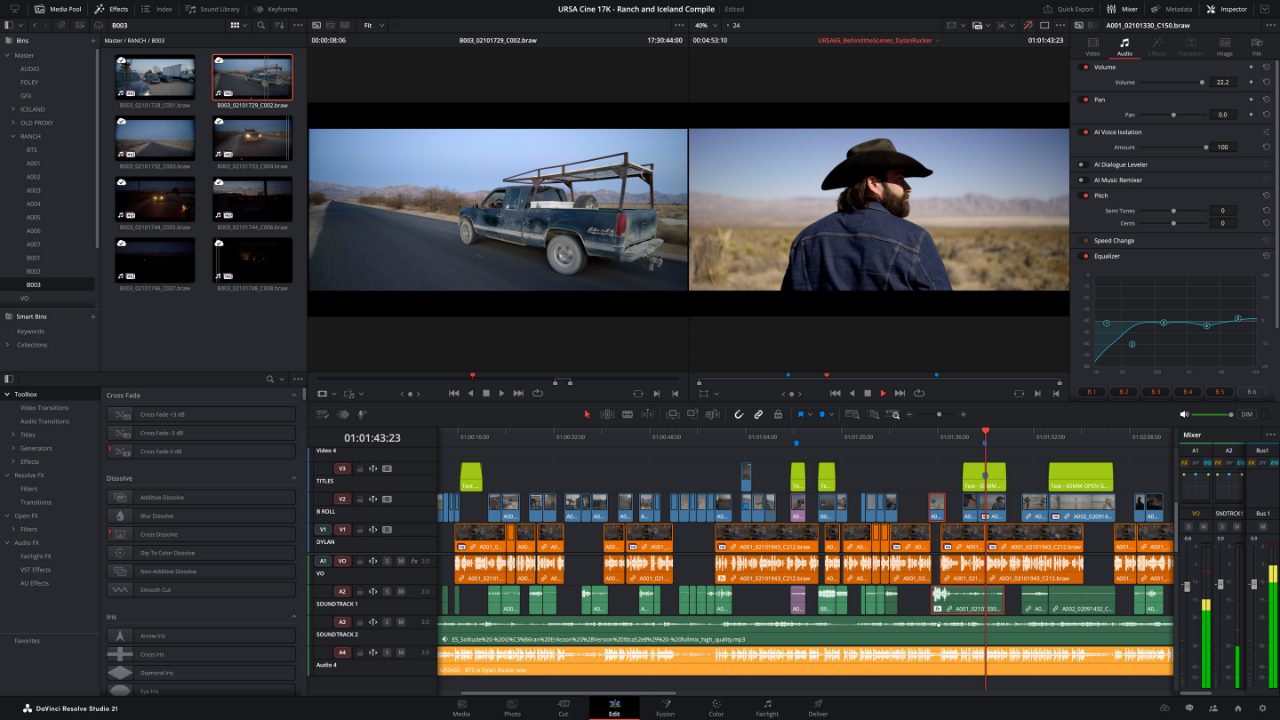
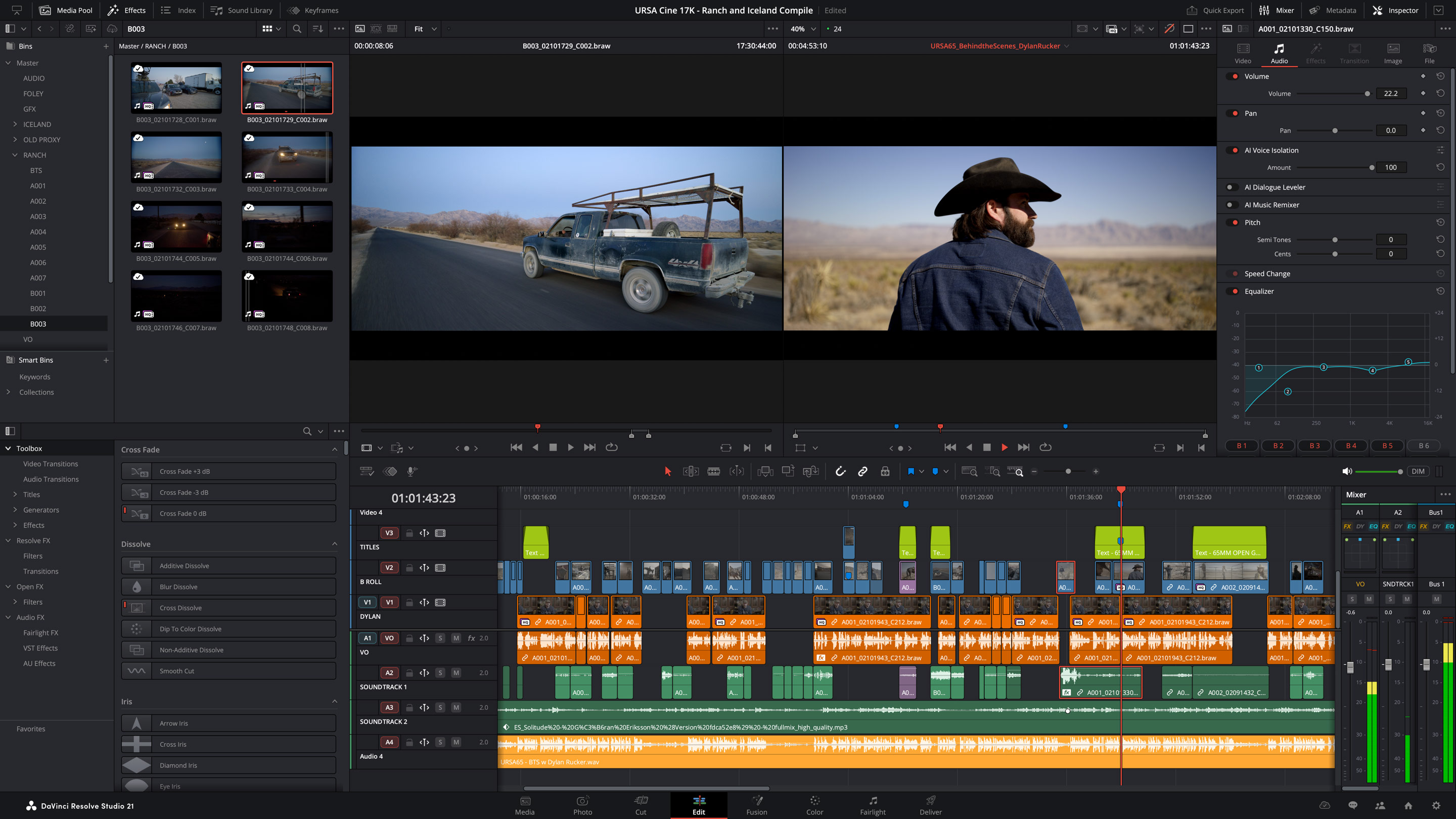
DaVinci Resolve suits the creator who wants one editor for the long haul and doesn’t want to rent it. It’s a full professional suite, with editing, color grading, effects and a complete audio mixer in one app, from Blackmagic Design. The free version is the same editor with a few features reserved for Studio, and it’s good enough that many channels never pay.
For a weekly YouTuber, those reserved features are the ones that save time. Studio, the $295 edition, adds editing by transcript, automatic removal of silences, automatic subtitles from speech, and Voice Isolation, which strips room noise and echo from a voice track. Studio also uses your graphics card to decode the H.264 and H.265 video that phones and most cameras record, so scrubbing through a long recording is much smoother. Without hardware decoding in the free version, you may need to make proxy files (lighter copies of the footage) before editing. The free version also caps exports at 4K and 60 fps, which is no limit for YouTube.
The trade-off is the learning curve. Resolve has separate pages for cutting, editing, color, effects, audio and export, and it assumes you’ll learn its vocabulary. Its Cut page is a stripped-down timeline built for fast edits, and it’s the right place to start. It also needs a capable computer: 16 GB of memory on Windows, and a graphics card helps a lot. Captions are its weakest feature. In trainer Larry Jordan’s side-by-side caption test of Resolve, Premiere and Final Cut, Resolve’s captions were accurate but the slowest to generate, and he called the workflow “atrocious”.
What it does
- Editing, color grading, effects and a full audio mixer in one app
- Free version with no watermark and 4K export
- Studio adds transcript editing, silence removal, automatic subtitles and Voice Isolation
- Runs on Windows, Mac and Linux
Pros
- The most capable free editor, with a one-time upgrade instead of a subscription
- Professional color and audio tools, so the channel never outgrows it
- Studio's voice cleanup rescues audio recorded in an ordinary room
Cons
- Steep to learn; expect weeks of tutorials before you're quick
- Automatic captions need Studio, and the caption workflow is clumsy
- Needs 16 GB of memory on Windows and is happiest with a dedicated graphics card
- Choose if:
- You want to pay once, or not at all, and grow into a professional editor
- Skip if:
- Your laptop has 8 GB of memory and no graphics card

Adobe Premiere
The standard, if you'll hire editors
#2 4.0/5
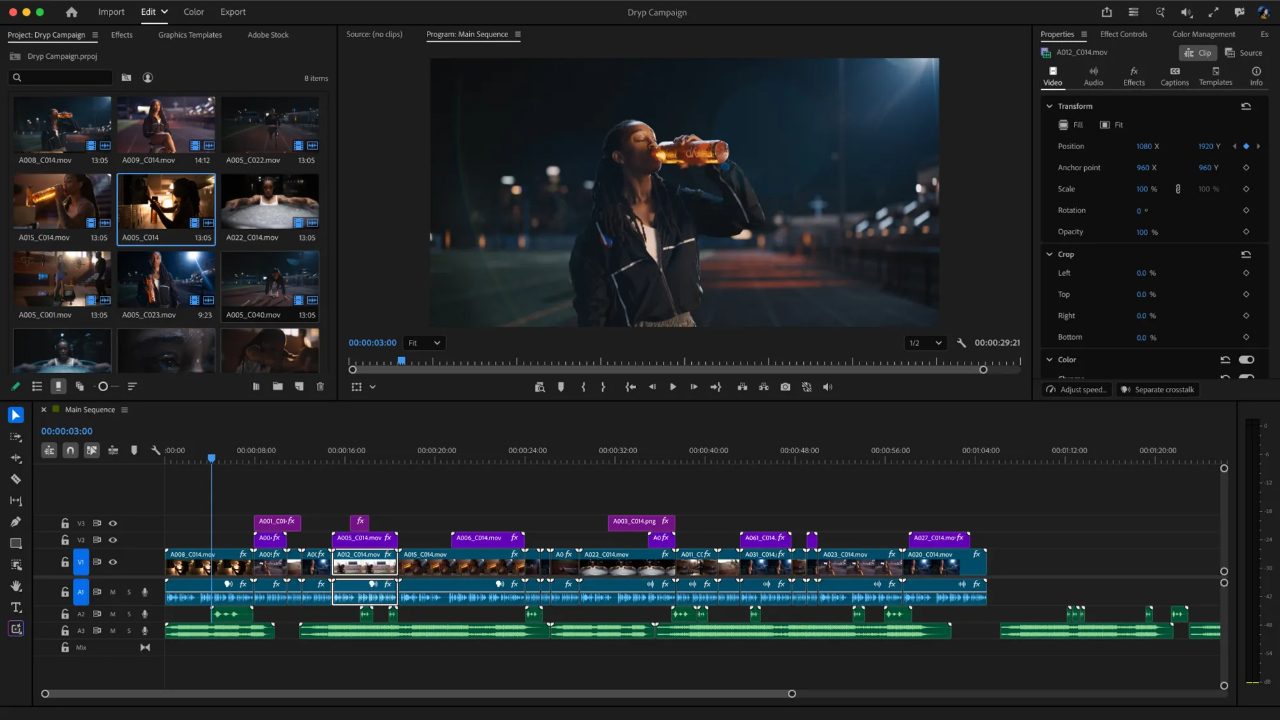
Premiere (Adobe dropped the “Pro” from its name, though nearly everyone still uses it) is the editor most YouTube tutorials, templates and freelance editors assume. That’s its biggest advantage. If you plan to hand footage to a freelancer, buy motion graphics templates, or work alongside After Effects and Photoshop, Premiere gives you fewer compatibility problems than a less common editor.
For cutting talking-head videos, it’s as quick as Resolve Studio. You can transcribe a recording and cut it by deleting words, and remove pauses and filler words in bulk. Enhance Speech cleans up a voice in one click, the audio panel ducks music under speech automatically, and Auto Reframe turns a horizontal edit into a vertical one. Its captions are the best of the professional editors: Larry Jordan’s test found them the most accurate and the easiest to correct, and they export as an SRT file you can upload to YouTube.
The downsides are the price and its demands on your computer. The subscription is the most expensive here over three years, and there’s no free desktop version, just a 7-day trial. Premiere is also heavy on memory, and complaints about crashes are common. Like Resolve, it’s a professional tool with a long learning curve. The free Premiere mobile app for iPhone and Android, which replaced Premiere Rush, is a separate social video editor, not a free version of the desktop app.
What it does
- Edit by transcript, with bulk removal of pauses and filler words
- Automatic captions with translation and SRT export
- Enhance Speech voice cleanup and automatic music ducking
- Auto Reframe for vertical versions of a horizontal edit
- Works with After Effects, Photoshop and a huge market of templates and plugins
Pros
- The most accurate automatic captions of the professional editors
- The editor most freelance editors and tutorials already use
- Professional depth: multicam, color, masks and motion graphics
Cons
- Subscription only, and the most expensive editor here over three years
- Heavy on memory, with frequent complaints about crashes
- A steep learning curve for someone new to professional editing
- Choose if:
- You'll hire editors or already pay for Adobe's other apps

CyberLink PowerDirector
Most editor for the money on Windows
#3 3.8/5
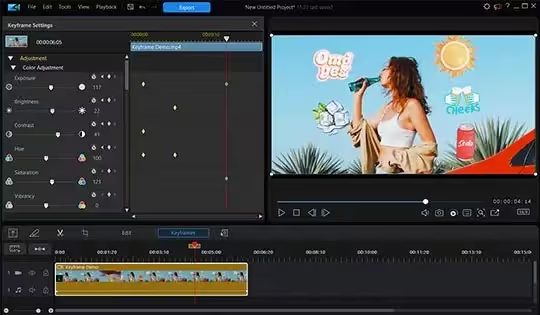
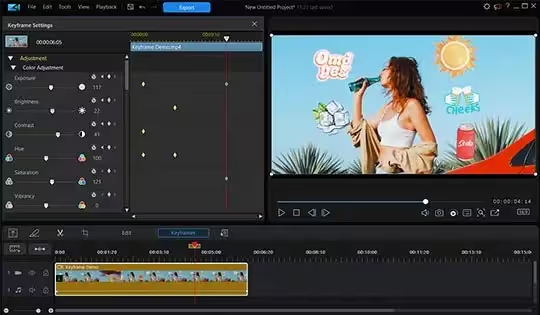
PowerDirector, from CyberLink, is the editor for a Windows creator who wants a lot of tools for little money and doesn’t want a professional editor’s learning curve. The PowerDirector 365 subscription lists at $79.99 a year, and CyberLink’s store often shows a lower price. For that you get a timeline with up to 100 tracks, keyframes, masks, motion tracking and multicam, plus AI noise removal, speech enhancement, wind removal and automatic music ducking. Auto Reframe makes vertical versions, and it uploads straight to YouTube. PCMag found it the fastest at rendering of any editor it has tested, and it runs well on a mid-range laptop.
Two things hold it back. Automatic captions and editing by transcript cost AI credits, and the subscription includes 100 a month that expire after 30 days. You can still import an SRT caption file for free, but if you want every weekly video captioned automatically, check how many credits a typical video uses before you rely on them. And it’s a Windows program first: the Mac version is a separate subscription and lacks some features, including editing by transcript. A $139.99 one-time PowerDirector license exists, though CyberLink pushes hard toward the subscription, and the one-time version gets no monthly feature updates.
What it does
- Multi-track timeline with keyframes, masks, motion tracking and multicam
- AI noise removal, speech enhancement, wind removal and automatic ducking
- Auto Reframe and direct upload to YouTube
- Subscription or a one-time license
Pros
- Deep editing tools for a low yearly price
- Fast rendering and smooth on an ordinary Windows laptop
- Easier to learn than the professional editors
Cons
- Automatic captions and transcript editing use a monthly credit allowance
- The Mac version is a separate subscription and lags behind Windows
- CyberLink pushes hard toward the subscription
- Skip if:
- You edit on a Mac

Final Cut Pro for Mac
The fast choice on a Mac
#4 3.7/5
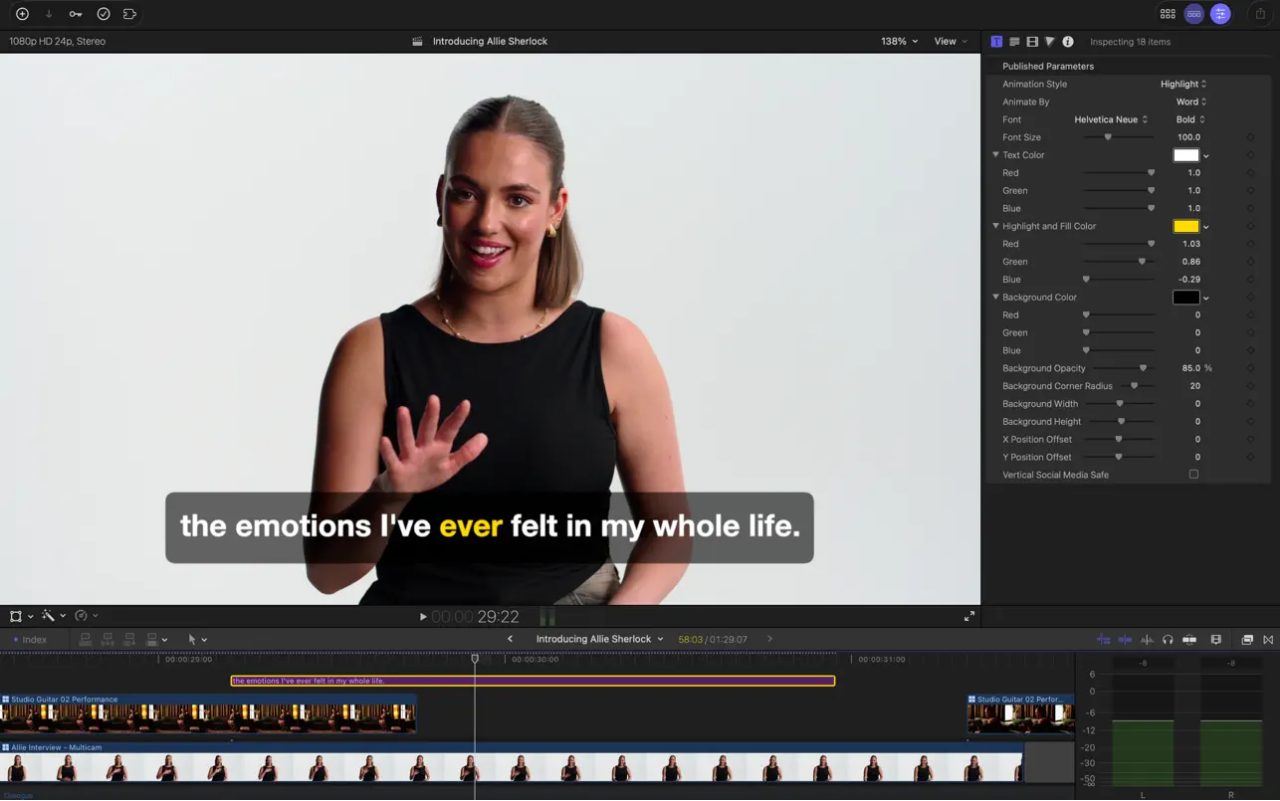
For Mac owners, Final Cut Pro is the editor to compare everything else with. Apple builds it for its own chips, and long 4K timelines from a phone or camera play back smoothly on an ordinary Apple silicon Mac, with no proxy files. Unlike a traditional track-based editor, its magnetic timeline closes gaps automatically as you move clips around, so rearranging a vlog or tutorial is quick once you’re used to the initially unfamiliar behavior.
It covers the YouTube basics well. Voice Isolation and noise removal clean up audio, Smart Conform reframes a horizontal edit for vertical Shorts, and Generate Captions writes animated subtitles from speech. Those captions are the fastest of the professional editors in Larry Jordan’s test, but also the least accurate, and Apple lists them for US English only. What it lacks is editing by transcript and automatic removal of silences, which Resolve Studio and Premiere both have. You can search a transcript to find a clip, but you still cut on the timeline.
You can buy it once for $299.99 from the Mac App Store, or get it in Apple Creator Studio for $12.99 a month or $129 a year, alongside Motion, Compressor, Logic Pro and Pixelmator Pro. The one-time purchase is the better deal for most creators: over three years the subscription costs more, and opening or editing a Creator Studio project needs an active subscription. The big limitation is the platform. It’s Mac only, and moving to Windows later means leaving your projects behind.
What it does
- Magnetic timeline with multicam and color tools
- Generate Captions for animated subtitles (US English)
- Voice Isolation and noise removal
- Smart Conform reframing for vertical video
Pros
- The smoothest editor on Apple silicon, even with long 4K footage
- One-time $299.99 price with free updates
- Easier to learn than Resolve or Premiere
Cons
- Mac only
- No editing by transcript or automatic silence removal
- Captions are less accurate than Premiere's and English only
- Choose if:
- You edit on an Apple silicon Mac and want to pay once

CapCut
Built for Shorts and quick turnarounds
#5 3.7/5
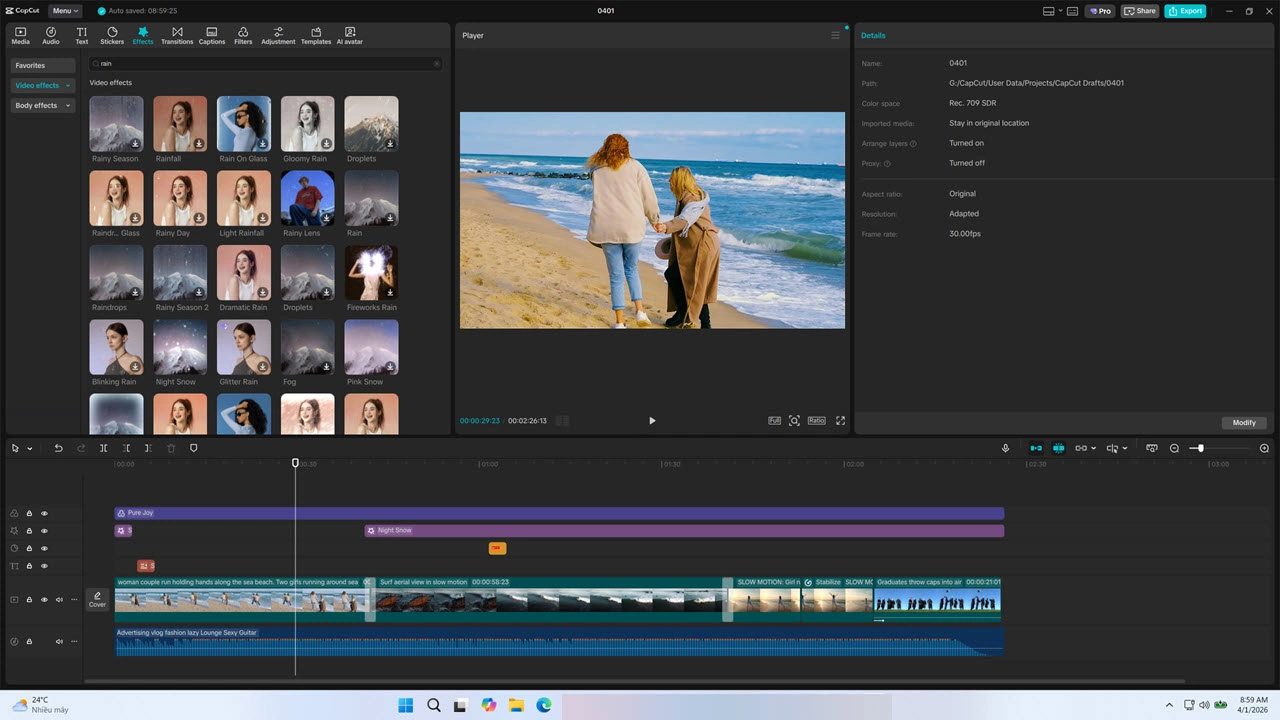
CapCut, from ByteDance, the company behind TikTok, is the quickest editor here for vertical video. Its automatic captions come in a wide choice of animated styles made for Shorts, and the desktop app for Windows and Mac shares an account and projects with its phone and web versions. It also removes filler words and pauses, reframes horizontal video to vertical, and shares straight to YouTube. Someone who has used the phone app can edit on the desktop the same evening.
For long YouTube videos it’s weaker. Projects past about 15 minutes with several tracks get cramped and laggy, and color tools are basic. Most of what makes it fast sits in Pro, at $19.99 a month or $179.99 a year. Automatic captions include Pro-only features, and Pro templates, effects and stock clips are mixed into the free library. Use a Pro item and the export needs Pro.
You need a CapCut or TikTok account to use it. In the US, CapCut runs under the TikTok joint venture, and its terms give the company a broad, perpetual license to the content you upload to its services. Creators who mind that should read the terms first.
What it does
- Animated automatic captions styled for Shorts
- Filler-word and pause removal, and automatic reframing to vertical
- Projects shared between desktop, web and phone apps
- Large template, music and effects library, much of it Pro
Pros
- The fastest way to turn out styled, captioned Shorts
- About as easy to learn as video editing gets
- Runs on Windows, Mac, the web and phones
Cons
- Long, many-layered projects get laggy and cramped
- Captions and many effects and templates need Pro
- Requires an account, and the terms grant a broad license to uploads
- Choose if:
- Most of your videos are vertical or under about 15 minutes

Wondershare Filmora
Cheap and simple, if you mind the credits
#6 3.6/5
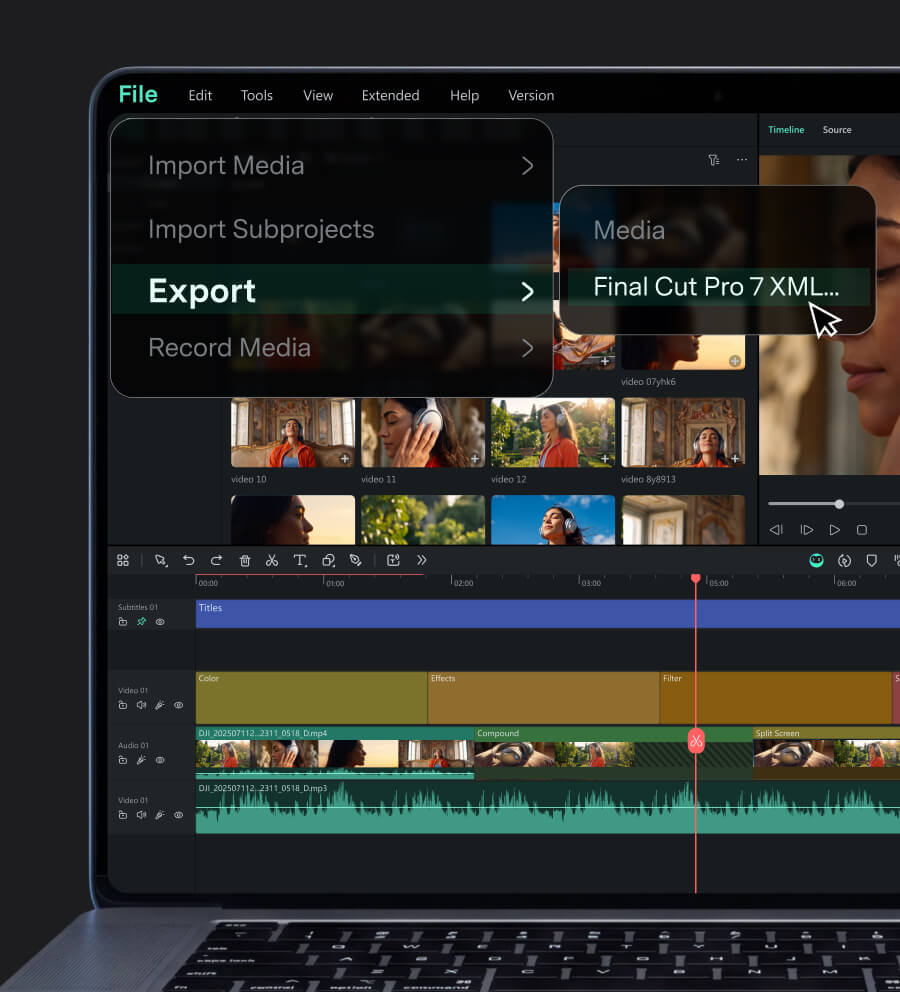
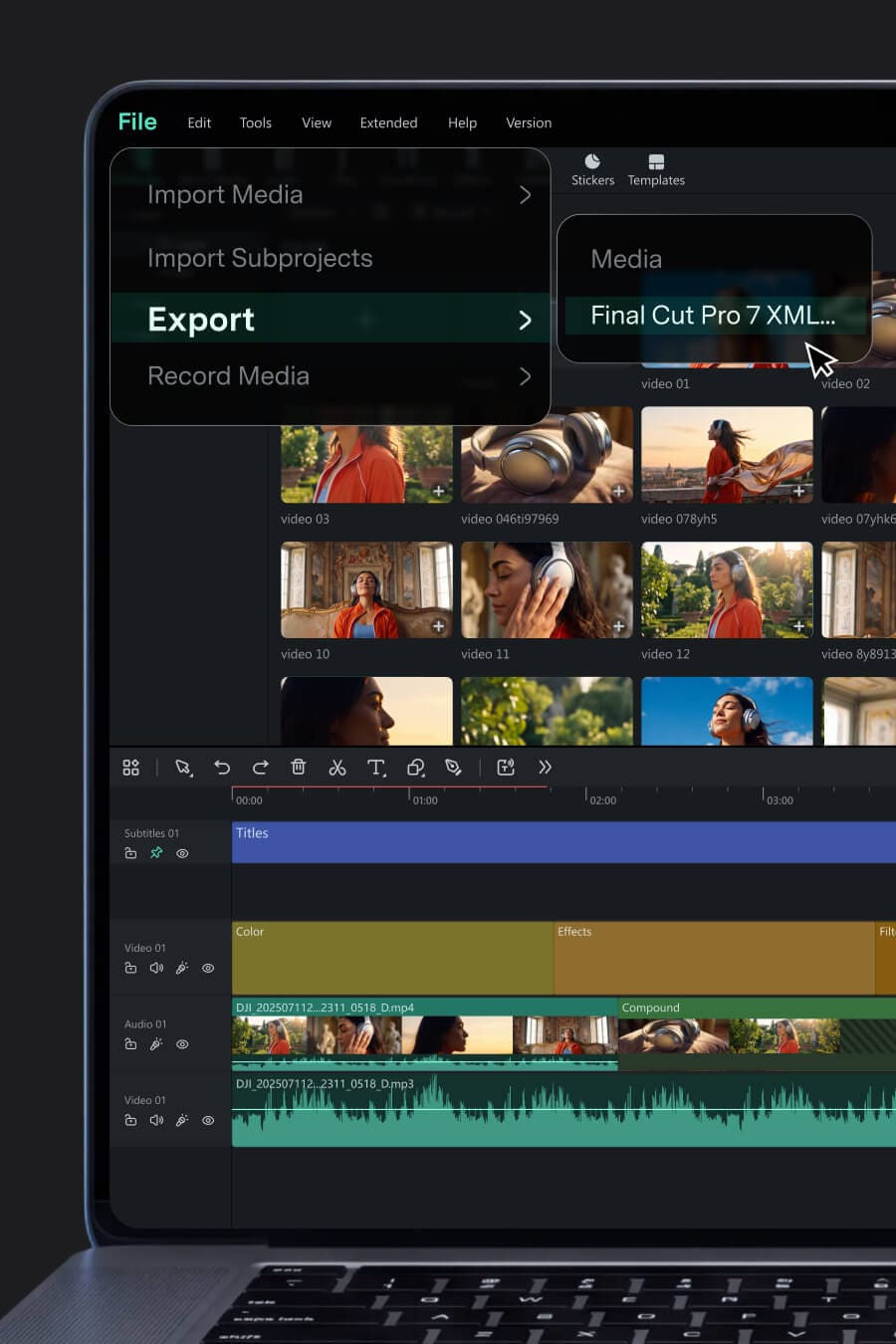
Filmora, from Wondershare, is the cheapest way here to get a full consumer editor with AI tools on both Windows and Mac. One Basic or Advanced license covers both. The editor is a conventional timeline that’s simpler than the professional editors, though its crowded screen takes some getting used to. It has multicam, keyframes, motion tracking and decent color tools, and Auto Reframe and direct YouTube upload don’t cost extra.
The problem is the pricing. Basic, at $49.99 a year, has no AI credits, so speech-to-text captions, text-based editing and Smart Short Clips (automatic short clips from longer videos) all need Advanced, which comes with 1,000 credits a month that don’t roll over. The $79.99 one-time license covers only Filmora 16, with a one-time batch of credits. That means major version upgrades are not included. The free version puts a watermark on every export.
What it does
- Multi-track editor with multicam, keyframes and motion tracking
- Credit-based speech-to-text in 27 languages and text-based editing
- Free Auto Reframe and direct YouTube upload
Pros
- Low yearly price, with one license for Windows and Mac
- Plenty of editing tools for a consumer editor, including multicam and motion tracking
Cons
- Captions and most AI tools run on credits that don't roll over
- Confusing plans, and the one-time license is locked to one version
- The free version watermarks every export
- Skip if:
- You want automatic captions on every video without counting credits

Descript
Edit talking-head videos like a document
#7 3.4/5
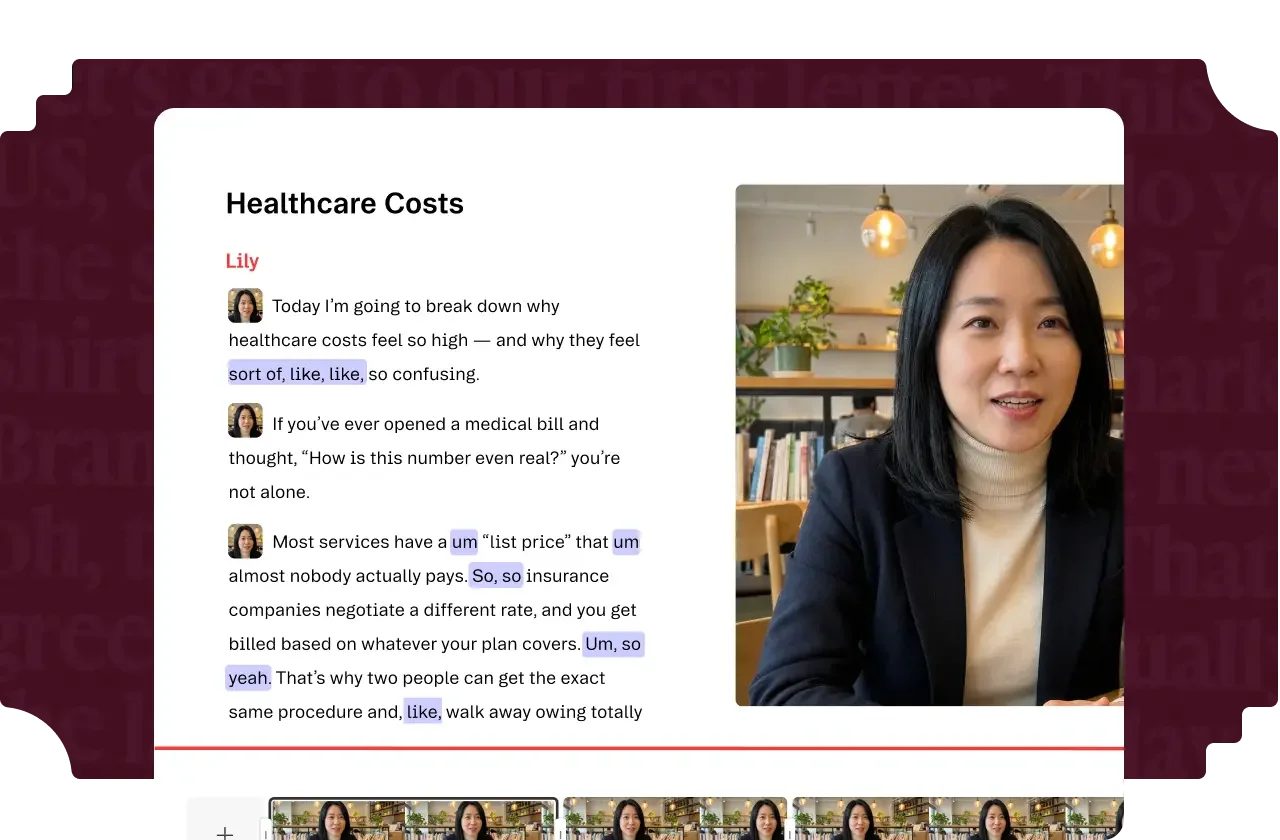
Descript turns a recording into a transcript and lets you edit the video by editing the text. Delete a sentence and the video cuts with it. For talking-head videos, interviews and podcasts, that’s faster than any timeline, and its one-click tools remove filler words, long pauses and retakes. Studio Sound, its voice cleanup, makes a cheap microphone sound much better, and its animated captions and SRT export come built in.
Step outside talk-led videos and it gets awkward. It has little in the way of color, multicam or motion graphics, and a vlog full of b-roll or a gaming edit is slower than in a normal editor. Stability is the other drawback: long projects can lag or crash, and projects stay in the cloud. Hobbyist, at $16 a month billed yearly, covers 10 hours of uploaded media a month at 1080p. Creator, at $24 a month billed yearly, adds 4K and 30 hours. Both plans limit AI tools with monthly credits.
What it does
- Edit video by editing its transcript
- One-click removal of filler words, pauses and retakes
- Studio Sound voice cleanup and animated captions
- Windows, Mac and browser apps working on the same cloud projects
Pros
- The fastest way to cut a talking-head video or interview
- Easy for someone who has never used a timeline
- Excellent one-click voice cleanup
Cons
- Weak for b-roll, color, multicam and gaming edits
- Long projects can lag or crash
- Media-hour limits and AI credits on every plan
- Choose if:
- Your videos are mostly you or guests talking, and you'd rather not learn a timeline

Camtasia
For screen-recorded tutorials
#8 3.1/5
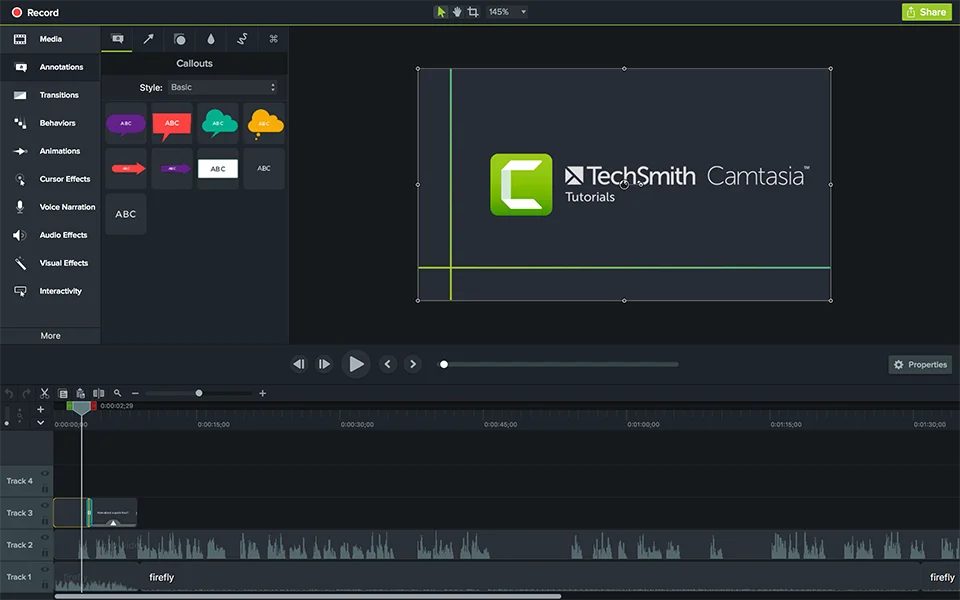
Camtasia, from TechSmith, is a screen recorder with an editor attached, and that’s who it suits: channels that teach software. It records the screen, webcam and system audio together, then lets you zoom into what matters, smooth the cursor, highlight clicks and add callouts. The Essentials plan, $179.88 a year, adds automatic captions, editing by transcript and filler-word removal, and there’s one-click noise removal.
For anything else on YouTube it’s a poor fit. It lacks multicam and advanced color tools, and vertical Shorts get little help. It’s sold only as a yearly subscription.
Pros
- Screen, webcam and audio recording in the same app as the editor
- Cursor effects, zooms and callouts made for tutorials
- Easy to learn
Cons
- Limited for vlogs, gaming and videos full of b-roll
- Little help for vertical Shorts
- Subscription only
- Choose if:
- You make software tutorials and want recording and editing in one place
Also considered
- iMovie is free on every Mac and fine for a first video, but it has no automatic captions, no keyframes, and no proper vertical projects. A Shorts channel will outgrow it quickly; Final Cut Pro is the natural next step.
- Shotcut and Kdenlive are free and open source, and both can generate captions on your own computer. They lack the one-click voice cleanup and automatic reframing a busy channel uses every week. Both are covered in the free-editors guide.
- Clipchamp, which comes with Windows 11, has free automatic captions and is easy to learn, but it stops at simple edits and needs a Microsoft account.
Scores
1–5 per criterion · select a score for its reasoning and any sources
| # | Product | Overall | Speed of cutting a typical YouTube video , counts double | Editing depth and production ceiling | Automatic captions | Voice and audio cleanup | What a growing channel pays | Shorts and vertical video | Learning curve | Smooth on a typical creator's computer | Computers and devices it runs on , counts half |
|---|---|---|---|---|---|---|---|---|---|---|---|
| 1 | DaVinci Resolve 21 | 4.1 | 5 | 5 | 3 | 5 | 4 | 4 | 2 | 3 | 5 |
| 2 | Adobe Premiere | 4.0 | 5 | 5 | 5 | 5 | 2 | 4 | 2 | 3 | 4 |
| 3 | CyberLink PowerDirector | 3.8 | 4 | 4 | 3 | 4 | 4 | 4 | 4 | 4 | 3 |
| 4 | Final Cut Pro for Mac | 3.7 | 4 | 4 | 3 | 4 | 4 | 4 | 3 | 5 | 1 |
| 5 | CapCut | 3.7 | 4 | 3 | 4 | 3 | 3 | 4 | 5 | 3 | 5 |
| 6 | Wondershare Filmora | 3.6 | 4 | 4 | 3 | 3 | 4 | 4 | 3 | 3 | 4 |
| 7 | Descript | 3.4 | 4 | 2 | 4 | 4 | 3 | 3 | 4 | 2 | 5 |
| 8 | Camtasia | 3.1 | 3 | 3 | 3 | 3 | 3 | 2 | 4 | 3 | 4 |
Equal displayed overall scores are ordered by the earlier criteria; a known score comes before an unknown score. Identical scores use alphabetical order.
×2 = counts double in the overall score, ×½ = counts half.
How each criterion is scored
Speed of cutting a typical YouTube video
Counts double in the overall score: Regular creators edit every week, and the hours a fast editor saves on each video are the main reason they pay for one.
How quickly a creator who posts regularly gets from raw recordings to a finished cut of a typical YouTube video (a talking-head, tutorial, vlog or gaming video of 8 to 30 minutes): trimming and rearranging on the timeline, keyboard-driven editing, removing silences, retakes and filler words, editing by transcript, and smooth playback while cutting. Judged from how each editor's cutting tools work, editors' and reviewers' accounts of everyday speed, and where it slows down for some kinds of video.
- 5 Among the fastest for nearly every YouTube format, combining an efficient timeline with automatic cleanup or transcript editing
- 4 Fast for most YouTube formats, with strong trimming tools and some automatic cleanup such as silence removal or editing by transcript, but slower for some common format
- 3 A conventional timeline with good trimming tools, but little automation for removing pauses, retakes or filler words
- 2 Basic trimming works, but long recordings, b-roll or many cuts take much longer than in the leading editors
- 1 Cutting a normal-length video is slow and fiddly, with few trimming tools and laggy playback
Editing depth and production ceiling
What the editor can do when a channel wants higher production value: unlimited tracks, keyframes, masks and motion tracking, multicam, color correction and grading, motion graphics and titles, audio mixing, and third-party plugins. Judged from the documented feature set of the configuration scored for cost and from professional editors' accounts of where each one runs out.
- 5 Professional depth in editing, color, audio and effects, the tools full-time editors and studios use
- 4 A full editor with multicam, keyframes, masks and good color tools, short of the deepest professional finishing
- 3 Multiple tracks and keyframes, with clear limits in color, multicam, motion graphics or long projects
- 2 A simple timeline or scene-based editor with few tracks or little control over color and motion
- 1 Trim, join, titles and music only
Automatic captions
How well the editor turns speech into captions and subtitles: whether it generates them automatically, how accurate they are, how easily they're corrected, styling and animated caption looks for Shorts, languages, and exporting a caption file such as SRT for YouTube. Scored for the configuration scored for cost; usage limits on that plan count against it. Judged from vendor documentation and third-party tests and reviews.
- 5 Accurate automatic captions in many languages, quick to correct, with animated styles and caption-file export
- 4 Accurate automatic captions with good styling and caption-file export, with one minor gap
- 3 Automatic captions that work, with a clear weakness in accuracy, languages, styling, workflow or caption-file export
- 2 Automatic captions only through a workaround, a credit system that runs out quickly, or with poor accuracy and little styling
- 1 No automatic captions; captions are typed by hand
Voice and audio cleanup
How well the editor makes voice recorded at home sound clean without a separate audio app: one-click speech enhancement or voice isolation, noise and wind removal, leveling dialogue, and lowering music under speech automatically. Scored for the configuration scored for cost. Judged from vendor documentation and reviewers' accounts of results.
- 5 Best-in-class voice cleanup together with full audio mixing tools
- 4 Good one-click voice cleanup plus noise removal and ducking or leveling
- 3 Useful noise reduction or speech enhancement, but little else, or results reviewers call uneven
- 2 A basic noise filter or equalizer presets, with weak results
- 1 Volume and fades only
What a growing channel pays
The total a creator pays over three years for the cheapest plan or edition that exports without a watermark and includes the editor's automatic captions and voice cleanup, at US prices. A one-time price counts once; a subscription counts for three years at its annual-billing price. Free add-ons count; credit packs and stock libraries a typical channel doesn't need are left out.
- 5 Free, or under $150 over three years
- 4 $150 to $350 over three years
- 3 $350 to $600 over three years
- 2 $600 to $900 over three years
- 1 More than $900 over three years
Shorts and vertical video
How easily a creator turns a horizontal video into vertical Shorts, or makes vertical videos from scratch: vertical project formats, automatic reframing that follows the subject, making a vertical version from the same project, finding short clips in a long video, and export presets or direct upload to YouTube. Judged from documented features of the configuration scored for cost and reviewers' accounts.
- 5 Built around vertical video, with automatic reframing, clip-finding and Shorts-ready caption styles
- 4 Automatic reframing to vertical from the same project, with presets or direct upload
- 3 Vertical projects with a manual reframing tool or one automatic reframe that often needs fixing
- 2 Vertical projects or exports possible, but no reframing help; each Short is rebuilt by hand
- 1 No vertical projects; vertical video needs a workaround
Learning curve
How quickly a creator who has made a few videos becomes productive: how clear the layout is, how much editing vocabulary it assumes, and whether common YouTube tasks are easy to find. Judged from reviewers' and many users' accounts of learning it.
- 5 About as easy as video editing gets; common tasks work without instructions
- 4 Approachable; most creators edit a full video in their first session with some looking around
- 3 A real learning curve of a few sessions, or an unusual editing model that takes adjusting to
- 2 A professional tool with a steep start; most creators need weeks of tutorials to edit quickly
- 1 Confusing even with tutorials; most creators give up or need a course
Smooth on a typical creator's computer
Whether the editor plays back and exports smoothly and stays stable on the computer a growing creator usually has, such as a recent laptop or desktop with 16 GB of memory and camera or phone footage in H.264 or HEVC, without making proxies first. Judged from official requirements, the hardware decoding the configuration uses, and users' accounts of lag and crashes.
- 5 Smooth and stable on almost any recent computer, even with long 4K projects
- 4 Smooth for typical projects, with slowdowns only on heavy ones
- 3 Works on a typical computer with lag on long or high-resolution projects, or occasional crashes
- 2 Needs proxies or more hardware than a typical creator has, or users widely report crashes or lag
- 1 Unusable without a powerful computer, or crashes often enough to lose work
Computers and devices it runs on
Counts half in the overall score: Most creators already own the computer they edit on and only need the editor to run there, which the text says for each product.
Which computers a creator can edit on with the same projects: Windows, Mac and Linux, plus browser or phone apps that open the same projects. Judged from the vendor's supported platforms for the configuration scored for cost.
- 5 Windows and Mac, plus Linux, a browser or phone apps that open the same projects
- 4 Windows and Mac with the same features
- 3 Windows and Mac, with features missing or delayed on one of them
- 2 One operating system, plus a separate app on another device that can only send projects one way
- 1 One operating system only
How to choose
- You talk to the camera every week: Resolve Studio or Premiere, both of which cut by transcript and remove silences. Pick Resolve to pay once, Premiere for the best captions. If you never want to learn a timeline, Descript is faster still for pure talking.
- You want your videos to look more polished: Resolve, for its color and audio tools, or Premiere if you’ll hire editors.
- You’re on a Mac: Final Cut Pro if you value smooth playback and an easier start. Resolve if you want transcript editing or might switch to Windows.
- You make mostly Shorts: CapCut Pro. PowerDirector is the cheaper Windows option if you can live with the caption credits.
- You want a low-cost editor for Windows: PowerDirector 365, or Resolve’s free version if you can do without automatic captions.
- You teach software: Camtasia.
- You don’t want a subscription: Resolve Studio or Final Cut Pro, both one-time and both with free updates.
The verdict
The best editor for a YouTube channel is the one that takes the most work off your hands every week at a price you’ll keep paying. For most creators that’s DaVinci Resolve. It’s free while you learn, and the $295 Studio upgrade buys transcript editing, silence removal, automatic captions and real voice cleanup for good. Its weak spots are a steep start, a clumsy caption workflow and a need for decent hardware.
Premiere matches it as an editor and beats it on captions, and for anyone who’ll hire editors, that shared familiarity is worth the subscription. For Mac owners, Final Cut Pro gives up transcript editing in exchange for the smoothest playback and an easier start, and it’s the better choice for anyone who’d rather edit than learn software. Shorts-first creators get more from CapCut’s captions and templates than from any professional editor, and creators who only talk to the camera may find Descript removes the timeline from their week altogether.