Best video editing software for Mac and MacBook
The old reason to pick Final Cut Pro on a Mac was that it exported faster than anything else. On Apple silicon that gap has mostly closed for finished exports. In Larry Jordan’s 2025 test on an M2 Max Mac Studio, a 30-minute ProRes project exported fastest from DaVinci Resolve, with Final Cut Pro seven seconds behind and Premiere a little further back. On a recent Mac, export speed alone rarely decides anything.
What still separates Mac editors is everything around the export. Can a fanless MacBook Air play 4K iPhone footage smoothly while you cut? Does the editor handle iPhone formats such as HDR and Cinematic mode? And how do you pay? That last one matters more than it used to, because some subscription editors stop opening your projects when you stop paying, while a free or one-time editor keeps working for as long as macOS runs it.
For most Mac owners who edit regularly, Final Cut Pro is the one to buy: $299.99 once, built by Apple for these chips, and deep enough for paid work. If you’re cutting family videos, start with iMovie, which is free and already installed, and move up to Final Cut Pro later, since iMovie can send a project there. If you want professional color and audio tools without paying, or you may move to Windows one day, DaVinci Resolve is free and goes further than any of them once you’ve learned it.
What each one costs
Prices change, and a few of these editors bill in ways that are easy to misread, so here is how each one charges in the US as of November 2026.
| Editor | How you pay | Price |
|---|---|---|
| Final Cut Pro | One-time, or Apple Creator Studio subscription | $299.99 once, or $129 a year |
| DaVinci Resolve | Free; Studio edition one-time | Free, or $295 for Studio |
| iMovie | Free | Free |
| Adobe Premiere | Subscription only | $22.99 a month on an annual plan |
| Filmora | One-time for the current version, or yearly | $79.99, or from $49.99 a year |
| CapCut | Free; Pro subscription | Free, or $179.99 a year for Pro |
| Descript | Subscription | $192 a year for 1080p, $288 a year for 4K |
Final Cut Pro for Mac
Best for most Mac owners
#1 4.1/5
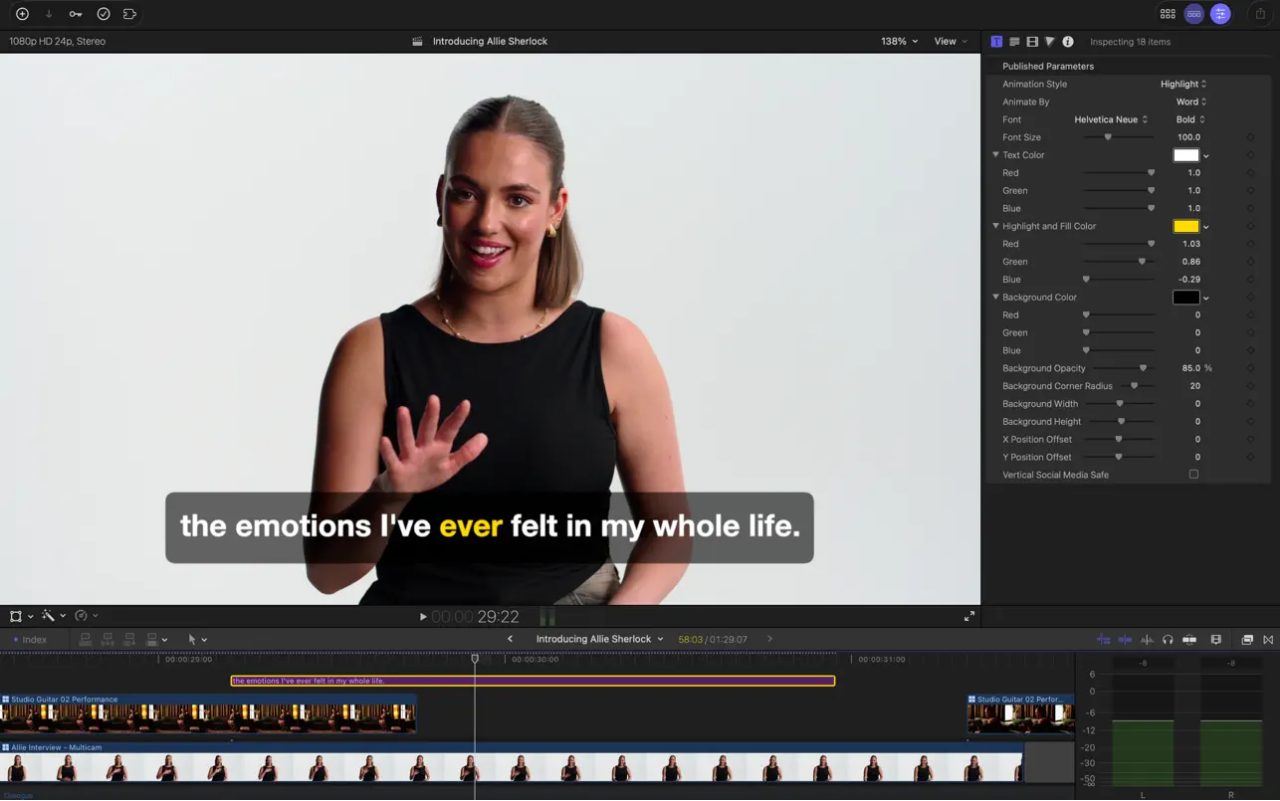
Final Cut Pro suits anyone who edits often enough that hours matter: YouTubers, people making social clips every week, and freelancers whose clients just want a finished video. It’s the editor that feels most at home on a Mac. It renders in the background while you work, plays 4K iPhone footage smoothly on a MacBook Air, and Larry Jordan’s tests on Apple silicon have put it at or near the top for export speed for years, including a 2023 test where it rendered 4K almost five times faster than Premiere.
The thing to know before buying is the magnetic timeline. Instead of fixed tracks, clips snap together and attach to each other, so moving one shot doesn’t knock everything else out of sync. Newcomers usually take to it in a few sessions. People who’ve edited on tracks for years often hate it at first, then find it faster once it clicks.
Among the professional editors, it fits best with the rest of your Apple gear. It imports straight from the Photos library, lets you change focus in iPhone Cinematic mode clips, and works with Apple’s free Final Cut Camera app, which records Log footage in ProRes or the smaller HEVC format. Projects started in Final Cut Pro for iPad open on the Mac, though the iPad app needs the Creator Studio subscription.
The automatic tools save time but don’t lead this group. Captions generate on the Mac with no upload, in U.S. English only, and in Larry Jordan’s caption test they were the fastest of the three big editors and the least accurate, so plan on proofreading. There’s no editing by transcript and no automatic silence removal, which Premiere and Descript both have. Voice Isolation and the Logic Pro audio effects clean up speech well.
The long-term weakness is that it’s Mac-only. You can export a project as an FCPXML file, Apple’s interchange format, but getting a project into Premiere or Pro Tools takes paid third-party converters, and there’s no shared editing. If you know you’ll hand projects to people on other editors, look at Resolve or Premiere instead.
What it does
- Magnetic timeline with multicam, masks and tracking
- On-device captions, Voice Isolation and automatic reframing for vertical video
- Photos import, Cinematic mode editing and Final Cut Camera support
- One-time purchase or Apple Creator Studio subscription
Pros
- Smooth and fast on every Apple silicon Mac, including a MacBook Air
- Paid once, with updates included so far
- Works closely with iPhone, iPad and the Photos library
Cons
- Mac-only, and moving projects to other editors needs paid converters
- The magnetic timeline takes adjusting to if you've used track-based editors
- Captions are U.S. English only and need proofreading
- Choose if:
- You edit on a Mac every week and want one editor for years without a subscription

DaVinci Resolve 21
Pro color and audio, free
#2 3.9/5
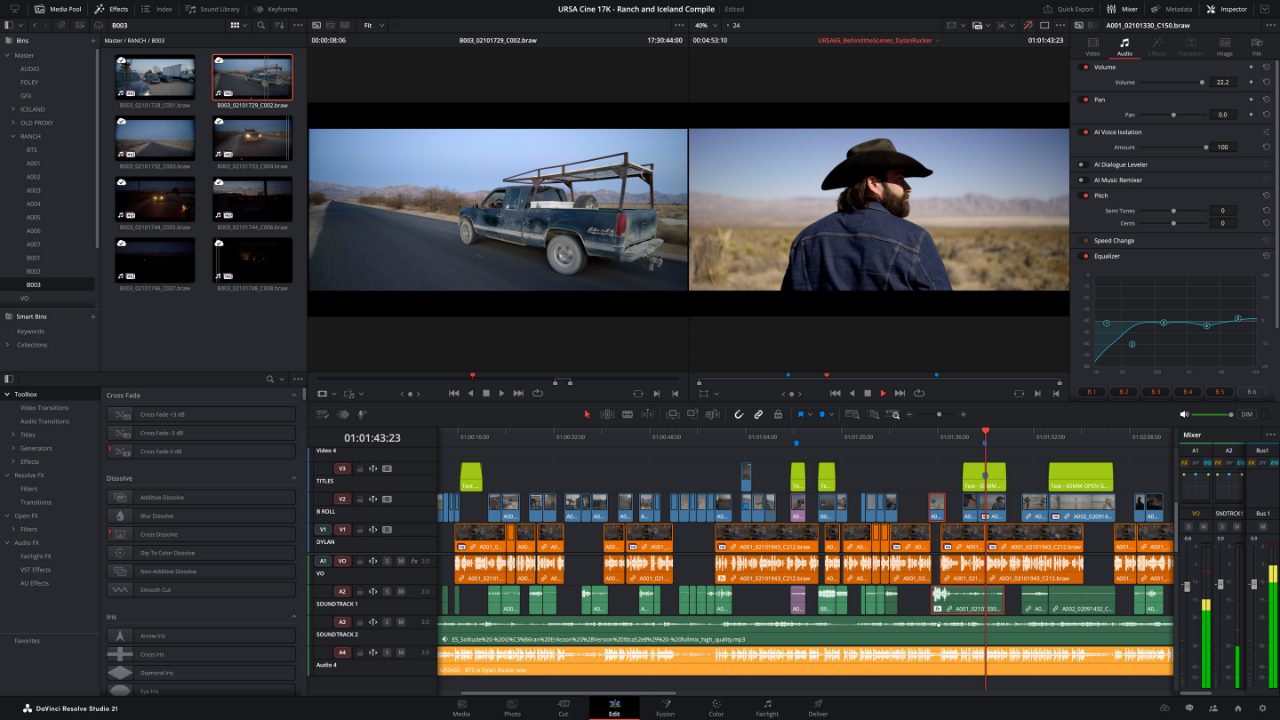
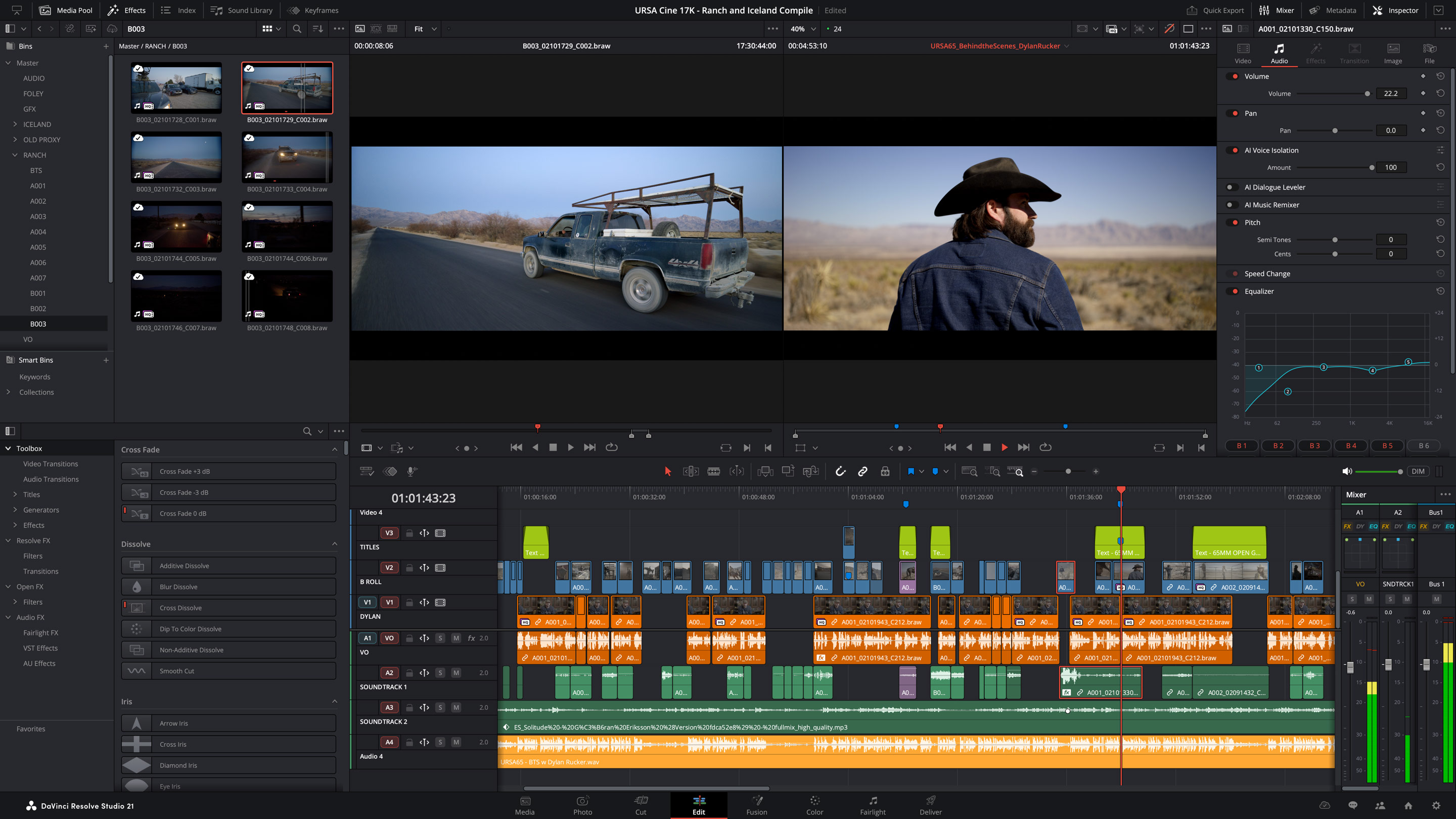
DaVinci Resolve is the answer when someone asks whether a free editor can do everything Final Cut Pro does. It can do more: its color page is what film and TV colorists use, its Fairlight page is a full audio mixing suite, and its Fusion page handles visual effects, all in the free version. It also runs on Windows and Linux, and projects can be shared with other editors through Blackmagic Cloud, which makes it a safer long-term bet if you might leave the Mac.
On a Mac, the free edition gets something Windows users have to pay for: hardware decoding and encoding of H.264 and HEVC, the formats iPhones and most cameras record. That makes it a lot smoother with iPhone footage on a Mac than its free-version reputation suggests. A reviewer at Imaging Resource edits 4K/24 in Resolve on an M4 MacBook Air “with no issues”, though a fanless Air can slow down under long, heavy exports. It’s still a heavier app than Final Cut Pro, and on the smallest Macs you’ll feel that sooner.
What Resolve costs instead of money is learning time. It’s split into seven pages (Cut, Edit, Fusion, Color, Fairlight and more), and most people need a few weeks of tutorials before they’re quick. The automatic shortcuts are also in the paid Studio edition: subtitles from speech, voice isolation, silence removal, text-based editing and Smart Reframe all need the $295 one-time upgrade. Studio is good value if you need those, but at that point it costs about what Final Cut Pro does.
One Mac detail: the free version is on the Mac App Store, but that build doesn’t support some control panels and plug-ins, and Studio activation codes are installed from Blackmagic’s own site. If you think you’ll upgrade, download it from Blackmagic.
What it does
- Editing, color grading, effects and audio mixing in one app
- Free edition exports Ultra HD without a watermark
- Free multi-user collaboration and an iPad version that opens the same projects
- Studio adds AI captions, voice isolation and silence removal for $295 once
Pros
- Professional color and audio tools at no cost
- Hardware H.264 and HEVC support in the free Mac version
- Runs on Windows and Linux too, so projects aren't tied to the Mac
Cons
- Steep learning curve with several separate workspaces
- Captions, voice cleanup and other time-savers are Studio-only
- Heavier than Final Cut Pro on a MacBook Air
- Choose if:
- You care about color grading or audio mixing, or want an editor that also runs on Windows

iMovie
Family videos, already installed
#3 3.8/5
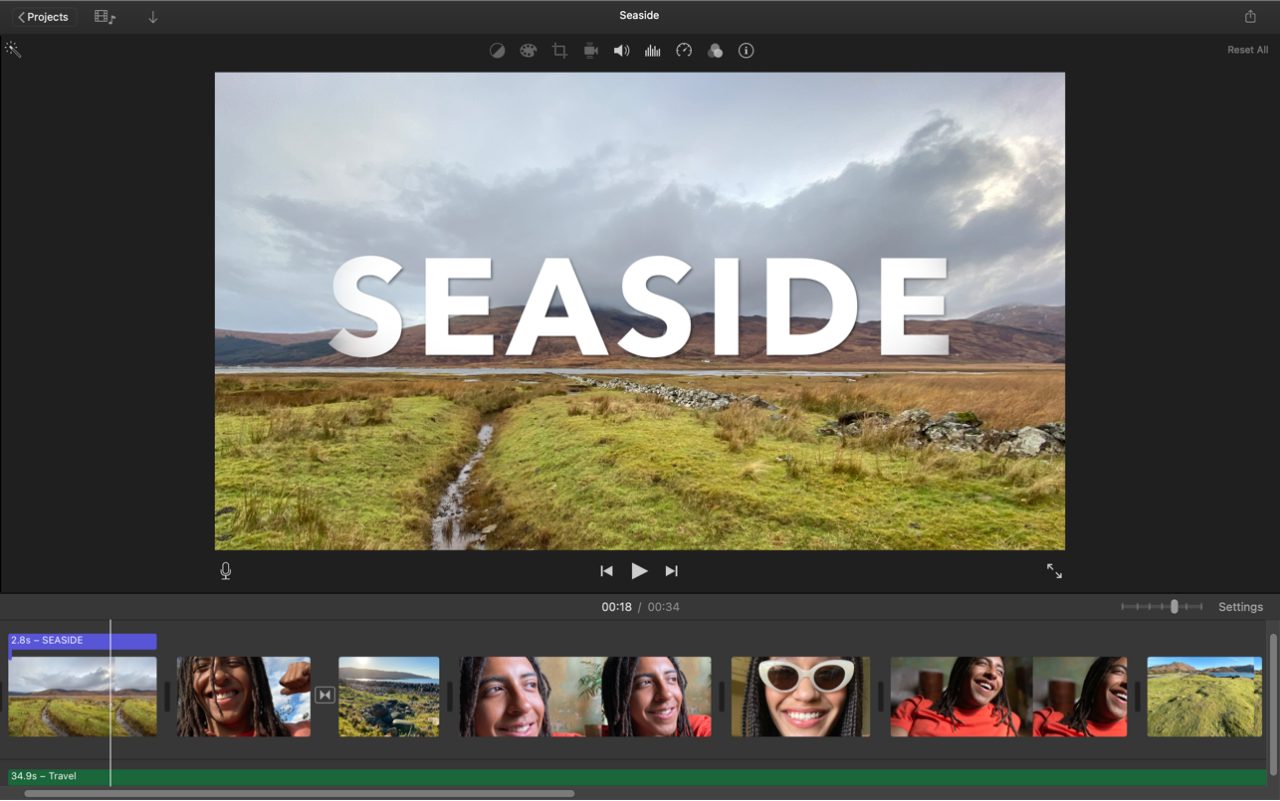
iMovie is the right first editor for anyone turning phone videos into something the family will watch. It’s on your Mac already, costs nothing, has no watermark, and most people finish a video the first evening. It pulls clips from the Photos library, lets you change the focus in iPhone Cinematic mode clips, and runs smoothly on any Apple silicon Mac. Projects you start on an iPhone or iPad move to the Mac by AirDrop or iCloud Drive.
Its limits are firm, though. You get one main storyline plus a single overlay layer, so a third layer cuts into the second rather than stacking. There are no keyframes, masks or automatic captions, and normal projects are widescreen, so a vertical video for Reels or Shorts needs a workaround. iPhones record HDR by default, and iMovie imports it but shares only in standard dynamic range.
Within those limits it handles real work: a reviewer at AppleInsider says he has “worked with people doing YouTube videos solely in iMovie” and wouldn’t push them to Final Cut Pro. When you do hit the wall, File > Send Movie to Final Cut Pro moves the project over, which is a smoother upgrade than starting again in another editor.
What it does
- Simple timeline with titles, transitions, green screen and picture-in-picture
- Trailer templates and storyboards
- Photos import and Cinematic mode editing
- Projects move from iPhone and iPad, and on to Final Cut Pro
Pros
- Free, preinstalled and quick to learn
- Smooth on any Apple silicon Mac
- Clear upgrade path to Final Cut Pro
Cons
- Only one overlay layer and no keyframes
- No automatic captions, and vertical video needs a workaround
- Shares HDR iPhone video only in standard dynamic range
- Skip if:
- Most of what you make is vertical video for TikTok, Reels or Shorts

Adobe Premiere
Working with other editors
#4 3.4/5
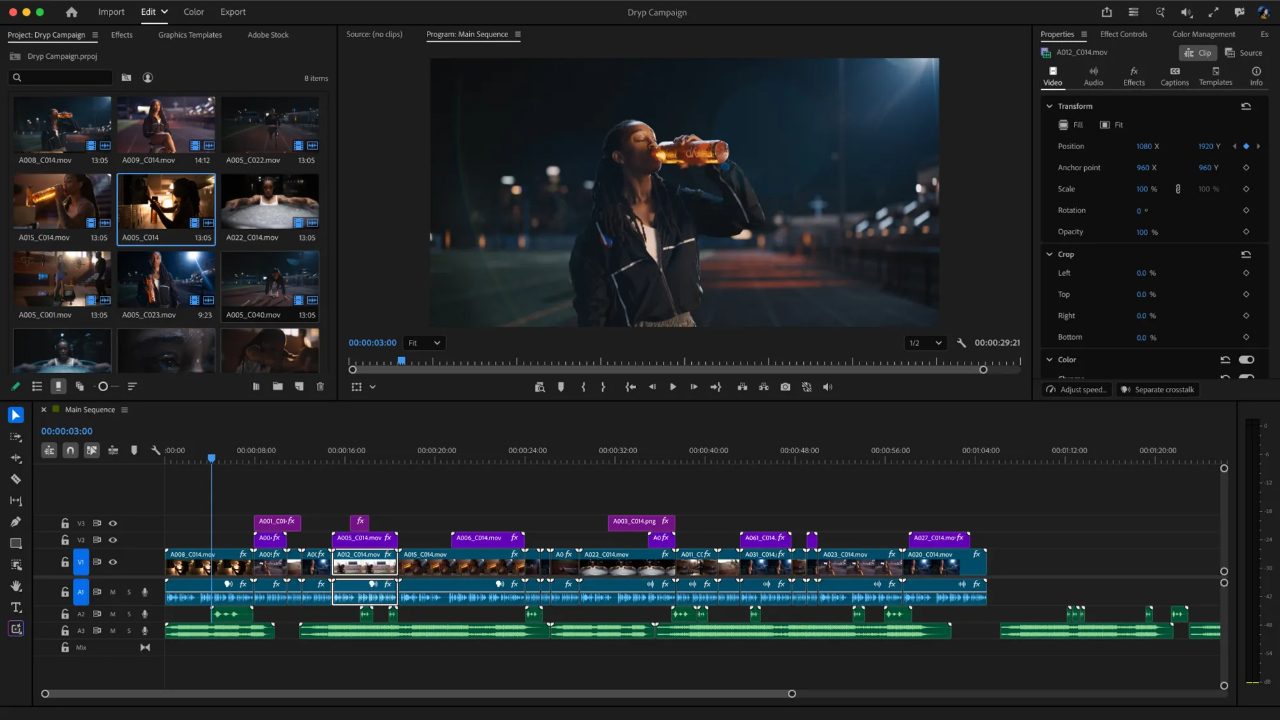
Adobe Premiere (Adobe dropped the “Pro” from the desktop app’s name, though everyone still says it) is the editor to pick when other people decide what you use. Agencies, clients and other editors expect Premiere project files, and the subscription includes Team Projects and Frame.io review links. It runs on Windows as well as Mac, and it works with After Effects and Photoshop in ways nothing else matches.
Its automatic tools are the most complete of the professional editors. You can edit by deleting words from a transcript, translate captions into more than 20 languages, clean up dialogue with Enhance Speech, and reframe a horizontal video to vertical. It also recognizes iPhone ProRes Log footage and converts it to normal color for you.
On a Mac, it’s the least efficient of the three big editors. It runs natively on Apple silicon and will run on an 8 GB MacBook Air, but it wants 16 GB. In Larry Jordan’s Apple silicon export tests it has usually trailed Final Cut Pro, by a wide margin in 2023 and narrowly in 2025. There’s no iPad version, though the free Premiere iPhone app can pass projects to the desktop app.
The bigger issue is the subscription. At $22.99 a month on an annual plan, three years costs about $828, nearly three Final Cut Pro licenses, and Premiere stops opening your projects when you stop paying. If you’re editing for yourself, that’s a lot to pay for features the others mostly match.
What it does
- Text-based editing, captions with translation and Enhance Speech
- Lumetri color, multicam and After Effects integration
- Team Projects and Frame.io review included
- Runs on Windows and Mac
Pros
- What clients and other editors most often expect
- The broadest set of automatic editing tools here
- Handles iPhone Log footage automatically
Cons
- Subscription only, and projects won't open once you stop paying
- Slower than Final Cut Pro and Resolve on Apple silicon
- Takes weeks to learn properly
- Choose if:
- Your clients, school or team already work in Adobe apps

Wondershare Filmora
Easy editing with a one-time price
#5 3.4/5
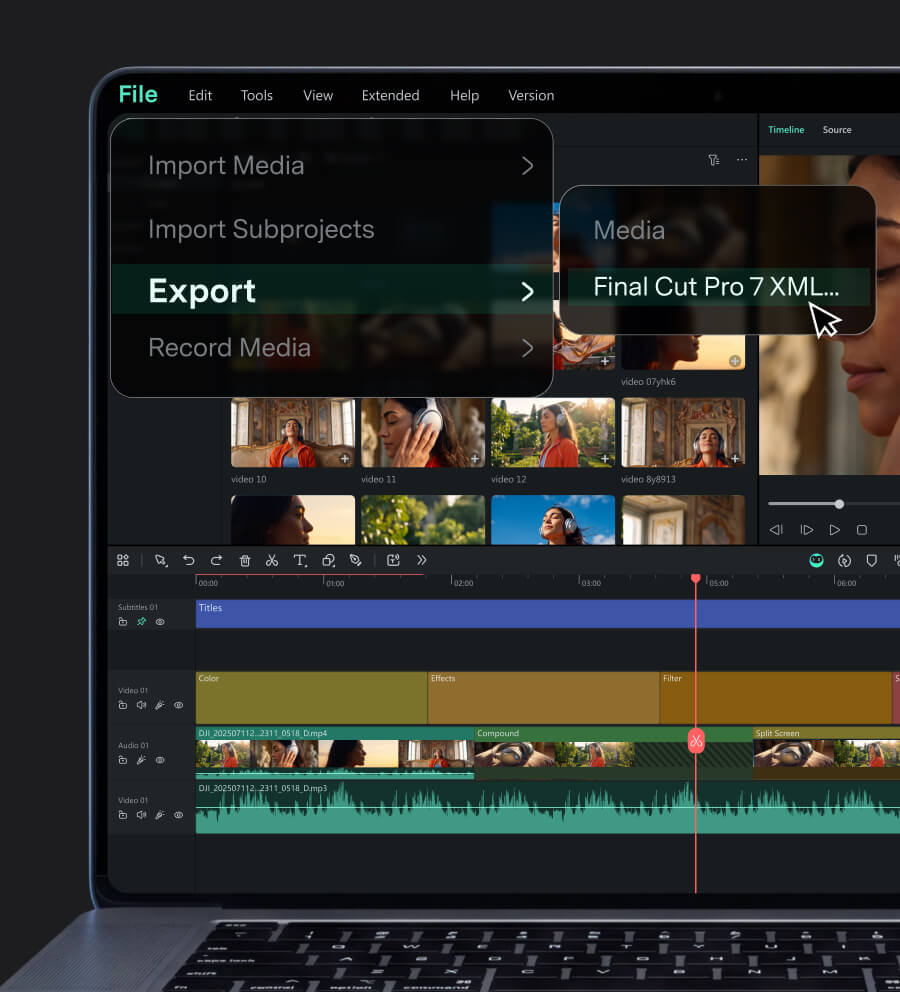
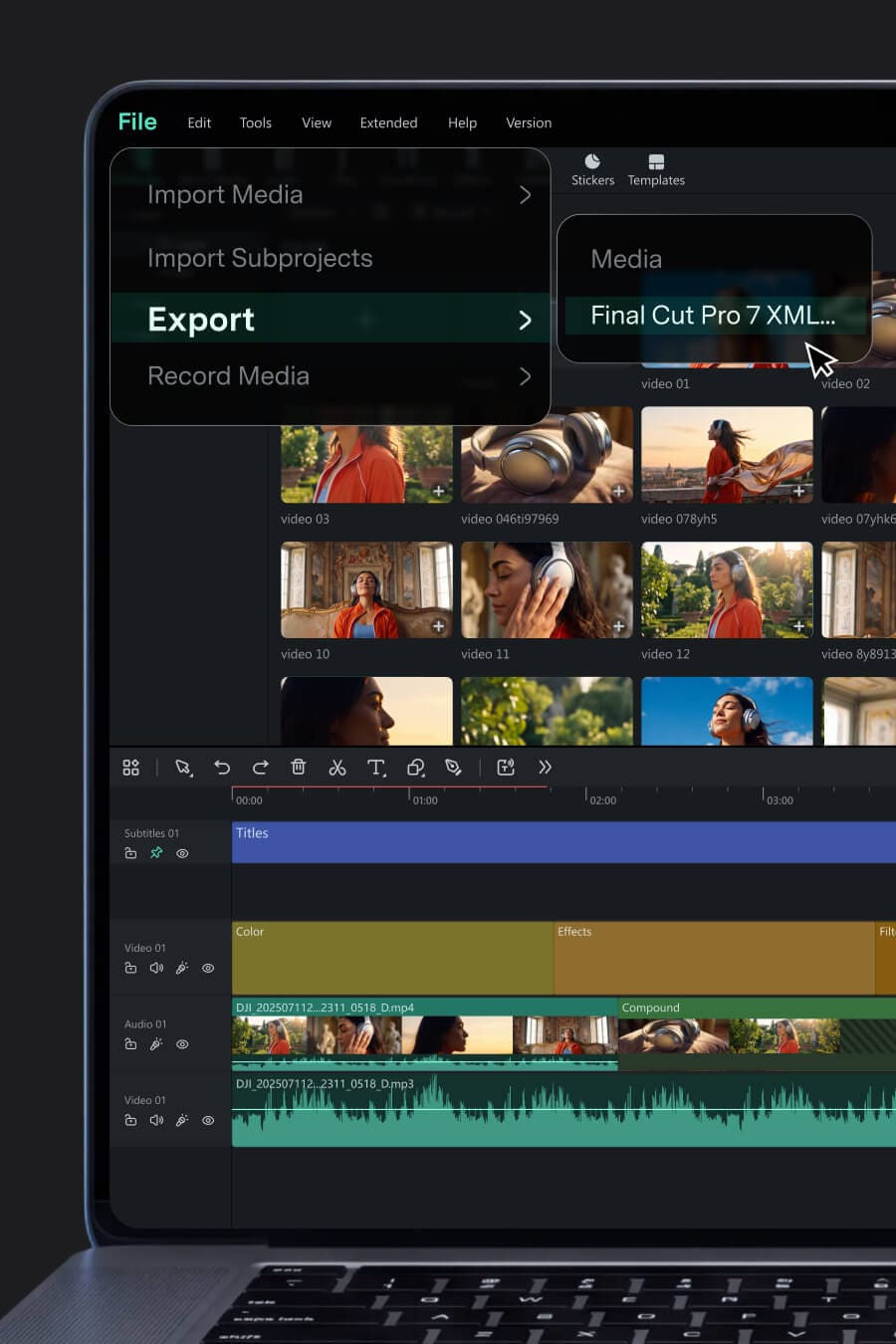
Filmora sits between iMovie and the professional editors. It’s easier to learn than Final Cut Pro but has real tools: keyframes, masks, motion tracking, multicam, and a big library of effects and titles. It can also export a timeline as XML for Final Cut Pro, Premiere or Resolve, which helps if you outgrow it.
The pricing needs a close read. The $79.99 one-time license covers only the current major version, so the next big release is a paid upgrade, and it comes with a single pool of 1,000 AI credits for features such as speech-to-text captions; once they’re gone, you buy more. The yearly plans include upgrades, and the $59.99 Advanced plan adds 1,000 credits a month. Credits and billing are the most common complaint in user reviews.
Wondershare also says Filmora needs 16 GB of RAM for HD and 4K video on a Mac, so on an 8 GB MacBook Air it’s a worse fit than Final Cut Pro or iMovie, which Apple builds to run on that hardware.
What it does
- Multi-track timeline with keyframes, masks, tracking and multicam
- Large effects and title library
- AI captions, silence removal and short-clip tools paid for with credits
- Timeline XML export to Final Cut Pro, Premiere and Resolve
Pros
- Easier to learn than the professional editors
- Cheap one-time license
Cons
- The one-time license excludes future major versions and comes with a limited pool of AI credits
- Needs 16 GB of RAM for HD and 4K video on a Mac
- Free version exports with a watermark
- Choose if:
- You want more than iMovie offers but find Final Cut Pro intimidating

CapCut
Quick social clips for free
#6 3.4/5
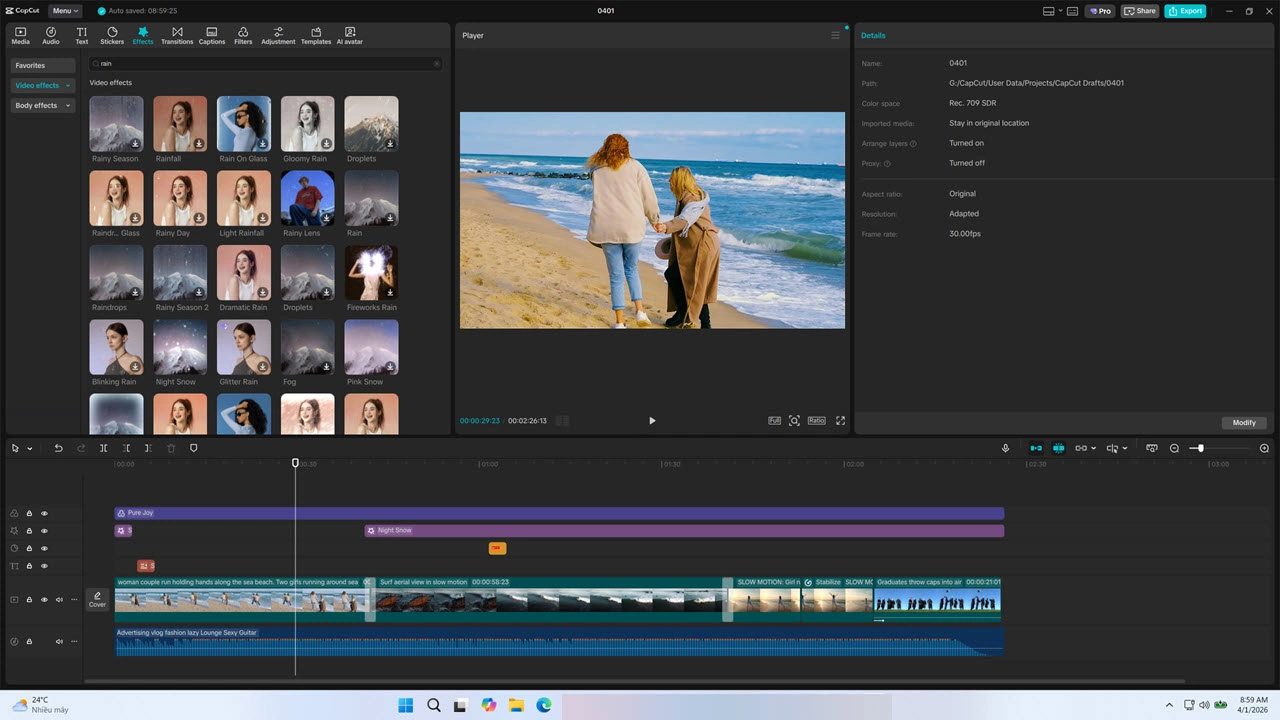
CapCut is what many people already use on their phones for TikTok and Reels, and the Mac app works the same way: drop in clips, pick a template, add trendy captions and effects, and export. Nothing here is easier for short vertical video, and the free plan exports without a watermark as long as you avoid items marked Pro.
That “as long as” matters. CapCut’s own pages say automatic captions are Pro-only, sources disagree about whether free exports reach 4K, and Pro costs $19.99 a month or $179.99 a year, which adds up to more than Final Cut Pro within two years. It’s also not built for long projects: the timeline gets cramped on long multi-track edits, and iPhone HDR clips can come out washed out unless you convert them.
Where your projects live is worth a thought, too. CapCut has no timeline export for other editors, so leaving means rebuilding your edits, and the US terms give TikTok’s US joint venture a “perpetual and worldwide license” to use what you upload for running its services. For quick social clips that’s a reasonable trade; for anything you’ll want to reopen in five years, it’s a poor home.
What it does
- Templates, effects and animated captions built for short vertical video
- Free desktop app for Mac, plus phone and web versions on one account
- Pro adds automatic captions, more AI tools and premium assets
Pros
- The easiest way to make TikTok-style clips on a Mac
- Free plan exports without a watermark if you skip Pro items
Cons
- Captions and other key tools need the Pro subscription
- Struggles with long projects and iPhone HDR footage
- No project export to other editors
- Skip if:
- You make long videos or want to keep editable projects for years

Descript
Editing talking videos by text
#7 2.6/5
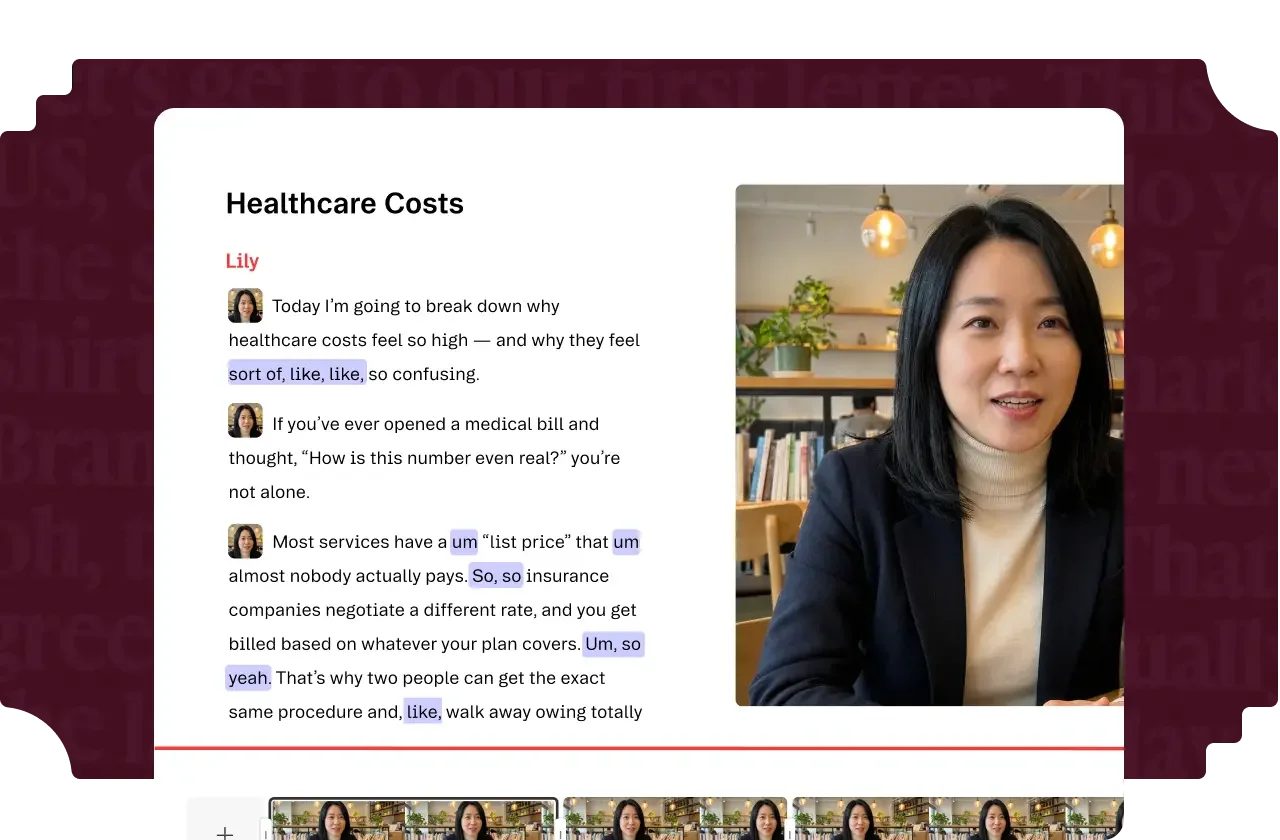
Descript turns your video into a transcript, and you edit the video by editing the text: delete a sentence and the clip is cut, remove every “um” with one command. For podcasts, interviews, tutorials and talking-head YouTube videos, that’s faster than any timeline. Its Studio Sound voice cleanup is one of the best one-click fixes for audio recorded at a desk.
It’s a poor general Mac editor, though. Projects with lots of B-roll, color work or multicam hit limits the transcript tools don’t cover, and the Mac app is the same code as the web app, with no offline editing, which Descript says its current design rules out. Projects live in Descript’s cloud, so a flaky connection can interrupt your work. The $192-a-year Hobbyist plan exports only 1080p. You need the $288-a-year Creator plan for 4K and for exporting timelines to Final Cut Pro, Premiere or Resolve, and effects and titles don’t make the trip.
If most of your time goes into cutting out mistakes, Descript is worth a trial alongside your main editor. Some people rough-cut in Descript and finish in Final Cut Pro or Resolve.
What it does
- Edit video by editing its transcript
- Filler-word and silence removal, captions and Studio Sound voice cleanup
- Timeline export to Final Cut Pro, Premiere and Resolve on Creator and above
Pros
- The fastest way to cut talking videos
- Strong one-click voice cleanup
Cons
- Needs an internet connection; no offline editing
- Weak for B-roll, color and multicam
- 4K and timeline export need the $288-a-year plan
- Choose if:
- Most of your videos are someone talking and cutting mistakes eats your time
Also considered
- LumaFusion is the iPad editor many mobile filmmakers love, and the same app runs on Apple silicon Macs, but on a Mac it’s still the iPad app, designed for touch rather than a mouse and keyboard. At $29.99 once (multicam, keyframing and FCPXML export are $19.99 add-ons), it’s worth it if you edit mainly on an iPad and want to finish on the Mac.
- ScreenFlow ($199 once) is a screen recorder with a capable multitrack editor, and some course makers edit everything in it. It has no automatic captions or transcript tools, and it’s built around screen recordings rather than camera footage. See the best screen recorders for Mac if that’s your main job.
How they compare
1–5 per criterion · select a score for its reasoning and any sources
| # | Product | Overall | Editing depth and room to grow | Learning curve | How well it runs on an Apple silicon Mac , counts double | Built-in time-savers | Color and audio tools | What you pay over three years | Fit with iPhone, iPad and other Apple apps | Working with others and moving projects , counts half |
|---|---|---|---|---|---|---|---|---|---|---|
| 1 | Final Cut Pro for Mac | 4.1 | 4 | 3 | 5 | 3 | 4 | 4 | 5 | 3 |
| 2 | DaVinci Resolve 21 | 3.9 | 5 | 2 | 4 | 2 | 5 | 5 | 4 | 5 |
| 3 | iMovie | 3.8 | 2 | 5 | 5 | 2 | 2 | 5 | 5 | 2 |
| 4 | Adobe Premiere | 3.4 | 5 | 2 | 3 | 4 | 4 | 2 | 3 | 5 |
| 5 | Wondershare Filmora | 3.4 | 4 | 4 | 3 | 3 | 3 | 4 | 3 | 4 |
| 6 | CapCut | 3.4 | 3 | 5 | 3 | 3 | 2 | 5 | 3 | 3 |
| 7 | Descript | 2.6 | 2 | 4 | 2 | 4 | 3 | 3 | 1 | 3 |
Equal displayed overall scores are ordered by the earlier criteria; a known score comes before an unknown score. Identical scores use alphabetical order.
×2 = counts double in the overall score, ×½ = counts half.
How each criterion is scored
Editing depth and room to grow
What the editor can do as a Mac owner's projects get more ambitious, from family videos to YouTube and paid work: how many video and audio tracks, keyframes, masks and tracking, multicam, titles and motion graphics, effects and third-party plug-ins, and how well it copes with long projects. Scored for the version scored for cost. Judged from the documented feature set of that version and from editors' accounts of where each one runs out.
- 5 Professional depth in editing, effects and finishing, the tools full-time editors and studios use
- 4 A full editor with multicam, keyframes, masks, tracking and plug-ins, short of the deepest professional finishing
- 3 Multiple tracks and keyframes, with clear limits in multicam, masking, motion graphics or long projects
- 2 A simple timeline with a layer or two of video, titles and transitions, but no keyframes, masks or multicam
- 1 Trim, join, titles and music only
Learning curve
How quickly a Mac owner who has made a few videos, or none, becomes productive: how clear the layout is, how much editing vocabulary it assumes, and whether common tasks work the way a newcomer expects. Judged from reviewers' and many users' accounts of learning it and knowledge of how it is laid out.
- 5 About as easy as video editing gets; common tasks work without instructions
- 4 Approachable; most people finish a simple video in their first session with some looking around
- 3 A real learning curve of a few sessions, or an unusual editing model that takes adjusting to
- 2 A professional tool with a steep start; most people need weeks of tutorials to edit quickly
- 1 Confusing even with tutorials; most newcomers give up or need a course
How well it runs on an Apple silicon Mac
Counts double in the overall score: Readers are choosing for the Mac they already own, often a MacBook Air, and how an editor runs on it is the difference this page exists to explain.
Whether the editor plays back iPhone and camera footage (HEVC, H.264, ProRes and Log) smoothly without proxies on the Macs people actually own, from a MacBook Air to a Mac Studio; how fast it exports using the Mac's built-in video engines; how it behaves on a laptop running on battery; and how stable it is. Judged from named third-party tests, the hardware decoding and encoding the scored version uses on macOS, whether it is built for the Mac or ported from another platform, and users' accounts of lag and crashes.
- 5 Among the fastest editors on Apple silicon and smooth even on a MacBook Air with long 4K projects
- 4 Smooth and fast on most Apple silicon Macs, with slowdowns only on heavy projects or the smallest laptops
- 3 Fine for typical projects but lags on long or 4K timelines, or has little evidence of being tuned for Apple silicon
- 2 Struggles with 4K iPhone footage without proxies, depends on a connection or a port that runs poorly, or users widely report crashes
- 1 Unusable on most Macs, or crashes often enough to lose work
Built-in time-savers
The automatic tools that cut hours from everyday editing, counted where the scored version includes them: automatic captions, editing or searching by transcript, silence and filler-word removal, automatic reframing for vertical video, and templates. Usage limits and credits on that version count against it. Judged from the vendor's documentation of the scored version and reviewers' accounts of results.
- 5 Nearly all of these, working well and without tight usage limits
- 4 Most of these, working well, with one notable gap
- 3 Several of these, with clear limits in accuracy, credits or what the scored version includes
- 2 One or two of these, or several that are locked behind a paid tier the scored version doesn't include
- 1 None of these; captions are typed by hand and every cut is manual
Color and audio tools
How far the scored version takes picture and sound: color correction and grading (wheels, curves, scopes, LUTs, HDR and Log footage), and audio (voice cleanup and noise removal, leveling, ducking, mixing and effects). Judged from the documented tools and from colorists' and editors' accounts of results.
- 5 Professional grading and audio mixing in the same app
- 4 Good color tools with scopes and LUTs, plus good voice cleanup and mixing, short of a dedicated grading or audio suite
- 3 Real color correction or strong voice cleanup, but weak at the other
- 2 Basic color adjustments and a noise slider or equalizer presets
- 1 Filters and volume only
What you pay over three years
The total over three years, at US prices, for the version scored: the free version when it exports normal projects without a watermark, otherwise the cheapest paid edition or plan that does. A one-time price counts once; a subscription counts for three years at its annual-billing price. Optional stock libraries and credit packs are left out.
- 5 Free
- 4 Under $350 over three years, usually a one-time purchase
- 3 $350 to $600 over three years
- 2 $600 to $900 over three years
- 1 More than $900 over three years
Fit with iPhone, iPad and other Apple apps
How well the editor works with the rest of a Mac owner's Apple gear: importing from the Photos library, handling iPhone formats such as HDR, Cinematic mode and Log footage, an iPad or iPhone version that opens the same projects, and companion apps such as camera apps. Judged from the vendor's documentation and Apple's own descriptions.
- 5 Built around Apple's devices, from Photos import and Cinematic mode editing to projects that move between iPhone, iPad and Mac
- 4 An iPad or iPhone version that opens the same projects, plus good iPhone format support
- 3 A phone or iPad app that can pass projects to the Mac, or good iPhone format support, but not both
- 2 Handles iPhone footage well, but no Photos import and no matching iPad or iPhone app
- 1 Imports iPhone video files and nothing more
Working with others and moving projects
Counts half in the overall score: Most Mac owners edit alone and never hand a project on; it decides the choice for the smaller group doing client or team work, which the text covers directly.
Whether a project can leave the editor and the Mac: exchange formats such as XML, FCPXML, AAF or EDL that other editors open, versions for Windows or Linux, shared projects with other editors, and how common the editor is in paid client work. Judged from the vendor's documentation of the scored version and how widely each editor is used in professional work.
- 5 Cross-platform, exchanges timelines with the major editors, and supports shared projects; common in client work
- 4 Runs on Windows or Linux and exports timelines to other editors, with limited shared editing
- 3 Runs on Windows as well, or exports timelines to other editors, but not both well
- 2 Exports finished video, plus a narrow path to one other editor or other computers
- 1 Exports finished video only, on Apple devices only
Which one to choose
- You edit every week and own your Mac for the long run: Final Cut Pro. Buy it once rather than subscribing unless you also want the iPad app or Logic Pro.
- You make family and holiday videos: iMovie, and Send to Final Cut Pro if you outgrow it.
- You won’t pay anything but want professional tools: DaVinci Resolve, accepting a few weeks of learning.
- You grade color, mix audio, or might switch to Windows: DaVinci Resolve, and Studio when you need its AI tools.
- Your clients or team use Adobe: Premiere, and treat the subscription as a cost of the work.
- You make short vertical clips and want them quick: CapCut, as long as you’re happy to keep it for throwaway projects.
- Your videos are mostly talking: Descript for the rough cut, with Final Cut Pro or Resolve for the finish if you need it.
If you’re just starting out and want only free options, including ones for Windows, our guide to free video editors for beginners goes through them.
The verdict
Final Cut Pro wins for most Mac owners because it combines three things the others split up: it’s the smoothest professional editor on Apple silicon, especially on a MacBook Air; it fits iPhone, iPad and Photos better than any professional editor; and you can pay for it once. Its real costs are the magnetic timeline, which takes adjusting to, and being tied to the Mac, which matters only if your projects have to travel.
DaVinci Resolve is the close second and the better choice for some people. It costs nothing, its color and audio tools are deeper, and it runs on Windows and Linux, so the decision is whether you’d rather pay $300 or spend more time learning. iMovie remains the best start for family videos, with the easiest path up to Final Cut Pro. Premiere makes sense when other people’s workflows choose for you, and it’s the one editor here you can never own: stop paying and your projects stop opening.
Frequently asked questions
Can a MacBook Air handle video editing?
Yes, for most home, YouTube and social video. Any Apple silicon MacBook Air edits 4K iPhone footage smoothly in Final Cut Pro and iMovie, and DaVinci Resolve works well on recent models. Because the Air has no fan, long exports can slow down as it warms up. Get 16 GB of RAM if you can: Final Cut Pro and Premiere recommend it, and Filmora requires it for 4K.
Is Final Cut Pro a subscription now?
No. You can still buy it once for $299.99 from the Mac App Store, and Apple keeps updating it for owners. Apple Creator Studio is an optional subscription that adds the iPad version and Apple’s other creative apps; projects made under it open only while you’re subscribed.
Is DaVinci Resolve free on Mac really free?
Yes. The free version has no watermark and no time limit, and it exports Ultra HD. The paid Studio edition adds AI tools such as automatic subtitles and voice isolation, more advanced codecs and resolutions above 4K. Most people never need Studio.