Best free password managers for personal use
“Free password manager” covers three different deals. Some are free because they come with your phone or browser. Some are the free plans of paid apps, cut down to one device until you upgrade. And a couple give you the whole job, every device and sync included, without asking for money.
For most people, Bitwarden is the best free password manager. Its free plan syncs unlimited passwords and passkeys to every phone, computer, and browser you own, the code is open source, and outside security firms audit it every year. Proton Pass is a close second, with the same no-limits free plan, a more modern app, and free email aliases, though its security record is shorter.
If every device you own is an Apple one, you may not need either. The Passwords app already on your iPhone and Mac is free, end-to-end encrypted, and the easiest of the lot to live with.
Which free plan works for you depends on the phone and the computer you use. A plan that covers only one of them sends you back to reusing passwords the first time you log in on the other, so start from what you own.
What each free plan really gets you
| Manager | Free plan works on | Main things free leaves out |
|---|---|---|
| Bitwarden | Every device, synced | Two-factor codes in the vault, emergency access |
| Proton Pass | Every device, synced | Two-factor codes in the vault, emergency access |
| Apple Passwords | Apple devices, plus Windows through iCloud | Android |
| Google Password Manager | Android and Chrome | Other browsers, end-to-end encryption by default |
| Microsoft Password Manager | Edge on any system | Other browsers, sharing |
| KeePassXC | Computers, phones through other apps | Built-in sync |
| NordPass | One device signed in at a time | Sharing, password health checks |
| RoboForm | One device, no sync | Sync, sharing |
| LastPass | Computers or phones, not both | Emergency access, two-factor codes |
Two gaps run through almost every free plan. Emergency access, which lets someone you trust reach your vault if something happens to you, is a paid feature on every dedicated manager here. And most of them keep two-factor codes (the six-digit codes that change every 30 seconds) for paying customers, so on a free plan those codes usually live in a separate authenticator app. Apple Passwords and KeePassXC include them for free.

Bitwarden (official self-hosted server)
Best free plan for most people
#1 4.4/5
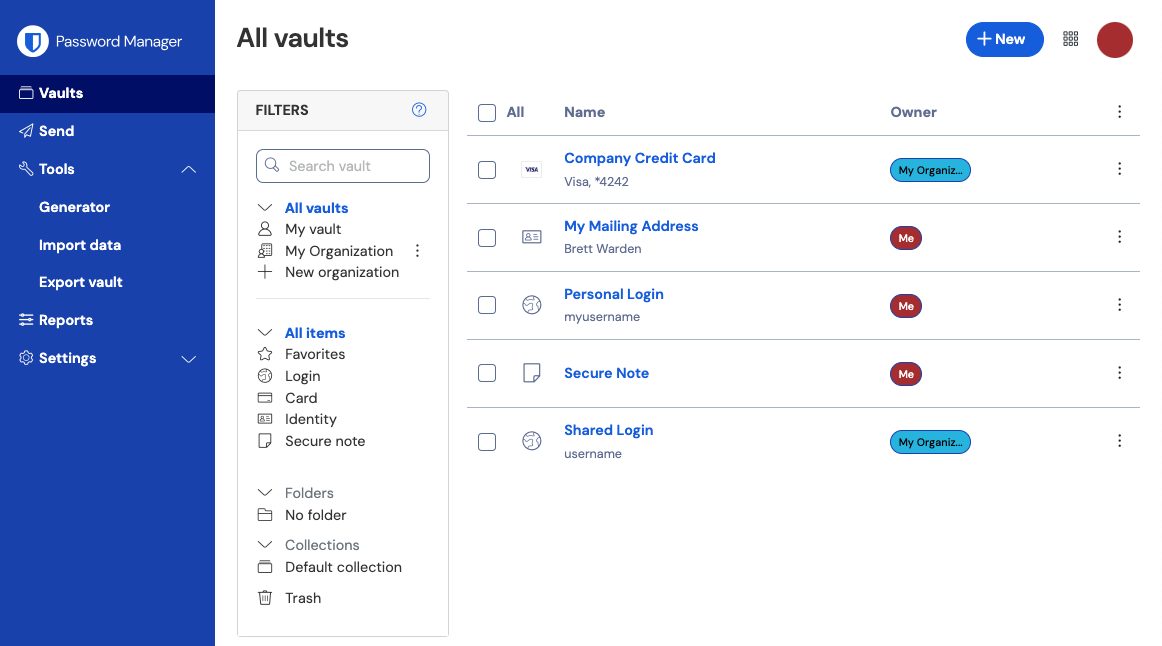
On your phone, Bitwarden works like any modern password manager. Install the iPhone or Android app, turn it on as the phone’s autofill service, and it offers your logins and passkeys in apps and in the browser. Add the browser extension on your laptop and the same vault is there. The free plan doesn’t count devices or passwords, and it doesn’t expire.
That’s rarer than it should be. Three of the bigger names further down limit their free plans to one device, or one kind of device, so you’ll have to upgrade.
What the free plan skips: generating two-factor codes inside the vault, emergency access, the full password health reports, and file attachments. Premium costs $19.80 a year (as of November 2026), the cheapest upgrade here. Bitwarden’s separate Authenticator app is free, so you can keep your codes there instead. Free accounts still get two handy extras: sharing logins with one other person through a free two-person organization, and a Data Breach report that checks your email against known leaks.
Security is where Bitwarden pulls ahead of Proton Pass. The code is open source, firms such as Cure53 and the Applied Cryptography Group at ETH Zurich have audited it, and there’s a bug bounty on HackerOne. No customer vault has ever been breached.
The weak spot is the feel: the design is plain, autofill misses on more sites than the slickest paid apps, and a few handy settings, such as filling a login as soon as a page opens, start switched off. Bitwarden also can’t reset a forgotten master password, so set up login with another device, or write the password down somewhere safe, before you need it. Offline, an unlocked app still shows your vault, read-only.
What it does
- Unlimited passwords, passkeys, and devices on the free plan
- Apps for iPhone, Android, Windows, Mac, and Linux, plus extensions for every major browser
- Free sharing with one other person
- A free, separate Authenticator app for two-factor codes
Pros
- Free plan with no device limit and no time limit
- Open source and audited by several firms
- The cheapest paid upgrade if you later want two-factor codes and emergency access
Cons
- Plain design, with autofill that's less polished than the smoothest rivals
- Two-factor codes inside the vault and emergency access need Premium
- No way back in after a forgotten master password unless you set up another route first
- Choose if:
- Your phone and computer come from different companies, such as an iPhone and a Windows laptop
Proton Pass
Free email aliases and a more modern app
#2 4.3/5
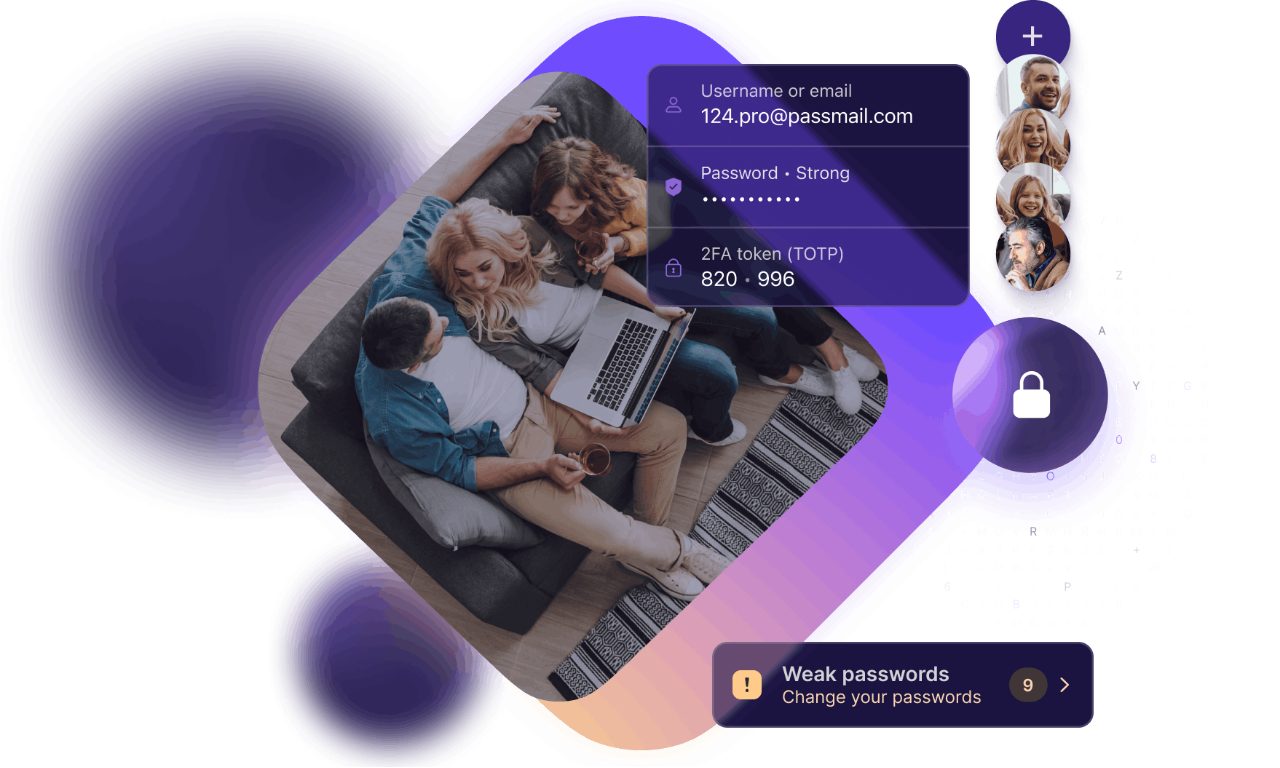
Proton Pass’s free plan matches Bitwarden’s: unlimited logins, passkeys, and devices, synced, with apps for iPhone, Android, Windows, Mac, and Linux, and extensions for every major browser including Safari. It comes from Proton, the Swiss company behind Proton Mail, and the app looks newer than Bitwarden’s.
The difference is in the extras. Proton Free includes 10 email aliases, so a shop gets a throwaway address that forwards to your inbox, and you can turn one off when the spam starts. You also get two vaults you can share with up to two people, and warnings about weak and reused passwords. No other free plan here includes its own aliases; Bitwarden can only create them through a separate service such as SimpleLogin.
Autofill is usually smooth, but it misses on some sites, and sometimes it doesn’t offer to save a new password after you sign up. Check that a new login actually saved before you close the tab.
Two-factor codes in the vault, emergency access, dark web monitoring, and file attachments are in the paid Pass Plus plan, which costs $35.88 a year (as of November 2026), almost twice Bitwarden Premium. Proton’s separate Authenticator app is free.
On security, Proton Pass is end-to-end encrypted, its apps are open source, it has a bug bounty, and Cure53 audited the apps, extensions, and servers in 2023. That’s one published audit against Bitwarden’s years of them, which is why we’d still put Bitwarden first for most people. Proton does better if you forget your password: signed-in devices keep an encrypted backup by default, and you can add a recovery phrase. A reset by email or text alone won’t unlock the vault, though.
What it does
- Unlimited logins, passkeys, and devices on the free plan
- 10 free email aliases that hide your real address
- Two vaults you can share with up to two people
- Weak and reused password warnings
Pros
- The most generous free extras of any dedicated manager here
- Modern apps on every major system, including Linux
- A signed-in device keeps an encrypted backup for recovery by default
Cons
- Autofill misses on some sites and doesn't always save new logins
- Only one published audit of the password manager
- Pass Plus costs almost twice as much as Bitwarden Premium
- Choose if:
- You want email aliases, or you already use Proton Mail
Apple Passwords
Enough if everything you own is Apple
#3 4.2/5
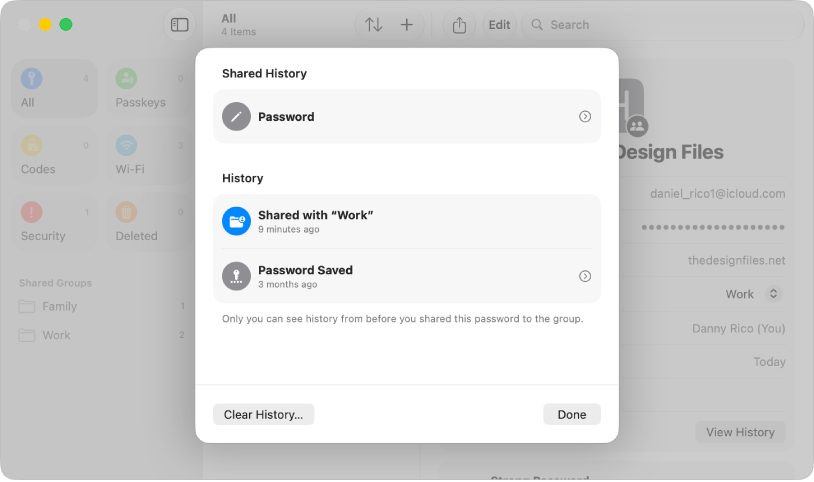
If your phone is an iPhone and your computer is a Mac, the password manager you need is probably already there. Apple Passwords is free with no paid tier, it’s switched on by default, and it syncs through iCloud Keychain with end-to-end encryption.
Nothing else here is easier day to day. It fills logins and passkeys through the system on iPhone, iPad, and Mac, it fills two-factor codes as well (unlike Bitwarden’s and Proton’s free plans), and it warns you when a password shows up in a leak. Shared groups let you share logins with other Apple users. Forget your Apple Account password and your iPhone’s passcode gets you back in, which no dedicated manager here can match.
The trouble is everything that isn’t Apple. There’s no Android app at all. On a Windows PC you install iCloud for Windows from the Microsoft Store, then an extension for Chrome, Edge, or Firefox, and there’s no website to log in from on a borrowed computer. So if you might buy an Android phone, or you live on a Windows work laptop, start with Bitwarden instead.
Leaving is easy. Passwords can hand your logins and passkeys straight to another app that supports Apple’s transfer standard, such as Bitwarden, instead of making you export an unencrypted spreadsheet. Apple’s email aliases (Hide My Email) aren’t part of the free deal: they need a paid iCloud+ plan.
What it does
- Built into iPhone, iPad, Mac, and Vision Pro, with nothing to install
- Fills passwords, passkeys, and two-factor codes
- Shared groups with other Apple users
- Works on Windows through iCloud for Windows and a browser extension
Pros
- The easiest manager to live with on Apple devices
- End-to-end encrypted, with recovery through your device passcode
- Two-factor codes included at no cost
Cons
- No Android app and no web access
- Windows needs a separate app plus a browser extension
- Skip if:
- You use an Android phone, or might switch to one

Google Password Manager
Enough for Android and Chrome users
#4 3.9/5
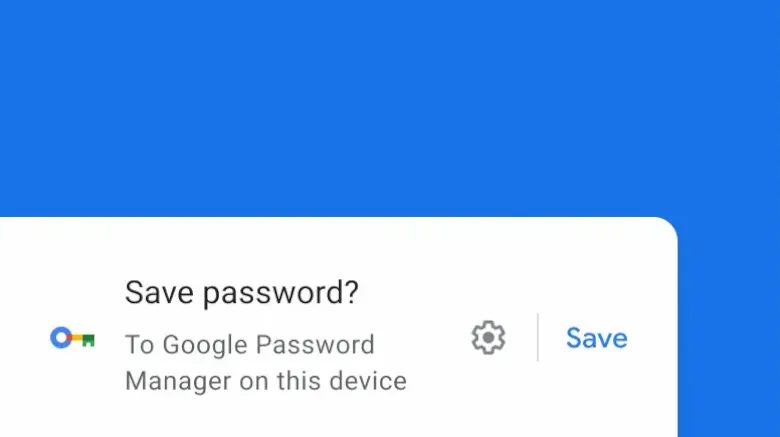
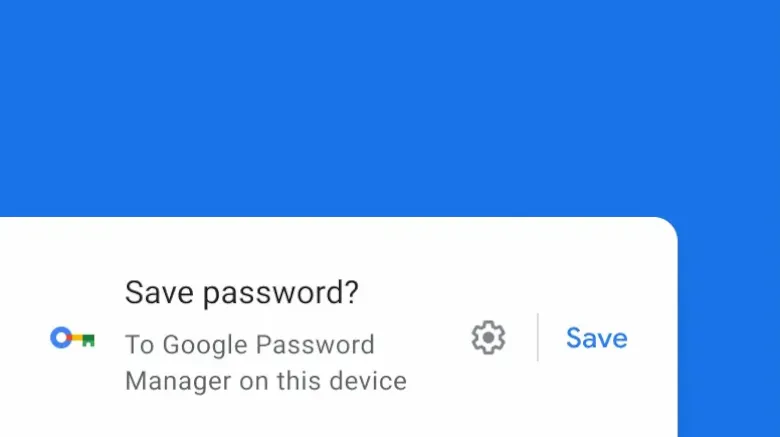
If you have an Android phone and use Chrome on your computer, Google’s built-in manager already saves and fills your passwords and passkeys, synced through your Google Account, with nothing to set up. On an iPhone it works too: make the Chrome app your AutoFill provider in Settings and it fills in other apps.
It stops at Chrome’s edge. Firefox, Safari, and Edge can’t fill from it, so you’d be copying passwords from passwords.google.com by hand. Sharing works only with people in your Google family group. Password Checkup warns about leaked, reused, and weak passwords. It doesn’t keep two-factor codes; Google Authenticator is a separate app.
The one setting worth changing is encryption. By default Google holds the key to your passwords, so they aren’t end-to-end encrypted the way Bitwarden’s or Apple’s are. Turn on on-device encryption in Chrome’s password settings and only you can unlock them. That can’t be undone, and it changes recovery: lose your Google password and every signed-in device, and the passwords are gone. On the default setting, normal Google Account recovery brings everything back.
On Windows, Chrome’s saved passwords are a favorite target of password-stealing malware, and attackers have repeatedly found ways around the extra protection Google added. A separate manager’s locked vault is a harder target than a browser that keeps itself unlocked.
What it does
- Built into Chrome on every system and into Android
- Syncs passwords and passkeys through your Google Account
- Sharing with your Google family group
- Password Checkup for leaked and reused passwords
Pros
- Nothing to install on Android or in Chrome
- Normal Google Account recovery restores your passwords on the default setting
- Works on iPhone through the Chrome app
Cons
- Doesn't fill in Firefox, Safari, or Edge
- Not end-to-end encrypted unless you turn on on-device encryption
- A common target for password-stealing malware on Windows
- Skip if:
- You use Safari, Firefox, or Edge on any of your devices

Microsoft Password Manager
For people who already use Edge everywhere
#5 3.8/5
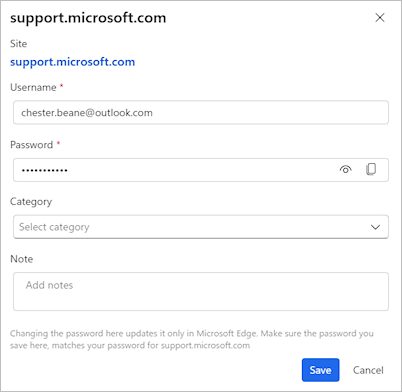
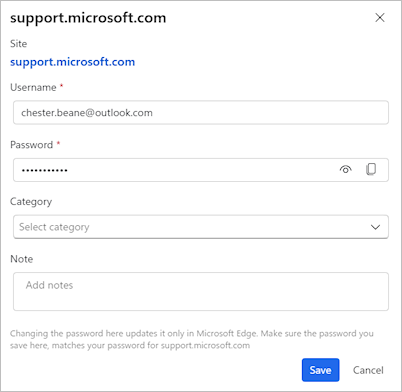
Edge, the browser that comes with Windows, has its own password manager, now called Microsoft Password Manager. It’s free with a personal Microsoft account and syncs to Edge on Windows, Mac, iPhone, and Android. If you used Microsoft Authenticator to fill passwords on your phone, those passwords now live in Edge, so on a phone you install Edge and set it as the autofill provider.
Like Google Password Manager, it works only inside its own browser. Use Chrome or Firefox on any device and you’re back to copying passwords. Password Monitor warns about leaked passwords and the generator makes strong ones, but there’s no sharing, no two-factor codes, and passkey sync works only in Edge on Windows.
Microsoft doesn’t describe saved passwords as end-to-end encrypted, and a researcher showed that Edge loaded every saved password into memory in plain text at startup. For an Edge-only household that doesn’t want another app, it does the job; anyone who touches Chrome should pick Bitwarden.
What it does
- Built into Microsoft Edge on Windows, Mac, iPhone, and Android
- Password Monitor alerts for leaked passwords
- Passkey sync in Edge on Windows
Pros
- Already on most Windows PCs, with nothing to set up
- Recovery through your Microsoft account
Cons
- Works only inside Edge
- No sharing or two-factor codes
- No published end-to-end encryption for saved passwords or independent audit
- Skip if:
- You use Chrome, Firefox, or Safari on any of your devices
KeePassXC
No account and no cloud
#6 3.3/5
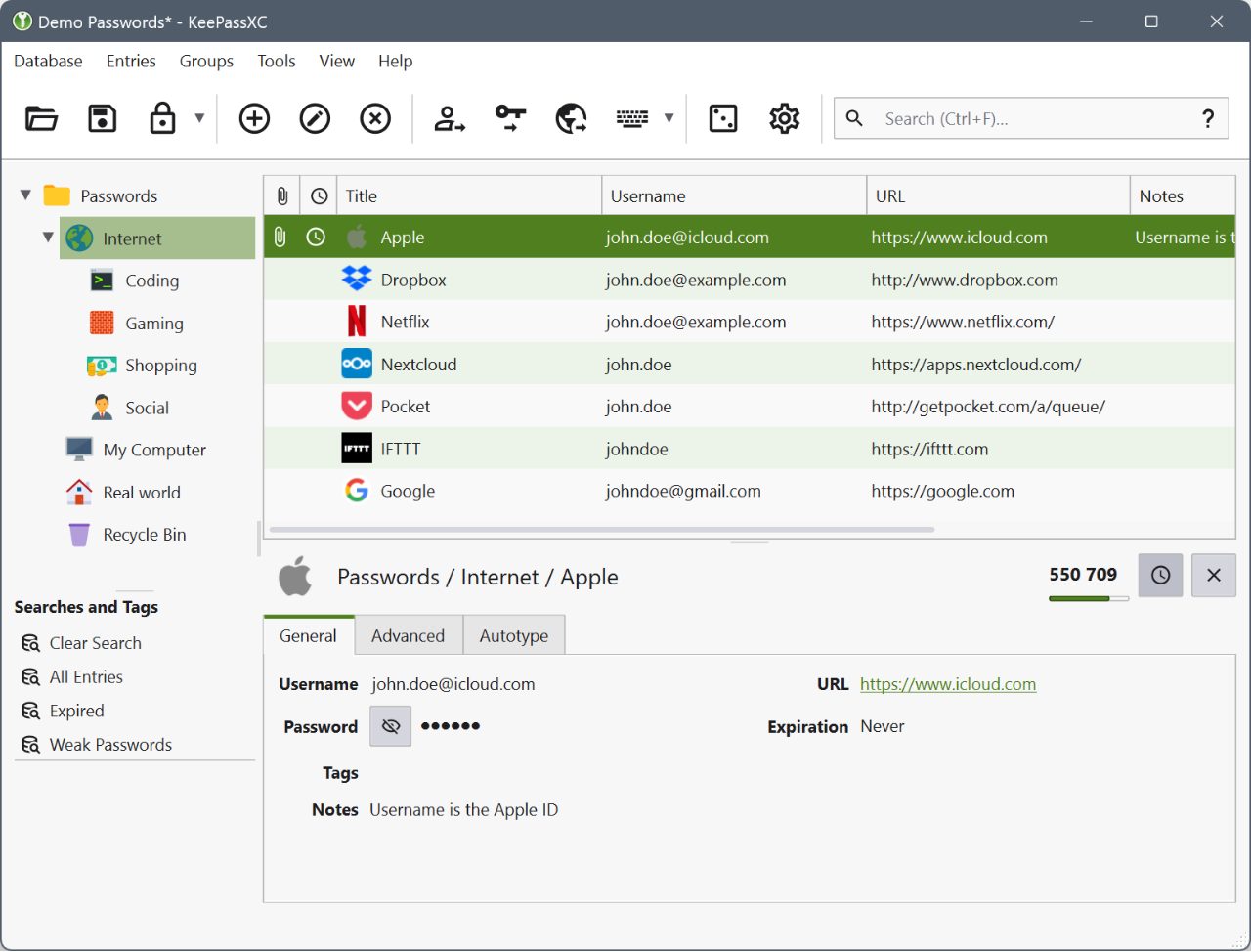
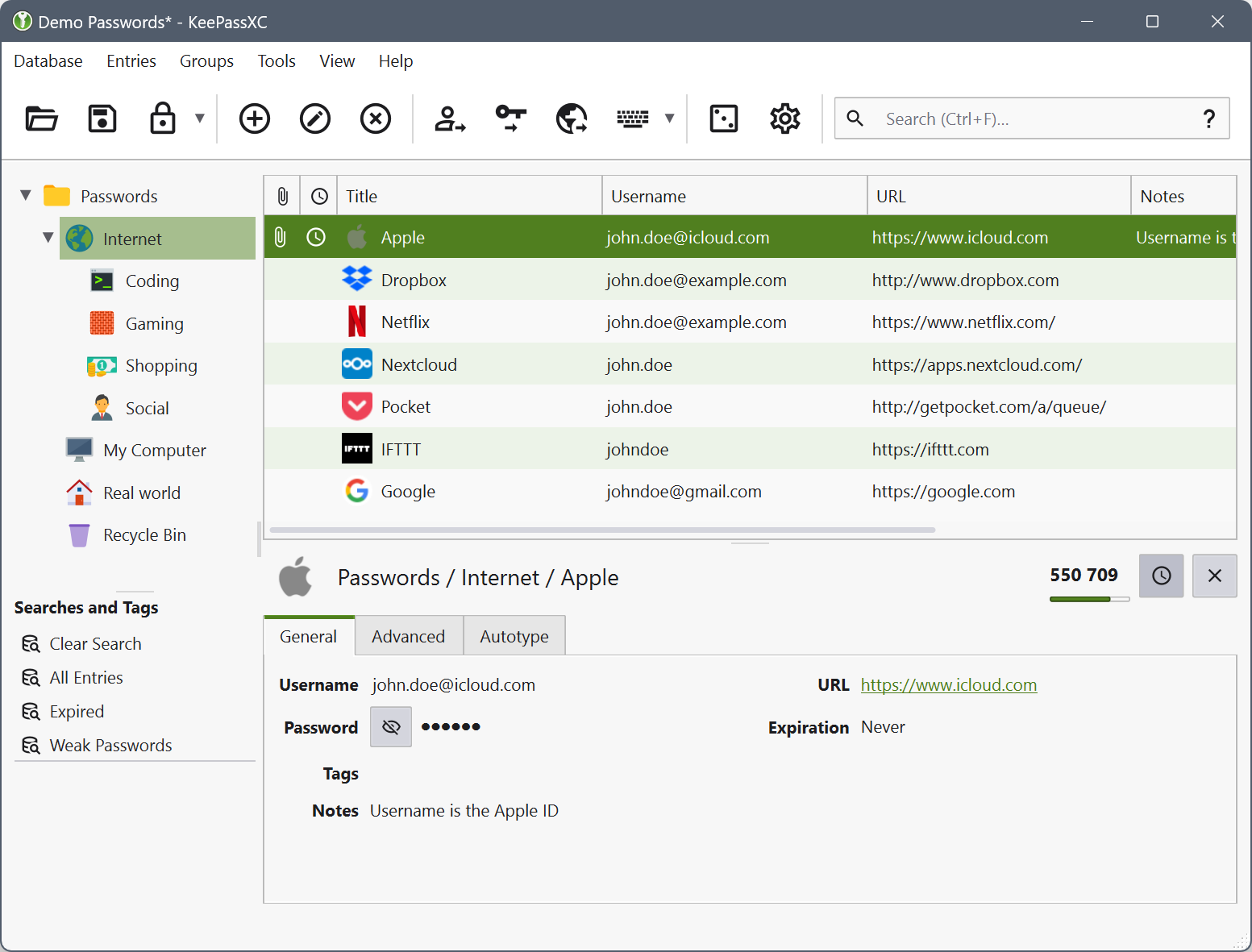
KeePassXC skips the company entirely. Your passwords live in one encrypted file on your computer, there’s no account, and it works fully offline. It’s free and open source with no limits, it has passed an independent audit, and France’s cybersecurity agency ANSSI has granted it a security certification.
The phone is where it gets fiddly. KeePassXC has no mobile app of its own. You put the file in a cloud folder (Dropbox, Google Drive, OneDrive) or sync it with Syncthing, then open it with another developer’s app: KeePassDX or KeePass2Android on Android, Strongbox or KeePassium on iPhone. KeePassDX is fully free, while the iPhone apps’ free versions have limits, such as one database in KeePassium. Edit the file on two devices before it syncs, and you may have to merge the changes.
In return you get extras the cloud managers charge for: two-factor codes, passkeys through the browser extension, sharing groups of logins with KeeShare, and a check of your passwords against known leaks. Forget the master password, though, and nobody can open the file. If you’d rather run a server than pass a file around, the self-hosted password managers are worth a look.
What it does
- Encrypted local file with no account and no cloud
- Apps for Windows, Mac, and Linux, with extensions for Chrome, Firefox, Edge, and Brave
- Two-factor codes, passkeys, and leak checks included
Pros
- Works fully offline, with nothing on anyone's servers
- Open source, independently audited, and free with no limits
Cons
- No phone app of its own; you set up sync and a separate app yourself
- Harder to set up and use than any cloud manager here
- A forgotten master password can't be recovered
- Choose if:
- You want your vault in a file you control and don't mind setting up sync

NordPass
Unlimited passwords, one device at a time
#7 3.1/5
NordPass’s free plan holds unlimited passwords and passkeys and never expires, and the apps cover everything, Linux and Safari included. But you can be signed in on only one device at a time. Log in on your laptop and your phone’s session ends, which defeats the point for most people.
The design is clean and autofill in Chrome is smooth, though the separate Nord account login is clunky. Mobile autofill misses some apps. Sharing, password health reports, the breach scanner, and emergency access are all Premium, which starts at $23.88 for the first year (as of November 2026). NordPass has no two-factor code generator on any plan.
Pros
- Unlimited passwords and passkeys for life
- Apps for every major system, including Linux
Cons
- Only one device can be signed in at a time on the free plan
- Almost no extras on the free plan
- Choose if:
- You use a password manager on one device only and like a clean design

RoboForm
Form filling on a single device
#8 2.8/5
RoboForm is still one of the best at filling logins and long forms such as addresses and checkout pages. Its free plan stores unlimited passwords and passkeys, but on one device with no sync and no web access. That suits someone who only logs in from a single desktop and fills a lot of forms, and nobody else.
Secfault Security ran penetration tests in 2023 and 2025 and RoboForm has never been breached. If you’ve used it for over a decade, though, change any password its generator made before about 2015: a flaw in that old generator made its passwords guessable, and researchers used it to recover an old crypto wallet’s password. Premium, with sync, sharing, and emergency access, renews at $29.88 a year (as of November 2026).
Pros
- Excellent login and form filling
- Unlimited passwords and passkeys on the free plan
Cons
- Free plan works on one device, with no sync
- No recovery for a forgotten master password on the free plan
- Choose if:
- You only need passwords on one computer and fill lots of forms
LastPass
Hard to recommend after its breach
#9 2.7/5
LastPass is still the name many people know, and its free plan holds unlimited passwords on computers or phones, not both. Autofill on ordinary sites is good.
The problem is its 2022 breach. Attackers stole encrypted copies of customer vaults, so anyone whose master password was weak before the breach is exposed for good, and millions of dollars in cryptocurrency thefts have reportedly been linked to it. The UK’s data regulator, the ICO, fined LastPass £1.2 million over the breach. If you’re on LastPass Free now, move to Bitwarden and change your important passwords, starting with any you saved before 2023.
Pros
- Unlimited passwords on the free plan
- Smooth autofill on everyday sites
Cons
- Stolen customer vaults in 2022 leave weak master passwords exposed
- Free plan works on computers or phones, not both
Also considered
- Dashlane no longer has a free plan. Former free accounts lost the ability to add or view passwords, and new users get only a 14-day trial of Premium.
- 1Password has never had a free plan, only a 14-day trial. It’s a favorite among people who pay, not a free option.
- Keeper has a free plan, but it holds only 10 passwords and passkeys on one phone, which isn’t enough to replace your browser’s manager.
Scores
1–5 per criterion · select a score for its reasoning and any sources
| # | Product | Overall | A free plan you can keep using , counts double | Easy, reliable autofill | Security track record | Works on all your devices | Extras on the free plan | Getting back in after a forgotten password , counts half |
|---|---|---|---|---|---|---|---|---|
| 1 | Bitwarden (official self-hosted server) | 4.4 | 5 | 3 | 5 | 5 | 4 | 3 |
| 2 | Proton Pass | 4.3 | 5 | 3 | 4 | 5 | 4 | 4 |
| 3 | Apple Passwords | 4.2 | 5 | 5 | 4 | 2 | 4 | 5 |
| 4 | Google Password Manager | 3.9 | 5 | 4 | 3 | 3 | 3 | 5 |
| 5 | Microsoft Password Manager | 3.8 | 5 | 4 | 3 | 3 | 2 | 5 |
| 6 | KeePassXC | 3.3 | 4 | 2 | 4 | 3 | 4 | 1 |
| 7 | NordPass | 3.1 | 3 | 3 | 4 | 5 | 1 | 2 |
| 8 | RoboForm | 2.8 | 2 | 4 | 4 | 4 | 2 | 1 |
| 9 | LastPass | 2.7 | 3 | 3 | 1 | 4 | 2 | 3 |
×2 = counts double in the overall score, ×½ = counts half.
How each criterion is scored
A free plan you can keep using
Counts double in the overall score: A free plan that stops working on your second device fails the job readers came for, so whether the free version lasts counts double.
Whether the free version works as your only password manager for years: how many passwords and passkeys it holds, how many devices you can use at once, whether it syncs between them, and whether it stays free with no time limit.
- 5 Unlimited items, unlimited devices and automatic sync, with no time limit
- 4 Unlimited items and devices, but with a catch for everyday use, such as sync you have to set up yourself
- 3 Unlimited items and sync, but only one device signed in at a time or only one type of device, such as computers or phones
- 2 Unlimited items, but on one device only, with no sync between devices
- 1 No lasting free plan, or a free plan capped at a few dozen items
Easy, reliable autofill
How easily one person sets it up and then saves and fills logins day to day on the phone and computer it supports. Judged from how setup works, how reliably it fills and saves logins in browsers and apps, how clear the design is, and what reviewers and many users agree on.
- 5 Almost nothing to set up, with autofill built into the system that rarely misses
- 4 Easy setup and reliable autofill on phones and computers, with few complaints
- 3 Fine for most people, with known snags such as sites where autofill misses, logins it fails to save, or a clunky design
- 2 Works once set up, but setup takes real effort and filling on phones depends on extra apps or manual steps
- 1 Hard to set up, with autofill that often fails
Security track record
How well the vault is protected and how much outsiders have checked it: end-to-end encryption, independent audits and certifications, open code, a bug bounty, and any breach of customer vault data.
- 5 End-to-end encryption, regular independent audits by several firms, open code, a bug bounty, and no breach of vault data
- 4 End-to-end encryption, no known breach of vault data, and independent audits, certifications or a published security design
- 3 No known breach, but vaults aren't end-to-end encrypted by default, or there is little published independent review
- 2 End-to-end encryption, but a breach of encrypted vault data, repeated serious incidents, or no independent review at all
- 1 A breach of vault data that put customers at risk, or no clear account of how vaults are protected
Works on all your devices
Whether the free version runs on what you own: iPhone, Android, Windows, Mac, Linux and ChromeOS, and the major browsers, with autofill on each.
- 5 Apps for iPhone, Android, Windows, Mac and Linux, and extensions for all major browsers including Safari and Firefox
- 4 Its own apps or full support on iPhone, Android, Windows and Mac and the major browsers, missing a minor platform such as Linux apps or one browser
- 3 Phones and computers on every major system, but only inside one browser, or through other developers' apps on phones
- 2 One platform family plus limited use elsewhere, with no Android or no Windows support
- 1 One platform family only
Extras on the free plan
How many of six extras the free version includes: stored and synced passkeys, built-in two-factor codes, sharing a login with another person, emergency access for a trusted contact, alerts about breached or weak passwords, and email aliases that hide your address.
- 5 Five or six
- 4 Four
- 3 Three
- 2 Two
- 1 One or none
Getting back in after a forgotten password
Counts half in the overall score: It matters on the bad day it happens, but few readers choose a manager by it, so it counts half.
What happens when you forget the password that unlocks your vault: whether your usual account or device recovery, a route that's on by default, or only something you set up in advance gets you back in without losing your logins.
- 5 Your usual account recovery or your device's passcode gets you back in, with nothing to set up in advance
- 4 A route that's on by default, such as a backup on a device that's still signed in
- 3 Several routes you set up in advance, such as another signed-in device, a hint or a recovery phrase
- 2 One recovery route you must set up in advance, such as a recovery code
- 1 Forget the main password and the vault is lost
Which one fits you
- iPhone with a Windows laptop, or Android with a Mac: Bitwarden. Pick Proton Pass if you want free email aliases or already use Proton Mail.
- Everything Apple: Apple Passwords. Add Bitwarden only if a non-Apple device joins the mix.
- Android phone and Chrome everywhere: Google Password Manager is enough. Turn on on-device encryption if you keep your Google password and a signed-in device safe.
- Windows with Edge, and Edge on your phone: Microsoft Password Manager works, but Bitwarden is the safer long-term pick.
- No cloud at all: KeePassXC, with KeePassDX or KeePassium on your phone.
- One desktop and lots of forms: RoboForm.
The bottom line
Bitwarden is the free password manager we’d hand to almost anyone: no device limit, no expiry, every platform, and the strongest security record of the bunch. Its gaps on the free plan (two-factor codes inside the vault and emergency access) are the same ones nearly every rival charges for, and its upgrade is the cheapest if you want them. Proton Pass is the better pick when email aliases matter to you, or when Bitwarden’s plain design puts you off, as long as you accept a younger audit history and check that new logins save.
The built-in managers are good enough for most people, as long as you stay inside their own browser or ecosystem. Apple Passwords is the best choice for an all-Apple household, with free two-factor codes and recovery a dedicated manager can’t match. Google’s and Edge’s managers are fine inside their own browsers, but they’re weaker on security than Bitwarden or Apple, and the day you open another browser, you’ll wish you’d started with Bitwarden.
Skip the free plans that stop at one device unless one device really is all you use. And if you’re still on LastPass, now is a good time to move.
Frequently asked questions
Is it safe to keep two-factor codes in your password manager?
It’s convenient, but it puts both of your login factors in one place: if someone gets into your vault, they get the codes too. Many people keep codes for email and banking in a separate authenticator app, such as the free ones from Bitwarden, Proton, Google, or Microsoft, and let the password manager fill the rest.
Can I move from Chrome’s or Apple’s manager to Bitwarden later?
Yes. Google Password Manager exports a file you can import into Bitwarden, Proton Pass, and most others. Apple Passwords can transfer logins and passkeys directly to apps that support Apple’s transfer standard, including Bitwarden. Starting with the built-in one doesn’t lock you in.
What does it cost if I outgrow a free plan?
As of November 2026, Bitwarden Premium is $19.80 a year, NordPass Premium starts at $23.88 for the first year, RoboForm Premium renews at $29.88 a year, Proton Pass Plus is $35.88 a year, and LastPass Premium is about $36 a year. Apple Passwords, Google Password Manager, Microsoft Password Manager, and KeePassXC have no paid tier.