Best password managers for families in 2026
In a lot of homes the Netflix password lives in the family group chat, the Wi-Fi password is on a sticky note, and one person gets every “what’s the login for the electric company?” text. A family password manager fixes that. Everyone gets their own vault on their phone, there’s a shared space for the logins you all use, and there’s a plan for the day someone forgets the one password that unlocks it all.
For most families, and especially ones with a mix of iPhones, Android phones, Windows laptops and Macs, the best pick is 1Password Families. It’s the easiest paid manager for the least technical person in the house, it runs on everything, and a family organizer can get a relative back in after they forget their password. If the price feels steep, Bitwarden Families does nearly all of it for less and covers six people instead of five. And if every device in your family is an Apple one, the free Apple Passwords app might be all you need.
Free or paid: what a family plan gets you
Your phone already saves passwords for free. Apple’s Passwords app and Google Password Manager can both share logins with family now, too. Here’s what you’re paying for when you go beyond them:
- Every device in the house. Apple Passwords has no Android app, and Google’s works properly only on Android and in Chrome. One Android phone, or one person who lives in Safari, breaks the free option.
- Shared vaults with rules. The paid managers give each person a private vault plus shared vaults. A teen can use the streaming logins without seeing or changing the bank ones. Google shares one password at a time.
- A plan for emergencies. Neither free option lets someone you trust reach your saved passwords if you’re in the hospital or worse. Most paid plans do.
Here’s what each costs for a family. The first-year deals are real, but plan around the regular price.
| Manager | Yearly price (as of November 2026) | People |
|---|---|---|
| 1Password Families | $71.88 ($53.88 first year, bought directly) | 5 |
| Bitwarden Families | $47.88 | 6 |
| Proton Pass Family | $59.88 | 6 |
| Apple Passwords | Free | Anyone with an Apple device |
| Dashlane Friends & Family | $89.88 (as of March 2025) | 10 |
| Keeper Family | $91.99, plus $26.99 for breach alerts | 5 |
| RoboForm Family | $47.75 at renewal | 5 |
| NordPass Family | $44.28 first year, $71.88 list price | 6 |
| Google Password Manager | Free | Up to 6 in a Google family group |
Two ways a family gets locked out
“Recovery” covers two different problems for a family, and the managers that solve one often don’t solve the other.
Someone forgets their master password. This is the common one, especially with older relatives. Most managers can’t reset it, because they never see it; that’s what end-to-end encryption means. Unless the person saved a recovery code ahead of time, their vault is gone. 1Password is the exception among the paid plans: a family organizer can restore a member’s access. Apple and Google are forgiving too, because the passwords ride on the person’s Apple or Google account, which they can recover with their phone’s passcode or a text message.
Something happens to you. Rarer, and much worse. Your partner needs the mortgage, insurance and utility logins, and you can’t hand them over. Bitwarden, Keeper, RoboForm, Proton Pass, Dashlane and NordPass all have emergency access: you name a trusted person, they ask for access, and they get in after a waiting period unless you turn the request down. 1Password doesn’t have this. Neither does Apple: its Legacy Contact feature hands over your photos and files but leaves out saved passwords.
So it’s worth asking which worry is bigger in your house. A parent who forgets passwords points to 1Password. Making sure your partner can get into everything points to Bitwarden.

1Password
The one the whole family will actually use
#1 4.2/5
1Password is the paid manager that non-technical relatives fight the least. The phone apps, the desktop apps and the browser extension look and work the same, and autofill is dependable on iPhone and Android. A password manager Grandma stops opening protects nothing, so this counts for more than any feature list.
Families covers five people. Each gets a private vault, and you can make as many shared vaults as you like: a “Streaming” vault the kids can see, a “House” vault for the utilities and Wi-Fi, and so on. When the babysitter or an aunt outside the plan needs one login, you can send it to them even if they don’t use 1Password.
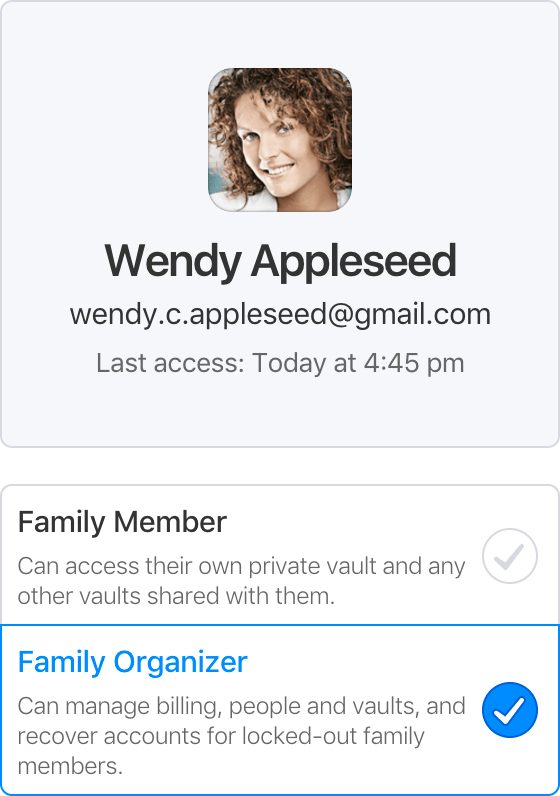
The snag at setup is the Secret Key, a long code 1Password adds on top of your password. Everyone needs it the first time they sign in on a new device, and that’s where older relatives get stuck. It’s also a big part of why 1Password’s security record is so good: a stolen copy of the vault data is useless without it. If someone loses their password or their Secret Key, a family organizer can restore their access.
The gap is emergency access. There’s no way to name a person who can request your vault if you’re incapacitated. 1Password’s own advice is to make a second family organizer and keep the printed Emergency Kit with your will. It works, but it’s a manual plan.
What it does
- Unlimited shared vaults plus a private vault for each person
- Family organizers can restore a member who forgets their password
- Sharing a login with people who don't use 1Password
- Alerts for breached, weak and reused passwords
- Apps for iPhone, Android, Windows, Mac and Linux
Pros
- Easiest paid manager for non-technical relatives
- Organizer recovery covers the most common family lockout
- Strong security record, helped by the Secret Key
Cons
- No emergency access for a trusted contact
- The Secret Key adds a step on every new device
- Five people only, and the priciest of the top three after the first year

Bitwarden (official self-hosted server)
For tight budgets and partners who need a way in
#2 4.1/5
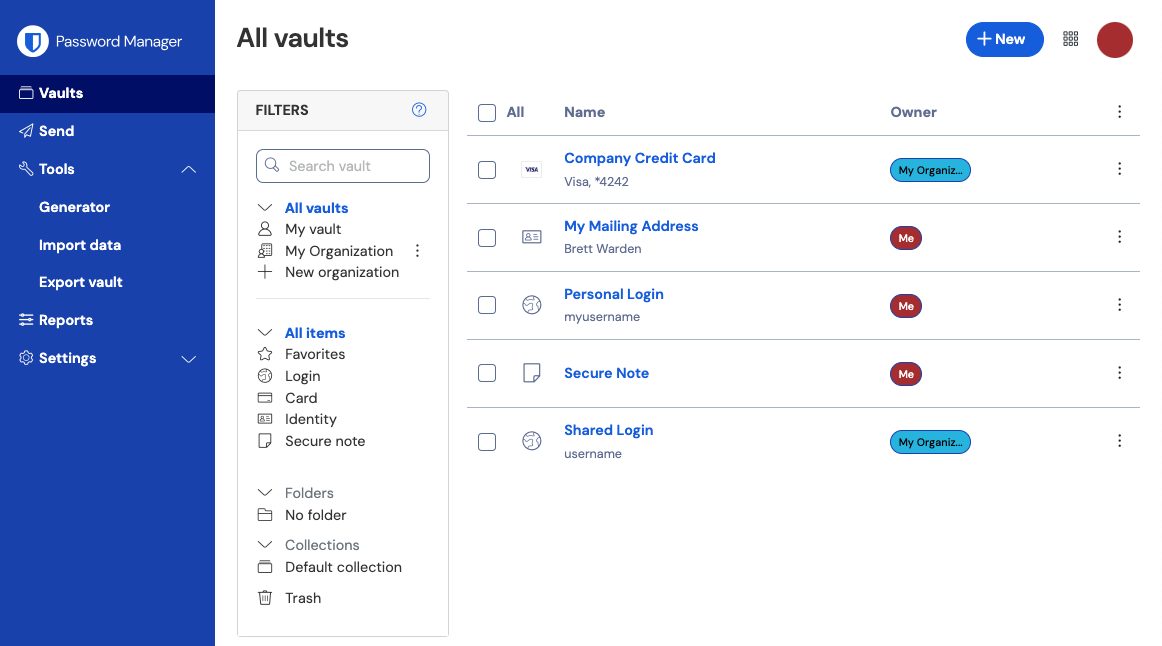
Bitwarden is the open-source manager, and its family plan is the best value here: $47.88 a year covers six people, each with every Premium feature. Couples can even start free, since the free plan lets you share with one other person.
Where Bitwarden beats 1Password is emergency access. You pick a trusted person and how long they have to wait after asking, and you choose whether they can only view your vault or take it over completely. If you never respond, they get in. That’s the feature to have if your partner would be lost without your logins.
Shared vaults are called collections, and you get as many as you want. Permissions are flexible: a teen can autofill the streaming login without being able to see or change the password.
The other side of the tradeoff is lockouts. Bitwarden can’t reset a forgotten master password, and on the Families plan nobody else in the family can either. The only way back is an emergency contact you set up with takeover rights beforehand, so set one up for every relative.
The apps are plainer than 1Password’s and take a few more taps, so it’s best when one person in the house enjoys setting things up. On the phone, your vault stays readable when you’re offline, but you can’t edit it until you’re back online. The security record is excellent: yearly audits by outside firms such as Cure53, a cryptography review by ETH Zurich, and no breach of customer vaults. If you’d rather keep the data on your own hardware, Bitwarden also runs on your own server.
What it does
- Six Premium accounts with unlimited shared collections
- Emergency access with a choice of view or full takeover
- Sharing text or files with people who don't use Bitwarden
- Built-in two-factor codes and breach reports
Pros
- Lowest regular price for six people among the paid plans
- Best emergency access of the lot
- Open source, audited every year, no vault breach
Cons
- No family-organizer reset for a forgotten master password
- Plainer apps that take more getting used to

Proton Pass
For privacy-minded families
#3 3.8/5
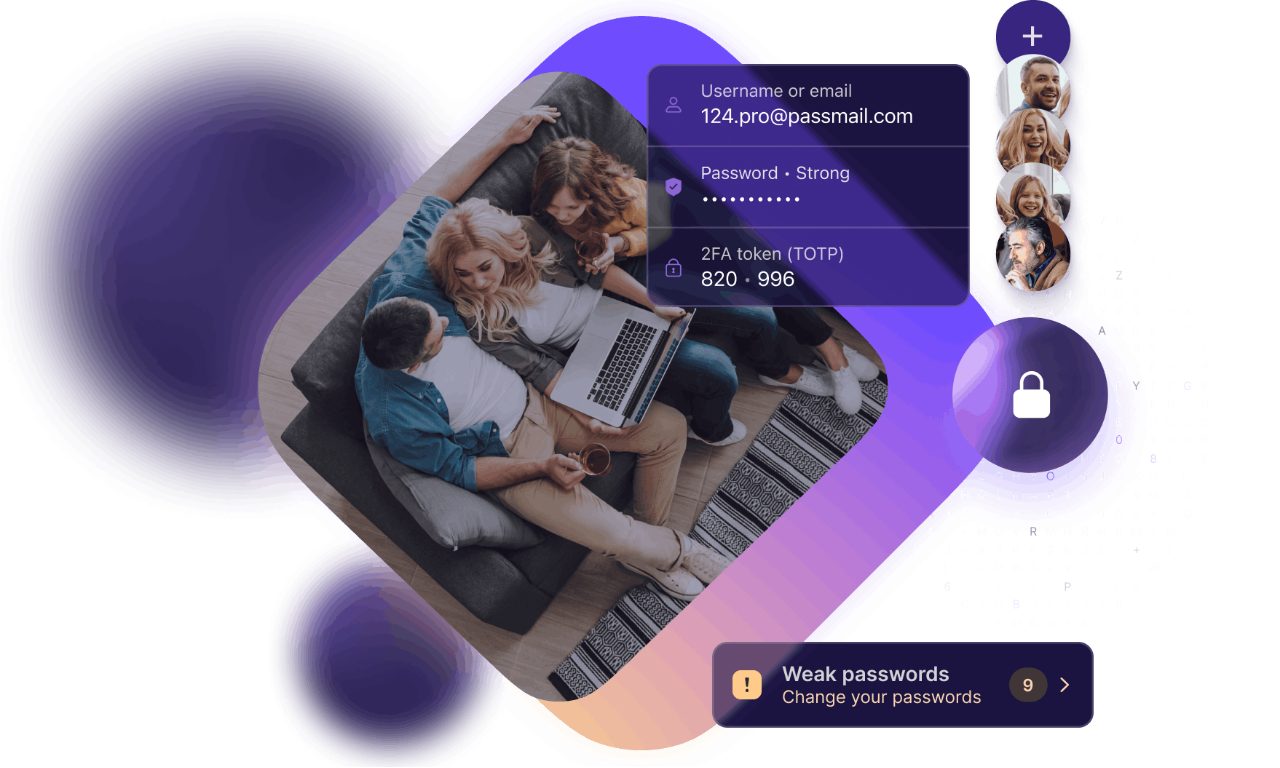
Proton Pass suits families who already trust Proton for email or VPN, or who are tired of spam and want a separate email address for every sign-up. Pass Family is $59.88 a year for six people, and each person gets the full paid version, including unlimited email aliases, built-in two-factor codes and dark web monitoring.
Sharing works the way a family needs. Everyone has private vaults, you can share a whole vault or one item, and you can make people viewers, editors or managers. You can also send a login to someone who doesn’t use Proton by secure link. Emergency access is included.
The apps are clean and autofill is smooth. The confusing part is the start: Pass sits inside a wider Proton account, which can make first-time setup and finding your way around harder for relatives. And turn on the recovery options for everyone on day one, because a member who forgets their password and has none set up may lose access.
One catch for current Proton customers: if you already pay for Proton Unlimited, Mail Plus or VPN Plus, you can’t add Pass Family on top. Proton’s Family bundle, which covers six people across all its apps, is the route instead.
What it does
- Six full Pass accounts with private and shared vaults
- Unlimited email aliases
- Viewer, editor and manager roles, plus sharing by link
- Built-in two-factor codes and dark web monitoring
Pros
- Open-source apps and an independent audit
- Aliases cut down spam across the family's sign-ups
- Six people at a mid-range price
Cons
- Setup inside a Proton account confuses some people
- Can't be added to most other paid Proton plans
Apple Passwords
Free pick for all-Apple households
#4 3.6/5
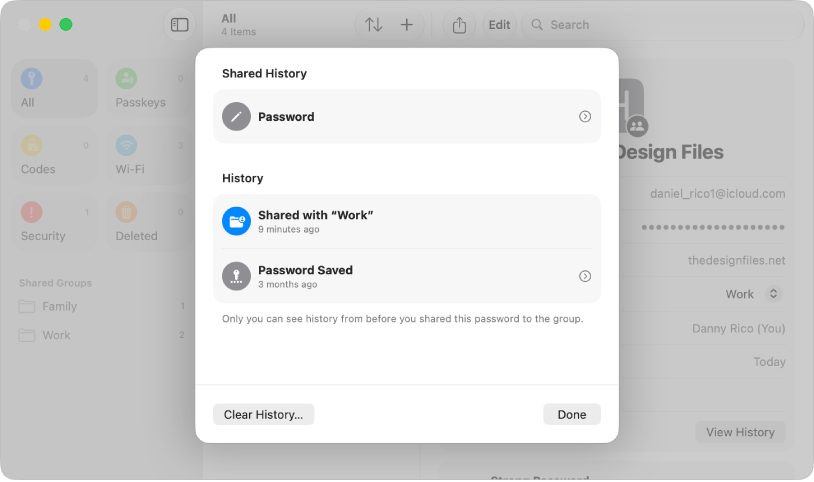
If every phone and computer in your family is an Apple one, Apple’s free Passwords app is a good answer now. It’s already on every iPhone, iPad and Mac, autofill works everywhere, and there’s nothing for anyone to install or learn. For an older parent on an iPhone, that’s hard to beat.
To share, you make a group, say “Family,” and add people from your contacts. Logins in the group show up on everyone’s devices. It’s simple, but there are no permission levels, so you can’t give a teen view-only access.
The limits are where your family isn’t Apple. There’s no Android app at all. On Windows you need iCloud for Windows and the Chrome or Edge extension, and people you invite to a group need a recent iPhone, iPad or Mac.
It’s forgiving when someone forgets a password: their Apple Account comes back with a device passcode or a recovery contact, and their passwords come with it. It’s weak for emergencies, though. Apple’s Legacy Contact feature explicitly leaves out saved passwords, so your family can’t get to them through Apple if something happens to you.
What it does
- Built into iPhone, iPad and Mac, with system-wide autofill
- Shared groups for family logins
- Built-in verification codes and passkeys
Pros
- Free, with nothing to install
- The easiest option for an older relative on an iPhone
- A forgotten password is recoverable through the Apple Account
Cons
- No Android app
- No permission levels in shared groups
- Legacy Contacts can't reach saved passwords
- Choose if:
- Nobody in the family uses an Android phone

Dashlane
For extended families of up to 10
#5 3.6/5
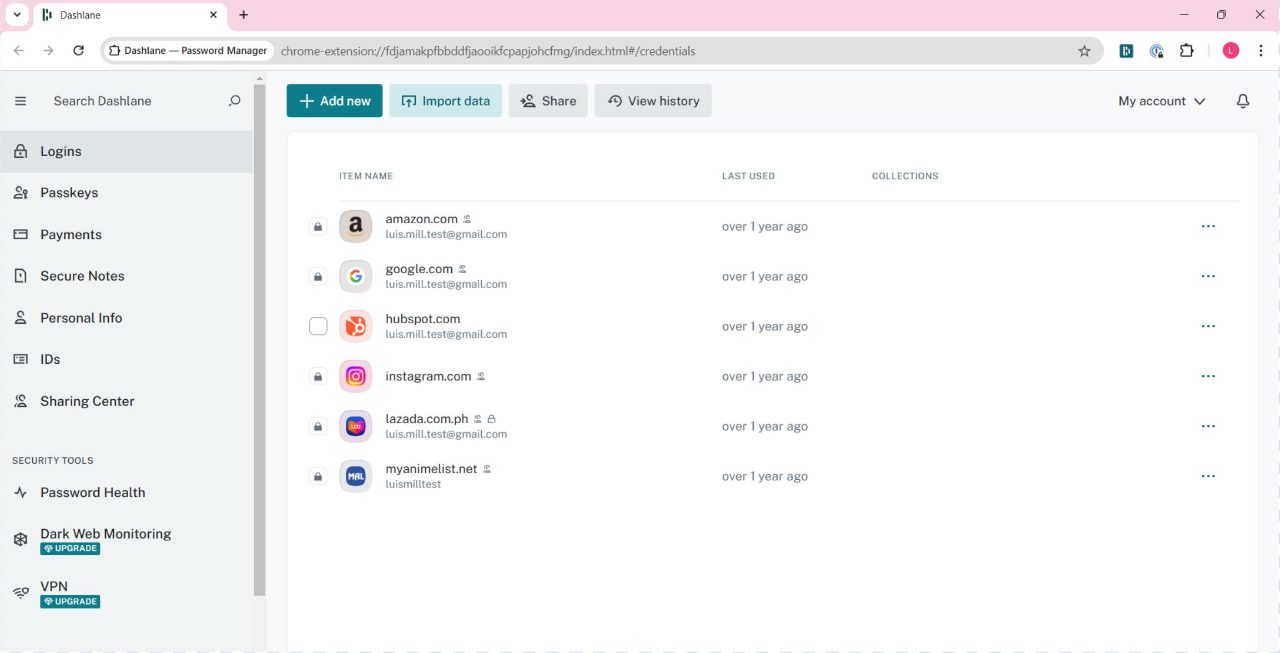
Dashlane’s Friends & Family plan covers up to 10 people, which makes it the one to look at when you’re covering grandparents, adult kids and a couple of households at once. It cost $89.88 a year as of March 2025, the most here except Keeper, but split ten ways that’s still less per person than the five-person plans.
It’s friendly for beginners, with reliable autofill. On a computer it works through the browser extension and web app rather than a desktop program, which suits people who live in the browser anyway. There are apps for iPhone and Android.
Sharing is opt-in. Each person’s account is independent, and you share logins or collections with limited or full rights. The VPN in the plan goes to the manager only, not the members.
Two things to know before you’re the manager. The role is tied to your purchase and can’t be handed over without canceling. And if the plan ends, members who were new to Dashlane can export their data but can’t view or edit it. Get everyone to turn on a recovery option early, too: forget the master password without one, and the account may have to be reset with its data lost.
What it does
- Up to 10 independent accounts on one plan
- Sharing logins and collections with limited or full rights
- Dark web monitoring and phishing alerts for every member
Pros
- Covers more people than any other paid plan here
- Friendly for beginners
Cons
- The VPN is for the plan manager only
- Members new to Dashlane are locked into export-only if the plan ends
- On computers it works only through the browser

Keeper Password Manager
Strong sharing and security, if you'll pay for extras
#6 3.5/5
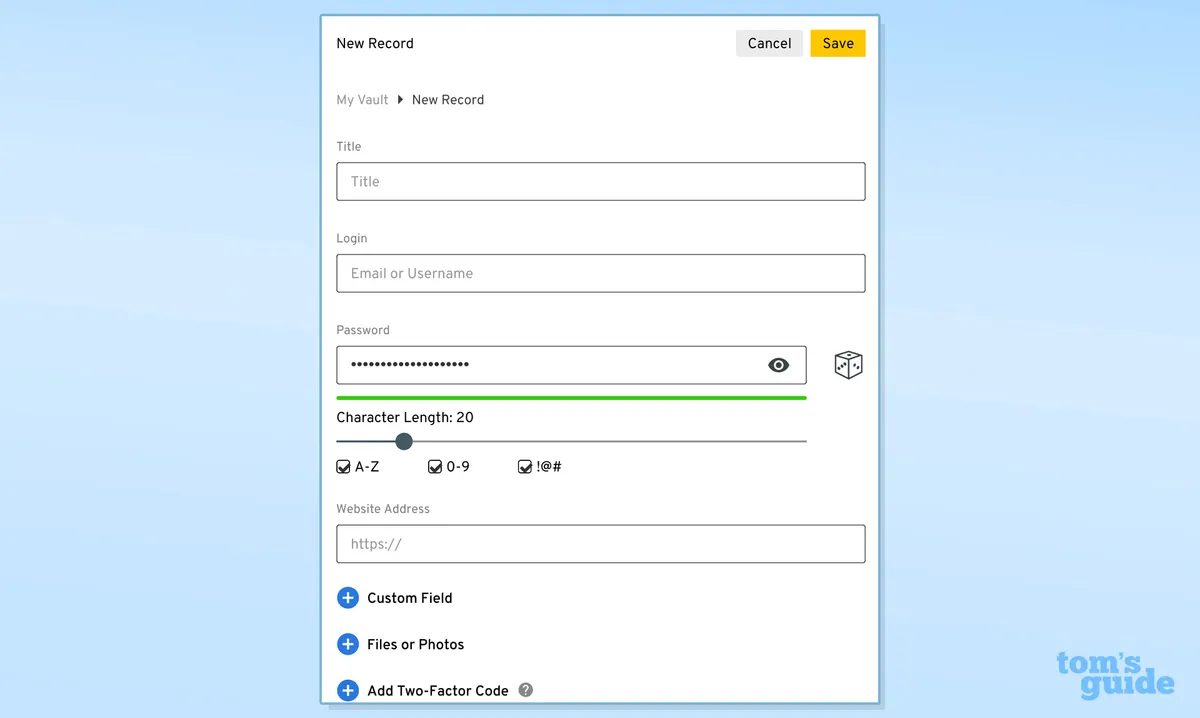
Keeper does the family basics very well. Each of the five members gets a private vault, shared folders are unlimited, and you can set each person to view, edit or share. A one-time share sends a login to someone outside the plan. Emergency access lets you name up to five people, each with their own waiting period of up to three months. The plan also includes 10 GB of file storage, handy for scans of passports and insurance cards.
Its security credentials are among the strongest here, with SOC 2 and ISO 27001 certifications, regular outside penetration tests and a public bug bounty.
The problem is cost. Keeper Family is $91.99 a year on Keeper’s own site, and breach monitoring isn’t included: BreachWatch is another $26.99, and the app keeps pointing you to paid add-ons. A forgotten master password needs the 24-word recovery phrase you saved earlier. A Tom’s Guide reviewer also found Keeper’s mobile autofill sometimes skipped email fields on sign-in pages.
What it does
- Private vaults and unlimited shared folders with view, edit and share rights
- Emergency access for up to five contacts
- 10 GB of encrypted file storage
Pros
- Fine-grained sharing controls
- Strong certifications and regular penetration tests
Cons
- The priciest plan for five people, before add-ons
- Breach monitoring costs extra
- Add-on prompts in the app

RoboForm
Low-cost plan with a long record in form filling
#7 3.5/5
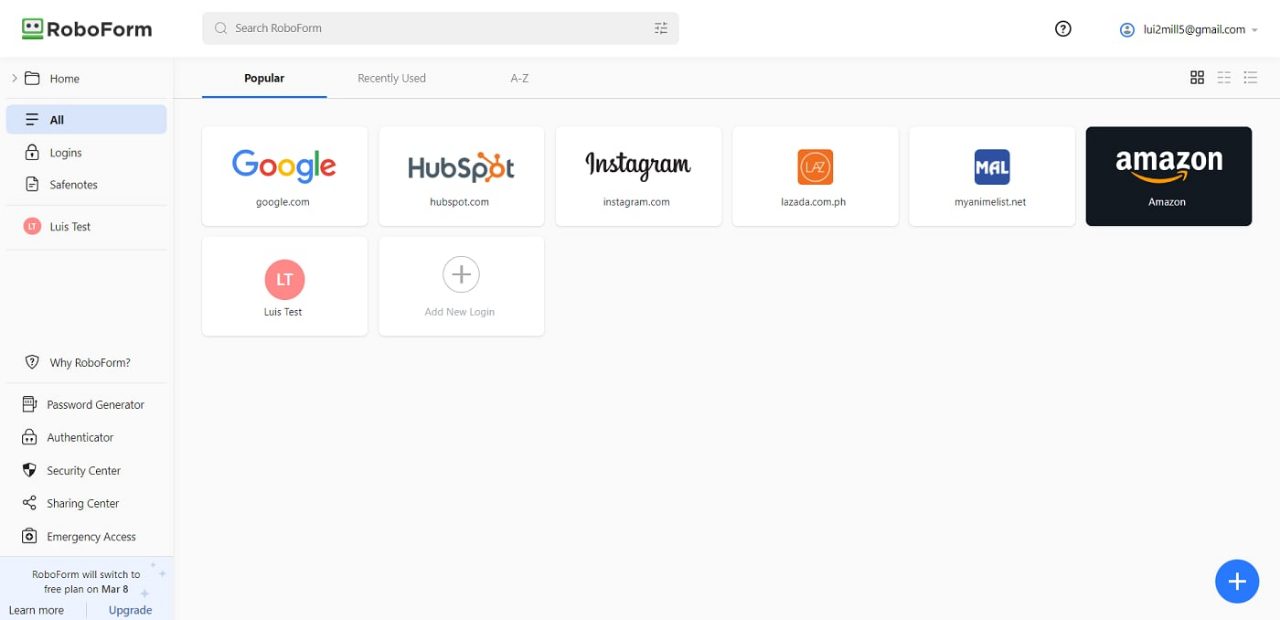
RoboForm has been filling in web forms for a long time, and it’s still good at the boring parts: addresses, card numbers and long bank sign-in pages. The Family plan gives five people a full Premium account each for $47.75 a year at renewal, about what Bitwarden charges for six.
Its emergency access is close to Bitwarden’s. You can name several contacts, give each their own wait from none at all to 30 days, and turn a request down. Sharing works by folder or by single login with different access levels, but only with people who have RoboForm accounts.
The downside is the look. The interface feels dated, and a big vault is harder to browse than in 1Password. Security is solid, with no reported breach and a 2023 penetration test by Secfault Security that found “a reasonable standard of security.”
What it does
- Five Premium accounts on the Family plan
- Emergency access with a separate wait for each contact
- Strong form filling for addresses and card details
Pros
- Among the cheapest family plans at the regular price
- Flexible emergency access
Cons
- Dated interface
- Sharing only with other RoboForm users

NordPass
Cheap first year for six, with simpler sharing
#8 3.3/5
NordPass Family looks cheap at checkout: $44.28 for the first year for six people. The list price is $71.88, so expect the bill to climb at renewal. Each member gets a separate Premium vault, and the apps are clean and cover every platform, including Linux.
Sharing is built around single items: you pick a login, enter the person’s email and set what they can do. That’s fine for a handful of shared streaming logins, and clumsier than a shared vault once the family shares dozens.
Setup is the other snag. You make a Nord Account first and then a separate master password, which is one password too many for some relatives. Emergency access gives a trusted contact view-only access if you don’t respond within seven days. A forgotten master password needs a recovery code made beforehand; without one, support can only reset the account, which deletes everything in it. And unlike most paid plans here, there are no built-in two-factor codes.
What it does
- Six separate Premium vaults
- Sharing one item at a time, with permission levels
- Data breach scanner and password health checks
Pros
- Low first-year price for six people
- Clean apps on every platform, including Linux
Cons
- The price rises after the first year
- Two-step setup with a Nord Account and a master password
- No built-in two-factor codes

Google Password Manager
Free pick for Android and Chrome households
#9 3.2/5
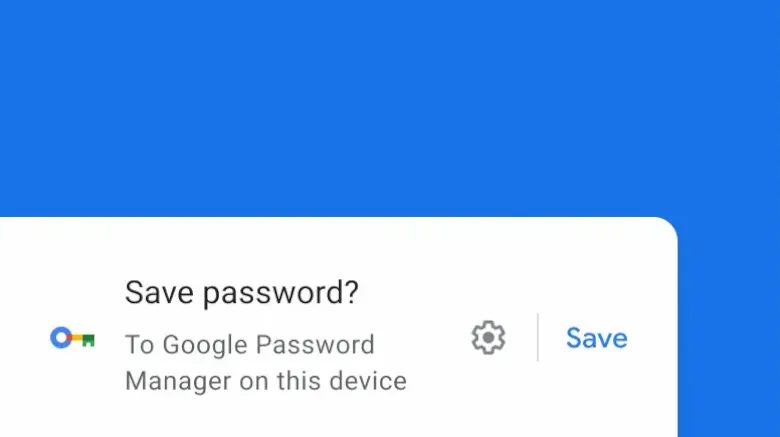
If your family is on Android phones and uses Chrome on its computers, Google Password Manager is already saving everyone’s passwords, free. There’s nothing to install, and getting back in after a forgotten password is as easy as recovering the Google Account.
Family sharing is basic. You share one password at a time with people in your Google family group (up to six people), and each of them gets their own copy. There are no shared folders and no permission levels.
iPhone users can use it by setting the Chrome app as their AutoFill provider, but anyone who browses with Safari or Firefox on a computer is out of luck. Also, unless you turn on on-device encryption, Google holds the keys to your saved passwords. There’s no emergency access for saved passwords either.
What it does
- Built into Android and Chrome
- Sharing single passwords with a Google family group
- Password Checkup for breached and weak passwords
Pros
- Free, with nothing to install on Android
- Easy recovery through the Google Account
Cons
- One password at a time, no shared folders
- Works only through Chrome on computers and iPhones
- On-device encryption is off unless you turn it on
Also considered
- LastPass had customers’ encrypted vault backups stolen in 2022, along with unencrypted details such as website addresses. Investigators have since linked cryptocurrency thefts to vaults cracked from that data, though LastPass disputes the link, and the UK’s data regulator fined it in 2025. Its Families plan still covers six people with emergency access, but several managers above offer the same features with clean records.

How the nine compare
1–5 per criterion · select a score for its reasoning and any sources
| # | Product | Overall | Easy for everyone in the family , counts double | Sharing logins within the family | Works on everyone's devices | Security track record | Getting back in after a forgotten password | Emergency access for a trusted person | Yearly cost for the family | Extras beyond passwords , counts half |
|---|---|---|---|---|---|---|---|---|---|---|
| 1 | 1Password | 4.2 | 4 | 5 | 5 | 5 | 5 | 2 | 3 | 5 |
| 2 | Bitwarden (official self-hosted server) | 4.1 | 3 | 5 | 5 | 5 | 2 | 5 | 4 | 5 |
| 3 | Proton Pass | 3.8 | 3 | 5 | 5 | 4 | 3 | 4 | 3 | 5 |
| 4 | Apple Passwords | 3.6 | 5 | 3 | 2 | 4 | 4 | 1 | 5 | 3 |
| 5 | Dashlane | 3.6 | 4 | 4 | 4 | 4 | 3 | 4 | 2 | 4 |
| 6 | Keeper Password Manager | 3.5 | 3 | 5 | 5 | 5 | 2 | 4 | 1 | 3 |
| 7 | RoboForm | 3.5 | 3 | 4 | 4 | 4 | 2 | 4 | 4 | 3 |
| 8 | NordPass | 3.3 | 3 | 3 | 5 | 4 | 2 | 3 | 3 | 4 |
| 9 | Google Password Manager | 3.2 | 4 | 2 | 3 | 3 | 4 | 1 | 5 | 2 |
Equal displayed overall scores are ordered by the earlier criteria; a known score comes before an unknown score. Identical scores use alphabetical order.
×2 = counts double in the overall score, ×½ = counts half.
How each criterion is scored
Easy for everyone in the family
Counts double in the overall score: A manager the family won't use protects nothing, so whether everyone can use it counts double.
How easily the least technical person in the household, such as a grandparent or a young teen, gets set up and then saves and fills logins day to day on a phone and a computer. Judged from how setup works, how reliable autofill is in apps and browsers, and what reviewers and many users agree on.
- 5 Easy for everyone, including older relatives, with reliable autofill everywhere and almost no setup
- 4 Easy setup and reliable autofill on phones and computers, with few complaints
- 3 Fine for most people once someone sets it up, with known snags such as extra setup steps, autofill gaps or a dated design
- 2 Usable with help, but setup is clunky or phone autofill is patchy
- 1 Hard for non-technical people, with confusing setup or autofill that often fails
Sharing logins within the family
How the household shares logins such as streaming, utility and school accounts: shared vaults or folders, who can see or change what, private space for each person, and sharing with someone outside the plan.
- 5 As many shared vaults as a family needs, with permission levels and private vaults, plus a way to share a login with someone outside the plan
- 4 Shared vaults or folders with permission levels such as view only and edit, plus a private vault for each person
- 3 Shared groups that everyone in them can edit, with no permission levels, or item-by-item sharing with permissions but no shared folders
- 2 One password at a time to people in a family group, each getting a copy, with no shared folders
- 1 No sharing between people
Works on everyone's devices
Whether every family member can use it on what they already own: iPhone, Android, Windows, Mac, Linux and ChromeOS, and the major browsers, with autofill on each.
- 5 Apps for iPhone, Android, Windows, Mac and Linux, and extensions for all major browsers including Safari and Firefox
- 4 Apps or full support on iPhone, Android, Windows and Mac and the major browsers, missing a minor platform such as Linux or a desktop app
- 3 Covers iPhone, Android, Windows and Mac, but one of them only through a workaround or a single browser
- 2 Leaves out a platform many families have, such as Android or Windows
- 1 One platform family only
Security track record
How well the vault is protected and how much outsiders have checked it: end-to-end encryption, independent audits and certifications, open code, a bug bounty, and any breach of customer vault data.
- 5 End-to-end encryption, regular independent audits by several firms, open code or a published security design, a public bug bounty, and no breach of vault data
- 4 End-to-end encryption, no known breach of vault data, and recent independent audits or certifications
- 3 No known breach, but vaults aren't end-to-end encrypted by default, or there is little published independent review
- 2 End-to-end encryption, but a breach of encrypted vault data, repeated serious incidents, or no independent review at all
- 1 A breach of vault data that put customers at risk, or no clear account of how vaults are protected
Getting back in after a forgotten password
What happens when a family member forgets the password that unlocks their vault: whether a family organizer, their usual account recovery or only a code they saved can get them back in without losing their logins.
- 5 A family organizer can restore a locked-out member's access, with nothing saved in advance
- 4 The member's usual account recovery, such as a device passcode, phone number or email, restores the vault
- 3 Several routes the member sets up in advance, such as a recovery key plus phone-based recovery
- 2 One recovery route the member must have set up in advance, such as a recovery code or phrase
- 1 Forget the main password and the vault is lost
Emergency access for a trusted person
Whether someone you trust, such as a partner or an adult child, can reach your passwords if you're seriously ill or die, without you handing over your password today.
- 5 Emergency access for several contacts after a wait you set per contact, which you can deny, with a choice of view or full takeover
- 4 Emergency access for chosen contacts after a wait you set, which you can deny
- 3 Emergency access after a fixed wait, with view-only access or few choices
- 2 No emergency access feature, but a documented fallback such as a recovery kit or code to leave with a will
- 1 No feature that reaches your passwords; the only plan is writing them down
Yearly cost for the family
What a household of five or six pays each year for everyone to use it with sharing, at the regular price after any first-year discount, including add-ons a family needs for the features on this list.
- 5 Free for the whole family
- 4 Under $50 a year for five or more people
- 3 About $50 to $75 a year
- 2 About $75 to $95 a year
- 1 More than $95 a year, or key family features cost extra
Extras beyond passwords
Counts half in the overall score: Nice to have, but they rarely decide which manager a family picks.
How many of five extras the family plan includes for everyone: passkeys, built-in two-factor codes, breach alerts, file attachments, and email aliases or masking.
- 5 All five
- 4 Four
- 3 Three
- 2 Two
- 1 One or none
Which one fits your family
- A mix of iPhones, Android phones and computers: 1Password, or Bitwarden to pay less.
- Everyone uses Apple devices: Apple Passwords, free. Move to 1Password if you need view-only sharing or someone gets an Android phone.
- Android and Chrome everywhere, and you won’t pay: Google Password Manager for a few shared logins. Bitwarden’s free plan if two of you share a lot.
- You look after a parent who forgets passwords: 1Password, so you can restore their access.
- You want your partner to be able to get in if something happens to you: Bitwarden, or RoboForm or Keeper.
- More than six people: Dashlane covers ten on one plan.
- You want email aliases or already use Proton: Proton Pass.
- You’re leaving LastPass: 1Password or Bitwarden. Both import a LastPass export.
The bottom line
For a typical family with mixed devices, 1Password Families is the one most likely to stick. It’s the paid manager relatives find easiest, and its organizer recovery handles the lockout you’ll actually face most often. Its blind spot is planning for the worst; fill it yourself with a second organizer and an Emergency Kit stored with your will.
Bitwarden Families is the close second and the better pick for some homes. It costs less, covers six, and has the best emergency access here, in exchange for plainer apps and no way to reset a forgotten password unless you set up an emergency contact first. Proton Pass sits between them on price, with aliases as the bonus.
The free options are good enough only when your family lives inside one company’s world: Apple Passwords for an all-Apple house, Google for a house of Android phones and Chrome. The moment devices mix, or you want a plan for emergencies, a paid family plan earns its money.
Frequently asked questions
What happens to our passwords if we stop paying?
Nobody loses their logins outright, but what’s left differs. 1Password freezes accounts: you can still view and export, but not add or edit. Bitwarden members keep their personal vaults on the free plan and lose the shared collections. Proton Pass drops everyone to the free plan, and they keep the logins in their private vaults. Dashlane members who were new to it can only export.
Is a password manager still safe after the LastPass breach?
Yes, if you pick a careful one and use a strong master password. The LastPass attackers got encrypted vaults, and the danger was that weak master passwords could be guessed offline. A long, unique master password for each family member, plus two-step login on the account, is what keeps a stolen vault useless. 1Password’s Secret Key adds another layer that a stolen vault can’t get past.
Can a family start for free?
Partly. Apple Passwords and Google Password Manager are free for the whole family, within their device limits. Bitwarden’s free plan lets two people share, and Proton Pass’s free plan lets you share a vault with two others. Either is a decent way to try it before paying for everyone.