Best password managers for Linux
KeePassXC is the best-made Linux app of any password manager, a native program you can install from your distribution’s own repositories. It still isn’t the one most Linux users should pick, because it keeps your passwords in a file and leaves the phone and the syncing to you. For most people with a Linux computer and a phone, Bitwarden is the better choice: it’s free on unlimited devices, it’s packaged for every common distribution, and its browser extension fills logins on its own, however your browser was installed.
If you’ll pay for polish, 1Password has the most finished Linux app. It unlocks with your fingerprint or system password and shares that unlock with its browser extension and its command line tool. Proton Pass is the other free plan worth a look, especially if you already use Proton Mail. And if you’d rather keep your vault in a file you control, KeePassXC is worth the setup, with pass as the terminal-only take on the same idea.

Bitwarden (official self-hosted server)
Free sync for Linux and your phone
#1 4.4/5
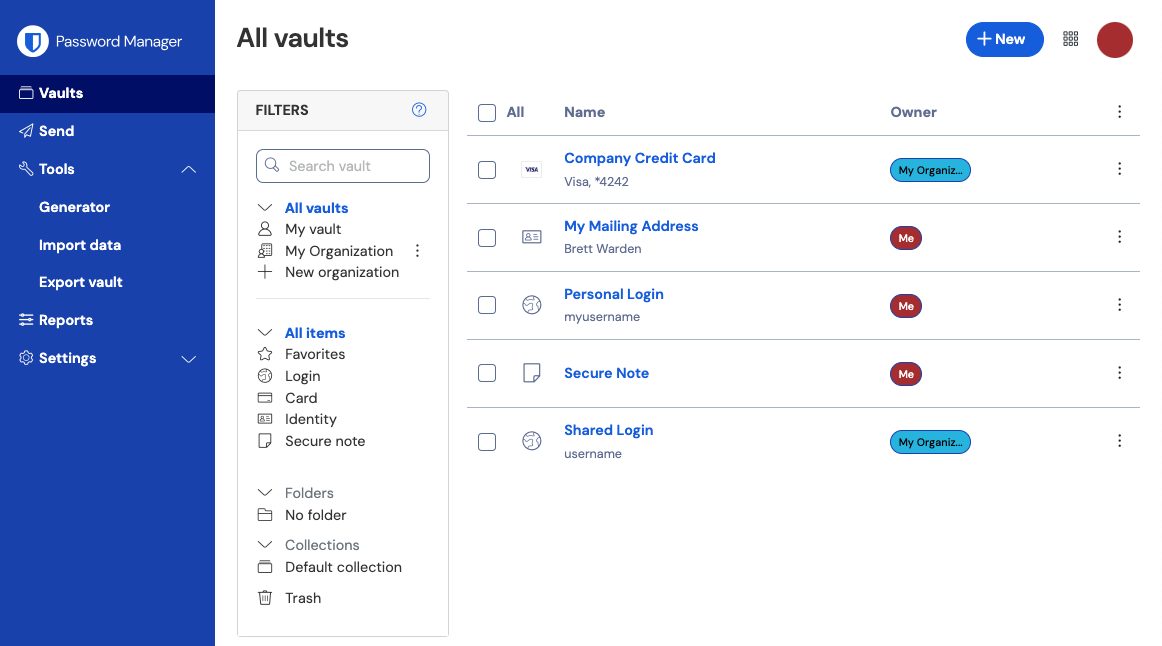
Bitwarden suits nearly everyone who wants one password manager across a Linux computer, a phone, and perhaps a Windows laptop at work, without paying. The free plan syncs unlimited passwords to unlimited devices. Premium, at $19.80 a year, adds built-in two-factor codes, emergency access for someone you trust, and file attachments, none of which you need to start.
On Linux it comes in every package format people use: AppImage, Snap, Flatpak, deb, and rpm, and the Snap and Flatpak update themselves. The desktop app is built with Electron, a toolkit made for web-style apps, and it looks it: the same window you’d get on Windows, with none of the GNOME or KDE feel KeePassXC has. On Wayland, the newer Linux display system, it may run through an X11 compatibility layer, which can leave text soft on a scaled display.
Most days you won’t open it. Bitwarden’s browser extension logs in to your account itself, so it fills logins in Firefox, Chrome, or Brave whether they came from your distribution, a Snap, or Flathub. The desktop app earns its place when you want fingerprint unlock for the extension, or its SSH agent, which keeps your SSH keys in the vault and hands them to ssh and git. Both the agent and the bw command line client are free. On the Flatpak, fingerprint unlock needs a policy file you install by hand.
A few conveniences, such as filling a login as the page loads, stay off until you find the setting in the extension. That’s a small cost for a free plan this complete.
What it does
- Unlimited passwords on unlimited devices, synced, on the free plan
- Linux app as an AppImage, Snap, Flatpak, deb, or rpm
- Browser extension that works without the desktop app
- SSH agent and the
bwcommand line tool, both free - A sync server you can host yourself
Pros
- The free plan has no device or item limit
- Autofill keeps working in Snap and Flatpak browsers
- Open source, with regular outside audits
Cons
- The Electron desktop app doesn't match GNOME or KDE
- Two-factor codes need Premium
- The Flatpak needs a hand-installed policy file for fingerprint unlock
- Choose if:
- You may want to [run the sync server yourself](/apps/self-hosted-password-managers/) one day

1Password
The most polished, if you'll pay
#2 4.0/5
1Password is for the reader who’ll pay to stop thinking about their password manager. There’s no free plan, only a 14-day trial, and the Individual plan costs $3.99 a month billed yearly, $47.88 in all. What the money buys on Linux is an app that feels finished. You unlock it with your fingerprint or system password, and that one unlock carries over to the browser extension and the op command line tool, so a terminal session doesn’t ask for your password again.
1Password runs its own deb and rpm repositories, so updates arrive with your normal system updates, and there’s an AUR (Arch user repository) package for Arch. Those are the versions to use. The Snap and the Flathub package, which 1Password doesn’t maintain, lose system unlock, the SSH agent, and the link to the browser extension. The link breaks in a Snap or Flatpak browser too, Ubuntu’s default Firefox included; the extension still works there, but you unlock it separately.
The SSH agent keeps your keys in the vault and signs git commits, and with the op tool you can pull secrets into scripts without leaving them in plain text files. Two Linux rough edges remain. The Quick Access shortcut, which opens a search box over your windows, can stop responding on Wayland desktops, and you’ll type your full account password again after every reboot or app restart before fingerprint unlock takes over.
What it does
- Fingerprint or system password unlock, shared with the browser extension and
op - Official deb and rpm repositories, plus an AUR package
- SSH agent with git commit signing
- Quick Access search from a keyboard shortcut
Pros
- The most finished apps of any manager here
- One unlock covers the app, the browser, and the terminal
- Updates through your package manager
Cons
- No free plan
- The Snap and Flathub builds lose system unlock, the SSH agent, and the browser link
- The Quick Access shortcut is unreliable on Wayland
Proton Pass
Free, with email aliases
#3 4.0/5
Proton Pass is the other free plan with no device limit, and its extra is one nobody else here offers: email aliases, throwaway addresses that forward to your real inbox so a shop never learns it. The free plan includes 10 of them. If you already pay for one of Proton’s bundles, the paid Pass Plus plan comes with it.
The Linux app is the weak spot. Proton offers a deb and an rpm for 64-bit PCs, with no repository, Flatpak, or Snap, so each update is a package you download and install yourself when the app tells you one is out. It’s an Electron app, like Bitwarden’s. In practice the browser extension does most of the work, and because it signs in to your Proton account by itself, a sandboxed browser doesn’t bother it.
Pass Plus costs $35.88 a year and adds a two-factor code generator, offline access, the command line tool, and an SSH agent. Those last two are free with Bitwarden, which is why Bitwarden stays ahead for anyone who doesn’t care about aliases.
What it does
- Unlimited passwords and devices on the free plan
- Email aliases, 10 on the free plan
- Linux app as a deb or rpm
- Command line tool and SSH agent on paid plans
Pros
- Free email aliases that keep your address private
- Open source and audited
- The extension works in any browser, sandboxed or not
Cons
- You update the Linux app by hand
- The command line tool and SSH agent need a paid plan
- Two-factor codes need Pass Plus
- Choose if:
- You already pay for a Proton bundle
KeePassXC
Best Linux app, if you'll sync it yourself
#4 3.9/5
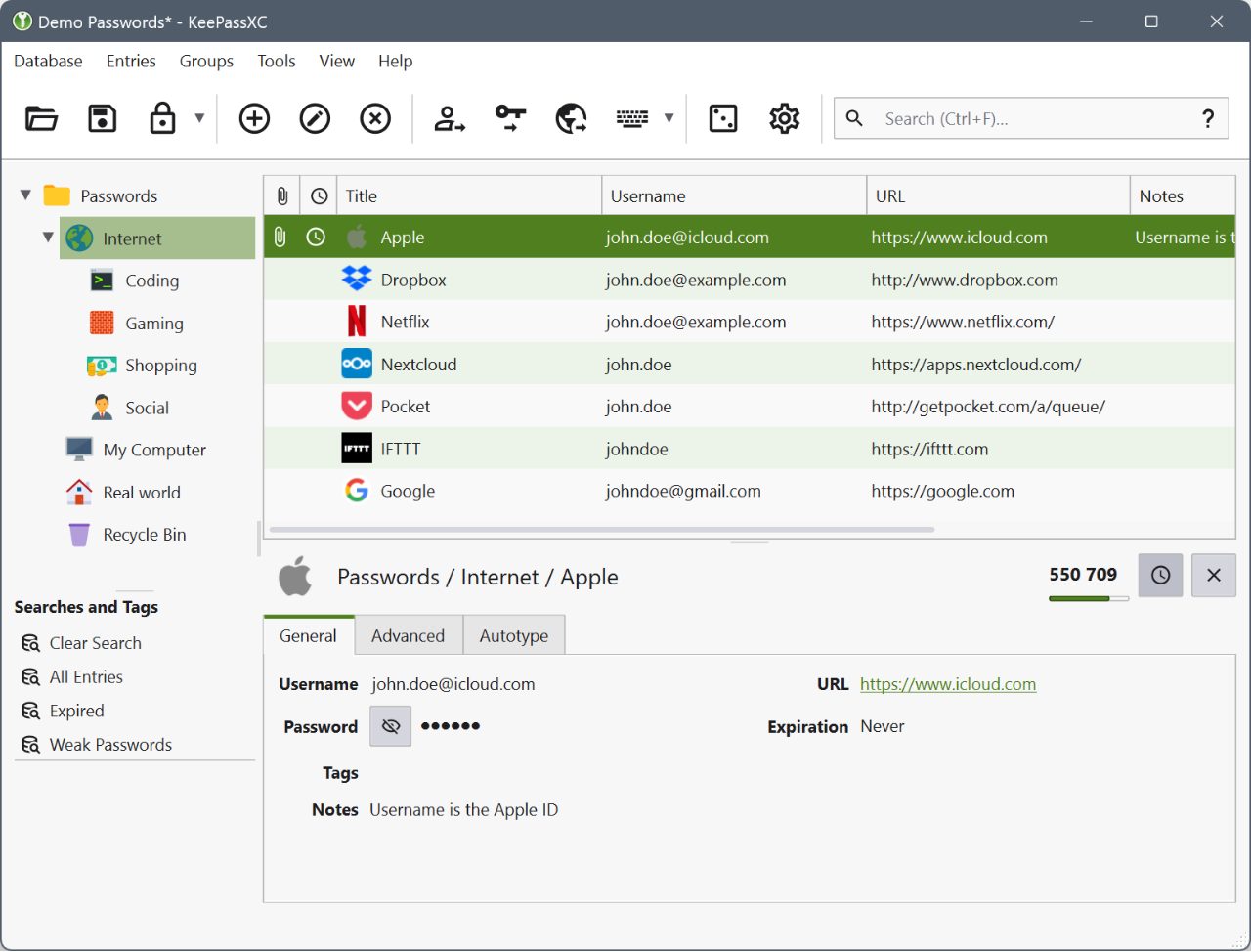
KeePassXC is for people who want their passwords in a file, not an account. It’s a Qt app that looks at home on KDE and tidy on GNOME, it’s in every major distribution’s repositories, and its official Flatpak works everywhere else. It unlocks with your system password or fingerprint, and its Auto-Type, which types a login into any window, works on Wayland under GNOME and KDE. On Wayland, though, it can’t pick the entry from the window title, so you choose from a list.
It also does things only a local app can. KeePassXC can stand in for GNOME Keyring as the system’s Secret Service, the keyring other programs ask for their saved passwords, and it can load SSH keys from the vault into your running SSH agent. keepassxc-cli covers scripts, and the app works with no network at all.
The cost is the phone. KeePassXC has no phone app and no sync of its own. You open the same KDBX file (the KeePass format) in KeePassDX, a free Android app, or in Strongbox or KeePassium on an iPhone, whose free versions cover the basics and whose premium tiers cost roughly $20 to $25 a year. Then you keep the file in step with Syncthing, Nextcloud, Dropbox, or something similar. Syncthing tends to go smoothly; with a cloud folder, editing on two devices before they sync can leave two copies you merge by hand inside KeePassXC.
The browser extension needs KeePassXC running and unlocked. And there’s no account to fall back on: forget your master password and the vault is gone.
What it does
- Native Qt app in distribution repositories, plus Flatpak, AppImage, and Snap
- Secret Service provider for other programs
- Loads SSH keys into your SSH agent
keepassxc-clifor scripts- Works fully offline
Pros
- The best-integrated Linux app of any password manager
- Free, open source, and independently audited
- A vault file you control and can open in many apps
Cons
- The phone app and the sync are separate pieces you set up yourself
- The browser extension doesn't work with most Flatpak and Snap browsers
- A forgotten master password can't be recovered
- Choose if:
- You want one app to serve passwords to other programs in place of GNOME Keyring or KWallet

NordPass
Simple, but Snap-only on Linux
#5 3.3/5
NordPass has clean, simple apps on Windows, Mac, and phones, but Linux is its weakest platform. The only official install is a Snap, and NordPass’s own guide has every Linux user install keyring packages and run a snap connect command before the app works. The browser extension has leaned on that desktop app on Linux, so trouble with the Snap can reach the browser.
The free plan stays signed in on one device at a time, so a Linux computer plus a phone means Premium: $1.99 a month for the first year, against a list price of $35.88 a year. The command line tool is the bright spot. It’s free on every plan, works without the desktop app, and can inject secrets into scripts, though it has no SSH agent.
What it does
- Official Linux app as a Snap
- Command line tool on every plan, including free
- Passkeys on the free plan
Pros
- Clean, simple apps
- A free official command line tool that doesn't need the desktop app
Cons
- Snap is the only Linux install, and it needs manual setup steps
- The free plan works on one device at a time
- Closed source
Enpass
Your own cloud, official phone apps
#6 3.1/5
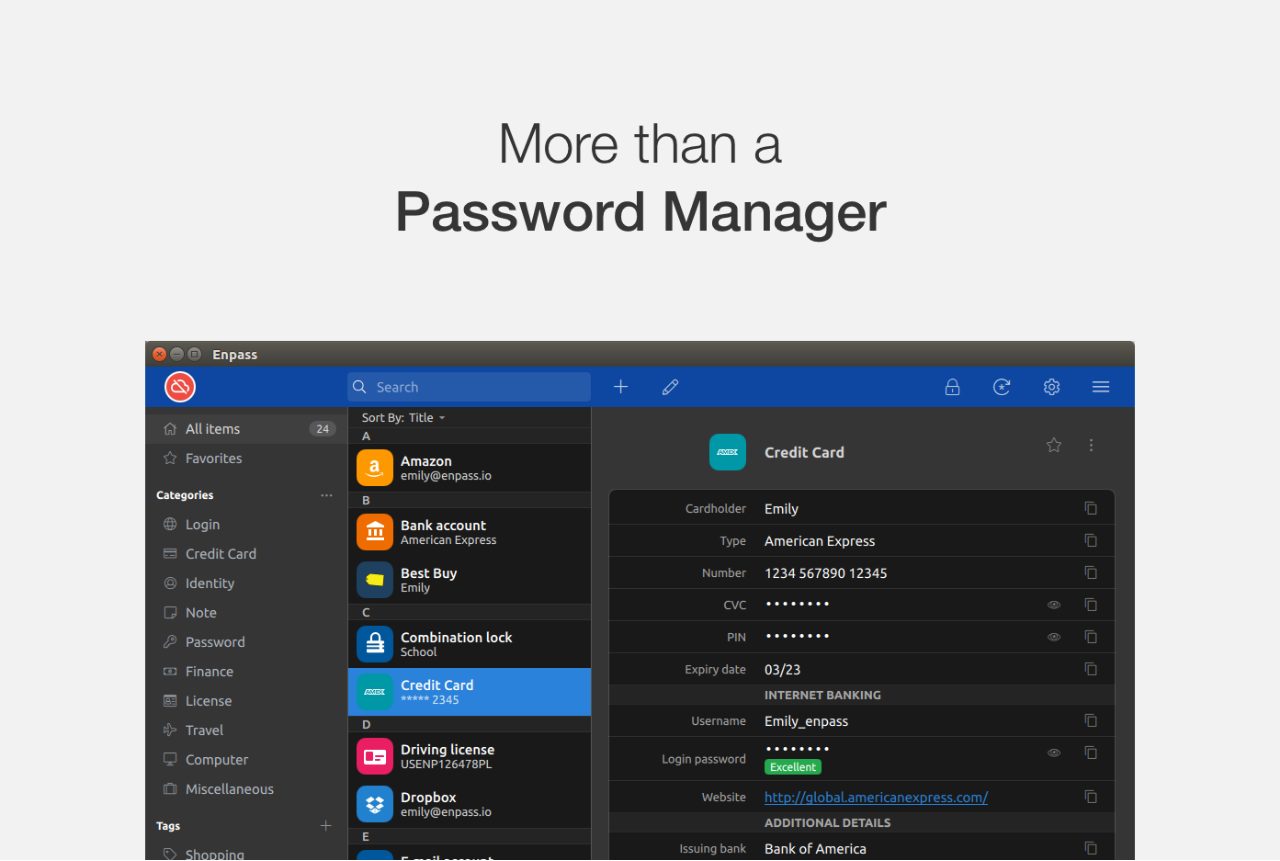
Enpass sits between KeePassXC and the hosted services. Your vault lives in your own Dropbox, Google Drive, OneDrive, Nextcloud, or iCloud account, or only on your devices, yet you get polished official apps on both kinds of phone. Its Linux app is a native Qt program from Enpass’s apt, dnf, and zypper repositories, with native Wayland support and a separate build for X11 desktops.
Linux gets less attention than Enpass’s other platforms, though. Fingerprint unlock covers Windows Hello, Face ID, and Touch ID but not Linux, there’s no Arch package, and the browser extension works only while the desktop app runs. There’s no command line tool either.
The free plan holds just 25 items, which most people outgrow fast. Premium is $23.88 a year, and Enpass also sells a lifetime license if you’d rather not subscribe.
What it does
- Vault stored locally or in a cloud account you choose
- Native Linux app from apt, dnf, and zypper repositories
- Official iPhone and Android apps
- Lifetime license option
Pros
- Your vault never sits on Enpass's servers
- A native Linux app that updates with your system
Cons
- No command line tool or SSH agent
- The browser extension needs the desktop app running
- No fingerprint unlock on Linux
- The free plan holds only 25 items
- Choose if:
- You want to pay once instead of subscribing
pass, the standard unix password manager
For the terminal and git
#7 3.0/5
pass is a short shell script that stores each password as a GPG-encrypted file in a folder, and turns that folder into a git repository. It’s in every distribution’s repositories, it costs nothing, and if you already work in a terminal with a GPG key, it behaves like any other Unix tool: pass show, pass insert, pass git push.
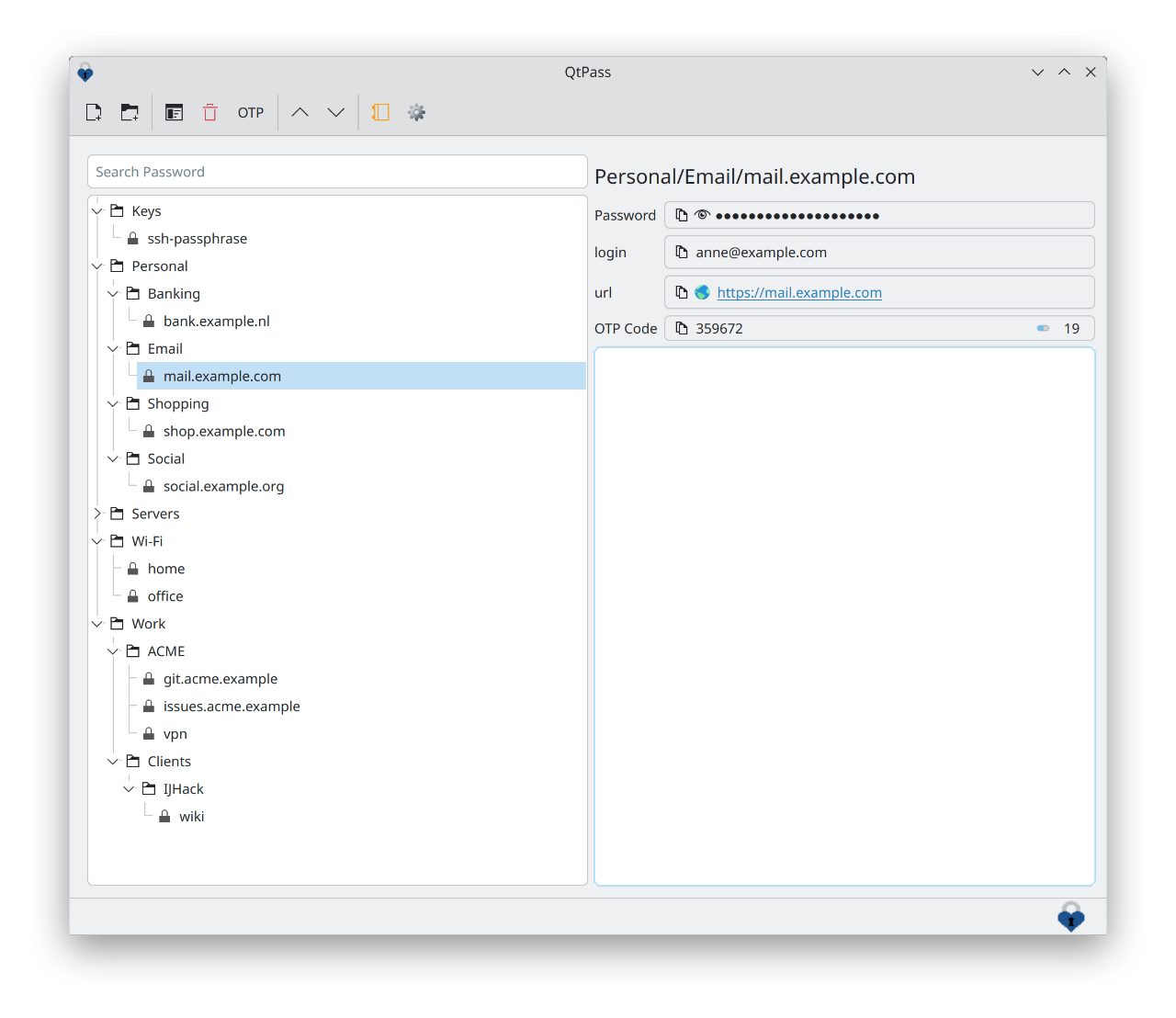
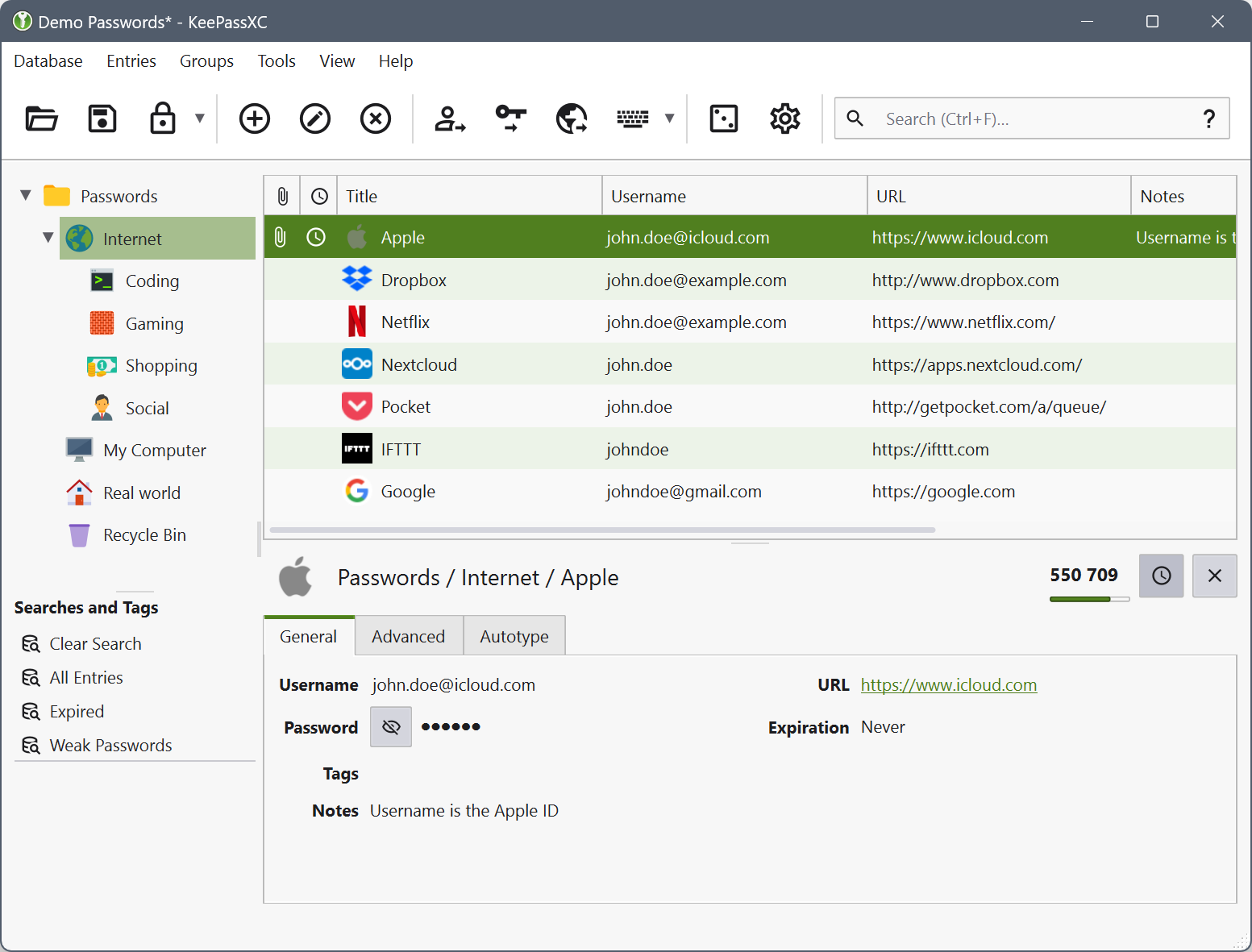
Everything beyond the terminal comes from other projects. QtPass gives you a desktop window (it’s the app in the screenshot above), browserpass or PassFF fill logins in the browser once you install their helper program, pass-otp adds two-factor codes, and Pass for iOS covers the iPhone. Android is the weak spot: the original Password Store app is archived, and its users have moved to community forks. Entry names are file names and aren’t encrypted, so anyone who gets your repository can see which sites you have accounts on.
What it does
- One GPG-encrypted file per password, synced with git
- Packaged by every major distribution
- Desktop, browser, and phone apps from community projects
Pros
- Plain files you can script with any Unix tool
- Free, tiny, and easy to audit
Cons
- Needs comfort with GPG and git
- The browser and phone apps are separate community projects
- Entry names aren't encrypted
- The original Android app is archived
Also considered
- Keeper has a Linux app as a Snap or deb, but its free tier covers a single phone and 10 records, and the Personal plan costs $42.99 a year. That’s close to 1Password’s price for a less complete Linux app.
- Dashlane has no Linux desktop app, only browser extensions, and no longer offers a free plan to new users.
- RoboForm gives Linux only its Chrome and Firefox extensions, and its free plan works on one device, so using it on your phone as well needs Premium.
How they score
1–5 per criterion · select a score for its reasoning and any sources
| # | Product | Overall | Fits a Linux desktop | Autofill in your Linux browser | Syncs with your phone | Easy day to day | Security track record | Cost for one person | Command line and developer tools | Control of your data |
|---|---|---|---|---|---|---|---|---|---|---|
| 1 | Bitwarden (official self-hosted server) | 4.4 | 4 | 4 | 5 | 3 | 5 | 5 | 5 | 4 |
| 2 | 1Password | 4.0 | 4 | 4 | 5 | 4 | 5 | 2 | 5 | 3 |
| 3 | Proton Pass | 4.0 | 3 | 4 | 5 | 3 | 5 | 5 | 4 | 3 |
| 4 | KeePassXC | 3.9 | 5 | 3 | 3 | 2 | 4 | 4 | 5 | 5 |
| 5 | NordPass | 3.3 | 2 | 3 | 5 | 3 | 4 | 2 | 4 | 3 |
| 6 | Enpass | 3.1 | 3 | 3 | 4 | 3 | 3 | 4 | 1 | 4 |
| 7 | pass, the standard unix password manager | 3.0 | 3 | 2 | 2 | 1 | 3 | 4 | 4 | 5 |
Equal displayed overall scores are ordered by the earlier criteria; a known score comes before an unknown score. Identical scores use alphabetical order.
How each criterion is scored
Fits a Linux desktop
How well the password manager runs on a Linux computer itself: whether there is an official app, how it installs and updates on common distributions (distribution repositories, official deb or rpm repositories, Flatpak, Snap, AppImage), whether it unlocks with the system password or a fingerprint, how it behaves on Wayland, and whether the Linux version lags behind the Windows and Mac versions. Judged from the vendor's install and feature pages and what Linux users report.
- 5 A well-integrated Linux app in distribution repositories or official repositories, with system unlock, Wayland support and no meaningful gaps next to Windows and Mac
- 4 An official app with packages that update themselves on the major distributions and unlocks with the system password or a fingerprint, with known snags such as Wayland trouble or features missing from the Flatpak or Snap
- 3 An official app that you update by hand or that installs only on some distributions, or no official window at all but a tool packaged by every distribution
- 2 A Linux app with one install route that needs extra manual setup, or one that clearly lags behind the other platforms
- 1 No Linux app at all; only a browser extension or the website
Autofill in your Linux browser
How well it saves and fills logins in Firefox and Chromium-based browsers on Linux, including browsers installed as a Flatpak or Snap (Ubuntu's default Firefox is a Snap). Judged from whether the extension works on its own or needs the desktop app running, which browsers it supports, and how reliably users find it fills.
- 5 An official extension that works on its own in every major browser on Linux, sandboxed ones included, and fills reliably
- 4 An official extension that works on its own in the major browsers, with some reported filling snags
- 3 An official extension that needs the desktop app running and doesn't work with Flatpak or Snap browsers, or one with frequent filling complaints
- 2 Browser filling only through community add-ons that need their own setup
- 1 No browser integration
Syncs with your phone
Whether you get the same passwords on an iPhone or Android phone, with autofill there, and how much you have to set up to keep the phone and the Linux computer in step.
- 5 Official phone apps with autofill and automatic sync through the vendor's service
- 4 Official phone apps with autofill, but sync runs through a cloud account or tool you connect yourself, or has a notable limit
- 3 Good phone apps from other developers that open the vault, with sync you set up yourself through a file-sync service
- 2 Only community phone apps, with at least one platform poorly maintained, and sync you set up yourself
- 1 No way to use the vault on a phone
Easy day to day
How easily one person sets it up and then saves and fills logins without tinkering. Judged from how setup works, how clear and polished the apps are, and what reviewers and many users agree on.
- 5 Polished, with almost nothing to set up and widely praised design
- 4 Easy setup and smooth daily use, with few complaints
- 3 Fine for most people, with known snags such as a plain design, missed fills or clunky menus
- 2 Works well once set up, but setup and daily use take more effort than the hosted services
- 1 Built for people comfortable with the terminal and with tools such as GPG and git
Security track record
How well the vault is protected and how much outsiders have checked it: encryption that keeps the vendor out, independent audits, open code, a bug bounty, and any breach of customer vaults.
- 5 Open code or regular audits by several outside firms, a bug bounty, and no breach of vault data
- 4 No known breach and independent review, either closed code audited by outside firms or open code with a single audit
- 3 No known breach, but little independent review, or a design that leaves some data unencrypted
- 2 A known weakness that exposes vault data, or a serious incident
- 1 A breach of vault data that put customers at risk
Cost for one person
What one person pays per year to use it on a Linux computer and a phone with the two in sync, at the regular (not first-year) price of the cheapest plan that allows that.
- 5 Free on a computer and a phone with automatic sync and no device or item cap
- 4 Under $25 a year, or free with a catch, such as sync you set up yourself or a paid phone app on one platform
- 3 $25 to $35 a year
- 2 $35 to $50 a year
- 1 More than $50 a year
Command line and developer tools
What you can do from a terminal: an official command-line tool that reads and writes the vault for scripts, and an SSH agent that keeps SSH keys in the vault.
- 5 A full official command-line tool and SSH key support on every plan
- 4 A full official command-line tool, but no SSH agent, or both only on a paid plan when a free plan exists
- 3 An official command-line tool with limited abilities, such as read-only
- 2 Only community command-line tools
- 1 No command-line tool
Control of your data
Where the vault lives and how easily you can take it with you: a local file in an open format, storage you choose, a server you can run yourself, or the vendor's cloud only.
- 5 The vault is a file in an open format that works fully offline and syncs however you like
- 4 You choose where the vault is stored, or you can run the sync server yourself
- 3 Vendor cloud only, with full export and offline access to a synced copy
- 2 Vendor cloud only, with a limited export or no offline access
- 1 Vendor cloud only, with no full export
Which one fits you
- You want it to work on Linux and your phone, free: Bitwarden.
- You’ll pay for the smoothest apps: 1Password, installed from its deb or rpm repository rather than the Snap.
- You want email aliases or already use Proton: Proton Pass.
- You want a file, not an account: KeePassXC, with Syncthing and a phone app.
- You live in the terminal and git: pass, or KeePassXC if you also want a window and a browser extension.
- Your browsers come from Flathub: Bitwarden or Proton Pass, whose extensions don’t need a desktop app.
Prices are as of November 2026.
The verdict
Bitwarden wins for most Linux users because it removes the friction that’s peculiar to Linux. It installs in whatever format your distribution prefers, and the free plan already includes the SSH agent and command line tool that other managers charge for. Its Electron app is plain, but you’ll spend most of your time in the browser extension anyway.
The reasons to look past it are taste and control. If Bitwarden’s plain design bothers you and $48 a year doesn’t, 1Password is the better-made product, as long as you install the deb or rpm and use a browser that isn’t sandboxed. If you don’t want an account at all, KeePassXC fits a Linux desktop better than either, and the hour you spend on Syncthing and a phone app buys you a vault no company holds. Proton Pass makes the most sense if Proton already handles your email. NordPass and Enpass both work on Linux, but each treats it as a lesser platform, and if you’re shopping on price alone, our free password managers ranking covers the wider field.