Best graphic design software for beginners
Most people who search for graphic design software aren’t trying to become designers. They need a birthday invite by Friday, a flyer for the bake sale, a thumbnail that doesn’t look homemade, or a run of Instagram posts for the shop. The right app for that hands you a finished-looking layout and lets you swap in your words and photos. The wrong one opens to a blank canvas and a wall of tool panels.
So the first split is between template apps and design tools. Template apps (Canva, Adobe Express, and VistaCreate) run in a browser or on your phone and start you from a design someone else already balanced. Design tools (Affinity and GIMP) are desktop programs where you build everything yourself, with far more control and far more to learn. Pixlr, Kittl, and Microsoft Designer sit in between, each leaning toward one job.
For most beginners, Canva is the best pick. It has the biggest template library here by a wide margin, its free content is licensed for commercial use, and it works in a browser, on phones, and in its Windows and Mac apps. Adobe Express is the closest alternative and gives away a couple of things Canva charges for. If you’d rather learn to design properly and never pay, Affinity is free for individuals and is the one to grow into.
Three things to check before you pick
What the free plan actually lets you download. Every template app mixes paid items into its library. In Canva and Adobe Express alike, a design that uses a premium element gets a watermark on a free account. Kittl’s free exports are capped at 800 pixels and 72 dpi, watermarked, and for personal use only, which makes the free plan a demo.
Whether you can use it for a business. Canva’s free content may be used commercially, including on printed flyers and products for sale. Microsoft Designer is licensed for personal, non-commercial use only, and Kittl’s free plan is limited the same way.
Whether you can own the logo. This catches a lot of small businesses. Canva’s content license forbids using its templates, graphics, or icons as part of a trademark (fonts are the exception), so a logo built from a Canva template isn’t one you can register. If the logo is your brand, draw it from your own shapes and lettering, in Canva or in Affinity.
Canva
Best for most beginners
#1 4.3/5
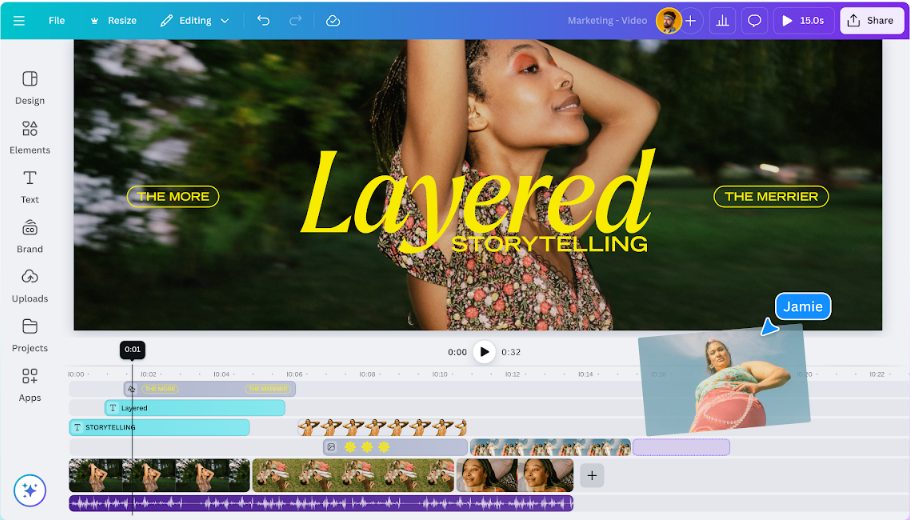
Canva is what most people should try first, and for many of them it’s also where they’ll stay. You pick a design type, choose one of more than 1.6 million free templates, change the text and photos, and download. Layouts snap into place, fonts come in matched pairs, and the same design opens on your phone, in a browser, or in the Windows and Mac apps.
The free plan is generous for a template app. You get watermark-free PNG, JPG, and PDF downloads of anything built from free elements, 5 GB of storage, and permission to use free content commercially. Pro adds transparent PNG downloads, which let you place a cut-out subject on another background, and SVG files, which stay sharp at any size. It also adds the background remover, one-click resizing into other formats, and CMYK color, the ink-based color mode print shops use. Pro costs $144 a year for one person as of November 2026, and raises the template count to 3.6 million.
The downside is sameness. Canva’s most popular templates show up everywhere, and a bake-sale flyer that looks like every other bake-sale flyer is the price of speed. The other limit is depth: alignment and layers are fine, but there’s no real pen tool or fine typography. If you hit that limit, Canva’s own answer is Affinity, which it owns and gives away free to individuals.
What it does
- Over 1.6 million free templates, 3.6 million on Pro
- Print PDFs with crop marks and extra margin for trimming; CMYK on Pro
- Background remover, Magic Eraser, and Magic Resize on Pro
- Web, Windows, Mac, iPhone, and Android apps
Pros
- The fastest route from nothing to a finished design
- Free content can be used commercially, including in print
- Same designs on phone and computer
Cons
- Template logos can't be trademarked under Canva's license
- Designs with premium elements get a watermark on free accounts
- Popular templates are easy to recognize
- Skip if:
- Your logo needs to be a registered trademark built from template art
Adobe Express
Canva-style app with more free tools
#2 3.6/5
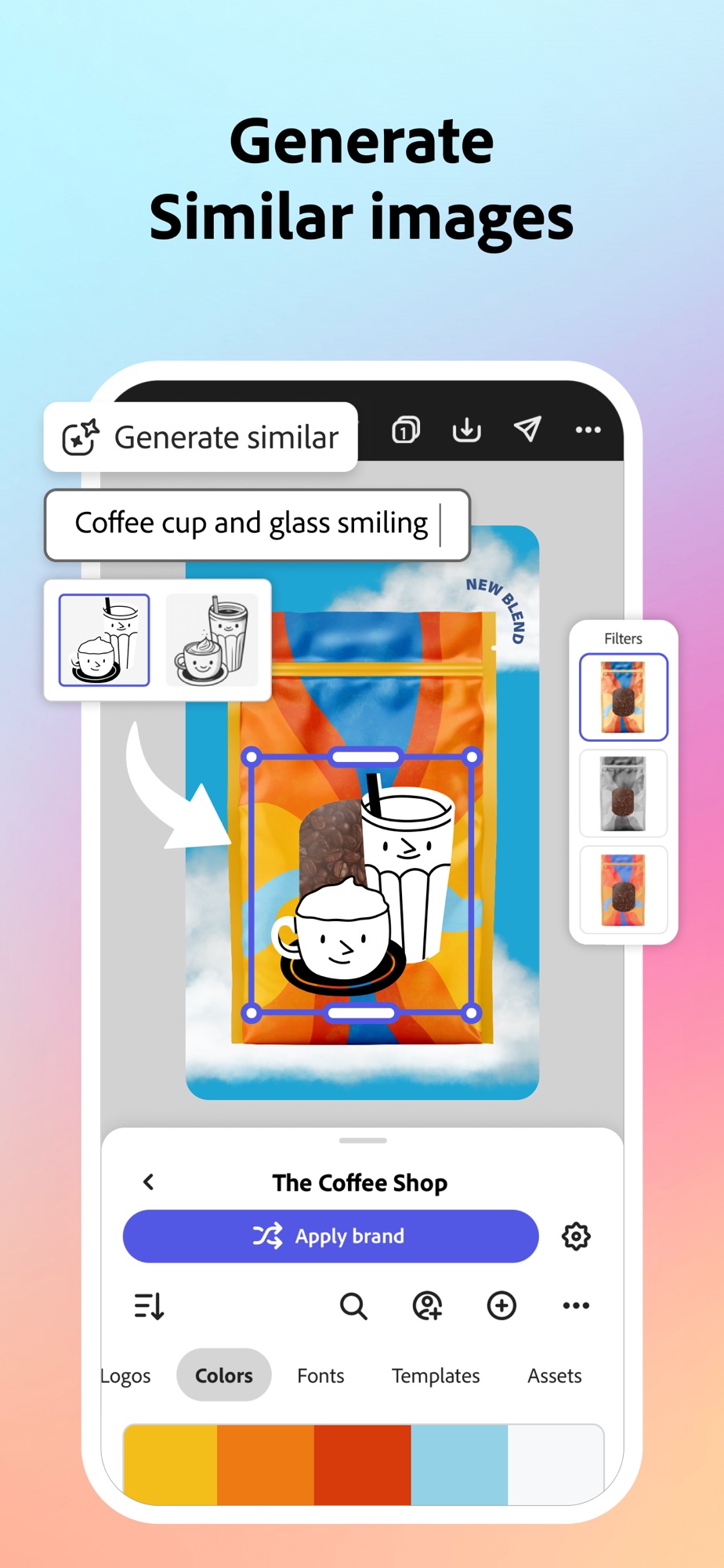
Adobe Express works almost exactly like Canva: pick a template, swap the content, download. The difference is in the details of the free plan. Express gives free users transparent PNG downloads and background removal, two things Canva keeps for Pro. Background removal is a Premium feature that is free “for a limited time”. Free also includes more than 4,000 Adobe Fonts, which is a real step up in type quality.
The template library is smaller, with 220,000-plus on Free and 350,000-plus on Premium. That’s plenty for social posts and flyers, but you’ll scroll past fewer good options for niche jobs. Premium costs $9.99 a month as of November 2026. It adds one-click resizing into other formats, 30,000-plus fonts, 100 GB of storage, and more AI image credits.
If you can’t decide between the two, try making the same flyer in each. Canva usually wins on choice and its phone app; Express wins on free extras and fonts, and suits anyone who expects to move into Photoshop or Illustrator later. Express exports finished logos as PNG, JPG, or PDF, but not SVG. That makes it a poor place to build a logo you’ll need at every size.
What it does
- 220,000+ free templates and 4,000+ Adobe Fonts
- Transparent PNG downloads on the free plan
- Firefly AI image generation
- Browser, iPhone, and Android apps
Pros
- Free plan includes transparent PNGs and, for now, background removal
- Thousands of Adobe Fonts on the free plan
- Premium costs less than Canva Pro
Cons
- Far fewer templates than Canva
- No SVG export for logos
- Watermark on downloads that use premium content
- Choose if:
- You want free background removal for thumbnails or product photos
Affinity
Free professional design app
#3 3.5/5
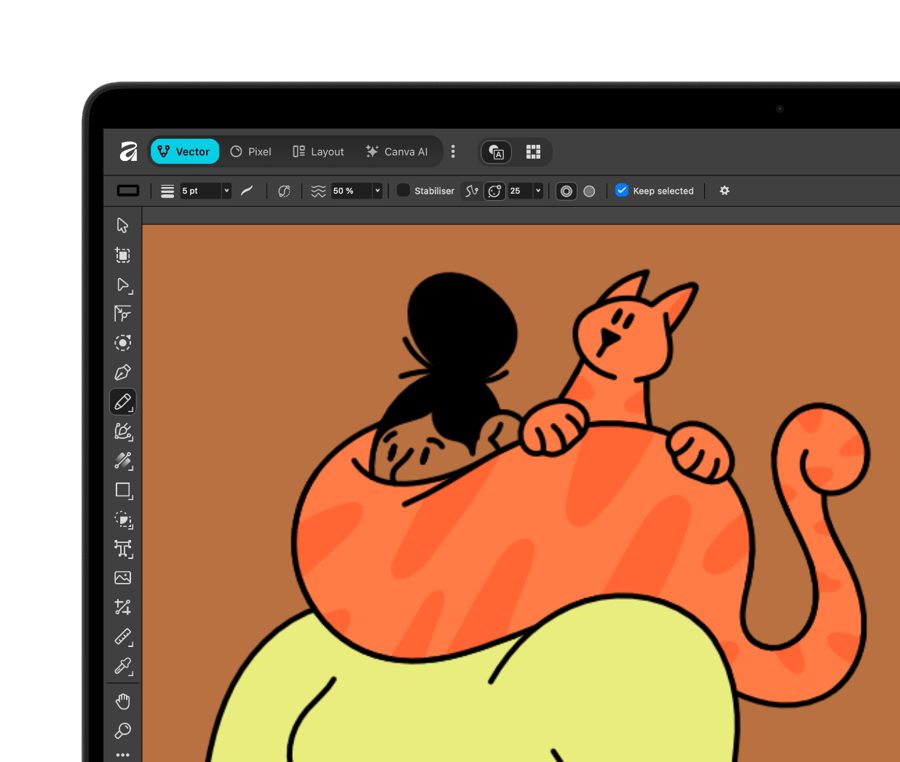
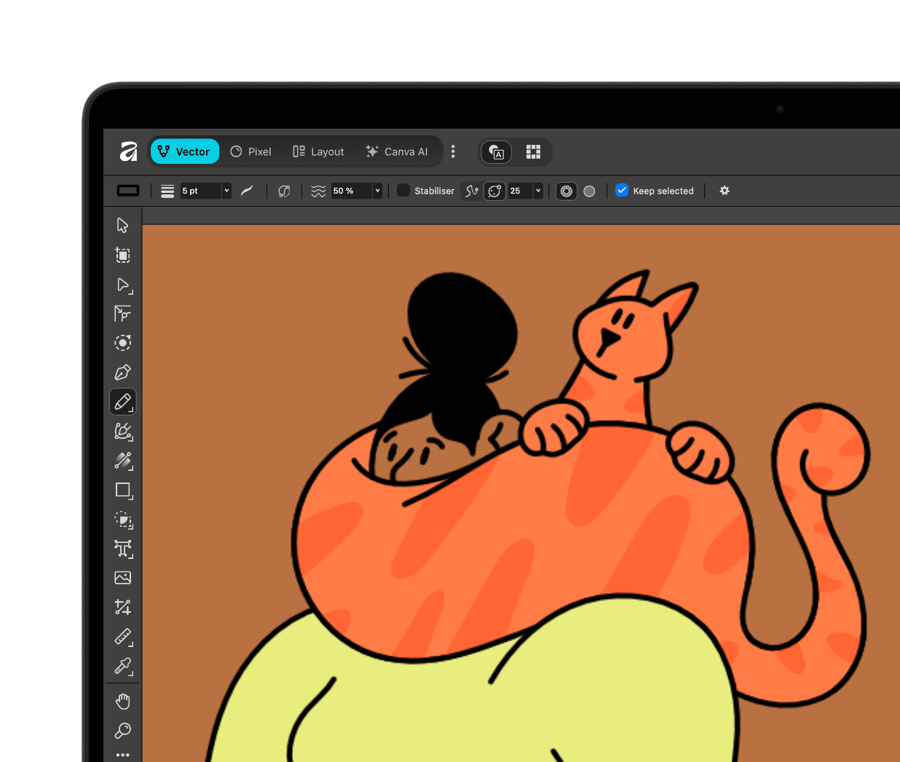
Affinity combines drawing, photo editing, and page layout in one app, and it’s free for individuals, with no watermark and no trial clock. You need a free Canva account to download it. It runs on Windows, Mac, and iPad, not on phones or in a browser.
What you get is a real design suite: vector drawing (shapes that stay sharp at any size) for logos, layer-based photo editing, and page layout for flyers and booklets, with proper print output including CMYK PDFs. A logo drawn here is yours, with no template license in the way. Unlike Kittl, it also lets you export vector artwork without paying.
The tradeoff is that Affinity is not a template app. A new document asks you for a paper size, not a design type, and you start from blank. Expect a few evenings of tutorials before your flyers look as good as a Canva template, and longer before they look better. AI tools such as generative fill only work with a paid Canva plan. If you want to learn design properly, this is the one; if you need a flyer by tonight, it isn’t.
What it does
- Vector, photo and layout tools in one app
- CMYK print PDFs and vector export
- Opens Photoshop and Illustrator files
- Windows, Mac and iPad
Pros
- Professional tools at no cost
- Logos you draw are fully yours to use as a brand
- Room to grow for years
Cons
- Very few templates; you design from scratch
- Real learning curve for a newcomer
- No phone or browser version
- AI tools need a paid Canva plan
- Skip if:
- You need finished designs today and don't want to learn
VistaCreate
Template app with print ordering
#4 3.4/5
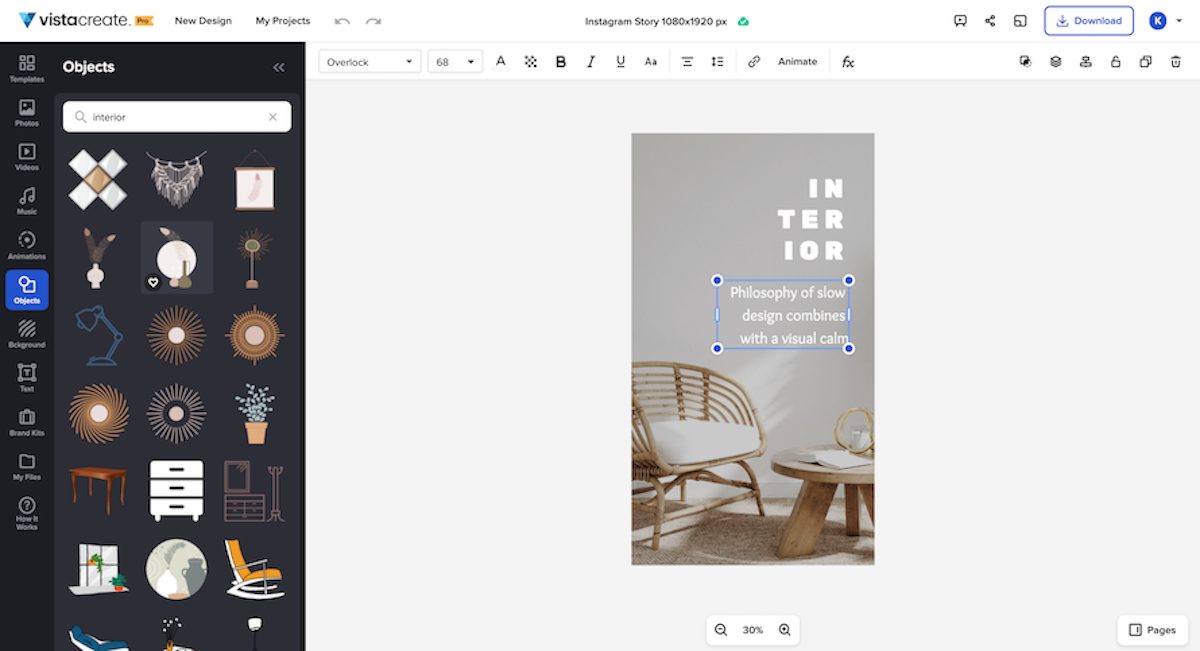
VistaCreate is owned by VistaPrint, and that shapes it. You can send a finished flyer, poster, or business card straight to VistaPrint’s print service from the editor. Printing is available in the US, UK, Canada, Australia, India, and much of Europe. The free plan has 100,000 templates, a million stock photos and graphics, and unlimited JPG and PNG downloads. It also has animated templates for social posts.
It’s a smaller, simpler Canva. The editor is easy to learn, but the library is a fraction of Canva’s and the design control runs out sooner. Pro costs $120 a year as of November 2026. It adds 200,000-plus templates and the resize tool, and covers up to 10 seats, which is generous if a few people in a small business share it.
What it does
- 100,000 templates on the free plan
- Order prints from VistaPrint inside the editor
- Animated templates for social posts
- Browser, iPhone and Android apps
Pros
- Unlimited free JPG and PNG downloads
- Pro covers up to 10 seats for one price
Cons
- Much smaller library than Canva
- Limited design control once you know the basics
- Background removal is occasionally unreliable
- Choose if:
- You want to design and order printed flyers or cards in one place
Pixlr
Photo-first editor for thumbnails
#5 3.2/5
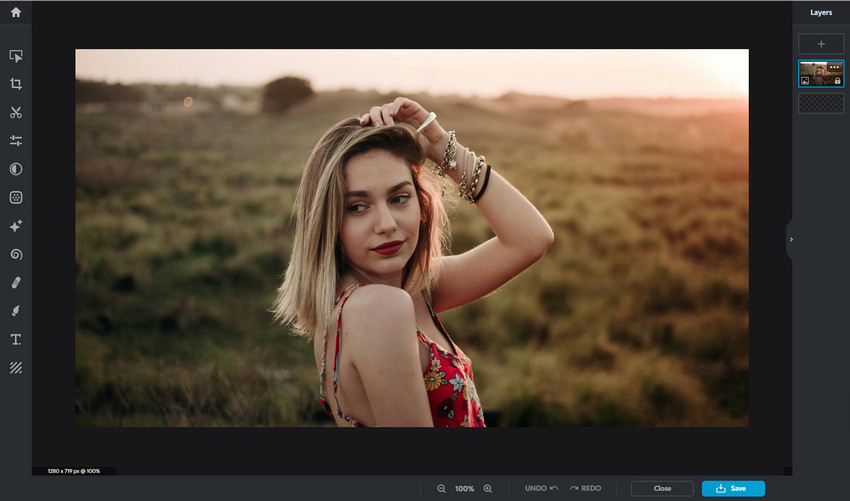
Pixlr is a browser photo editor first and a design app second, which is exactly right if your designs are mostly photos. Its Express editor cuts out backgrounds and fixes pictures in a click, and its full editor has layers, masks and blend modes much like a lighter Photoshop. Pixlr’s Designer tool adds templates for YouTube thumbnails, Instagram posts and Pinterest pins.
The suite is split across several editors, so the first session is spent working out which one does what. The free version shows ads and limits AI credits and export size. The cheap Plus plan ($1.99 a month billed yearly) removes ads and save limits, but the template and font library is part of Premium, which is $7.99 a month billed yearly. For flyers and posters, the template apps above are better; for thumbnails built around a photo of your face, Pixlr is quicker.
What it does
- One-click background and object removal
- Layer-based photo editor that opens PSD files
- Templates for thumbnails and social posts on Premium
- Browser, iPhone, Android and desktop
Pros
- Best photo tools of the template-style apps
- One subscription covers every device
Cons
- Ads and limits on the free version
- Templates need Premium, not the cheaper Plus plan
- No vector tools for logos
- Choose if:
- Your designs start from photos, like thumbnails or product shots
Kittl
Lettering-led designs and merch
#6 3.0/5
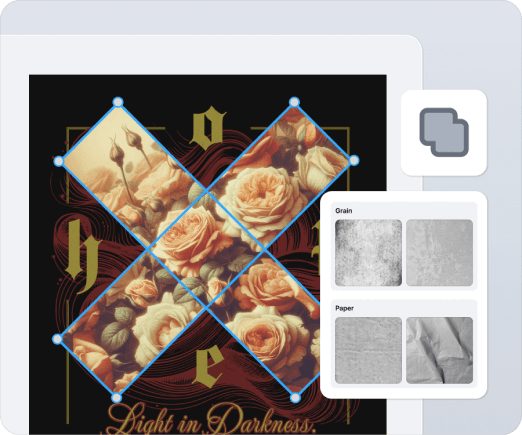
Kittl is built around type. Curved text, layered shadows, textures and vintage badge styles take seconds, and its templates lean toward T-shirts, stickers, labels, posters and logos. It also has simple vector editing, a vectorizer and AI image generation, all in the browser.
It’s not the easiest app here. Kittl expects you to know a bit of design vocabulary, like blend modes and anchor points. And the free plan is only a demo: exports are 800 pixels at 72 dpi, watermarked, limited to five projects and for personal use only. Pro, at $12 a month billed yearly, unlocks high-resolution PNG, PDF and SVG exports with transparent backgrounds and a commercial license.
Kittl’s logo rules are friendlier than Canva’s. Its raw templates and stock art can’t be trademarked, but a logo you build from your own elements or its AI output can be. For merch sellers and anyone whose design is mostly lettering, Pro is good value; for everyday social posts, it’s the wrong tool.
What it does
- Text effects, curved type and badge layouts
- Vector editing and SVG export on Pro
- Templates for merch, labels and posters
- Browser only
Pros
- Best typography tools of the template-style apps
- Logos built from your own elements can be trademarked
- Commercial license on every paid plan
Cons
- Free exports are small, watermarked and personal-use only
- No phone or desktop app
- Smaller template library, weighted toward merch
- Choose if:
- You design T-shirts, stickers or labels to sell
Microsoft Designer
Free AI designs for personal use
#7 2.9/5
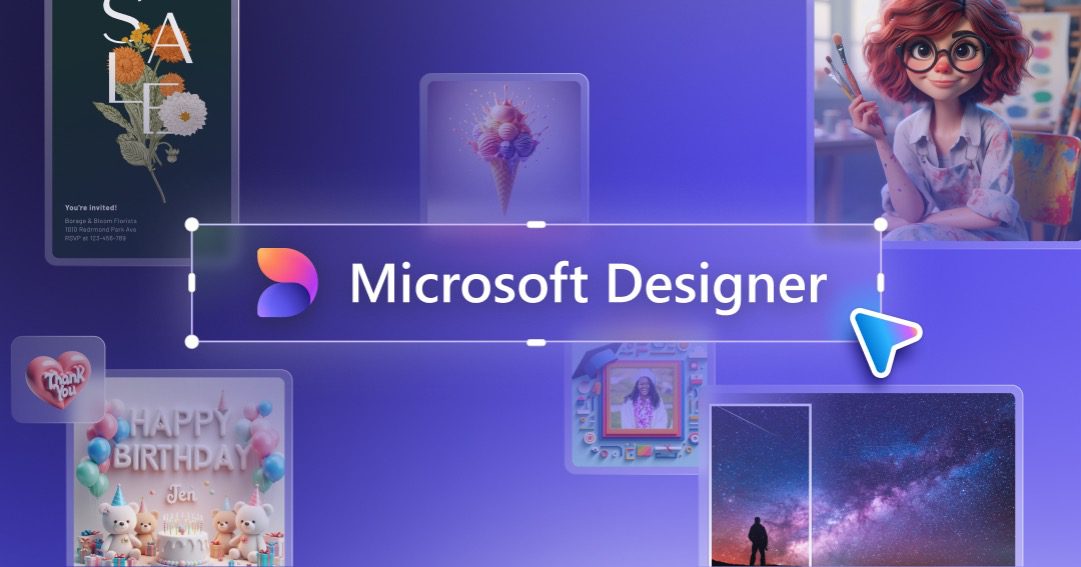
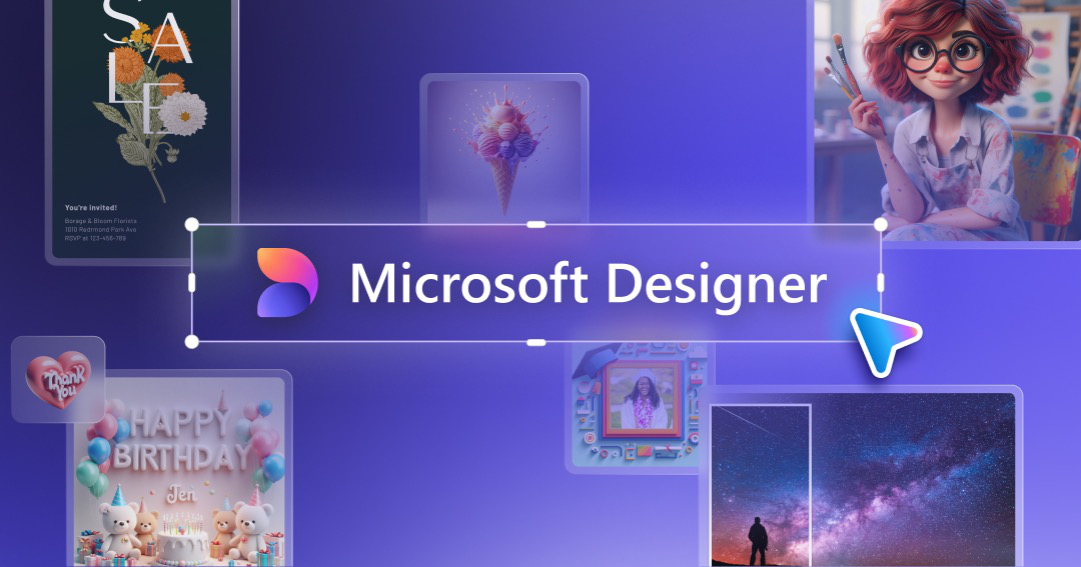
Microsoft Designer starts from a sentence rather than a template. Describe a birthday invite or a congratulations post, pick a size, and it generates designs you can then edit on a canvas. It also erases objects, blurs or removes backgrounds, and upscales photos. It’s free with a Microsoft account, in a browser or on your phone, and a Microsoft 365 subscription raises how much AI you can use.
Two things hold it back. The license is for personal, non-commercial use, so it’s no good for a business or anything you sell. And AI-generated layouts are less predictable than a template; you’ll sometimes generate several times before one is right. For family invitations and greeting cards it’s a pleasant free option. For anything else, Canva does more.
What it does
- Designs generated from a text description
- Background removal, erase and upscaling
- Browser, iPhone and Android apps
Pros
- Free with a Microsoft account
- Quick for invitations, cards and personal posts
Cons
- Personal, non-commercial use only
- Few templates; results depend on how you word the prompt
- Skip if:
- You're making anything for a business or to sell
GNU Image Manipulation Program
Free photo editor many people try first
#8 2.4/5
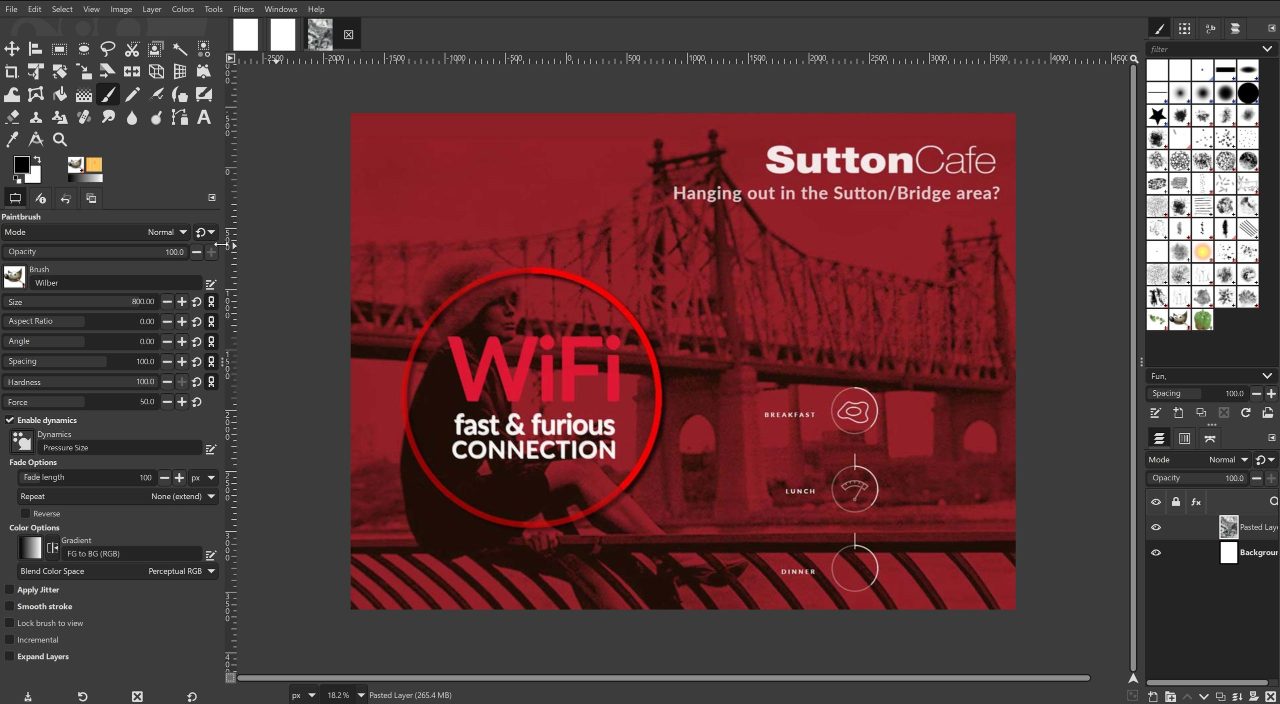
GIMP is the free, open-source photo editor people reach for when they want something like Photoshop without paying. It’s powerful: layers, masks, non-destructive filters, retouching, and plug-ins for almost anything. It runs on Windows, Mac and Linux, and nobody will ever ask you to upgrade.
For a beginner making graphics, though, it’s the hardest app on the list. There are no design templates, only canvas sizes, so every flyer starts blank. The interface is built for editing photos, not laying out text, and the learning curve is steep. If you want a free desktop app to learn on, Affinity is the better choice: it covers photos too, and adds vector drawing and page layout that GIMP leaves to other programs.
What it does
- Layer-based photo editing and retouching
- Non-destructive filters and plug-ins
- Windows, Mac and Linux
Pros
- Free and open source, with no paid tier
- Deep photo editing
Cons
- No templates; every design starts from blank
- Steep learning curve for laying out graphics
- No built-in AI tools or phone app
Also considered
- Figma is the standard tool for designing apps and websites, and its Buzz tool has templates for social posts and flyers. But Buzz is still in beta, the free plan allows only three design files per team folder, and the main editor is built for interface designers, so a newcomer spends more time learning it than in Canva or Adobe Express.
- Visme is a strong choice for presentations, reports and infographics with charts. Its free plan is mainly for sharing designs online with Visme branding; downloads in standard formats start with the Starter plan at $147 a year. For posts and flyers, the template apps above do more for less. If presentations are your main job, our ranking of AI presentation makers goes deeper.
What the paid plans cost
| App | Free version | Paid plan for one person (as of November 2026) |
|---|---|---|
| Canva | Yes, commercial use allowed | Pro, $144 a year |
| Adobe Express | Yes | Premium, $9.99 a month |
| Affinity | Whole app free | AI tools need Canva Pro |
| VistaCreate | Yes | Pro, $120 a year |
| Pixlr | Yes, with ads | Premium, $7.99 a month billed yearly |
| Kittl | Demo only | Pro, $12 a month billed yearly |
| Microsoft Designer | Yes, personal use only | Microsoft 365 Personal, $99.99 a year |
| GIMP | Whole app free | None |
The paid template apps cluster around $95 to $145 a year. The bigger differences are in what each free plan covers, and whether you need to pay at all.
1–5 per criterion · select a score for its reasoning and any sources
| # | Product | Overall | Ease for non-designers , counts double | Templates for everyday jobs , counts double | What the free version lets you make | Print and export quality | Photo editing and background removal | Making a logo you can use as a brand | Room to grow | Phone and computer support | AI helpers , counts half |
|---|---|---|---|---|---|---|---|---|---|---|---|
| 1 | Canva | 4.3 | 5 | 5 | 4 | 4 | 4 | 3 | 3 | 5 | 4 |
| 2 | Adobe Express | 3.6 | 4 | 4 | 4 | 3 | 4 | 2 | 3 | 4 | 4 |
| 3 | Affinity | 3.5 | 2 | 2 | 5 | 5 | 5 | 5 | 5 | 3 | 2 |
| 4 | VistaCreate | 3.4* | 4 | 4 | 3 | 2 | 3 | unknown | 2 | 4 | 4 |
| 5 | Pixlr | 3.2* | 3 | 3 | 2 | unknown | 5 | 1 | 3 | 5 | 4 |
| 6 | Kittl | 3.0 | 3 | 3 | 2 | 3 | 3 | 4 | 4 | 2 | 4 |
| 7 | Microsoft Designer | 2.9 | 4 | 2 | 2 | 2 | 4 | 2 | 2 | 4 | 4 |
| 8 | GNU Image Manipulation Program | 2.4 | 1 | 1 | 5 | 3 | 4 | 3 | 4 | 2 | 1 |
×2 = counts double in the overall score, ×½ = counts half.
? = unknown. * = the overall score averages only the known criteria.
How each criterion is scored
Ease for non-designers
Counts double in the overall score: Readers have no design training and want good-looking results quickly, so how fast a newcomer gets there counts more than any single feature.
How quickly someone with no design training gets from opening the app to a finished, good-looking social post, flyer or thumbnail: how clear the first screen is, whether text, photos and shapes behave the way a newcomer expects, how well the app keeps layouts tidy for them, and how much design vocabulary it assumes. Judged from reviewers' and users' accounts of learning it and knowledge of its workflow, not from vendor claims alone.
- 5 Pick a template, change the words and photos, and download, with no instructions needed
- 4 Approachable; most newcomers finish a decent design in their first session with a little looking around
- 3 Learnable in a few sessions, but it assumes some design vocabulary or leaves layout decisions to the reader
- 2 A professional layout of panels and tools; most newcomers need tutorials before they finish a first design
- 1 Built for trained designers or photo retouchers; a newcomer needs many hours of tutorials before making a decent flyer
Templates for everyday jobs
Counts double in the overall score: For a beginner, a good template is most of the design, so the library decides how good the result looks as much as the editor does.
How likely the reader is to find a good starting design for what they make most: social posts, flyers, posters, YouTube thumbnails, invitations, simple logos and presentations, along with the photos, graphics and fonts that come with them. Counts breadth across those kinds and the quality and variety of the designs on the plan most readers use. Judged from the vendor's libraries and reviewers' views of their quality.
- 5 Millions of templates covering every one of these kinds in many styles, with a very large stock library
- 4 Hundreds of thousands of templates covering nearly all of these kinds, with a large stock library
- 3 Thousands of templates, but thin in some of these kinds or mostly in one style
- 2 A few starter layouts, or templates for only one or two of these kinds
- 1 No templates; every design starts from a blank canvas
What the free version lets you make
How much useful, finished work a reader gets without paying: whether downloads are allowed and watermark-free, at what size and in which formats, whether paid items mixed into the library block or watermark a download, caps on saves or projects, ads, and whether the free version may be used for a club or a business. Judged from the vendor's plan pages and license terms.
- 5 The whole app is free, for any use, with no watermarks, caps or paid tier for the core tools
- 4 Generous watermark-free downloads for commercial use, with paid items mixed in and some tools reserved for paying users
- 3 Watermark-free downloads, but paid items are mixed through the library, or key formats and tools are paid
- 2 Downloads are small, watermarked, capped to a few a day, or limited to personal use
- 1 No usable downloads without paying, or a watermark on every download
Print and export quality
Whether files come out ready for every place the reader uses them, on the product's best plan for one person: print PDFs with bleed and crop marks, CMYK color for a print shop, high resolution, transparent PNGs, and SVG or another vector format for a logo. Ordering prints from inside the app counts a little. Judged from the vendor's documentation of export options.
- 5 Everything a print shop asks for, including CMYK and PDF/X, plus vector formats
- 4 Print PDFs with bleed and crop marks, transparent PNG and SVG, with CMYK missing or limited
- 3 High-resolution images and PDFs, but no print settings such as bleed, or no vector export
- 2 Full-size PNG or JPG, with no print PDF and no vector or transparent export
- 1 Screen-sized images only
Photo editing and background removal
How well the reader can fix and cut out photos for a design: one-click background removal, erasing objects, retouching, adjustments, and layer-based photo editing. Counts the tools on the product's best plan for one person, and how well they work. Judged from the documented tools and reviewers' accounts of their results.
- 5 Full layer-based photo editing with masks and retouching, plus quick automatic tools
- 4 One-click background removal, object removal and good adjustment tools, short of layer-based editing
- 3 One-click background removal and simple fixes, but little control
- 2 Basic adjustments, with no background removal
- 1 Crop, rotate and filters only
Making a logo you can use as a brand
Whether the reader can make a simple logo and use it as their brand: vector drawing or vector output so it scales cleanly, and license terms that let them register or protect a logo built in the app. Judged from the product's tools and the vendor's license terms.
- 5 Full vector drawing and export with no license limits on the result
- 4 Vector tools and output, with brand use allowed for designs built from the reader's own elements
- 3 Vector output, but the content license restricts trademark use, or the drawing tools are basic
- 2 Possible as an image, but the template license bars using its content in a trademark, or no vector output
- 1 Not suited to logos, or the license bars brand use
Room to grow
How far the reader can go once the basics are learned: precise control over layout, typography and vectors, layers, and features designers use for larger or more ambitious work. Judged from the documented feature set and reviewers' accounts of where each app runs out.
- 5 Professional depth in vector, photo and layout work, the same tools paid designers use
- 4 Advanced typography, vector editing or photo editing, short of a full professional suite
- 3 Layers, grouping and alignment tools with decent typography, short of a designer's tools
- 2 Free placement of elements, but little control over type, alignment or layers
- 1 Fixed layouts with few options beyond changing text and images
Phone and computer support
Whether the reader can make and edit designs on the devices they have: a browser, Windows and Mac apps, and full editing on iPhone and Android, with work synced between them. Judged from the vendor's supported platforms.
- 5 A browser, desktop apps and full iPhone and Android apps, with work synced between them
- 4 A browser and full mobile apps, with no desktop app, or desktop apps on every system plus one mobile system
- 3 Desktop computers and a tablet, or a browser plus limited mobile apps
- 2 Desktop computers only, or a browser only
- 1 One desktop system only
AI helpers
Counts half in the overall score: AI tools save time but rarely decide which app a beginner picks, and they change faster than the rest of each app.
Built-in AI that saves a beginner time, counted where it is included on the product's best plan for one person: generating a design or image from a description, resizing a design for other formats, writing text, and editing images by description. Judged from the vendor's documentation and reviewers' views of the results.
- 5 AI design generation, image generation, resizing and editing built in, with generous limits
- 4 AI image generation, text and editing tools with generous limits on the paid plan
- 3 Several AI tools with tight limits, or results reviewers find weak
- 2 One or two AI tools, or AI only through a separate paid product
- 1 No built-in AI
How to choose
- You want the quickest good-looking result, free: Canva. Adobe Express if you need transparent PNGs or background removal without paying.
- You run a small business: Canva Pro for posts, print and a brand kit. Draw the logo itself from your own shapes, or in Affinity, so you can register it.
- You want to learn design properly, or won’t pay monthly: Affinity. Give it a few evenings.
- Your designs are mostly photos, like thumbnails: Pixlr, or Adobe Express for free background removal.
- You make merch or lettering-led posters: Kittl Pro.
- You want printed flyers or cards delivered: VistaCreate, which sends designs straight to VistaPrint.
- You only make personal invitations and cards: Microsoft Designer is free and quick.
The verdict
Canva is the right first app for nearly every beginner. Its library is large enough that most jobs start from something close to finished, the free plan covers commercial use, and it’s on every device. Pay for Pro when you keep wanting transparent backgrounds, resizing or the background remover; until then, free is fine.
Adobe Express is the one to compare it with. It’s a little less polished and has far fewer templates, but its free plan currently includes the two tools beginners most often hit a paywall for, and its fonts are better.
Affinity is the one to grow into. A full professional design app that costs nothing gives beginners a path that otherwise means paying for Adobe. It’s slower to start with, and it won’t hold your hand, but it’s the right home for a logo you want to own and for anyone who expects to outgrow templates. A sensible setup for a small business is Canva for everyday posts and Affinity for the logo and anything that goes to a printer.
We scored 8 products on 9 criteria using 129 quotes, 60 of them from the products' own websites. How our rankings work