Best authenticator apps for iPhone and Android
Most people install whichever authenticator a website suggests, usually Google’s or Microsoft’s, and never think about it again. That works until the phone breaks or you switch from iPhone to Android. Then it matters whether the app backed up your codes somewhere you can get them back, and whether it lets you export them at all. Microsoft Authenticator and Authy have no export, and Google can read the backup it makes.
For most people, Ente Auth is the one to install. It’s free and open source, it backs up your codes with encryption only your devices can unlock, and it runs on iPhone, Android, and your computer, all in sync. Proton Authenticator is nearly as good and the natural pick if you already use Proton. Android users who want codes that never touch the internet should look at Aegis.
Key facts
9 productsLicenses, requirements, and starting prices. Prices as of November 2026.
- License
- AGPL-3.0, open source
- Runs on
- iOS
- Android
- Windows
- macOS
- Linux
- Web (view codes only)
- Needs
- No account needed in offline mode
- Ente account (email) needed for backup and sync
- Price
- Free plan
- License
- Open source, open source
- Runs on
- iOS
- iPadOS
- Apple Watch
- Android
- macOS
- Windows
- Linux
- Needs
- Proton account only for syncing between devices
- Price
- Free plan
- License
- GPL-3.0, open source
- Runs on
- iOS
- iPadOS
- Android
- Apple Watch
- Browser extension (Chrome
- Brave
- Firefox
- Edge
- Opera
- Safari)
- Needs
- iOS 18.6 or later
- No account needed
- Price
- Free plan
- License
- Open source, open source
- Runs on
- iOS 15 or later
- Android 9 or later
- Needs
- No account required
- Price
- Free plan
- License
- Proprietary
- Runs on
- iPhone
- iPad
- Mac
- Apple Vision Pro
- Windows (via iCloud for Windows and Chrome
- Edge or Firefox extension)
- Needs
- An Apple Account
- iOS 18 or later
- iPadOS 18 or later
- macOS Sequoia or later
- visionOS 2 or later
- Price
- Free plan
- License
- GPL-3.0, open source
- Runs on
- Android
- Needs
- No account needed
- Price
- Free plan
- License
- Proprietary
- Runs on
- iPhone
- iPad
- Android
- Needs
- iOS 17.0 or later
- Android 6.0 or later
- A Google Account only for cloud sync
- Price
- Free plan
- License
- Proprietary
- Runs on
- iOS
- Android
- Needs
- iOS 17.0 or later
- iCloud Drive, iCloud Keychain and iCloud Backup on for Authenticator (iOS backup)
- Microsoft personal account (Android backup until January 2027)
- Price
- Free plan
- License
- Proprietary
- Runs on
- iOS
- Android
- Needs
- A phone number for account verification
- A backup password to enable encrypted backup
- Price
- Free plan






What separates these apps
Every app here does the basic job the same way. You scan a QR code when a site turns on two-factor, and the app shows a six-digit code that changes every 30 seconds. The codes are generated on your phone, so they all work offline, on a plane or in a basement.
The differences show up later:
- The backup. Some apps back up automatically and restore when you sign in on a new phone. Some make you save a file yourself. A few back up in a way the company can read, which matters if that account is ever taken over.
- Getting out. Several popular apps have no way to export your codes. If you ever want to leave, you turn off two-factor on every site and set it up again.
- iPhone and Android together. If you switch phone systems, or carry one of each, only a few apps keep your codes in sync across both.
Whatever you pick, save the recovery codes each site gives you when you turn on two-factor. They’re your way back in if everything else fails.
Ente Auth
Best for most people
#1 4.6/5
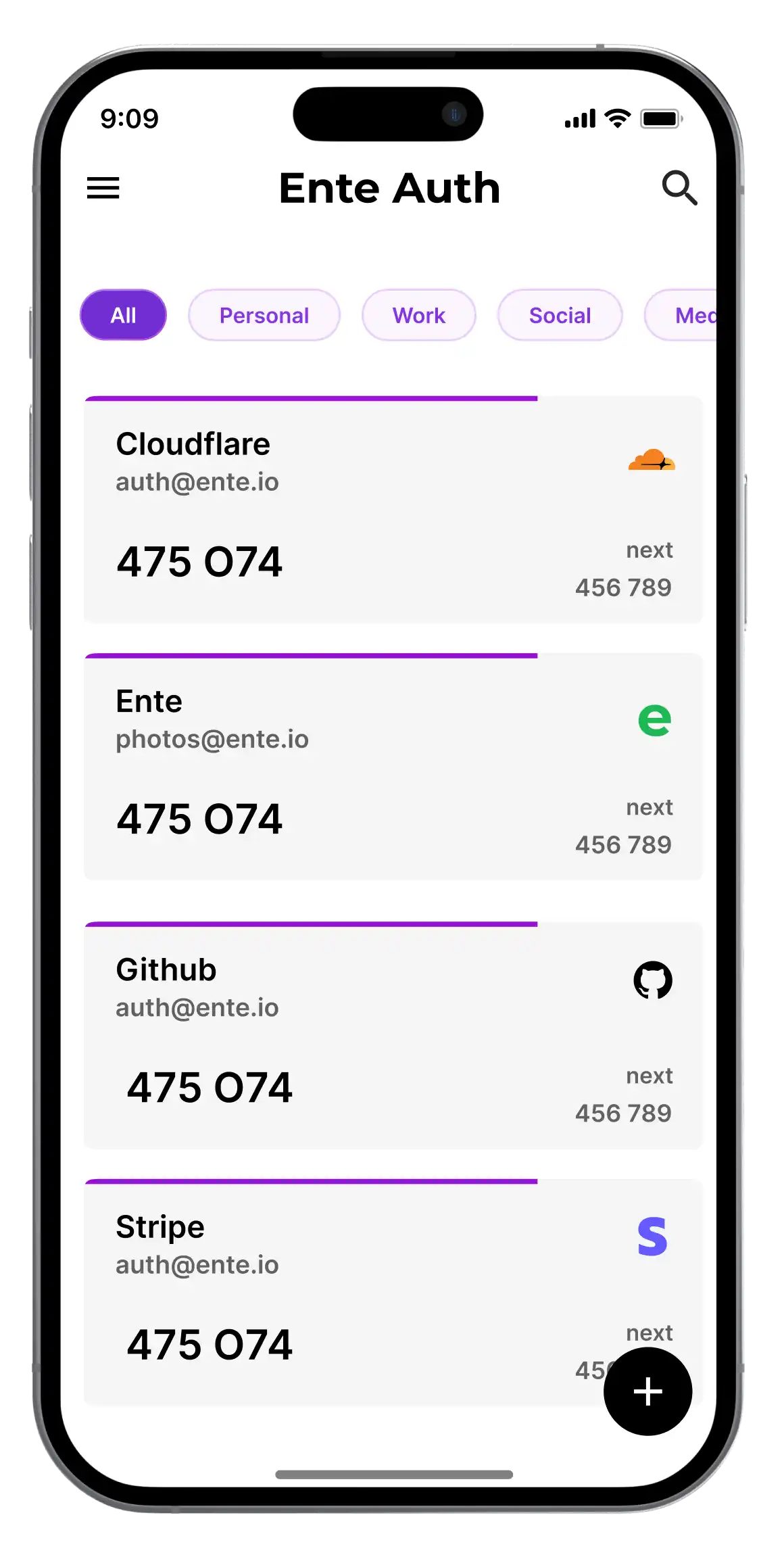
Ente Auth does the things the big-name apps don’t. Your codes are end-to-end encrypted before they leave your phone, meaning only your own devices can read them, and they sync to every device you sign in on. Lose your phone and you sign in on a new one with your Ente password (or the 24-word recovery key it gives you) and everything is back. You don’t need the old phone.
It runs on iPhone, Android, Windows, Mac, and Linux, plus a web page where you can view codes from any browser. That’s handy when your phone is dead and you need to get into your email. Sync needs a free Ente account, which is just an email address. If you’d rather not have one, there’s an offline mode that keeps codes on the phone only.
Leaving is easy too. You can export to an encrypted file, plain text, or a page of QR codes, and it imports from Google Authenticator, Aegis, Bitwarden, and LastPass. Everyday use is quick: search, tags, pinned favorites, service icons and a preview of the next code so you’re not racing the timer. Cure53, a well-known security firm, audited Ente’s server code and infrastructure, which the Auth app shares with Ente’s photo service.
What it doesn’t have: a watch app, a browser extension or autofill. You copy and paste codes.
What it does
- End-to-end encrypted backup and sync across phones and computers
- Apps for iPhone, Android, Windows, Mac, and Linux, plus a web page that shows codes
- Export to an encrypted file, plain text or printable QR codes
- Optional offline mode with no account
Pros
- A new phone gets every code back with just your sign-in
- Easy to leave later
- Open source, with an independent audit of the servers it relies on
Cons
- No watch app, browser extension or autofill
- Lose both your password and recovery key and the backup can't be opened
Proton Authenticator
For people already using Proton
#2 4.6/5
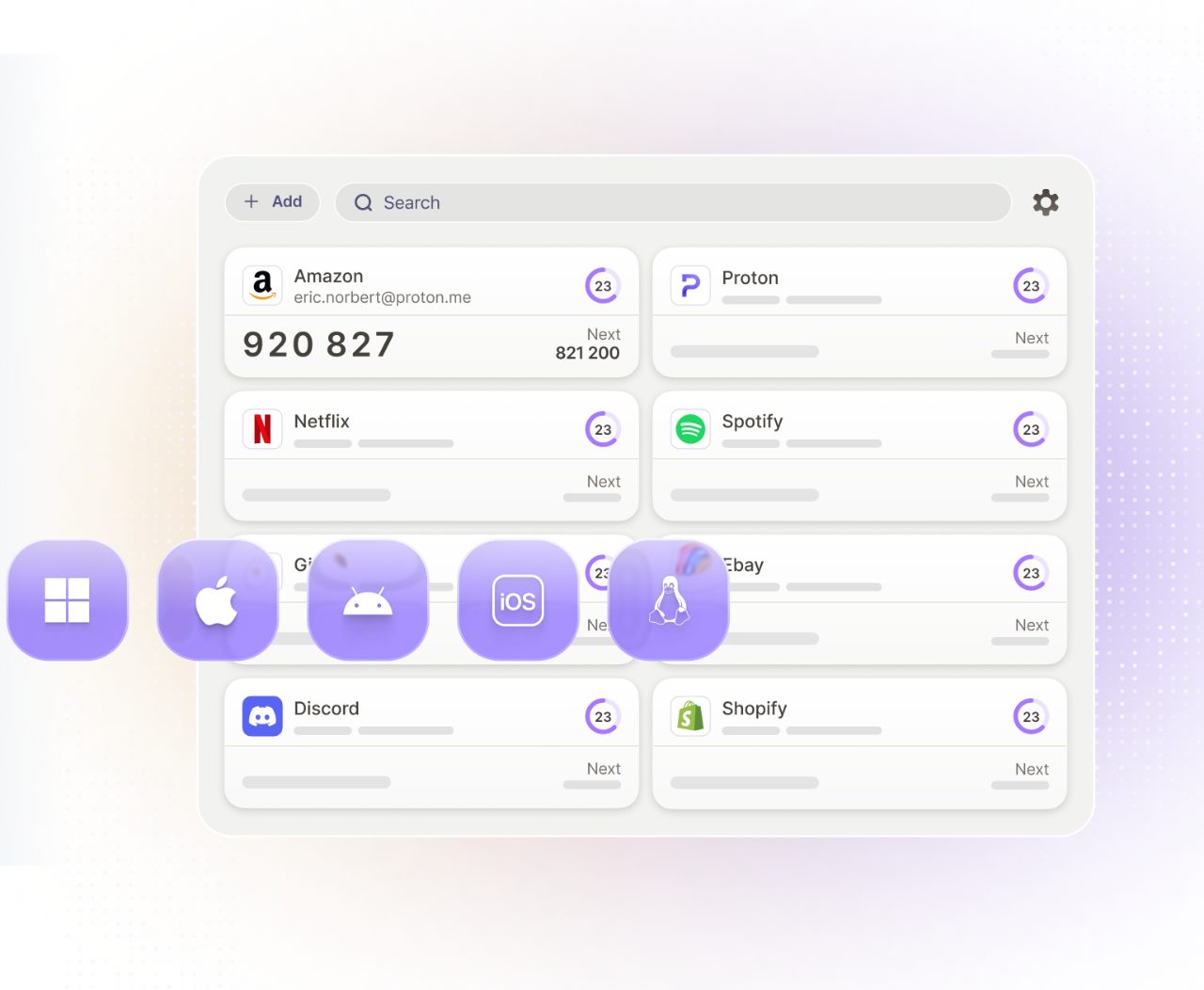
Proton Authenticator covers almost the same ground as Ente Auth: free, open source, no ads or tracking, and end-to-end encrypted sync between iPhone, Android, Mac, Windows, and Linux. It also has an Apple Watch app, which Ente lacks.
Sync runs through a Proton account. If you already have one for Proton Mail or Proton VPN, that’s zero extra setup. But think about whether you want your email and your two-factor codes behind the same login; if that account is ever locked, you lose both at once. You can create a separate free Proton account just for codes.
Without an account, the backup depends on your phone. iPhones get an encrypted iCloud backup. Android users get only a manual export, so they’re back to remembering to save a file.
It imports from Google Authenticator, 2FAS, Aegis, Bitwarden Authenticator, Ente Auth, and LastPass, though not from Authy, which has no export anyway. Search, custom icons and a next-code preview are all there. It’s a newer app than Ente, and some users have run into sync and import bugs.
What it does
- End-to-end encrypted sync with a Proton account
- Apps for iPhone, Android, Mac, Windows, Linux, and Apple Watch
- Imports from six other authenticators
Pros
- Free with no ads or tracking
- Works fully offline without an account
- Apple Watch app
Cons
- Without a Proton account, Android has only a manual export as backup
- A newer app, with reports of sync and import bugs
- Skip if:
- You don't want another account and you're on Android
2FAS Auth
For browser autofill without an account
#3 3.9/5
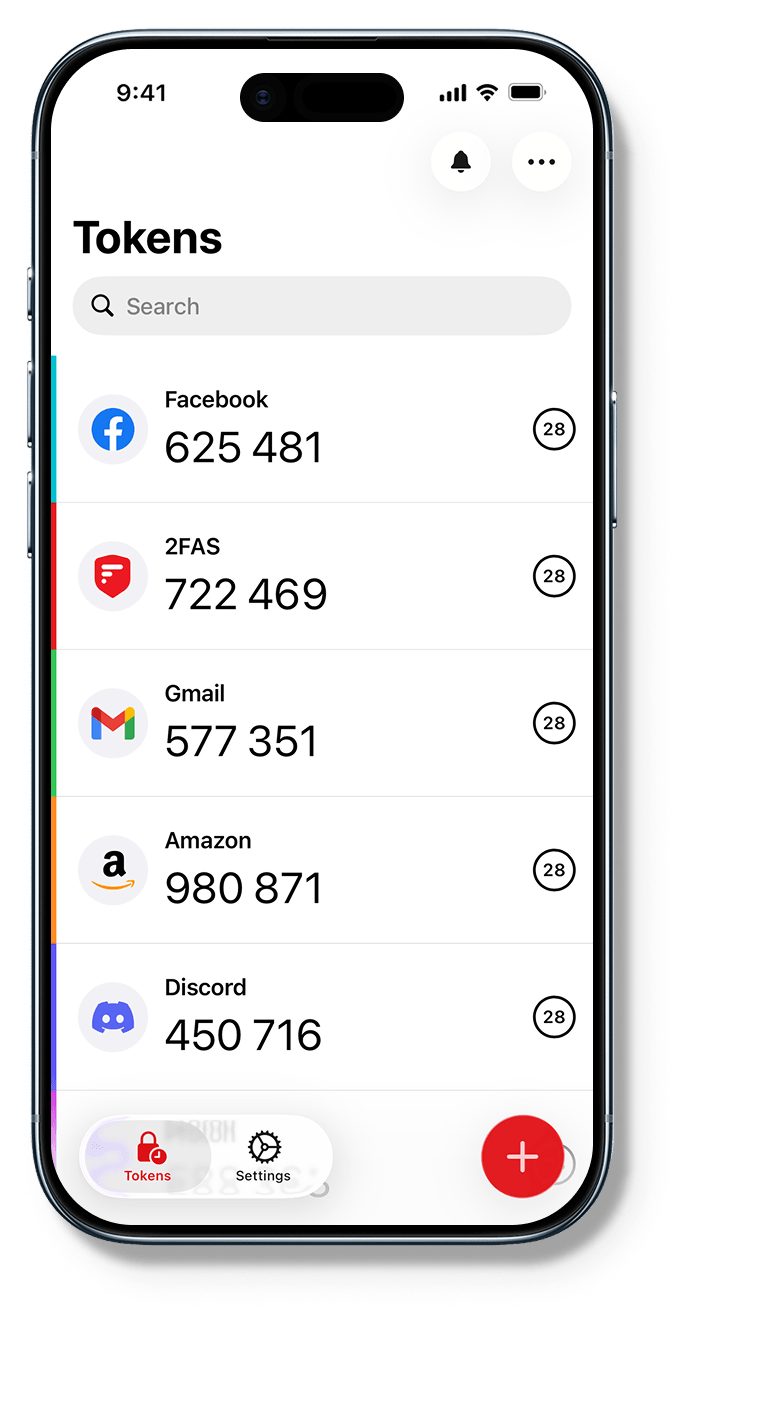
2FAS is the only app here with a browser extension that fills codes for you. When a site asks for a code on your computer, your phone gets a notification. Approve it and the code appears in the box. It works in Chrome, Firefox, Safari, Edge, Brave, and Opera, and it’s free.
It needs no account at all. Backups go to your own cloud drive: iCloud on an iPhone, Google Drive on Android. That’s a nice middle ground if you don’t want another company holding your codes, but it means an iPhone backup and an Android backup don’t talk to each other. Moving between them means exporting a file on one phone and importing it on the other.
There’s no desktop app; the extension always needs your phone. On the plus side, you get an Apple Watch app, home-screen widgets on iPhone, and import from Google Authenticator, Aegis, Raivo, and LastPass.
What it does
- Browser extension that fills codes after you approve on your phone
- Backup to your own iCloud or Google Drive
- Apple Watch app and iPhone widgets
Pros
- No account needed
- Free and open source
- Clean, quick interface
Cons
- iPhone and Android backups don't sync with each other
- No desktop app; the extension always needs your phone
- Choose if:
- You enter codes on a computer often and want to skip typing them
Bitwarden Authenticator
For Bitwarden password manager users
#4 3.7/5
Bitwarden Authenticator is a free standalone app, separate from Bitwarden’s password manager, and it works without any Bitwarden account. Its best trick is linking to the password manager on the same phone, so codes stored in your Bitwarden vault show up here too. Generating codes inside the password manager itself needs Bitwarden Premium.
On its own it’s thin. There’s no cloud sync between phones; your codes are backed up only as part of your phone’s regular iCloud or Google backup. Bitwarden describes the app’s on-device database as unencrypted. Export is easy and readable by most other apps, but it’s a plain file, so treat it like a list of passwords.
What it does
- Shows codes stored in your Bitwarden vault
- Export to plain JSON or CSV
- Imports from Google Authenticator, 2FAS, Aegis, LastPass, and Raivo
Pros
- No account needed
- Easy to move codes in and out
Cons
- No sync between phones on its own
- Exports are unencrypted
- Codes sit in a database Bitwarden calls unencrypted
- Skip if:
- You don't already use Bitwarden's password manager
Apple Passwords
For people with only Apple devices
#5 3.6/5
If everything you own is Apple, you may not need to download anything. The Passwords app on iOS 18 and later can hold two-factor codes: open a login, tap Set Up Verification Code, and scan the QR code. When a site asks for the code, it appears above the keyboard and you tap it.
Getting a code doesn’t get much quicker than that. The codes sync through iCloud Keychain to your iPhone, iPad, and Mac, and iCloud Keychain, Apple’s encrypted store for passwords and codes, is end-to-end encrypted. Windows works too, through iCloud for Windows and a browser extension.
The problem for anyone who might ever own an Android phone is plain: there’s no Android app. iOS 26 can hand codes to another app that supports Apple’s transfer format, but there’s no plain export file, so leaving takes some planning.
What it does
- Codes stored next to your passwords
- Code appears above the keyboard for one tap
- Sync across iPhone, iPad, and Mac
Pros
- Nothing to install on an iPhone
- End-to-end encrypted sync through iCloud Keychain
Cons
- No Android app
- Needs an Apple Account
- No export file, only transfer to apps that support Apple's format
- Choose if:
- You're sure you'll stay with Apple devices
Aegis Authenticator
For Android users who want codes offline
#6 3.4/5
Aegis is the purist’s choice, and it’s Android only. The app has no internet access at all, so your codes never leave the phone unless you move them yourself. They’re kept in an encrypted vault you unlock with a password or your fingerprint.
Backups are automatic but local: Aegis writes an encrypted copy of the vault to a folder you choose. Point that folder at Nextcloud (a self-hosted file-sync service) or sync it with another device and you’ve got an offsite backup. Skip that step and a lost phone takes the backup with it. Restoring needs the backup file and your vault password; there’s no account to fall back on.
It imports from more apps than anything else here, including Google Authenticator, Microsoft Authenticator, 2FAS, and Authy (some of these need a rooted phone, one with its built-in restrictions removed). Search, groups and icons make a long list easy to scan. There’s no autofill, by design.
What it does
- Encrypted vault on the phone, with no internet access
- Automatic encrypted backups to a folder you choose
- Imports from about a dozen other apps
Pros
- Nothing leaves the phone unless you send it
- No account at all
- Easy to export, encrypted or plain
Cons
- Android only
- Offsite backup is up to you
- Choose if:
- You're on Android and never want codes in anyone's cloud
Google Authenticator
The familiar default
#7 3.3/5
Google Authenticator is what most sites suggest, and it’s fine for getting started. Sign in with your Google account and your codes sync to any phone, iPhone or Android, where you sign in again. That alone puts it ahead of how things used to be.
The trade-off is who can read the backup. Google encrypts synced codes in transit and on its servers, but not end to end, so anyone who takes over your Google account can load your codes on their own phone. You can use the app without signing in, but then there’s no backup.
Moving out works through a transfer QR code that other apps such as Aegis and Ente can scan. There’s no export file and no import from other apps. Everyday use is basic: search matches only the account name, there are no folders, and there’s no computer app.
What it does
- Sync through your Google account
- Transfer QR code to move codes to another phone or app
- Privacy screen that locks the app
Pros
- Works on iPhone and Android with the same sync
- Familiar and simple
Cons
- Google can read the synced backup
- No folders, and search matches only the account name
- Phone only
- Skip if:
- Your Google account is the one you're protecting most
Microsoft Authenticator
For Microsoft and work accounts
#8 3.1/5
Microsoft Authenticator does one job nobody else on the list does well: push approval for Microsoft accounts and work or school accounts. A sign-in prompt pops up on your phone and you tap the matching number. It also stores passkeys, which replace the password, for those accounts. If your employer uses Microsoft, you’ll probably have it whether you want it or not.
As a home for your personal codes, it’s a trap. There’s no way to export them. Backups go to iCloud on iPhone or your Microsoft account on Android, and an iPhone backup can’t be restored on Android, or the other way round. Switch phone systems and you re-add everything. Work accounts also need a fresh sign-in after any restore.
It no longer stores passwords, either; Microsoft moved that to its Edge browser. It’s best kept for the work account, with your personal codes in a separate app you can leave.
What it does
- Push approval with number matching for Microsoft and work accounts
- Passkeys for Microsoft accounts
- Backup to iCloud or a Microsoft account
Pros
- Smooth sign-in to Microsoft and work accounts
- Clean, simple design
Cons
- No export of your codes
- Backups can't move between iPhone and Android
- Choose if:
- Your employer or school requires it, for that account alone
Twilio Authy
Avoid for new setups
#9 2.5/5
Authy was the go-to recommendation for years because it synced between devices before Google’s app did. Today there’s little reason to start with it. You can’t export your codes, and the unofficial tools that used to pull them out stopped working once Authy blocked them. The desktop apps are gone too; people who used only the desktop version lost their codes when Twilio shut those apps down.
Authy also requires your phone number, and attackers have used that. In one incident, an unprotected part of Authy’s system let attackers check which phone numbers had accounts, and an earlier breach let them add their own devices to some users’ Authy accounts.
If you’re already on Authy, the backup and sync between iPhone and Android still work. Moving out means opening each site’s security settings and setting up two-factor again in the new app, so do it a few accounts at a time.
What it does
- Encrypted cloud backup with a backup password
- Sync between iPhone and Android phones
Pros
- Backup and sync work across both phone systems
Cons
- No way to export your codes
- Requires a phone number
- Past security incidents exposed users' phone numbers and accounts
- Desktop apps discontinued
- Skip if:
- You're choosing an app today
Also considered
- Duo Mobile. If your employer or school uses Duo, you’ll need it for that login, and it can hold personal codes for free. As your main personal app it’s weak: it can’t export third-party codes, and its backup can’t be restored across iPhone and Android.
1–5 per criterion · select a score for its reasoning and any sources
| # | Product | Overall | Getting your codes back on a new phone , counts double | Moving your codes in and out | Codes on all your devices | Easy to set up and use every day | Security and openness | No account, no tracking | Extras that save time , counts half |
|---|---|---|---|---|---|---|---|---|---|
| 1 | Ente Auth | 4.6 | 5 | 5 | 5 | 5 | 5 | 4 | 1 |
| 2 | Proton Authenticator | 4.6 | 5 | 5 | 5 | 4 | 4 | 5 | 3 |
| 3 | 2FAS Auth | 3.9 | 4 | 4 | 3 | 4 | 4 | 4 | 4 |
| 4 | Bitwarden Authenticator | 3.7 | 4 | 5 | 3 | 4 | 3 | 4 | 1 |
| 5 | Apple Passwords | 3.6 | 5 | 3 | 2 | 5 | 3 | 2 | 4 |
| 6 | Aegis Authenticator | 3.4 | 3 | 5 | 1 | 4 | 4 | 5 | 1 |
| 7 | Google Authenticator | 3.3 | 4 | 3 | 4 | 3 | 3 | 3 | 1 |
| 8 | Microsoft Authenticator | 3.1 | 4 | 1 | 3 | 4 | 3 | 3 | 3 |
| 9 | Twilio Authy | 2.5 | 4 | 1 | 4 | 3 | 1 | 1 | 2 |
Equal displayed overall scores are ordered by the earlier criteria; a known score comes before an unknown score. Identical scores use alphabetical order.
×2 = counts double in the overall score, ×½ = counts half.
How each criterion is scored
Getting your codes back on a new phone
Counts double in the overall score: Losing every code with a lost phone is the disaster readers most want to avoid, so the backup counts double.
What happens to your two-factor codes when your phone is lost, broken or replaced: whether the app backs up the secret keys behind the codes, whether that backup runs on its own, how it is protected, and what you need to restore it.
- 5 An automatic, end-to-end encrypted backup you restore by signing in or with your device passcode, with nothing else to keep track of
- 4 An automatic backup you restore by signing in, but the provider could read it, or getting it back depends on a text message to your phone number
- 3 An automatic backup you have to set up, such as a file saved to a folder or cloud drive, that you restore with that file and its password
- 2 Only a backup you make by hand, such as an export file you have to create and store yourself
- 1 No backup at all, so a lost phone means resetting two-factor on every account
Moving your codes in and out
Whether you can take all your codes to another app later and bring them in from the app you use now: export of every account in a format other apps read, and import from other authenticators.
- 5 Exports to a standard file, plain or encrypted, and imports from most popular authenticators
- 4 Exports every account to a file or QR code other apps read, and imports from a few major apps
- 3 Exports every account in a form some other apps read, such as a transfer QR code, but imports from few or no other apps
- 2 Exports only to another copy of the same app, or one account at a time
- 1 No way to export your codes, so leaving means re-adding every account by hand
Codes on all your devices
Which devices the app runs on and whether your codes follow you between them on their own: iPhone, Android, computers and the web.
- 5 iPhone, Android and computer apps or a web app, all kept in sync automatically
- 4 Both iPhone and Android with automatic sync between them, but no app on computers
- 3 Both iPhone and Android, but codes don't sync automatically between an iPhone and an Android phone
- 2 One company's devices only, such as iPhone, iPad and Mac, with sync among them
- 1 One phone system only, such as Android only
Easy to set up and use every day
How quickly a person adds accounts and then finds and copies the right code day to day. Judged from the ways to add an account (scanning a QR code, importing an image, typing a key), search, icons and groups, tap to copy, a preview of the next code, and what reviewers and many users say.
- 5 Easy setup and quick everyday use, plus touches such as autofill or a next-code preview that save a step every time
- 4 Easy to add accounts, quick to find and copy a code, with search and clear icons
- 3 Fine for most people, with snags such as no search, no icons or ads and prompts in the way
- 2 Works, but adding accounts or finding codes takes extra steps, with a cluttered or dated design
- 1 Confusing to set up, and hard to find the code you need
Security and openness
How well the codes are protected and how much outsiders have been able to check that: end-to-end encrypted storage and backup, a lock on the app, open source code, independent audits, and any incident that exposed or lost users' data.
- 5 Open source code, published independent audits, end-to-end encryption and an app lock, with no known incident
- 4 Open source code or independent audits, end-to-end encrypted storage and an app lock, with no known incident
- 3 Closed code and no published independent audit, with no known incident, and backups protected only by the account password
- 2 Closed code and no published audits, with an incident that exposed users' personal data
- 1 An incident that exposed or lost users' codes, or no way to lock the app
No account, no tracking
Whether you can use the app without handing over an account or phone number, and how much data about you and your accounts it collects or ties to a big company's account.
- 5 Works without any account and collects no data, keeping codes on your devices unless you choose a backup
- 4 Works without an account, with an optional backup that the provider can't read, and collects little data
- 3 Works without an account, but its backup ties your codes to a Google, Microsoft or similar account, and the app collects usage data
- 2 Requires a phone number or account to work at all
- 1 Requires a phone number or account to work at all, and collects data tied to you
Extras that save time
Counts half in the overall score: These make daily use quicker but don't decide whether your codes are safe, so they count half.
How many of six extras the free app includes: filling codes into apps and websites, a browser extension, a smartwatch app, push approval for sign-ins to Microsoft or work accounts, a home-screen widget, and storing passkeys.
- 5 Four or more
- 4 Three
- 3 Two
- 2 One
- 1 None
Which one fits you
- You want one app and don’t want to think about it: Ente Auth.
- You already pay for or use Proton: Proton Authenticator, ideally under a separate account from your email.
- You type codes on a computer all day: 2FAS, for its browser extension.
- You’re Android only and want nothing in the cloud: Aegis, with its backup folder synced somewhere off the phone.
- Everything you own is Apple: the Passwords app you already have.
- Work makes you use Microsoft Authenticator or Duo: keep it for the work account and put personal codes in Ente Auth.
- You’re stuck in Authy: move to Ente Auth or Proton Authenticator a few accounts at a time.
The short version
The app you pick barely matters on a normal day. It matters on the day your phone is lost, and on the day you want to leave. Ente Auth is the one that handles both without a catch: its backup comes back when you sign in, and you can export to a standard file.
Proton Authenticator matches it for anyone with a Proton account and adds a watch app. 2FAS is the pick if the browser extension sounds useful and you don’t want any account. Aegis is for Android owners who want their codes kept off the internet entirely.
Google Authenticator is fine if you’re already using it and your Google account is well protected, but it’s harder to leave than the apps above. Microsoft Authenticator and Authy are the ones to avoid for personal codes, because neither lets you take your codes with you.
Frequently asked questions
Is Google Authenticator safe to use?
Yes, the codes it generates are as secure as any other app’s. The weak point is the backup: synced codes aren’t end-to-end encrypted, so whoever controls your Google account can get your codes. Turn on strong protection for that Google account, such as a passkey, or pick an app with an end-to-end encrypted backup.
How do I move my codes out of Authy?
There’s no export, so you can’t move them in one go. Install the new app, then for each account go to the site’s security settings, turn two-factor off and on again (or choose to set up a new authenticator), and scan the new QR code. Delete each account from Authy only after the new code works.
Should I keep two-factor codes in my password manager instead?
It’s convenient, since the manager can fill the password and the code together. The downside is that one stolen login then opens everything, which is why some people keep codes in a separate app. Not every free plan can generate codes (Bitwarden’s free plan can’t), and our guide to free password managers covers which ones do.
What happens if I lose my phone and had no backup?
You’ll need each site’s recovery codes, the ones shown when you turned on two-factor. Without them, you go through each site’s account recovery, which can take days or fail. That’s the main reason to pick an app that backs up automatically.
We scored 9 products on 7 criteria using 126 quotes, 67 of them from the products' own websites. How our rankings work