Best PDF editors for Windows, free and paid
Most people who search for a PDF editor need one thing done: a wrong date on a form, a contract to sign, two scans to merge. The software they find is mostly sold by subscription, and the best-known one costs about $240 a year. That mismatch is the whole buying decision, and it’s why the right answer depends less on features (every editor here merges, splits, reorders and signs) than on how often you’ll open it and how you’d rather pay.
If you only fix a PDF now and then, start with PDFgear. It’s free, it changes existing text, and it doesn’t stamp a watermark on what you save. If you edit PDFs every week, Foxit PDF Editor is what we’d buy: its text editing is as good as Acrobat’s, the interface looks like Microsoft Office, and you can pay once instead of yearly. Adobe Acrobat Pro is still the best PDF editor overall and the safest choice when documents go to lawyers or regulators, but most people pay for more Acrobat than they use.
What Windows already does for free
Windows covers the lightest jobs before you install anything. Microsoft Edge opens PDFs by default and lets you highlight, draw, add text, and fill in and sign most forms. Microsoft Word can open a PDF and turn it into an editable document, which is fine for a plain letter but tends to scramble columns, tables and fonts, so the PDF you save afterwards often doesn’t look like the original.
What neither does well is change text inside the PDF while keeping its layout, turn a scan into text, or redact. That’s where a real editor earns its place.
Free, one-time or subscription
Paying for a PDF editor comes in three shapes, and the labels don’t always mean what they sound like:
- Truly free: PDFgear and PDF24 Creator cost nothing and don’t watermark your files. PDF24 can’t really edit existing text, though.
- Free with a catch: PDF-XChange Editor, UPDF and PDFelement’s trial let you use paid tools, but the file you save gets a watermark. Sejda’s free tier stops at three tasks a day.
- One-time licenses: PDF-XChange, Power PDF, Foxit and PDFelement sell licenses you keep. Each covers the version you buy (PDF-XChange adds a year of updates), so a later major version usually means paying again. Adobe’s one-time Acrobat Pro 2024 and Nitro’s Classic aren’t permanent at all: both buy you three years.
- Subscriptions: Acrobat, Nitro and Foxit’s main plans are subscriptions. You always get the current version, and you lose the editing tools when you stop paying.
Here’s what the cheapest version that edits text, runs OCR and converts to Word costs one person on Windows:
| Editor | Cheapest full version (US prices, November 2026) |
|---|---|
| Adobe Acrobat Pro | $19.99/month on a yearly plan, or $324 for a three-year license |
| Foxit PDF Editor | $209.99 one-time, or $129.99/year |
| Power PDF | $129 one-time (Standard), $179 (Advanced) |
| PDF-XChange Editor | $62 one-time, $79 for Editor Plus |
| PDFelement | $129.99 one-time, or $79.99/year |
| Nitro PDF | $180/year |
| UPDF | $139.99 one-time list price, often discounted |
| PDF24 Creator, PDFgear | Free |
| Sejda | $63/year for desktop and web |
Whichever editor you pick, your files stay PDFs, so switching later costs nothing but relearning the tools. The thing you can get stuck with is the license, which is why the one-time options get as much attention below as the features do.

Adobe Acrobat
The reference for high-stakes documents
#1 4.1/5
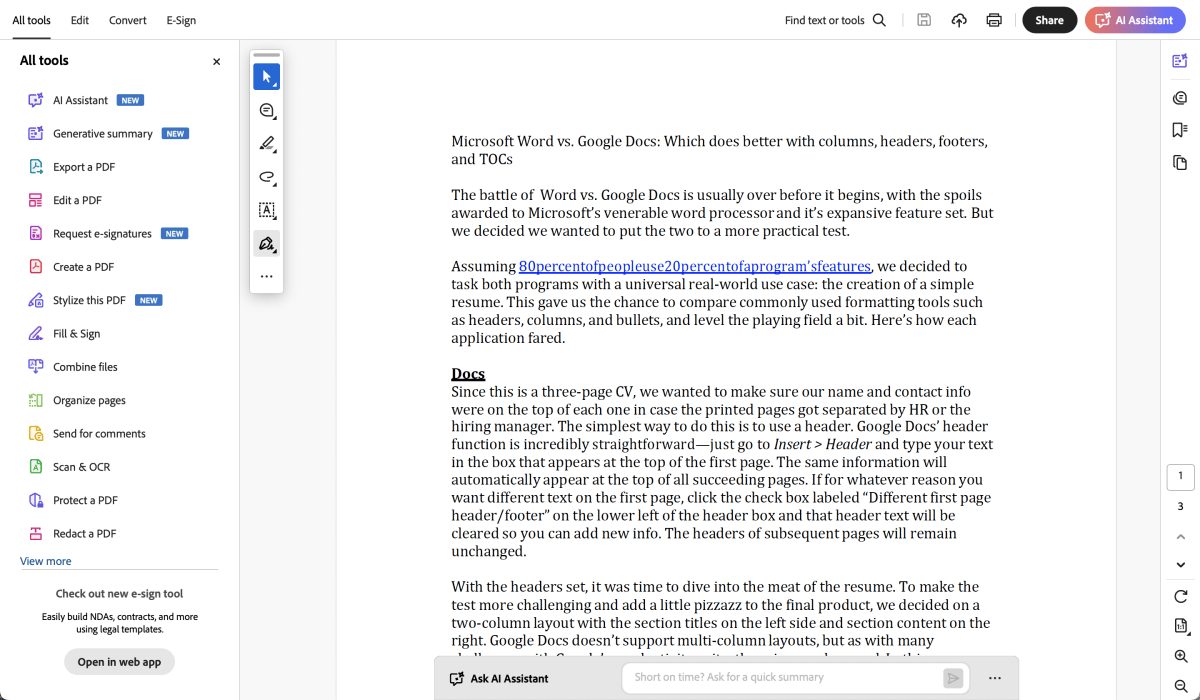
Acrobat is what the PDF format’s own maker sells, and it’s still the editor the others are measured against. Fixing a sentence in the middle of a paragraph reflows the text and matches the font; OCR on a crooked scan comes out as text you can edit in place; a PDF exported to Word usually keeps its tables. If your work involves redacting a contract before it goes to opposing counsel, comparing two drafts, or adding Bates numbers to a stack of exhibits, Acrobat Pro does all of it, and the person on the other end very likely opens it in Acrobat or the free Acrobat Reader.
Which Acrobat you buy matters. Acrobat Standard edits text and converts files but has no OCR, no redaction and no compare, so anyone with scans or sensitive documents needs Pro. Pro costs $19.99 a month on a yearly commitment, or $29.99 if you want to cancel any month. The AI Assistant is another $4.99 a month on top, or included in the pricier Acrobat Studio. Adobe stopped selling permanent licenses after Acrobat 2020; the closest thing now is Acrobat Pro 2024, a one-time purchase that runs for three years, gets security fixes but no new features, and leaves out Adobe’s web and mobile tools.
Acrobat is also one of the heavier editors here, and it wants you signed in to an Adobe account. The interface has improved, but the sheer number of tools still takes a newcomer a while to find their way around. And if all you need is to fill in and sign a form, the free Acrobat Reader handles that without paying for any of this.
What it does
- Paragraph editing with reflow and font matching
- OCR, redaction, compare, Bates numbering and batch actions in Pro
- Fillable forms, certificate signatures and e-signature requests
- Free Acrobat Reader for viewing, commenting, filling and signing
Pros
- The most dependable editing, OCR and Word export of any editor here
- Everyone you send files to can open and check them without surprises
- Pro covers every professional tool, from redaction to Bates numbering
Cons
- Pro is the most expensive option over a few years
- Standard lacks OCR and redaction, so most buyers need Pro
- The one-time version expires after three years and gets no new features
- Heavier than the alternatives and needs an Adobe account
- Choose if:
- Your PDFs go to courts, regulators or clients who expect Acrobat-grade output
Foxit PDF Editor
Acrobat-level editing with a one-time option
#2 4.1/5
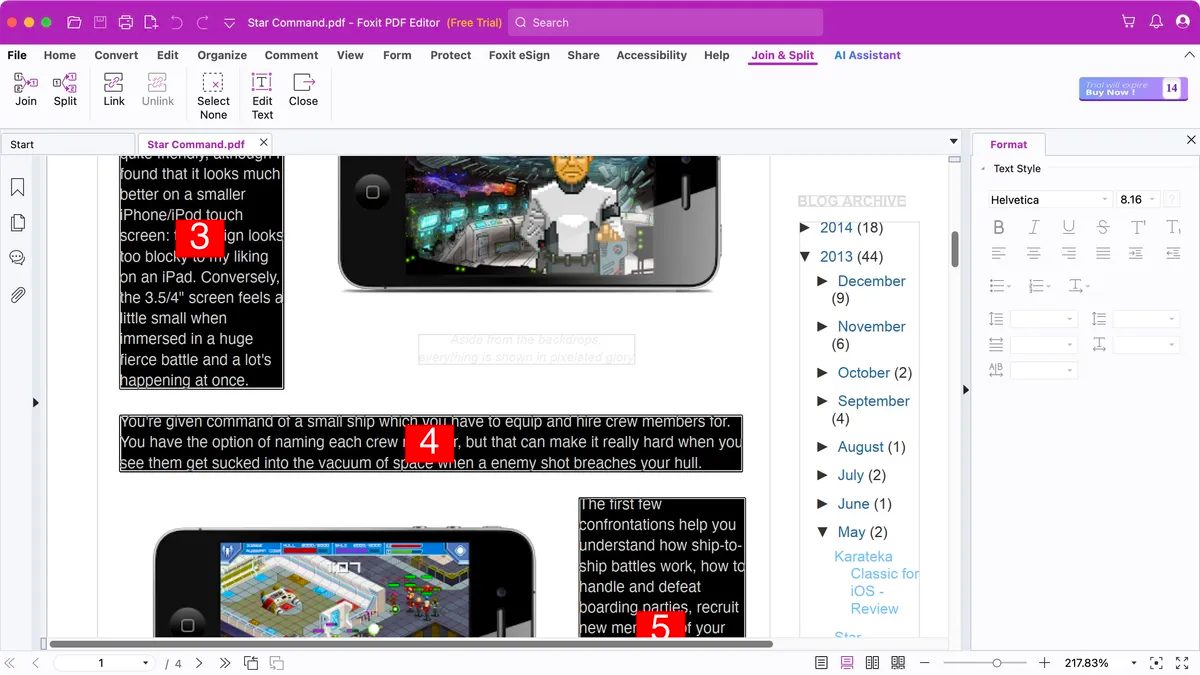
Foxit is the editor we’d point most regular PDF users to. It edits existing text as well as anything on Windows: you can link text boxes so a rewritten paragraph flows from one into the next, which is the part of PDF editing that usually goes wrong. OCR, Word conversion, form building, compare and redaction by search (including “redact every phone number in this file”) are in the base plan, and the ribbon looks enough like Word that most people find their way around on day one. It also opens big files quickly without eating memory the way Acrobat does.
You can rent it for $129.99 a year or buy PDF Editor 14 outright for $209.99. The one-time license keeps the editing, OCR, conversion, forms and security tools, but drops the AI Assistant, cloud storage and AI-driven Smart Redact, and it doesn’t include the next major version. One reviewer on G2 described a perpetual copy that stopped responding after an update, with support declining to help because it wasn’t the current version, so treat “own it forever” as “own this version”. If you want the phone apps and 150 e-signature envelopes a year, that’s Editor+ at $159.99 a year.
Foxit isn’t flawless. It has a reputation for crashing when combining documents, and the split between Editor and Editor+ means a few features turn out to be on the plan you didn’t buy.
What it does
- Paragraph editing with linked text boxes
- OCR, Word conversion, compare and redaction by search in every plan
- Office-style ribbon interface
- Perpetual license or yearly subscription
Pros
- Text editing that matches Acrobat's
- Costs less than a year of Acrobat Pro when bought once
- Light and quick to open, even with large files
Cons
- The one-time license excludes AI, cloud features and future major versions
- Prone to crashing when merging documents
- E-signature requests and mobile apps need the pricier Editor+
- Choose if:
- You edit PDFs weekly and want Acrobat's capabilities without its subscription
Tungsten Power PDF
One-time license that stays offline
#3 3.9/5
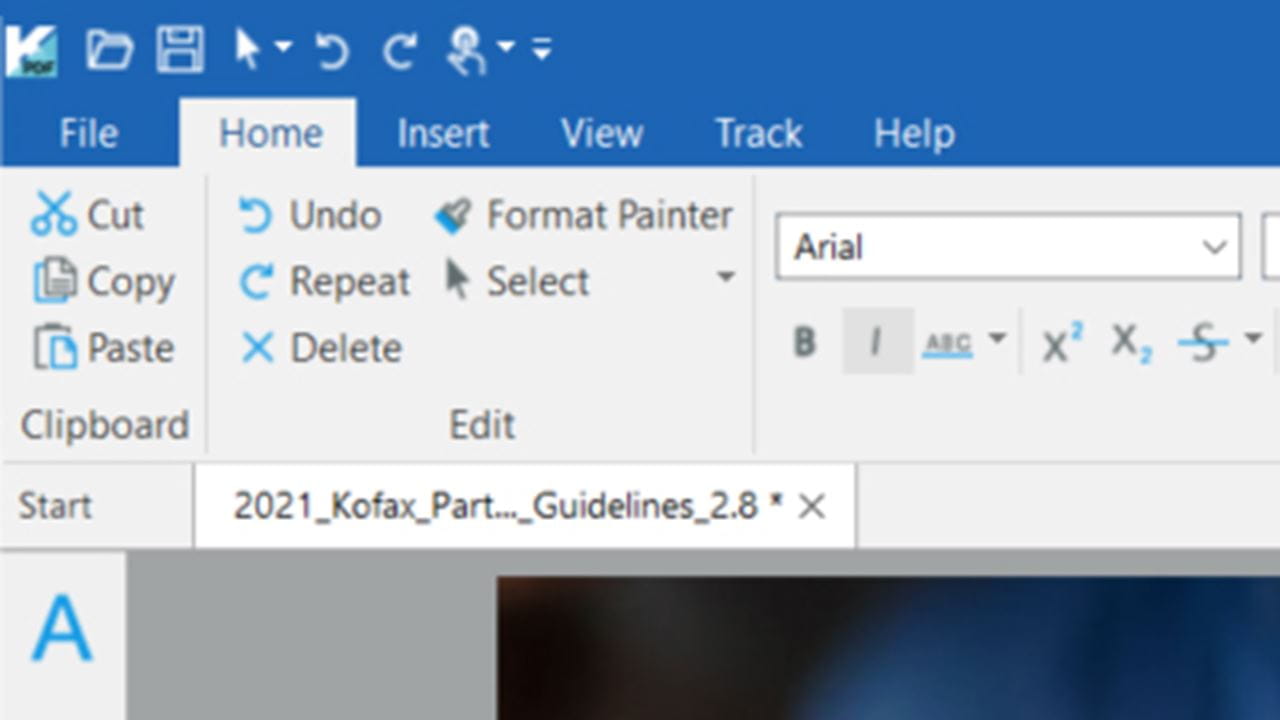
Power PDF, sold by Tungsten Automation (it used to carry the Kofax name), is the quiet option for people who want an Acrobat-style editor that never touches the cloud. It’s a desktop app with no web component for individual buyers, and your documents stay on your PC. The interface is a Word-style ribbon, and the OCR engine comes from OmniPage, Tungsten’s long-running OCR program. It’s quick and accurate on ordinary text, but it can lose the structure of tables and forms.
Standard costs $129 once and Advanced $179. Advanced adds what legal and finance work needs: Bates numbering, stronger redaction, batch processing and a DocuSign connection for sending documents to sign (which needs your own DocuSign account). Choose the edition carefully, because Tungsten sells them as separate products, so moving from Standard to Advanced later costs the full Advanced price. Neither includes updates; you buy upgrades at a discount when you want them, and support covers only the first 90 days.
The interface feels older than Foxit’s, and some buyers have complained about activation and support. Next to PDF-XChange, which also works offline with redaction and Bates numbering, Power PDF costs more but edits text and converts to Word better; next to Foxit’s perpetual license, it’s cheaper and has no cloud features at all.
What it does
- Word-style text editing and OmniPage OCR
- Bates numbering, redaction by search and batch processing in Advanced
- Desktop only, no cloud processing
- One-time licenses at $129 and $179
Pros
- Professional tools for a one-time price
- Everything runs on your PC, with nothing uploaded
- Word-like layout that's quick to learn
Cons
- OCR struggles with tables and forms
- No updates included, and only 90 days of support
- Upgrading from Standard to Advanced costs the full price
PDF-XChange Editor
Cheapest full license, for power users
#4 3.9/5
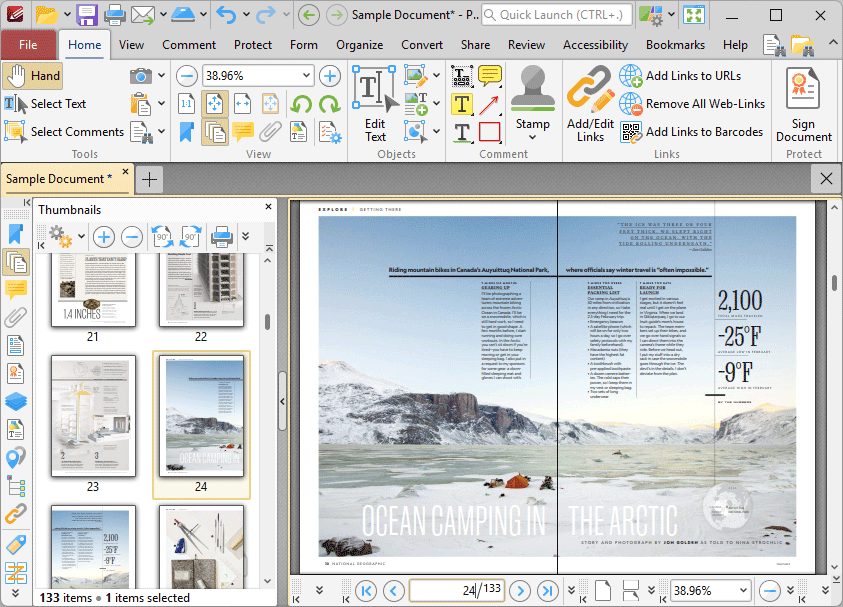
PDF-XChange Editor has a loyal following among Windows power users, and the reasons are easy to list: it’s fast, it handles big files well, it runs entirely on your PC with no account, and the full Editor costs $62 once. Editor Plus, at $79, adds editable OCR output, fillable form creation and document compare. Both include a year of updates; after that the app keeps working, and renewing updates on time costs roughly a quarter of the license price a year.
The free version is generous and free for business use too, with no time limit. But it works differently from PDFgear’s: tools marked with a PRO symbol still run in the free version, they just stamp a watermark on the file when you save it. It’s easy to use one without noticing. The watermark can’t be removed without a license, so test on copies.
The tradeoff is the interface. There are a lot of toolbars and settings, and editing text is clunkier than in Foxit or Acrobat: fine for fixing a line, slower for rewriting a paragraph. Word conversion works but often needs tidying. If you mostly annotate, OCR, redact and assemble documents, it’s the best value on the list. If you mostly rewrite text, Foxit is worth the extra money.
What it does
- Free version with watermarked paid tools
- Editable OCR, form creation and compare in Editor Plus
- Redaction by search, Bates numbering and PDF/A
- Windows only, runs fully offline
Pros
- The cheapest one-time license that covers the full job
- Fast and light, even with very large files
- No account and nothing sent to the cloud
Cons
- Paragraph editing and Word export are weaker than Foxit's or Acrobat's
- A dense interface that takes time to learn
- The free version's PRO tools watermark saved files without warning you first
- Skip if:
- You mainly rewrite paragraphs of text

Wondershare PDFelement
Friendly all-rounder with a perpetual option
#5 3.8/5
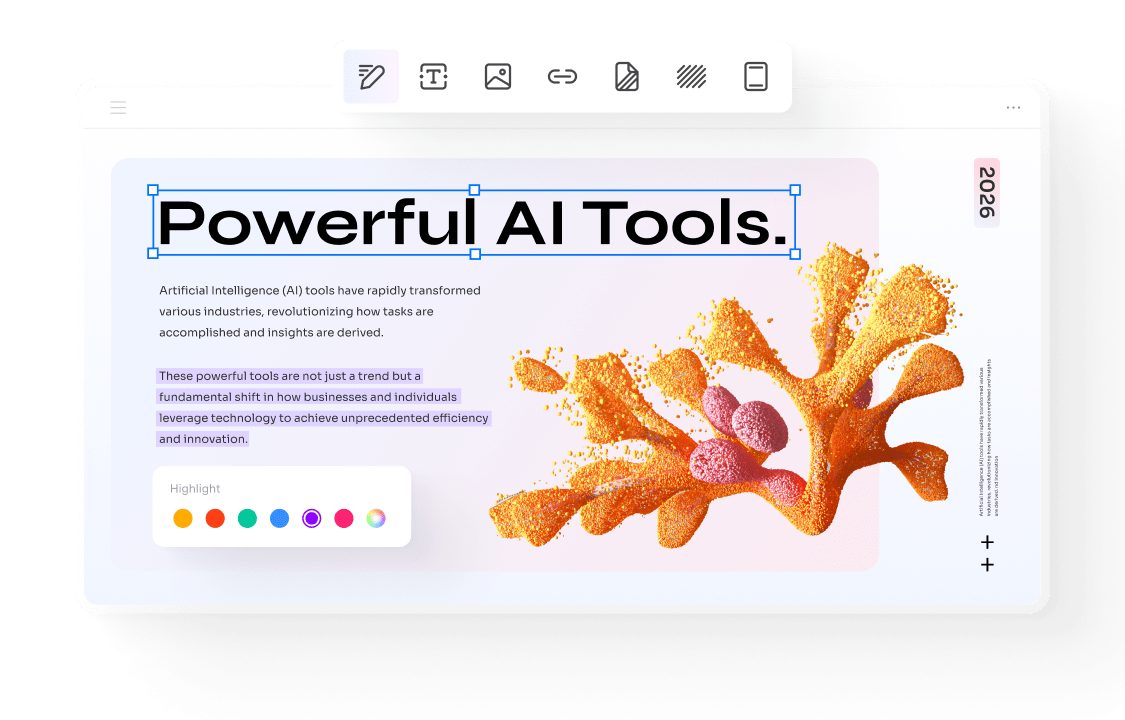
PDFelement, from Wondershare, is the friendliest-looking of the paid editors, and it covers nearly everything: text editing, 26-language OCR, form field detection that turns a flat PDF into a fillable one, redaction, compare and Bates numbering. Every paid plan has every feature, so the only choice is how you pay: $79.99 a year (it renews automatically), $109.99 for two years, or $129.99 for a perpetual license.
Read the perpetual license closely. It covers the version you buy, and Wondershare is already announcing the next one, so “perpetual” means you keep PDFelement 12; the next major version is a separate purchase. The trial watermarks everything you save and leaves out OCR, so it’s hard to judge the most important feature before paying. Wondershare does offer a 30-day money-back guarantee, with conditions. E-signature requests are capped at three, so it’s not a substitute for a signing service.
PDFelement also feels heavier than Foxit. It has a history of slow loading and occasional crashes, and text has been known to change format as you type. It’s a sound choice if you like its look and want the perpetual price; Foxit edits more reliably for not much more.
What it does
- Text editing, OCR in 26 languages and form field detection
- Redaction, compare and Bates numbering on every paid plan
- Yearly, two-year or perpetual licensing
- Apps for Windows, Mac, iOS and Android
Pros
- A clean, approachable interface
- Every feature on every paid plan
- Perpetual license costs less than Foxit's
Cons
- The perpetual license covers only the current version
- The trial watermarks files and excludes OCR
- Some users report sluggishness and font changes while typing

Nitro PDF
Subscription for small teams
#6 3.6/5
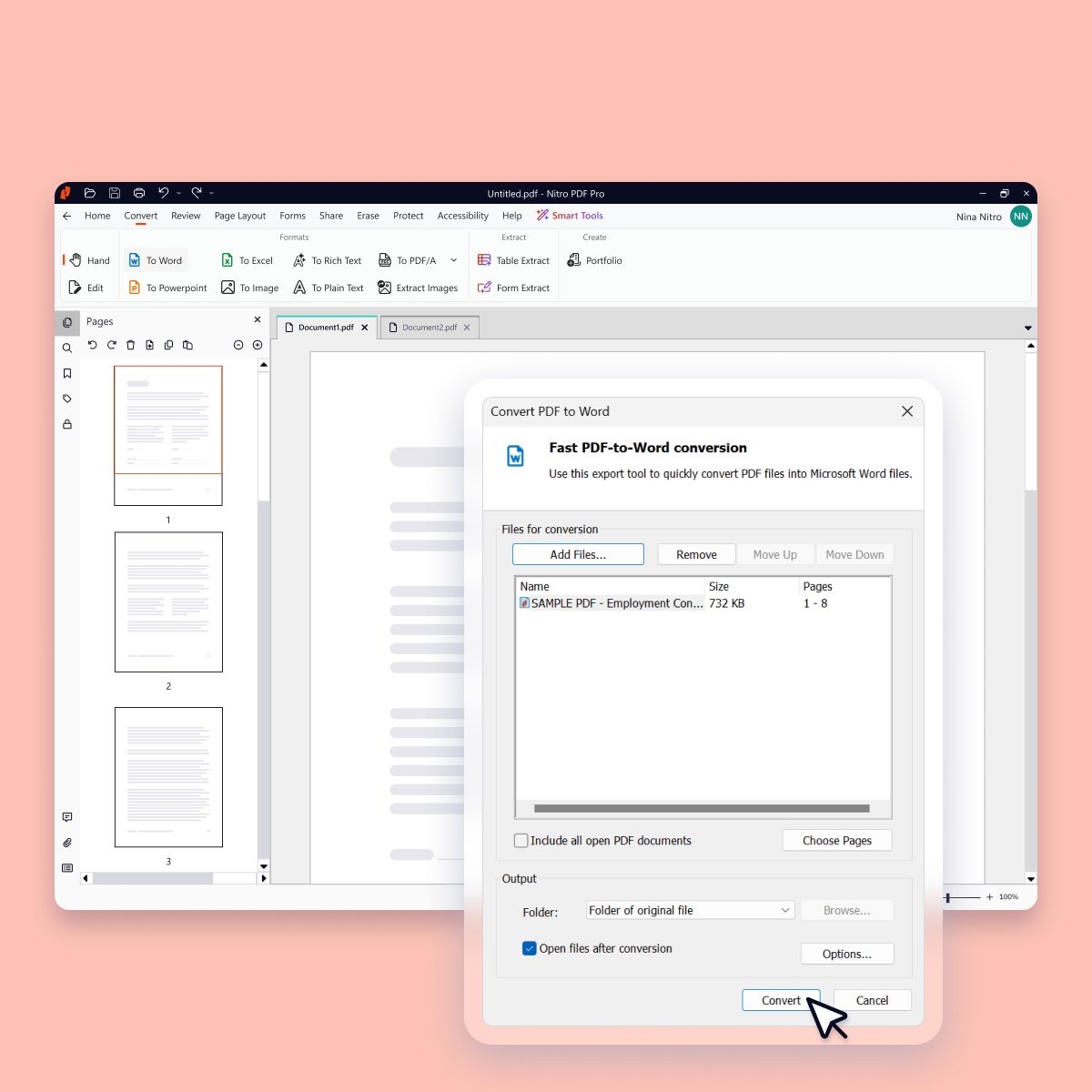
Nitro was the classic “cheaper Acrobat” on Windows for years, and it’s still a capable editor: paragraph reflow, a strong image editor, true redaction, compare, Bates numbering and fillable forms. One hands-on review at The Business Dive measured its OCR at over 95% accuracy on both text and tables, though the recognized text came out in merged blocks that were awkward to edit.
What changed is the pricing. Nitro PDF Standard is $15 a user a month, billed yearly, which makes it about $180 a year and no longer much cheaper than Acrobat Pro. Its one-time option, Classic, costs $270 for a three-year term, and its feature list stops at editing, conversion, combining and passwords, with no OCR. There’s no free tier, only a 14-day trial; e-signature requests (Nitro Sign) and AI redaction are separate subscriptions. The AI tools also run on the web rather than in the desktop app.
Nitro makes most sense for a small office buying several seats, where the admin portal and Office-like ribbon matter more than the price. A single user gets more for less from Foxit’s one-time license.
What it does
- Paragraph editing and a strong image editor
- OCR, redaction, compare and Bates numbering
- Admin portal for managing seats
- Office-style ribbon
Pros
- Accurate OCR, including on tables
- Easy to learn for anyone used to Office
- True redaction that removes the underlying text
Cons
- About $180 a year, with no free tier
- The one-time Classic license lacks OCR and lasts three years
- E-signature requests and AI redaction cost extra

UPDF
One license across PC, Mac and phone
#7 3.6/5
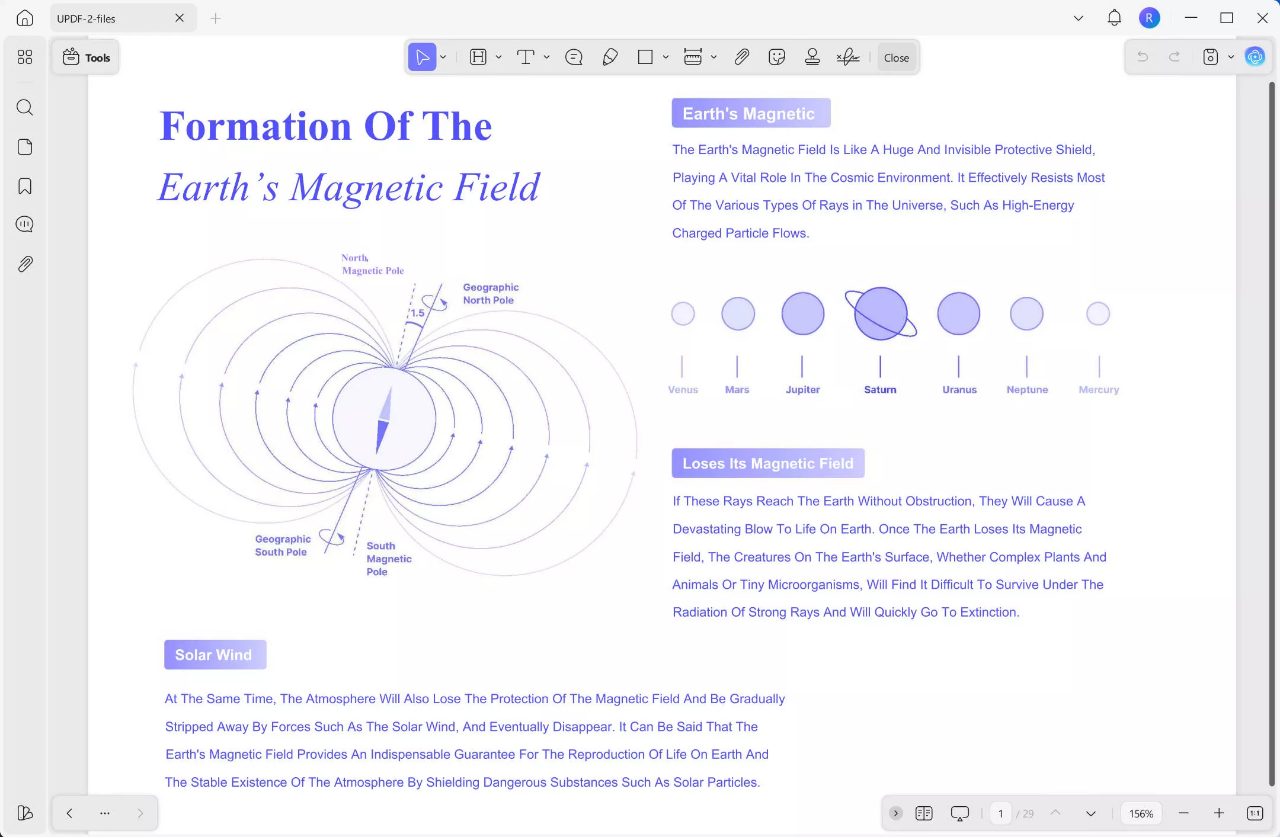
UPDF’s pitch is one account for up to four devices on any mix of systems, which suits someone with a Windows laptop, a Mac at home and a phone for signing on the go. It edits text and images, runs OCR, converts to Office formats, builds forms and redacts. The lifetime license lists at $139.99 but is frequently discounted, and UPDF says it includes future updates.
Two things to know before buying. The AI Assistant is a separate $69-a-year subscription even with a lifetime license, and if you try it, the free week turns into a paid year unless you cancel. And UPDF’s built-in e-signatures aren’t certificate-based; that’s a separate product. The free version is good for a test drive only, since saved edits get a watermark and conversions stop at two a day.
If you only work on Windows, Foxit or PDF-XChange are more proven for the money. UPDF earns its spot for people who want one license to follow them across devices.
What it does
- Editing, OCR, conversion, forms and redaction
- One account on four devices across Windows, Mac, iOS and Android
- Lifetime license with updates
Pros
- A single license covers your PC, Mac and phone
- A low lifetime price, lower still when discounted
Cons
- AI costs $69 a year extra, even with a lifetime license
- The free version watermarks saved edits
- E-signatures aren't certificate-based
- Choose if:
- You need the same editor on a Windows PC, a Mac and a phone

PDF24 Creator
Free offline toolbox, not a text editor
#8 3.3/5
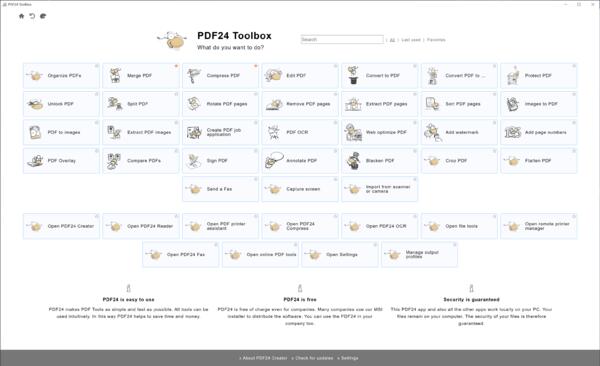
PDF24 Creator, from a German company, is a free bundle of PDF tools: merge, split, compress, OCR, compare, convert Office files to PDF, save as PDF/A for long-term archiving, and a virtual printer that lets any Windows program “print” to PDF. It’s free for businesses too, has no premium tier, and the desktop app works offline with files that never leave your PC. It’s also light enough for an old laptop.
What it doesn’t do is edit existing text. PDF24’s own advice for changing text is to convert the PDF to Word first; its editor writes on top of pages, adds images and signatures, and blacks things out. The tools also open in separate windows, which gets clumsy when you work through a stack of files. Install it alongside PDFgear when you want offline utilities; keep a real text editor for changing words inside a PDF. Note that PDF24’s website tools are a different thing: those upload your files to its servers, which delete them after an hour.
What it does
- Merge, split, compress, OCR, compare and PDF/A
- A virtual printer that saves anything as a PDF
- Works offline, files stay on the PC
Pros
- Free for personal and business use, with no limits
- Light on older PCs
Cons
- Can't edit existing text
- Each tool opens in its own window
PDFgear
Best free editor for fixing text
#9 3.1/5
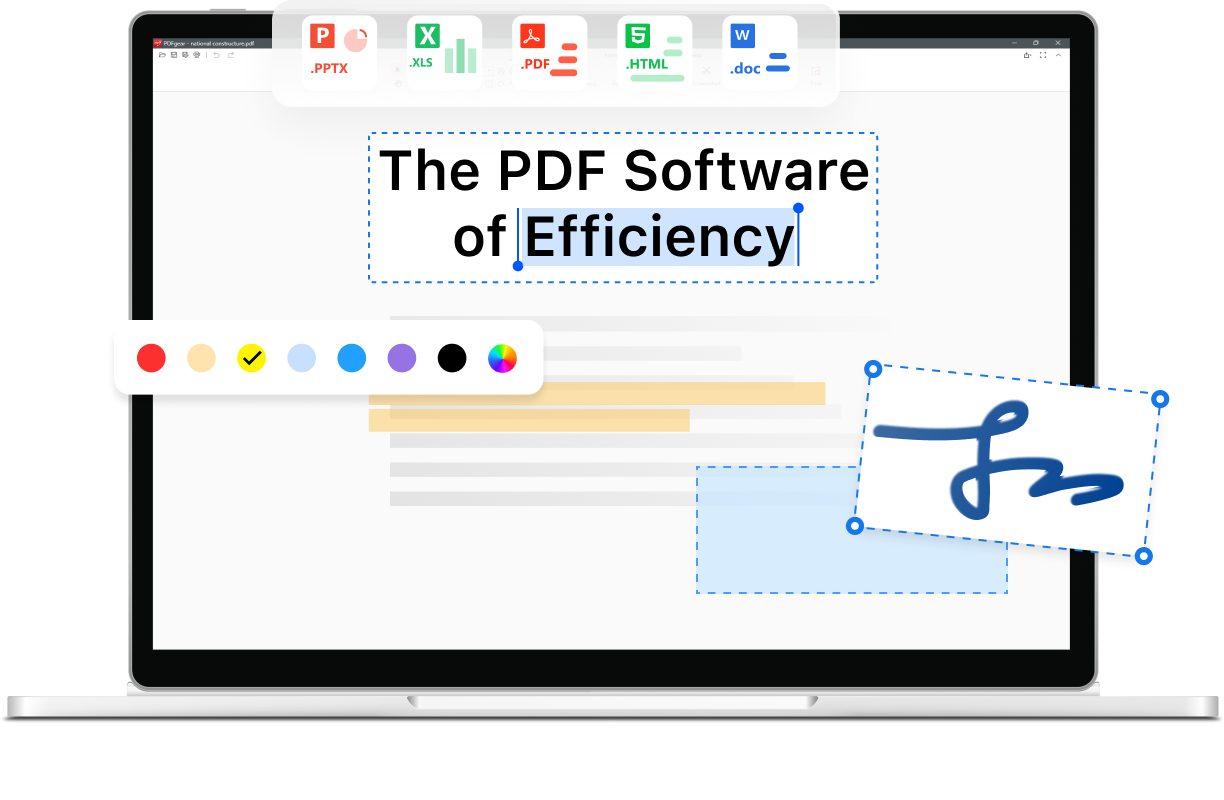
PDFgear is the free editor we’d install first, and the one that answers most people’s actual problem. It changes existing text, fonts and colors, moves and replaces images, converts to and from Word, Excel and PowerPoint in batches, runs OCR in more than 30 languages, and fills and signs forms. No account, no watermark, no file limits. Its place in the scores table below reflects what it doesn’t try to do: it’s built for filling and signing forms rather than building them, and its professional tools are thin next to the paid editors’.
The long-term questions are worth a moment. PDFgear is free because it’s funded by investors, and its makers have said that some advanced features, such as cloud AI and special conversions, may become paid eventually, with no date set. Editing and organizing happen on your PC, but some advanced conversions run on its Amazon cloud servers and its privacy notes don’t say which, and the AI chat sends document text to an AI provider once you agree. For contracts or medical records, skip the AI and favor PDF24 or a paid offline editor.
What it does
- Edits existing text, fonts and images
- Converts to and from Word, Excel and PowerPoint
- OCR in 30+ languages, form filling and signatures
- AI chat about a document
Pros
- Free, with no watermark, account or file limits
- Real text editing, which most free tools can't do
- Simple enough to use without a manual
Cons
- Some conversions and the AI chat use the cloud
- Thin on professional tools next to paid editors
- Its future paid tier is undecided

Sejda PDF
Quick fixes in the browser
#10 2.7/5
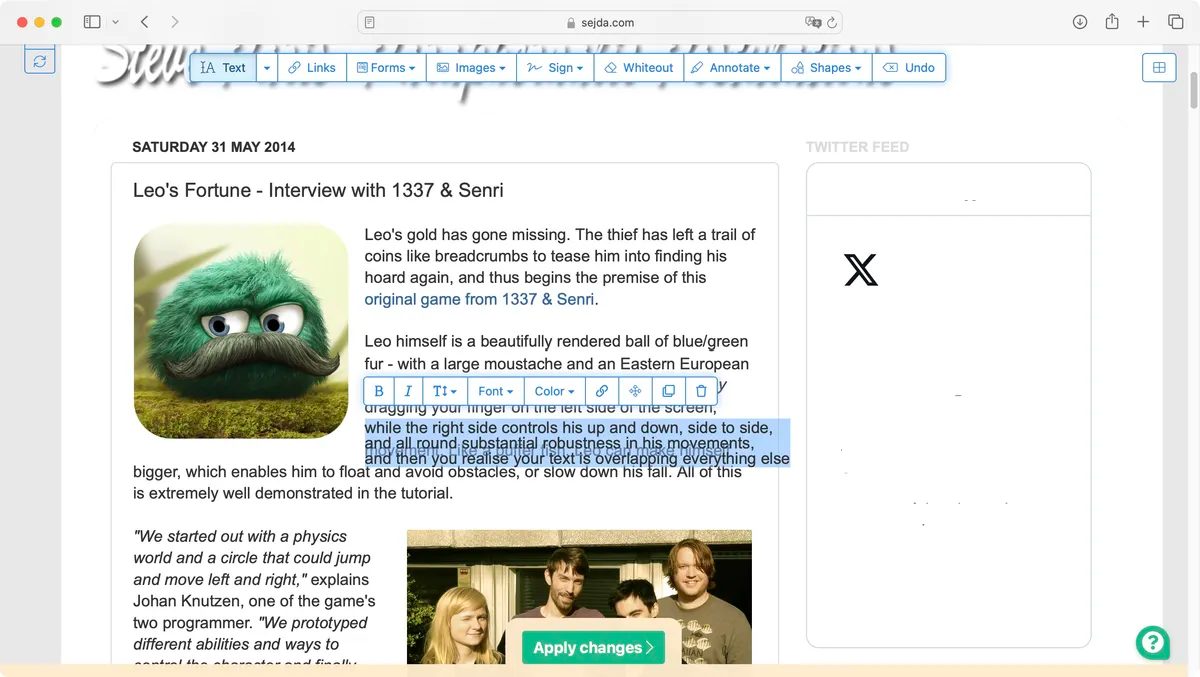
Sejda is a web editor, with an optional desktop app, that suits a locked-down work PC where you can’t install anything. It edits text, fills and signs forms, converts to Word, and does merging and Bates numbering, with a clean interface and no sign-up. The free tier allows three tasks a day on files up to 50 MB and 200 pages, and a $5 week pass (which doesn’t renew) covers a one-off busy week.
Its text editing works a line at a time, so rewriting a paragraph means new lines that can overlap the old ones. And its whiteout tool only covers text, which can still be selected underneath, so don’t use it on anything sensitive. A white or black box drawn over text in any editor hides it only on screen; only a proper redaction tool removes the text itself. Web tasks upload your file to Sejda’s servers, which delete it after processing; Sejda Desktop keeps files local but needs a paid plan for regular use.
What it does
- Browser editor with an optional desktop app
- Text editing, forms, signing and Word conversion
- Bates numbering and batch tools on paid plans
Pros
- Nothing to install, no sign-up
- A $5 week pass with no auto-renewal
Cons
- Edits text a line at a time
- Free use stops at three tasks a day
- Web tasks upload your files
1–5 per criterion · select a score for its reasoning and any sources
| # | Product | Overall | Editing existing text and images | OCR for scanned documents | Converting to and from Word | Forms and signatures | Document tools for professional work | Cost over three years | Ease of use | Keeps your files on your PC | Speed with large files , counts half |
|---|---|---|---|---|---|---|---|---|---|---|---|
| 1 | Adobe Acrobat | 4.1 | 5 | 5 | 5 | 5 | 5 | 2 | 3 | 3 | 3 |
| 2 | Foxit PDF Editor | 4.1 | 5 | 4 | 4 | 4 | 5 | 3 | 4 | 4 | 4 |
| 3 | Tungsten Power PDF | 3.9 | 4 | 4 | 4 | 4 | 5 | 3 | 3 | 5 | 3 |
| 4 | PDF-XChange Editor | 3.9 | 3 | 4 | 3 | 4 | 5 | 4 | 3 | 5 | 4 |
| 5 | Wondershare PDFelement | 3.8 | 4 | 4 | 4 | 4 | 5 | 3 | 4 | 3 | 3 |
| 6 | Nitro PDF | 3.6* | 4 | 4 | 4 | 4 | 5 | 1 | 4 | 3 | unknown |
| 7 | UPDF | 3.6* | 4 | 4 | 3 | 4 | 4 | 3 | 4 | 3 | unknown |
| 8 | PDF24 Creator | 3.3 | 1 | 3 | 3 | 3 | 3 | 5 | 3 | 5 | 4 |
| 9 | PDFgear | 3.1* | 3 | 3 | 3 | 2 | 2 | 5 | 4 | 3 | unknown |
| 10 | Sejda PDF | 2.7 | 2 | 3 | 3 | 3 | 2 | 3 | 4 | 2 | 2 |
Equal displayed overall scores are ordered by the earlier criteria; a known score comes before an unknown score. Identical scores use alphabetical order.
×2 = counts double in the overall score, ×½ = counts half.
? = unknown. * = the overall score averages only the known criteria.
How each criterion is scored
Editing existing text and images
Judged: how well you can change what is already in a PDF, such as fixing a typo in a paragraph, rewording a sentence or swapping a logo, on the edition that does it. Judged from whether edited text reflows inside its paragraph, how well new text matches the original font, whether images can be moved and replaced, and what reviewers and users report about layouts shifting after edits.
- 5 The most dependable paragraph editing, with reflow across text boxes, font matching and full image editing
- 4 Paragraph editing with reflow and good font matching; layouts occasionally shift
- 3 Edits text blocks and images, with limited reflow or font matching
- 2 Edits existing text a line at a time; longer edits overlap or break the layout
- 1 Can't change existing content; you can only add text, shapes or white boxes on top
OCR for scanned documents
Judged: how well the edition that includes OCR turns a scan or a photo of a page into text you can search, copy and edit. Judged from whether the output is editable in place or only searchable, limits on pages or uses, language support, and reviewers' and users' reports of accuracy on ordinary and messy scans.
- 5 The most accurate on difficult scans, keeping the layout and producing editable text in place
- 4 Searchable and editable output with good accuracy on ordinary scans and many languages
- 3 Makes scans searchable and editable, with mixed or unproven accuracy
- 2 OCR with tight page or use limits, or searchable output only
- 1 No OCR
Converting to and from Word
Judged: how well the editor turns a PDF into a Word, Excel or PowerPoint file you can keep working on, and turns Office files back into PDFs. Judged from the formats and directions it supports, batch conversion, limits on the edition readers would use, and reports of how much fixing the converted layout and tables need.
- 5 The most faithful round trips, including tables and complex layouts
- 4 Converts both ways in batches, with layouts that hold up on ordinary documents
- 3 Converts PDFs to Word, Excel and PowerPoint, but layouts and tables often need fixing
- 2 Converts to Office formats only with tight limits or through an online service
- 1 No conversion to Office formats
Forms and signatures
What you can do with forms and signatures on the edition readers would use: filling in forms, signing with a drawn or typed signature, building fillable forms (with automatic field detection), certificate-based digital signatures that prove a document hasn't changed, and sending a document to other people to sign.
- 5 All of that, plus sending documents for others to sign and tracking them
- 4 Creates fillable forms with field detection and signs with certificates
- 3 Adds either fillable-form creation or certificate-based digital signatures
- 2 Fills in interactive forms and adds a drawn, typed or image signature
- 1 Fill in forms only by typing over the page
Document tools for professional work
Counts five tools that matter when PDFs go to clients, courts or auditors, on the edition readers would use: redaction that permanently removes the hidden text (with search-and-redact), comparing two versions of a document, Bates numbering, saving as PDF/A for archiving, and batch processing of many files at once.
- 5 All five
- 4 Four of the five
- 3 Three of the five
- 2 Two of the five
- 1 None or one of the five
Cost over three years
What one Windows user pays over three years for the cheapest edition or plan that edits text, runs OCR and converts to Word without watermarks or daily caps. A one-time license counts once, and a subscription counts three years at its annual rate. Optional maintenance and AI add-ons are left out. A free product scores 5 even when it lacks some of those tools, because other criteria score what it lacks.
- 5 Free, with no watermarks
- 4 Under $100
- 3 $100 to $250
- 2 $250 to $500
- 1 More than $500
Ease of use
Judged: how quickly someone who edits PDFs now and then can find and use the common tools (edit text, fill and sign, merge and reorder pages, convert). Judged from the layout of the interface, how many tools stand in the way, traps such as features that add watermarks, and reviewers' and users' views of the learning curve.
- 5 Everything common is obvious from the first minute
- 4 An Office-style or clean layout most people pick up quickly, with a few rough edges
- 3 A familiar layout, but the number of tools or a few awkward workflows slow newcomers down
- 2 A dense, dated interface; basic tasks take hunting, and newcomers need time to learn it
- 1 Hard to use even for basic tasks
Keeps your files on your PC
Whether the everyday work (editing, OCR, conversion) happens on your own computer, and what the editor sends elsewhere: files uploaded for conversion or AI, a required online account, and license or usage checks. Matters for contracts, medical and financial records, and work offline.
- 5 Works fully offline with no account and no cloud features in the way
- 4 Everyday work runs locally; cloud and AI features are optional and clearly marked
- 3 Core editing runs locally, but some conversions or AI features send files to the vendor, or an online account is required
- 2 A desktop app exists, but most people use the web version, or key tasks upload files
- 1 Works only in the browser; every file goes to the vendor's servers
Speed with large files
Counts half in the overall score: Most readers work with ordinary documents most of the time, so speed with very large files decides the choice only for people who regularly handle long scans or drawing sets.
Judged: how the editor copes with long or heavy PDFs, such as a 500-page scanned report or a large drawing set. Judged from how quickly it opens and saves files, memory use, file size and page limits, and reviewers' and users' reports of slowdowns and crashes.
- 5 Among the fastest and lightest, opening files with thousands of pages quickly
- 4 Opens large files quickly, with occasional slowdowns or crashes reported
- 3 Handles large files, but opens and works slowly or uses a lot of RAM
- 2 Large files hit size or page limits, or have to be uploaded first
- 1 Struggles with ordinary files
Which one fits you
- You fix a PDF a few times a month: PDFgear. Add PDF24 Creator if you also want a PDF printer and offline merging and compressing.
- You can’t install software at work: Sejda in the browser, for files that aren’t confidential.
- You edit PDFs every week and hate subscriptions: Foxit’s $209.99 perpetual license if you rewrite text a lot; PDF-XChange Editor Plus at $79 if you mostly annotate, OCR and assemble documents.
- You need redaction and Bates numbering without a subscription: Power PDF Advanced, or Foxit’s perpetual license.
- Your files go to courts, regulators or big clients: Acrobat Pro.
- Your files must never leave the PC: PDF-XChange Editor, Power PDF or PDF24 Creator. All three do their work on your computer without uploading anything.
- You work across a PC, a Mac and a phone: UPDF, or Foxit’s Editor+ if you’d rather pay yearly for the bigger name.
- You’re buying seats for a small office: Nitro or Foxit, both of which manage licenses centrally.
The verdict
Acrobat Pro is the best PDF editor for Windows, and it’s the one to pay for when a botched redaction or a form that won’t open could cost you something real. For everyone else, it’s more than they need, and it only comes as a subscription or a three-year license.
Foxit is the better buy for most people who edit PDFs regularly. Its text editing is just as good, its interface is easier, and its perpetual license costs less than a year of Acrobat Pro. Just treat that license as owning the current version, since the next major release is a new purchase. If you’re on a tighter budget or handle mostly scans and markups, PDF-XChange Editor Plus does most of the same work for $79, faster, at the cost of a steeper learning curve.
And if you only need a PDF fixed now and then, don’t pay at all: PDFgear handles text, signatures and Word conversion for free. Keep the AI and cloud conversions away from anything private, and pair it with PDF24 Creator if you want offline tools that never leave your machine.